Platform admin & support
Who this is for#
This guide is for thehealint's own staff: the people who run the platform, not a clinic. You work in Admin web, a private portal that is separate from ProviderOS (for clinics) and the patient website.
There are two kinds of platform account:
- Platform admin. Can do everything in this guide.
- Platform support. Can do the day-to-day work: moderate reviews, answer support tickets, look at the Operations dashboards, product funnel and reliability, and look after reference data and the knowledge base.
Platform support cannot:
- verify or reject organizations, pharmacies, labs or professionals;
- open an organization's Tenant 360 page (it shows "Organization not found");
- see or change plans, or publish consent versions;
- read the audit log.
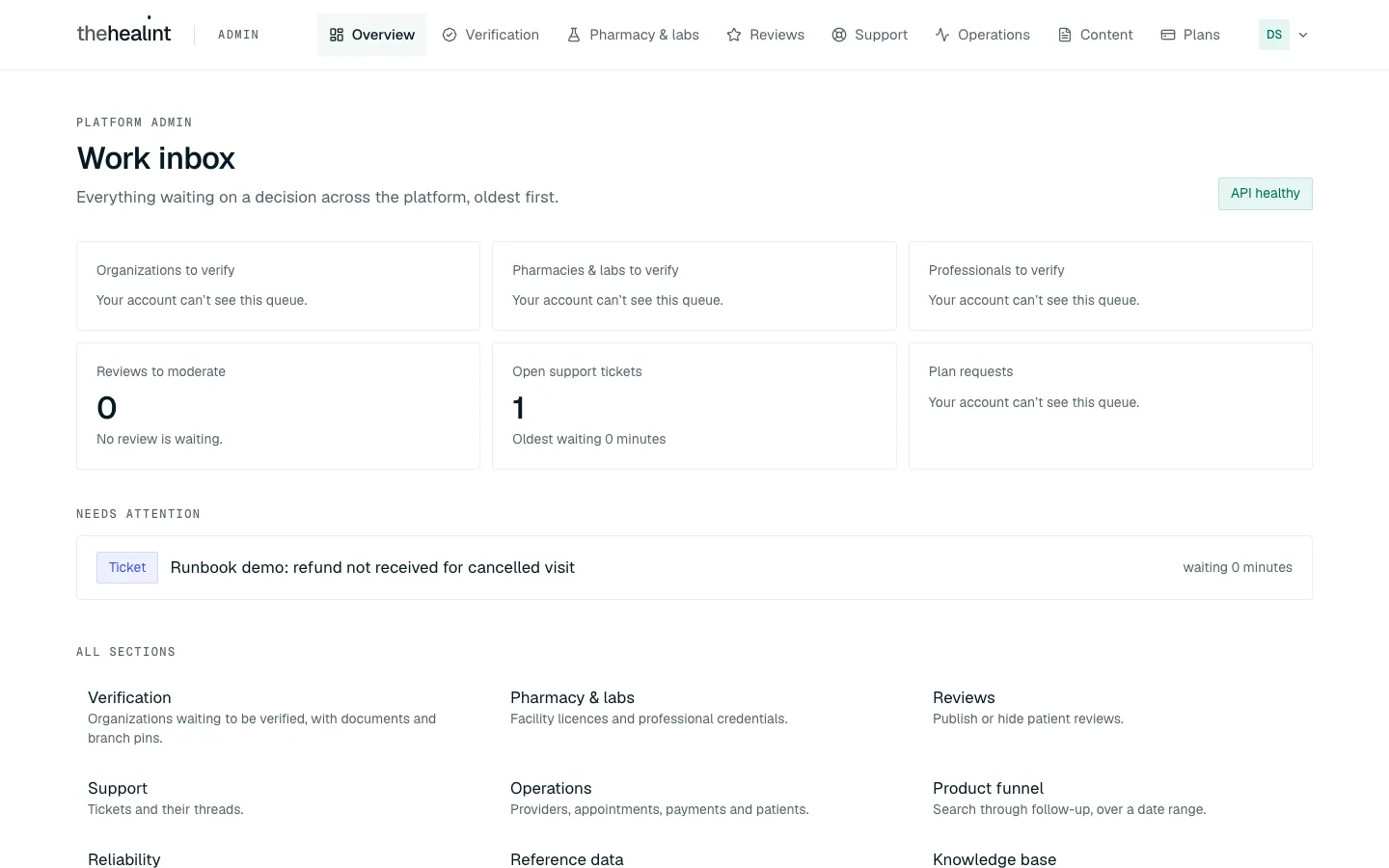
Support accounts still see every menu item. Nothing is hidden. If you try something your account can't do, you'll see a message such as "Your account can't see this queue." instead of a result.
What you'll see#
The menu along the top has Overview, Verification, Pharmacy & labs, Reviews, Support, Operations, Content and Plans. Some screens are reached through tabs inside a section:
- Operations has tabs for Dashboards, Product funnel, Reliability and Delivery failures.
- Content has tabs for Reference data and Knowledge base.
- Plans has tabs for Plans, Consent versions, Audit log and Your security.
The All sections list at the bottom of Overview links to all of them.
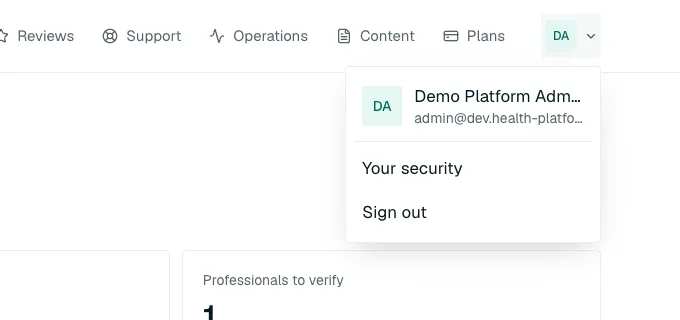
The button with your initials, at the top right, opens your account menu: your name and email, Your security and Sign out.
Before you start#
Sign in#
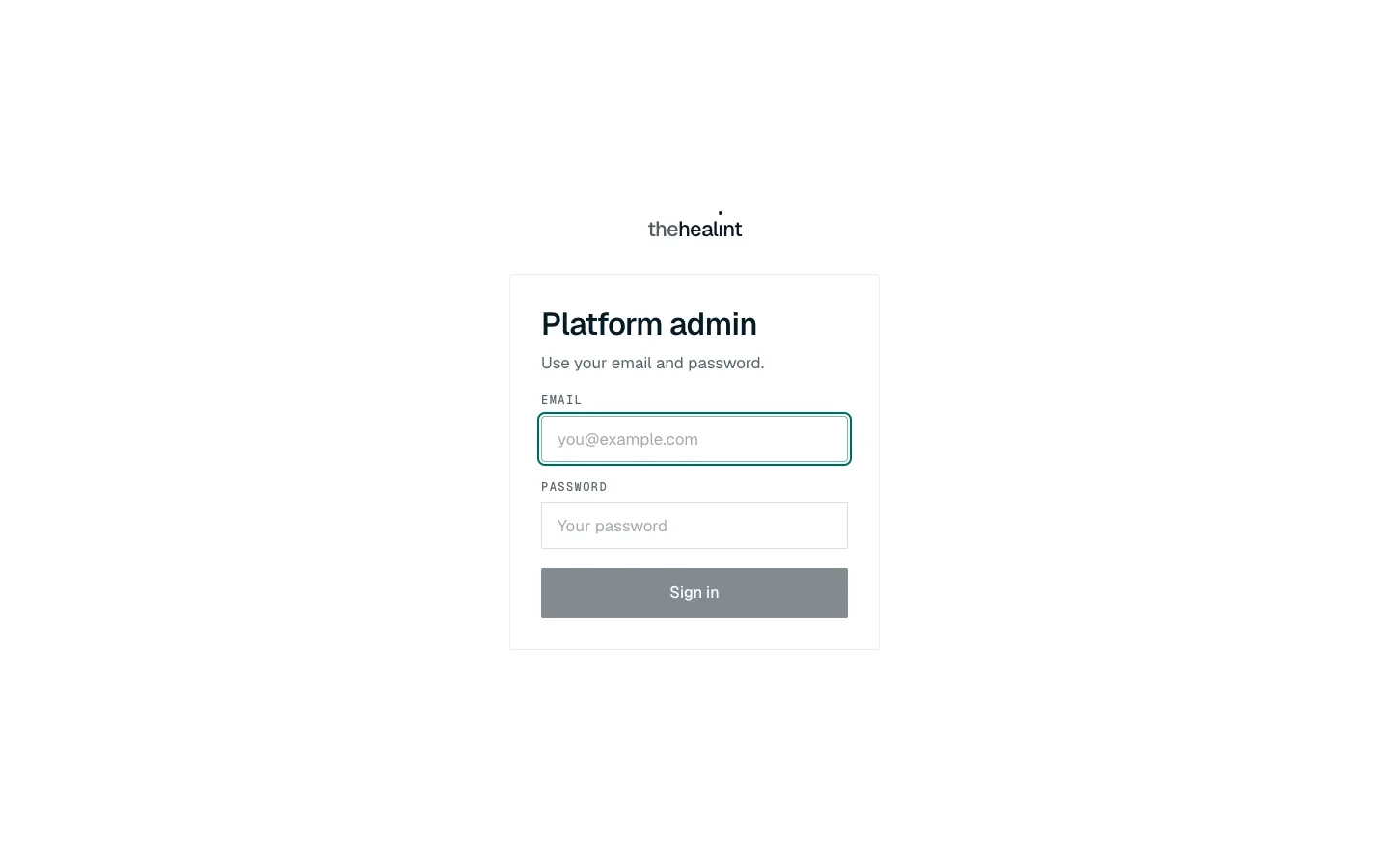
- Open Admin web. You'll see the Platform admin card: "Use your email and password."
- Enter your work email and password, then click Sign in.
- If your account has an authenticator app set up, you'll see a Two-factor check screen next. Enter the six-digit code from your app in Authenticator code and click Verify.
- The first time you sign in, a One last thing screen may ask for your full name. Fill it in and continue.
- You land on the Work inbox.
If it doesn't work
- "This is the private Platform Admin portal": the account you used is not a platform staff account. The screen offers Open ProviderOS or Open User web for the right app. Use Sign out and try again with your platform account.
- The two-factor code is refused: check the time on your phone is set automatically, wait for a fresh code and try again. If you've lost the phone, ask another platform admin (see the end of this guide).
Set up two-factor authentication#
Two-factor authentication is not forced on you, but you should turn it on. Your account can see every organization's data, and until you set it up your password alone is enough to get in.
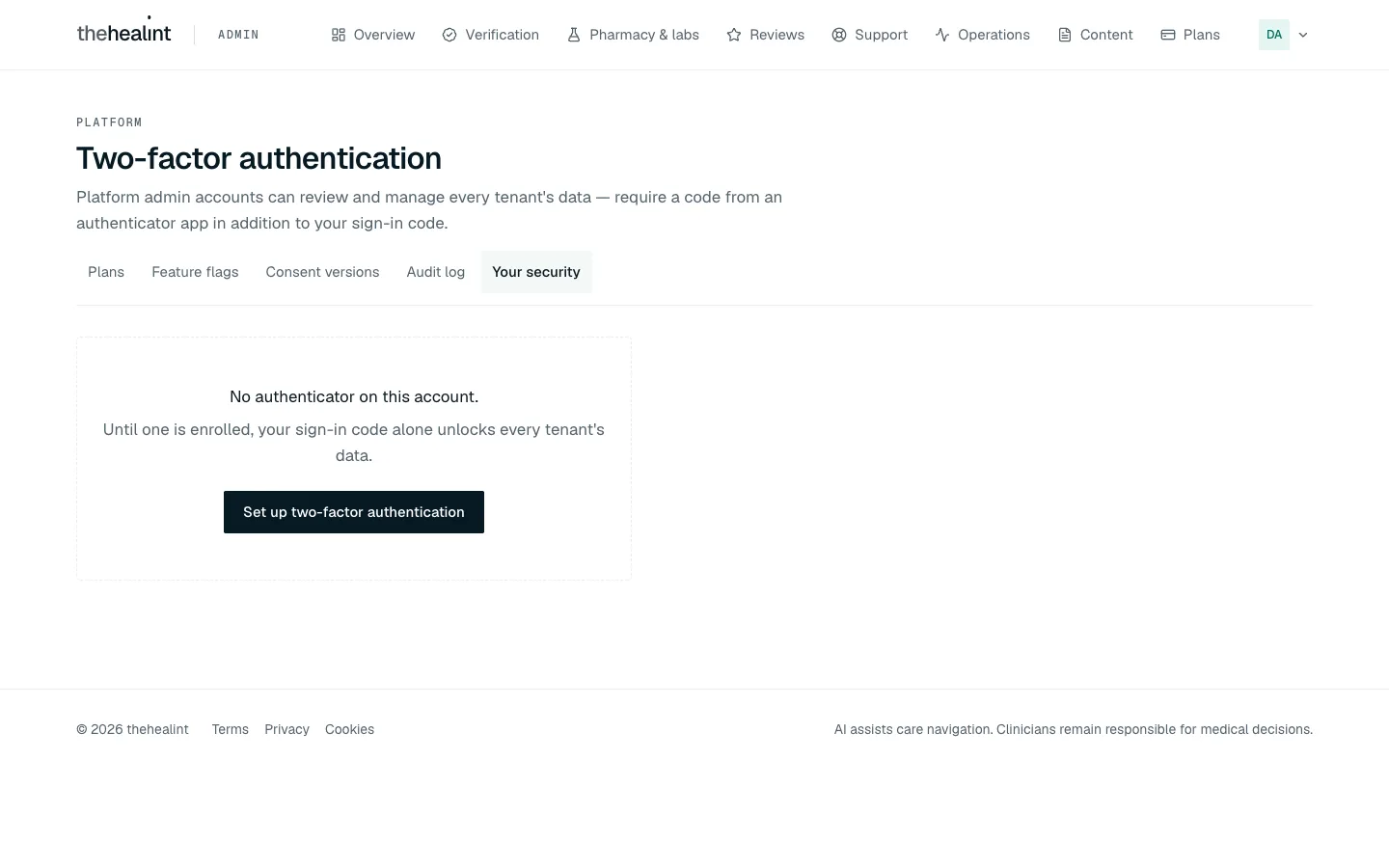
- Open the account menu (your initials) and choose Your security.
- If you see "No authenticator on this account.", click Set up two-factor authentication.
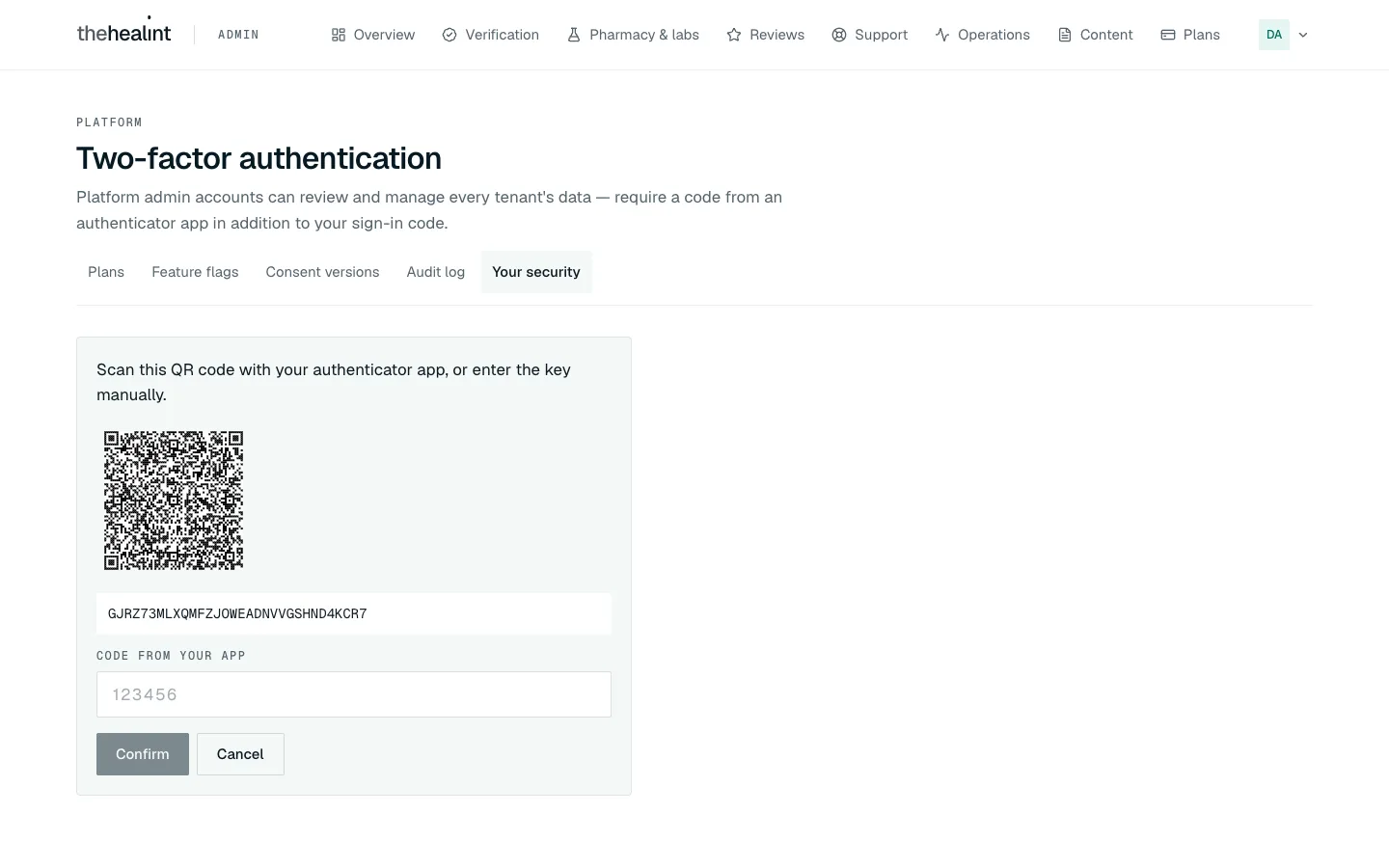
- A QR code and a text key appear. Scan the QR code with your authenticator app (for example Google Authenticator, Microsoft Authenticator or 1Password), or type the key into the app.
- Enter the six-digit code the app shows into Code from your app and click Confirm.
- The page now lists "Authenticator app · Added date". From now on, every sign-in asks for a code.
If it doesn't work
- The code is rejected on Confirm: codes change every 30 seconds. Type the newest one quickly. Check that your phone's clock is set automatically.
- You changed your mind halfway: click Cancel. Nothing is saved.
- New phone: on Your security, click Remove next to the old authenticator, confirm with Remove authenticator, then set up the new phone.
How to start the day from the Work inbox#
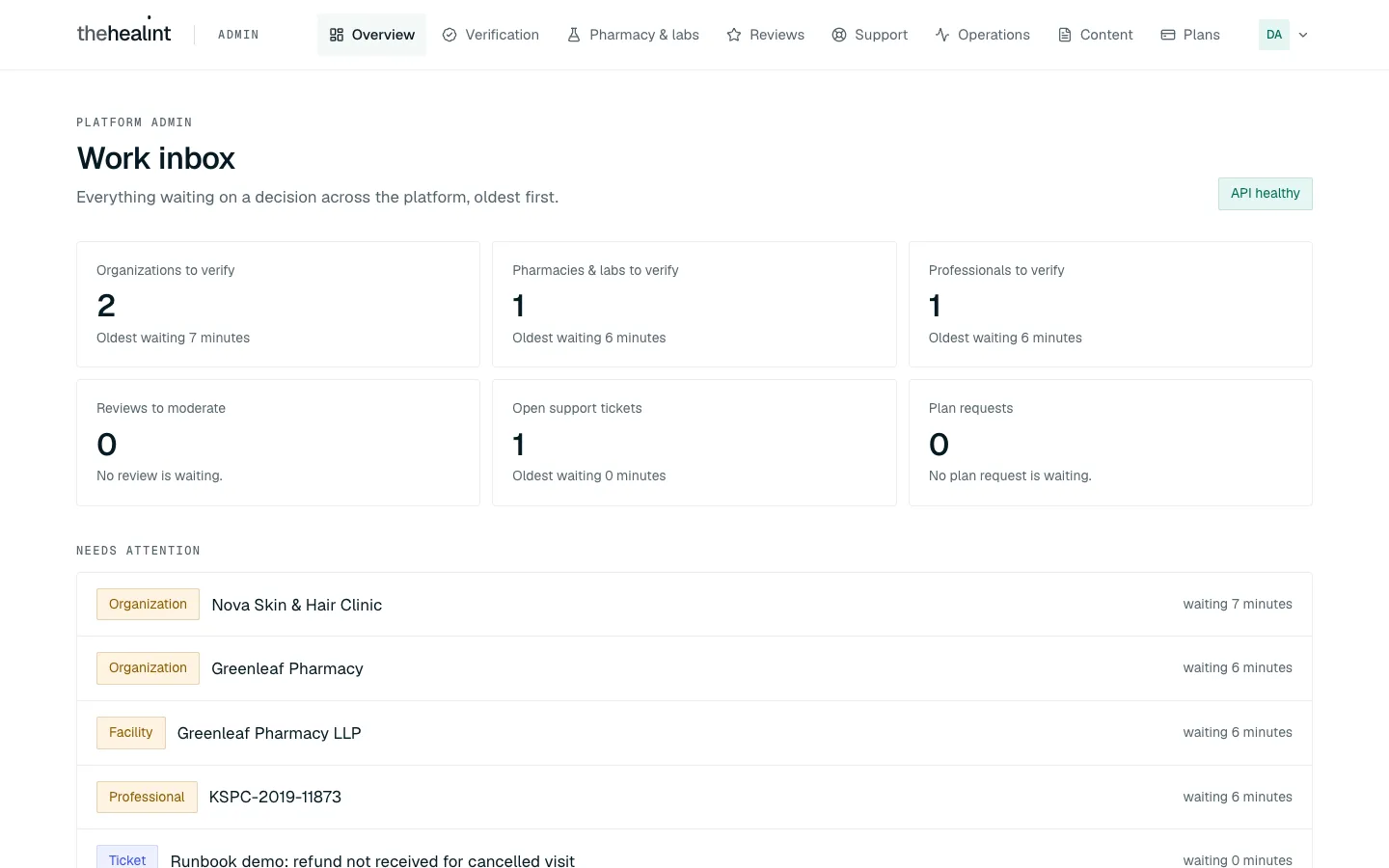
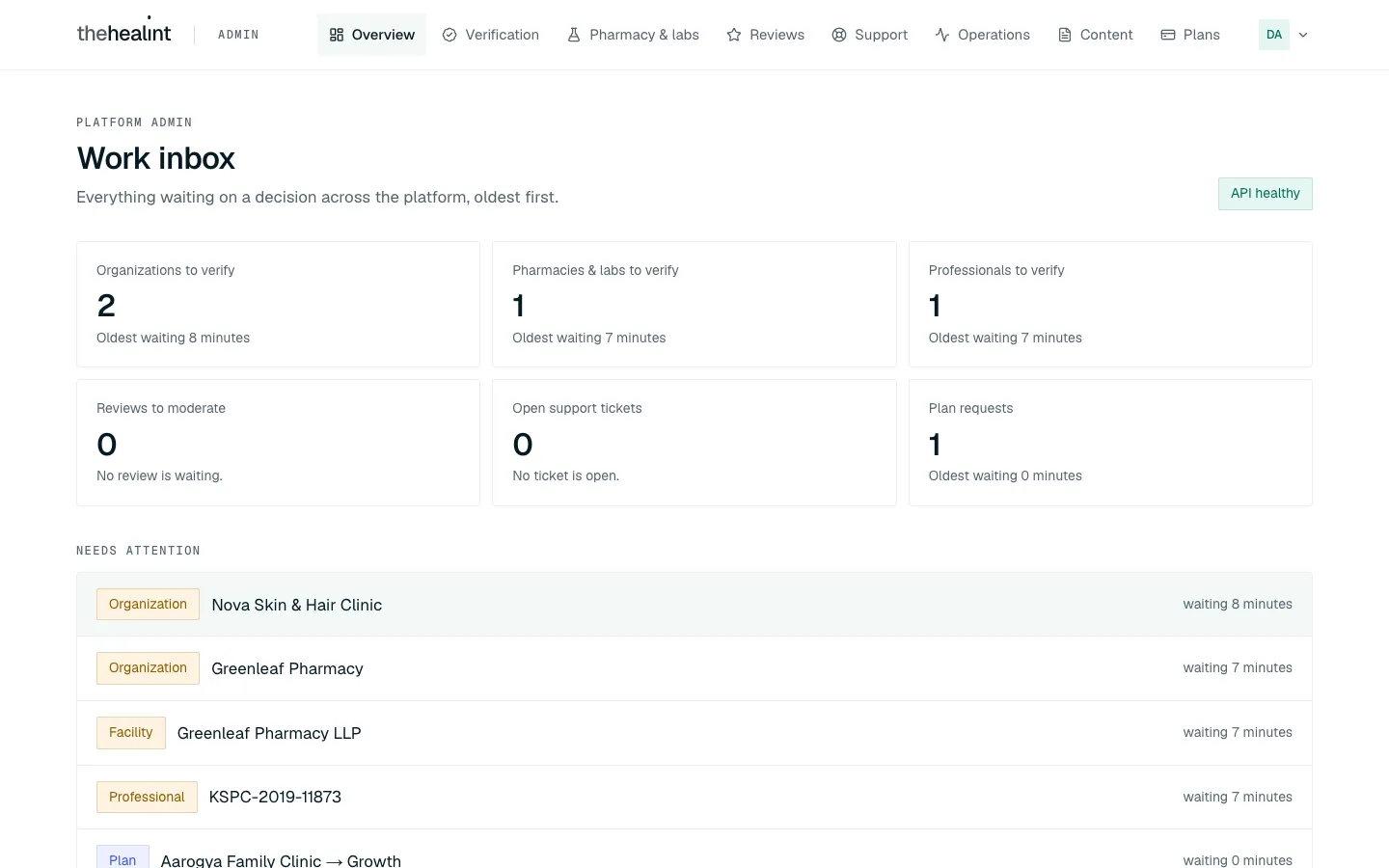
The Work inbox shows everything waiting on a decision across the platform, oldest first.
- Click Overview in the top menu.
- Check the pill on the right. It should say API healthy. If it says API unreachable, the platform's back end is down: tell engineering before doing anything else.
- Read the five lane cards: Organizations to verify, Pharmacies & labs to verify, Professionals to verify, Reviews to moderate and Open support tickets. Each shows how many items are waiting and how long the oldest has waited.
- Work down the Needs attention list. It shows the 12 oldest items across all lanes, each tagged Organization, Facility, Professional, Review or Ticket.
- Click an item to act on it:
- An Organization item opens that organization's review straight away.
- Any other item opens its section (for example Support), and you pick the item from the list there.
If it doesn't work
- "Couldn't load this queue." on one card: that lane failed to load, but the others are still correct. Refresh the page. If it keeps failing, tell engineering.
- "Your account can't see this queue.": you're signed in as platform support. Verification lanes are for platform admins only.
- "Nothing is waiting on a decision.": you're all caught up.
How to verify an organization#
When a clinic, hospital or doctor's practice submits its documents, it appears in the Verification queue. You check the documents and the branch locations, then approve or reject. Platform admins only.
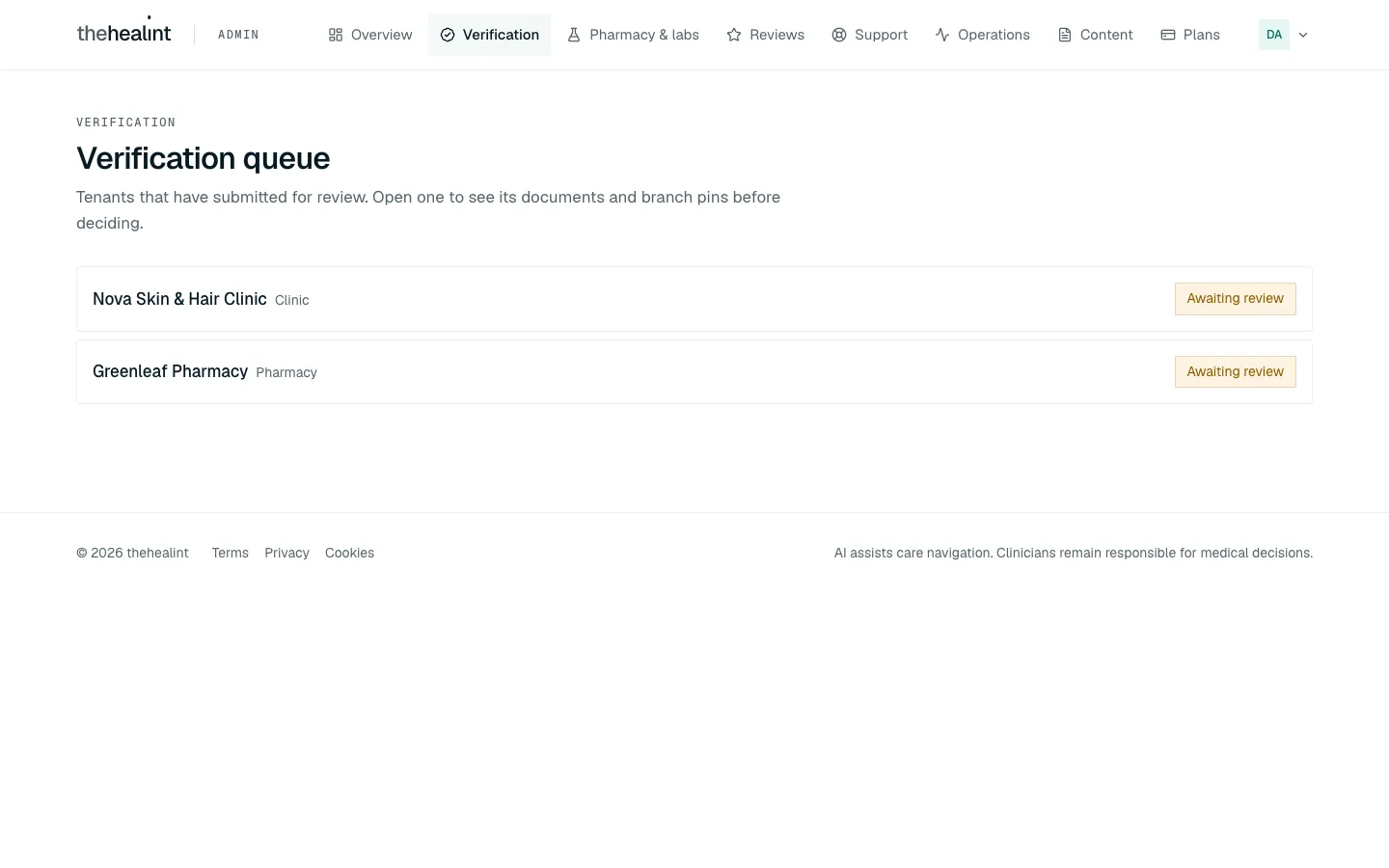
- Click Verification in the top menu (or click the Organization item in the Work inbox). The queue lists each organization with its type and an Awaiting review pill.
- Click the organization's name. The review screen opens.
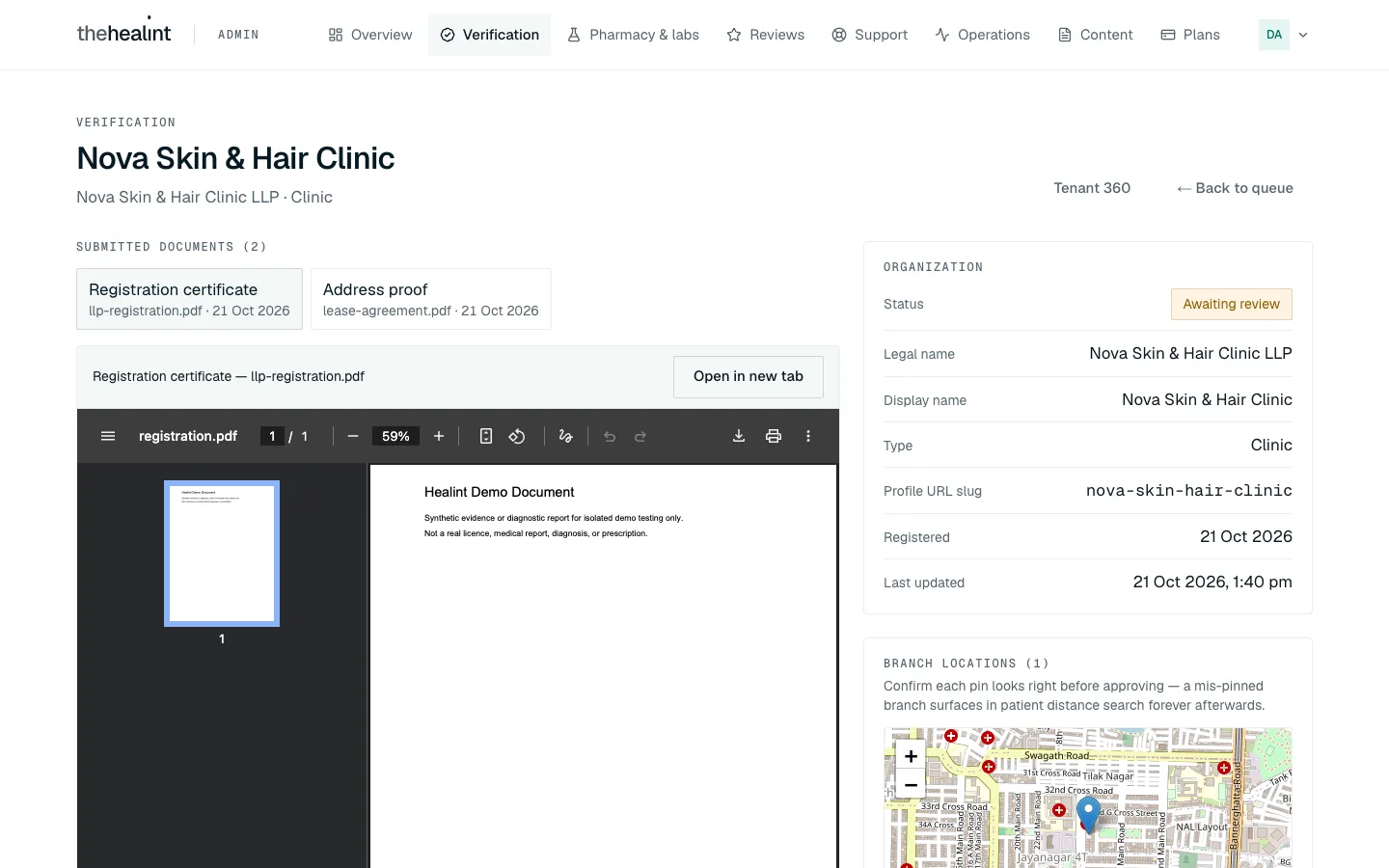
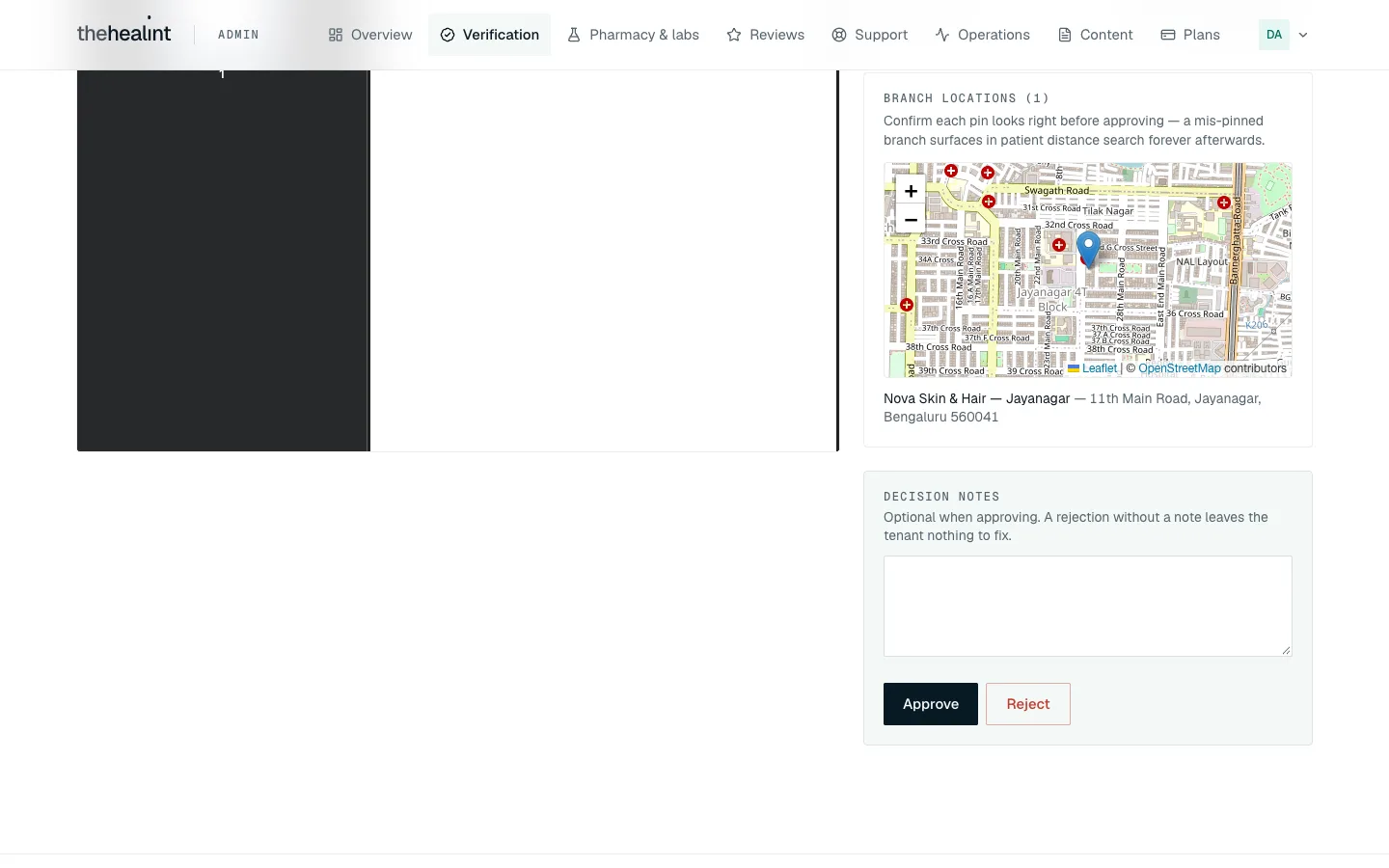
- Check the documents on the left. Each submitted document is a tab, for example Registration certificate and Address proof. Click a tab to preview it on the page. Use Open in new tab to see it full size, or if the page says the file type can't be previewed.
- Check the facts on the right under Organization: legal name, display name, type, profile address and dates. Do they match the documents?
- Check the branch pins under Branch locations. Make sure each pin sits on the right street. A wrong pin means patients searching nearby will find the branch in the wrong place.
- Write a note in Decision notes. A note is optional when approving, but always write one when rejecting: it's what the organization reads to know what to fix.
- Click Approve or Reject.
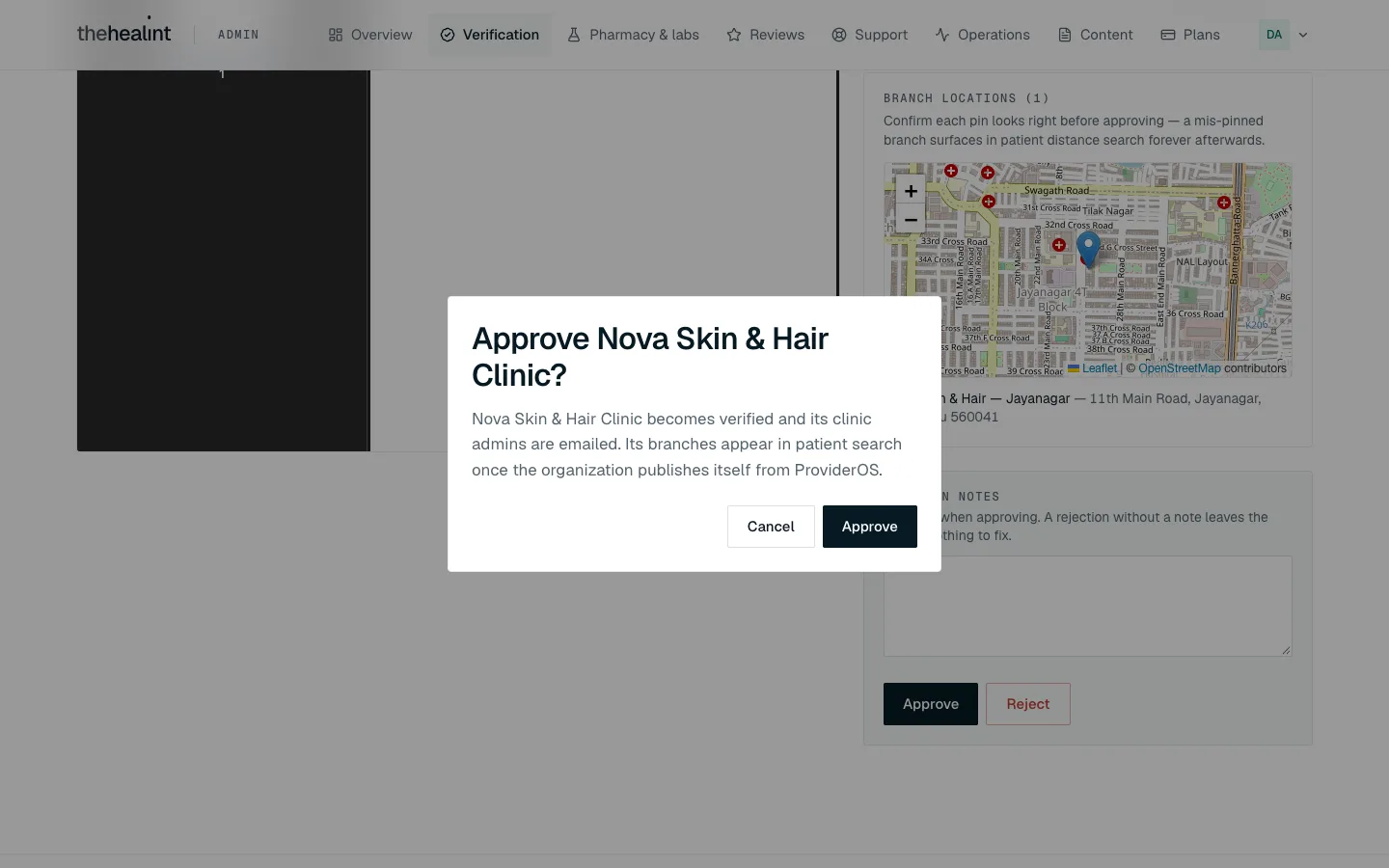
- A confirmation box appears:
- Approve: "Name becomes verified and its clinic admins are emailed. Its branches appear in patient search once the organization publishes itself from ProviderOS." Click Approve.
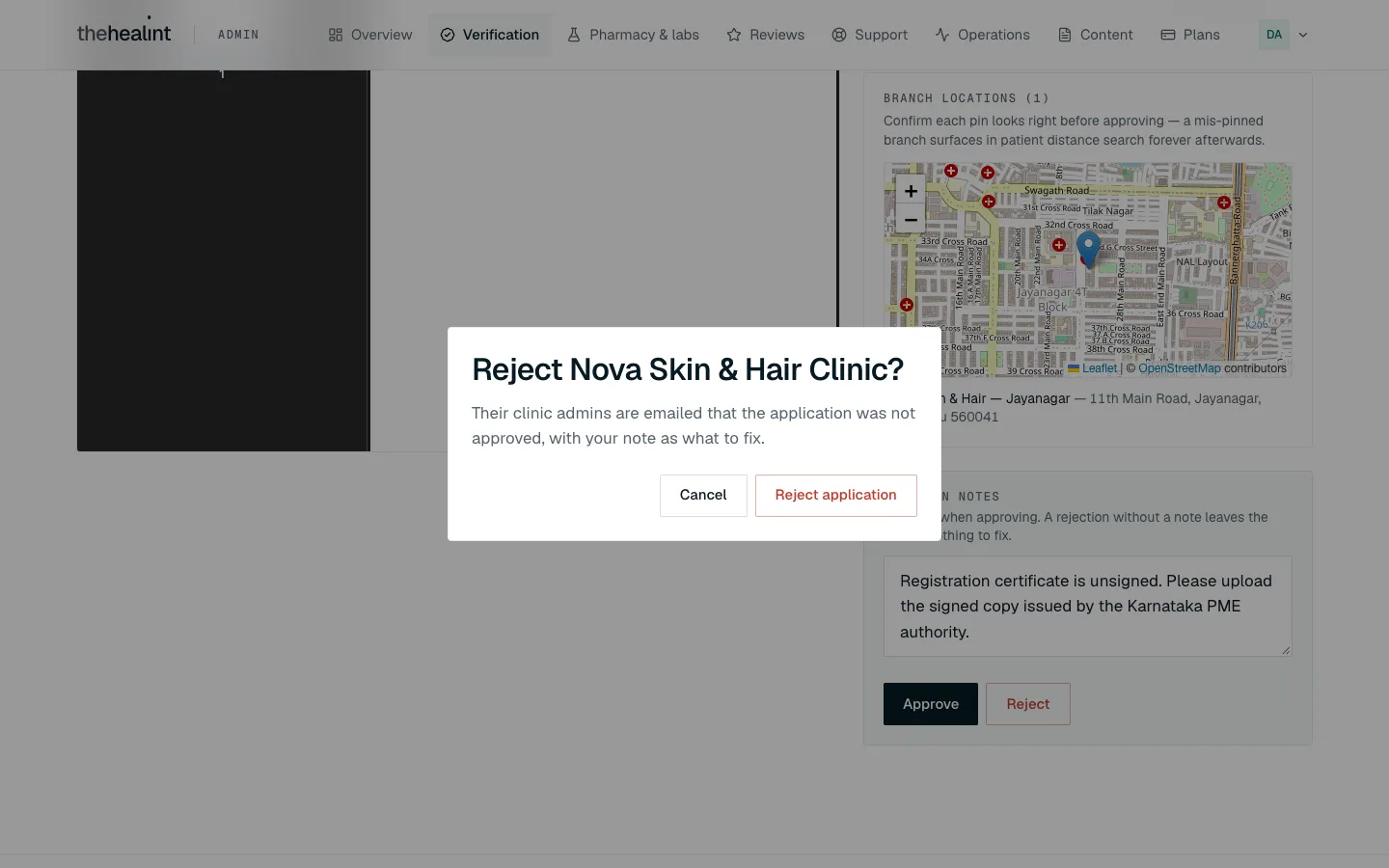
- Reject: "Their clinic admins are emailed that the application was not approved, with your note as what to fix." Click Reject application.
- You're taken back to the queue, and the organization is no longer in it.
Who is told: every clinic admin and hospital admin of the organization gets an email. An approval tells them they're verified and can publish from ProviderOS. A rejection includes your note under "What to fix" and asks them to update their documents and submit again.
When a rejected organization resubmits: its admin must upload a document newer than your rejection, then click Submit for review again in ProviderOS. The organization returns to Awaiting review in this queue and the Work inbox. Open it as a new review and compare the new upload with your earlier note; the verification history keeps both the rejection and the REJECTED → SUBMITTED resubmission event.
If it doesn't work
- "No documents uploaded yet.": don't approve. Reject with a note asking them to upload their documents.
- "This tenant has pinned no branches.": a verified organization with no branch can't be found in patient search. Ask them about it before approving.
- You click Reject without a note: the box warns "You have not written a note, so they will not know what to fix." Click Cancel, write the note, then reject again.
- "Could not record the decision.": nothing was saved. Try again. If it keeps happening, tell engineering.
- The card says "No decision is pending": someone has already decided this organization. Its history is on Tenant 360.
How to verify a pharmacy, lab or professional#
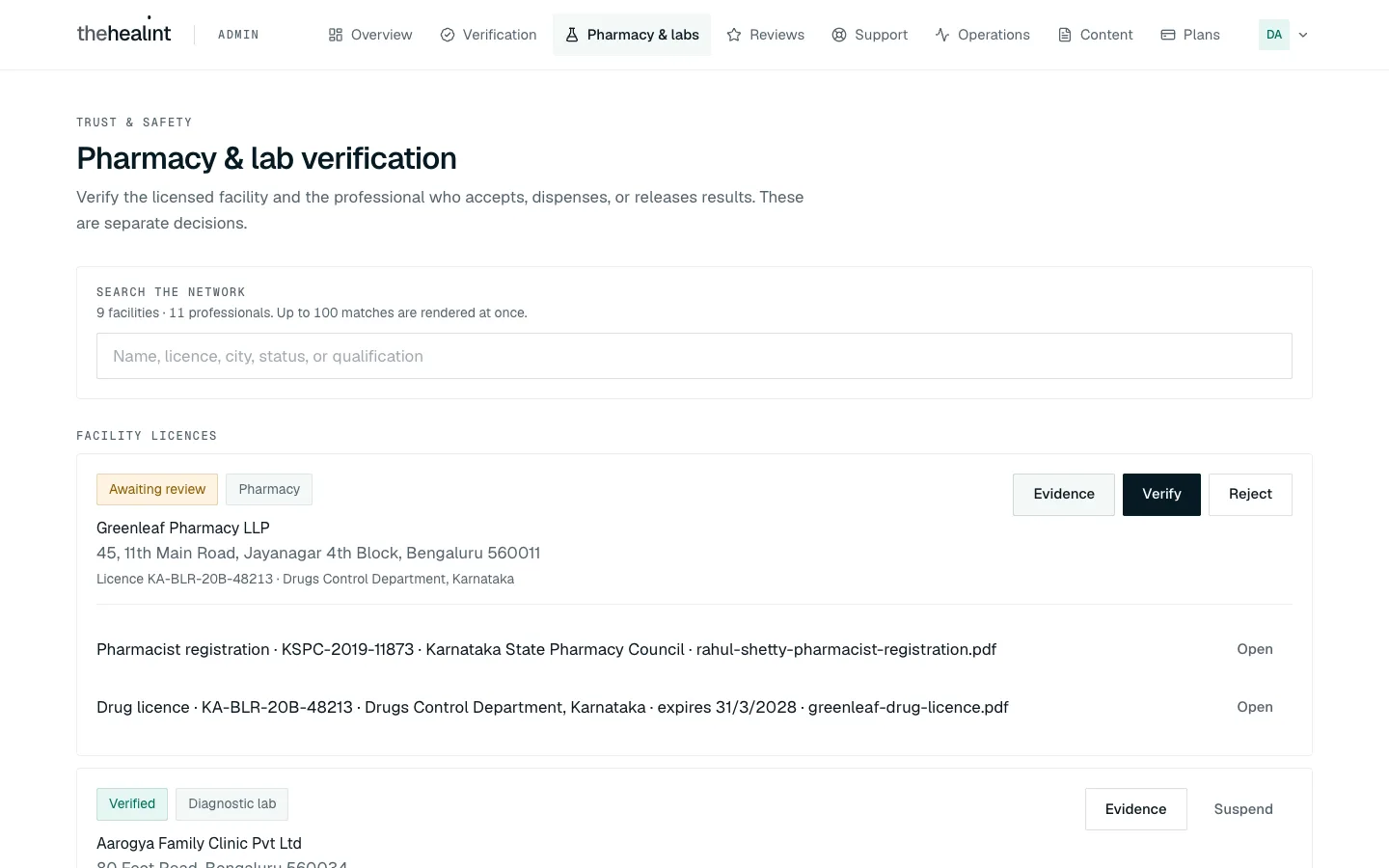
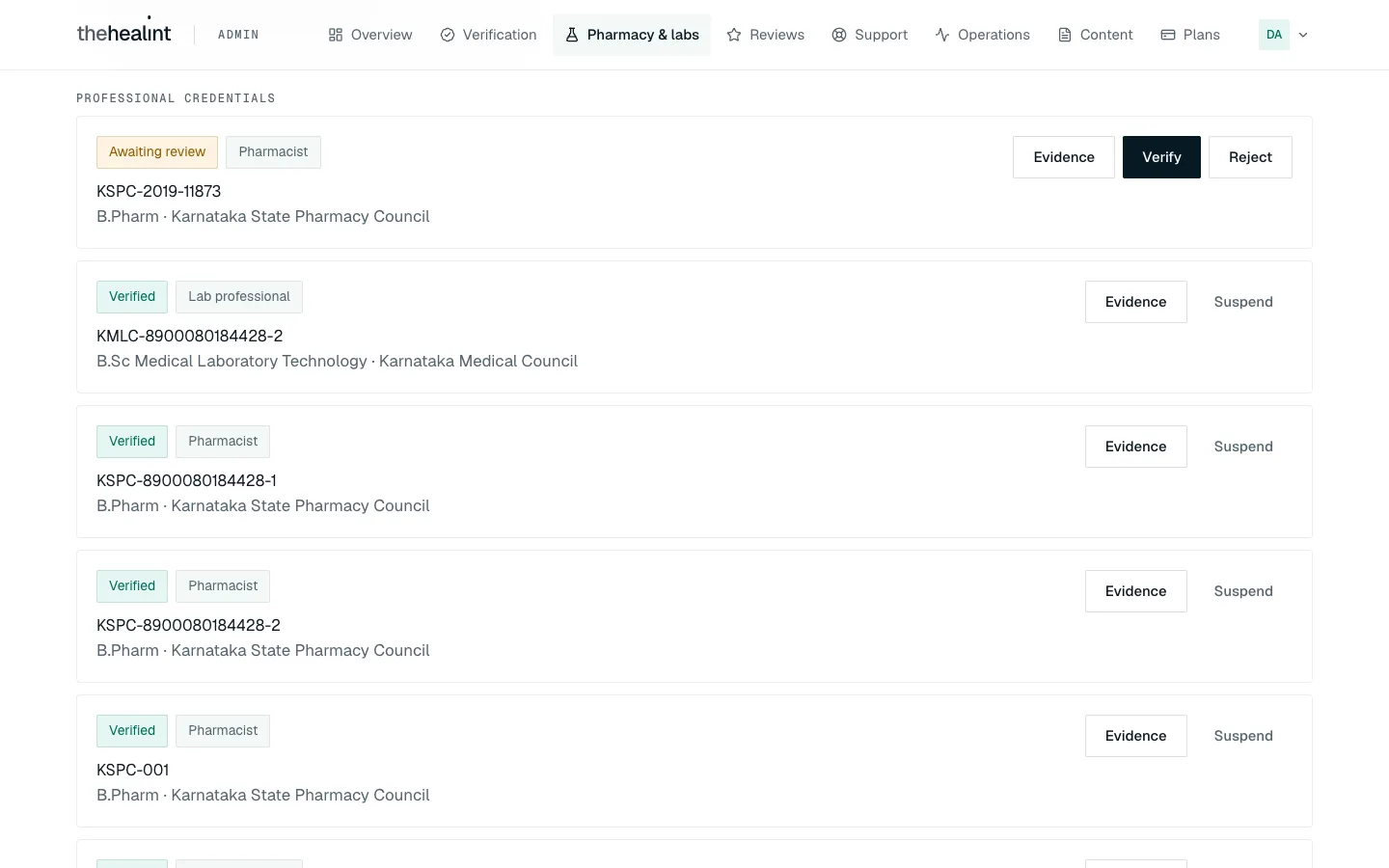
A pharmacy or lab needs two separate checks: the facility licence and the professional (pharmacist or lab professional) who works there. You decide each one on its own. Platform admins only.
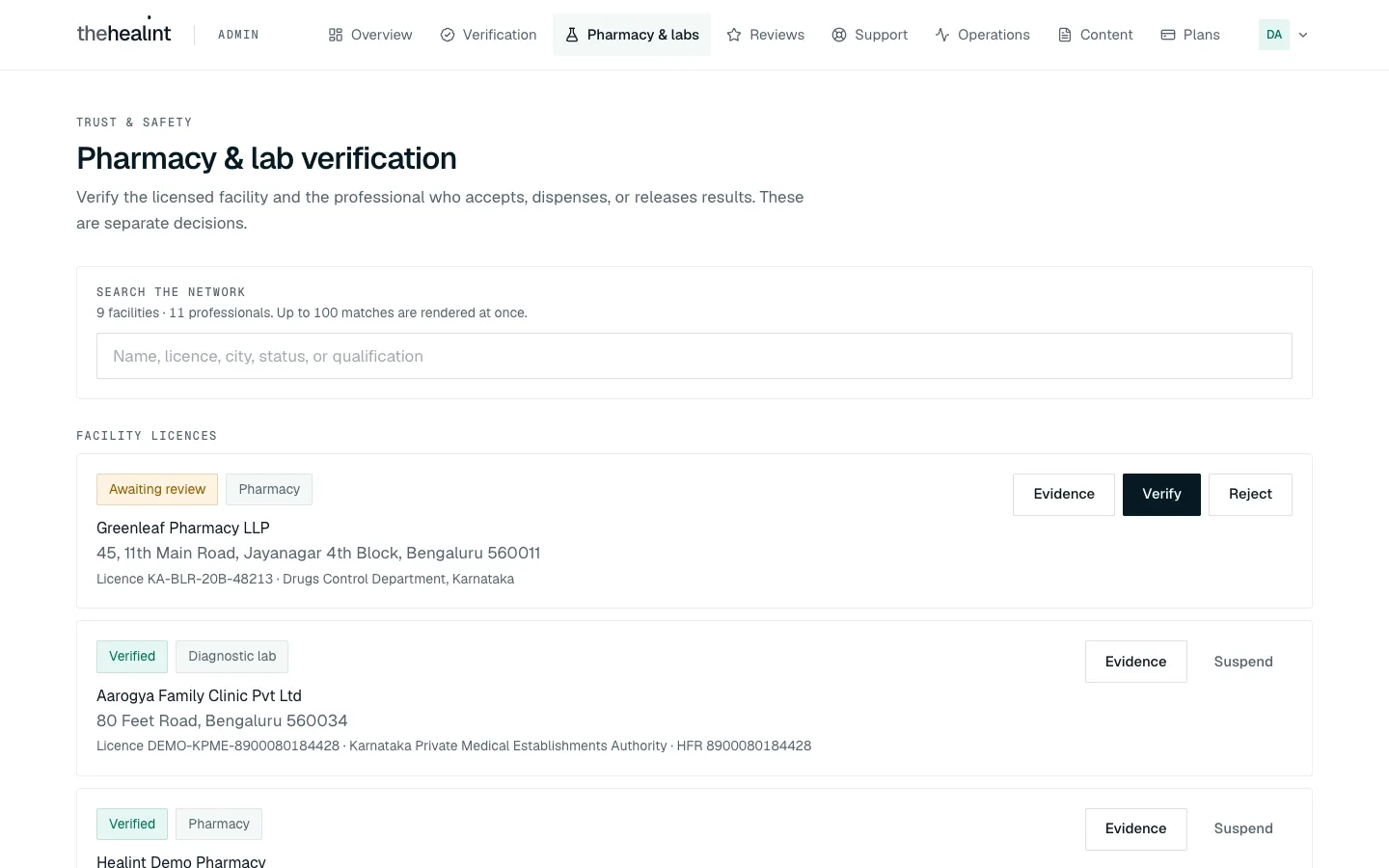
- Click Pharmacy & labs in the top menu.
- Use Search the network to find what you need. You can search by name, licence number, city, status or qualification.
- Find the card under Facility licences or Professional credentials. Each card shows a status pill (Draft, Awaiting review, Verified, Rejected or Suspended) and the licence or registration details.
- Click Evidence to see the uploaded documents, with their numbers, issuers and expiry dates. Click Open next to a document to read it. Each time you open one, it is recorded.
- Choose a decision. The buttons depend on the status:
- Items awaiting review show Verify and Reject.
- Verified items show Suspend.
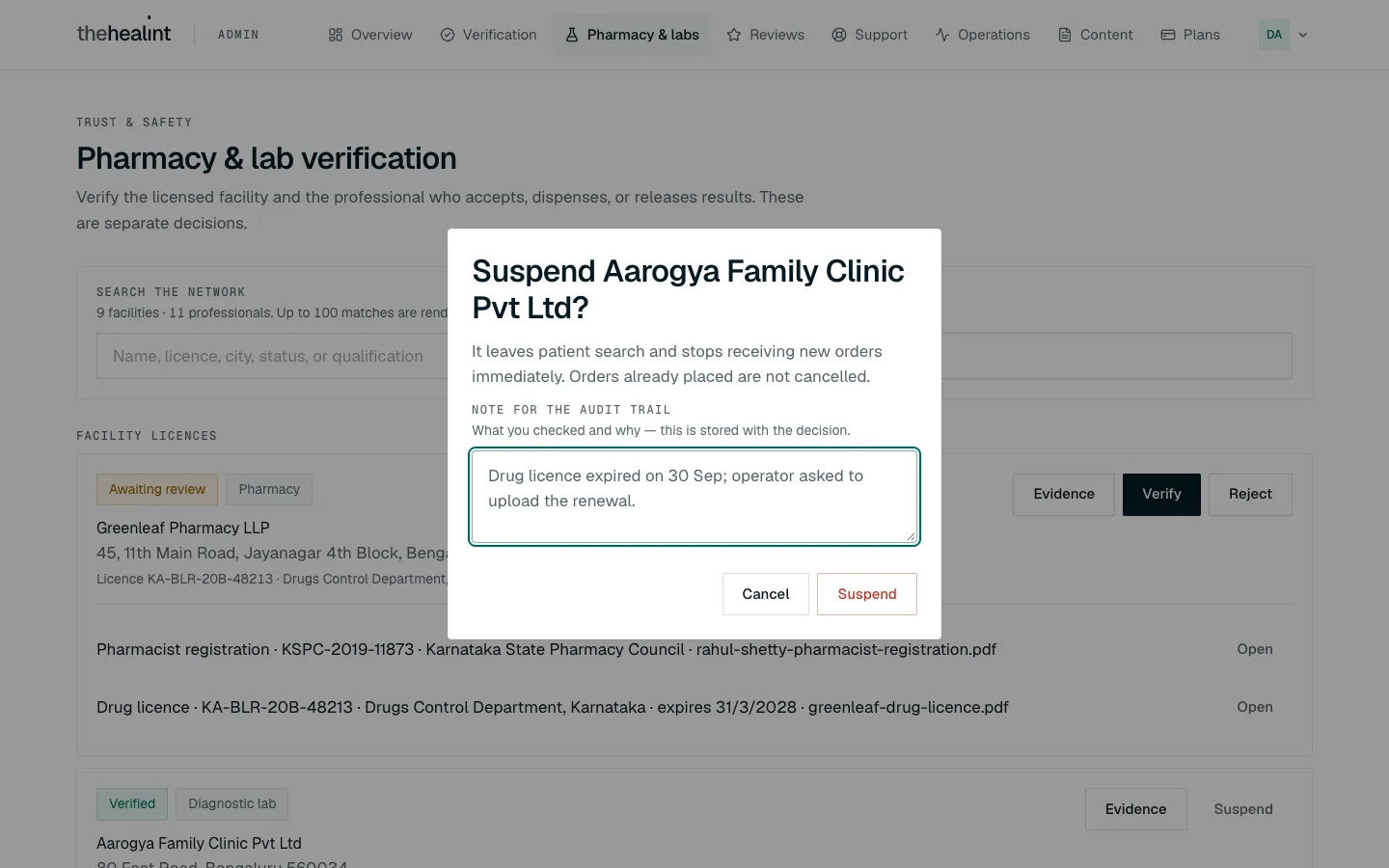
- In the box that opens, read what the decision will do, then fill in Note for the audit trail with what you checked and why. The note is required: the button stays greyed out until you've written at least a few characters.
- Click the button to confirm (Verify, Reject or Suspend). A message such as "Name verified" appears and the list refreshes.
What each decision does:
| Decision | For a facility | For a professional |
|---|---|---|
| Verify | It appears in patient search and can receive new orders. A current licence must be on file. | They can accept orders and release results. |
| Reject | It stays out of patient search. The operator can fix it and resubmit. | They can't act on orders. They can submit a corrected credential. |
| Suspend | It leaves patient search and stops getting new orders straight away. Orders already placed are not cancelled. | They can no longer accept orders or release results. |
If it doesn't work
- "No evidence uploaded. Do not verify.": reject with a note asking for the licence.
- Verify is refused: the evidence has expired, or the item is no longer awaiting review. Check the expiry dates under Evidence.
- "Could not record the facility decision." (or "...credential decision."): nothing was saved. Try again.
- The operator wasn't told: that's expected. Facility and professional decisions don't send an email. If the operator needs to know, contact them yourself.
How to look up an organization (Tenant 360)#
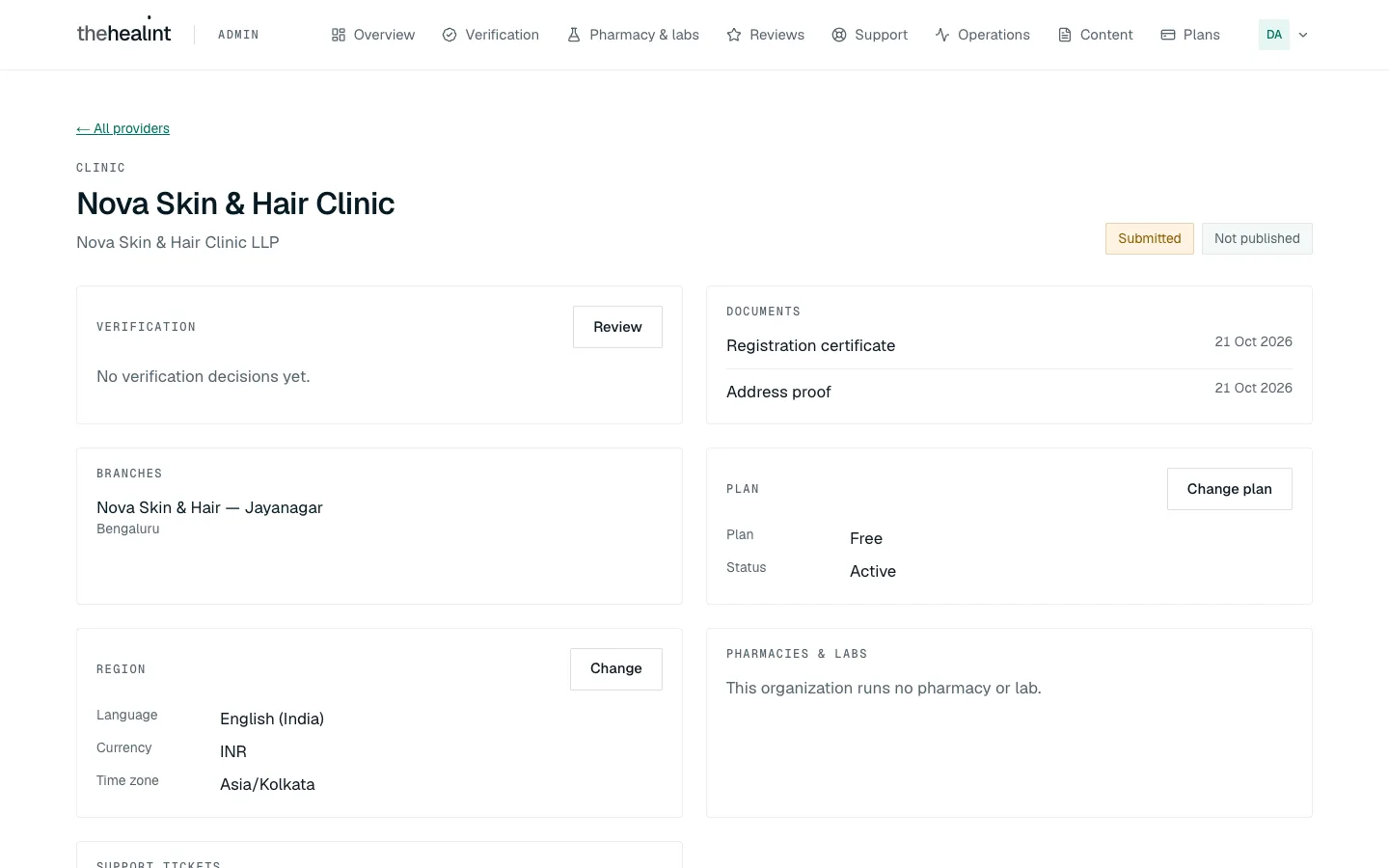
Tenant 360 is a one-page summary of an organization. It's read-only: any changes are made from other sections. Platform admins only.
- Click Operations in the top menu.
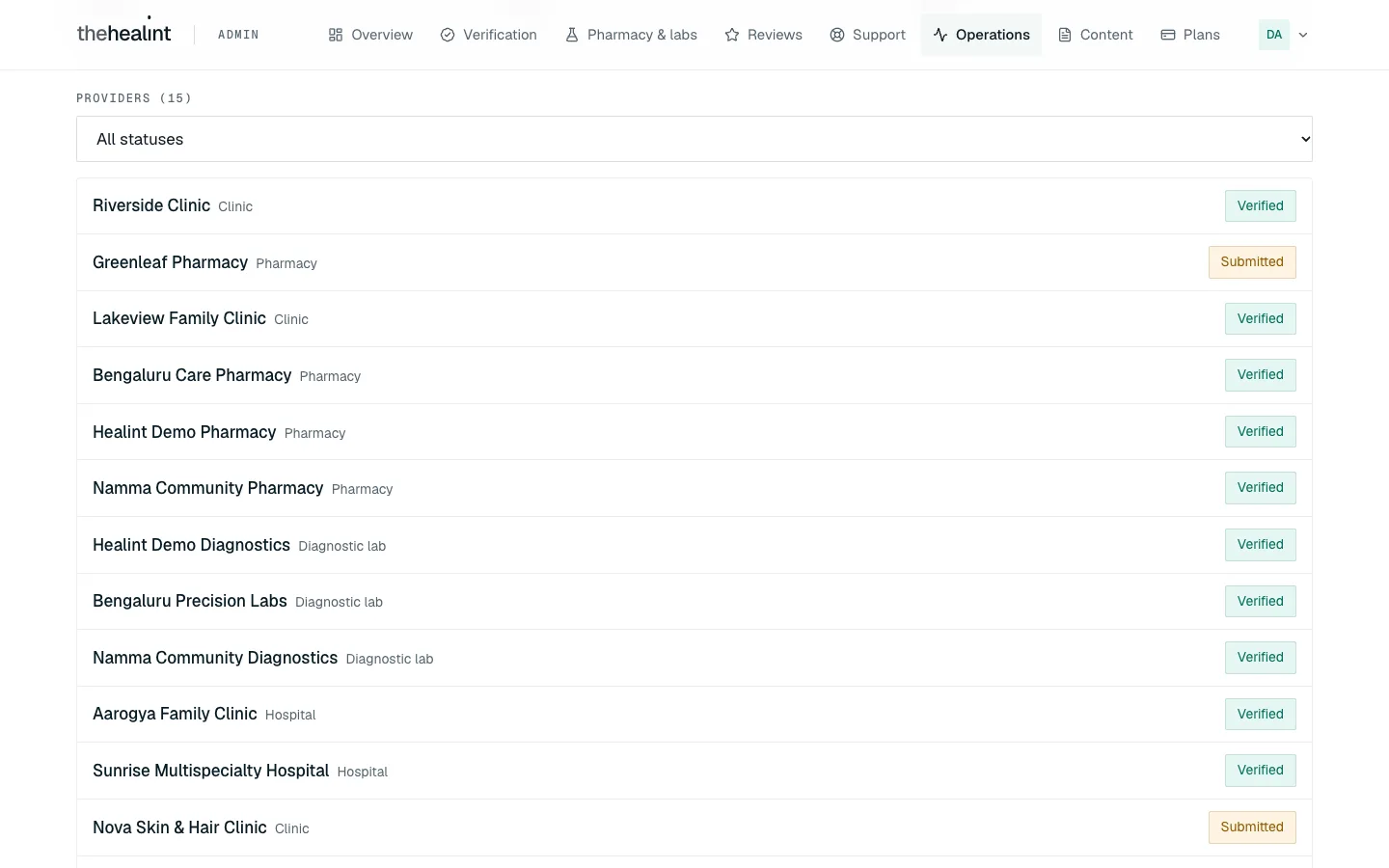
- Scroll to Providers. To narrow the list, choose a status from the drop-down (Submitted, Under review, Verified, Rejected).
- Click the organization's name.
- Read the page. At the top are its type, its name and two pills: its verification status, and Published with a date or Not published. Below are these sections:
- Verification: the history of decisions and notes. While the organization is waiting, a Review button takes you straight to its review screen.
- Documents, Branches.
- Plan: its plan and status. Change plan takes you to Plans.
- Pharmacies & labs, Support tickets and Recent appointments.
- Click ← All providers to go back.
If it doesn't work
- "Organization not found": either the link is wrong, or you're signed in as platform support, which can't open this page.
- "Not available to your account." in one section: your account can't see that part. The rest of the page is still correct.
How to moderate reviews#
Patients can review a completed visit. You decide whether a review shows on the doctor's public profile.
- Click Reviews in the top menu.
- Choose a filter: Awaiting moderation (the default), Published, Hidden or All.
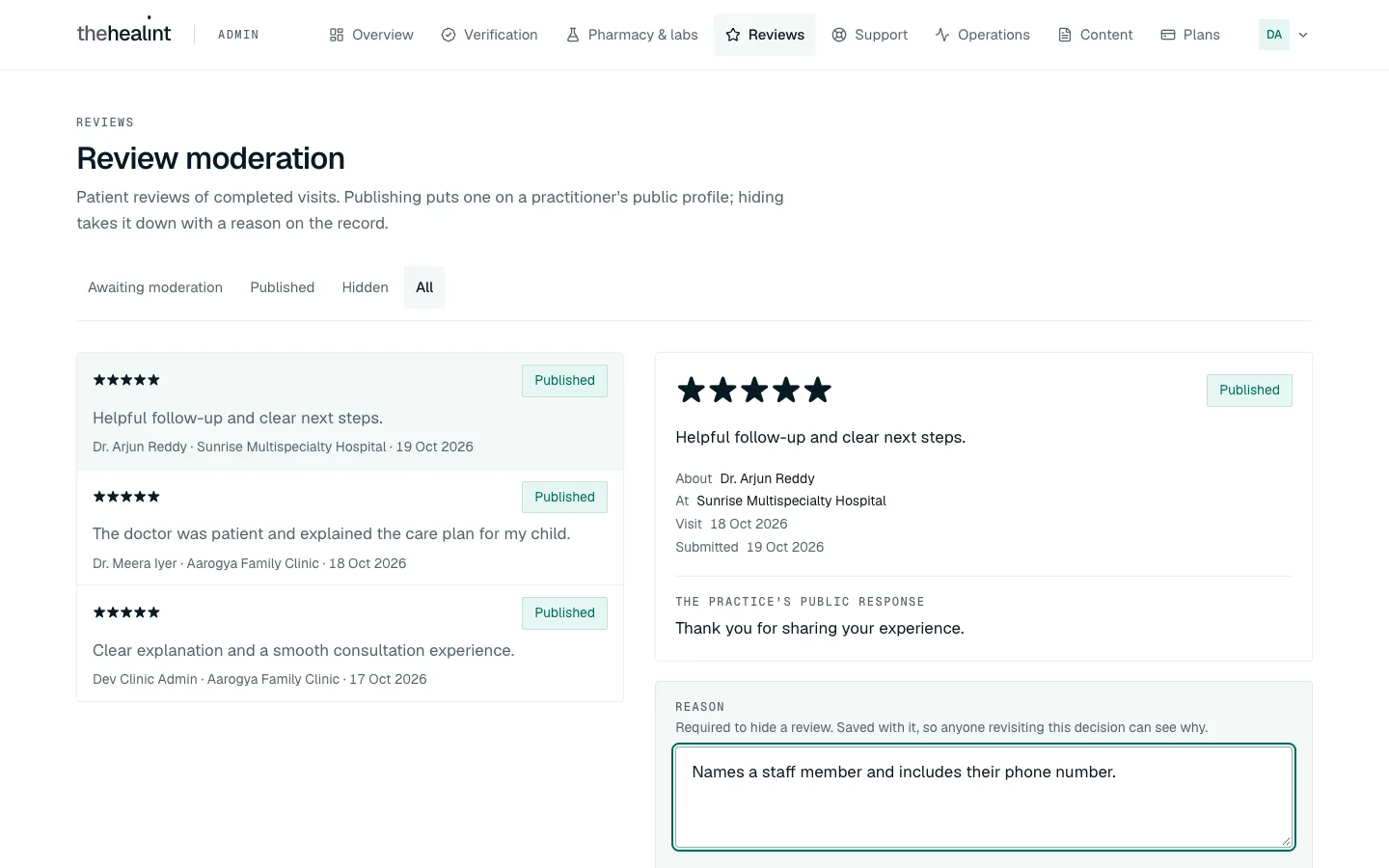
- Click a review in the list. The full review opens on the right with the rating, the comment, who it's about, the clinic, the visit date and the date it was submitted. If the practice has replied, its public response is shown too.
- Decide:
- To publish it, click Publish, then Publish review. It appears on the doctor's public profile straight away, visible to anyone.
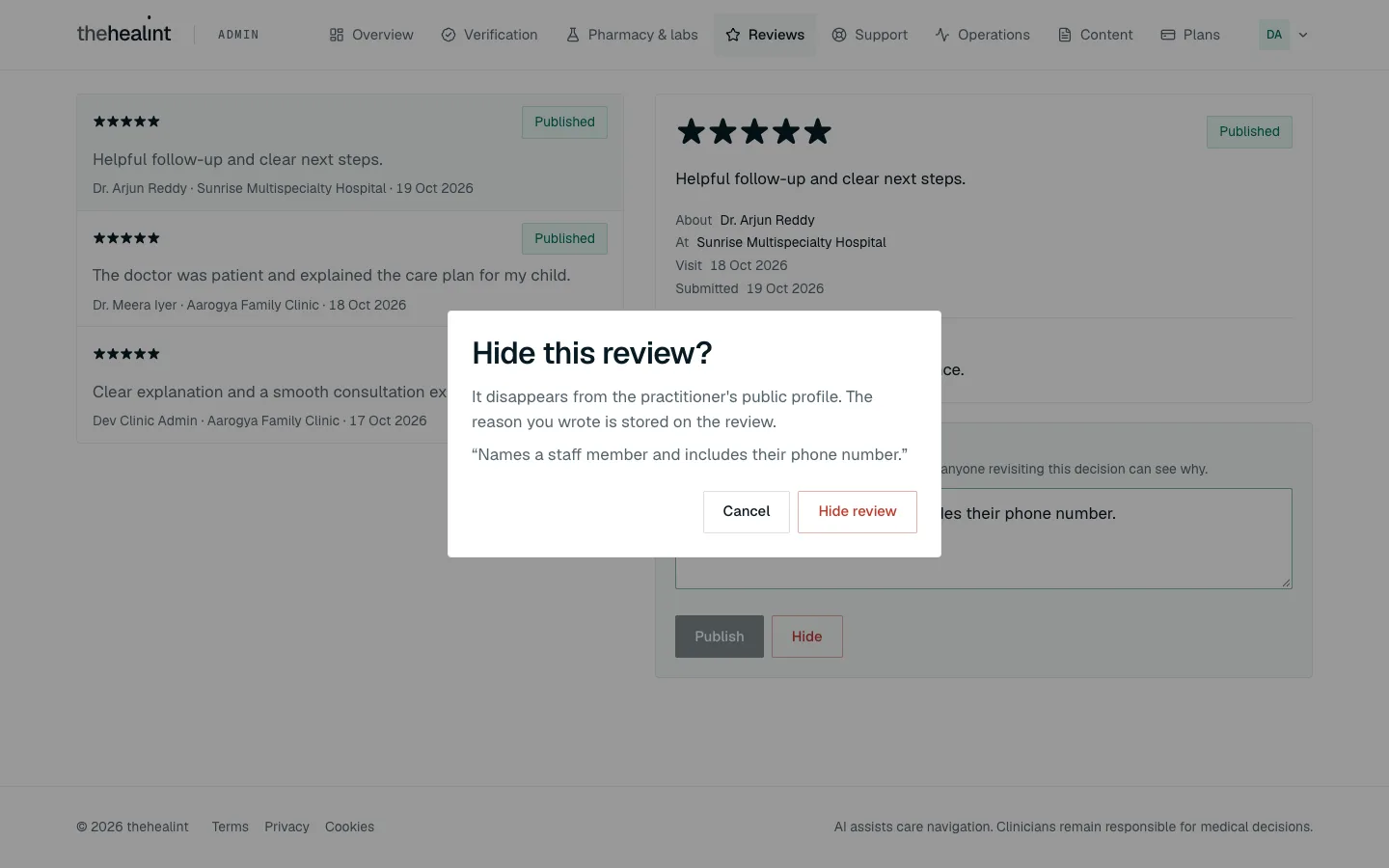
- To hide it, first write a Reason, for example "Names a staff member and includes their phone number." Hide stays greyed out until there's a reason. Click Hide, check your reason in the box, then click Hide review.
If it doesn't work
- "Nothing is waiting for moderation.": no new reviews. Switch to All to see older ones.
- "Could not record that moderation decision.": nothing was saved. Try again.
- The patient or practice wasn't told: that's expected. Moderation doesn't send a notification.
How to handle a support ticket#
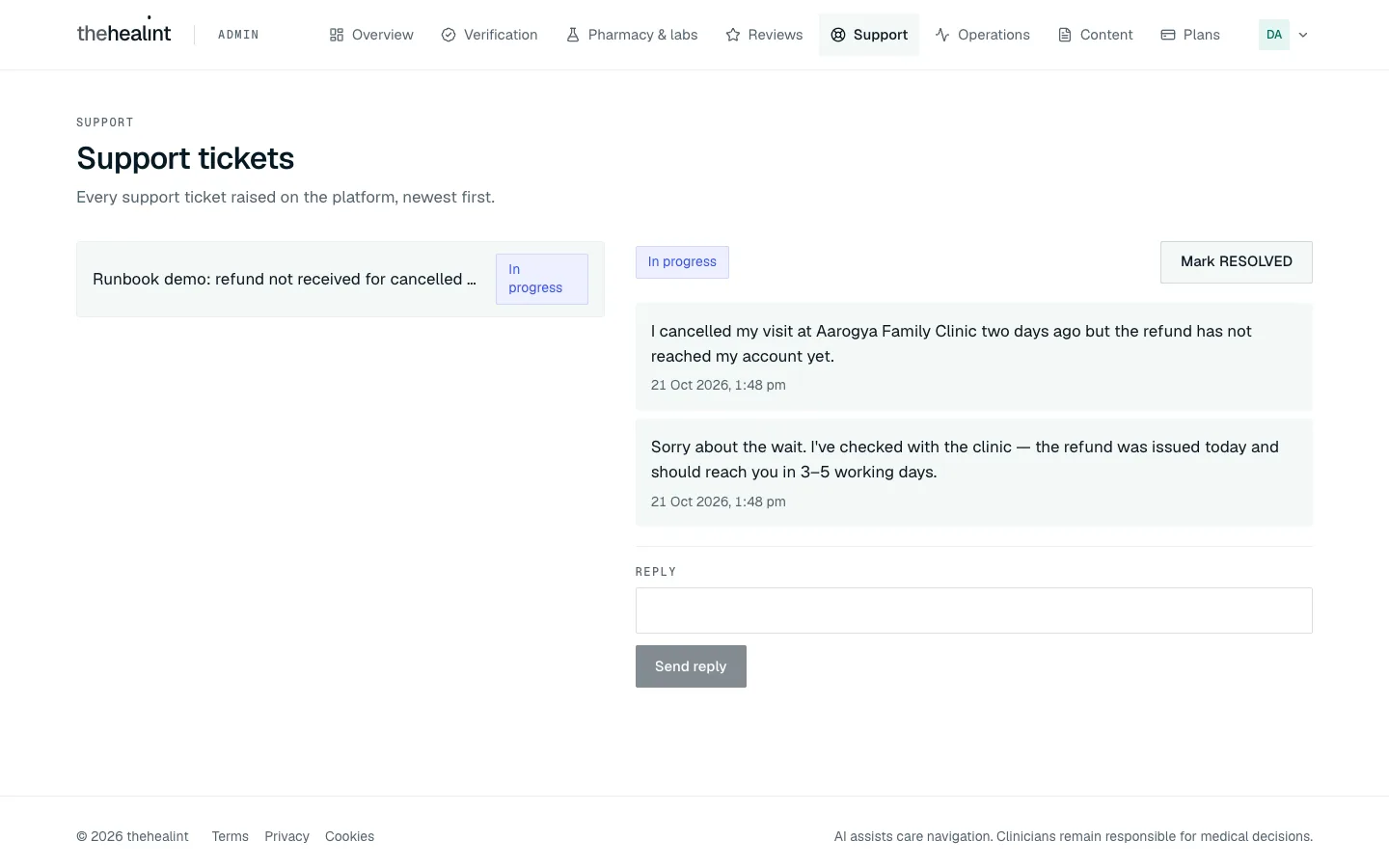
- Click Support in the top menu. Tickets are listed newest first, each with a status: Open, In progress, Resolved or Closed.
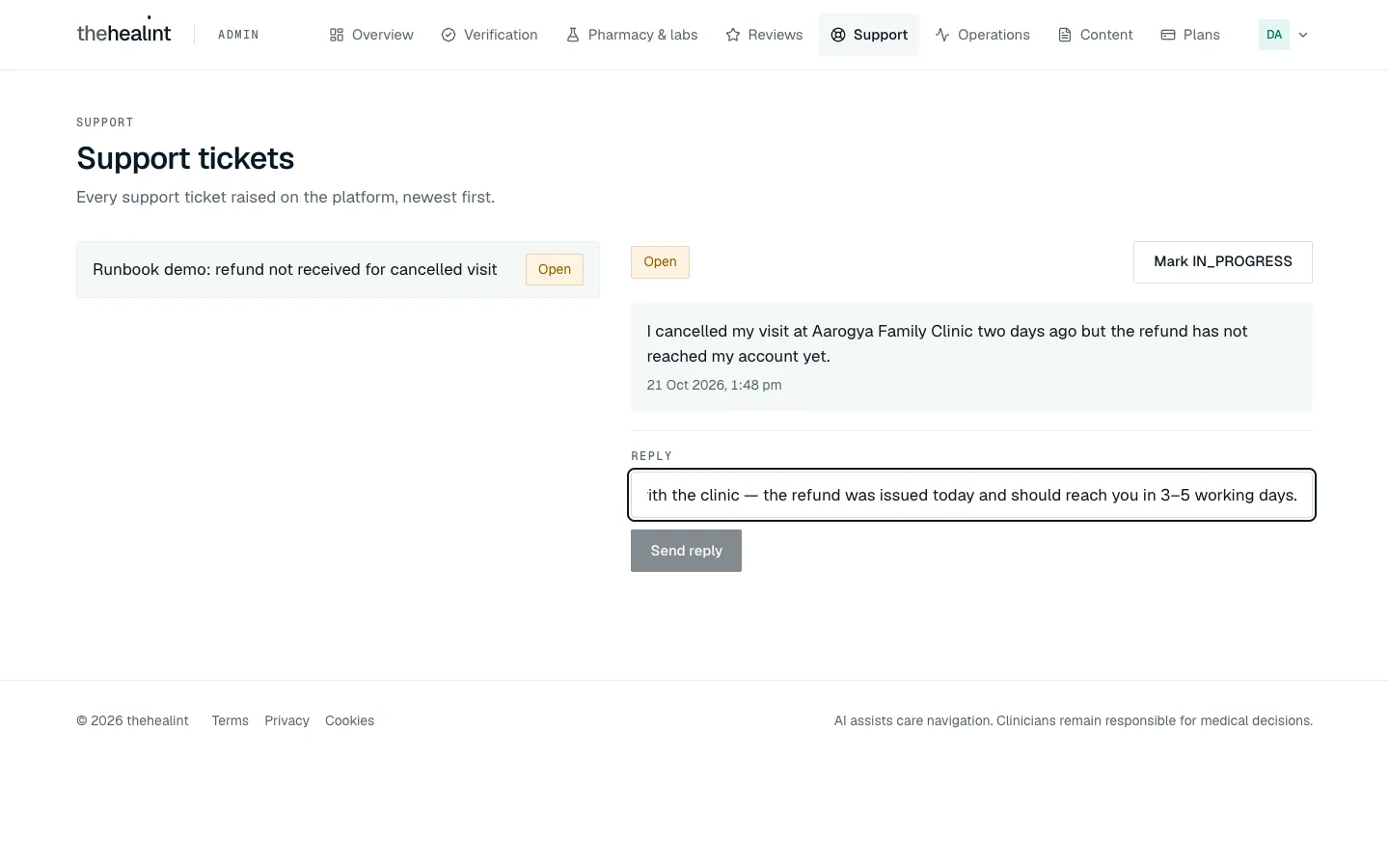
- Click a ticket. Its messages appear on the right, each with a time.
- If the ticket is about a particular appointment, visit or invoice, a Scoped record card shows that one record. It never includes clinical notes or diagnoses.
- To answer, type in Reply and click Send reply. Your reply joins the thread.
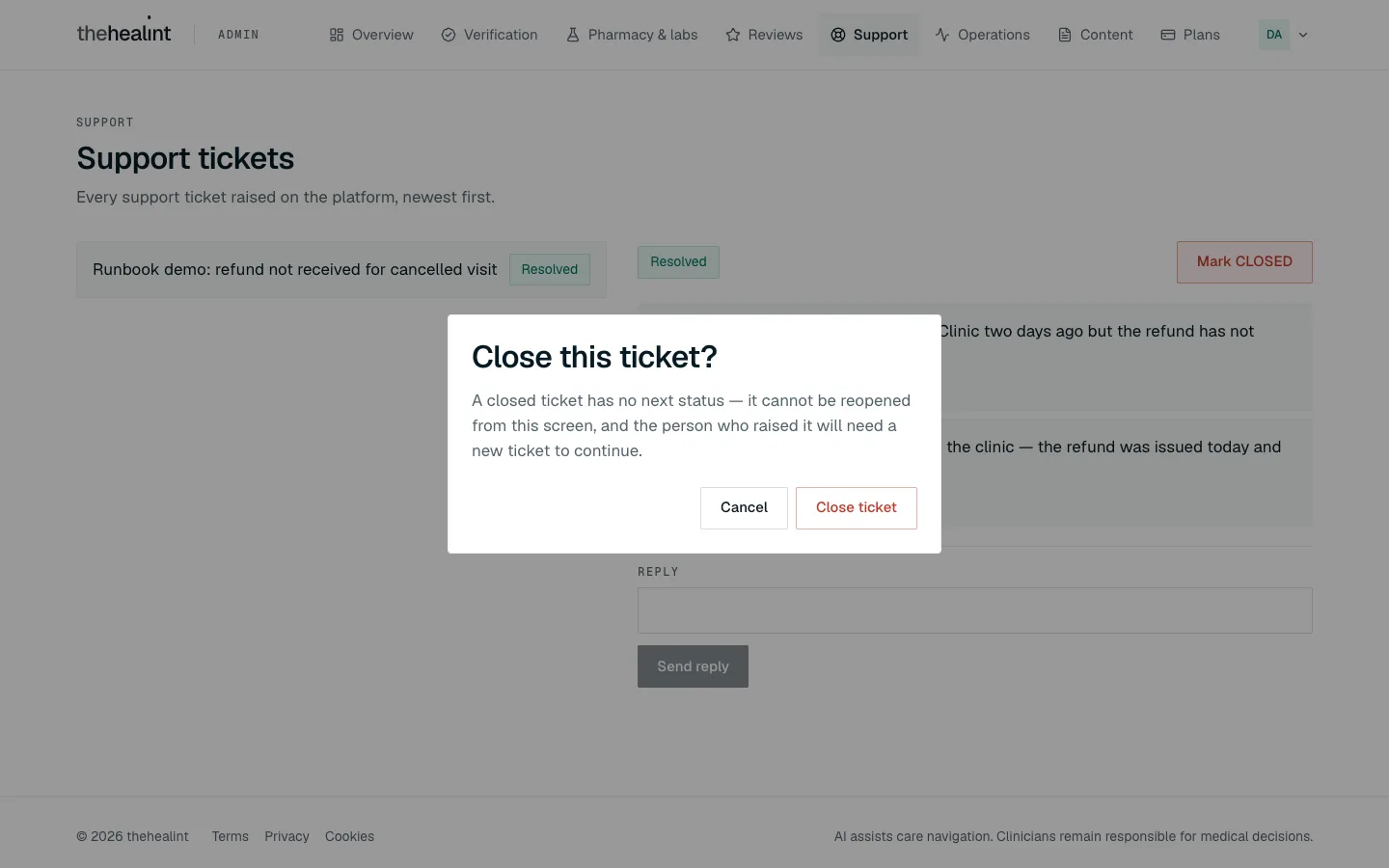
- Move the ticket on with the button at the top right. Each click moves it one step: Open, then In progress, then Resolved, then Closed. The button shows the next status in capitals, for example Mark IN_PROGRESS, Mark RESOLVED, Mark CLOSED.
- When you click Mark CLOSED, a box asks you to confirm. A closed ticket can't be reopened, and the person would need to raise a new one. Click Close ticket only when you're sure.
If it doesn't work
- "No tickets.": either nothing has been raised, or your account can't see support tickets.
- You closed a ticket by mistake: it can't be reopened here. Ask the person to raise a new ticket, and mention the old one in your reply.
- You can't see who wrote each message: that's expected. Messages show only a time. The first message is from the person who raised the ticket.
How to manage plans and subscriptions#
Platform admins only.
Plan requests from clinics#
Clinics ask for a different plan from ProviderOS (Settings → Plan). Each request shows up in the Work inbox under Plan requests, and you're emailed.
Click Plans in the top menu. Plan requests at the top lists each one: the organization, the plan they want, who asked, when, their current plan and their note.
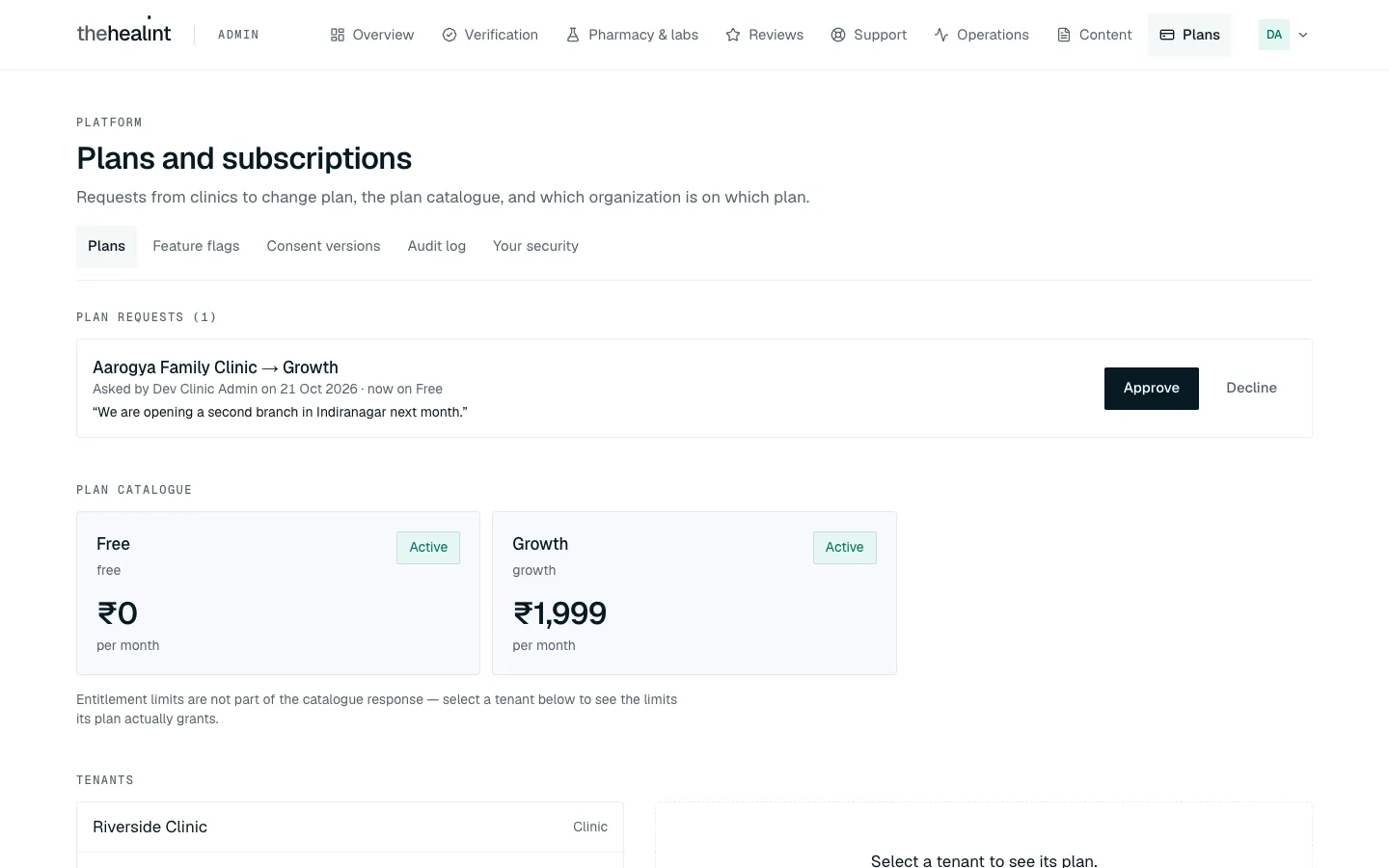
Aarogya Family Clinic asking to move from Free to Growth, with their note, and Approve / Decline. Click Approve to move them now, or Decline. A note is optional when approving and required when declining — it goes in the email to their clinic admins.
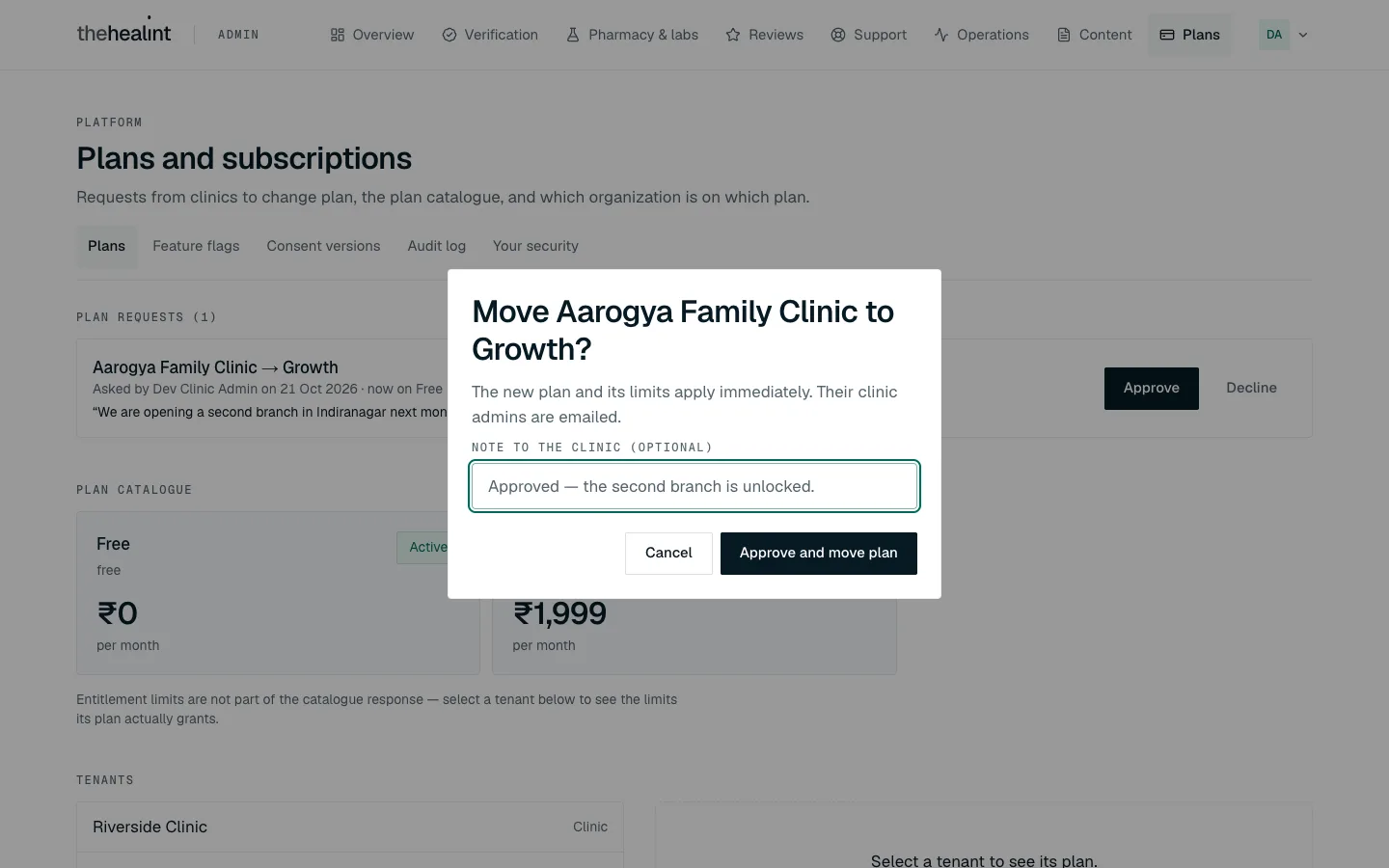
"Move Aarogya Family Clinic to Growth?" — the new limits apply immediately and their admins are emailed. Approving changes their plan at once; the request disappears from the list either way.
Changing a plan directly#
- Click Plans in the top menu.
- At the top, Plan catalogue lists each plan (for example Free and Growth) with its price and whether it's Active or Retired. Plans can't be created or edited here.
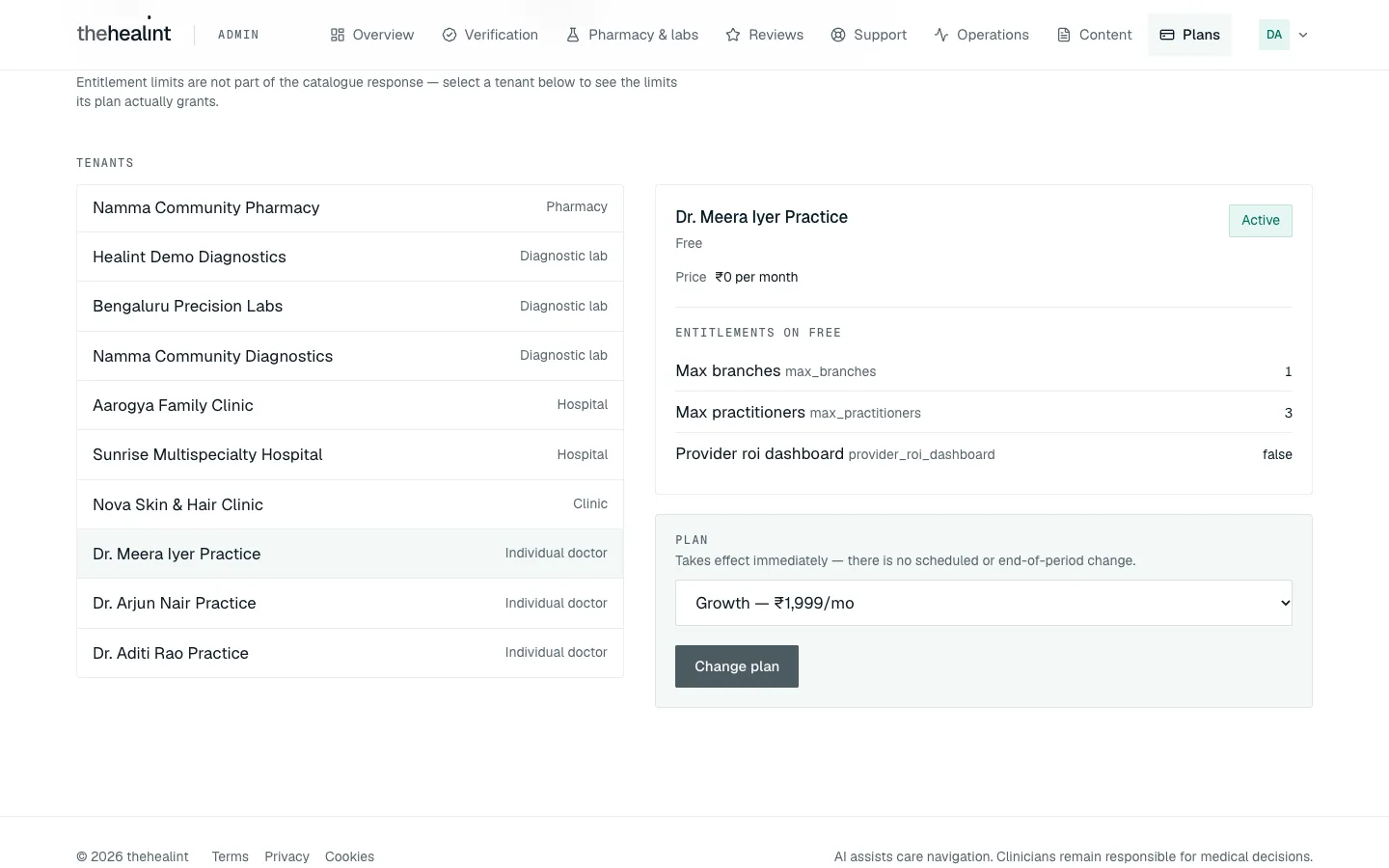
- Under Tenants, click the organization. Its current plan, price and limits appear on the right.
- Pick the new plan in Plan. The change takes effect immediately: there's no option to schedule it for the end of the month.
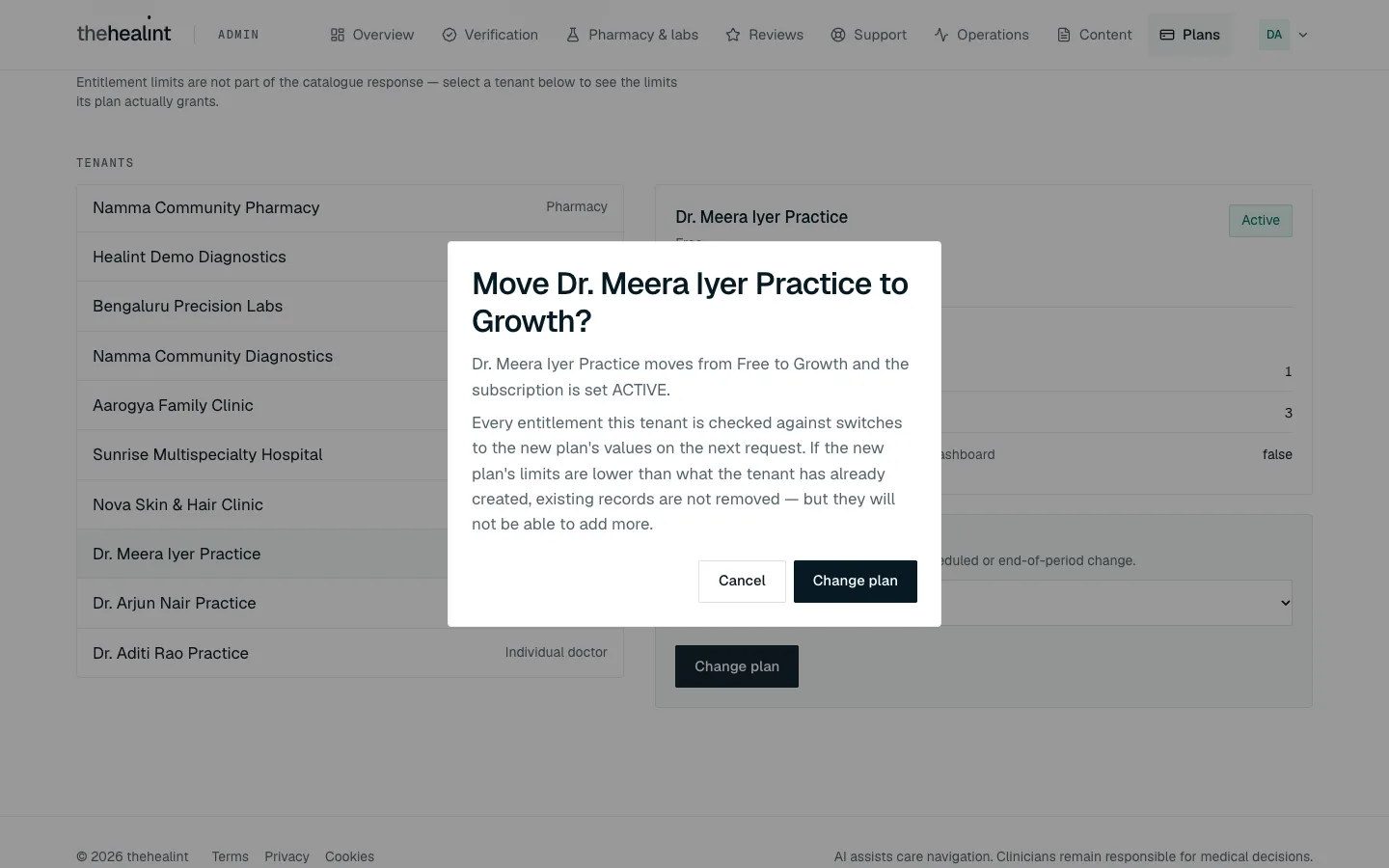
- Click Change plan (or Assign plan if it has none yet). Read the box, then click Change plan again to confirm.
If it doesn't work
- The Change plan button is greyed out: you haven't picked a different plan.
- Moving to a smaller plan: the organization keeps any branches or practitioners above the new limit, but can't add more. Tell them before you make the change.
How to check platform health#
Operations dashboards#
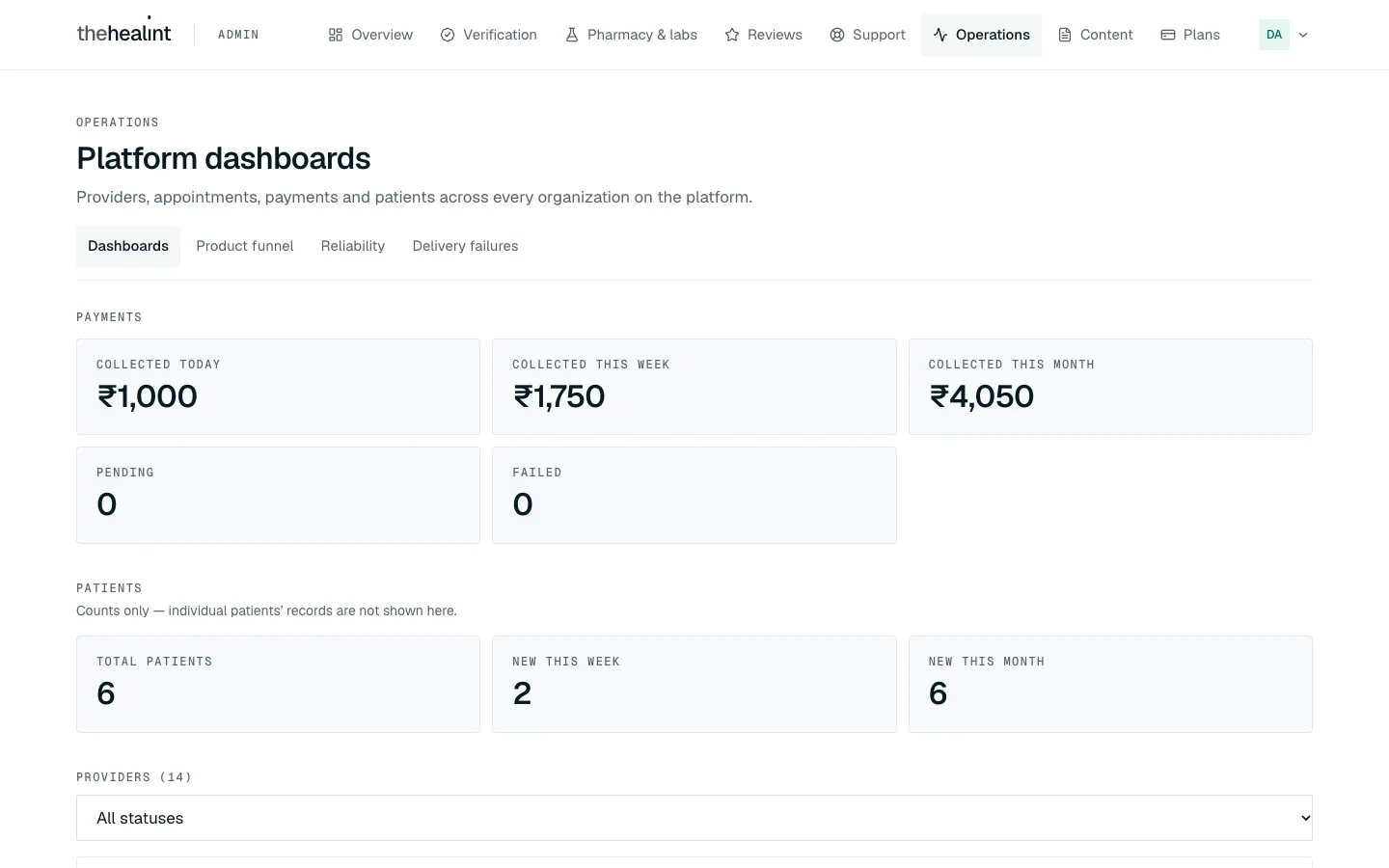
- Click Operations. The Dashboards tab opens.
- Payments: money collected today, this week and this month, plus how many payments are pending and how many failed.
- Patients: total patients and new sign-ups this week and this month. These are counts only; you can't see individual patients here.
- Providers: every organization and its status (see Tenant 360 above).
- Recent appointments: the latest bookings across every organization.
Product funnel#
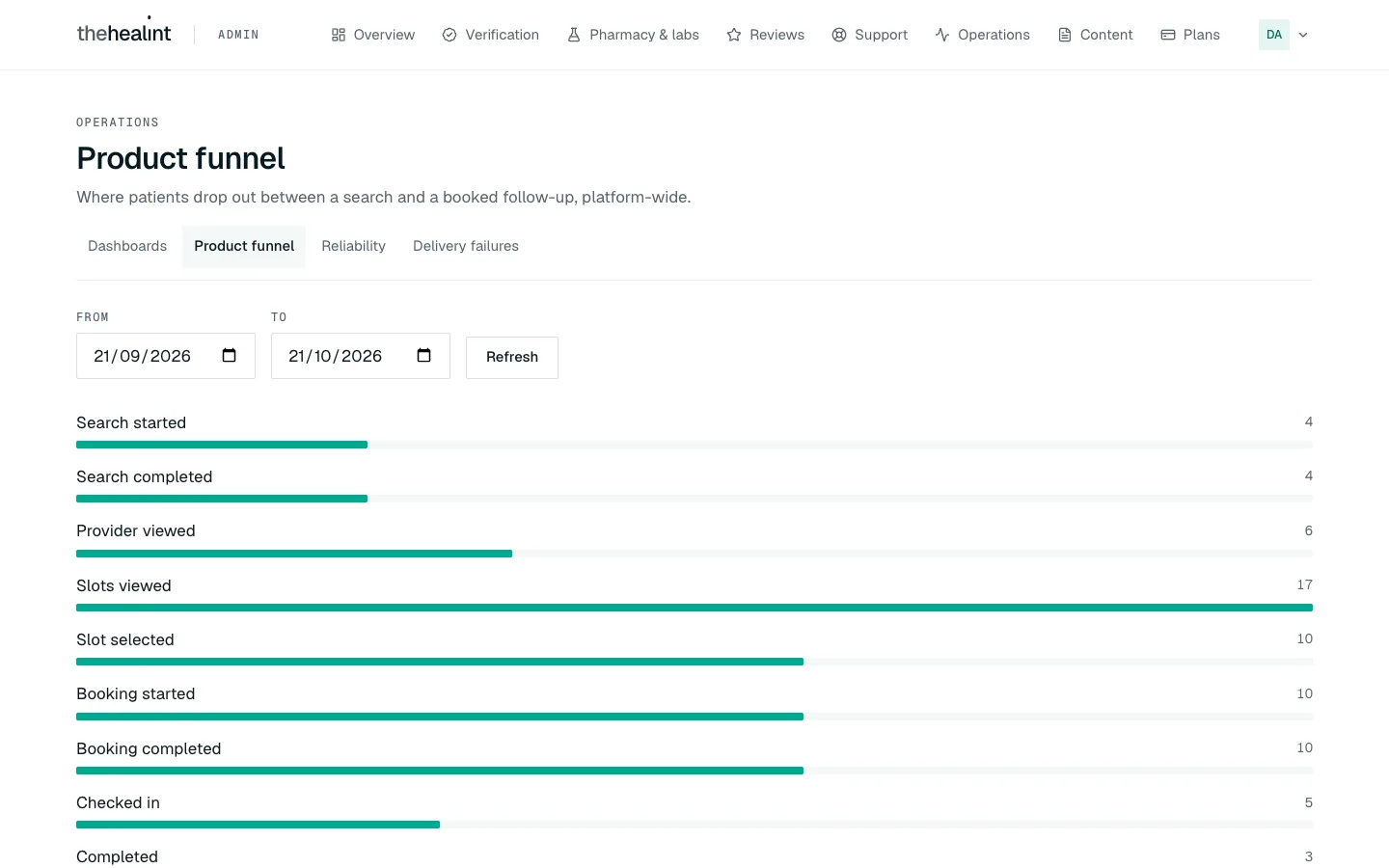
- On Operations, click the Product funnel tab.
- Set From and To dates and click Refresh.
- Read the bars from top to bottom, from Search started to Follow-up booked. A big drop between two steps shows where patients give up.
Reliability#
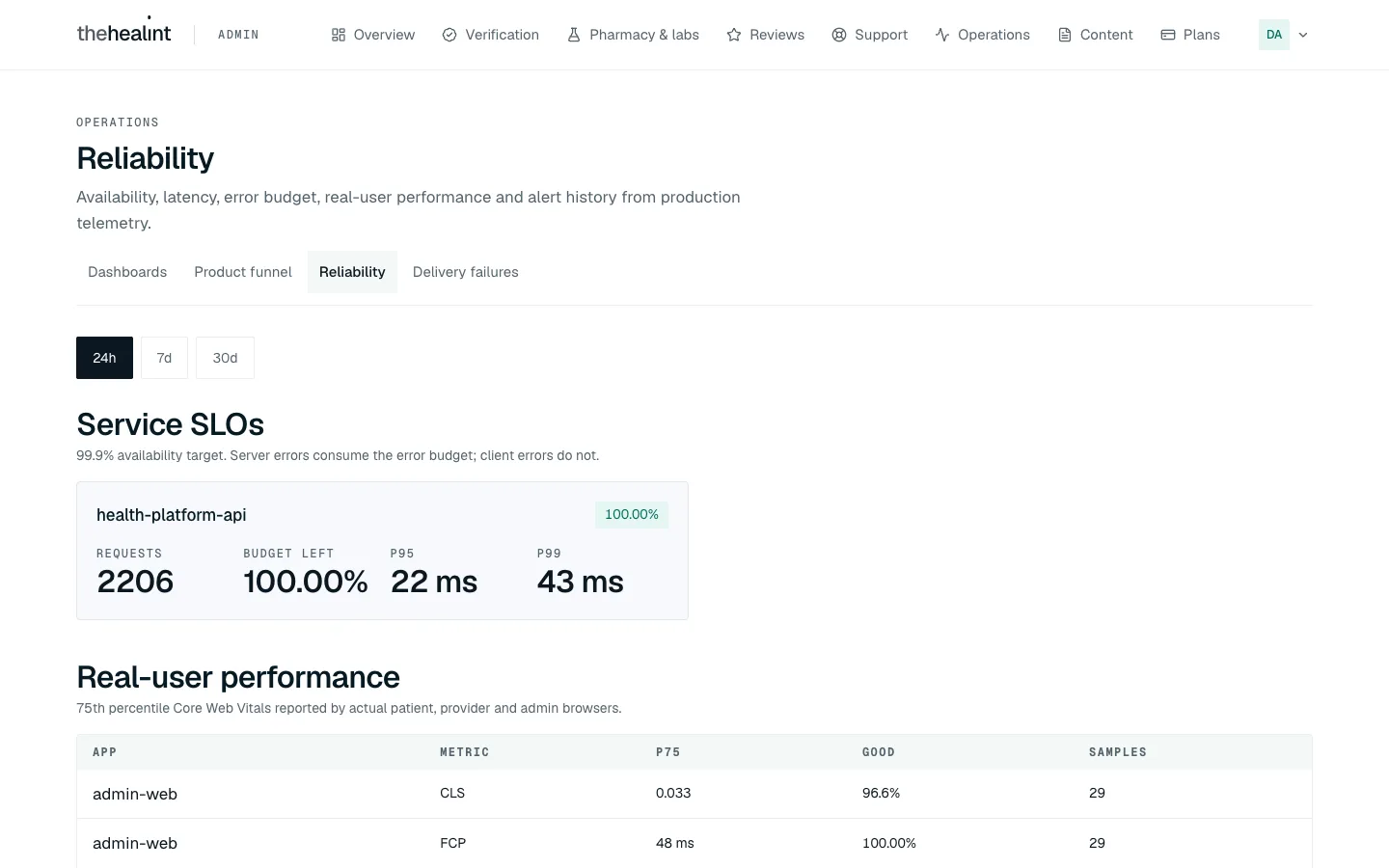
- On Operations, click the Reliability tab.
- Choose a time window: 24h, 7d or 30d.
- Service SLOs: each service's availability against the 99.9% target. Green means on target, red means below. It also shows how many requests there were, how much error budget is left, and response times.
- Real-user performance: how fast pages load for real users in each app.
- Alert escalation history: alerts raised in the window.
Delivery failures#
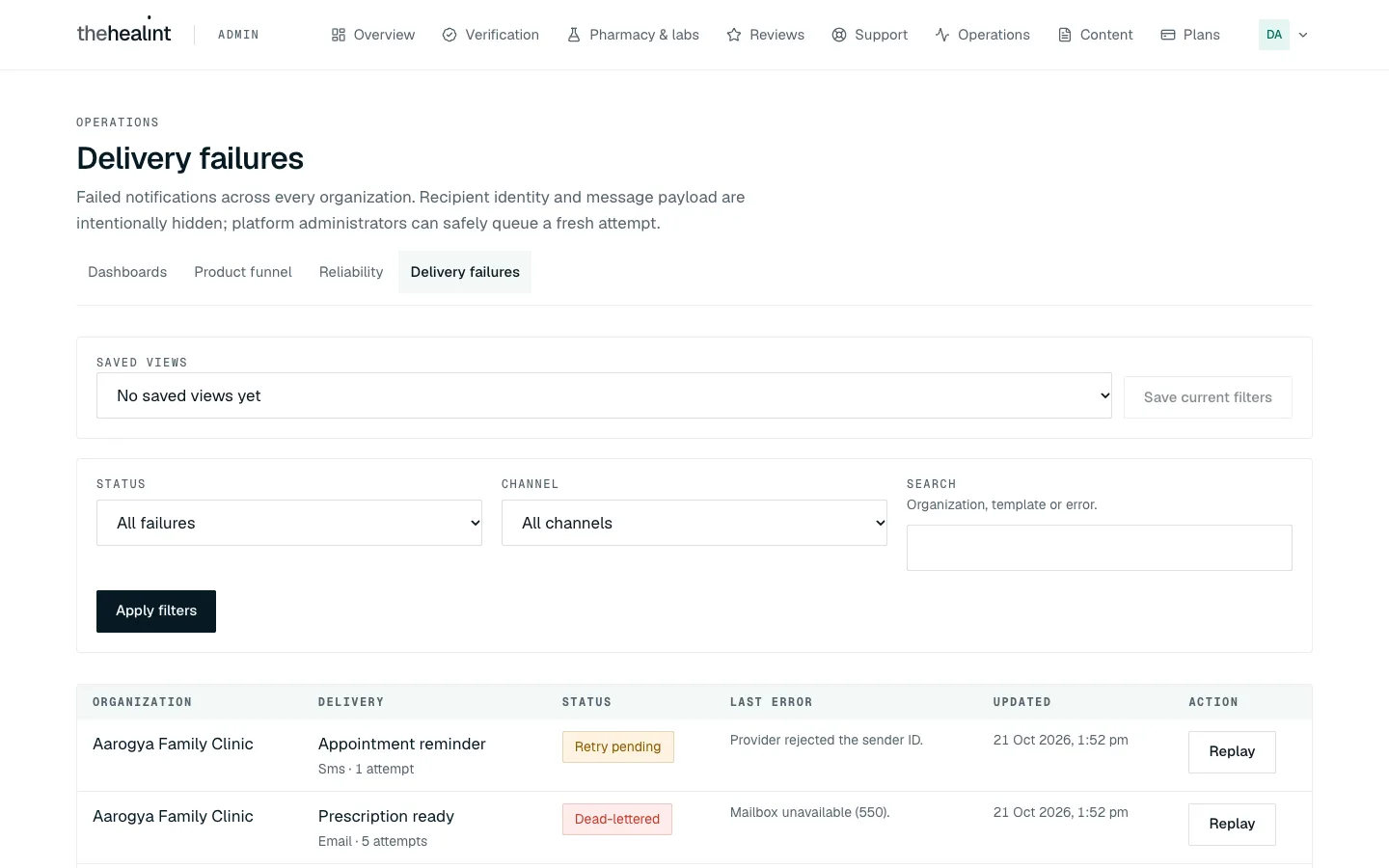
- On Operations, click Delivery failures.
- Filter by Status (retry pending or dead-lettered), Channel, or search for an organization, template or error, then click Apply filters.
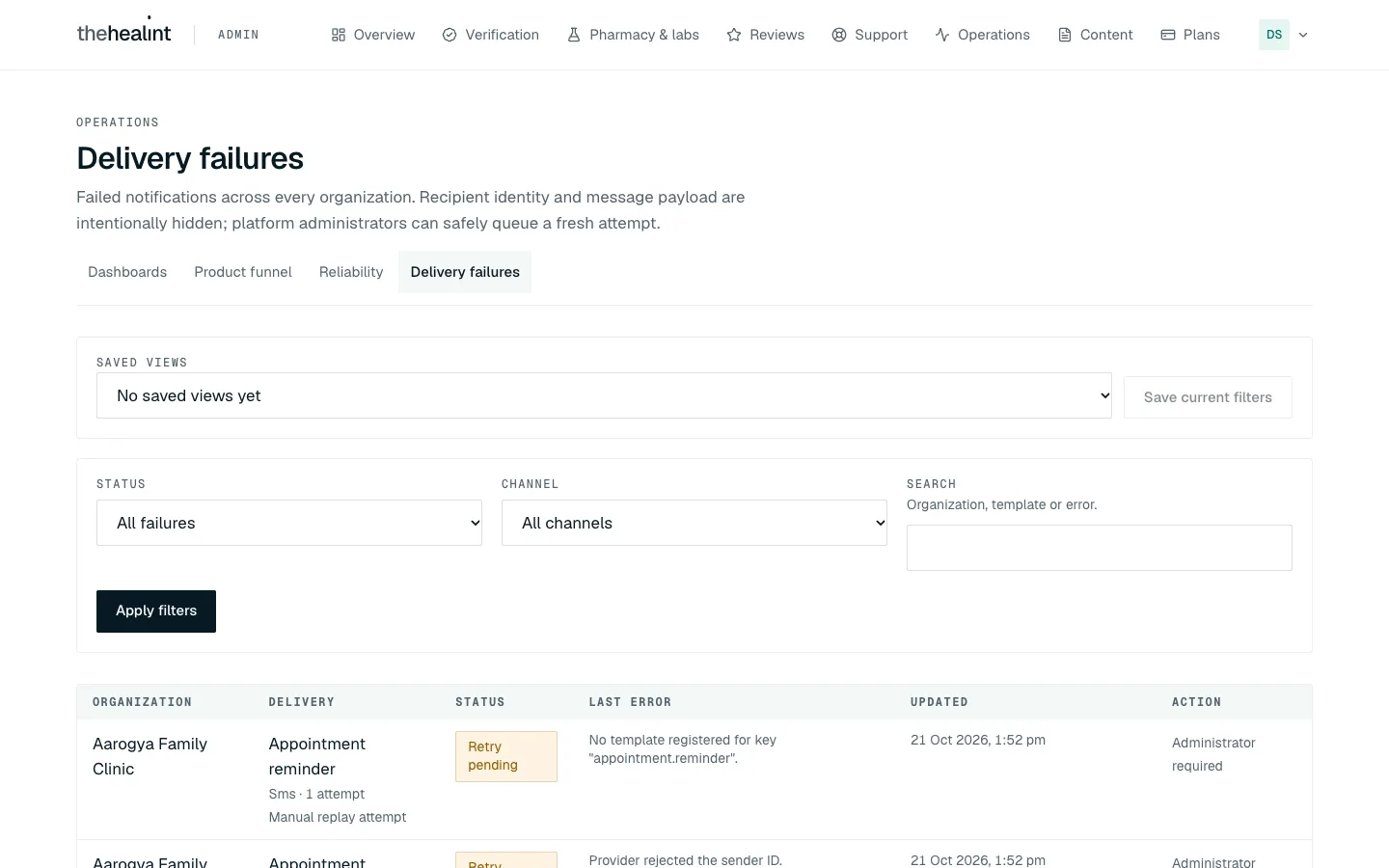
- The table shows the organization, template, channel, attempts and error. It never shows the recipient or message payload.
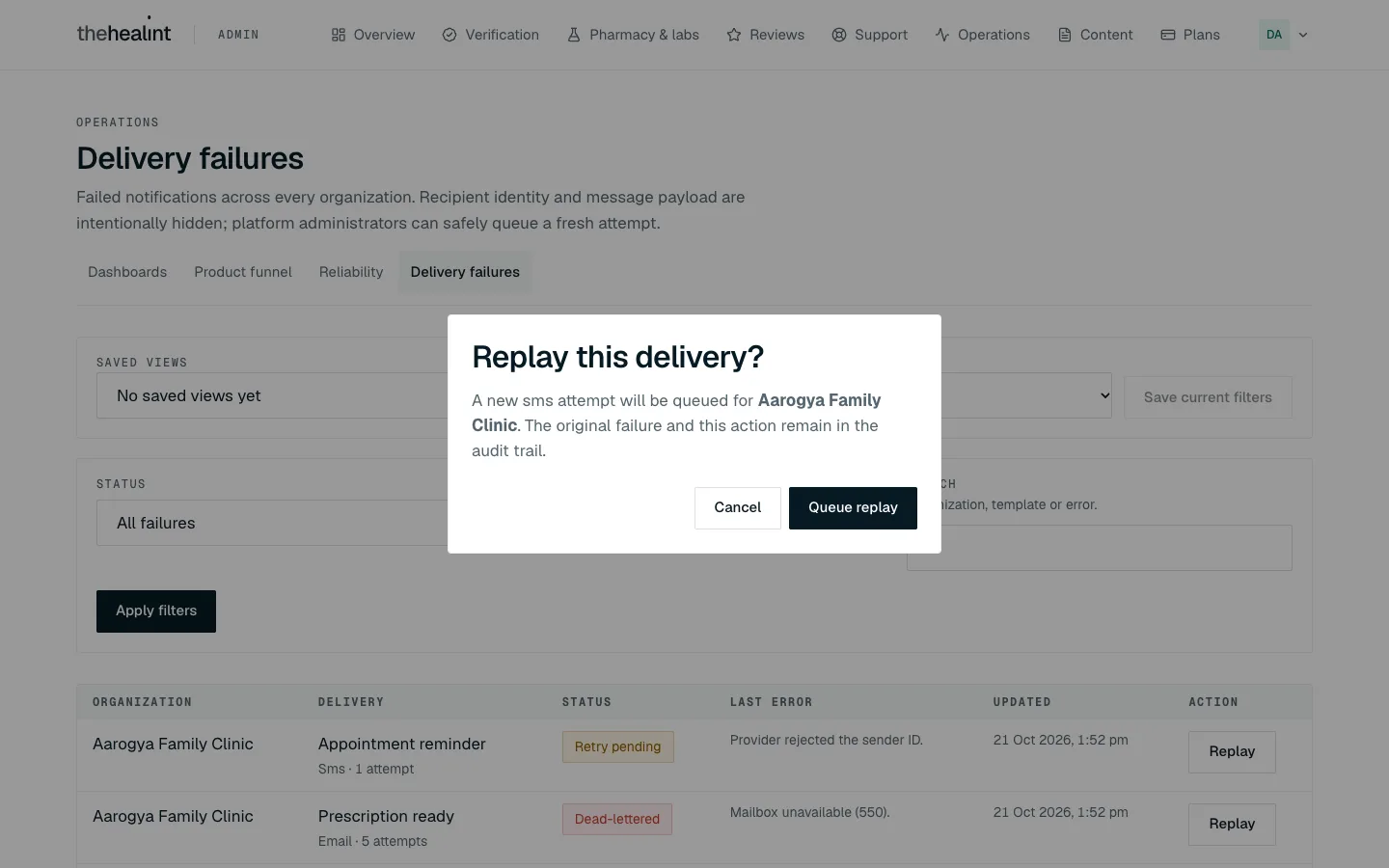
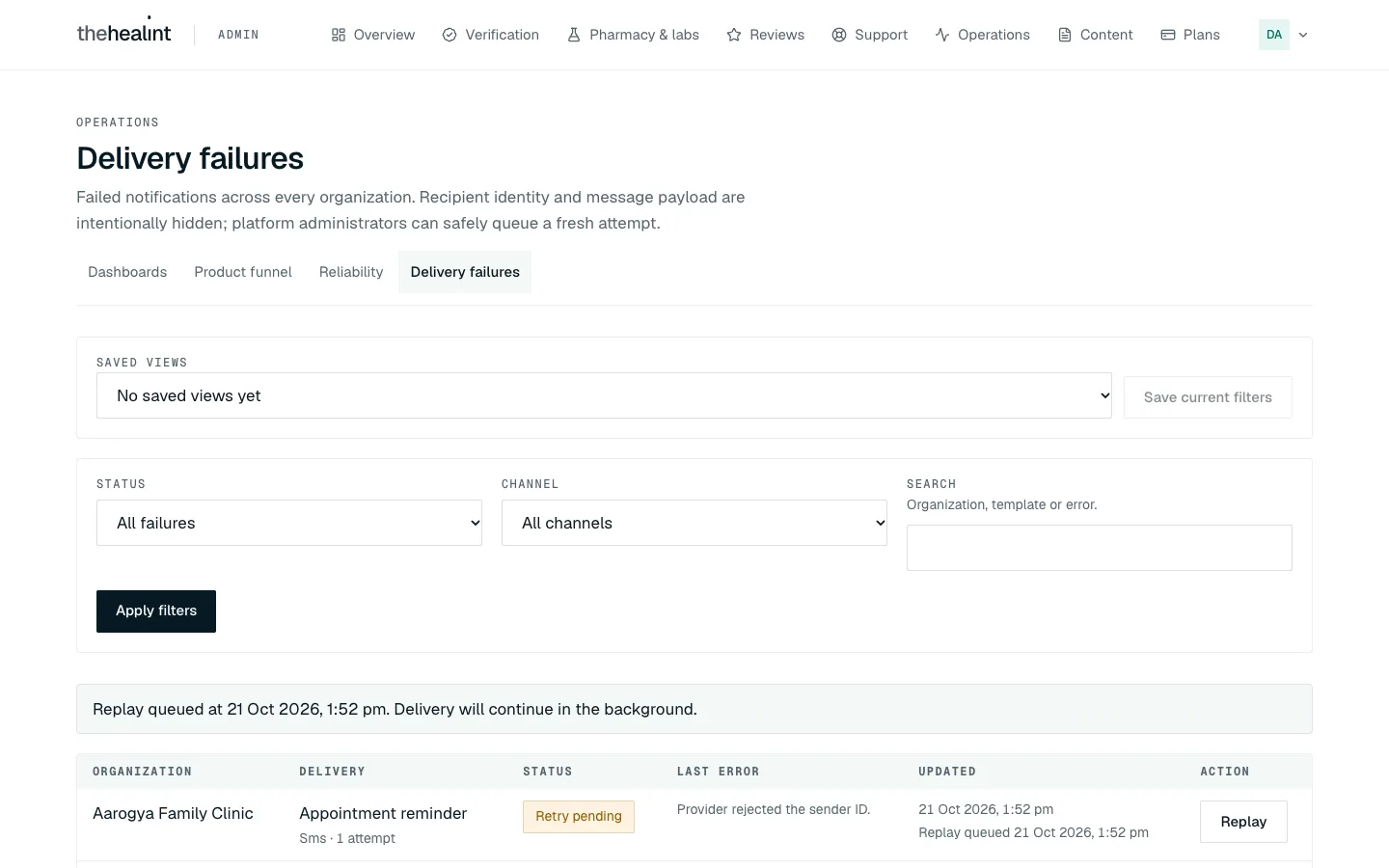
- Platform administrators can click Replay, read the confirmation and click Queue replay. The request is idempotent, continues in the background and remains linked to the original failure in the audit trail.
- Platform support can investigate and report failures but sees Administrator required instead of the replay button.
- Use Load older failures for the next page. A row labelled Manual replay attempt is the result of an earlier operator action.
Saved views#
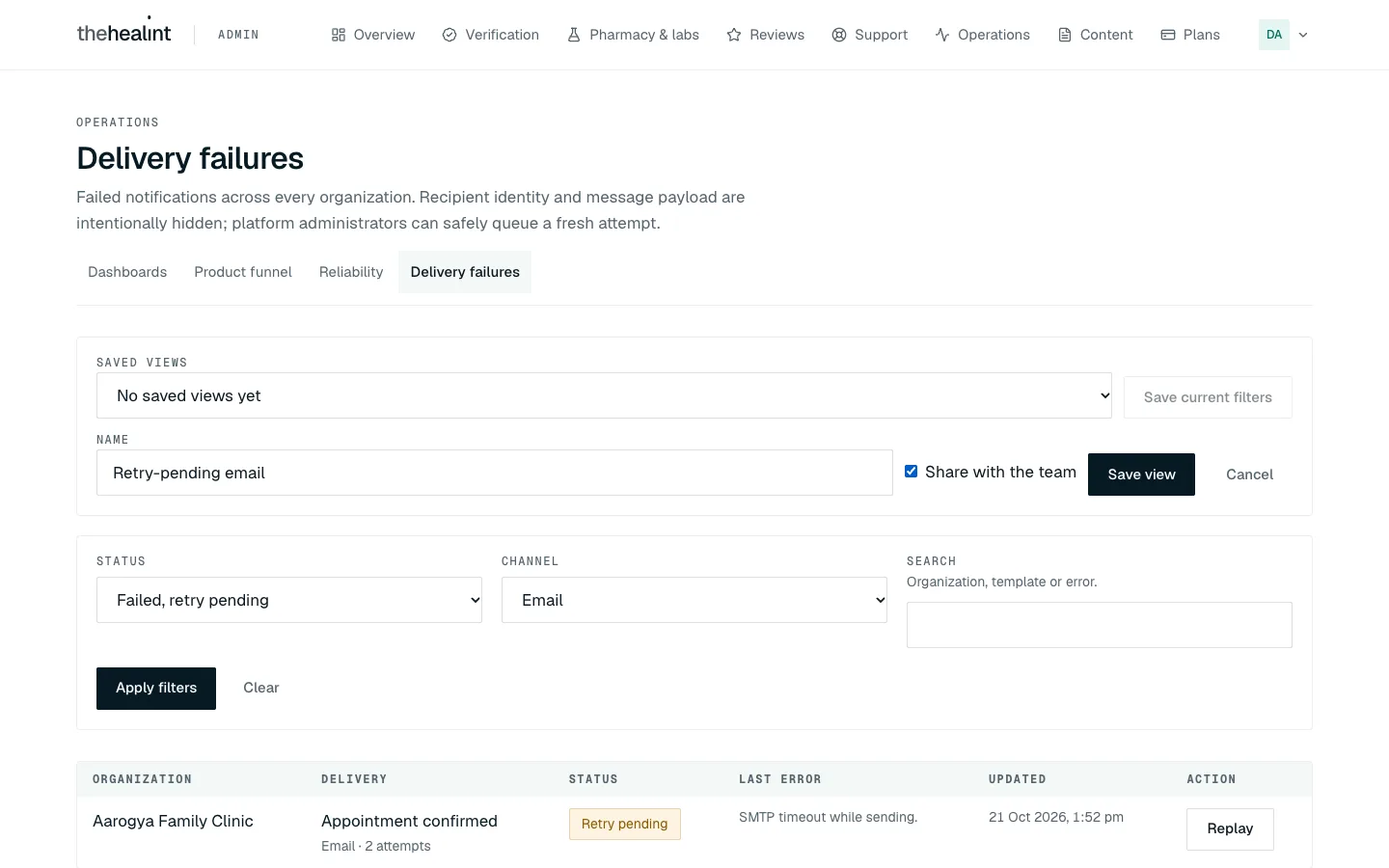
If you often look at the same slice of failures (for example only retry-pending email), save it:
- Set the filters and click Apply filters.
- Click Save current filters, type a name, and tick Share with the team if colleagues should see it too. Click Save view.
- Next time, pick the view from the Saved views list. It sets the filters for you.
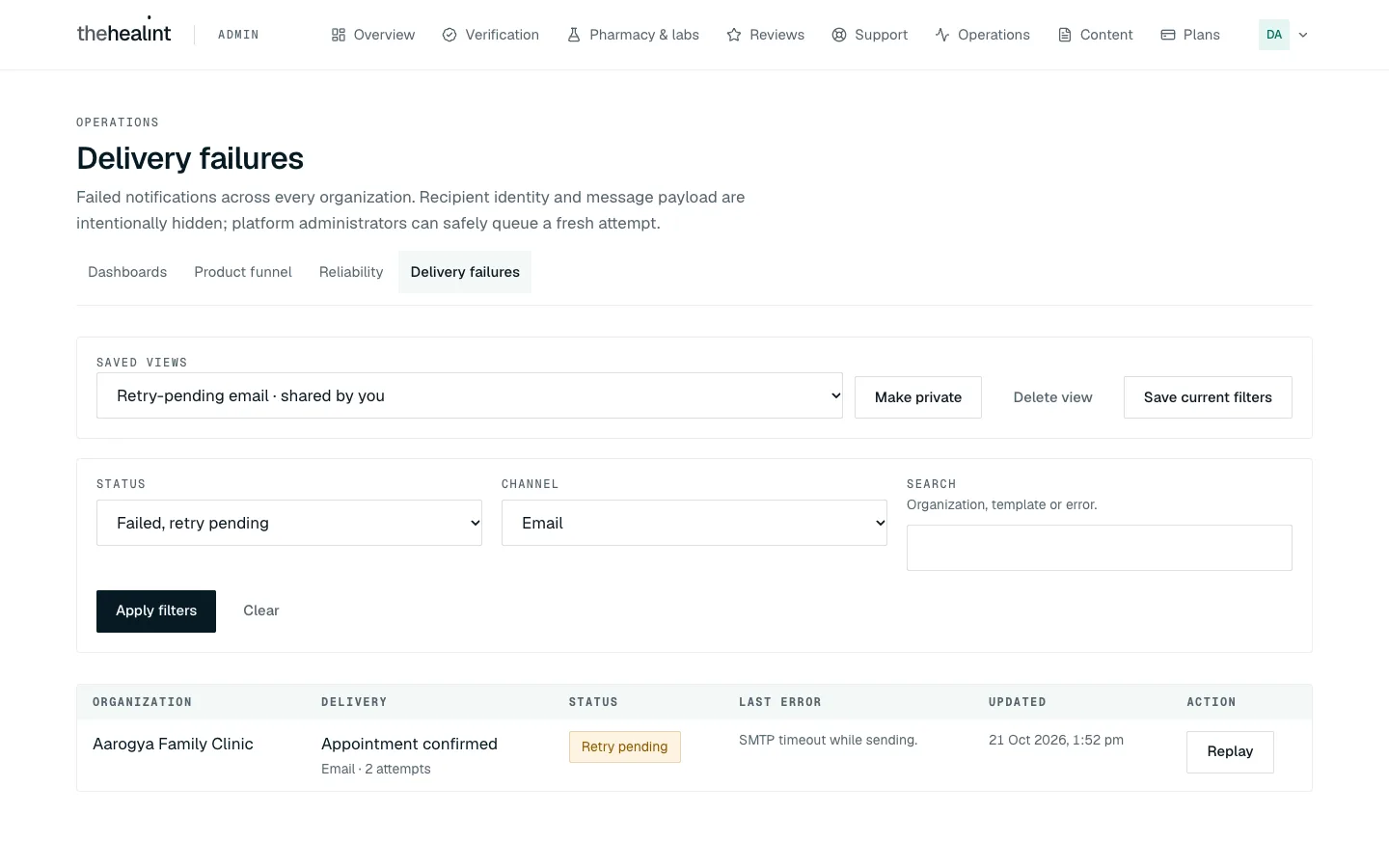
You can Make private, Share with team or Delete view on views you saved. Views a colleague shared appear in your list too, but only they can change them. Views hold only the filter choices, never any delivery or patient information.
Feature flags#
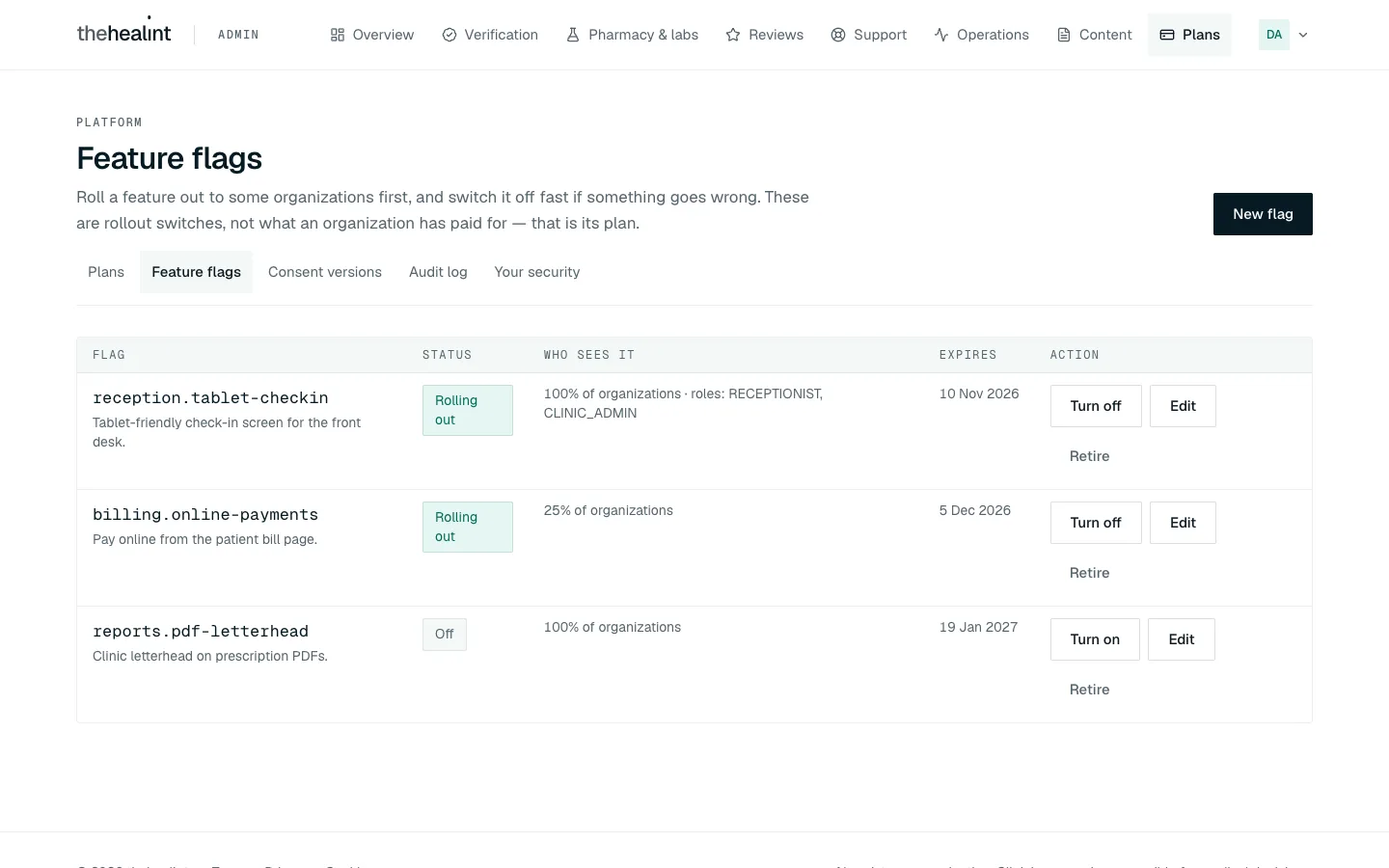
A feature flag lets you roll something out to a few organizations first and switch it off quickly if it goes wrong. It is not what an organization has paid for — that is its plan, under Plans. Only platform administrators see this page.
- Open Plans → Feature flags. Each row shows the flag's name, whether it is on, who sees it, and when it expires.
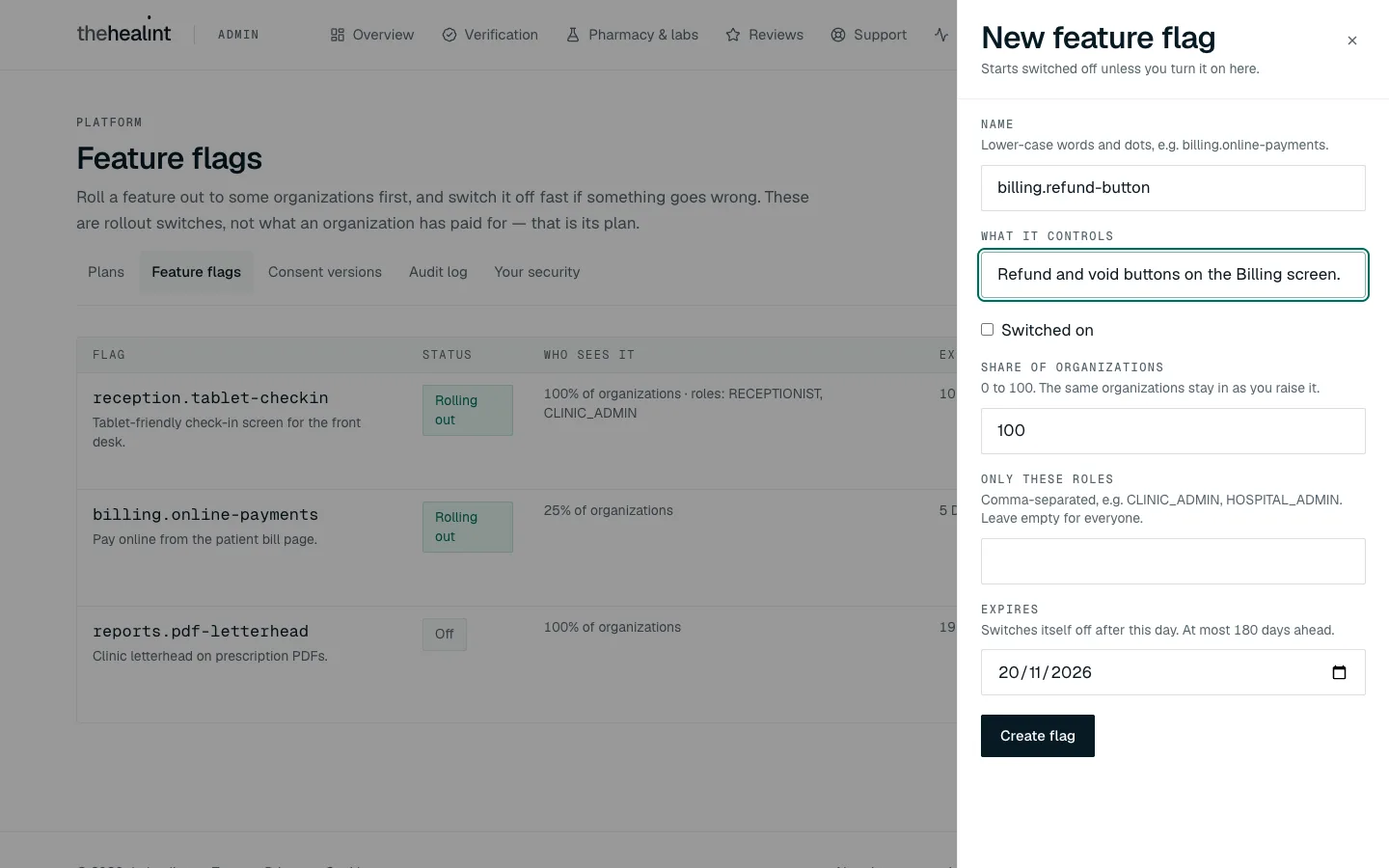
- Click New flag. Give it a Name (lower-case words and dots, such as
billing.online-payments), say What it controls, choose the Share of organizations (0–100), optionally limit it to certain roles, and set an Expires date. A flag can last at most 180 days; when it expires it switches itself off.
- Turn on asks you to confirm and reaches the chosen organizations straight away. Turn off takes effect at once (within a few seconds everywhere).
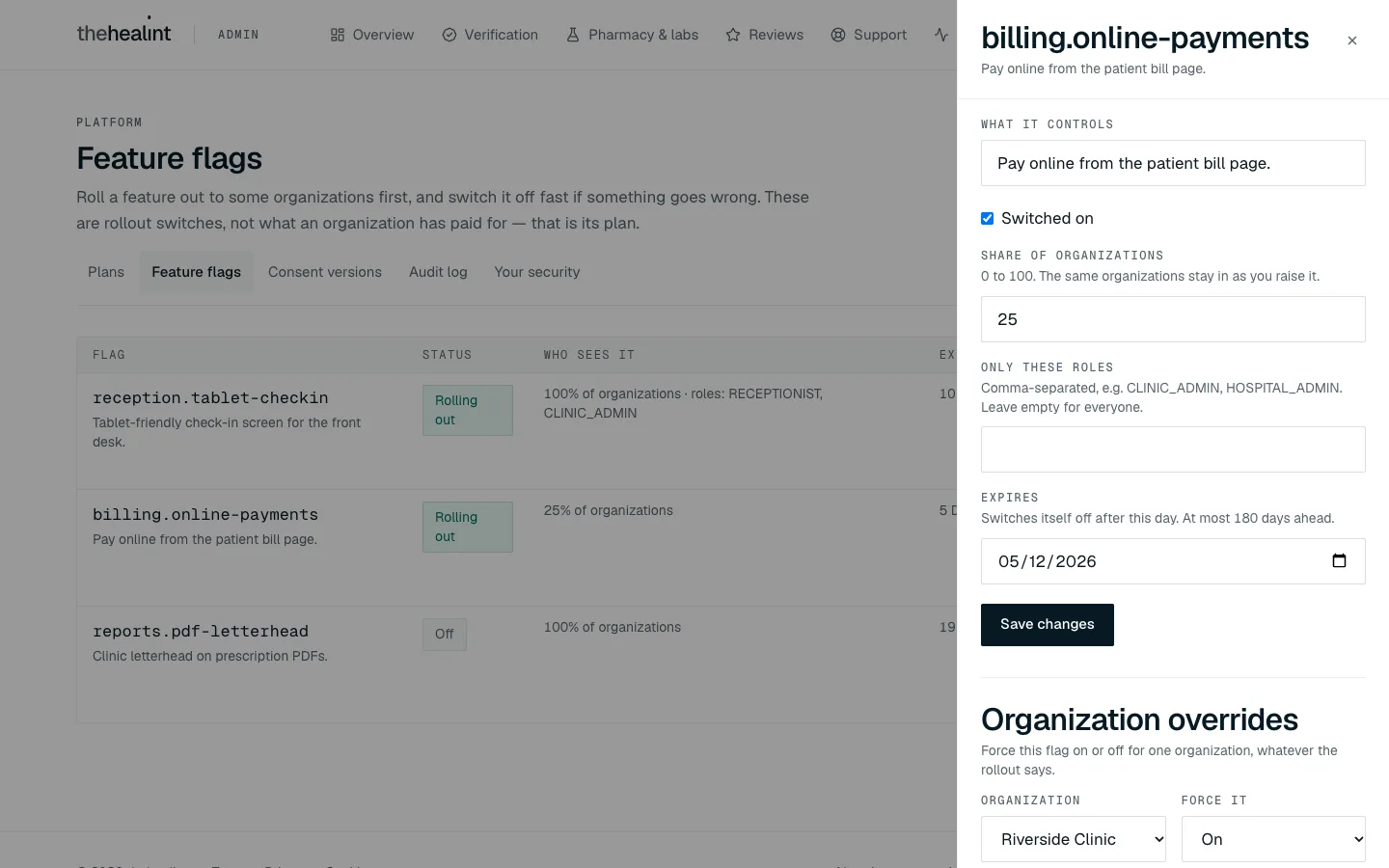
- Edit changes the share, roles, expiry or switch. Raising the share keeps the organizations that already had it.
- In Edit, Organization overrides force the flag on or off for one organization, whatever the share says. Use it to let a friendly clinic try a feature early, or to keep a feature away from one organization.
- Retire removes a flag and its overrides once the feature is fully released (or abandoned). Take the check out of the code first.
Every change is recorded in the audit log. Platform support cannot see or change flags.
Keeping the legal pages current#
The Terms and conditions, Privacy policy and Cookies pages are on the company website (thehealint.com/terms, /privacy and /cookies) and linked from every app. Each shows its version and date it took effect, a short "In short" summary, and a "Who we are" block.
That block is filled from one file in the website's code, src/lib/legal.ts: the company's registered name, address and corporate identity number, the grievance officer, and the privacy and support addresses. Anything not filled in shows "To be published before public launch". To list what is still missing, run npm run legal:check in the website's folder; it exits with an error while anything is missing, so it can gate a launch.
Before the service opens to the public:
- Fill in every detail in
src/lib/legal.ts. - Have the company's lawyer review the Terms, Privacy and Cookies wording, especially the retention periods, the 30-day response promise for data requests, the limit on liability and where data is processed.
- Change
versionandeffectiveDatewhenever the wording changes in a way that affects people, and tell users before it takes effect.
Region settings for an organization#
Each organization shows its dates, times and money in its own style. New organizations are set for India (English, rupees, India time). To change one, for example a clinic in the UK:
- Open the organization (Operations → click its name). The Region card shows its language and date style, currency and time zone.
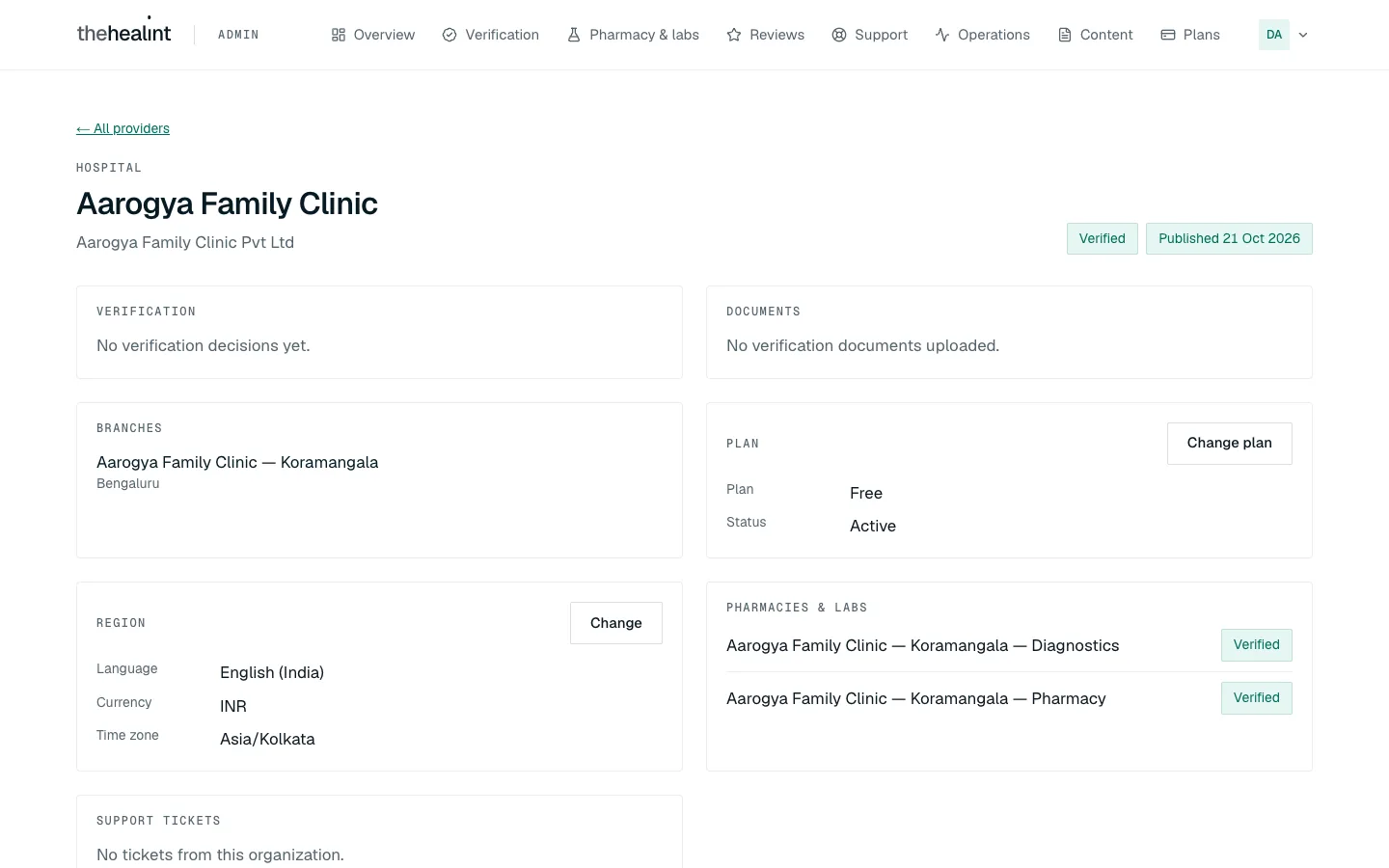
- Click Change, pick the language and date style, the currency and the time zone, and click Save. Only platform administrators see Change.
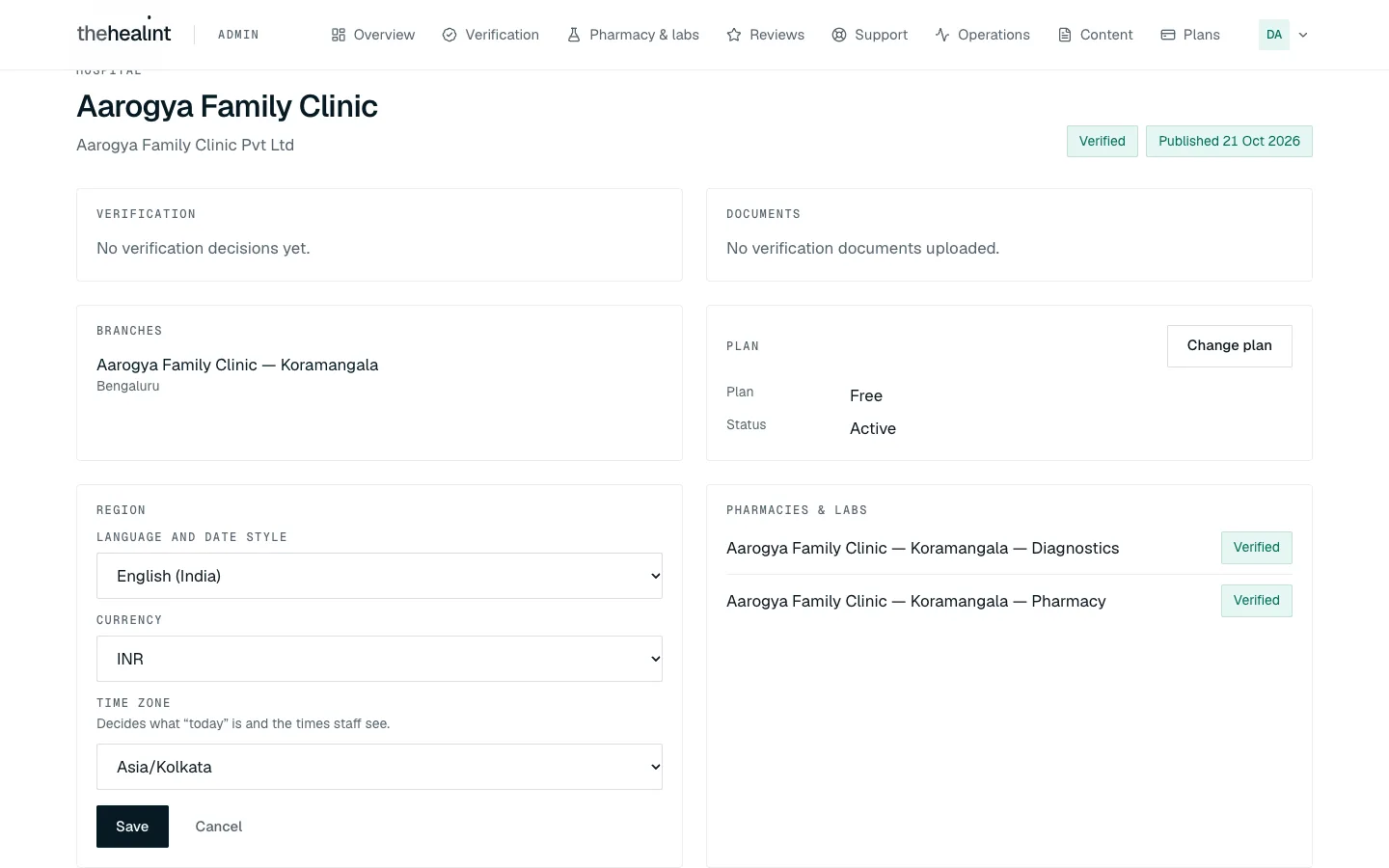
- The organization's staff see the new style the next time they open ProviderOS: fees and bills in the new currency, times in its time zone, and "today" decided by its clock.
What it does not change yet: appointment slots and reminders are still generated on India time, and patients see amounts in rupees. Set a non-India region only for a pilot you are watching closely.
If it doesn't work
- A block shows an error with Retry: click Retry. Each block loads on its own, so the others are still correct.
- "No funnel events in this range.": widen the dates. If it's still empty, ask engineering whether the analytics collector is running.
- You need synthetic-monitoring results: they aren't in Admin web. Ask engineering.
- Replay is unavailable: only a platform administrator can queue one. Platform support can still inspect and filter the failures.
How to use the audit log#
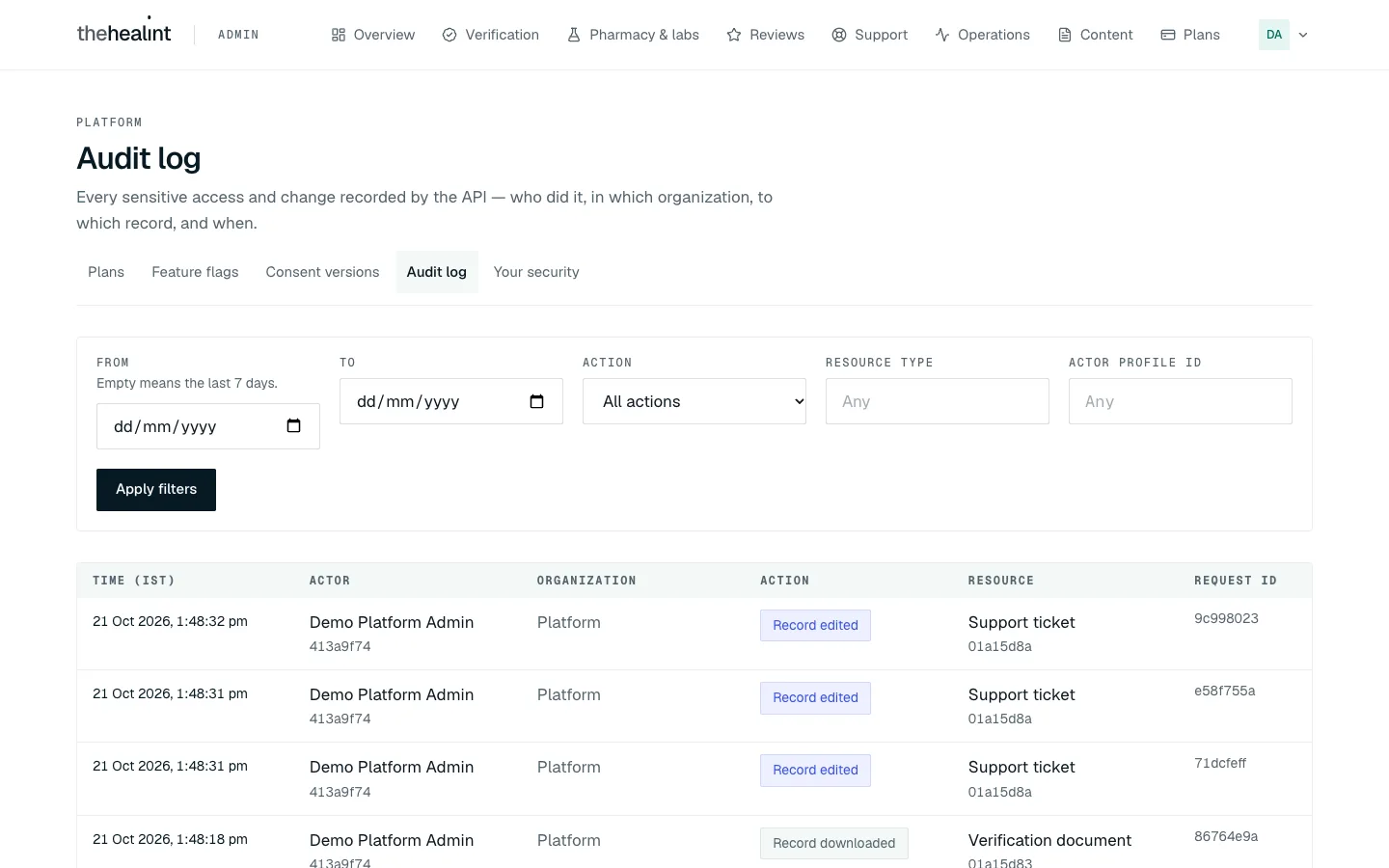
The audit log records every time someone opens, downloads or changes a sensitive record: who did it, in which organization, and when. Platform admins only.
- Click Plans, then the Audit log tab (or Audit log under All sections on Overview).
- The last 7 days are shown, newest first. Each row shows the time (India time), who did it, the organization ("Platform" if none), the action (for example Record viewed, Record edited, Record downloaded), the record and a request id.
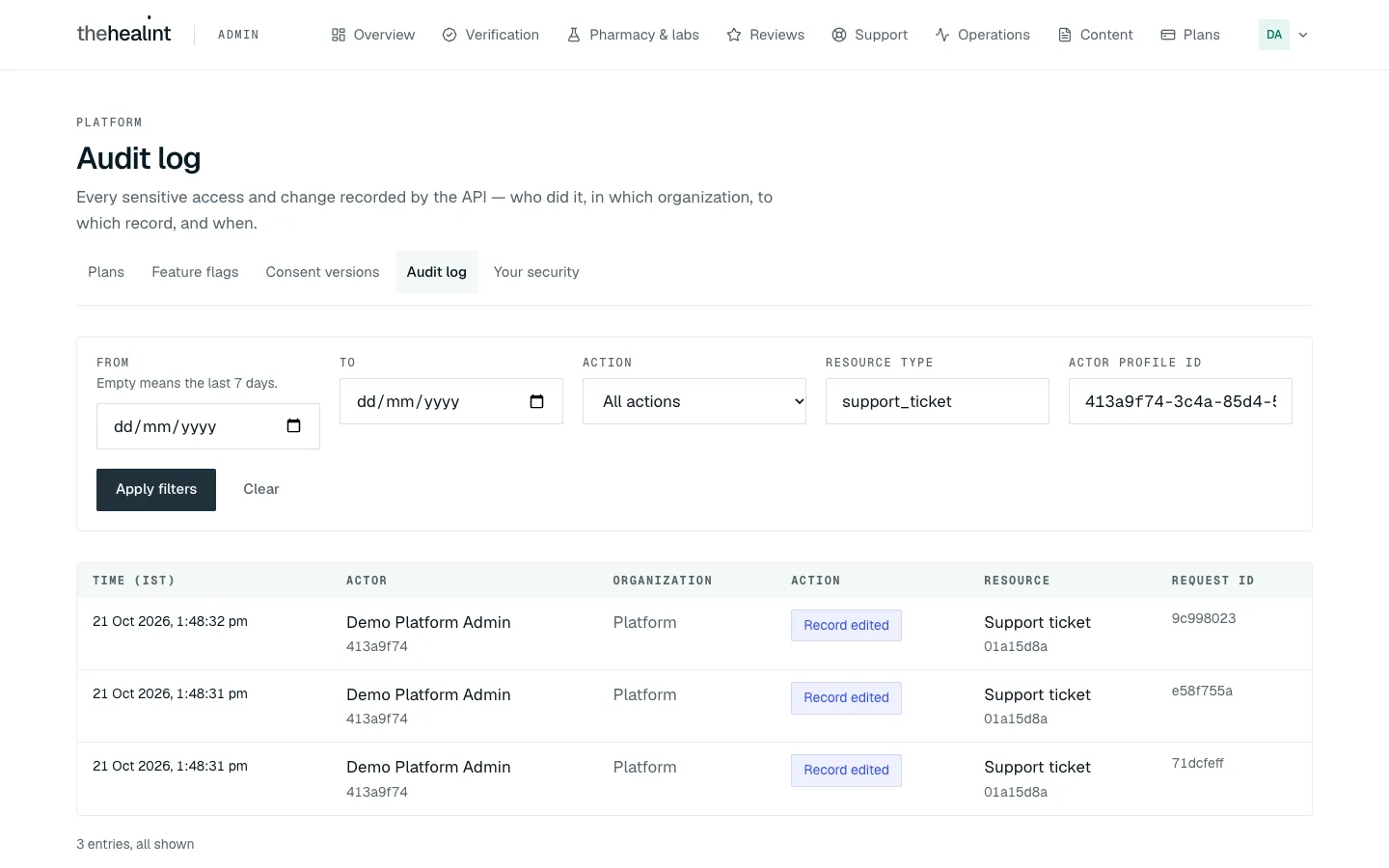
- To narrow it down, fill in any of the filters, then click Apply filters:
- From and To dates.
- Action.
- Resource type, written in lowercase with underscores, for example
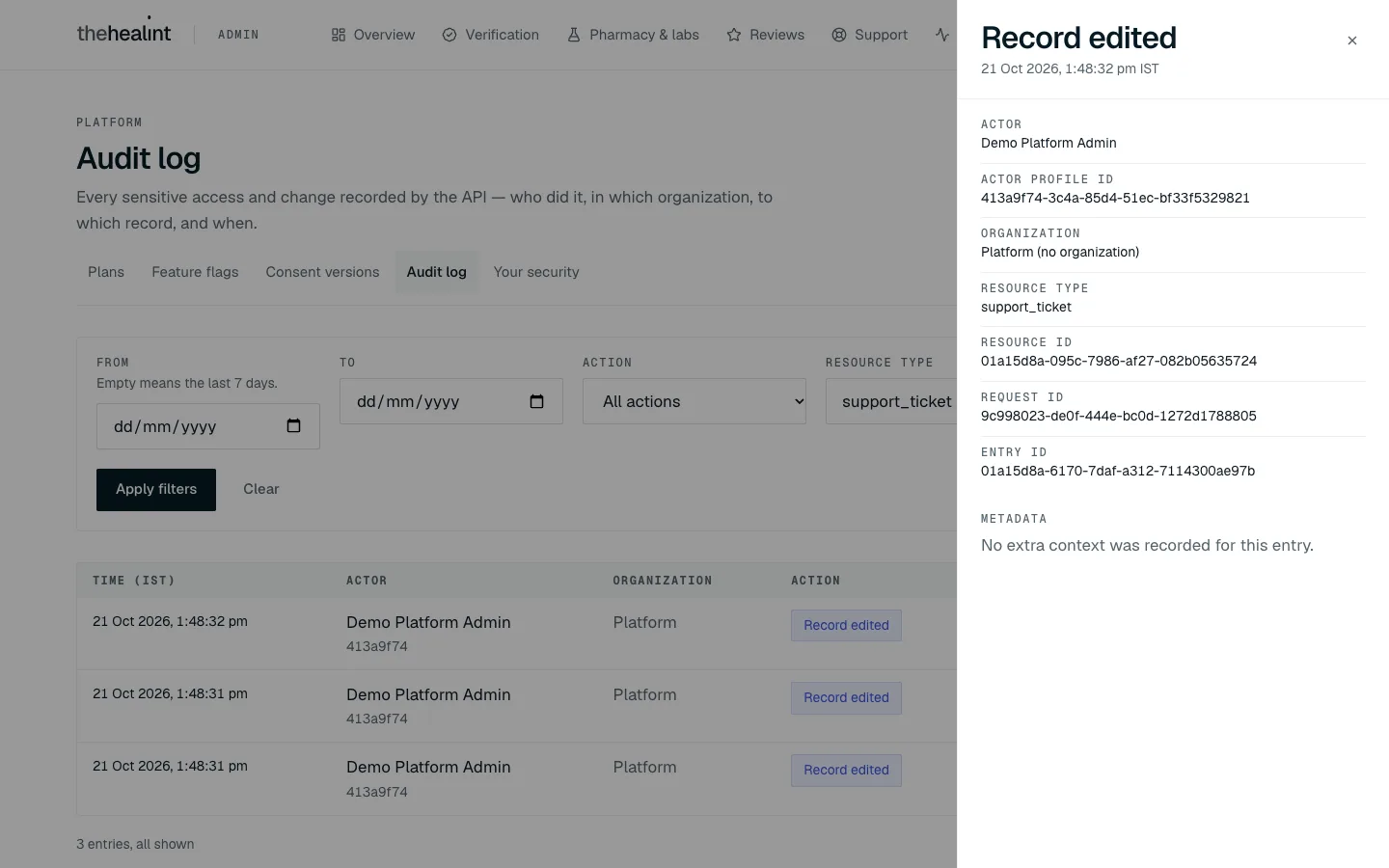
verification_documentorsupport_ticket. - Actor profile id, the full id of the person. You can copy it from an entry's details.
- Click Clear to remove the filters.
- Click a row to open its details on the right. You'll see the person, the organization, the record, the request and any extra context. Close it with ×.
- If there are more entries, click Load more at the bottom.
If it doesn't work
- "Use the snake_case type, e.g. verification_document.": write the resource type in lowercase with underscores.
- "Paste a full profile id (a UUID).": copy the whole id from an entry's details. A short id won't work.
- "The end date is before the start date.": swap the dates.
- "No entries match these filters.": widen the dates or clear a filter.
- "Your account can't read the platform audit log": you're signed in as platform support. Ask a platform admin.
How to look after content#
Reference data#
Reference data is the shared lists that every clinic profile and every patient search uses: specialties, services, symptom terms, search synonyms, cities and localities.
- Click Content. The Reference data tab opens.
- Choose a list: Specialties, Services, Symptom terms, Search synonyms, Cities or Localities.
- To add an entry, fill in the form below the list and click the add button, for example Add specialty. For a specialty, the Key is a short lowercase label that never changes (for example
dermatology); the Name is what people see. - Specialties and services can also be edited: click one in the list, change it and click Save changes. The other lists can only be added to.
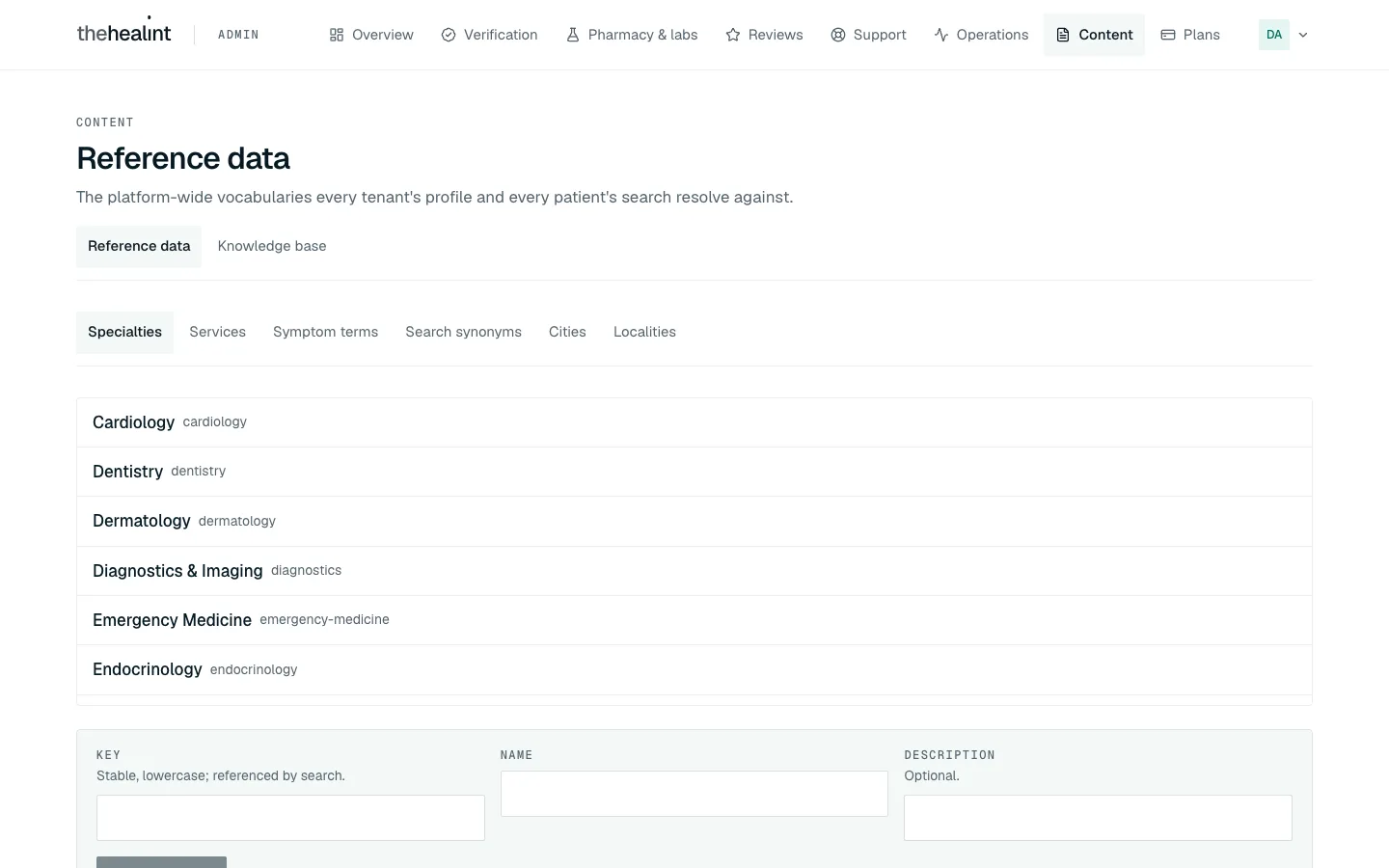
If it doesn't work: "A branch cannot be placed until its city exists." means a clinic is waiting for a city. Add it under Cities, then its areas under Localities.
Knowledge base#
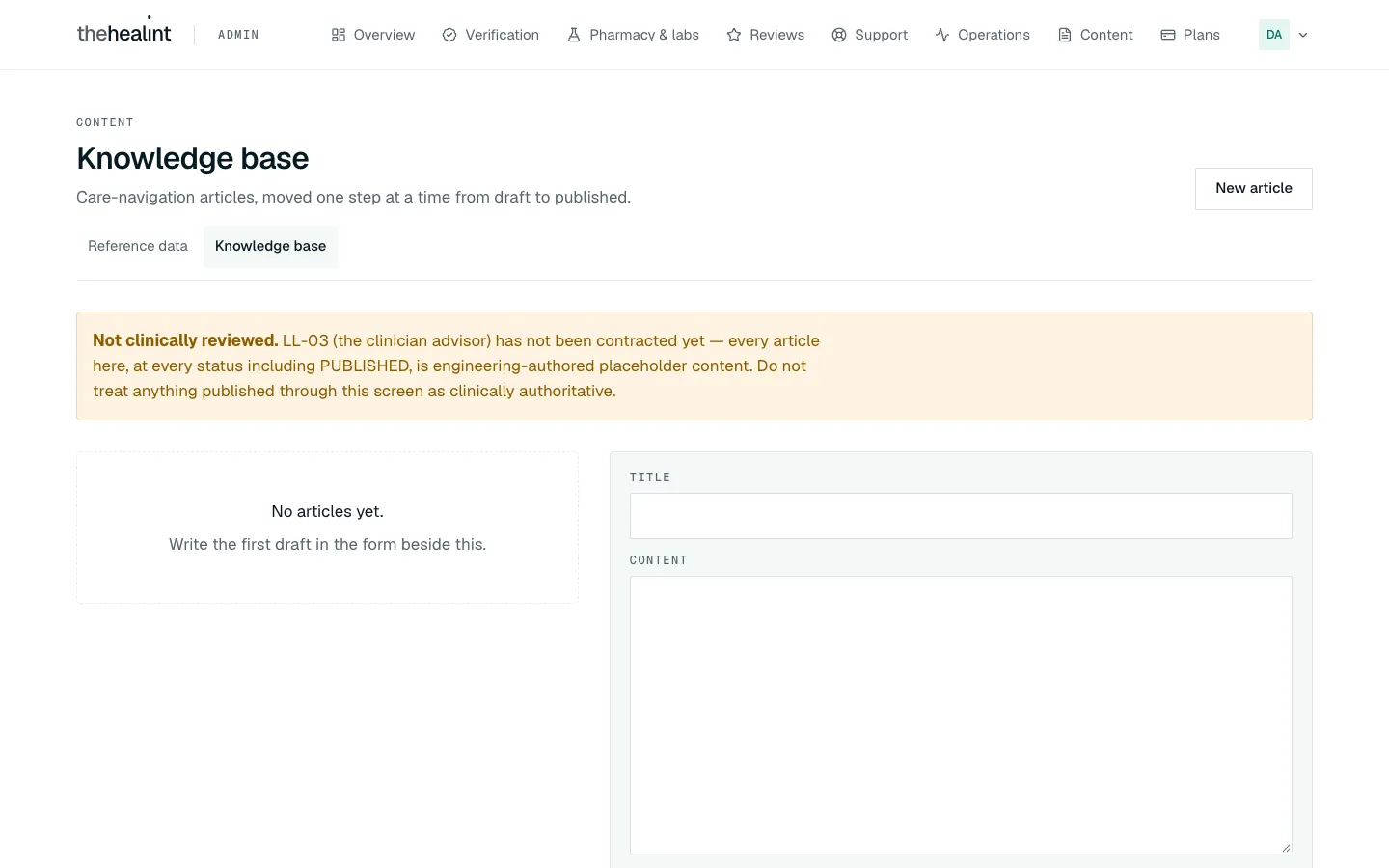
Knowledge base articles are care-navigation guides. Each one moves through steps: Draft, then In review, then Approved, then Published, and later Archived.
- Click Content, then the Knowledge base tab.
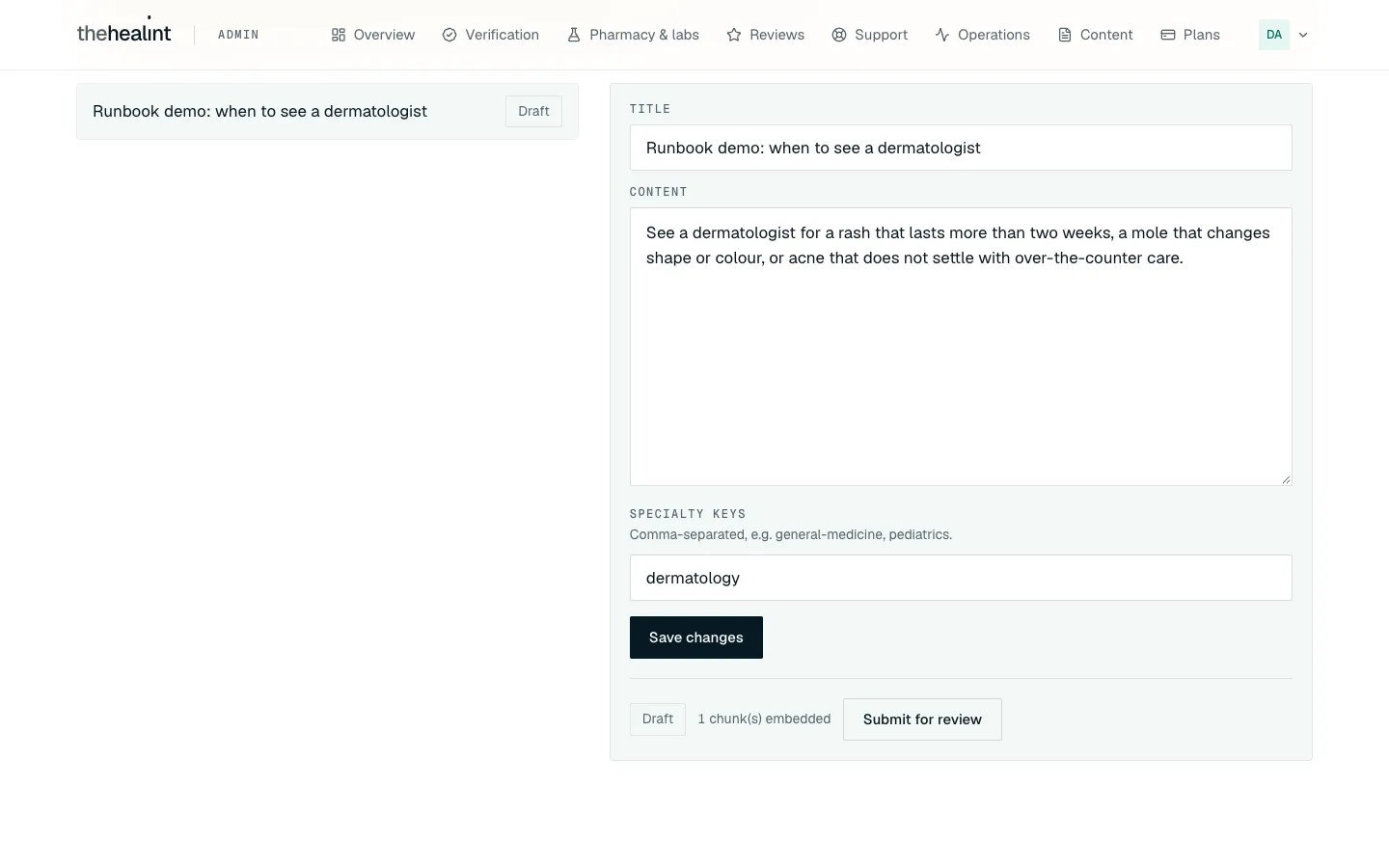
- To write an article, click New article and fill in Title, Content and Specialty keys (for example
dermatology). Click Create draft. - Click the article in the list to open it. Click Save changes after editing.
- Move it on one step at a time with the button at the bottom: Submit for review, then Approve, then Publish, and later Archive. While an article is in review or approved, Send back to draft returns it for more work. Publish, Archive and Send back to draft each ask you to confirm.
Read the yellow warning at the top of the page: articles have not been clinically reviewed yet, so don't treat anything here as medical advice.
Consent versions#
Consent versions are the texts patients agree to, such as data sharing or marketing messages. You never edit a consent text: you publish a new version, and it replaces the old one. Platform admins only.
- Click Plans, then the Consent versions tab.
- Active artifacts lists the current texts, each with its version (for example "v1 · active").
- Under Publish a new version, pick the text in Artifact, or choose New artifact… for a brand-new one.
- Check or write the Key (lowercase words joined by underscores), the Purpose (one sentence, in the patient's words) and the Scope (exactly what's covered).
- Click Publish v2 (the number is the next version). Read the box carefully and confirm.
What happens: the old version is switched off for good, and every patient asked from now on sees the new text. Patients who already agreed stay linked to the version they actually agreed to.
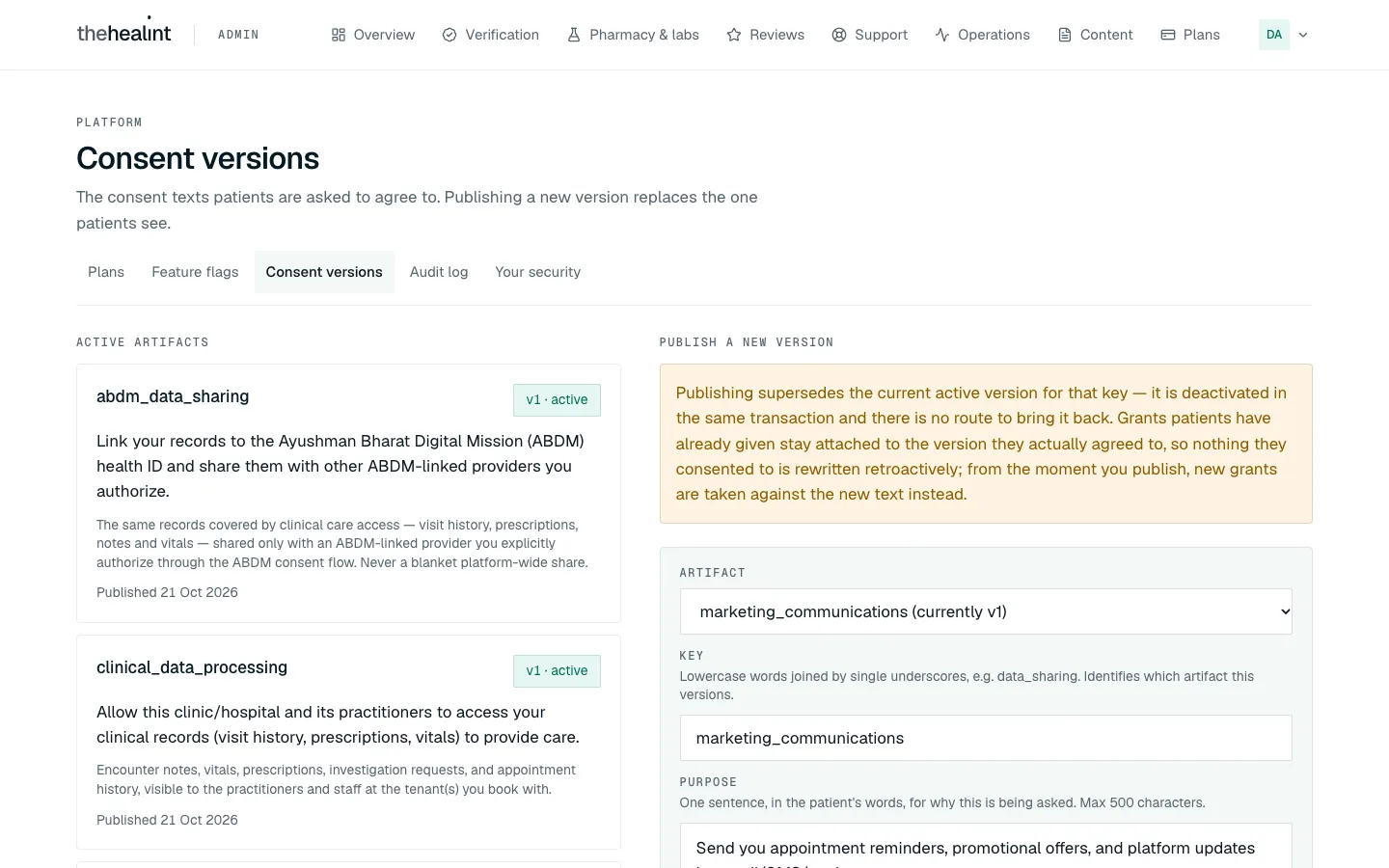
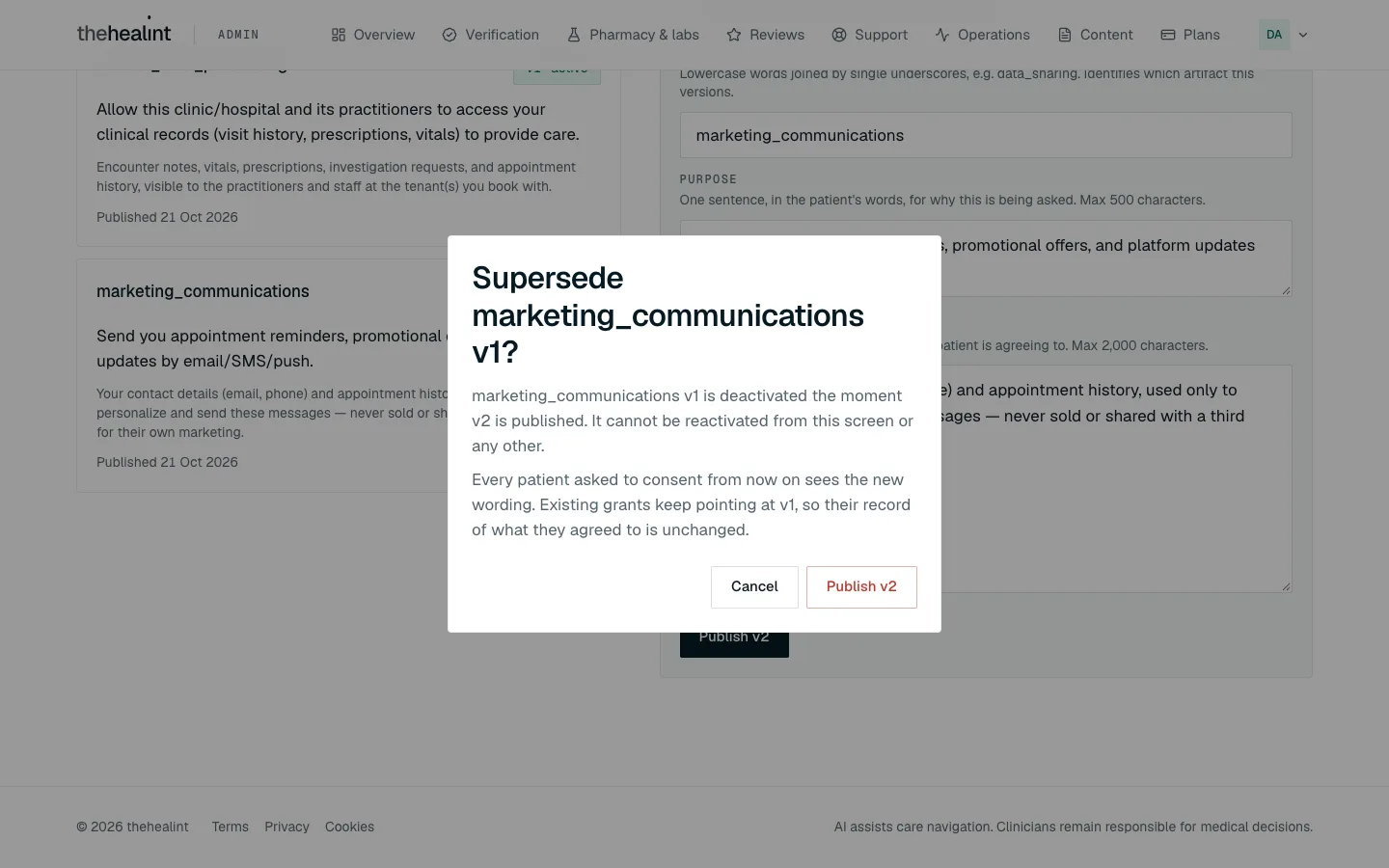
If it doesn't work: the publish button stays greyed out until the key, purpose and scope are all valid. Check the hints under each box.
Marketing admin (hi-home)#
The marketing website, hi-home, is a separate site with its own admin area. It is not part of Admin web. It's for the marketing team to read the messages people send through the website.
What comes in
- Contact enquiries: a name, email, mobile number and message.
- Job applications: for developer or sales roles, with experience, location, a short "about" and an optional portfolio link. There are no CV uploads.
Nobody gets an email when one arrives: not the person who sent it, and not the team. If the site is set up to forward submissions somewhere else, each one is passed on automatically. If forwarding fails, the site retries once a day.
How to read submissions
- Go to the marketing site's restricted Submissions page.
- Click Continue with Google SSO and sign in with your work Google account.
- Your account must have the marketing admin role. Otherwise you'll see "This identity does not have the
marketing_adminrole." - Complete the authenticator check, which is required here. The first time, scan the QR code with your authenticator app. Then enter the Six-digit code and click Verify and continue.
- The page shows how many enquiries and applications there are. Use the tabs Enquiries, Applications and Delivery failures, and the search box to find one. Email addresses and phone numbers are links you can click.
- If a submission failed to forward, open Delivery failures and click Replay now to try again. It shows "Replayed" or "Replay failed.".
Submissions are read-only. You can't mark them as handled, assign them, add notes or export them. Every view is recorded.
If it doesn't work
- "Not connected to the database" or "Database unreachable": the site can't reach its storage. Tell engineering.
- You need the marketing admin role: it has to be added to your account by hand. Ask engineering.
Things you can't do here — and who to ask#
| You want to… | What to do |
|---|---|
| Add or remove a platform staff member, or change their role | There's no screen for this. Ask engineering. |
| Reset your authenticator after losing your phone | Ask engineering to remove the authenticator from your account, then set it up again. |
| Verify an individual doctor | Not done on the platform. Only organizations, pharmacies, labs and their professionals are verified. |
| Undo a suspended pharmacy or lab | There's no "reinstate" button. Ask engineering. |
| Reopen a closed support ticket | Not possible. Ask the person to raise a new ticket. |
| Assign a ticket to a colleague or set a priority | Not supported yet. Agree it with your team outside the tool. |
| Tell an operator about a facility, professional or review decision | No email is sent for these. Contact them directly. |
| Create or edit a plan in the catalogue, or schedule a plan change | Not supported here. Ask engineering or product. |
| See synthetic monitoring results | They run outside Admin web. Ask engineering. |
| Get a second person to approve a knowledge base article | Not enforced. The same person can write, approve and publish, so agree a review process with your team. |
| Anything platform-admin-only while signed in as support | Ask a platform admin. |
Quick reference#
| Task | Where | Who | Key button |
|---|---|---|---|
| Decide a plan request | Plans → Plan requests | Admin | Approve / Decline |
| See what's waiting | Overview (Work inbox) | Admin, support | — |
| Investigate failed notifications | Operations → Delivery failures | Admin, support | Apply filters |
| Replay a failed notification | Operations → Delivery failures | Admin | Replay → Queue replay |
| Set up two-factor | Account menu → Your security | Admin, support | Set up two-factor authentication → Confirm |
| Verify an organization | Verification → organization | Admin | Approve / Reject → Reject application |
| Verify a pharmacy, lab or professional | Pharmacy & labs | Admin | Verify / Reject / Suspend (note required) |
| Look up an organization | Operations → Providers → name (Tenant 360) | Admin | Review, Change plan |
| Moderate a review | Reviews | Admin, support | Publish review / Hide review (reason required) |
| Answer a ticket | Support | Admin, support | Send reply, Mark IN_PROGRESS → RESOLVED → CLOSED |
| Change a plan | Plans → Tenants | Admin | Change plan / Assign plan |
| Check health | Operations → Dashboards / Product funnel / Reliability | Admin, support | Refresh, 24h / 7d / 30d |
| Check who did what | Plans → Audit log | Admin | Apply filters, click a row |
| Add reference data | Content → Reference data | Admin, support | Add specialty (and so on) |
| Publish an article | Content → Knowledge base | Admin, support | Create draft → Submit for review → Approve → Publish |
| Publish a consent version | Plans → Consent versions | Admin | Publish vn |
| Read marketing submissions | hi-home Submissions page | Marketing admin | Continue with Google SSO, Replay now |
PDF version
The same guide with all its screenshots, to print or share. (2.0 MB)
Download the PDF Open in a new tab
Loading the PDF viewer… If it does not appear, your browser cannot show PDFs inside a page: use Download the PDF.