Pharmacy and lab
Who this is for#
This guide is for the people who fill prescriptions and run lab tests that patients send through thehealint:
- Pharmacist: accepts and dispenses prescription orders.
- Lab technician: accepts test orders, collects samples and releases reports.
- Pharmacy admin and Lab admin: run the pharmacy or lab. As well as working orders, you register the facility, upload its licence and invite its pharmacists or lab technicians.
It covers what you see, adding your team, registering a pharmacy or lab and getting it verified, submitting your own professional registration, and working each order from start to finish.
Patients choose where to send an order, and nothing reaches you until they tick a consent box. You only ever get orders sent to your verified pharmacy or lab.
You work in ProviderOS, in a web browser. Clinic and hospital admins can also run an in-house pharmacy or lab: they find these same pages under Fulfilment (05-clinic-admin.md).
What you'll see#
ProviderOS opens on your work when you sign in. Pharmacists and lab technicians have one menu item; facility admins also have Settings for their team.
| You are a… | Your menu | What's on the page |
|---|---|---|
| Pharmacist | Pharmacy | Assigned orders, your pharmacy, the Licence document box, and the Registered pharmacist box for your own registration |
| Lab technician | Diagnostics | The same, for the lab, with a Laboratory signatory / technician box |
| Pharmacy admin | Pharmacy, Settings | All of the above, plus Orders sent to external partners, Register pharmacy, and Settings → Staff for pharmacists |
| Lab admin | Diagnostics, Settings | All of the above, for the lab, plus Register lab, and Settings → Staff for lab technicians |
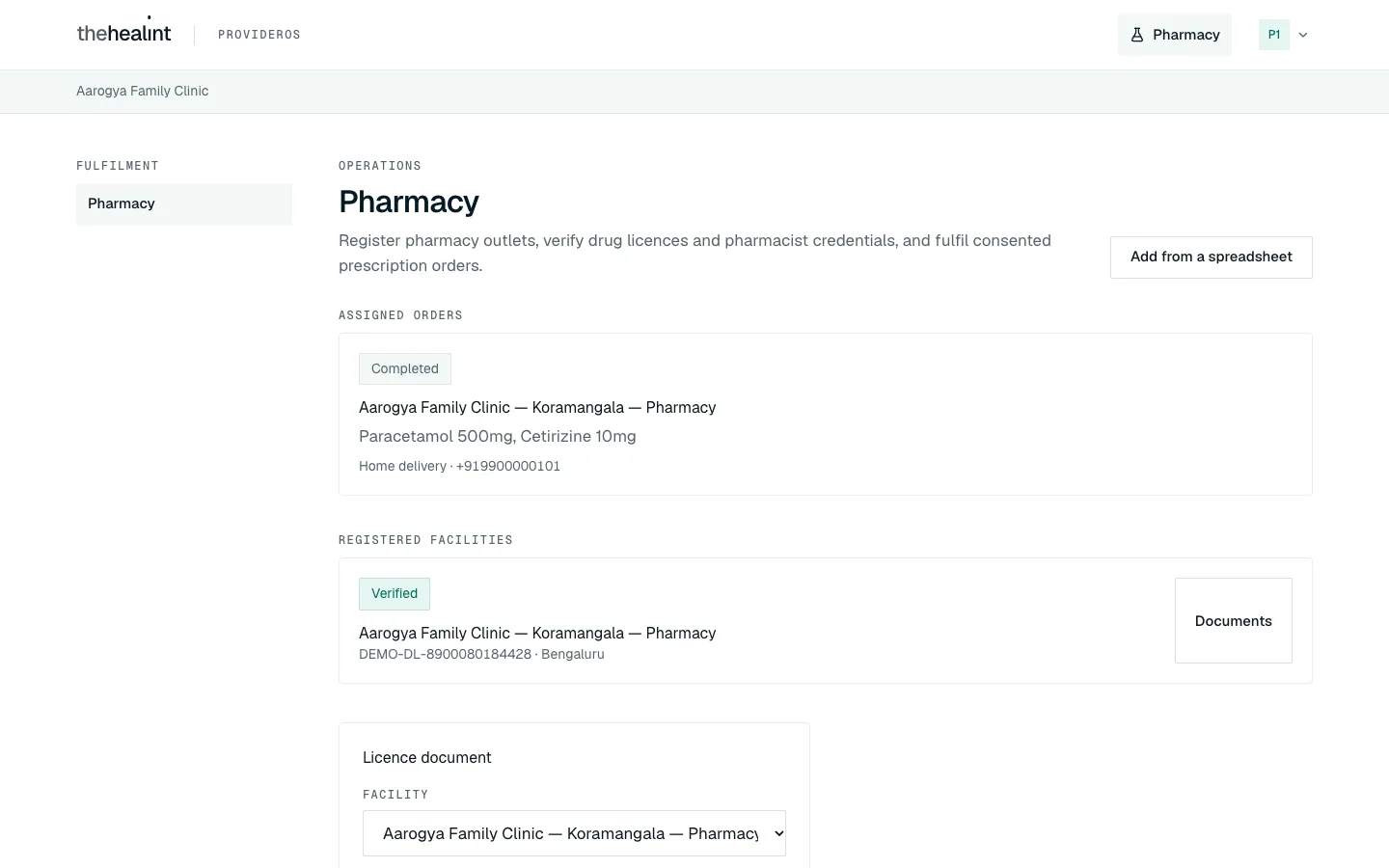
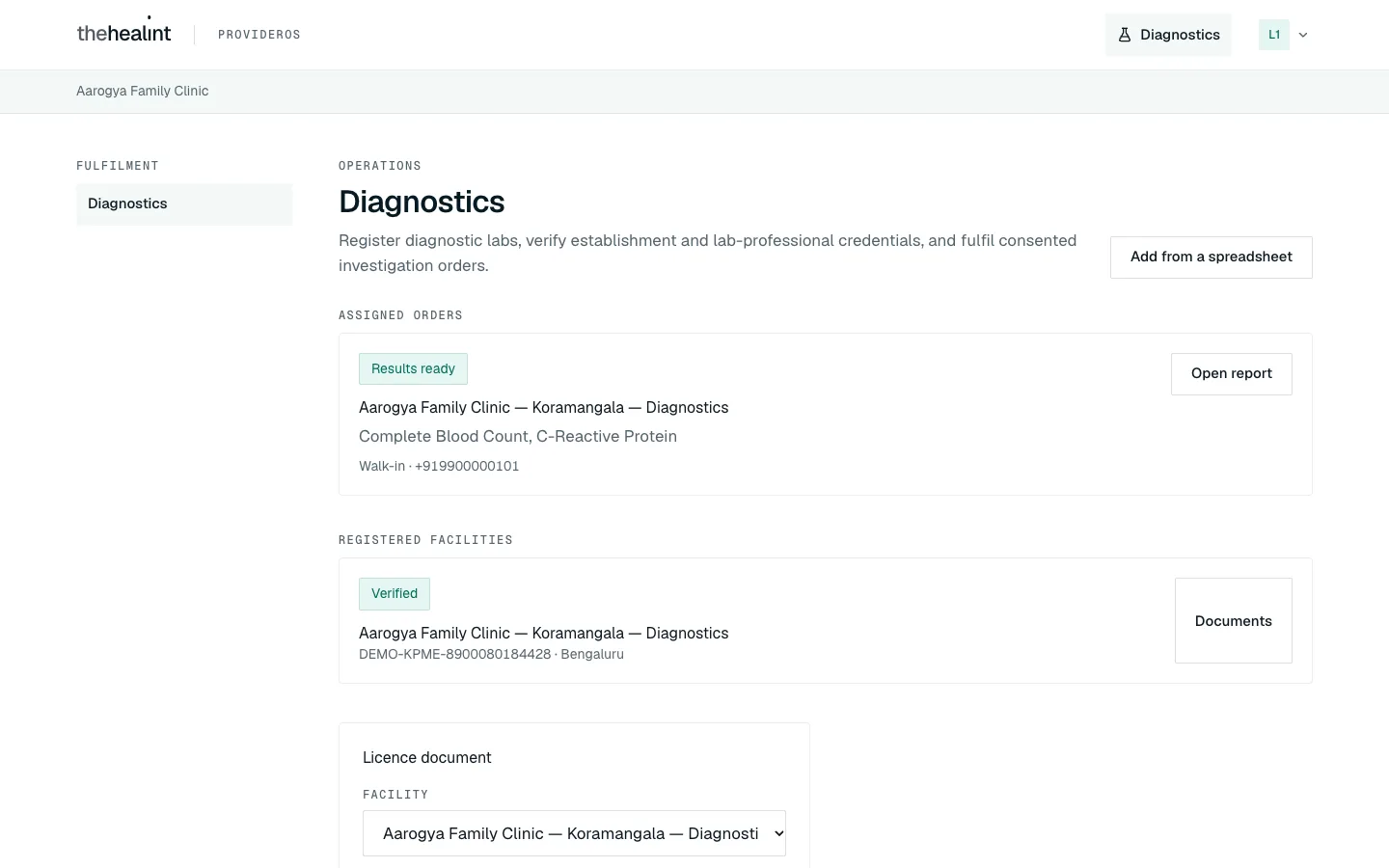
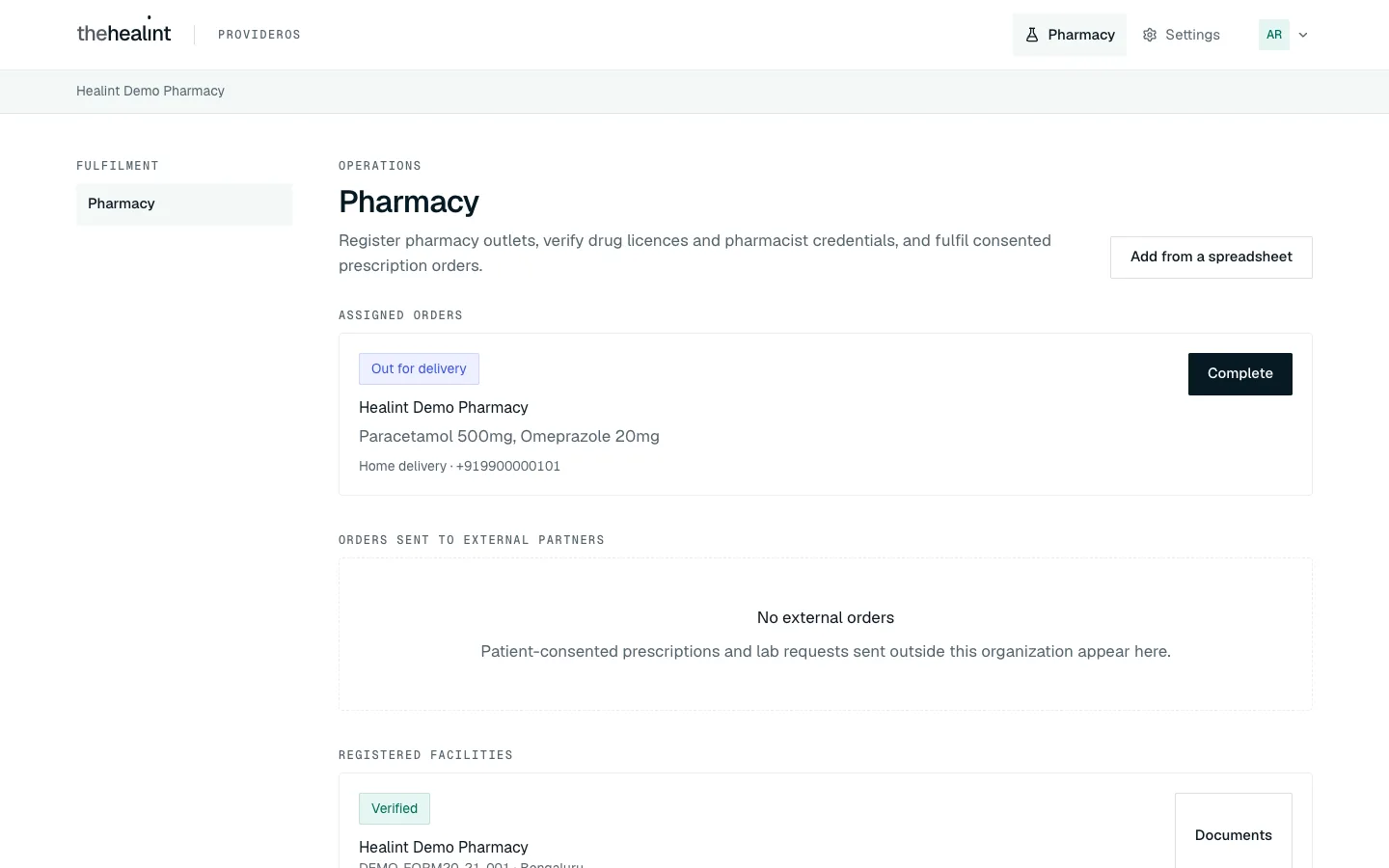
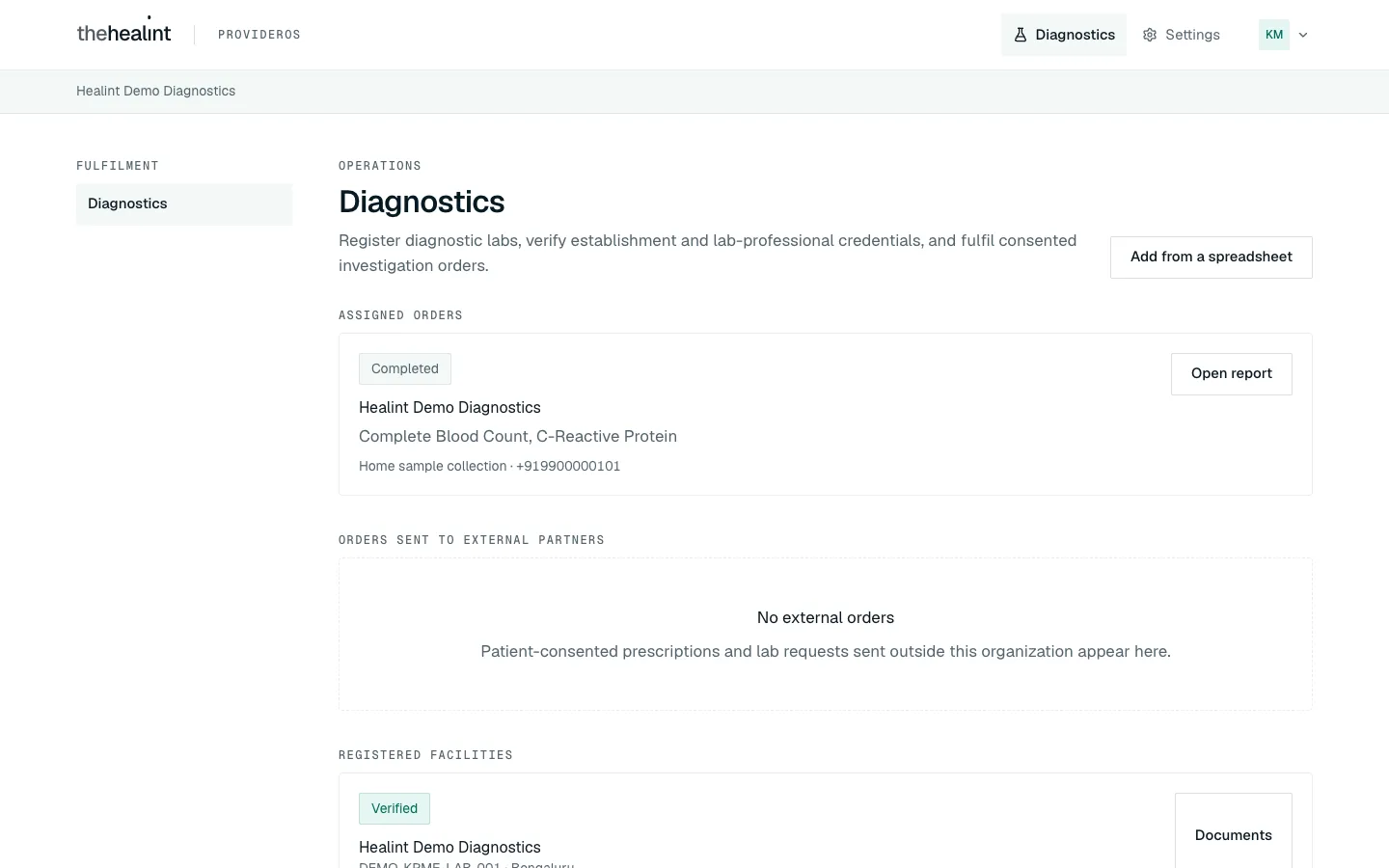
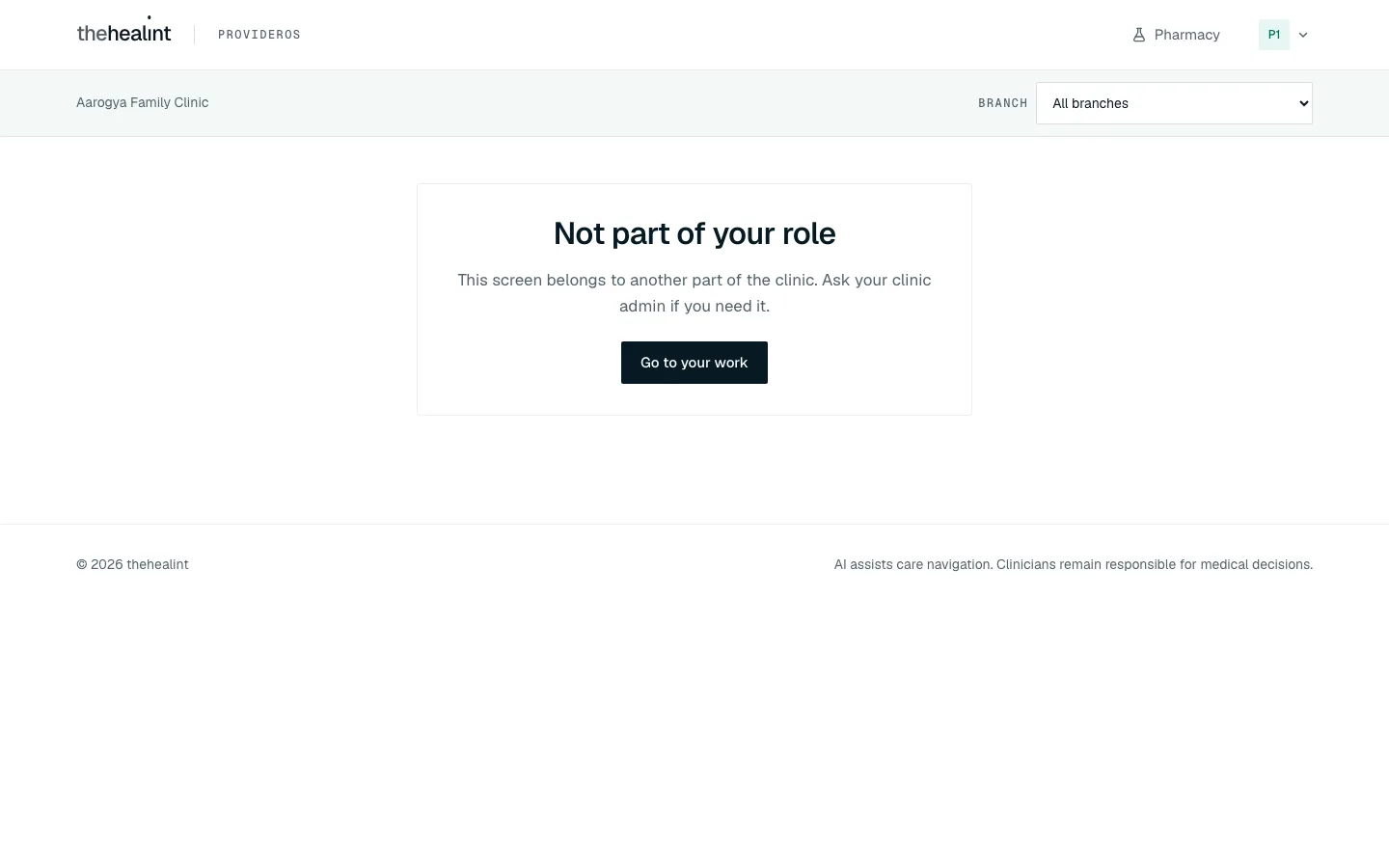
If you open a screen that isn't part of your job, you'll see "Not part of your role". Click Go to your work to get back.
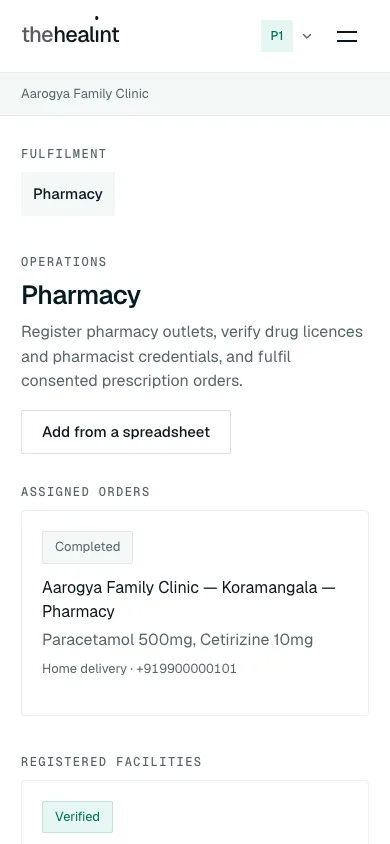
The page works on a phone too.
Before you start#
If an admin invited you (pharmacists and lab technicians)#
Your clinic, hospital, pharmacy or lab admin adds you under Settings → Staff. You get an email "You've been added to the organization on thehealint":
- Click Set your password and sign in to ProviderOS in the email.
- On Set your password, type a New password (at least 8 characters), type it again in Confirm password, and click Save and continue.
- ProviderOS opens on Pharmacy or Diagnostics.
Pictures of the email and the Set your password page are in 05-clinic-admin.md (How to add staff).
If it doesn't work: "This link has expired" means the link was used already or is too old. Ask your admin to click Resend invitation.
Next: submit your own registration (see How to submit your own professional registration below). You can't accept orders until thehealint has verified it.
If you're opening a new independent pharmacy or lab (owners)#
Go to ProviderOS, click Setting up a new clinic? Create an account, enter your Email and a Password, and click Create account.
Under What should we call you?, type your name and click Continue.
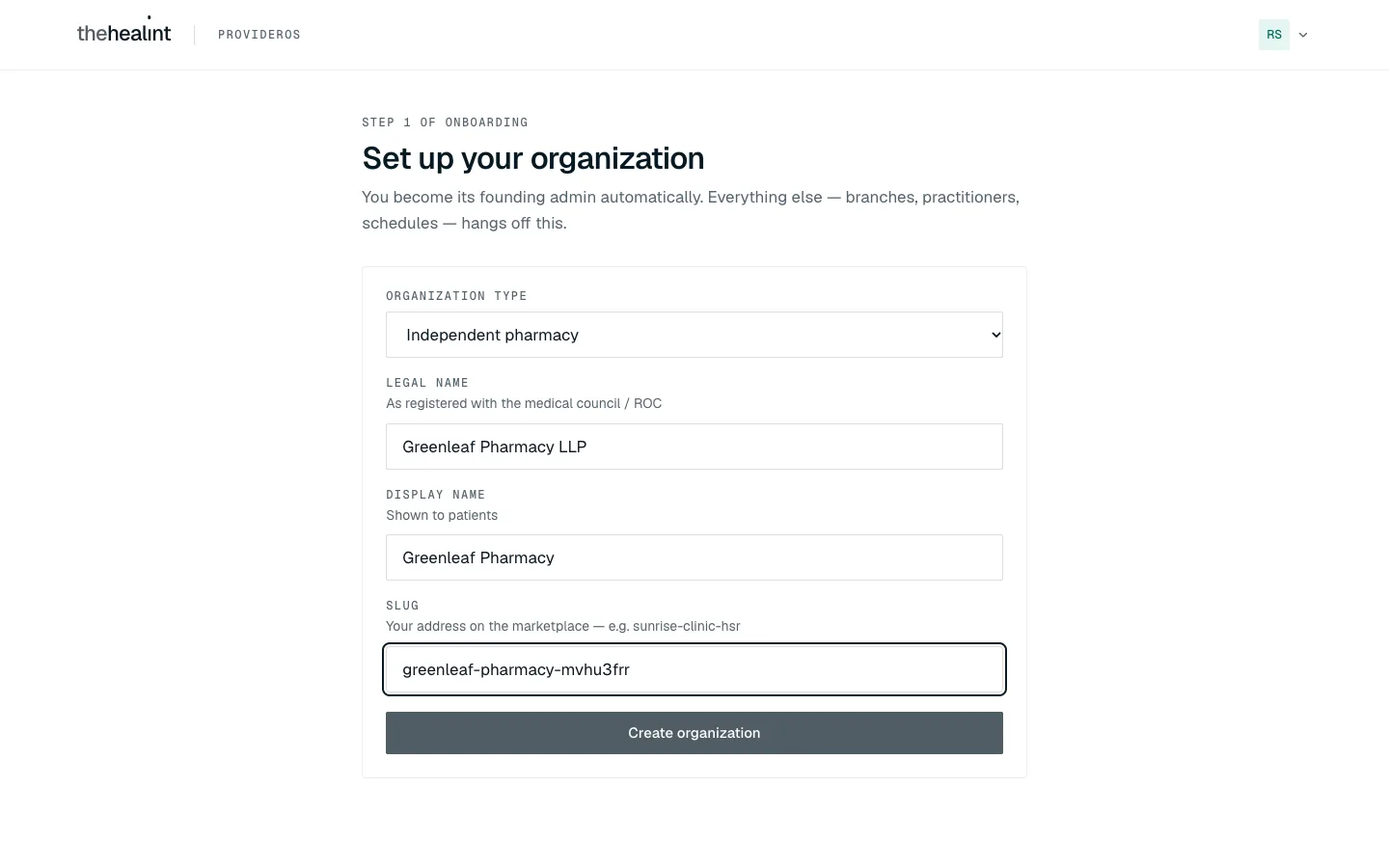
On Set up your organization, choose the Organization type: Independent pharmacy or Diagnostic laboratory. Fill in the Legal name, the Display name patients see, and a Slug (your web address, lower-case, no spaces). Click Create organization.
ProviderOS opens on Pharmacy (or Diagnostics). Your other menu item is Settings, where Staff is for your team and Security is for two-factor sign-in.
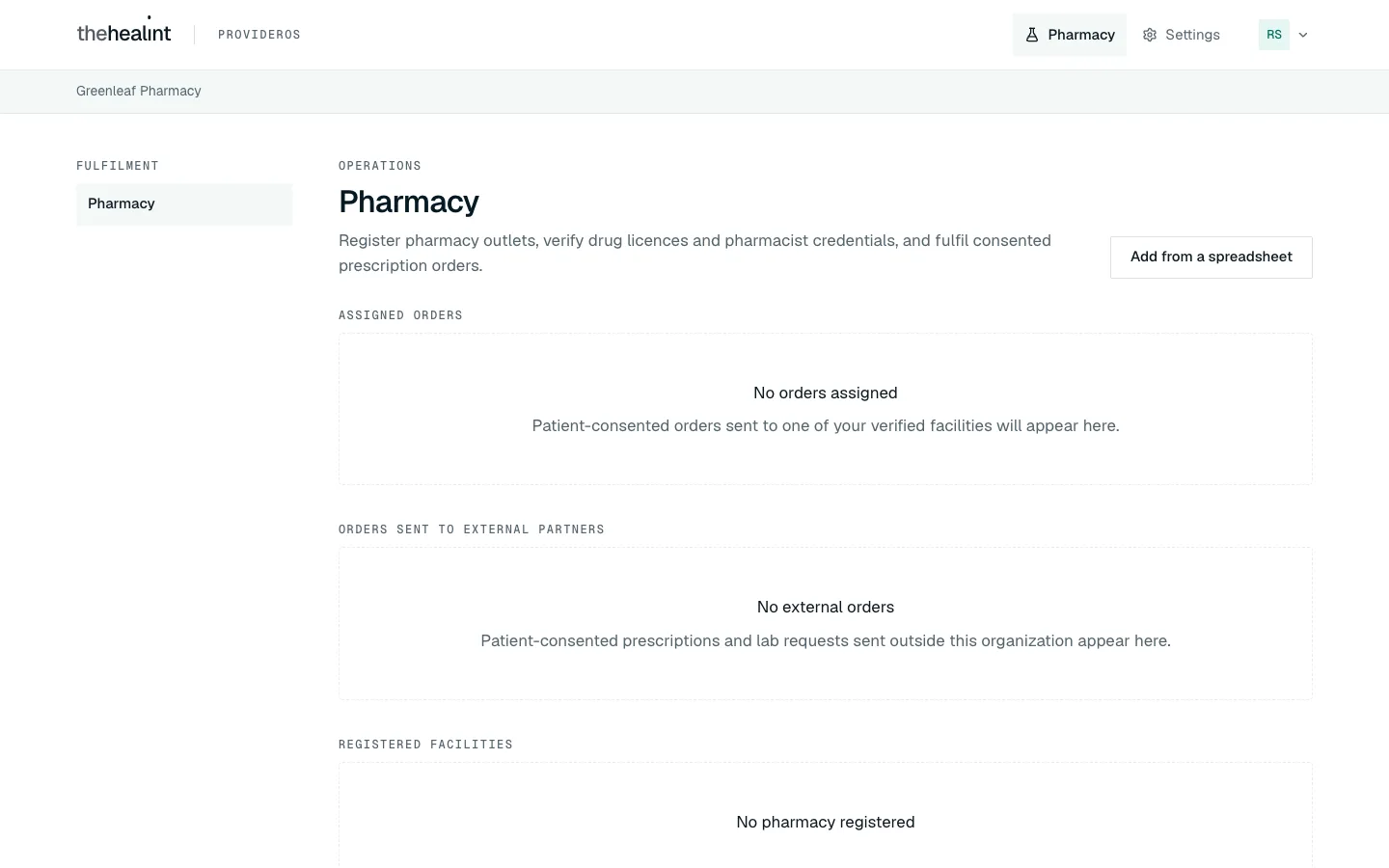
Straight after Create organization. Facility admins have their work plus Settings; Staff contains only the role that matches the facility. Your page starts empty: "No orders assigned" and "No pharmacy registered".
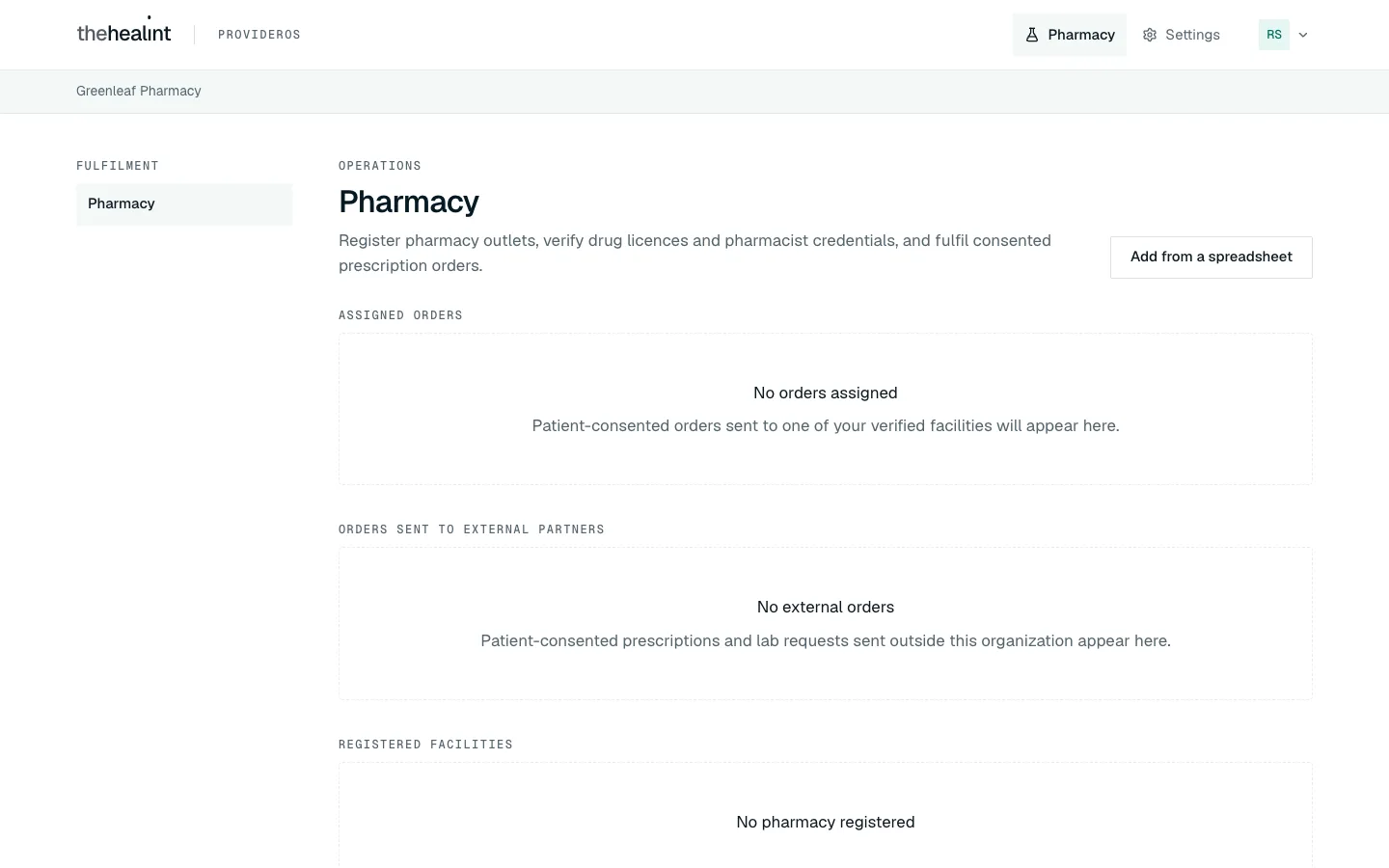
Greenleaf Pharmacy before anything is registered.
Next: register your pharmacy or lab, upload its licence and submit it for review. Patients can't send you anything until it's verified.
How to add pharmacists or lab technicians (admins)#
An independent pharmacy admin can add Pharmacists to that pharmacy. An independent lab admin can add Lab technicians to that lab. You cannot add doctors, clinic staff, the other facility type, or anyone at another organization.
Open Settings → Staff, then click Add a person.
Enter their Full name and Email. The Role list contains one choice: Pharmacist for a pharmacy, or Lab technician for a lab.
Click Add and send invitation. They receive a one-time link to set their password, then ProviderOS opens only their Pharmacy or Diagnostics work.
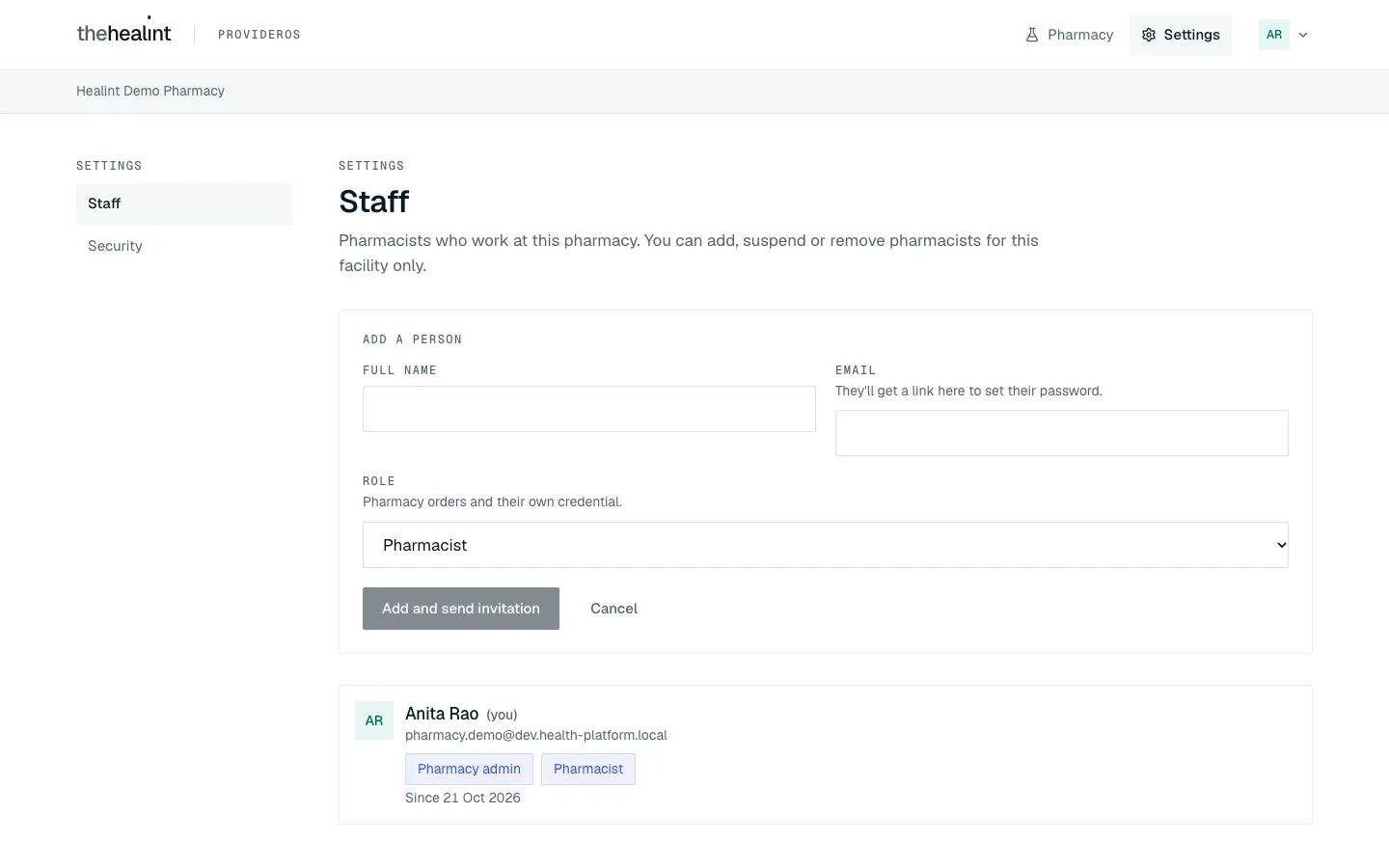
Settings → Staff for an independent pharmacy: only Pharmacist can be assigned, and the admin can manage only this facility's team.
Use Resend invitation if they have not signed in. Suspend blocks access temporarily; Reactivate pharmacist / lab technician restores it. Remove ends access but keeps the person's past work on record.
If it doesn't work:
- "You can add or change only the staff role for your own facility type." The API refused a role outside your facility boundary.
- "This person already has that role here." They are already on this facility's team; resend their invitation or reactivate them instead.
- A pharmacist or lab technician cannot open Staff. Only the facility admin can manage the team.
Two-factor sign-in#
Click your initials at the top right, then Security, then Set up two-factor authentication. Scan the QR code with an authenticator app, type the 6-digit code and click Confirm. From then on, ProviderOS asks for an Authenticator code after your password each time you sign in. Pictures are in 05-clinic-admin.md (How to turn on two-factor sign-in).
How to register a pharmacy or lab (admins)#
Pharmacy and lab admins (and clinic admins) see the Register pharmacy or Register lab box near the bottom of the page. Pharmacists and lab technicians don't.
Choose a Branch if this pharmacy or lab belongs to one of your clinic's branches. Otherwise leave "Independent / no branch".
Fill in Legal name, Name shown to patients, Address, City, State, PIN code (6 digits), Phone and Email. HFR ID (Health Facility Registry) is optional.
Fill in the Licence number, its Issuing authority and the Licence expiry. Leave the expiry blank only if the licence is legally perpetual.
Tick Offers home delivery (pharmacy) or Offers home collection (lab) if you do. Pick-up or walk-in is always offered.
Click Register pharmacy (or Register lab).
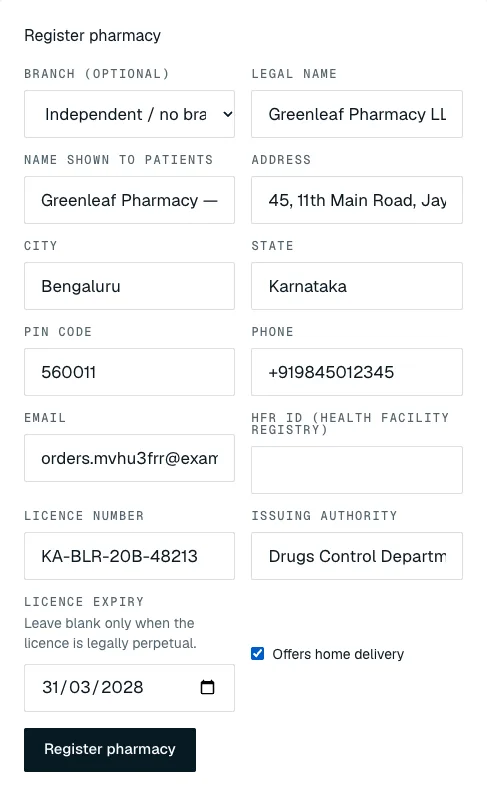
The Register pharmacy box filled in for Greenleaf Pharmacy — Jayanagar, with home delivery ticked. It appears under Registered facilities with the pill Draft.

Greenleaf Pharmacy — Jayanagar, Draft, with "licence number · city", Documents and Submit for review.
If it doesn't work: the message at the top of the page says what's wrong, for example "Enter a 6-digit Indian PIN code." or "Enter a valid phone number." Details can't be changed after registering, so check them before you click.
How to register many pharmacies or labs from a spreadsheet (admins)#
An organization that runs several pharmacies or laboratories can register them in one go.
- Open Fulfilment (Pharmacy or Diagnostics) and click Add from a spreadsheet.
- One line per facility. Each needs
kind(pharmacy or diagnostic lab),legal_name,display_name,address_line1,city,state,postal_code(six digits),phone,licence_numberandlicence_authority.licence_expires_on(as 2028-03-31),email,hfr_id,supports_pickupandsupports_home_service(yes or no) andbranch(a branch's name) are optional. Click Download a template for a starting point. - Click Check the file. Nothing changes yet. A line is Will be applied, Nothing to do (a facility with that licence number is already registered) or Needs fixing with the reason, such as a kind that is neither pharmacy nor lab.
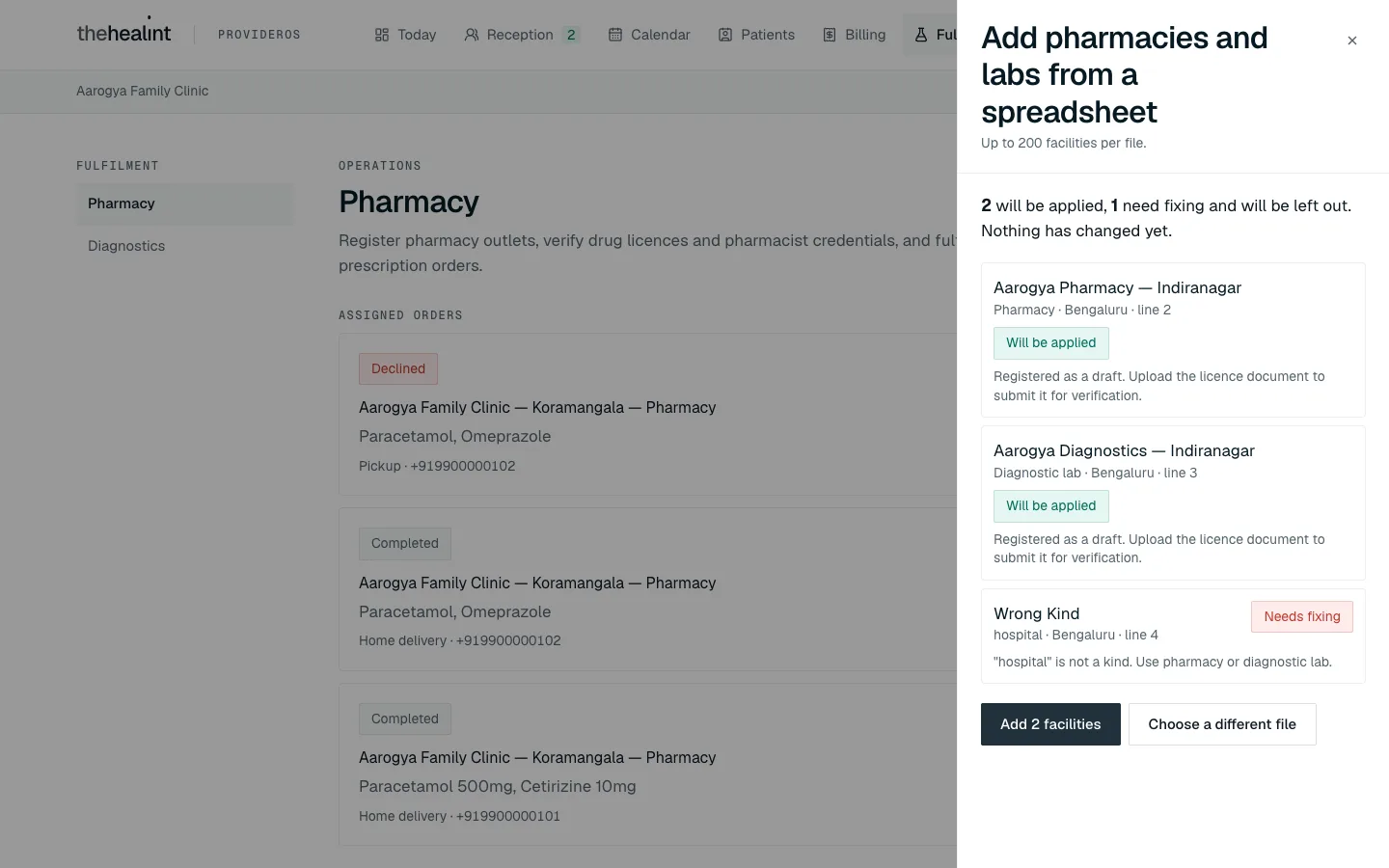
- Click Add N facilities. They are registered as drafts. For each one, upload the licence document and submit it for review, as in the next section. Nothing is visible to patients until a platform administrator verifies it.
How to upload the licence and submit for review#
A pharmacy needs a Drug licence, and a lab needs a Clinical establishment registration, before it can be submitted.
In the Licence document box, choose the Facility and the Document type.
- Pharmacy: Drug licence, HFR proof, Pharmacist registration or Other.
- Lab: Clinical establishment registration, NABL certificate, HFR proof, Lab professional registration or Other.
Fill in the Document / registration number and Issuing authority (needed for every type except Other), and the Issued on and Expires on dates.
Under PDF or image, choose the file.
Click Upload securely. The box clears when it's done.
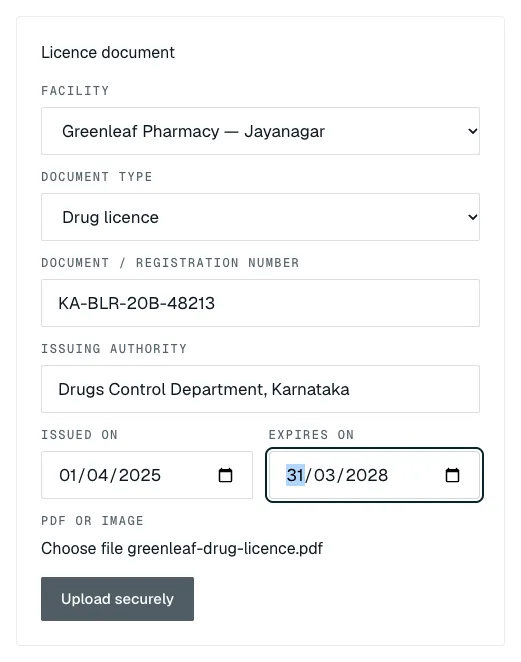
A drug licence for Greenleaf Pharmacy — Jayanagar, ready to upload. For a lab the document types are different:
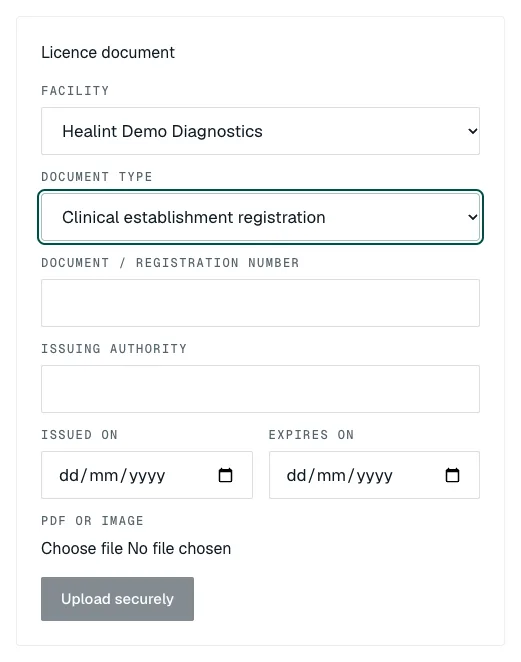
The Licence document box on Diagnostics, starting on Clinical establishment registration. To check what's uploaded, click Documents on the pharmacy under Registered facilities. Each file is listed as "type · file name".
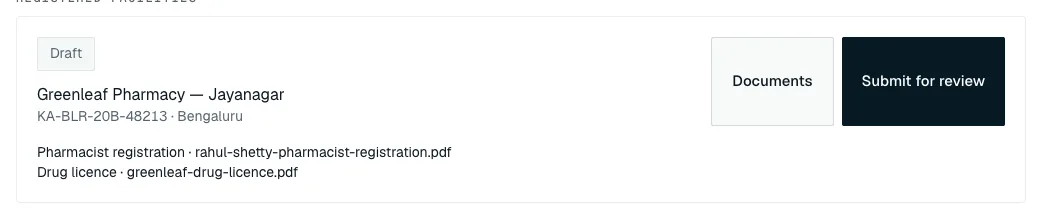
Two files uploaded: the drug licence, and the pharmacist's registration (used for the credential below). Click Submit for review. The pill changes to Awaiting review.
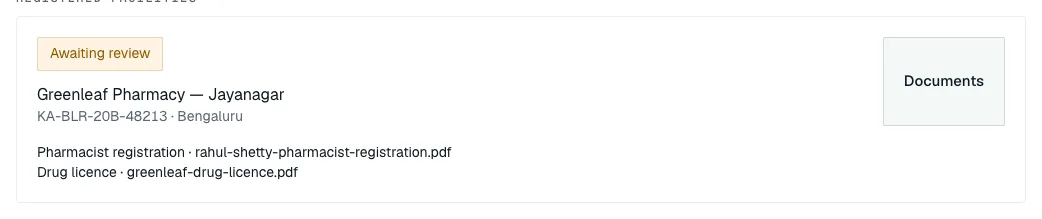
Submitted: Awaiting review, and the Submit for review button is gone. A thehealint reviewer checks the documents. Reload the page to see the result:
- Verified: patients can now choose you, and you'll start getting orders.
- Rejected: fix what's wrong (usually upload a better or current document), then click Submit for review again.
- Suspended: you're hidden from patients. Orders you already have carry on.
If it doesn't work:
- "Upload the required drug licence before submitting." (or "…clinical establishment registration…" for a lab). Upload that document type first.
- "Only PDF, JPEG, PNG and WebP files are accepted." / "The uploaded file exceeds the 10 MiB limit." / "The file contents do not match the declared PDF or image type." Save the file again as a PDF or image under 10 MB.
- Upload securely stays greyed out until you've chosen a facility and a file, and filled in the number and issuing authority.
- You aren't emailed when the review is done, and the reviewer's note isn't shown here. If you're rejected or suspended and don't know why, contact thehealint support.
How to submit your own professional registration#
You can only accept orders, complete pharmacy orders and release lab reports once thehealint has verified your own registration. Everyone does this for themselves, signed in as themselves.
In the Licence document box, upload a copy of your registration as Pharmacist registration (or Lab professional registration for a lab), with its number and issuing council.
Click Documents on your pharmacy or lab under Registered facilities. (Your file only appears in the next step once you've done this.)
In the Registered pharmacist box (or Laboratory signatory / technician), fill in your Registration number, Registration council, Qualification and Valid until date.
Under Registration evidence, choose the file you just uploaded.
Click Submit credential.
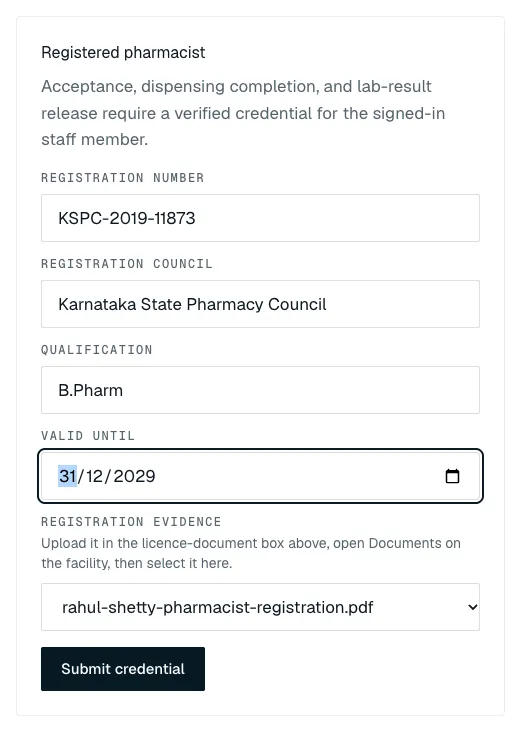
KSPC-2019-11873, Karnataka State Pharmacy Council, B.Pharm, valid until 31/12/2029, with the registration file chosen as evidence. A line under the button shows your registration and its status, for example "KSPC-2019-11873 · Awaiting review". It changes to Verified once thehealint has checked it.
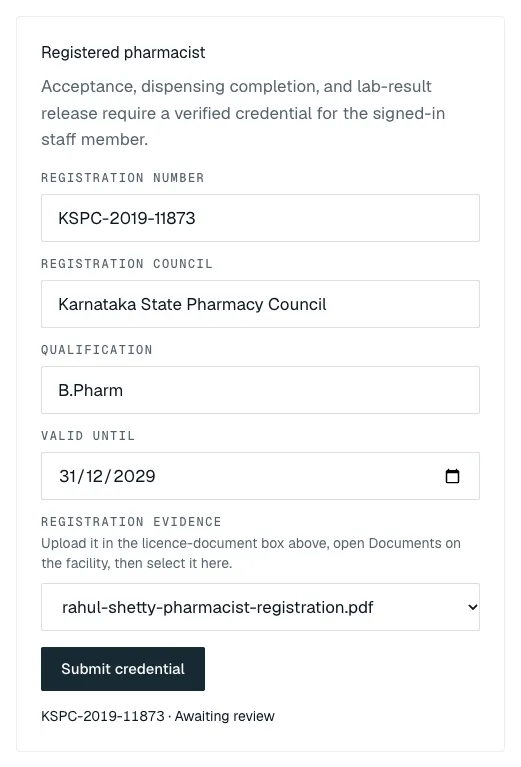
Submitted and waiting: "KSPC-2019-11873 · Awaiting review".
If it doesn't work:
- Registration evidence is empty: upload the file as Pharmacist registration / Lab professional registration (not Other), then click Documents on the facility.
- "Upload and select a pharmacist registration document." You chose a file of the wrong type.
- To renew, submit the same registration number again with the new evidence. It goes back to Awaiting review.
How to work a pharmacy order#
New orders appear under Assigned orders with the pill Requested. Each one shows the pharmacy it was sent to, the medicines, Pickup or Home delivery, and the patient's phone number. You don't see the patient's name.
The page doesn't update by itself. Reload it to see new orders.
Read the order and click Accept, or Decline if you can't fill it.
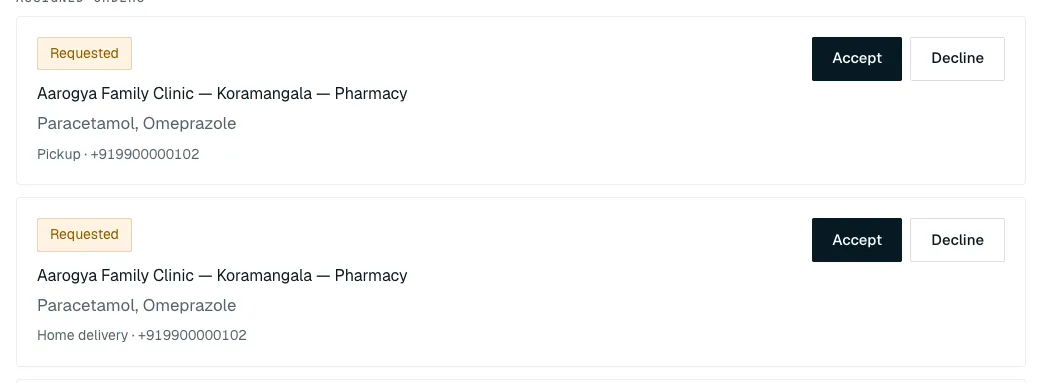
Two Requested orders for Paracetamol and Omeprazole, one for pick-up and one for home delivery, each with Accept and Decline. A declined order shows Declined and needs nothing more from you.

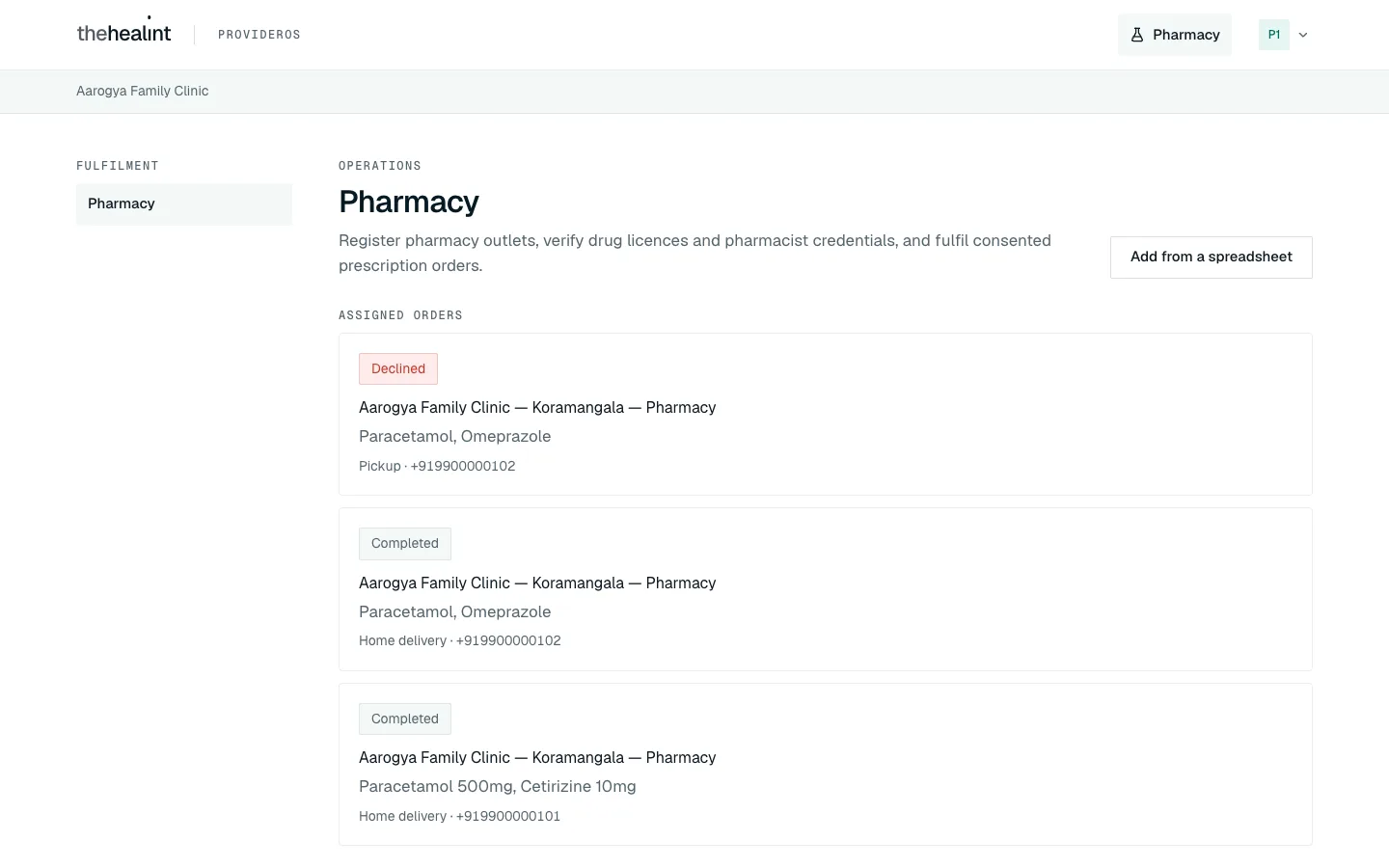
The pick-up order, declined. An accepted order shows Accepted. Prepare the medicines, then click Mark ready.

The home-delivery order, Accepted, with Mark ready. A pick-up order becomes Ready for pickup. A home-delivery order becomes Out for delivery.

After Mark ready on a home-delivery order: Out for delivery, with Complete. When the patient has the medicines, click Complete. The order is Completed.

The order, Completed.
Finished orders stay on the list.
If it doesn't work:
- "A current, platform-verified professional credential is required for this action." Your own registration isn't verified yet, or has expired. See How to submit your own professional registration. Someone else whose registration is verified can accept it meanwhile.
- "Could not update order." or "Cannot move an order from … to …". Someone else probably changed the order at the same time. Reload the page.
- The patient can cancel an order while it is Requested or Accepted. It then shows Cancelled.
How to work a lab order#
New test orders appear under Assigned orders with the pill Requested, showing the lab, the tests, Walk-in or Home sample collection, and the patient's phone.
Click Accept (or Decline).

A Requested Complete Blood Count, walk-in, with Accept and Decline. Once you've taken the sample, click Sample collected.
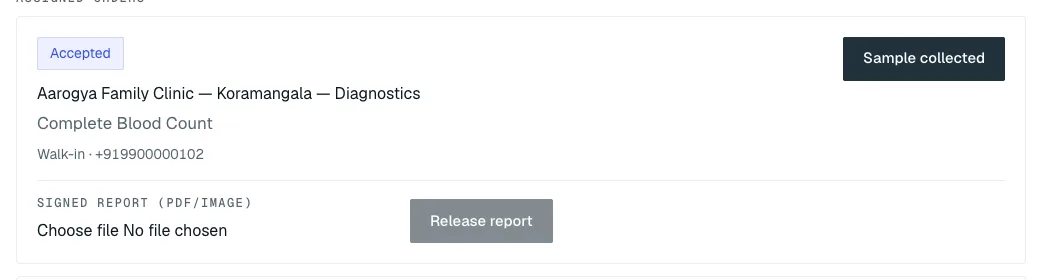
Accepted: Sample collected, and underneath, the Signed report (PDF/image) file picker with Release report (greyed out until a file is chosen). When the signed report is ready, choose it under Signed report (PDF/image) and click Release report.
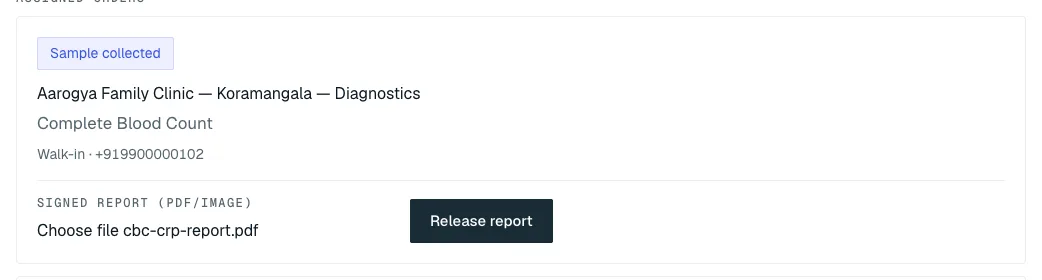
Sample collected, with cbc-crp-report.pdf chosen and Release report ready. The order becomes Results ready. The report is now in the patient's health records. Click Open report to look at it again.

The order, Results ready, with Open report.
If it doesn't work:
- "A current, platform-verified laboratory credential is required to release a report." Your own registration isn't verified. See How to submit your own professional registration.
- The report must be a PDF or an image under 10 MB.
- A released report can't be withdrawn or replaced from this page. If you released the wrong file, contact thehealint support straight away.
- Results ready is the last step. There's no "Completed" button for lab orders.
Order statuses#
| Pill | What it means | What you do next |
|---|---|---|
| Requested | The patient has just sent it | Accept or Decline |
| Accepted | You've taken it on | Pharmacy: Mark ready. Lab: Sample collected |
| Declined | You turned it down | Nothing |
| Ready for pickup | Medicines are waiting at the counter | Complete when collected |
| Out for delivery | Medicines are on their way | Complete when delivered |
| Scheduled | A lab visit has a time booked | Sample collected |
| Sample collected | The lab has the sample | Choose the report → Release report |
| Results ready | The report is with the patient | Nothing (Open report to view) |
| Completed | Done | Nothing |
| Cancelled | The patient cancelled | Nothing |
The pharmacy or lab itself also has a status: Draft, Awaiting review, Verified, Rejected or Suspended. Your own registration uses the same words.
Orders sent to external partners (admins)#
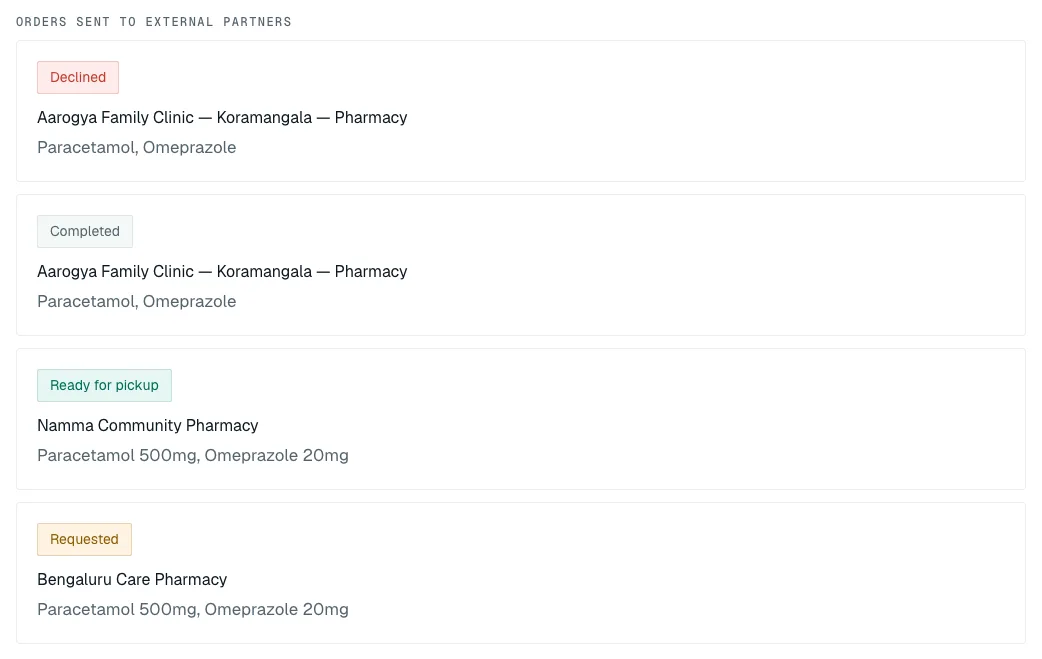
If your organization's doctors write prescriptions or tests, and patients send them to another pharmacy or lab, you can follow them under Orders sent to external partners. You only see the status, the pharmacy or lab, and the items. If an outside lab has released a report, Open delivered report opens it.
What the patient sees#
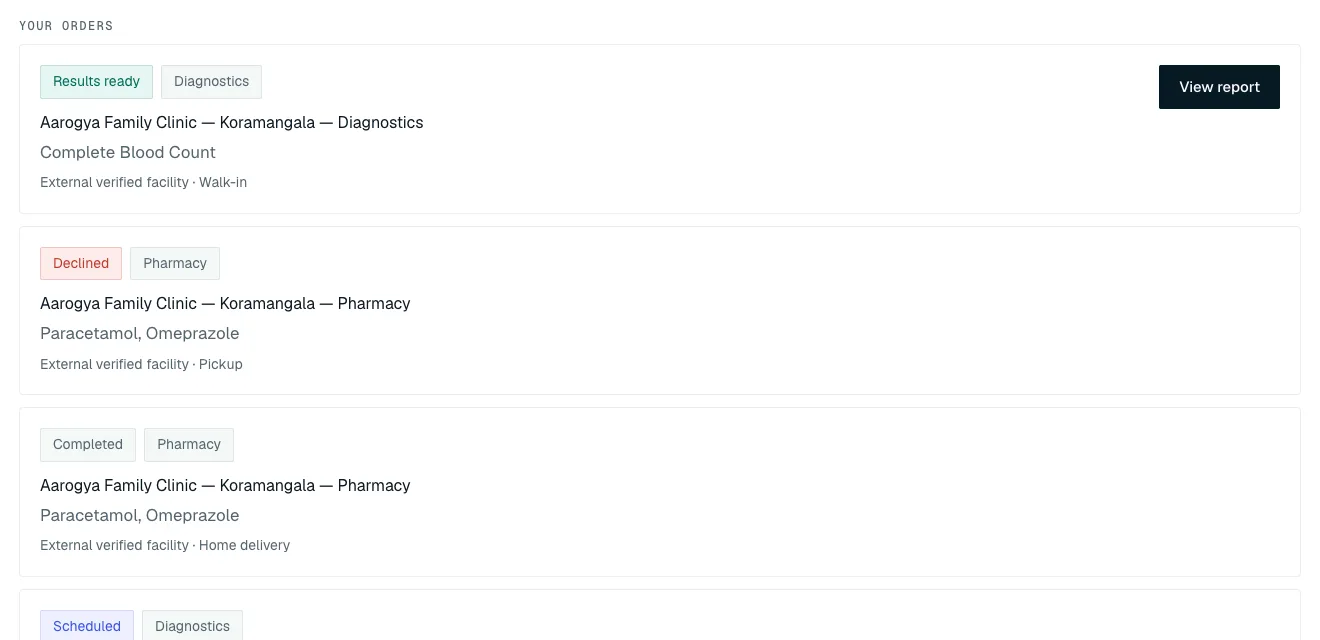
The patient follows each order under Pharmacy & labs on the thehealint website or app. The status pill there changes as you work the order, the next time they open the page. When you release a lab report, a View report button appears and the report is filed in their Health records. The patient isn't sent a message or email: they see it when they look.
How patients send orders and read reports is in 01-patient.md (After the visit: "Send a prescription to a pharmacy, or a test to a lab" and "See your lab report").
On iPhone#
- Pharmacists and lab technicians can work orders in the thehealint app's staff workspace, on the Pharmacy & labs tab.
- Pharmacy and lab admins can use the ProviderOS iPhone app's Pharmacy & labs tab.
Both show your assigned orders with the same buttons (Accept, Decline, Mark ready, Complete, Sample collected, Release report). Registering, licences and your own registration are on the web only.
Things you can't do here — and who to ask#
| You want to… | Who to ask |
|---|---|
| Add a pharmacist or lab technician to your team | A clinic/hospital admin can add either. An independent pharmacy or lab admin uses Settings → Staff for its matching role only |
| Get your pharmacy, lab or registration verified, or find out why it was rejected | thehealint's reviewers, through thehealint support |
| Get a suspended pharmacy or lab back | thehealint support |
| Change your pharmacy or lab's details after registering | thehealint support |
| Delete or replace an uploaded document | Not possible. Upload the new one alongside |
| Submit a registration for someone else | They must sign in and submit their own |
| Cancel an order, record a price or book a lab visit time | Not possible from this page. Ask the patient to cancel, or contact thehealint support |
| See the patient's name or medical history | Not shown to pharmacies and labs. Use the phone number on the order |
| Get told about new orders | There are no alerts yet. Reload the page regularly |
Quick reference#
| Task | Where | Button |
|---|---|---|
| Open your work | Top menu | Pharmacy or Diagnostics |
| Add facility staff (admins) | Settings → Staff | Add a person → Add and send invitation |
| Register a pharmacy or lab (admins) | Register pharmacy / Register lab box | Register pharmacy / Register lab |
| Upload a licence or registration | Licence document box | Upload securely |
| See uploaded files | Registered facilities | Documents |
| Send for review | Registered facilities | Submit for review |
| Submit your own registration | Registered pharmacist / Laboratory signatory / technician box | Submit credential |
| Take or refuse an order | Assigned orders | Accept / Decline |
| Medicines ready | Assigned orders | Mark ready |
| Medicines handed over | Assigned orders | Complete |
| Sample taken | Assigned orders | Sample collected |
| Send the report to the patient | Assigned orders | Choose the file → Release report |
| Look at a released report | Assigned orders | Open report |
| Follow orders sent elsewhere (admins) | Orders sent to external partners | Open delivered report |
PDF version
The same guide with all its screenshots, to print or share. (0.9 MB)
Download the PDF Open in a new tab
Loading the PDF viewer… If it does not appear, your browser cannot show PDFs inside a page: use Download the PDF.