Patient
Who this is for#
This guide is for patients and the people who look after them: parents booking for a child, adult children booking for a parent, or anyone booking a visit for themselves. It explains how to use thehealint to find a doctor, book and manage visits, check in on the day, and keep prescriptions, lab reports and bills in one place afterwards.
You can use thehealint in two ways:
- On the website, in any browser on a computer or phone.
- In the thehealint iPhone app.
Most tasks work the same in both. Where the app is different, this guide says so.
What you'll see#
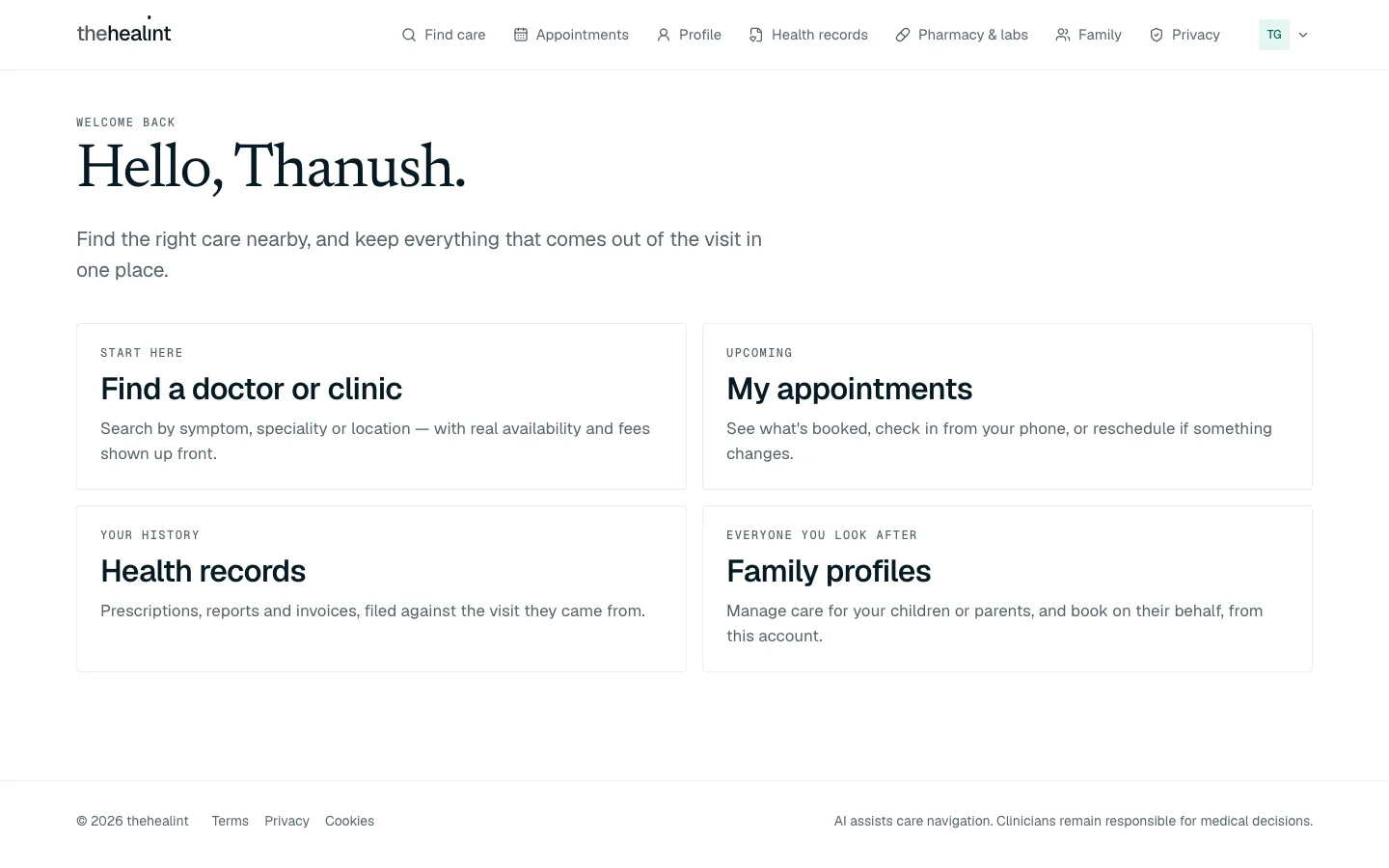
On the website, once you're signed in, the menu along the top has:
| Menu item | What it's for |
|---|---|
| Find care | Search for doctors, clinics and hospitals |
| Appointments | Your upcoming and past visits. Check in, reschedule or cancel here |
| Profile | Your contact details and your own health details |
| Health records | Timeline, documents, prescriptions and invoices |
| Pharmacy & labs | Send a prescription to a pharmacy or a test to a lab |
| Family | The family members you book for |
| Privacy | What you have agreed to share, and withdrawing it |
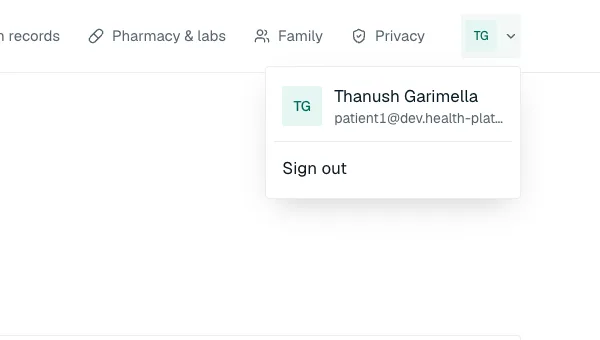
Your initials sit at the top right. Click them to see who you're signed in as, or to Sign out. On a phone-sized screen the menu is behind the ☰ button.
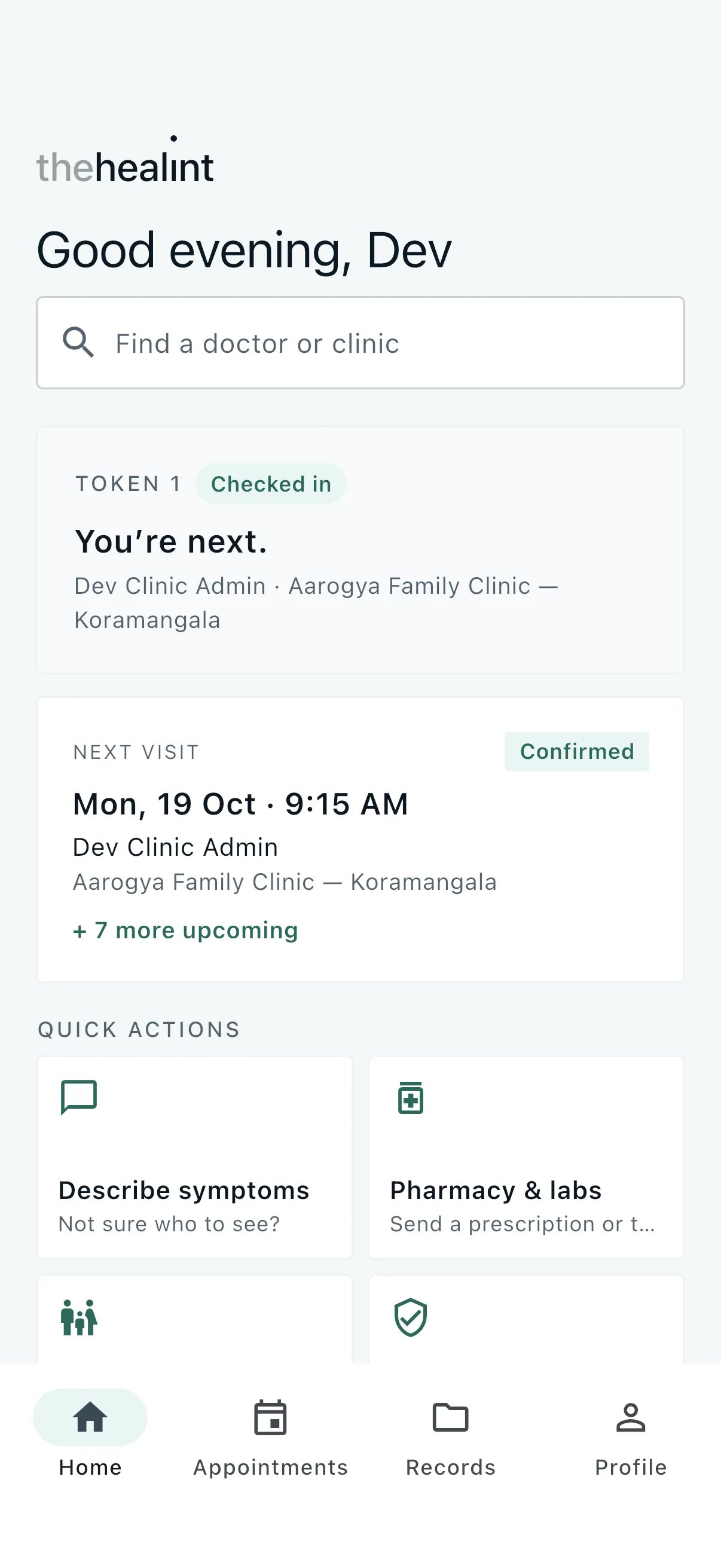
In the iPhone app, there are four tabs along the bottom: Home, Appointments, Records and Profile. Home has a search bar, your next visit, your queue position if you're checked in, and quick actions for Describe symptoms, Pharmacy & labs, Family and Privacy & consent.
Before you start#
You need an email address. You can search and browse doctors without an account, but you must sign in to book.
The public home page#
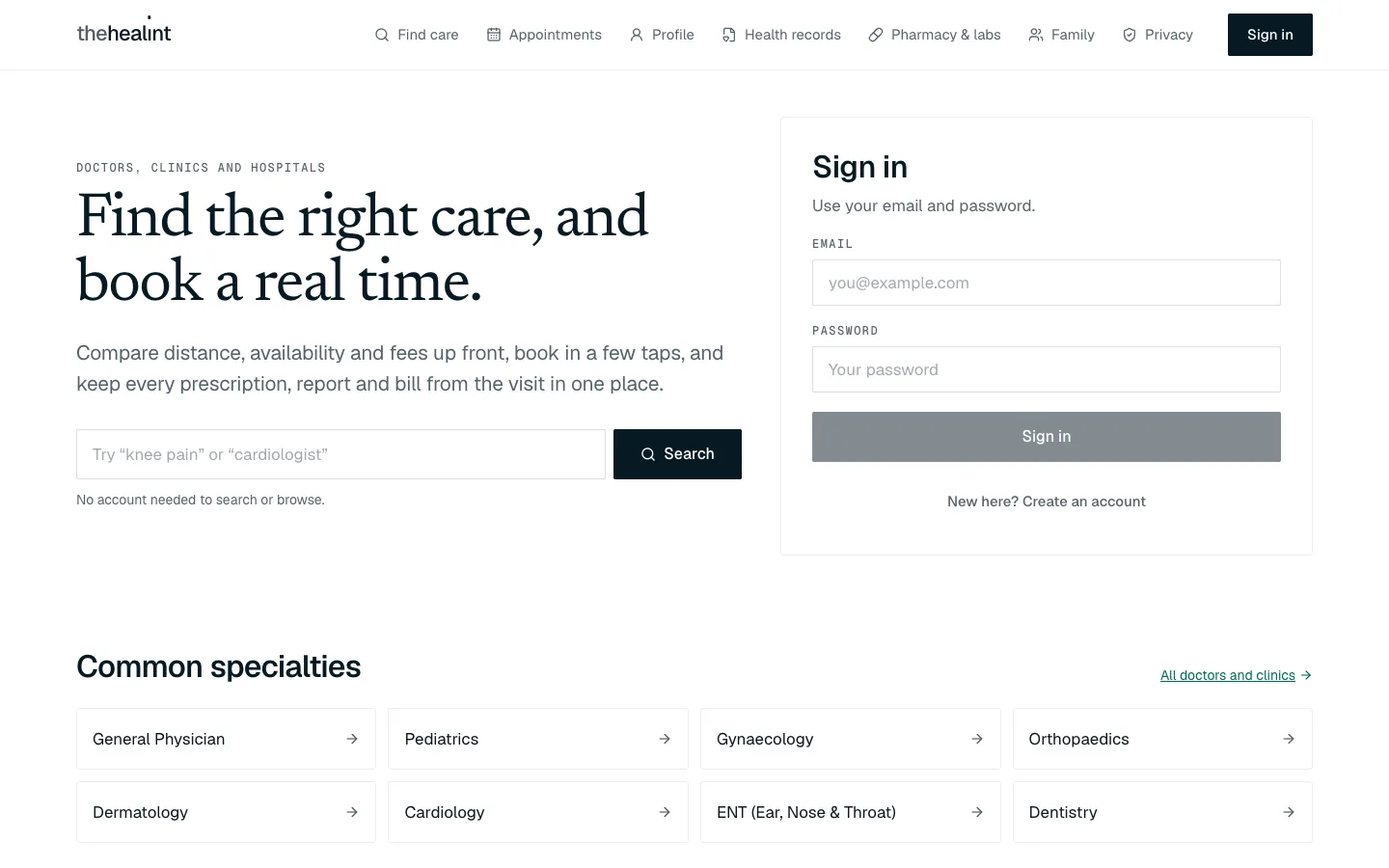
When you open thehealint without signing in, you see the public home page. Type what you need into the search box (for example "knee pain" or "cardiologist") and press Search, or pick one of the Common specialties below it. The Sign in box is on the right.
How to create an account#
On the home page, click New here? Create an account.
Enter your email and choose a password of at least 8 characters.
Click Create account.
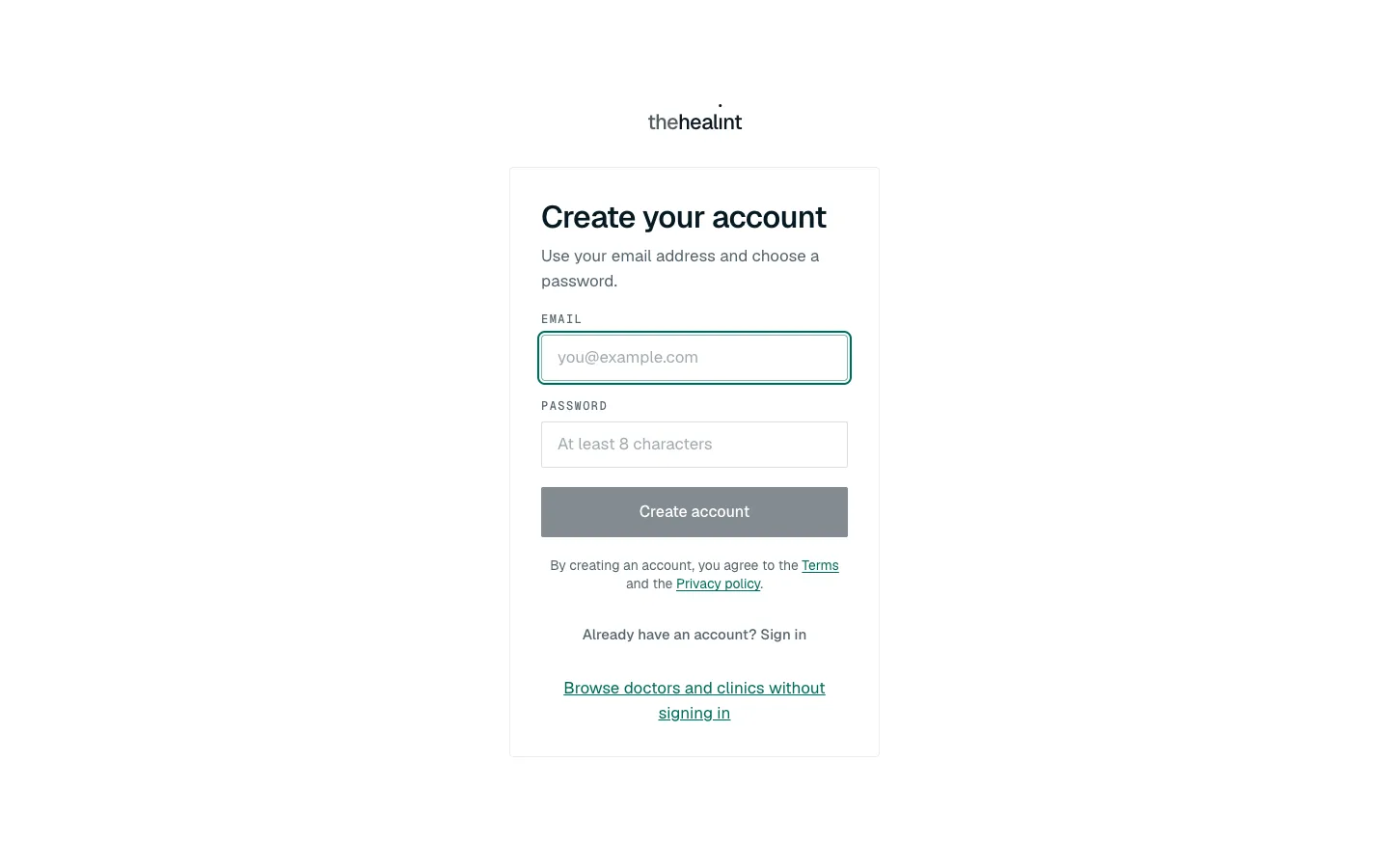
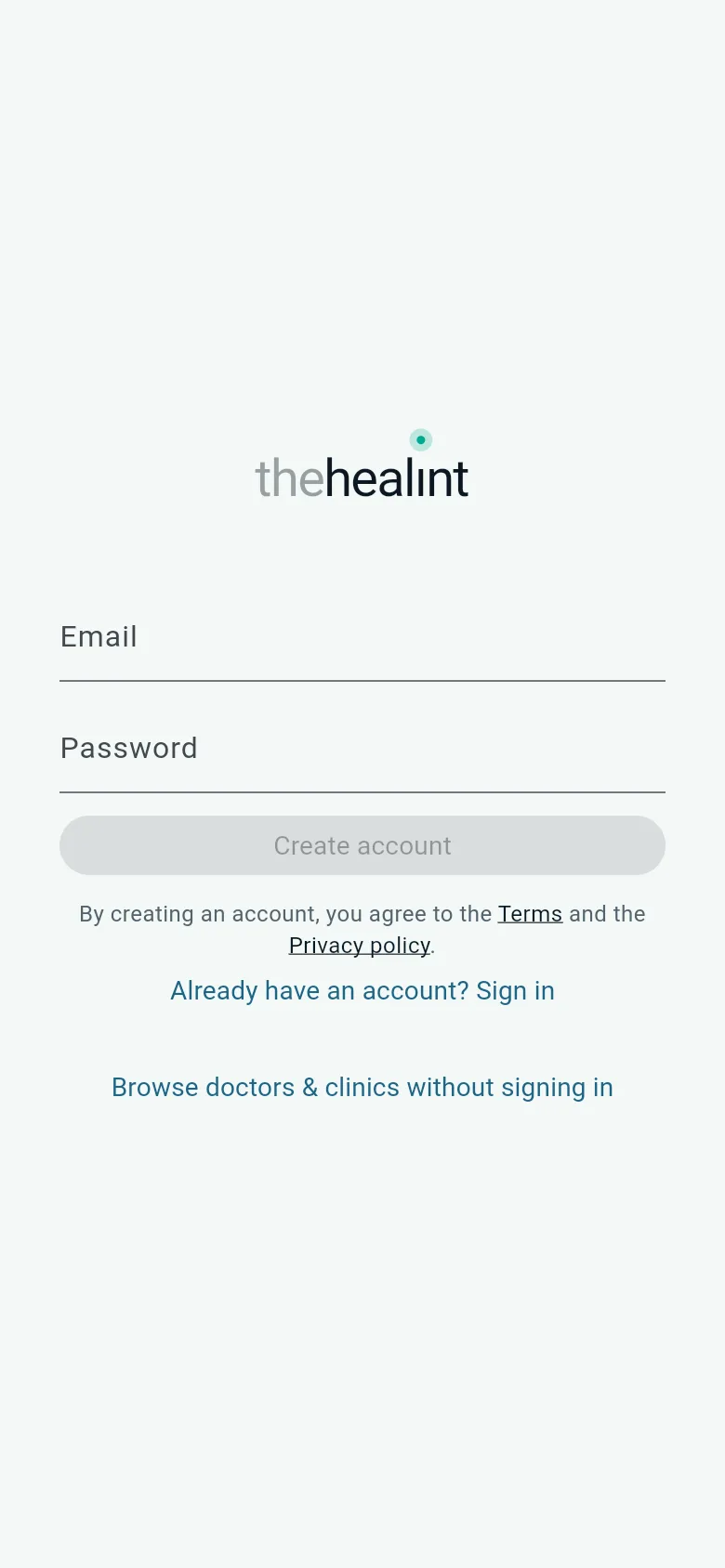
Create your account: email and a password of at least 8 characters, with a line saying that creating an account means you agree to the Terms and the Privacy policy (both open the company's published pages). Enter your full name. This is the name your doctor will see.
Click Continue. You land on your home page.
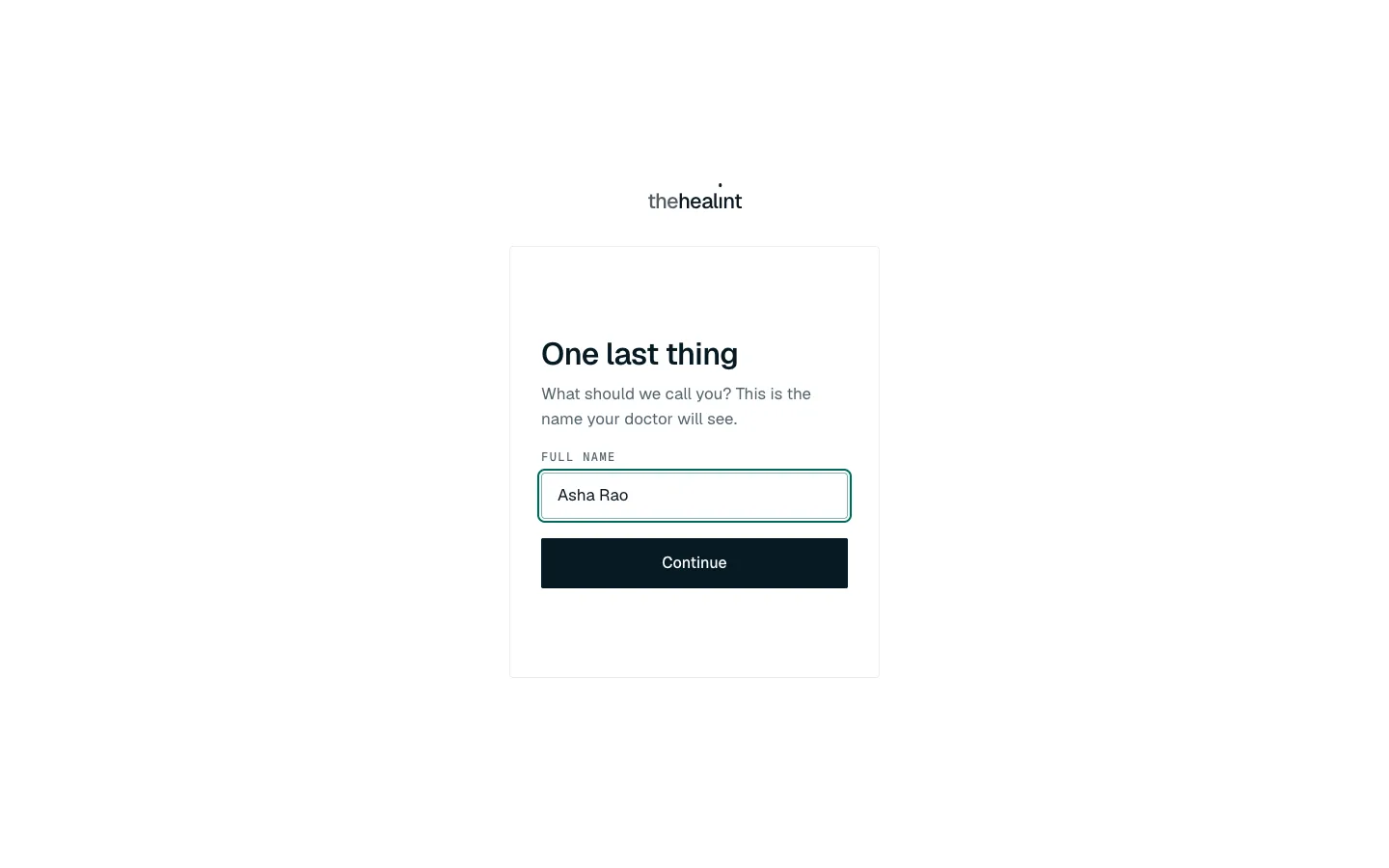
"One last thing": the name your doctor will see.
You can't sign up with a phone number at the moment. Use email.
In the iPhone app, tap New here? Create an account. Under Create account it says that by creating an account you agree to the Terms and the Privacy policy; tap either to read it.
How to sign in#
- Enter your email and password in the Sign in box.
- Click Sign in. The button stays grey until both boxes are filled in.
If you were in the middle of booking, you go straight back to the booking page.
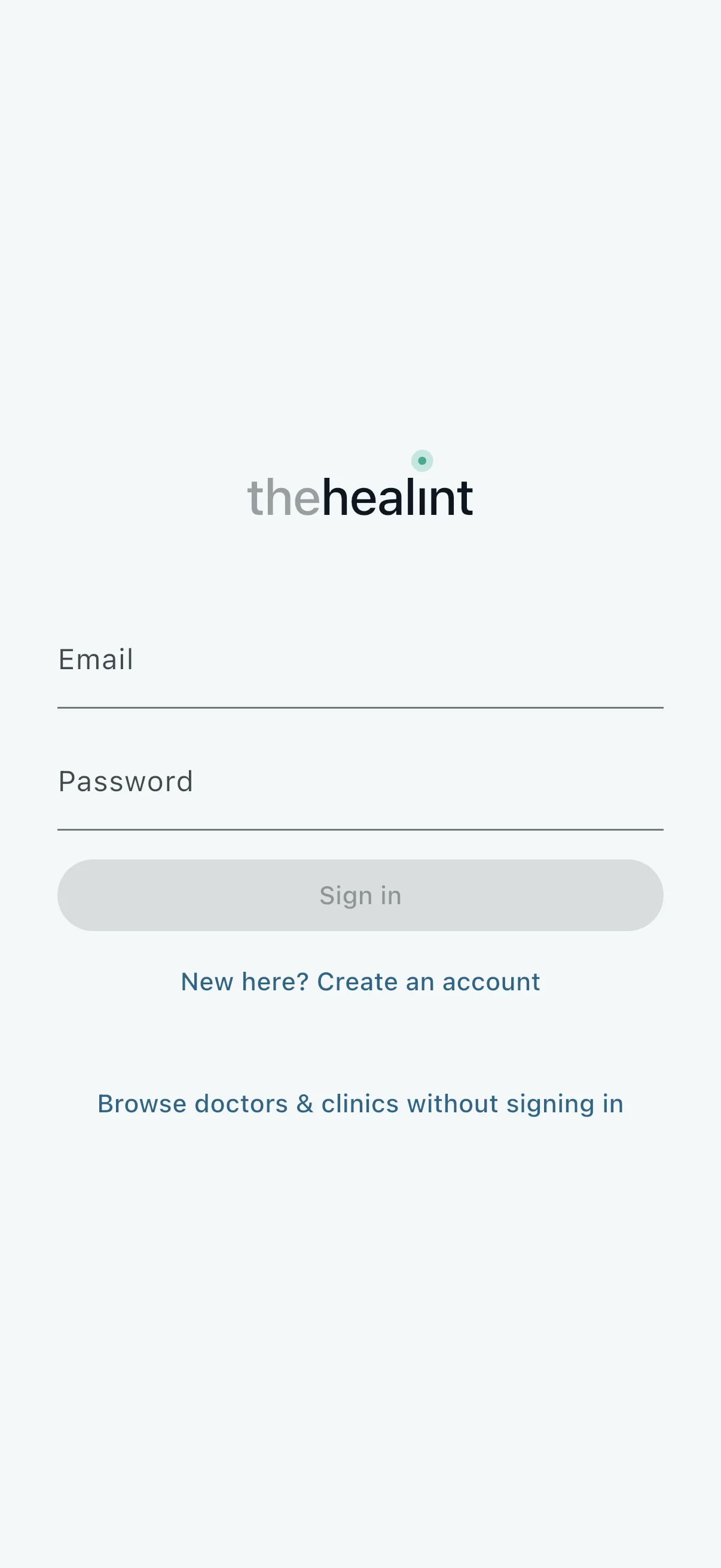
In the iPhone app, open the app, enter your email and password, and tap Sign in. New here? Create an account and Browse doctors & clinics without signing in are underneath.
If it doesn't work
- "That email and password did not match an account." Check for typing mistakes. You can't reset a forgotten password in the app yet, so contact thehealint support.
- "Too many attempts. Please wait a minute and try again." Wait a minute, then try again.
- "Choose a password with at least 8 characters." Pick a longer password.
How to find a doctor or clinic#
Click Find care.
Type what you need help with, for example a symptom ("knee pain"), a specialty ("orthopaedic") or a doctor's name. Results appear as you type. You can also click a suggestion: Knee pain, Cardiologist, Hospital near me or Available today.
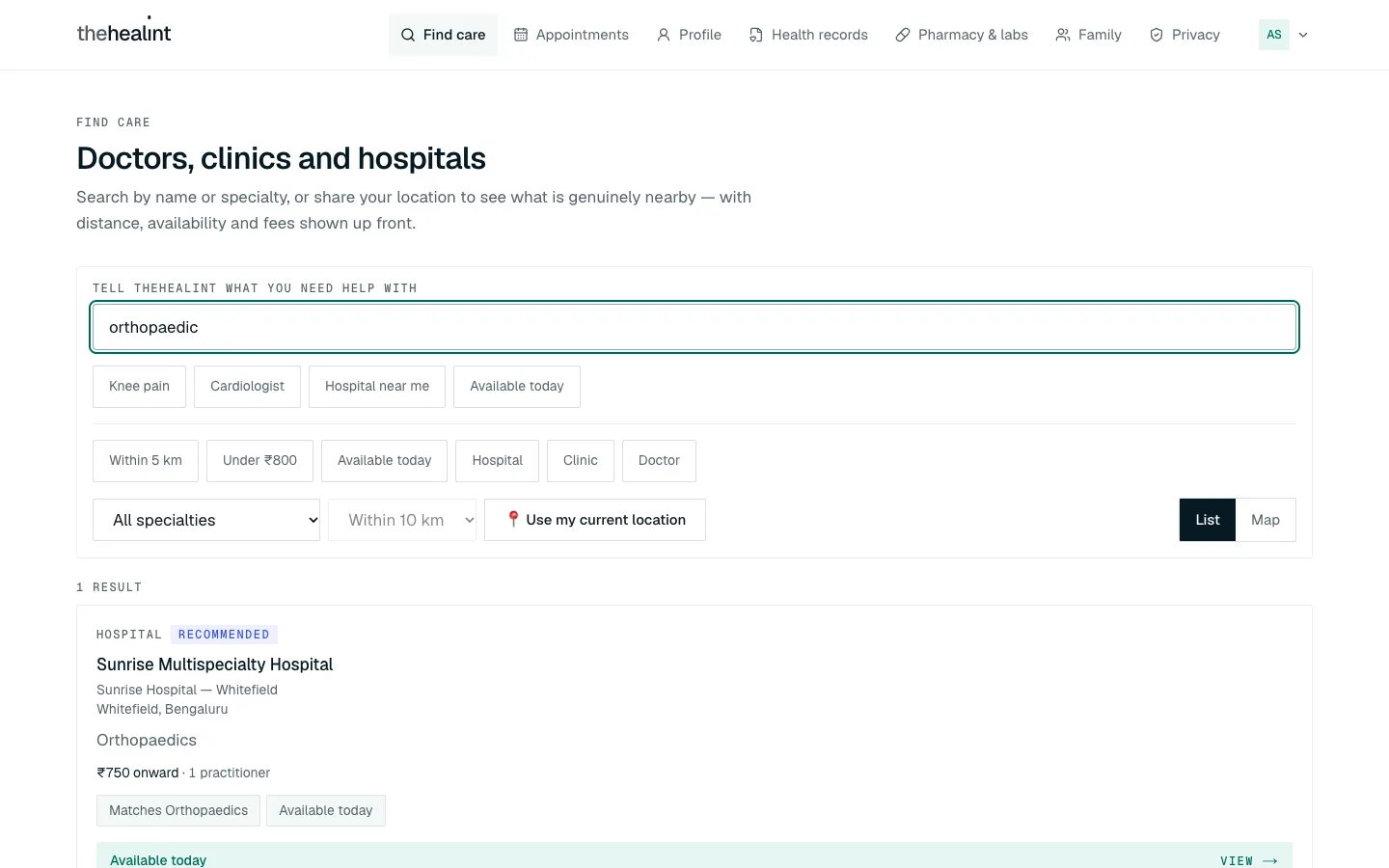
Searching for "orthopaedic": each result shows the type, name, branch, area, specialties, starting fee and whether there are openings today. The top result may be marked "Recommended", with the reasons beneath it. Narrow the results with the filter buttons: Within 5 km, Under ₹800, Available today, Hospital, Clinic or Doctor. A dark button means that filter is on. Click it again to turn it off. You can also pick a specialty or a distance from the drop-down lists.
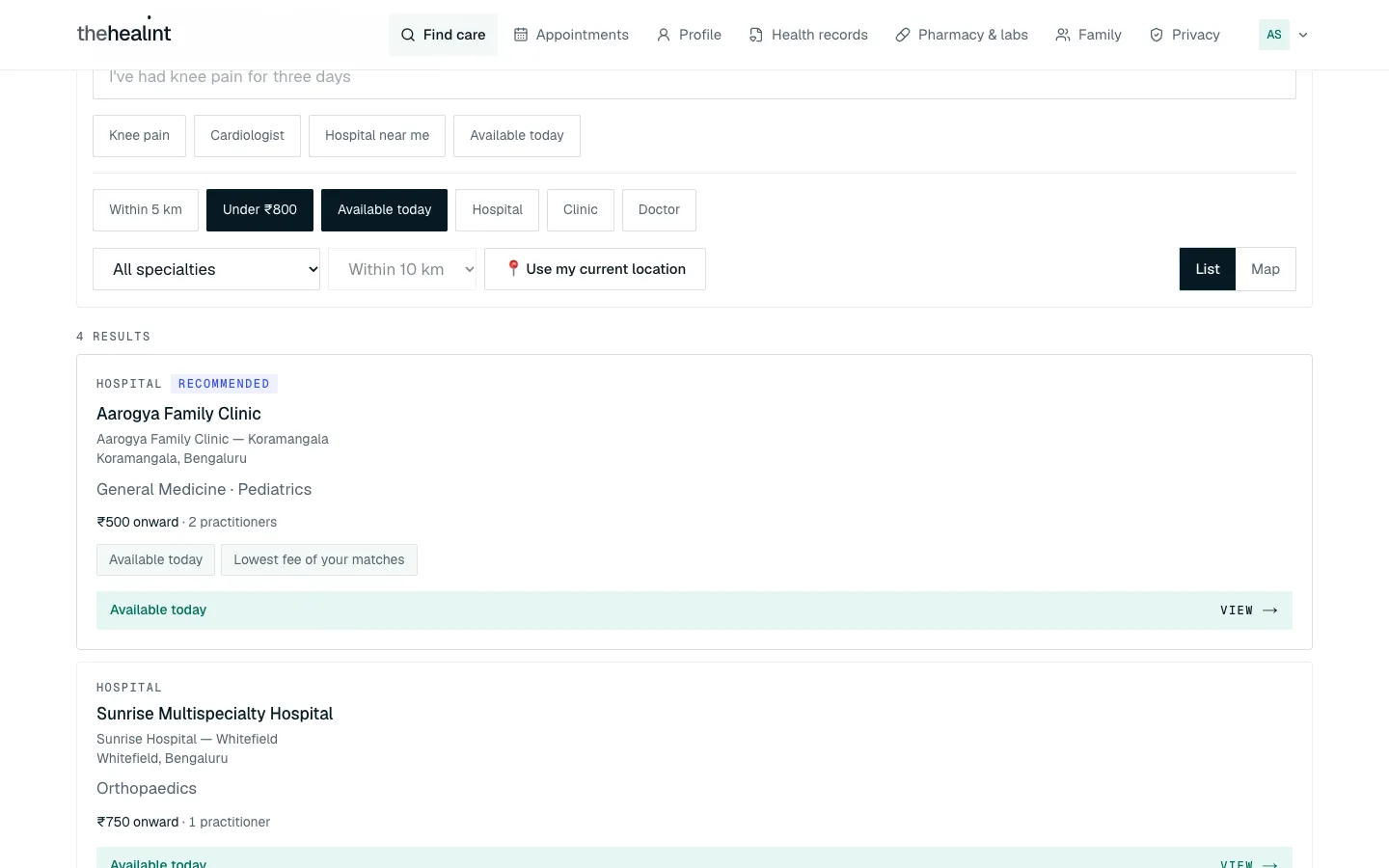
"Under ₹800" and "Available today" switched on: four results left. To see what's close by, click 📍 Use my current location and allow location access when your browser asks. Results then show distances.
To see results on a map, click Map. Click a pin to see that place's result card. Click List to go back.
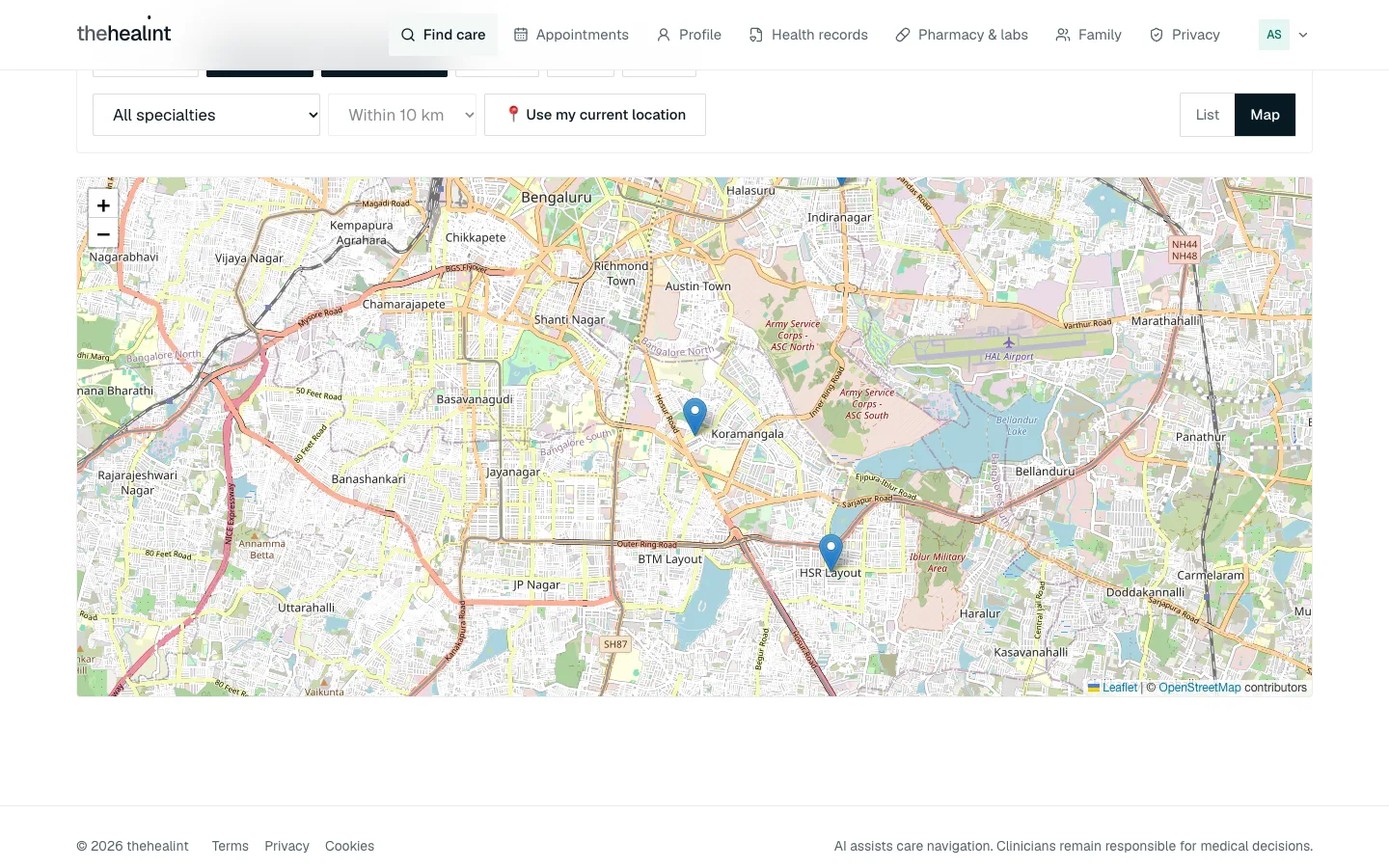
Map view: one pin per clinic or hospital branch. Click a result (or View →) to open that clinic or hospital's page. It shows the address, a Get directions ↗ button and the doctors who work there, each with a fee and a Book appointment button.
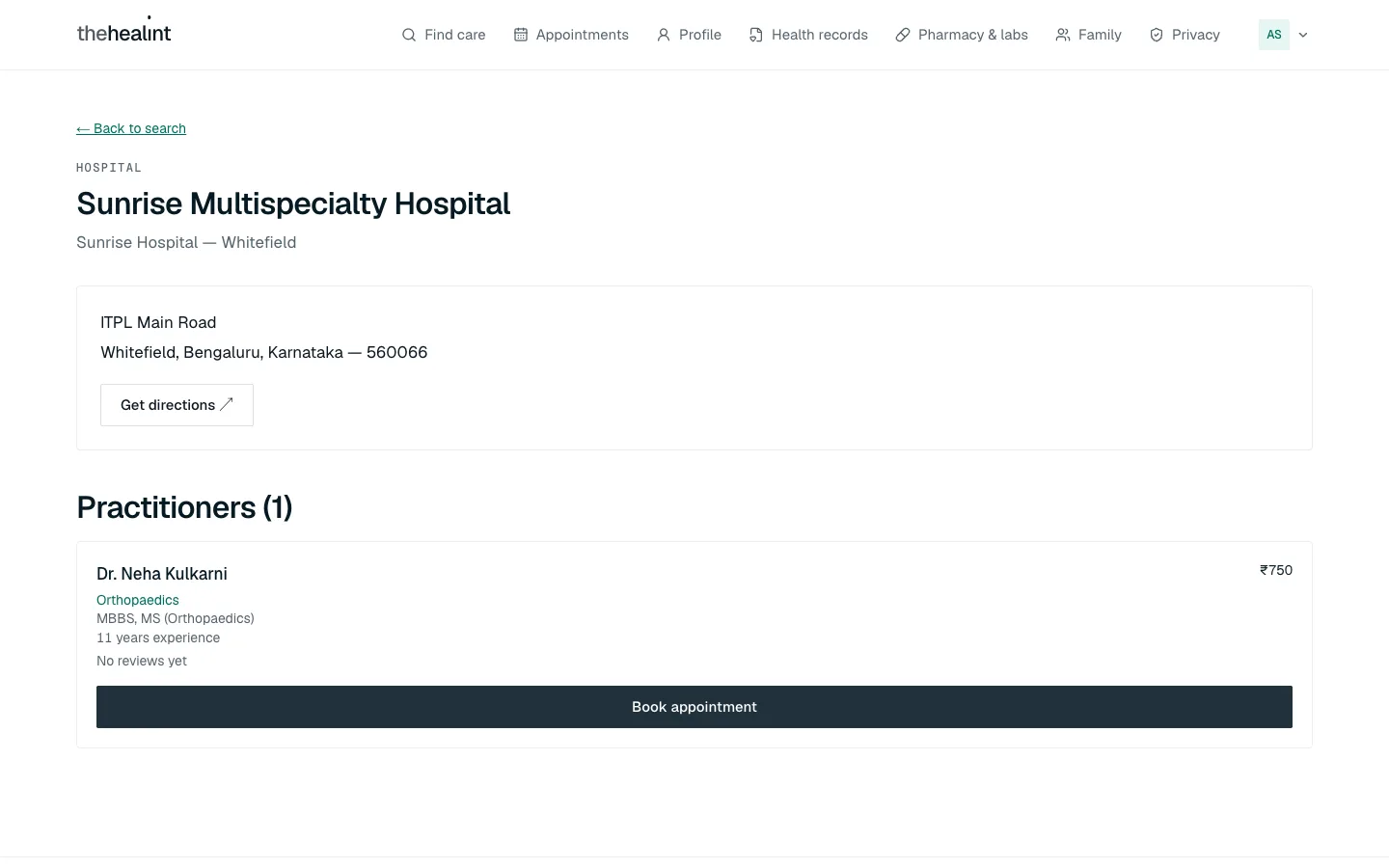
A hospital branch page: address, Get directions, and Practitioners (1) with qualification, experience, rating and fee. Click a doctor's name to see their profile: experience, languages, an About section, every place they work, and Patient reviews.
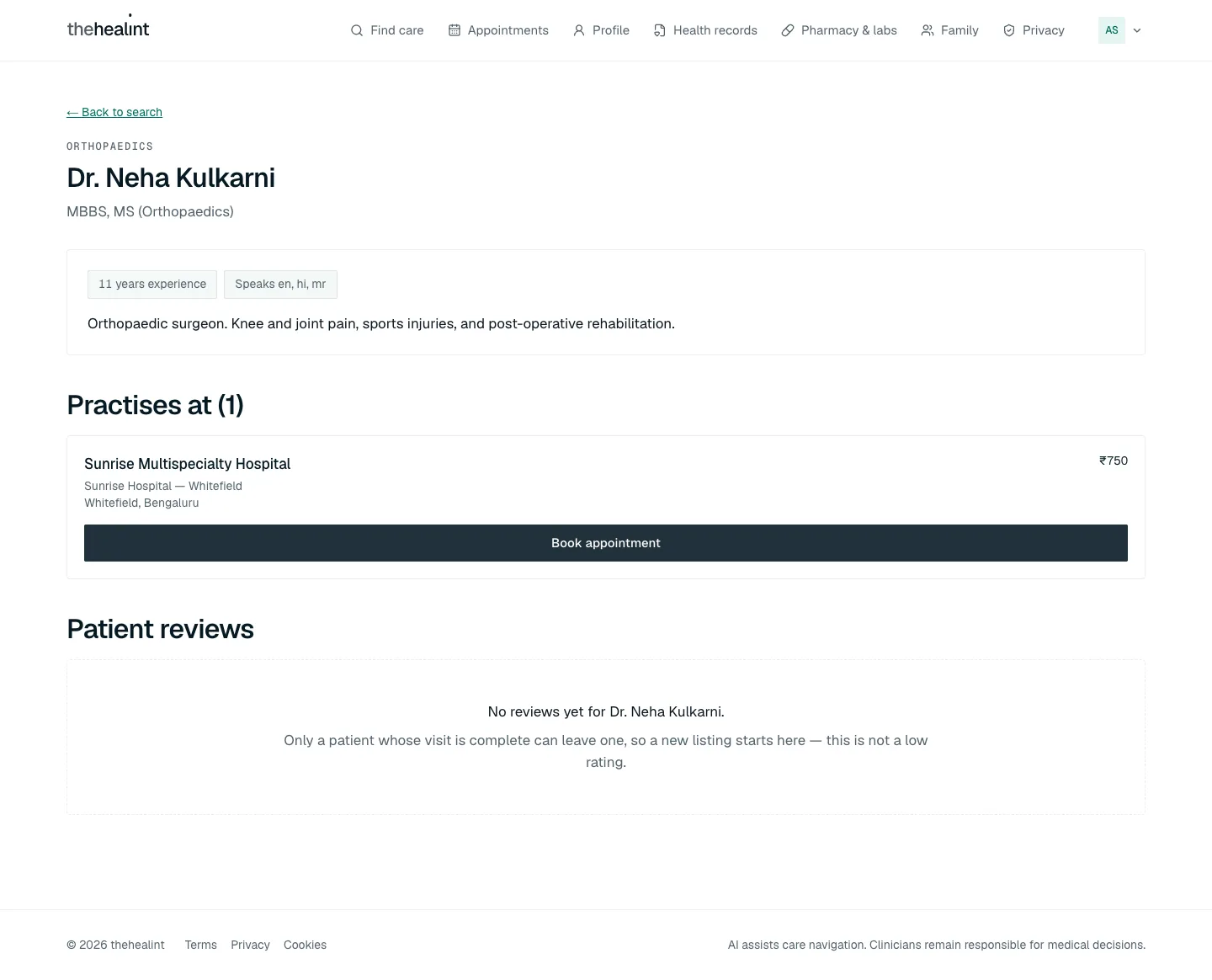
A doctor's profile: Practises at, with Book appointment for each place, and Patient reviews. "No reviews yet" is not a low rating. Only patients whose visit is complete can leave a review.
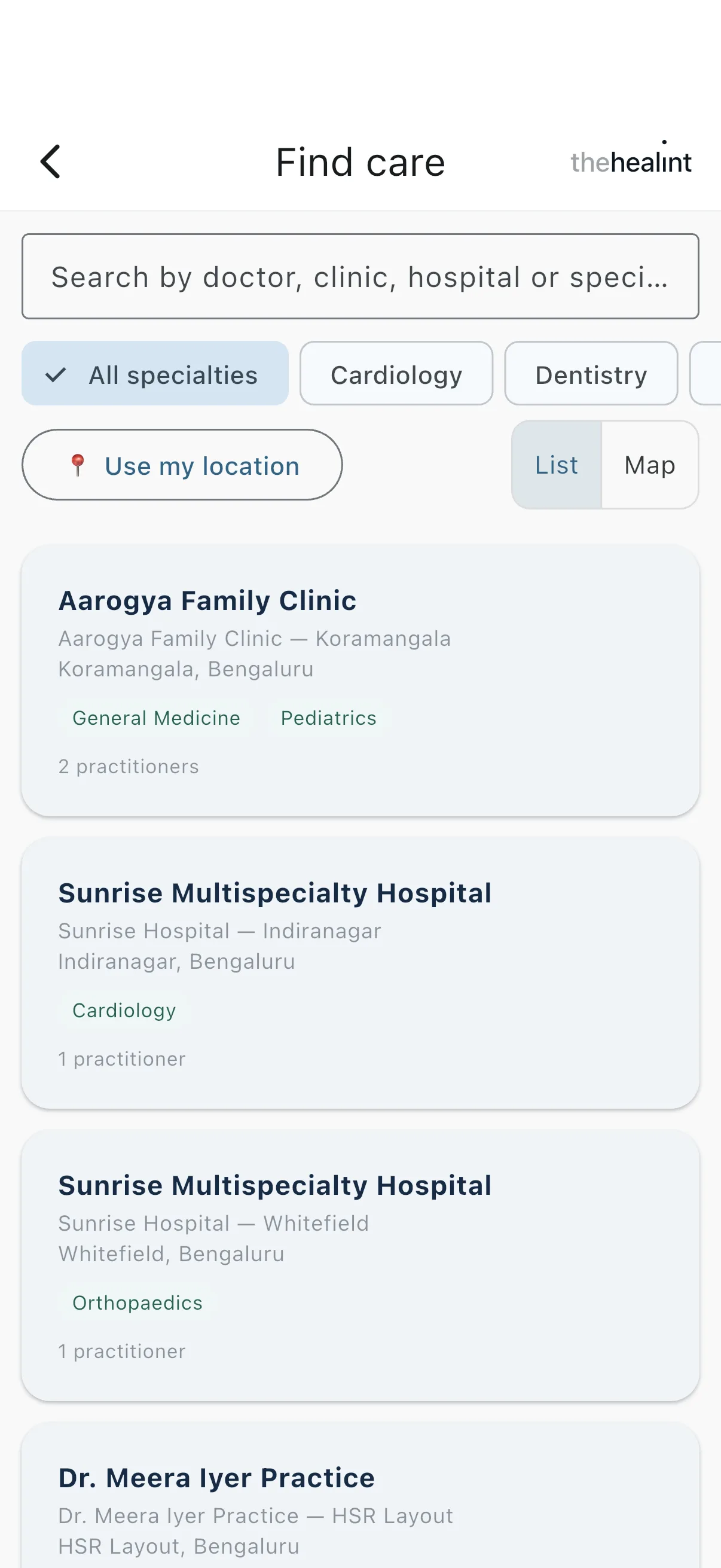
In the iPhone app, tap the Find a doctor or clinic bar on Home. You can search, pick a specialty, use 📍 Use my location and switch between List and Map. The app doesn't have the fee, "Available today" or Hospital/Clinic/Doctor filters, and it doesn't show fees on result cards.
If it doesn't work
- "Nothing matches all of those filters. Try removing one." Turn a filter off, or click Clear filters.
- "No results within X km — showing results within Y km instead." Nothing was close enough, so the search widened by itself.
- "Could not reach the search service." Check your internet connection and click Retry.
How to book an appointment#
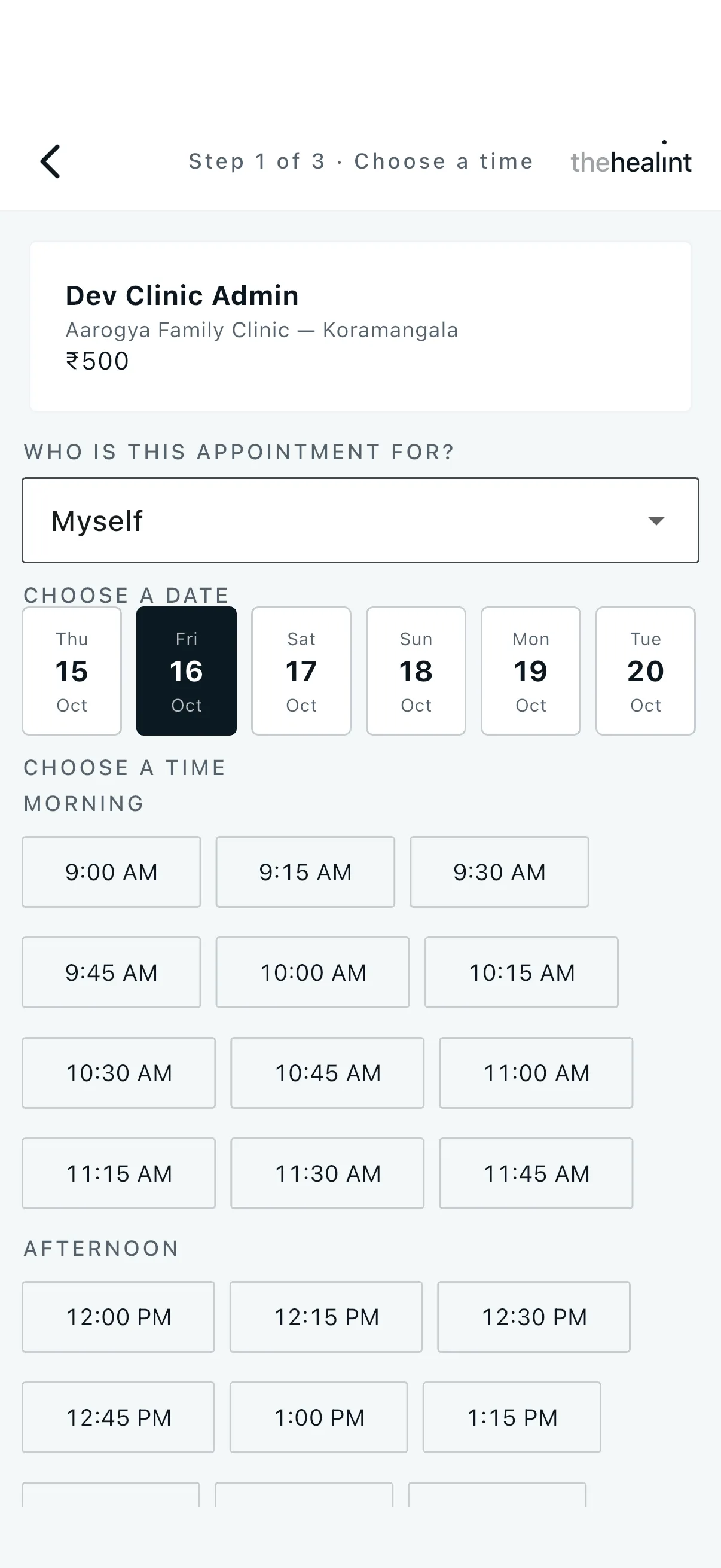
Booking has three steps: Choose a time → Review and confirm → Booked. The step you're on is shown at the top right ("Step 1 of 3 · Choose a time").
On a clinic page or a doctor's profile, click Book appointment next to the doctor and place you want.
Choose a date from the strip. It covers the next two weeks.
Choose a time. Times are grouped into Morning, Afternoon and Evening. Clicking a time holds it for you for 10 minutes while you review.
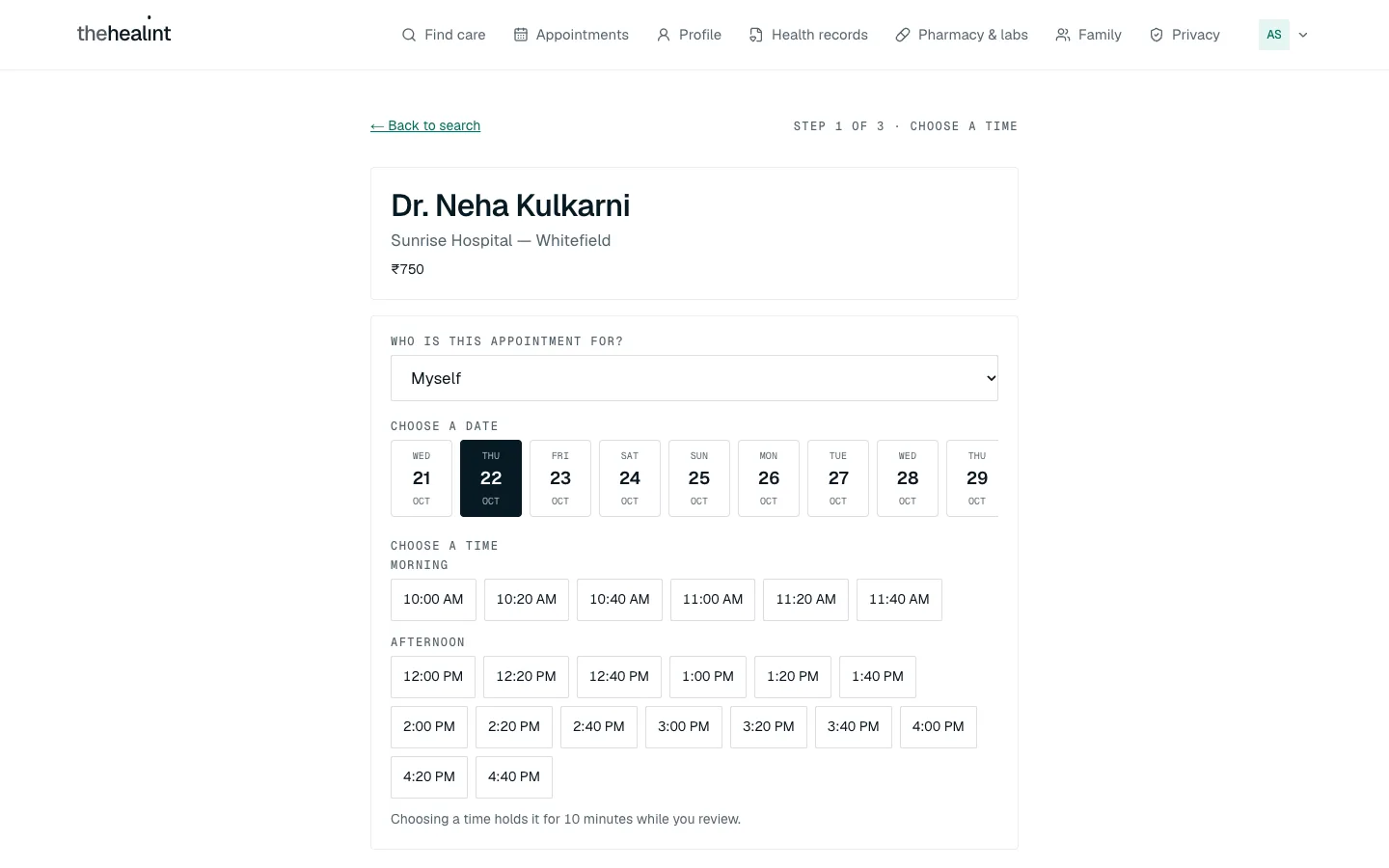
Step 1 of 3 · Choose a time: the doctor and fee at the top, "Who is this appointment for?", the date strip and the open times. Review and confirm. Check the When, Doctor, Where, Patient and Fee details. The blue banner counts down the 10 minutes you have to confirm.
In What is the main issue?, describe in a few words why you're coming, for example "fever and cough for three days". This goes straight to the doctor. Confirm booking stays grey until you've written something.
Click Confirm booking.
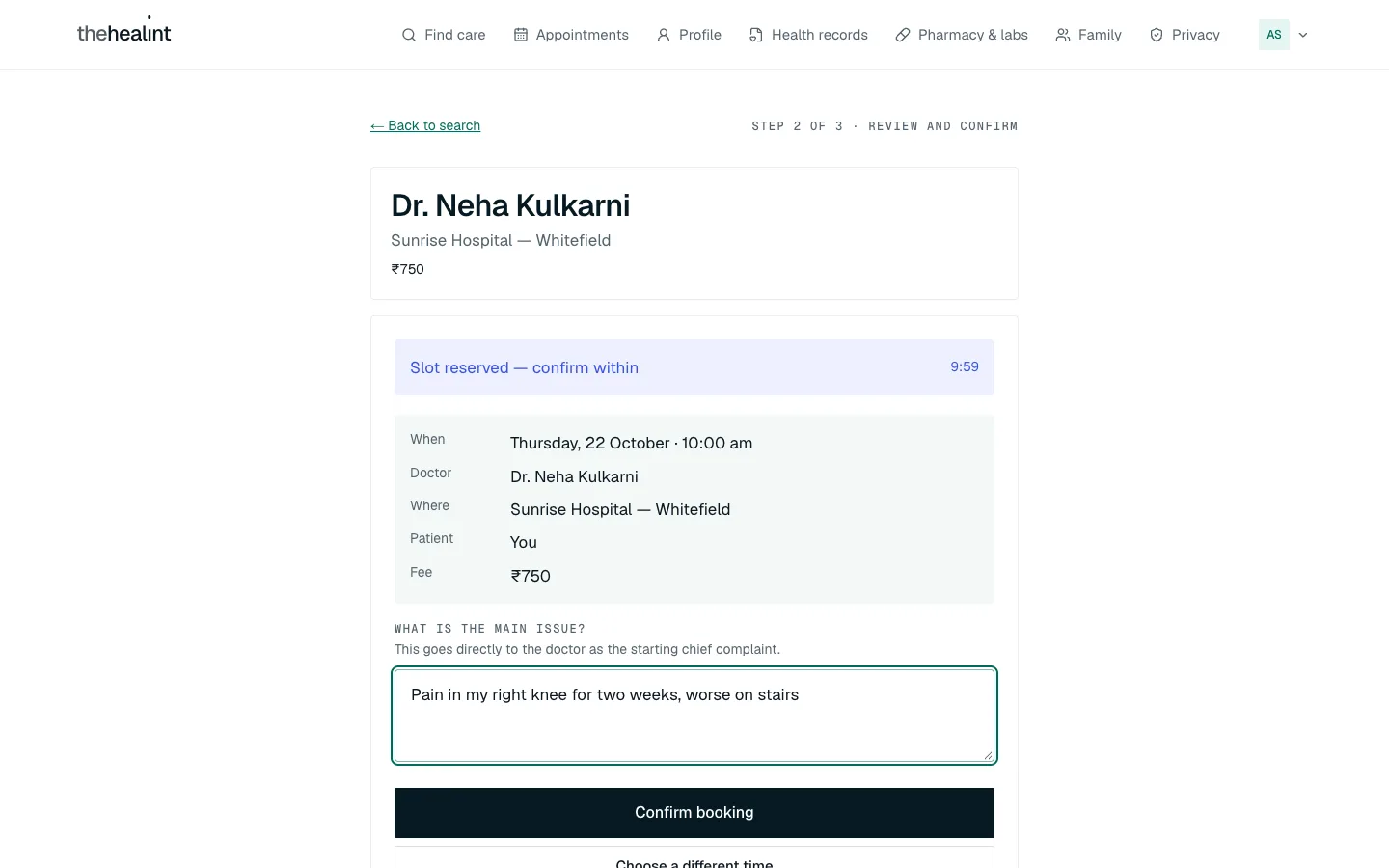
Step 2 of 3 · Review and confirm: "Slot reserved — confirm within 9:59", the visit details, and the main issue filled in. You see Appointment confirmed, and a confirmation email is on its way. Click Add to calendar to save the visit to your phone or computer calendar, or View my appointments to see all your bookings.
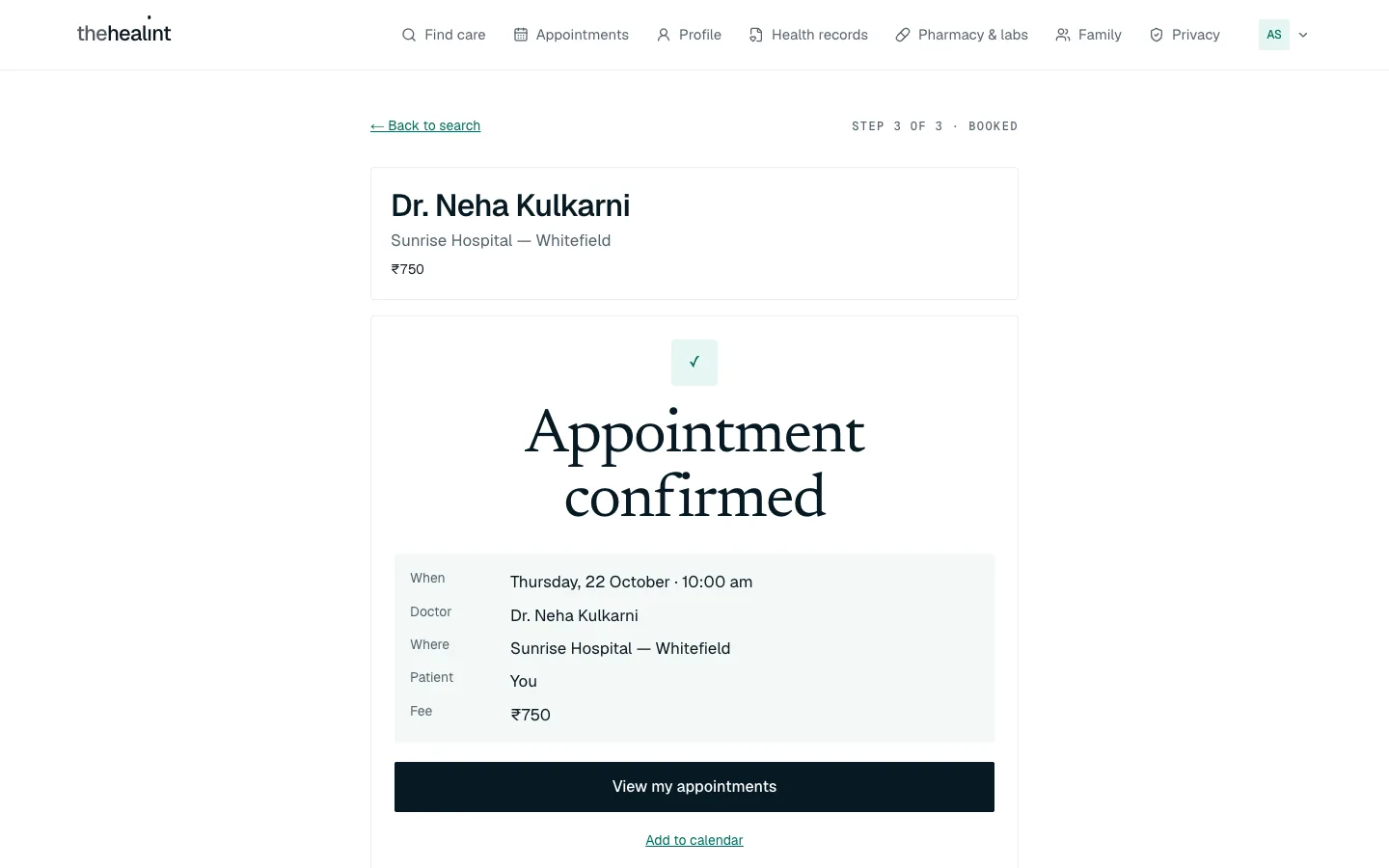
Step 3 of 3 · Booked: the summary, View my appointments and Add to calendar.
In the iPhone app, the steps and wording are the same. The app has no Add to calendar.
If it doesn't work
- "Your hold expired after 10 minutes — please choose a time again." You took longer than 10 minutes to confirm. Pick a time again.
- Someone else just took that time. You'll see a message and a list of Nearby alternatives. Click one of those instead.
- No times showing ("No openings on this date." or "No more openings today."). Pick another day from the strip.
- You change your mind on step 2. Choose a different time takes you back to step 1. The time you were holding stays reserved for up to 10 minutes, then frees up on its own.
- "…confirmed, but the reason for visit could not be saved." Your booking stands. Add the reason from Appointments using the pre-visit form (see below).
How to book for a family member#
Family members don't need their own login. You add them once to your account, then pick them when you book.
Add the family member first#
Click Family in the top menu.
Click Add a family member.
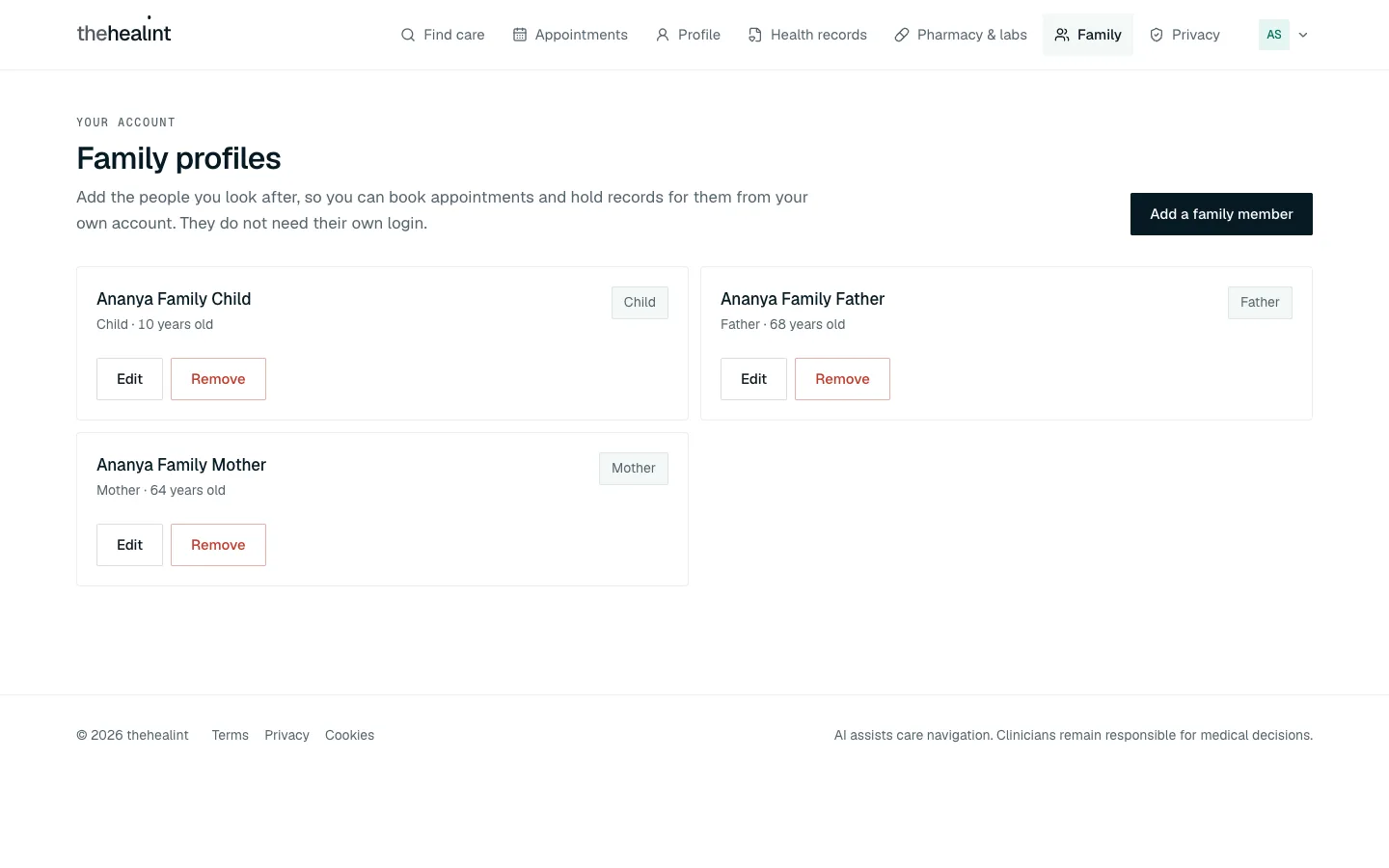
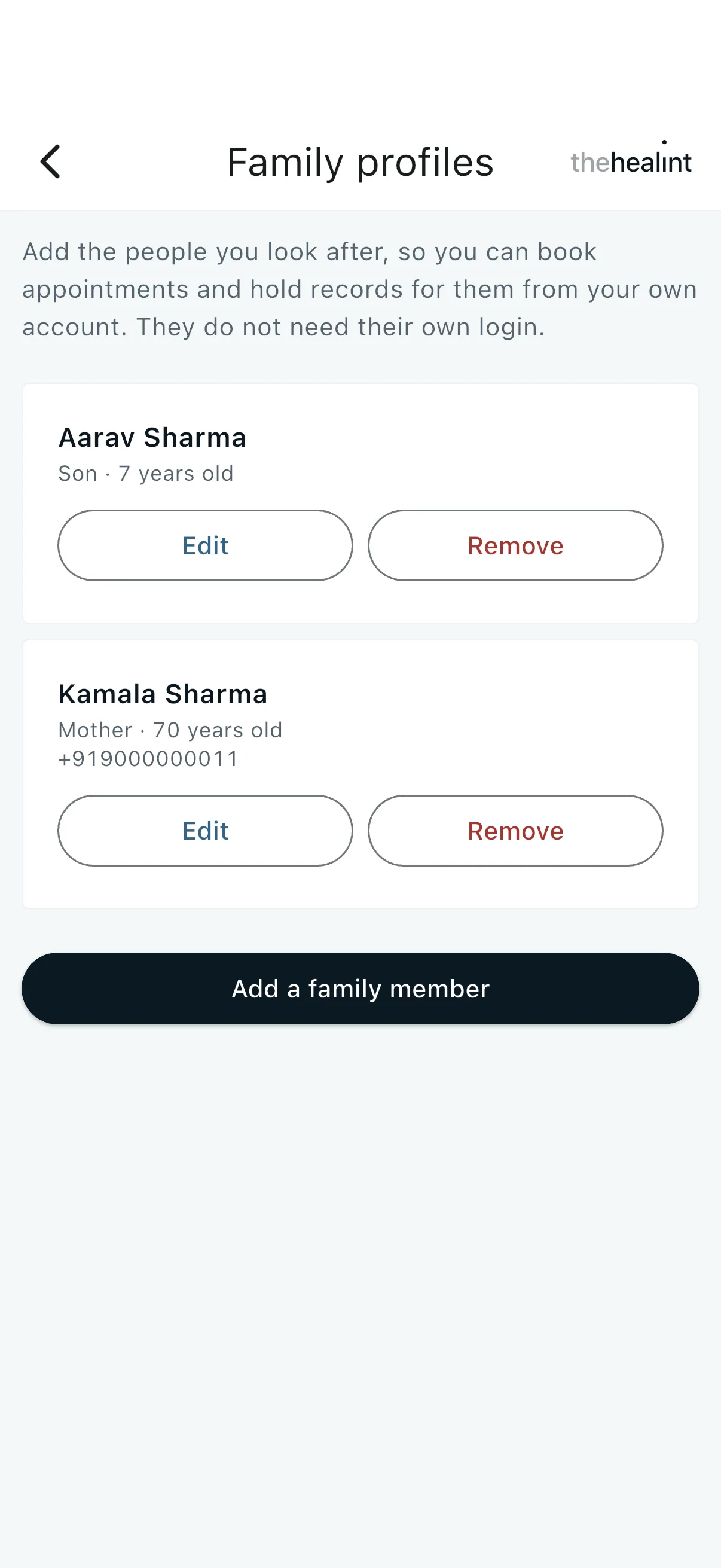
Family profiles: each person with their relationship and age, plus Edit and Remove. Fill in Full name, Relationship to you (for example Son, Mother), Date of birth and Biological sex. These four are required. Blood group, height, weight, allergies, chronic conditions and phone number are optional, but they help the doctor.
Click Add family member.
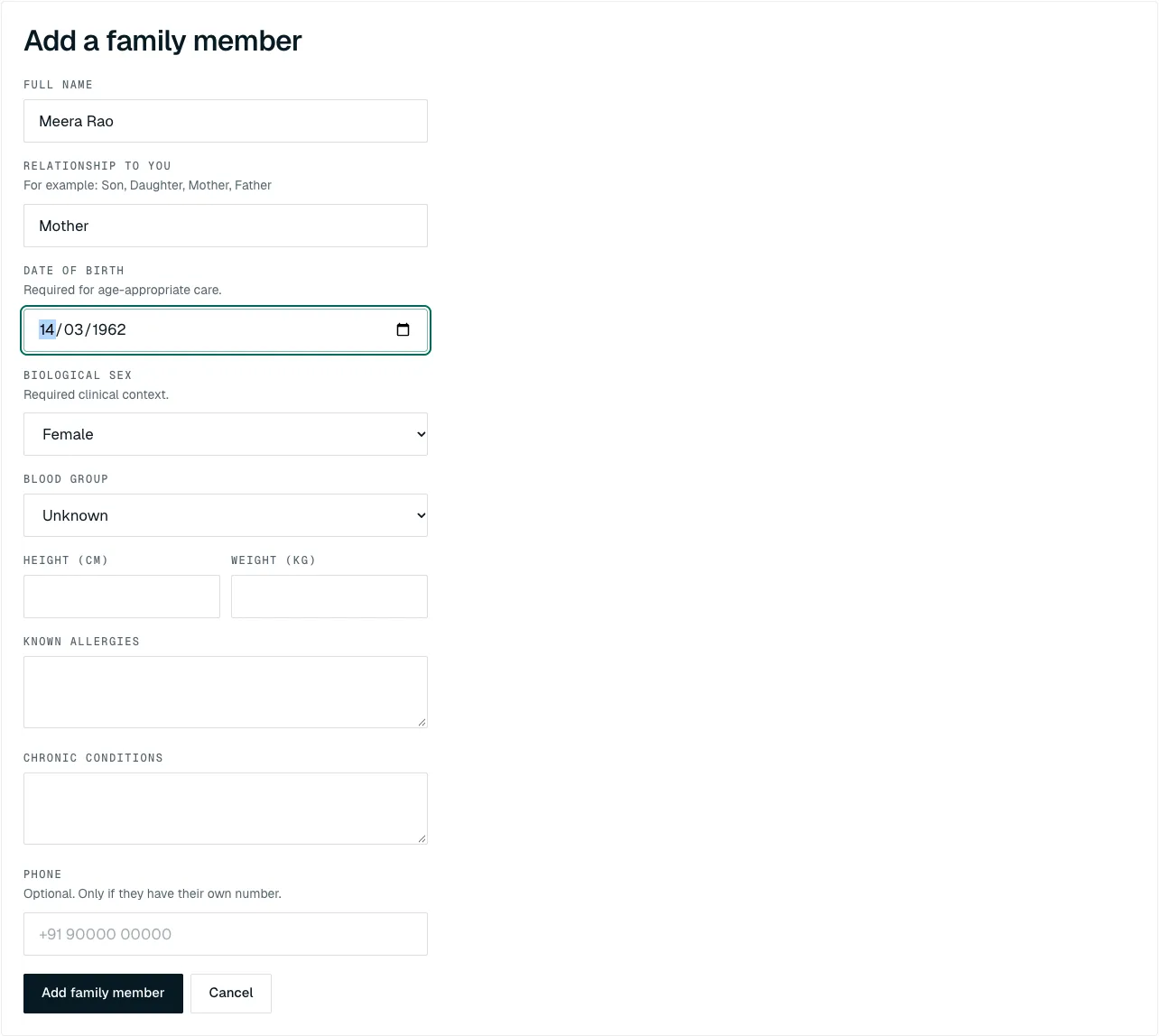
Add a family member: the four required fields are filled in. The rest are optional.
To change someone's details later, click Edit on their card. Remove takes them off your account, but you can't remove someone who already has appointments on record.
Then book for them#
- Start a booking as usual (see "How to book an appointment").
- On step 1, under Who is this appointment for?, choose the family member instead of Myself.
- Carry on as normal. Their name appears as the Patient on the review step, and as "For …" on the appointment card.
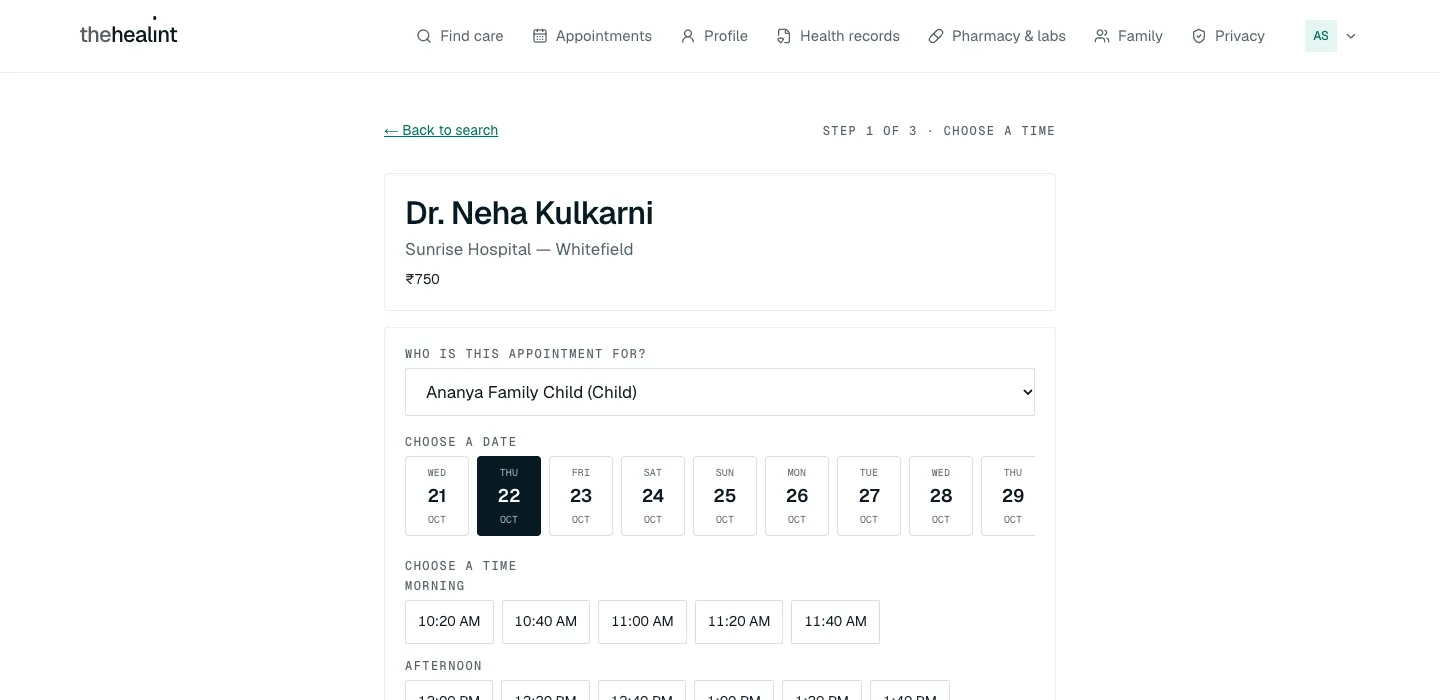
In the iPhone app, open Family from Home's quick actions. The booking choice works the same, but app appointment cards don't show who the visit is for.
How to tell the doctor before your visit (pre-visit form)#
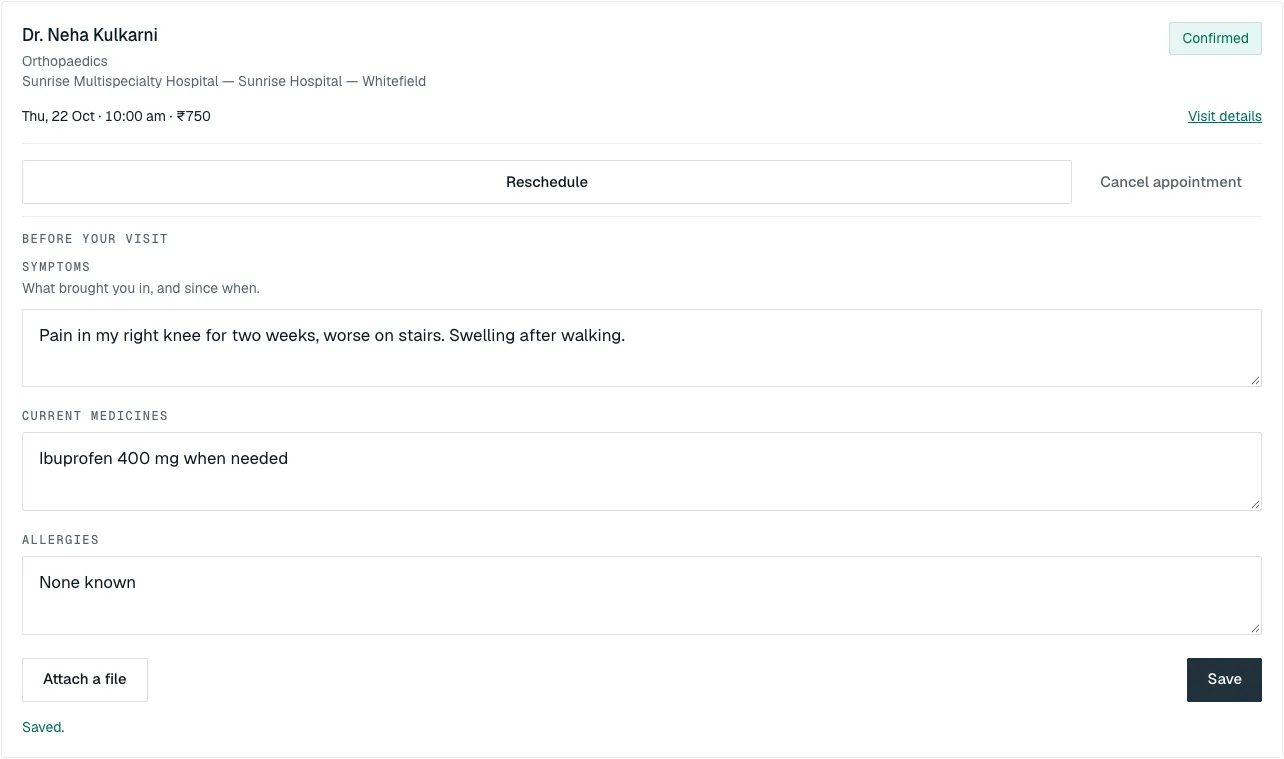
You can tell the doctor your symptoms, the medicines you take and any allergies before you arrive. Only you and your treating doctor can see this. Reception and other staff can't.
Click Appointments.
On the upcoming visit, click Add symptoms, medicines or allergies before your visit.
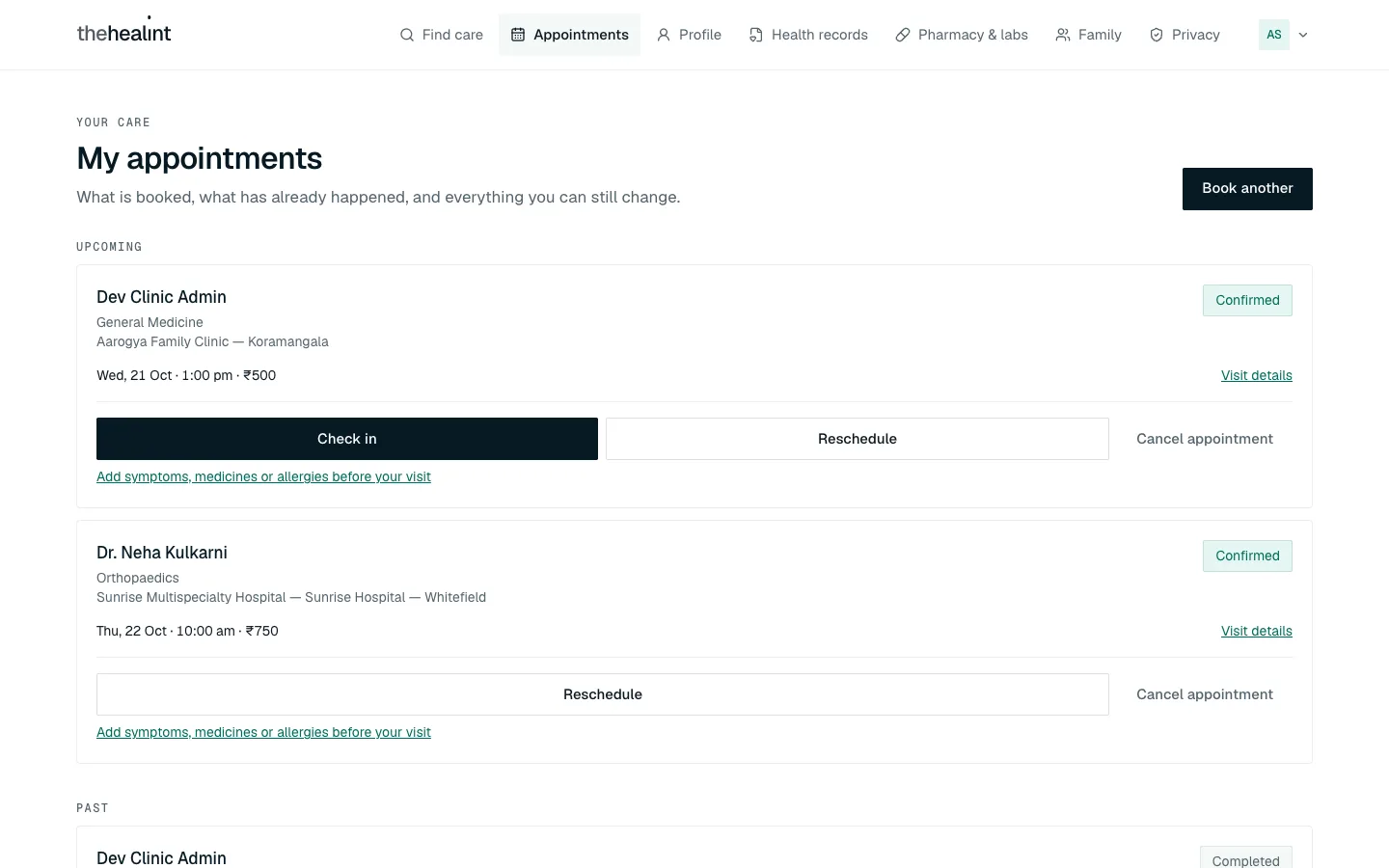
My appointments: the upcoming visit has Check in, Reschedule, Cancel appointment and the pre-visit link. Past visits are listed below it. Fill in Symptoms, Current medicines and Allergies. What you wrote as the main issue when booking is already in Symptoms.
To add a photo or a PDF (for example an old report), click Attach a file.
Click Save. You see "Saved." You can come back and change it as often as you like before the visit.
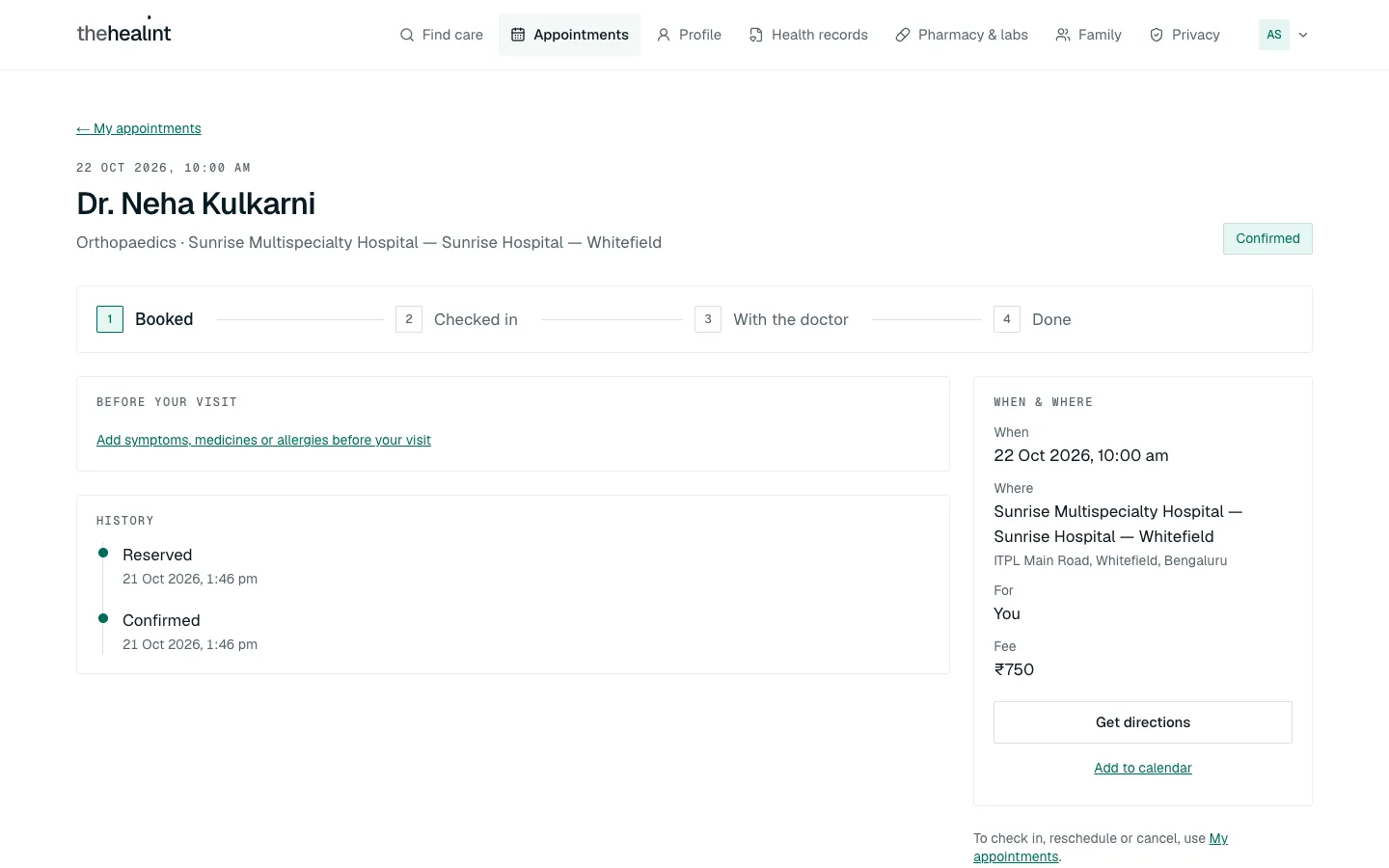
You can also open the same form from the visit's own page (Visit details), under Before your visit.
In the iPhone app, the same link is on each upcoming appointment card. You can fill in and save the form, but you can't attach files from the app. Use the website for that.
How to see, reschedule or cancel an appointment#
See your appointments#
Click Appointments. Upcoming shows visits still to come, soonest first. Past shows everything else. Each card shows the doctor, the place, the date, time and fee, and a status:
| Status | What it means |
|---|---|
| Reserved | You're holding a time but haven't confirmed yet |
| Confirmed | Booked |
| In queue / Checked in | You've arrived and are waiting |
| In consultation | You're with the doctor |
| Completed | The visit is done |
| Cancelled, Rescheduled, Expired, No-show | The visit didn't go ahead at this time |
Click Visit details (or the doctor's name) to open the visit page. It shows a progress bar (Booked → Checked in → With the doctor → Done), When & where with Get directions and Add to calendar, your pre-visit form and the visit's history.
Reschedule#
- On the upcoming visit's card, click Reschedule.
- Choose a new date and time.
- Check the message: "Move to new time? Your current time (…) is released."
- Click Confirm new time. Click Keep current if you change your mind.
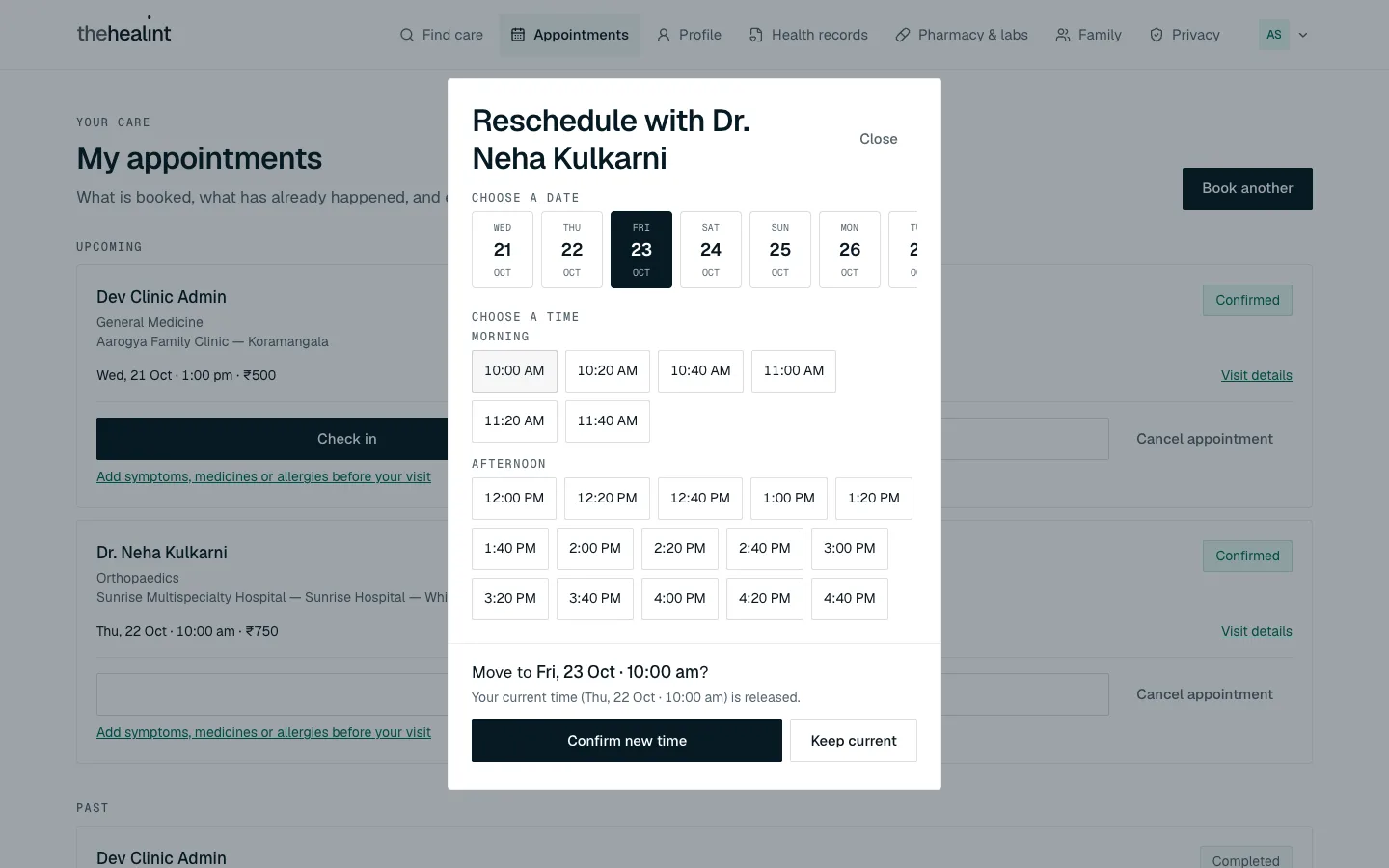
You see "Moved to …" and get an email. The old booking shows as Rescheduled under Past.
Cancel#
- On the upcoming visit's card, click Cancel appointment.
- If you like, add a reason. It's shared with the clinic.
- Click Cancel appointment in the box to confirm. Never mind closes it without cancelling.
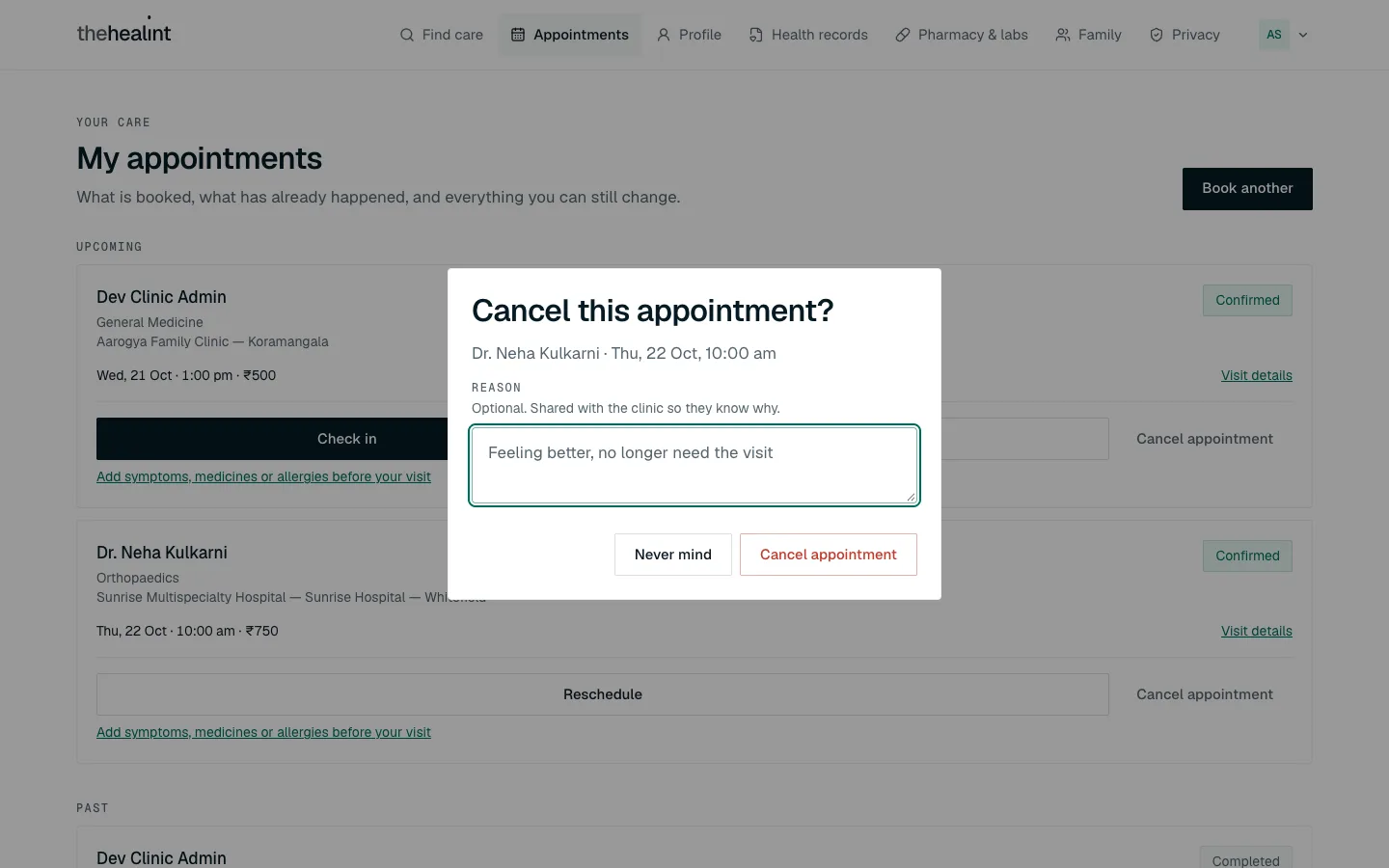
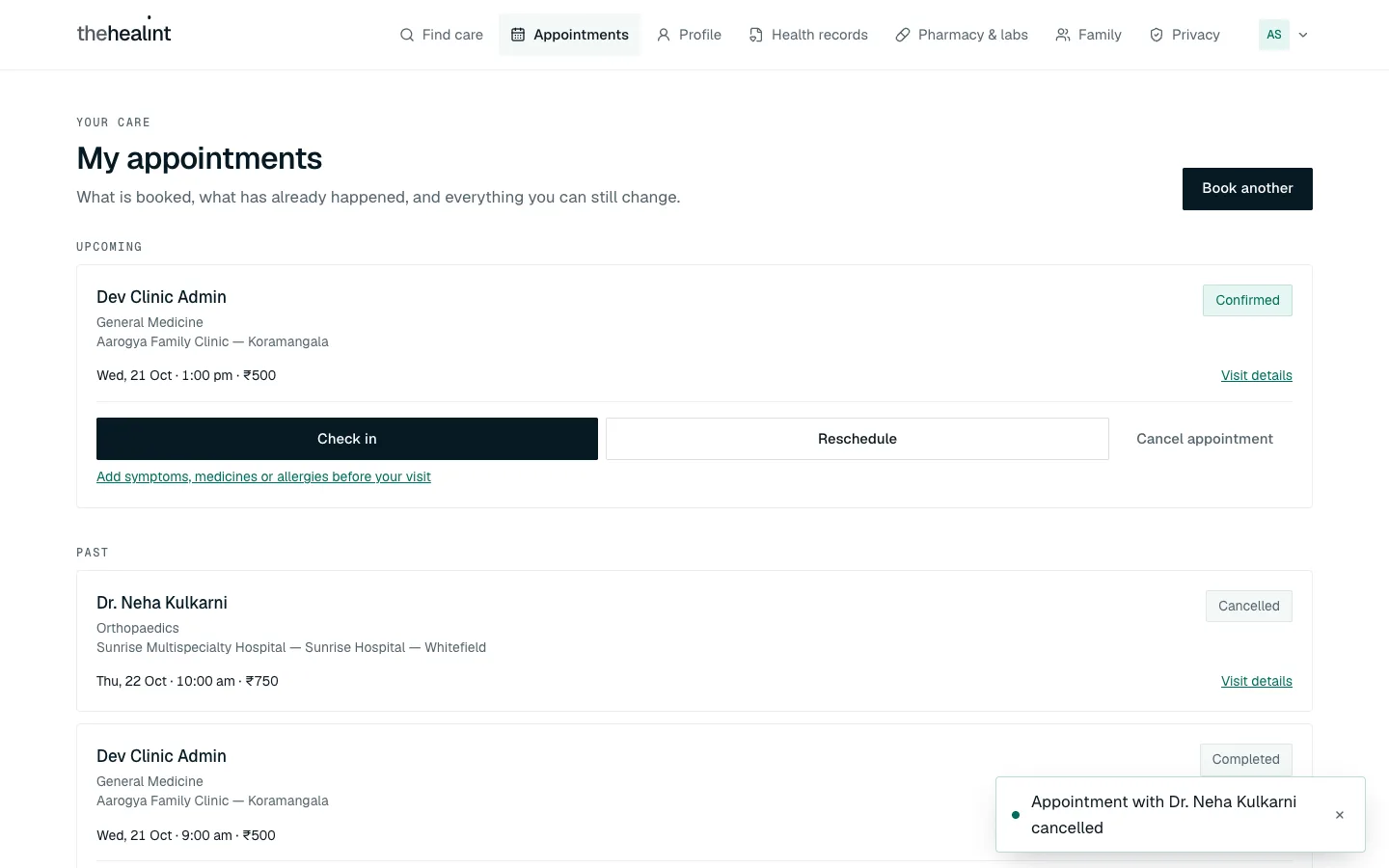
You get an email confirming the change. You can only reschedule or cancel before you check in. After that, speak to reception.
In the iPhone app, open the Appointments tab. Each upcoming card has Reschedule and Cancel, and works the same way. The app has no visit page, so you can't tap a card to see its details.
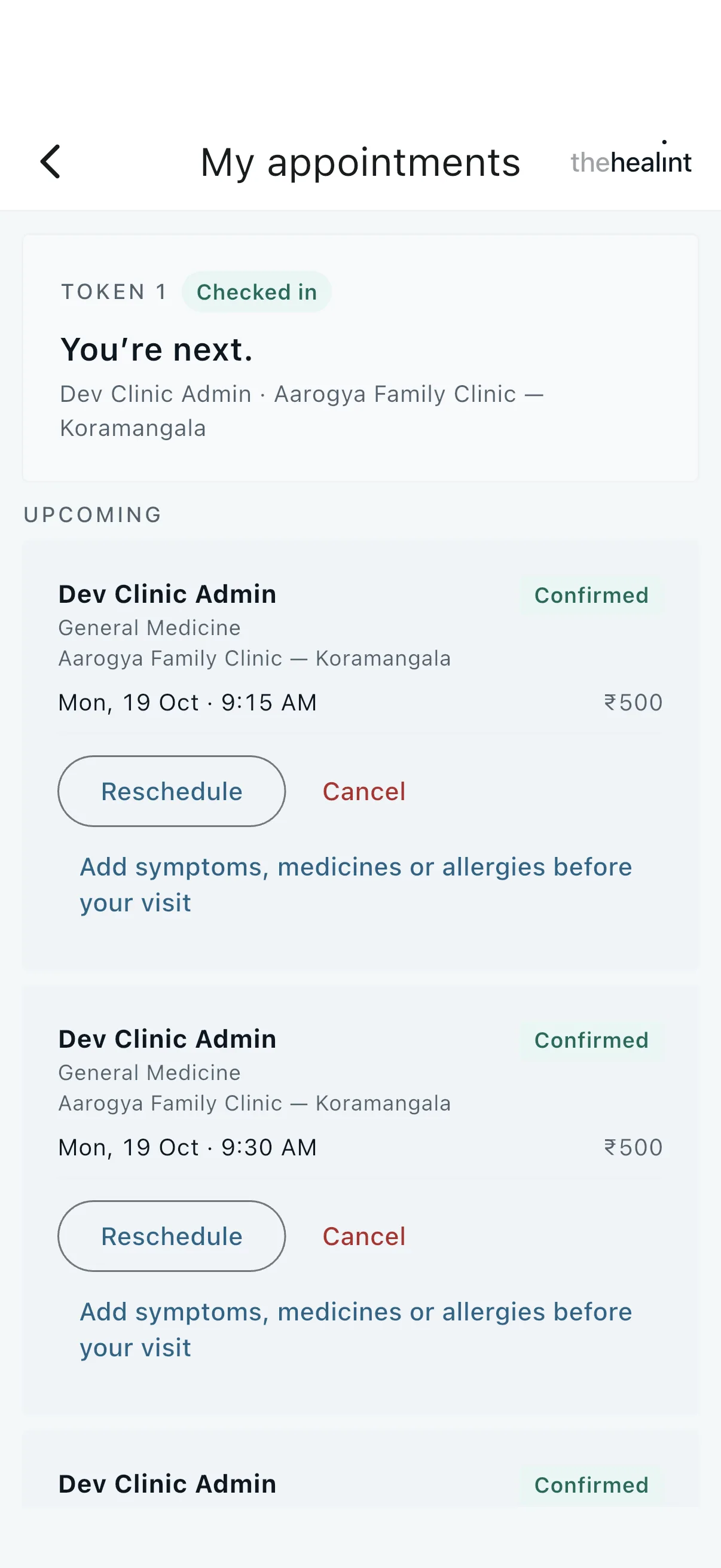
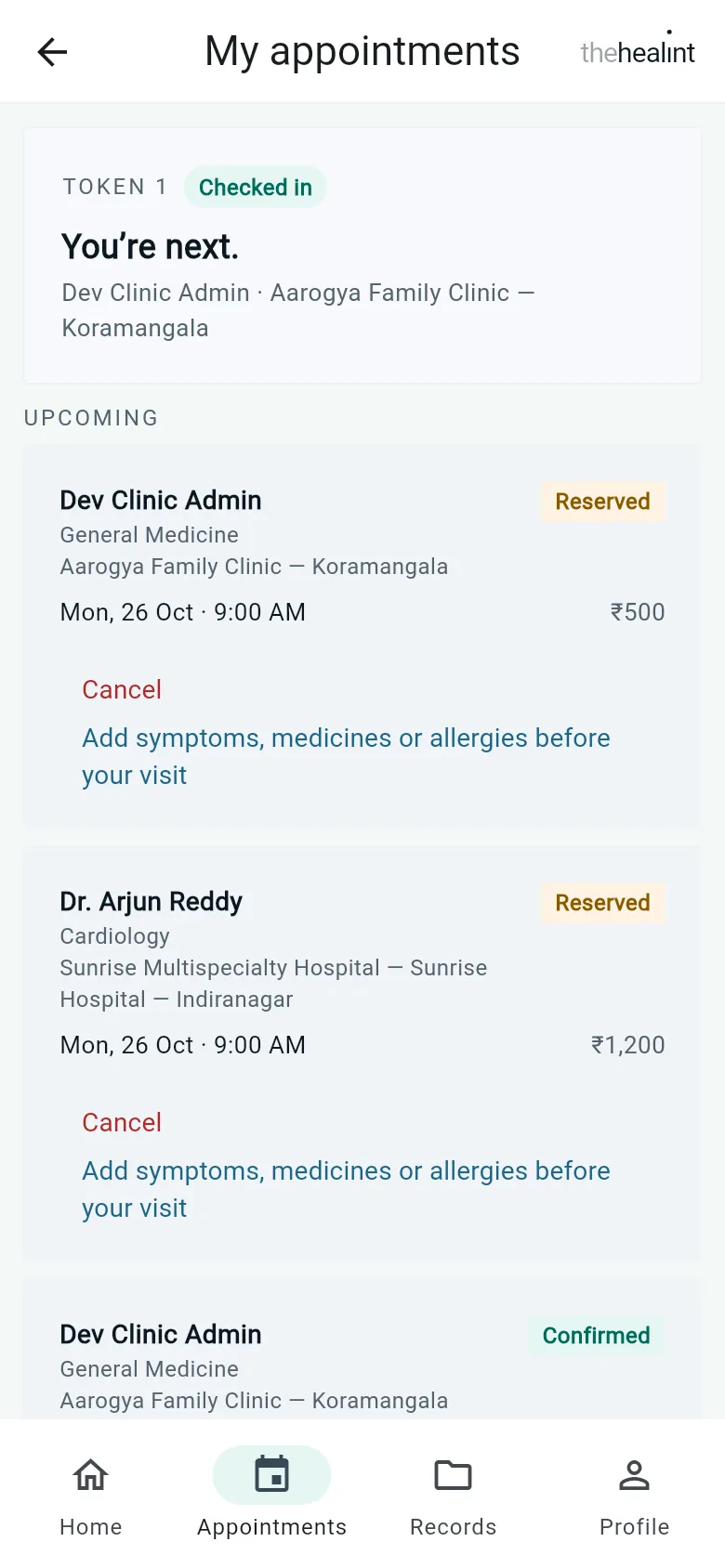
Each visit shows its day and time on the clinic's clock and its fee in the clinic's currency (below, ₹500 and ₹1,200), wherever you are:
If it doesn't work
- "That time is no longer available — please pick another." Someone took it while you were choosing. Pick another time.
Visit day: check in and follow the queue#
Check in when you arrive#
- When you reach the clinic, open Appointments on your phone.
- On today's visit, tap Check in.
- You see "Checked in — you're in the queue" and your visit changes to In queue.
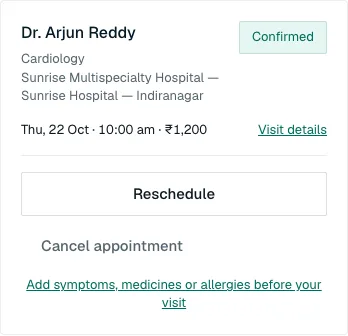
Check in once you've arrived. Check in only appears on the day of the visit — before that, the card shows Reschedule and Cancel only. If you'd rather not use your phone, reception can check you in at the desk.
In the iPhone app, the button reads I've arrived — check in, and it only appears on the day of the visit.
Follow the queue#
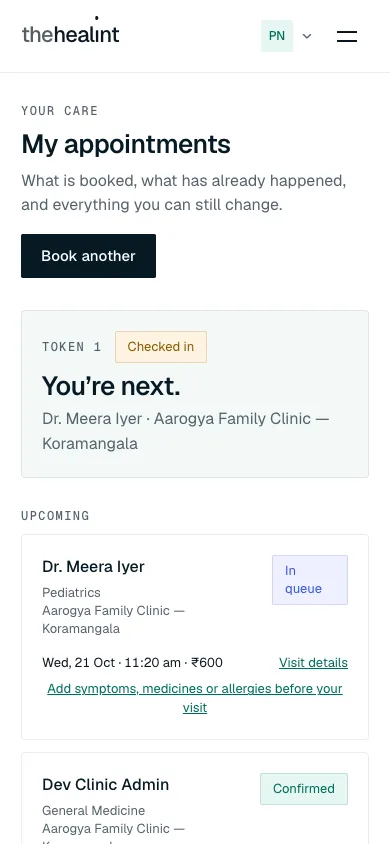
Once you're checked in, a card at the top of Appointments (and on Home in the app) shows your token number and where you are. It updates by itself about every 20 seconds.
| Card says | What to do |
|---|---|
| Checked in · "You're next." / "One person ahead of you." / "n people ahead of you." | Wait. An estimated wait may also be shown |
| Called · "You're being called — please go in." | Go in to see the doctor |
| With the doctor · "You're with the doctor now." | Your consultation is under way |
If it doesn't work
- "Could not check in — please try again or ask reception." Try once more, then go to the front desk.
After the visit#
When the doctor finishes, your visit shows as Completed. Everything that came out of it is on the visit page: the prescription, any pharmacy or lab orders, and the bill. You also get an email when your prescription is ready.
See the visit page#
- Click Appointments, then Visit details on the completed visit.
- All four steps are ticked. You see Prescription, Pharmacy & lab orders, Bill and History.
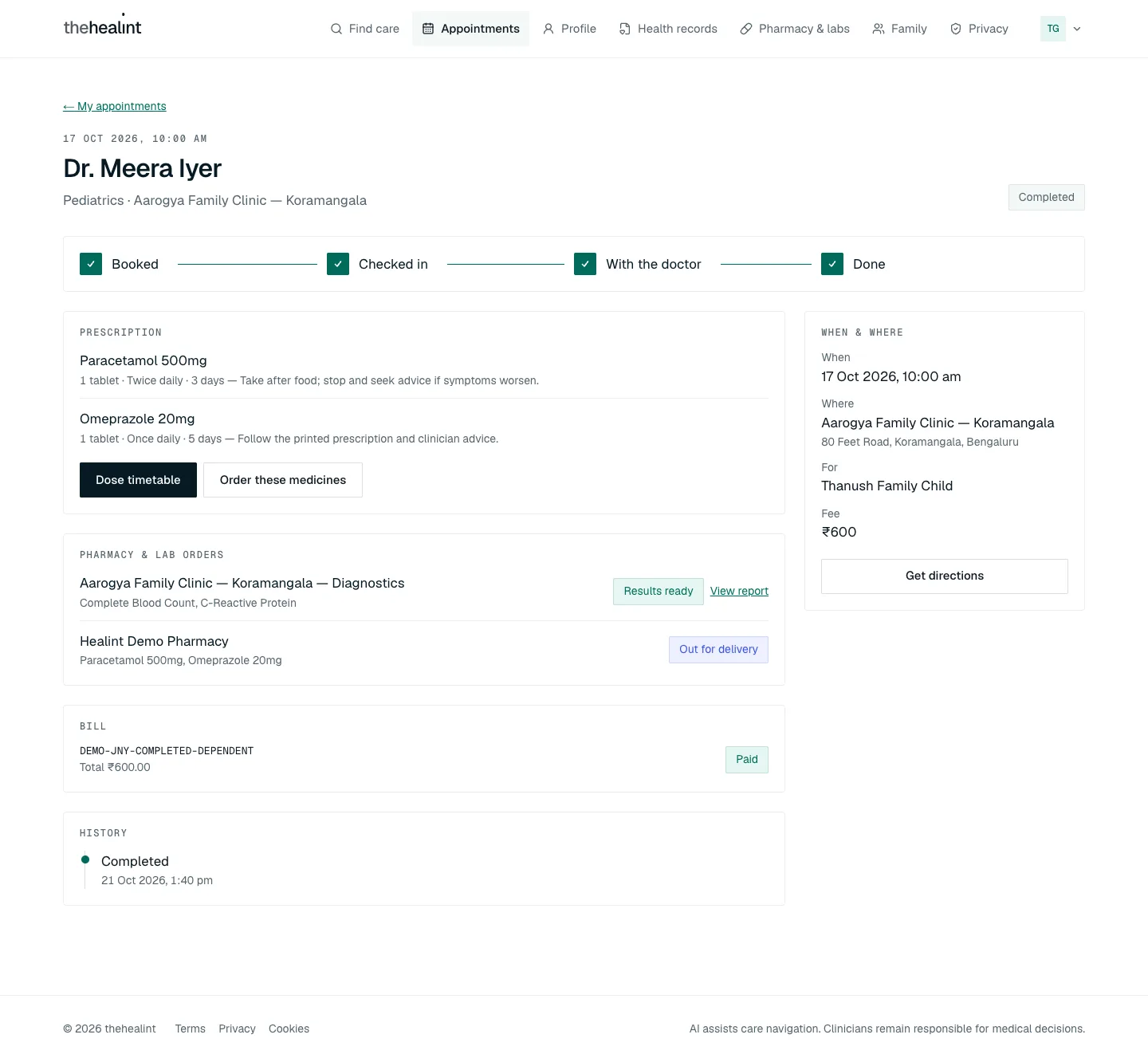
The doctor's own clinical notes aren't shown to patients. You see the outcomes: prescription, orders, reports and bill.
Read your prescription and dose timetable#
On the visit page, click Dose timetable. Or go to Health records → Prescriptions and click View & dose timetable.
The page lists each medicine with its dose, how often to take it (in plain words, for example "Twice a day — morning, night") and for how long.
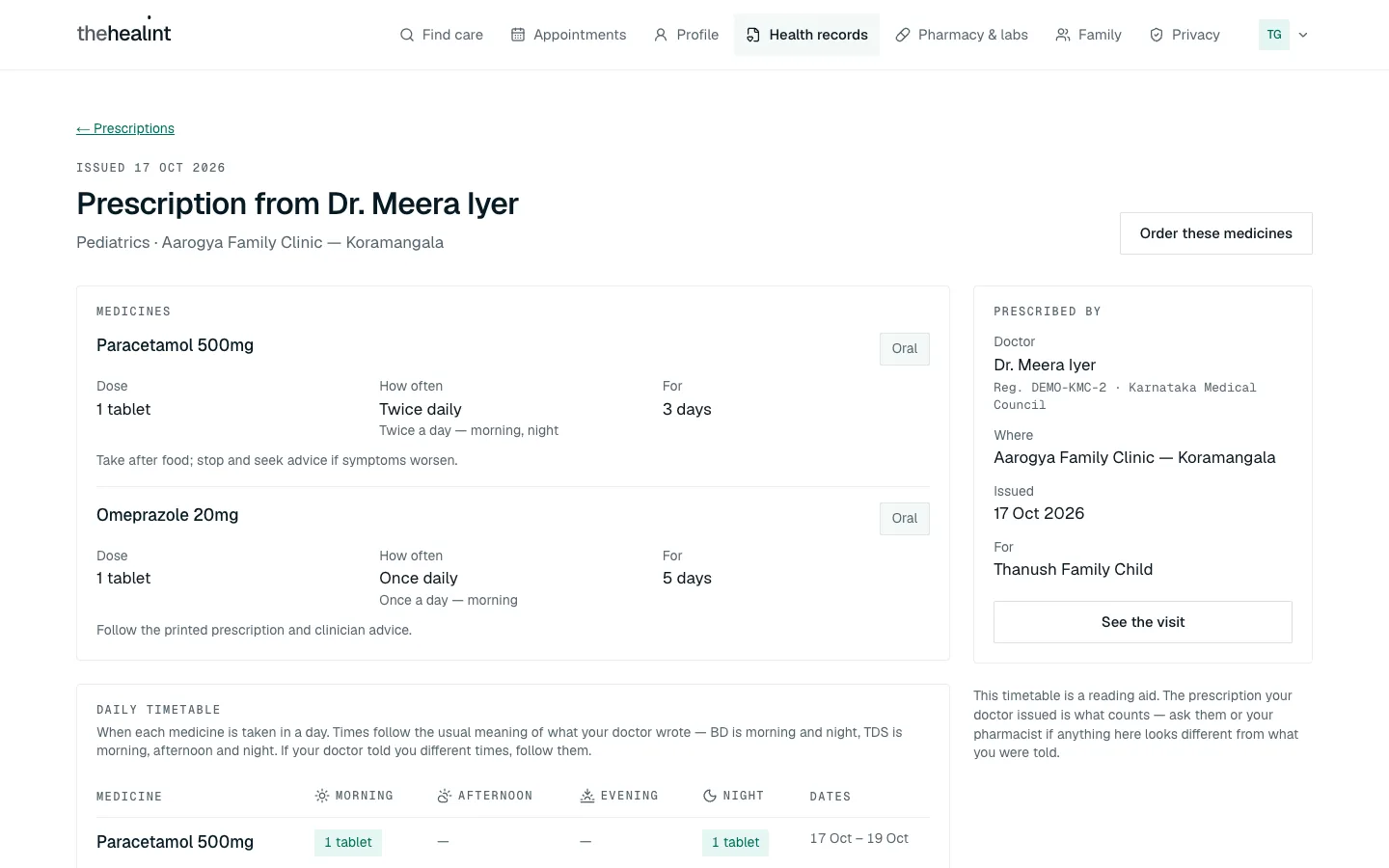
Prescription from the doctor: Medicines, with Prescribed by on the right (doctor, registration number, where, issued, for whom) and See the visit. Scroll down to Daily timetable, which shows what to take in the morning, afternoon, evening and night, and Day by day, which shows each day's doses. Today is highlighted.
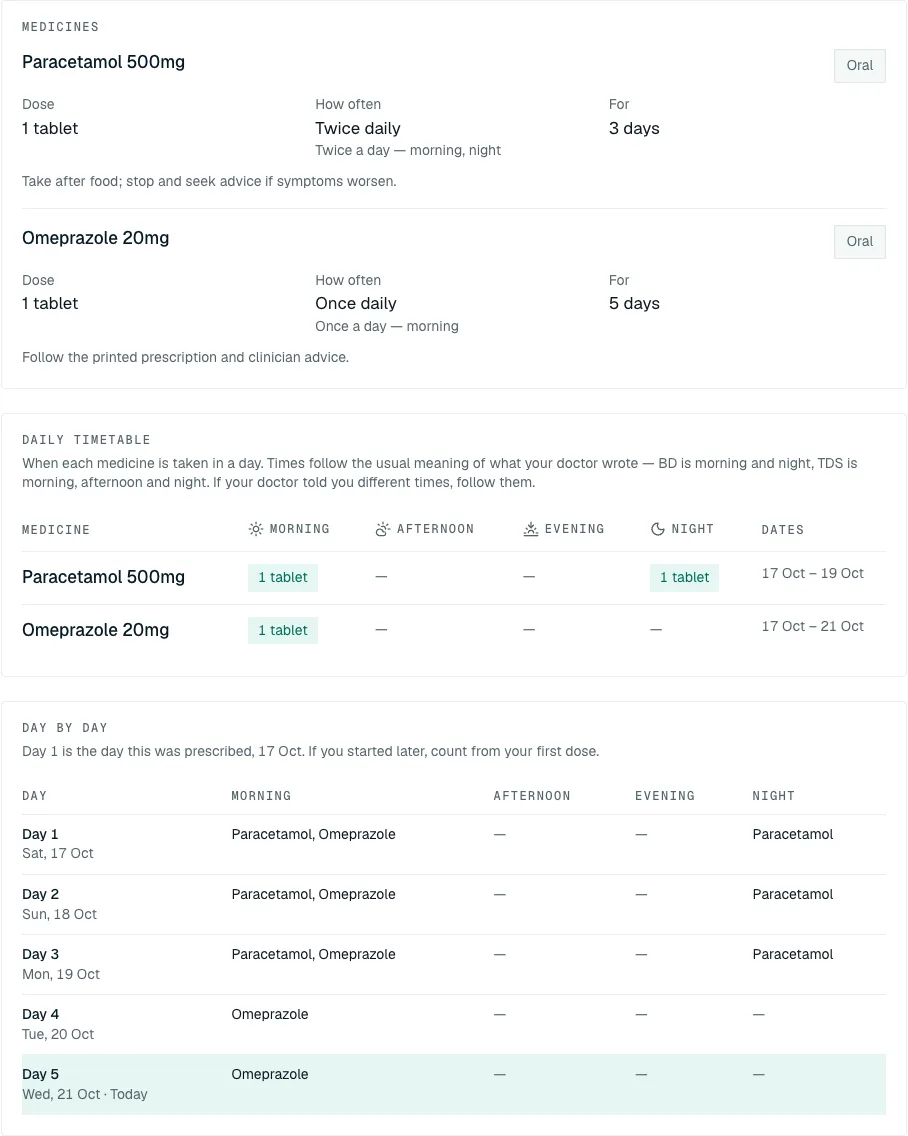
Daily timetable and Day by day. Day 5 is marked "Today".
The timetable is a reading aid. If your doctor told you different times, follow your doctor. You can't download a PDF of the prescription yet.
Send a prescription to a pharmacy, or a test to a lab#
Nothing is shared with a pharmacy or lab until you tick the consent box for that order.
- Click Pharmacy & labs in the top menu, or Order these medicines on a prescription.
- Choose Pharmacy (for medicines) or Diagnostic lab (for tests).
- Under Prescription (or the test), pick the one your doctor gave you.
- Under Send to, choose the hospital or clinic's own pharmacy or lab, or another verified one. Then pick the Facility.
- Under Service, choose Pick up or Home delivery. For a lab, choose Visit lab or Home sample collection. For anything at home, add your Home address.
- Check your Contact phone. It's filled in from your profile.
- Tick I authorize thehealint to share only this selected clinical order and the contact details needed for fulfilment with the selected verified facility.
- Click Send order securely.
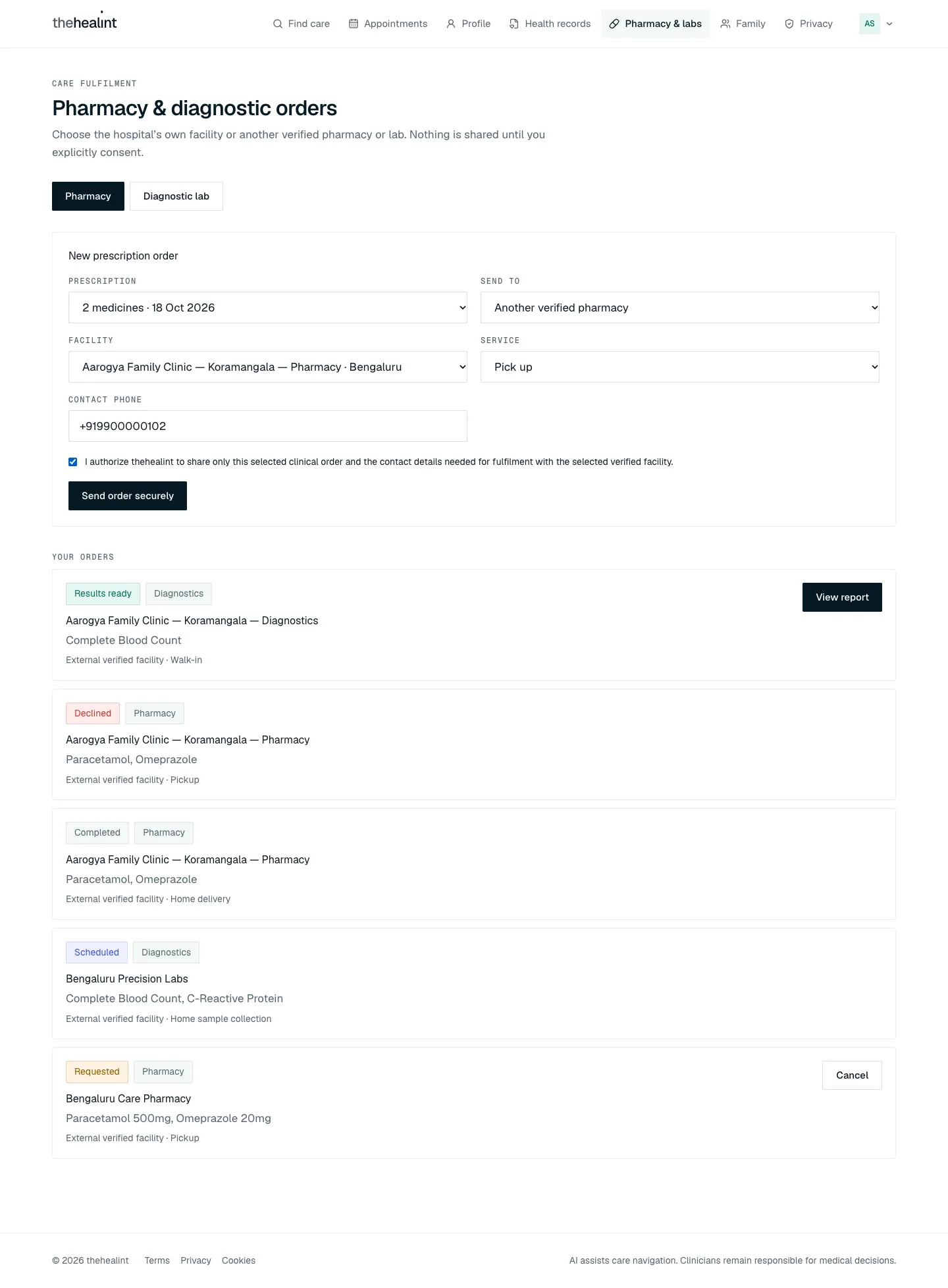
Your order appears under Your orders with its status (for example Requested, Scheduled, Out for delivery, Results ready). You can Cancel an order while it's still Requested or Accepted.
In the iPhone app, open Pharmacy & labs from Home. It works the same way (Pharmacy / Diagnostics, then Send securely). The app shows no "sent" message after sending, so check Your orders.
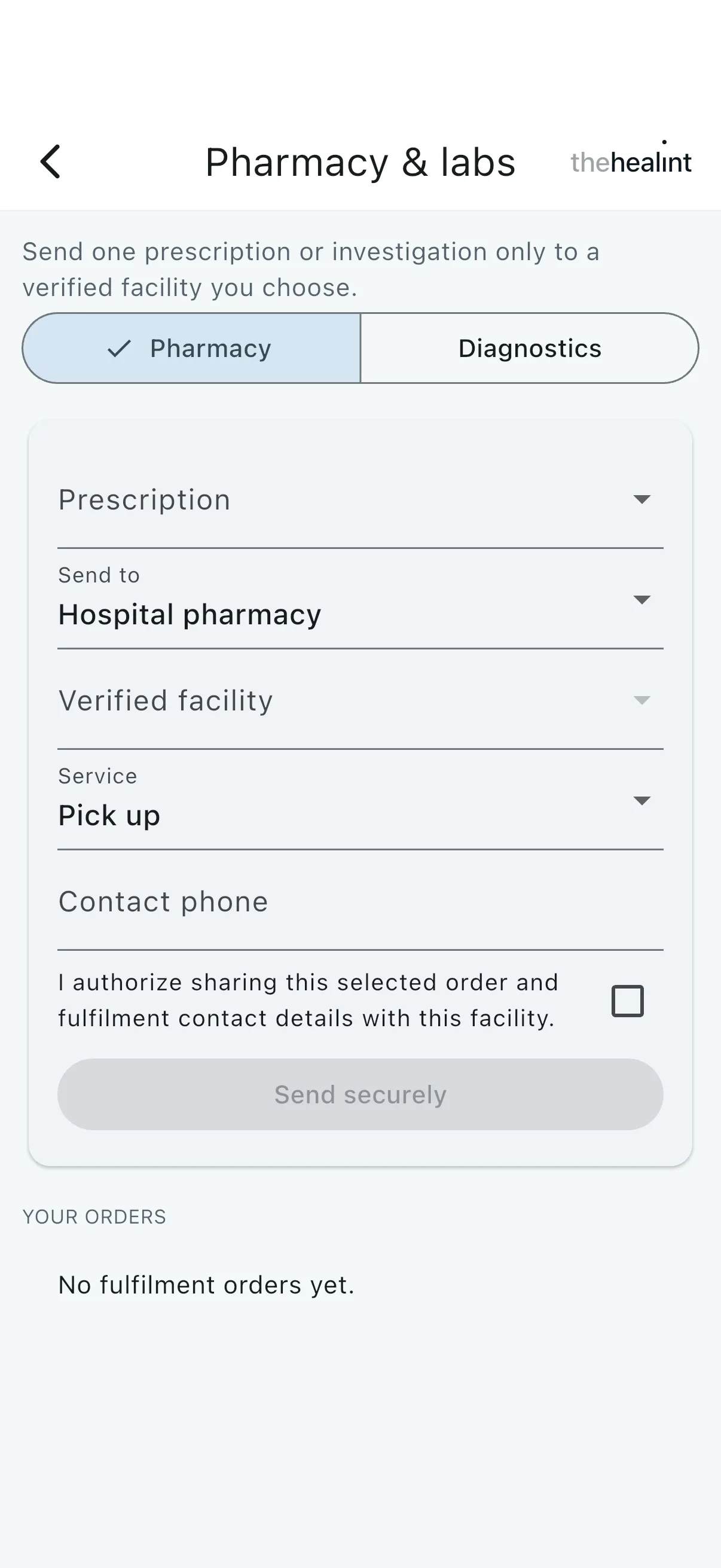
If it doesn't work
- "No prescriptions available — A clinician must issue one during a completed consultation first." There's nothing to send yet. The doctor has to issue it at a completed visit.
See your lab report#
- When the lab has uploaded your result, the order shows Results ready and a View report link. You'll find it on the visit page, on Pharmacy & labs and in Health records → Documents.
- Click View report. The report opens with Download and Open in new tab, plus details of the tests, the lab, and when it was ordered and released.
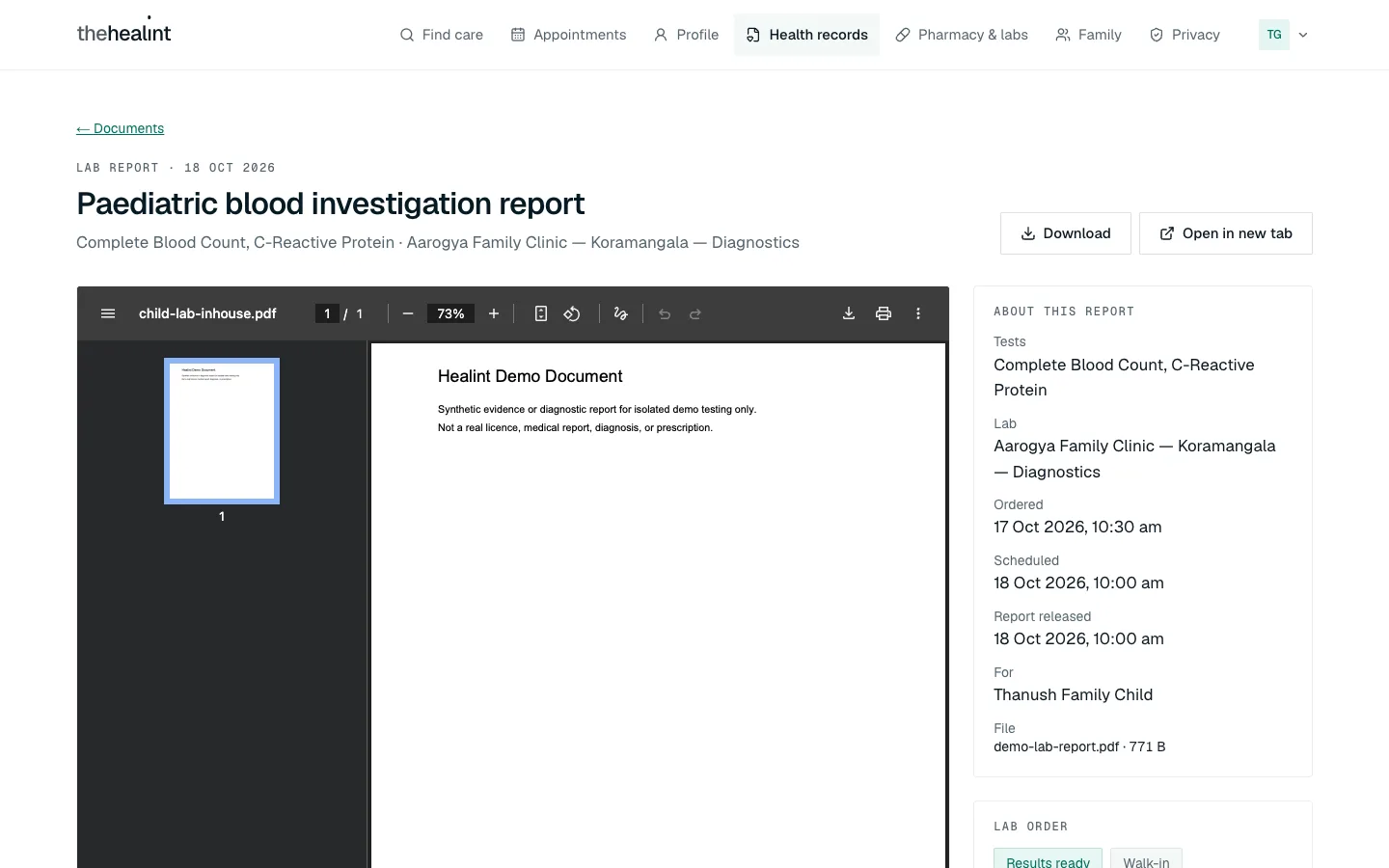
If it doesn't work. If the report area stays blank, or only the first page shows, click Open in new tab. Some phones and browsers can't show a PDF inside a page.
See your bill#
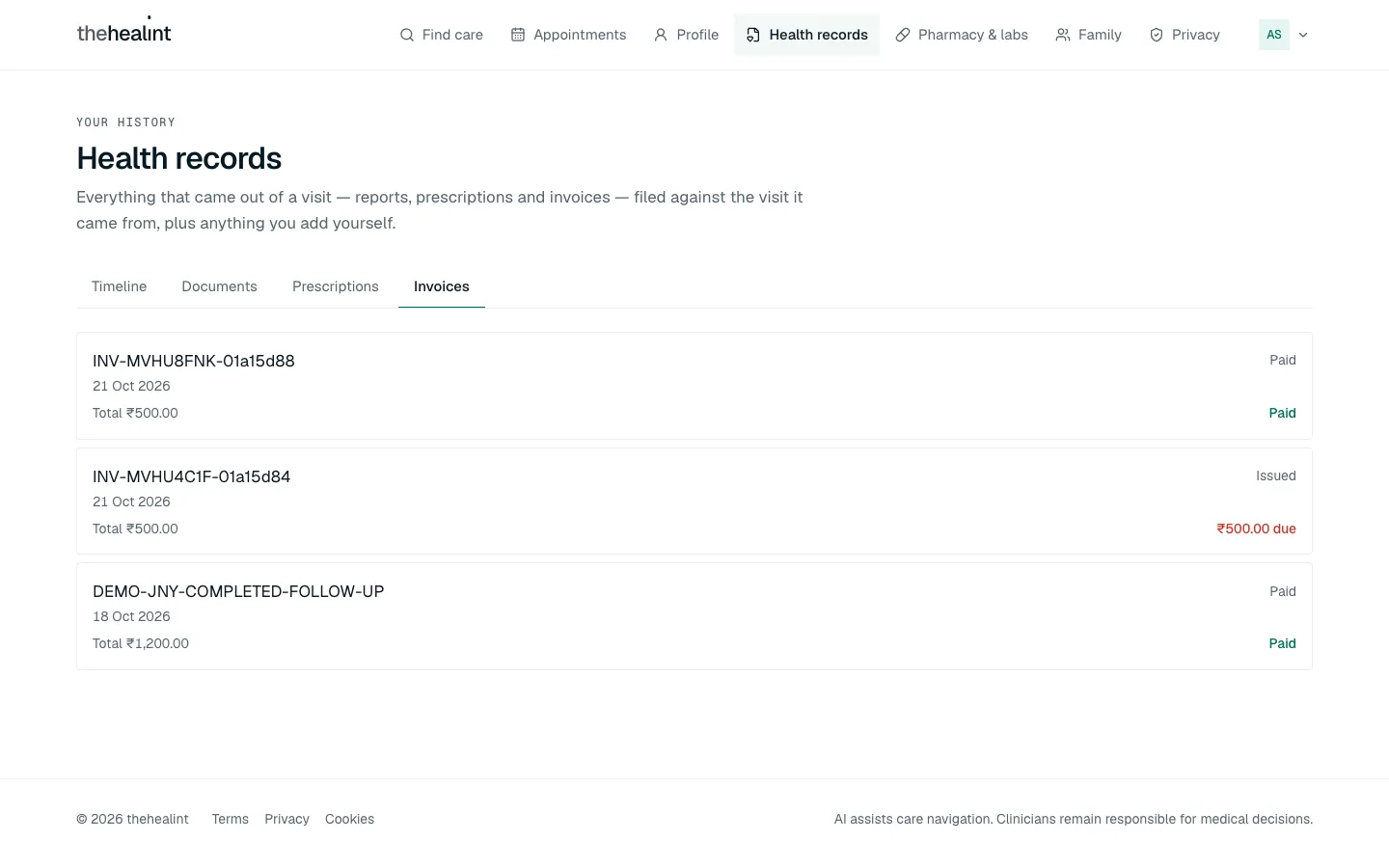
The Bill box on the visit page shows the invoice number, the total and whether it's Paid or how much is due. All your invoices are under Health records → Invoices.

You can't pay in the app. Pay at the clinic's front desk, and you'll get a payment email.
Leave a review#
You can review a visit once it's Completed. Reviews are public but don't show your name.
- Click Appointments. Under Past, find the completed visit and click Rate this visit. The visit page has the same button.
- Pick a rating from 1 / 5 to 5 / 5.
- If you like, add a Comment.
- Click Submit review.
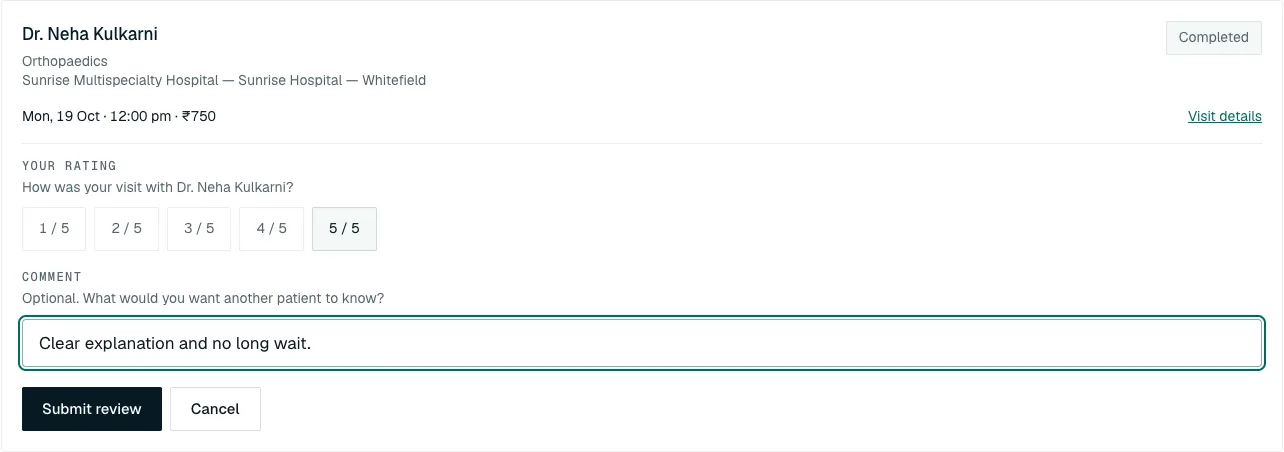
You see "Thank you — your review is now on doctor's profile." You can review each visit once. If you try again, you see "You have already reviewed this visit."
How to keep your health records#
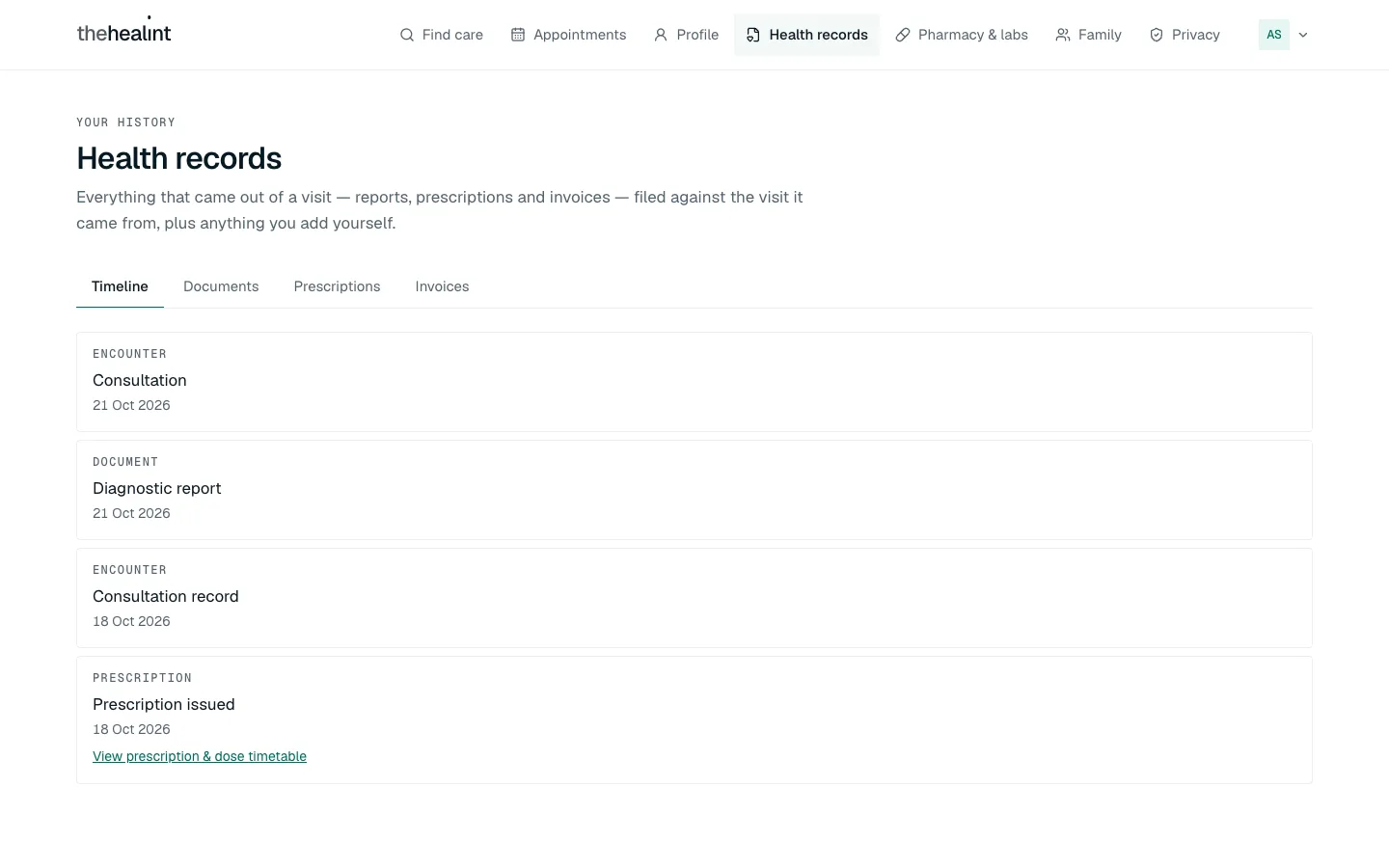
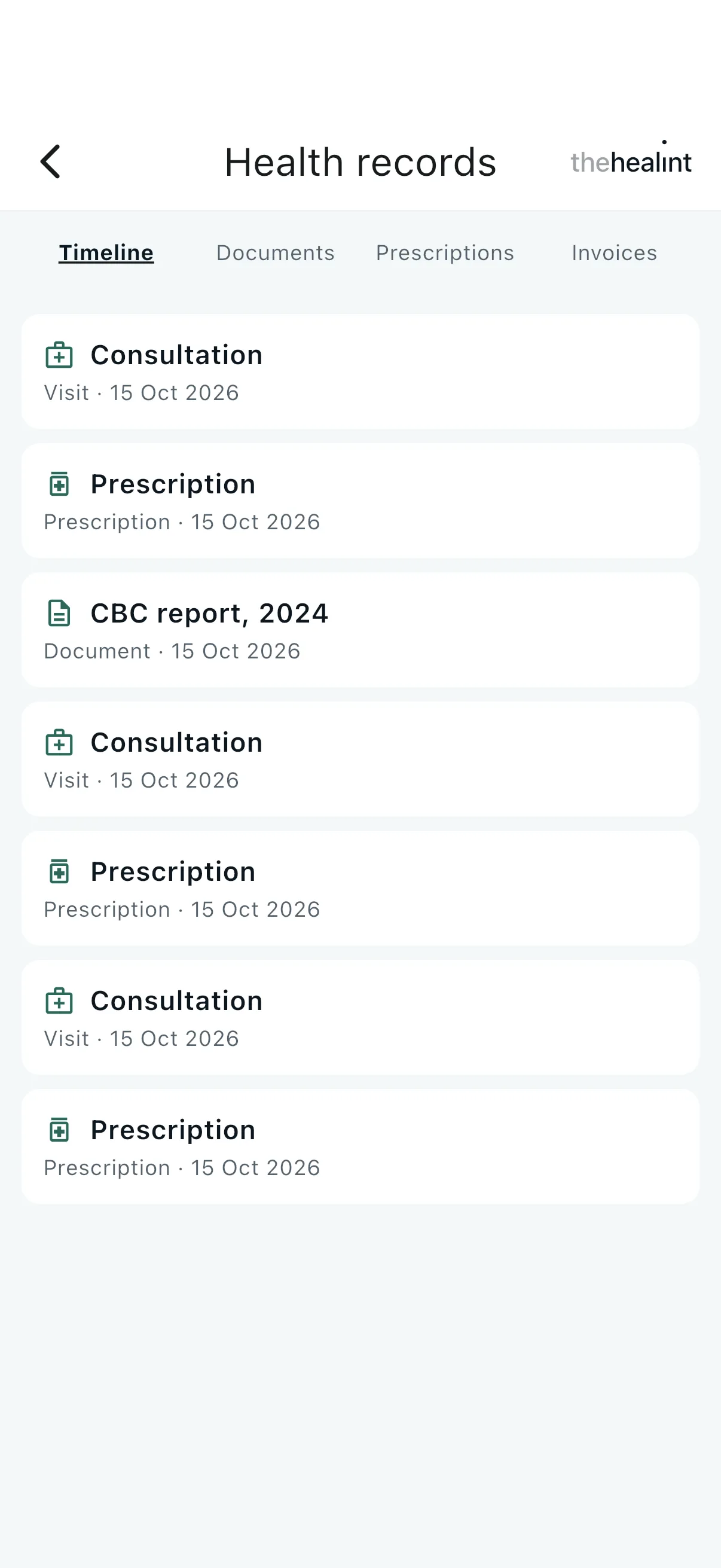
Click Health records. There are four tabs:
- Timeline: everything in date order (consultations, prescriptions, documents).
- Documents: lab reports and anything you upload yourself.
- Prescriptions: every prescription, each with View & dose timetable.
- Invoices: every bill, with the total and whether it's paid.
Upload a document#
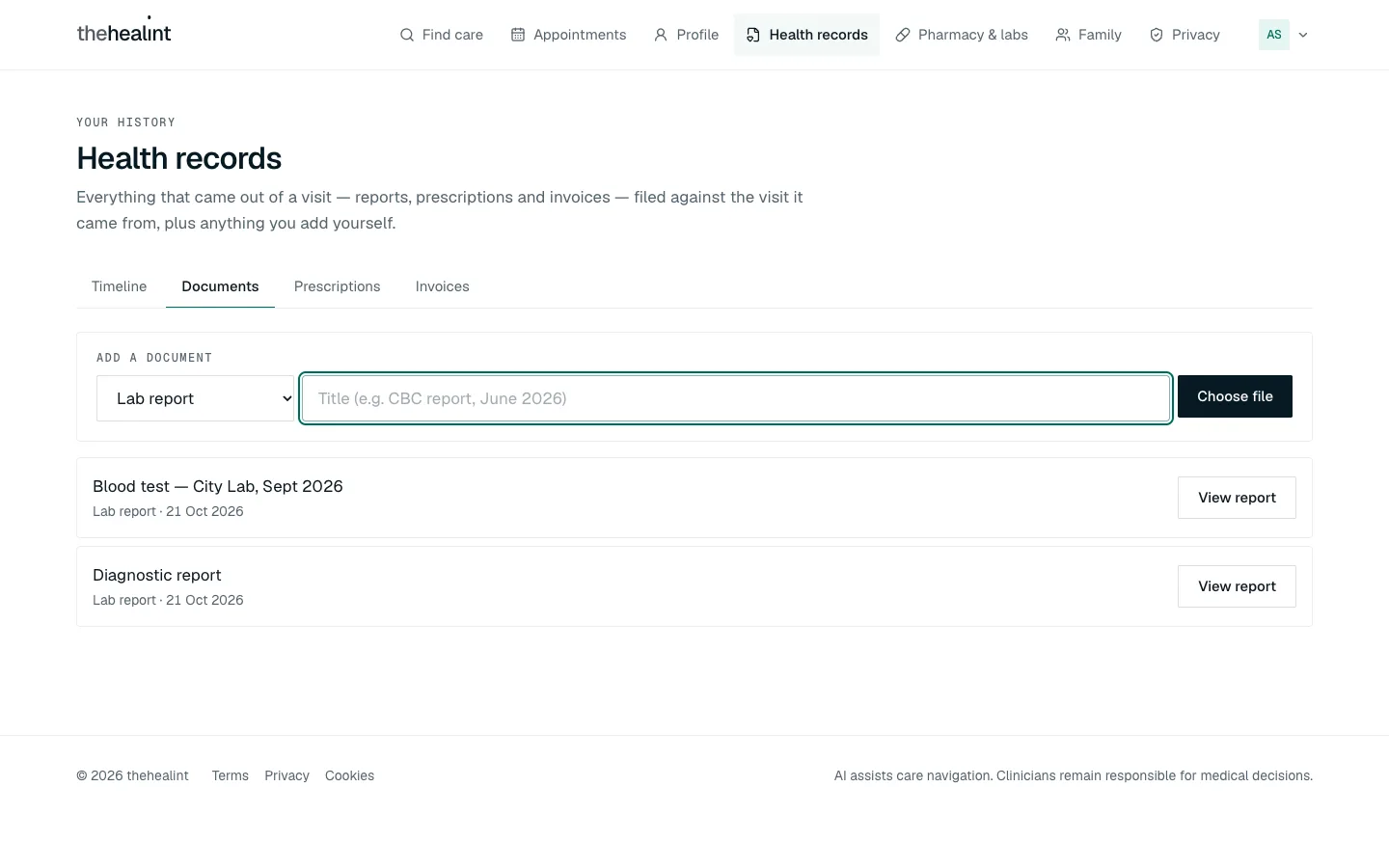
Use this for anything from outside thehealint, such as an old report, a scan or an insurance card.
Open the Documents tab.
Pick a category: Lab report, Imaging, Prescription, Discharge summary, Insurance, Vaccination or Other.
Type a title, for example "Blood test — City Lab, Sept 2026".
Click Choose file and pick a photo or PDF. It uploads straight away.
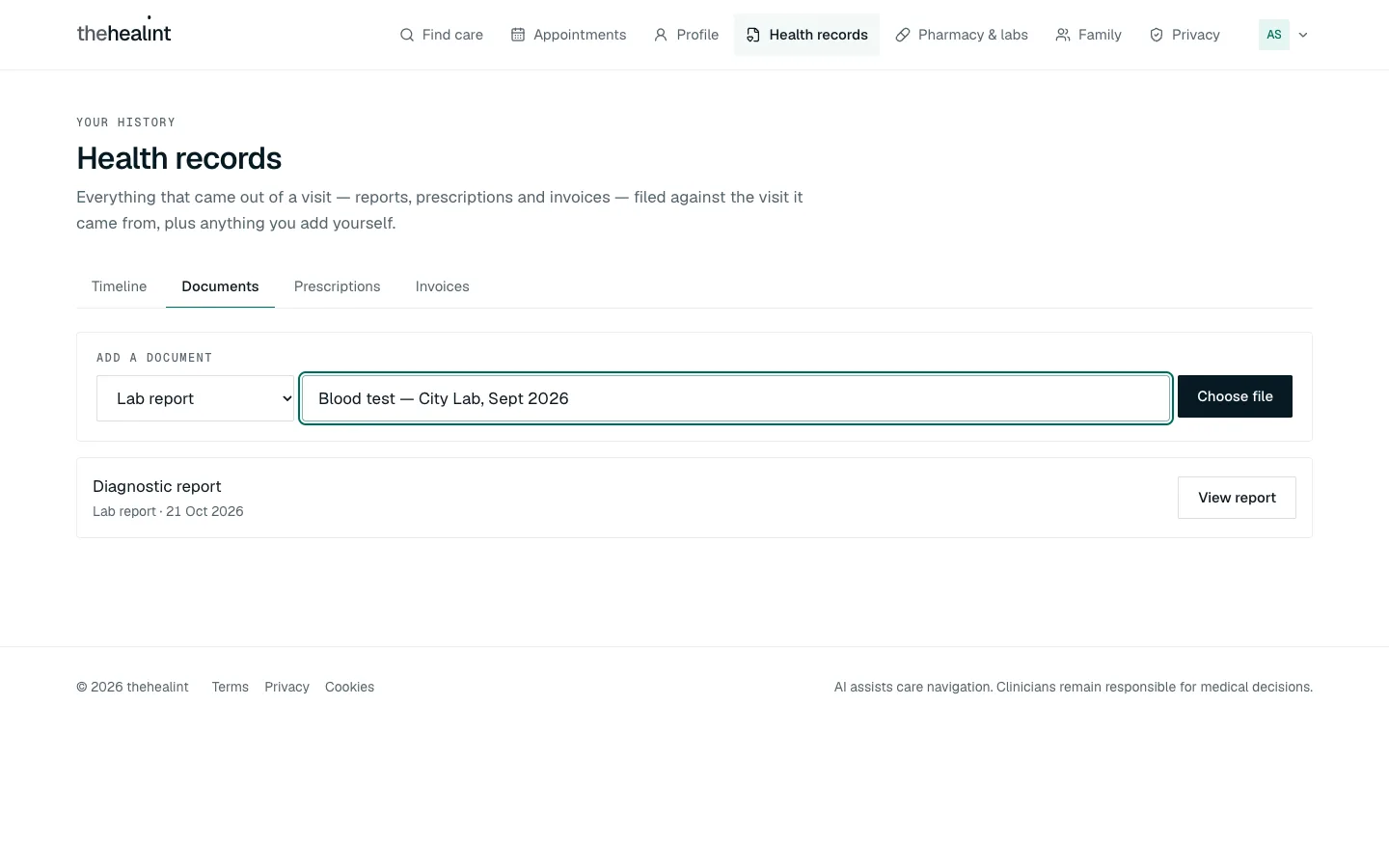
Add a document: category and title filled in, then Choose file. The document appears in the list. Click View (or View report for a lab report) to open it.
The uploaded lab report in the list, with View report.
You can't delete or share a document once you've uploaded it, so check the file before uploading.
In the iPhone app, open the Records tab. It has the same four tabs. Prescriptions have View instead of the dose timetable.
If it doesn't work
- "Give the document a title before uploading." Type a title first, then choose the file.
How to manage privacy and consent#
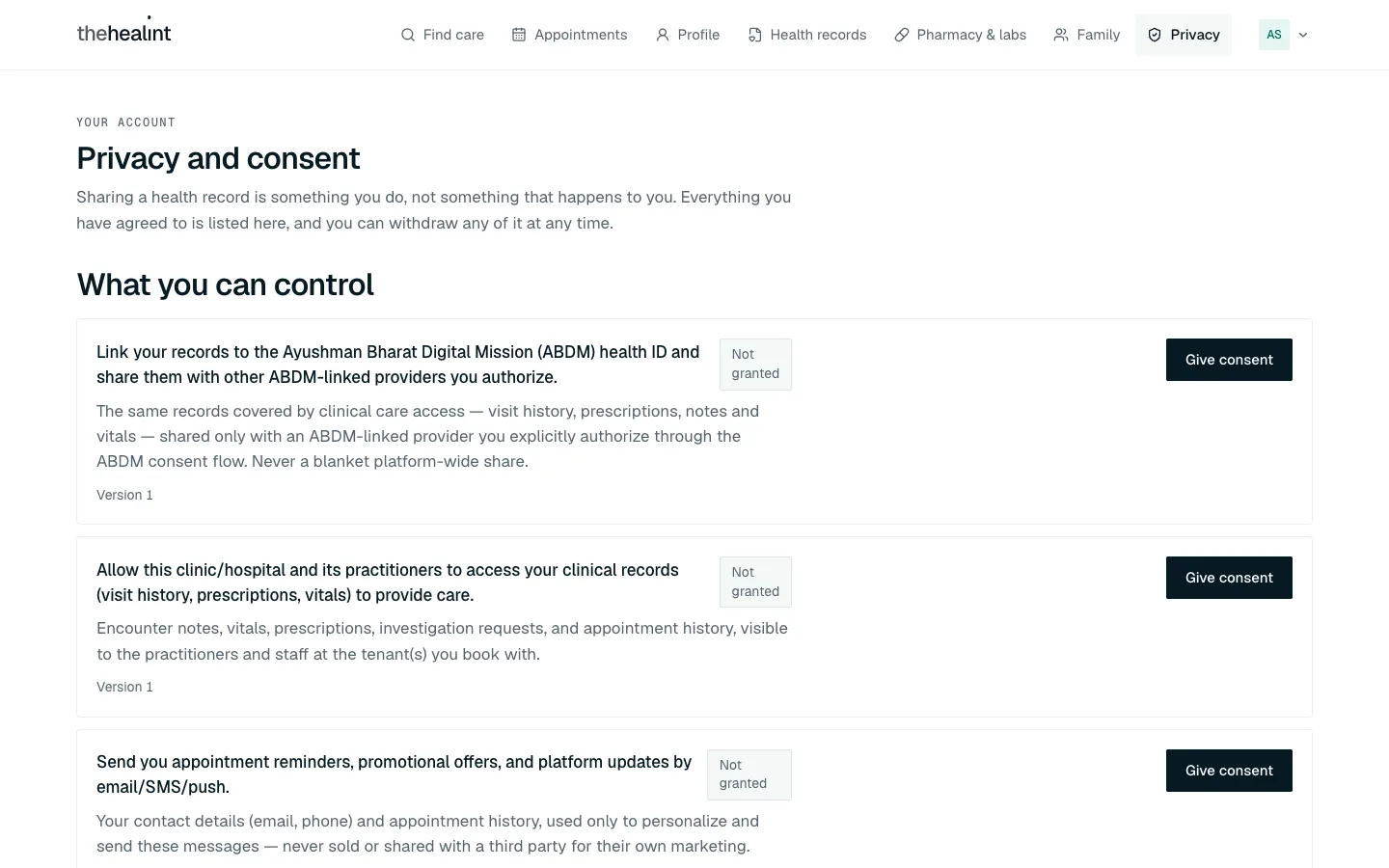
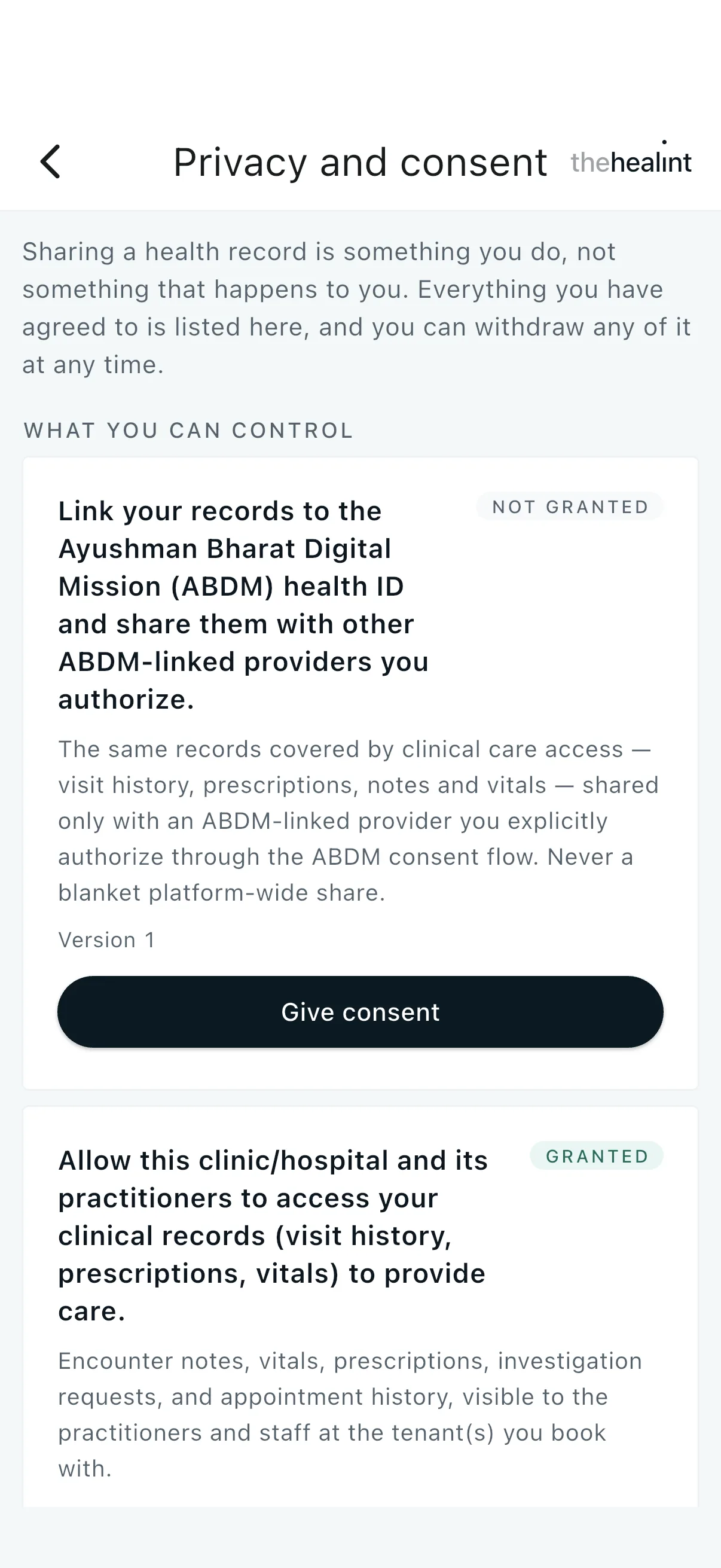
Click Privacy. What you can control lists each thing you can agree to:
- linking your records to your ABDM (Ayushman Bharat Digital Mission) health ID,
- letting the clinic or hospital you book with see your clinical records,
- getting appointment reminders, offers and updates.
Each card says Granted or Not granted.
Give consent#
Click Give consent on the card. It changes to Granted, with the version and date.

Withdraw consent#
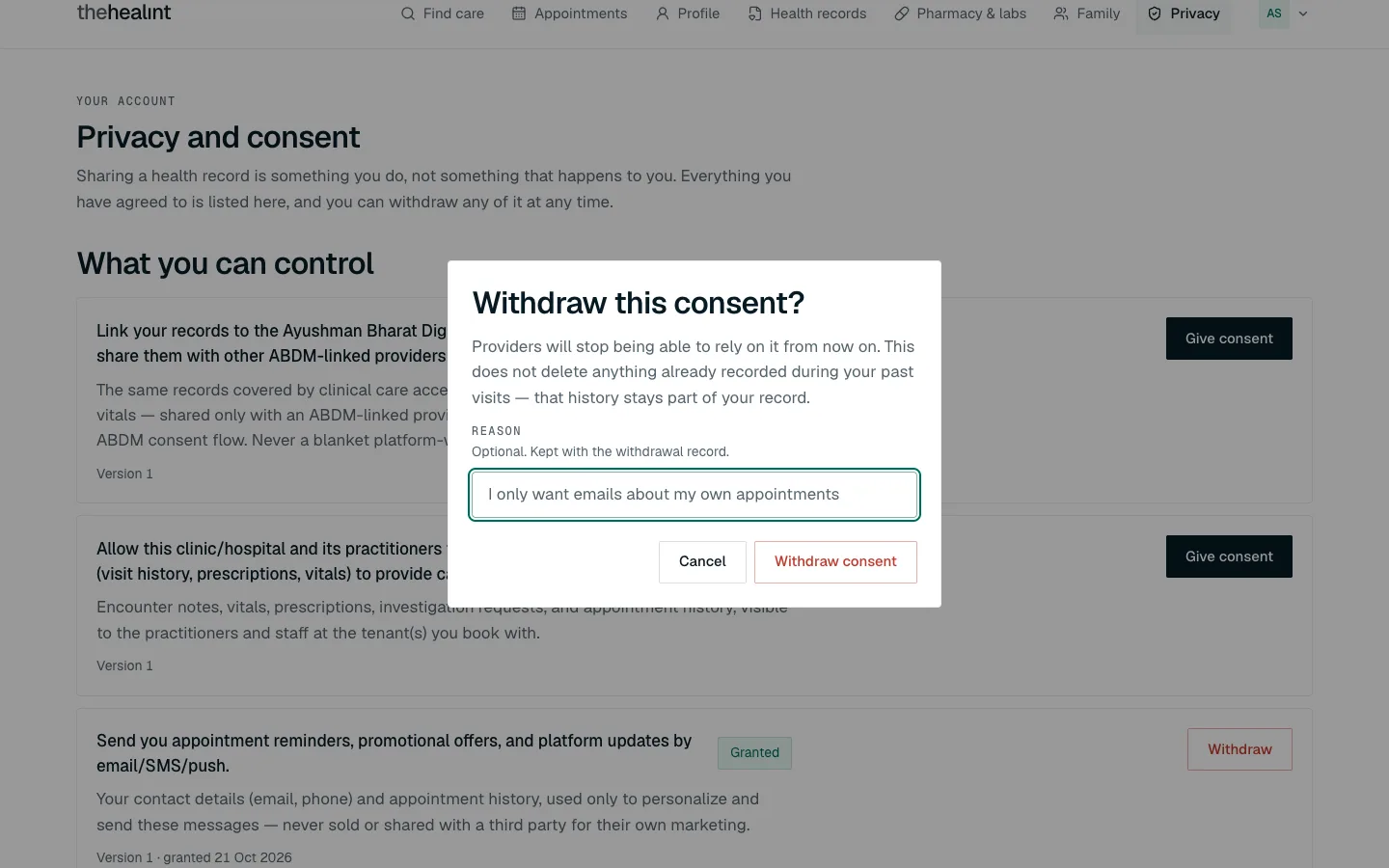
- Click Withdraw on the card.
- Add a reason if you like. It's kept with the record.
- Click Withdraw consent. Cancel closes the box without changing anything.
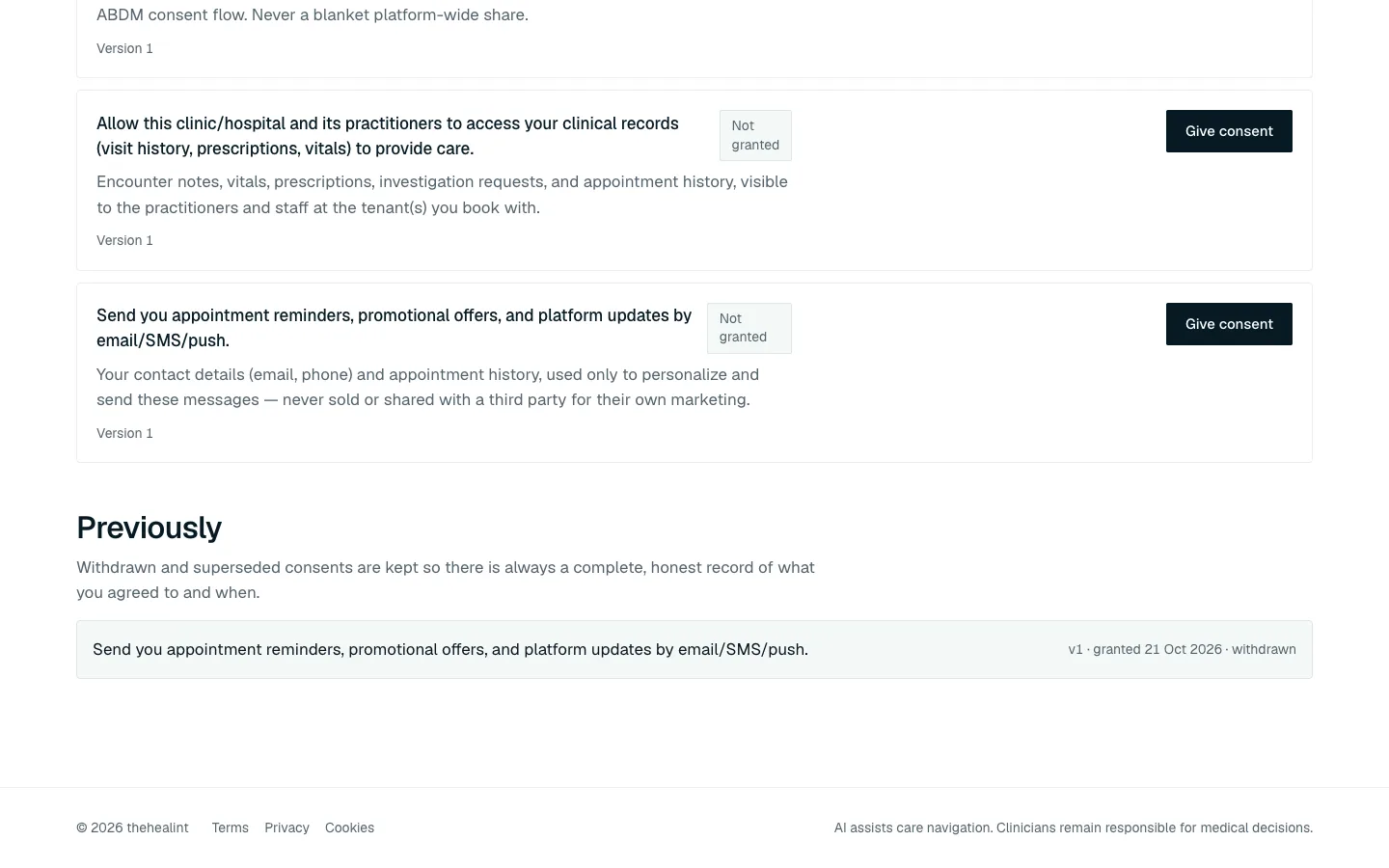
Withdrawn consents move to Previously, so you always have a record of what you agreed to and when.
Sending a prescription or test to a pharmacy or lab has its own tick box on each order (see "Send a prescription to a pharmacy, or a test to a lab").
In the iPhone app, open Privacy & consent from Home. It works the same way.
How to update your profile#
- Click Profile.
- Under Account details, check your Username, Full name, Mobile number and Email. All four are required.
- Under My health settings, fill in your date of birth, biological sex, blood group, height, weight, known allergies and chronic conditions. These are optional, but they help your doctor.
- Click Save profile. You see "Saved". The button stays grey until the required details are valid.
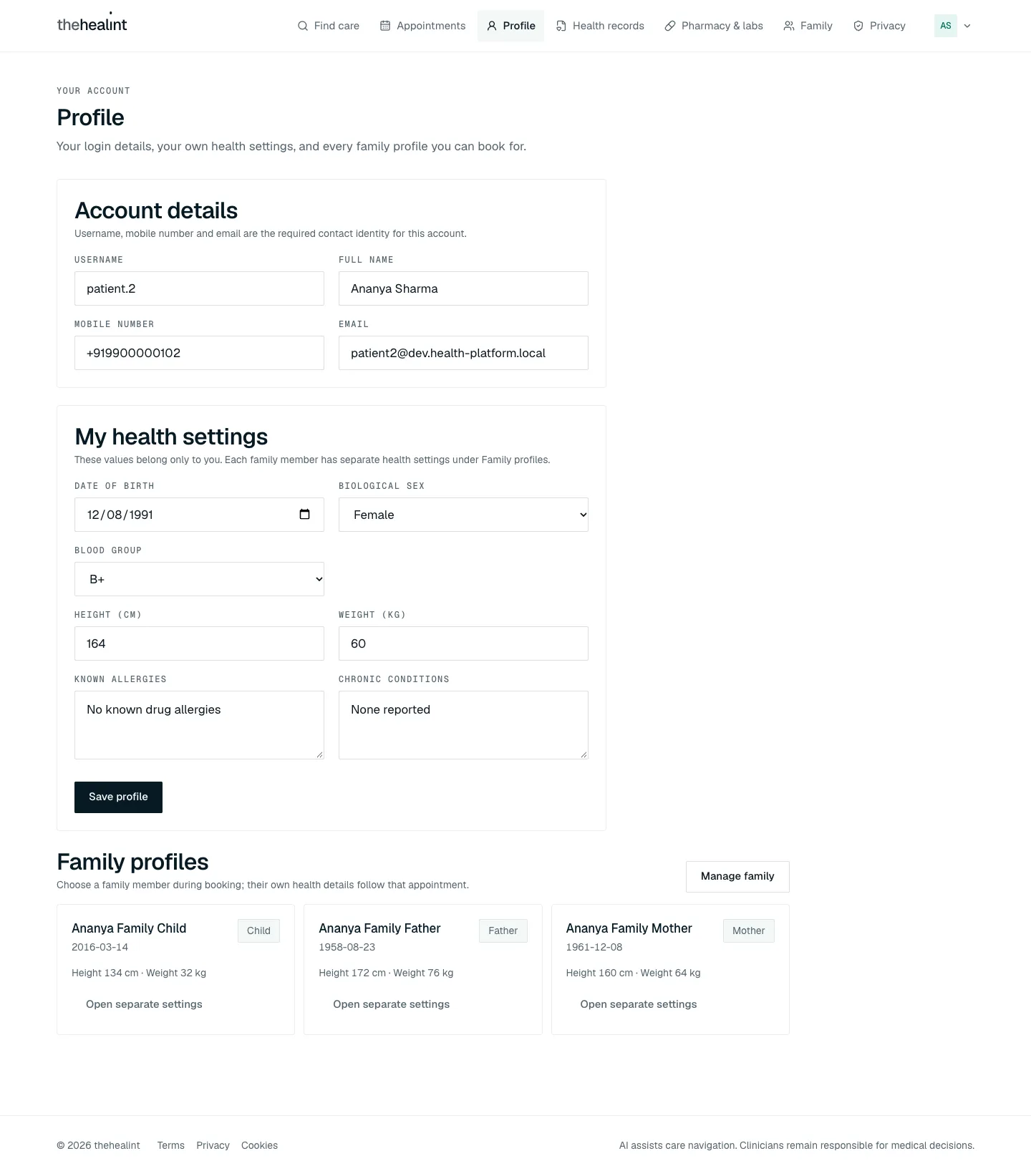
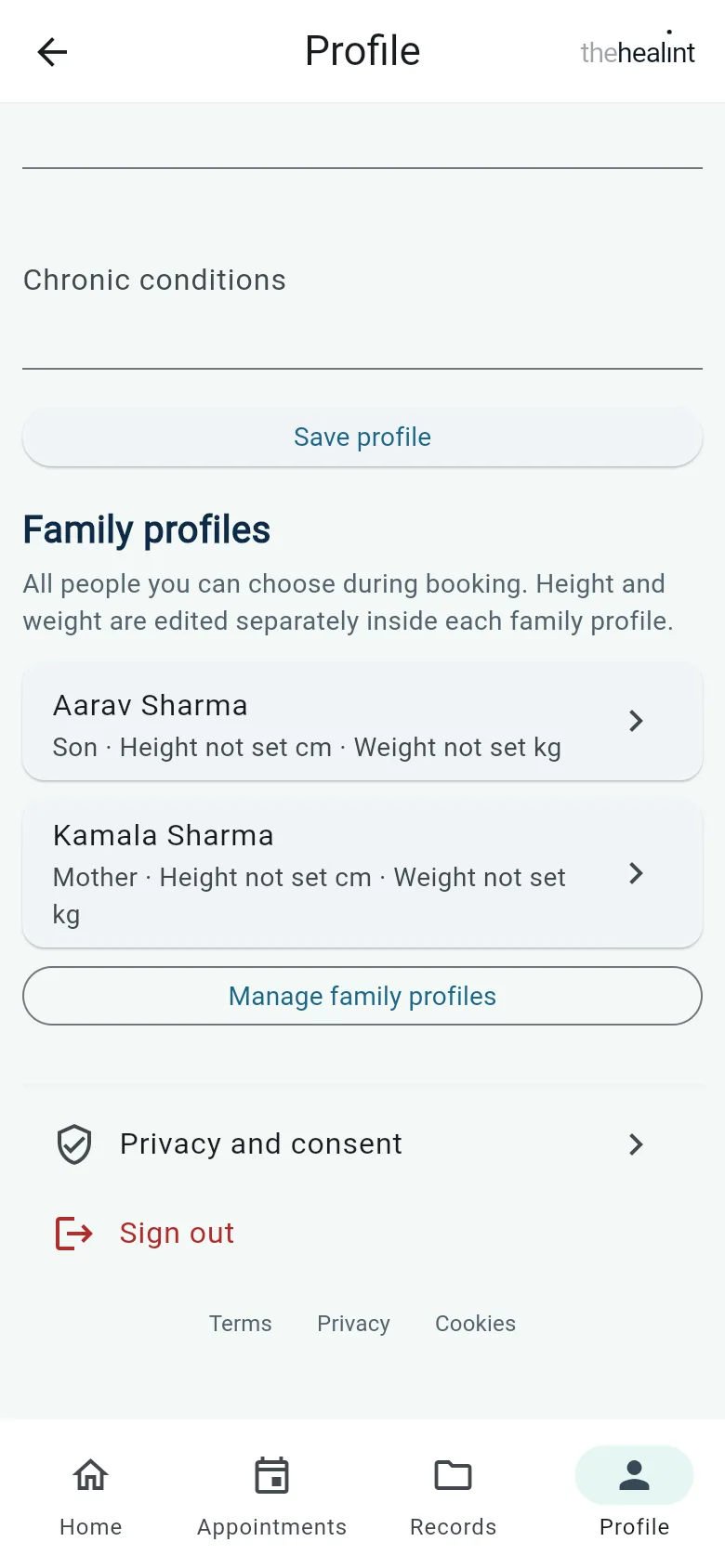
Your family members' details are kept separately. Change them under Family, or click Manage family on this page.
In the iPhone app, open the Profile tab. Sign out is at the bottom. If nothing happens when you tap save, one of the required fields isn't valid, so check all four.
Sign out#
On the website, click your initials at the top right, then Sign out.
Times, fees and your clinic's region#
Every time and fee you see is the clinic's own: its clock, its calendar and its currency. A visit at 9:00 AM is 9:00 AM where the clinic is, even if you are travelling, and "today" on the booking and check-in screens is the clinic's today. Check-in opens on the day of the visit at the clinic. Fees keep the clinic's currency, for example ₹1,200 for an Indian clinic.
Terms, privacy and cookies#
On the website, Terms, Privacy and Cookies are in the footer of every screen. In the iPhone app they are at the bottom of Profile.
If something does not open#
- "We could not find that page." The link is old or mistyped. Choose Go to the start.
- "This page could not be shown." Choose Try again. If it keeps happening, tell support and quote the Reference shown under the message.
- A banner saying you are offline. Your connection dropped. Anything you change will not save until it comes back.
Things you can't do here — and who to ask#
| You want to… | What to do |
|---|---|
| Reset or change your password | Not available in the app yet. Contact thehealint support |
| Sign in with a code or phone number | Not available yet. Use email and password |
| Pay a bill online | Pay at the clinic's front desk. See the front desk runbook |
| Change or cancel a visit after checking in | Ask reception at the clinic |
| Get a prescription PDF | Not available yet. Ask the clinic for a printed copy |
| Delete or share an uploaded document | Not available yet |
| Change your queue position, or ask how long you'll wait | Ask reception |
| Ask about your diagnosis or treatment | Ask your doctor, or book a follow-up visit |
| Questions about an order from a pharmacy or lab | Contact that pharmacy or lab. See the pharmacy and lab runbook |
| Delete your account or get a copy of your data | Contact thehealint support |
| Describe your symptoms to the AI helper | iPhone app only: Home → Describe symptoms. It suggests a specialty and is not a diagnosis. In an emergency, call your local emergency number |
Notifications come by email only: booking confirmed, cancelled or rescheduled, prescription ready, follow-up reminders and payments. There are no text messages or app notifications yet, and no reminder before your appointment, so add the visit to your calendar.
Quick reference#
| Task | Where | Key button |
|---|---|---|
| Create an account | Home page | New here? Create an account → Create account |
| Sign in | Home page | Sign in |
| Find a doctor | Find care | Search box, filter buttons, Map |
| Book | Clinic page or doctor profile | Book appointment → pick a time → Confirm booking |
| Save to calendar | Booking confirmation or visit page | Add to calendar (website only) |
| Add a family member | Family | Add a family member |
| Book for family | Booking step 1 | Who is this appointment for? |
| Tell the doctor beforehand | Appointments → upcoming visit | Add symptoms, medicines or allergies before your visit → Save |
| Reschedule | Appointments → upcoming visit | Reschedule → pick a time → Confirm new time |
| Cancel | Appointments → upcoming visit | Cancel appointment |
| Check in | Appointments → today's visit | Check in (app: I've arrived — check in) |
| See a visit | Appointments | Visit details |
| Dose timetable | Visit page or Health records → Prescriptions | Dose timetable / View & dose timetable |
| Send to pharmacy or lab | Pharmacy & labs | Tick consent → Send order securely |
| Lab report | Visit page, Pharmacy & labs or Documents | View report |
| Review a visit | Appointments → Past | Rate this visit → Submit review |
| Upload a document | Health records → Documents | Choose file |
| Consent | Privacy | Give consent / Withdraw |
| Update your details | Profile | Save profile |
| Sign out | Your initials (top right) | Sign out |
PDF version
The same guide with all its screenshots, to print or share. (2.5 MB)
Download the PDF Open in a new tab
Loading the PDF viewer… If it does not appear, your browser cannot show PDFs inside a page: use Download the PDF.