Doctor
Who this is for#
This guide is for doctors who work at a clinic or hospital on thehealint. It covers a normal day: seeing who has arrived, calling them in, writing up the consultation, prescribing, and finishing the visit. It also covers your calendar, your patients, covering for a colleague, the iPhone app and keeping your account secure.
You work in ProviderOS, in a web browser. You see only your own patients: your queue, your bookings and the patients who booked with you.
If you also run the clinic (you are its admin as well as a doctor), you see the full clinic menu instead. Those extra screens are in 05-clinic-admin.md.
What you'll see#
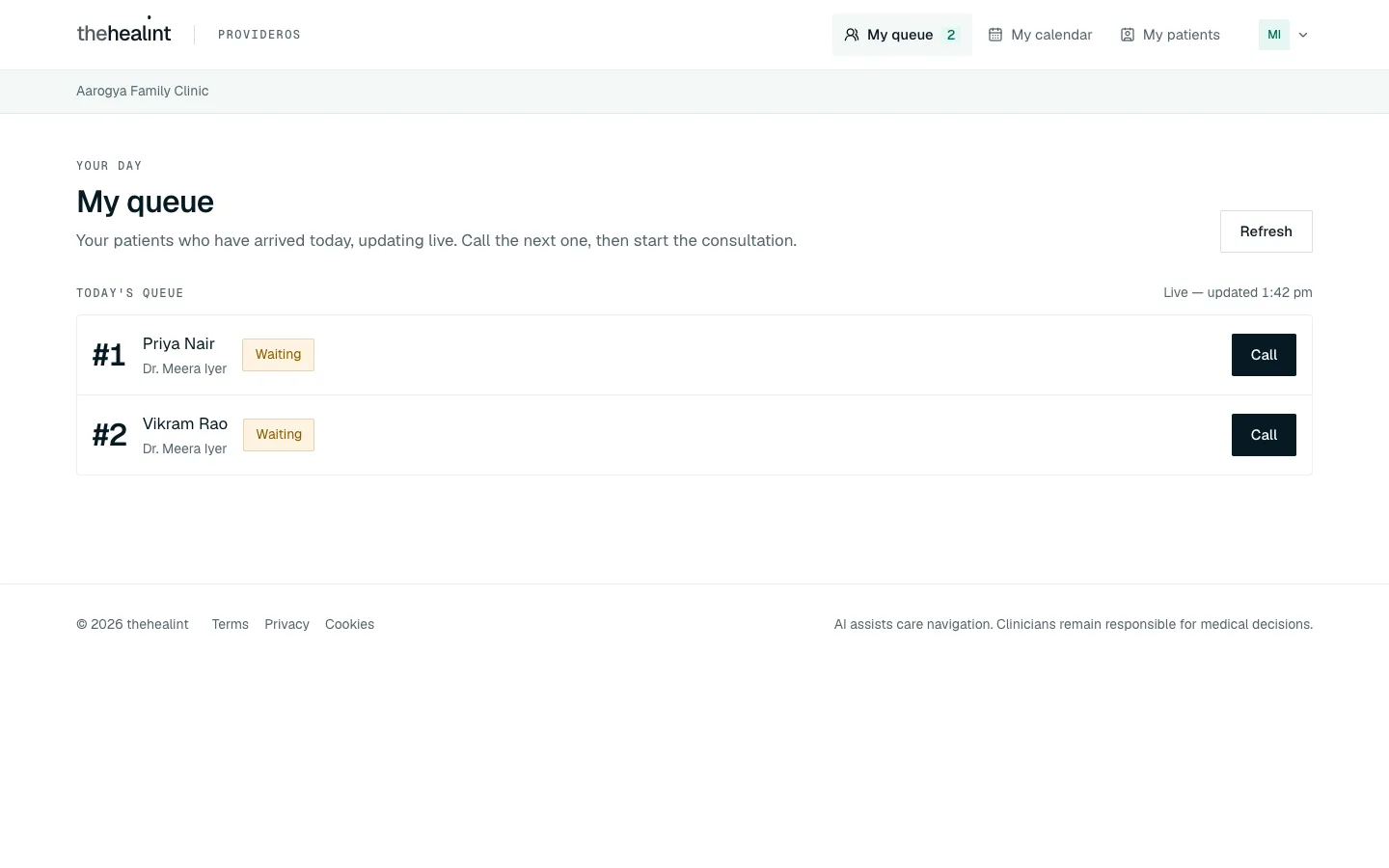
After you sign in, ProviderOS opens on My queue. The menu along the top has three items:
| Menu item | What it's for |
|---|---|
| My queue | Your patients who have arrived today. The number beside it is how many are waiting. |
| My calendar | Your bookings for the next seven days, as a list or a day grid. |
| My patients | Everyone who has booked with you, and their visits. |
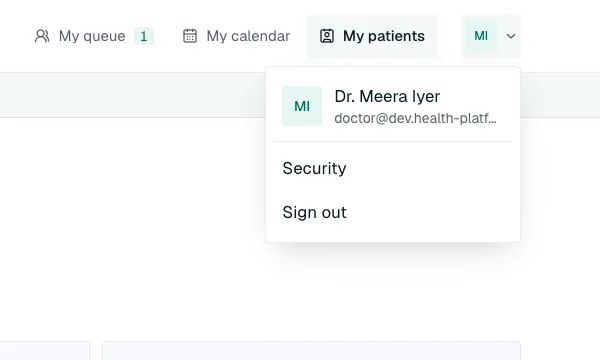
Your initials sit at the top right. Click them to see your name, open Security (two-factor sign-in), or Sign out. The clinic's name is shown in the grey bar under the menu.
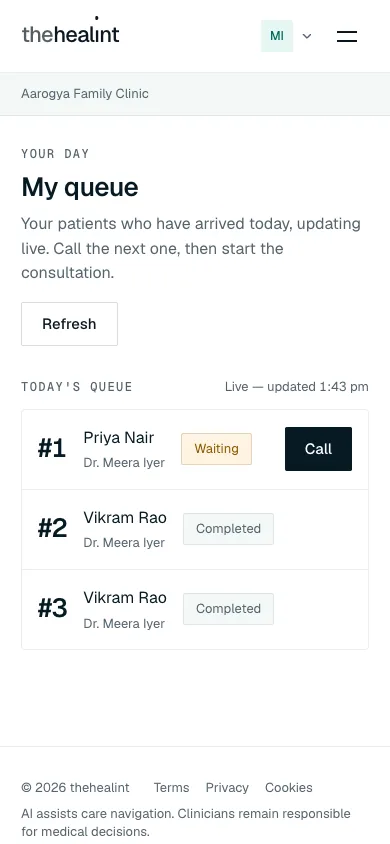
On a phone-sized browser window, the menu folds into the ☰ button at the top right.
Before you start#
Your first sign-in#
You don't create your own account. Your clinic admin adds you, and you get an invitation email.
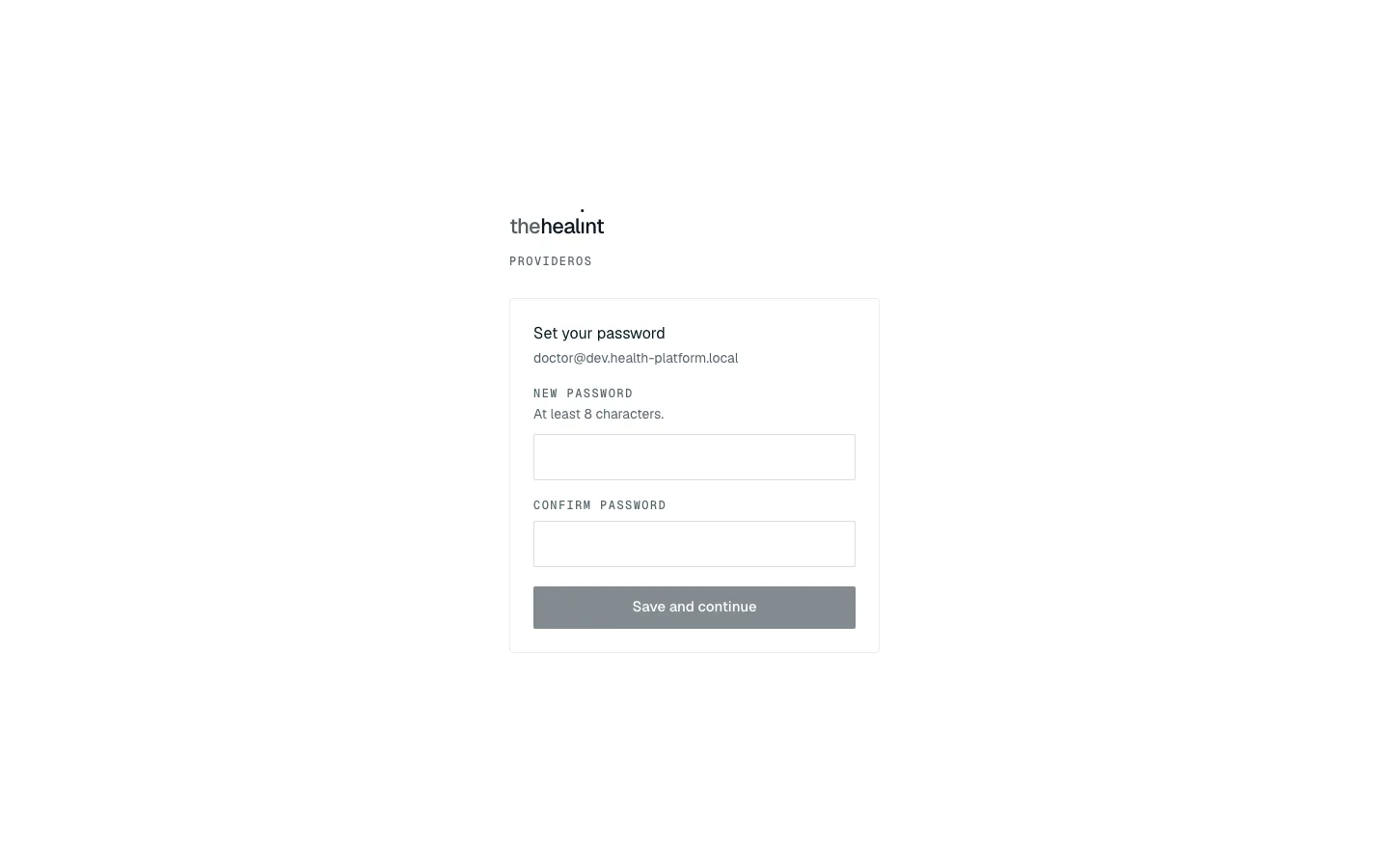
- Open the email and click the link to set your password. ProviderOS opens on the Set your password page, with your email address under the heading.
- Type a New password (at least 8 characters), then type it again under Confirm password.
- Click Save and continue. You're signed in and taken to My queue.
If it doesn't work:
- "This link has expired": invitation links work only once and expire. Ask your clinic admin to send it again from their staff screen. If you have already set a password, click Sign in and use it.
- "The two passwords don't match.": retype the second password.
- If ProviderOS asks "What should we call you?", type your name as patients should see it and click Continue. This only happens once.
Signing in every day#
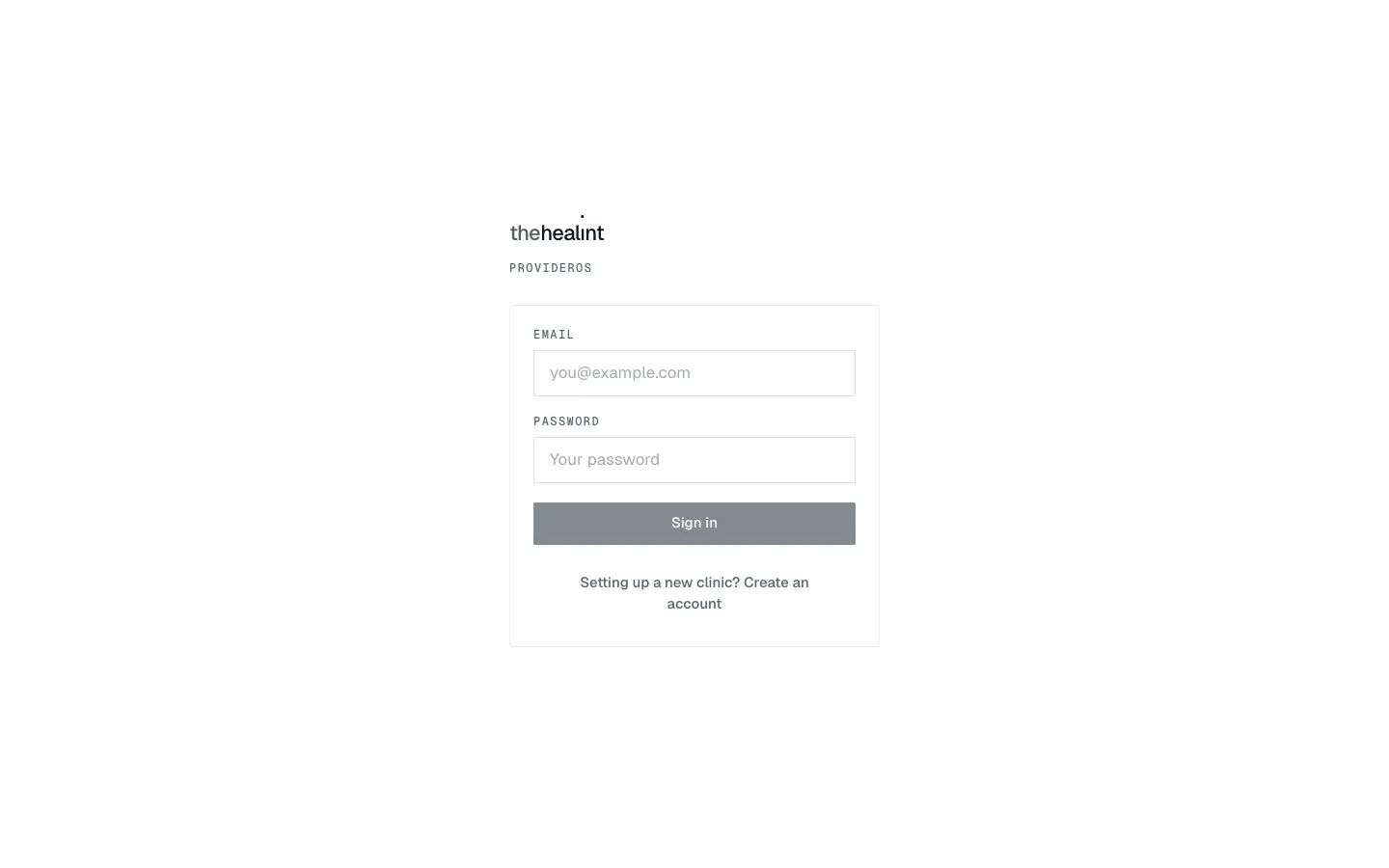
- Open ProviderOS in your browser.
- Type your Email and Password, then click Sign in.
- If you have turned on two-factor sign-in (see How to turn on two-factor sign-in), you're asked for an Authenticator code. Open your authenticator app, type the 6-digit code and click Verify.
If it doesn't work:
- "That email and password did not match an account…": check the email for typos and try your password again. If you've forgotten it, ask your clinic admin to resend your invitation.
- "Too many attempts. Please wait a minute and try again.": wait a minute before trying again.
- A red API unreachable label in the grey bar means ProviderOS can't reach the server. Tell your clinic admin.
How to see who's waiting#
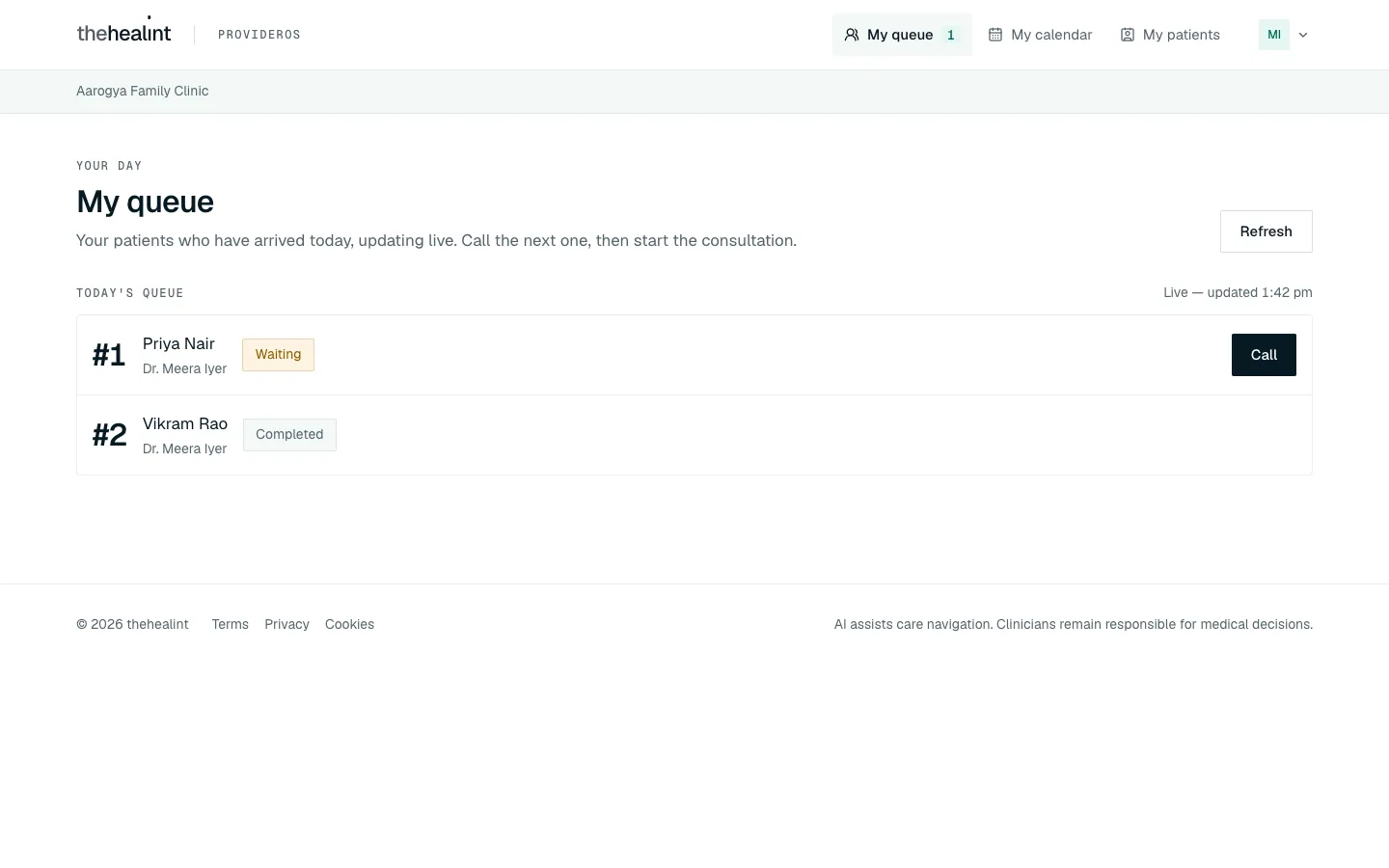
- Click My queue. It lists your patients who have arrived today, with a token number (#1, #2 …) and a status.
- The list updates by itself: when the front desk checks someone in, they appear within a moment. "Live — updated …" shows when it last changed. Click Refresh if you want to be sure.
- Statuses you'll see:
| Status | Meaning |
|---|---|
| Waiting | Arrived and waiting to be called. |
| Called | You (or the desk) have called them. |
| In consultation | You're seeing them now. |
| Completed | Visit finished. |
| Skipped / No show | Their turn ended without a visit. |
A patient who is a family member shows as, for example, "Aarav Sharma (dependent of Priya Sharma)".
If the list says "Nobody is in today's queue yet", nobody has been checked in for you yet. Patients appear as soon as the front desk checks them in, or they check in on their phone.
How to call your next patient#
- On My queue, find the patient and click Call. Their status changes to Called.
- Their row now shows Start consultation, Skip and No-show.

- When the patient comes in, click Start consultation (next section).
If the patient doesn't come in:
- Click Skip if they've stepped out and you'll see someone else first. ProviderOS asks "Skip this token?". Click Skip token to confirm, or Cancel to go back.
- Click No-show if they've left. ProviderOS asks "Mark this token a no-show?". Click Mark no-show to confirm.
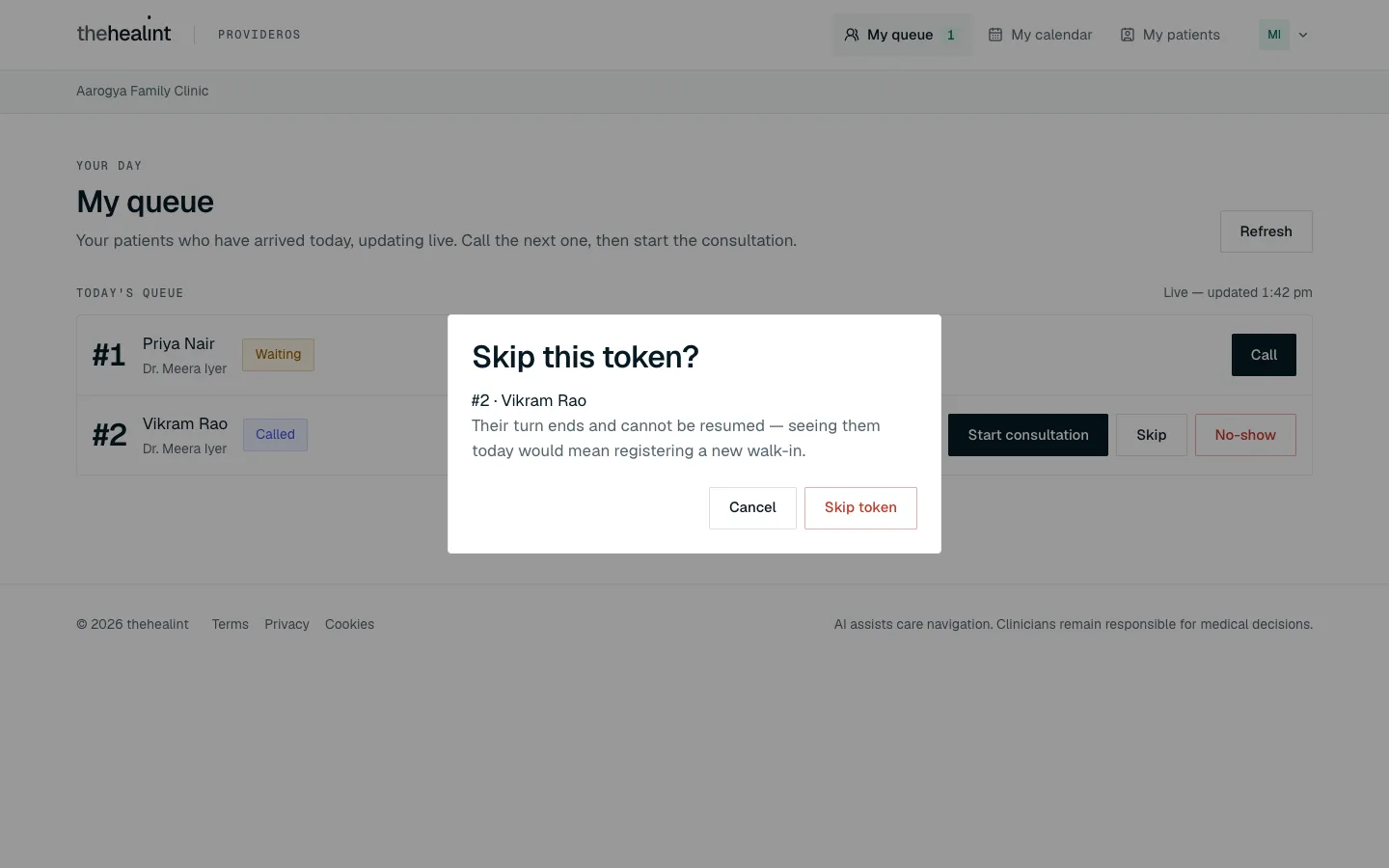
Skipped and no-show can't be undone. To see that patient later today, the front desk has to add them to the queue again as a walk-in.
How to start a consultation#
- On a Called patient, click Start consultation. The consultation screen opens with "Consultation in progress" under the patient's name.
- If the patient is already In consultation (for example you went back to the queue), click Open consultation to return to it.
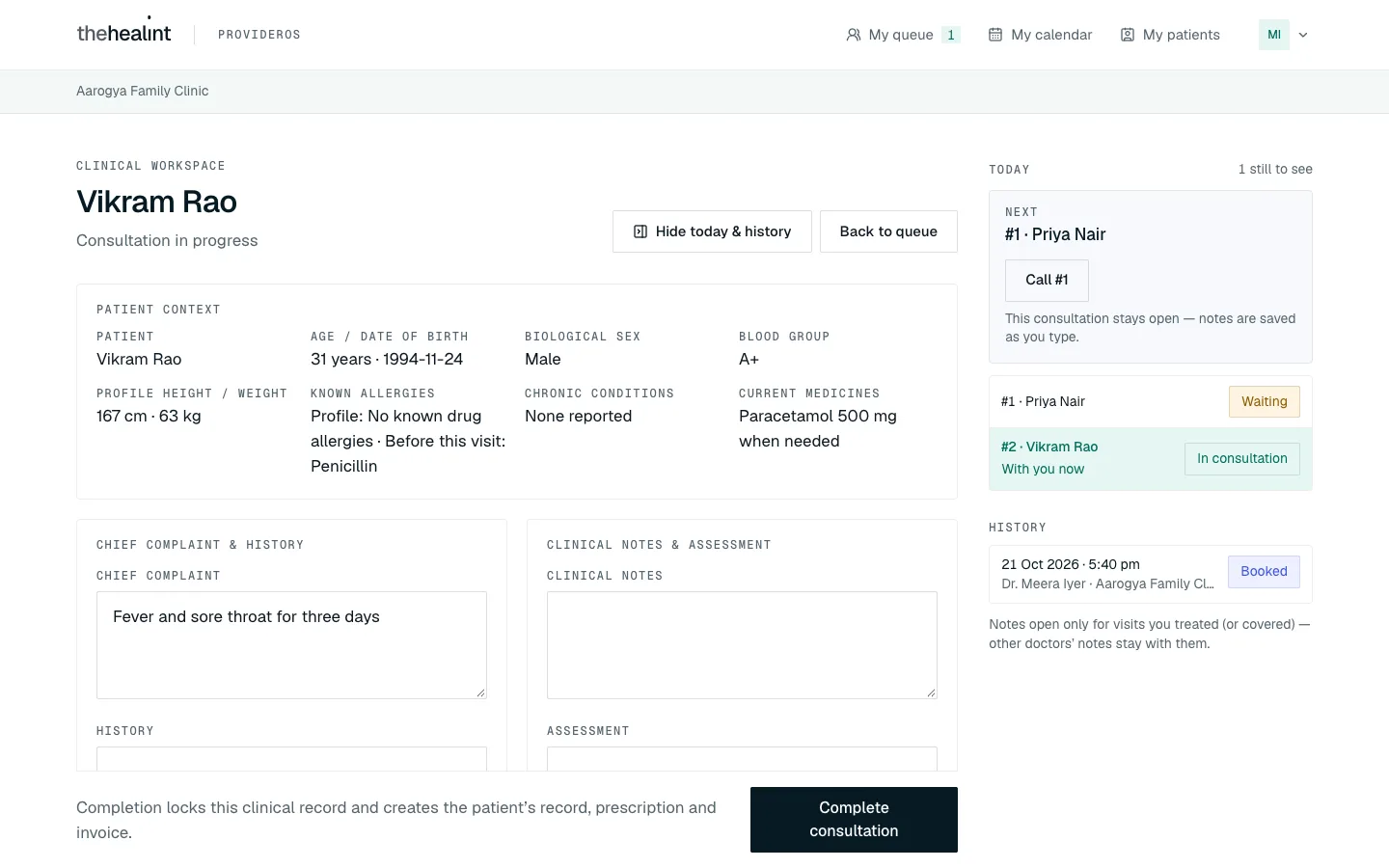
Buttons at the top:
- Hide today & history / Today & history shows or hides the side panel.
- Back to queue returns to My queue. The consultation stays open and your notes are kept.
If it doesn't work:
- "This isn't your patient": the appointment is booked with another doctor. See How to cover a colleague's patient.
- "Could not open this consultation." with a Retry button: click Retry. If it keeps failing, go back to the queue and make sure the patient shows In consultation.
How to write up the consultation#
Work down the screen. You don't have to fill every section.
Patient context and what the patient told you before the visit#
The Patient context box shows the patient's age and date of birth, biological sex, blood group, height and weight, known allergies, chronic conditions and current medicines. Anything the patient hasn't given shows "Not provided" or "None provided".
Before the visit, patients can tell you their symptoms, current medicines and allergies. On this screen:
- their symptoms are already typed into Chief complaint for you to edit;
- their current medicines appear under Current medicines;
- Known allergies shows both what's on the patient's profile ("Profile: …") and what they told you before this visit ("Before this visit: …"), so a new allergy is never hidden behind an older profile entry.
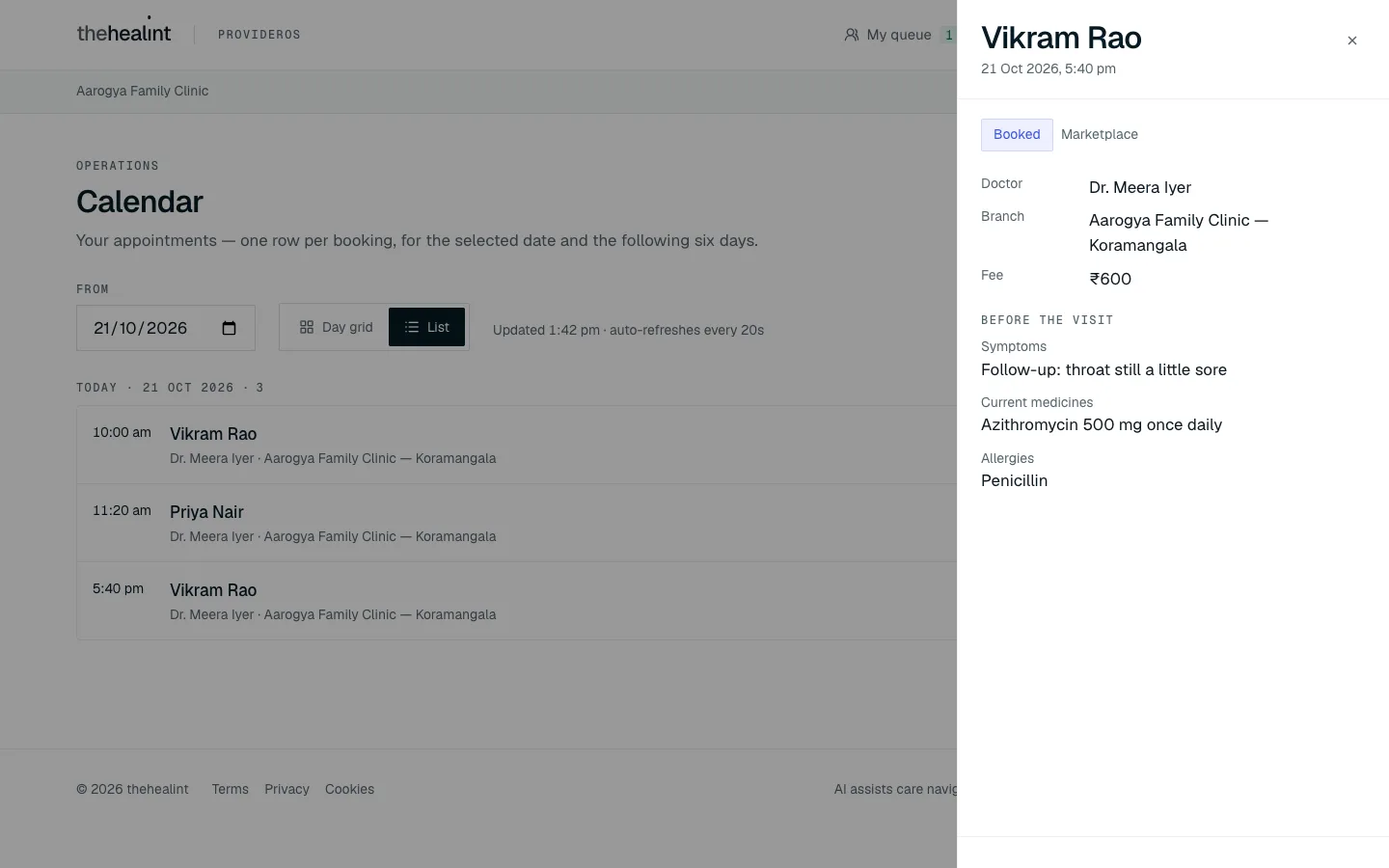
To read their before-the-visit answers in full, open the booking from My calendar (see How to use My calendar).
Chief complaint & history#
- Edit Chief complaint if needed and type the History.
- Your notes save by themselves about a second after you stop typing. The line under the boxes shows "Unsaved changes", then "Saving…", then Saved.
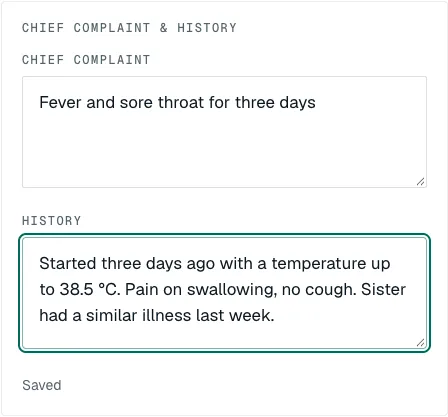
If the line says "Could not save. Your text remains on this screen.", don't close the page. Keep typing (it tries again) or check your internet connection.
Clinical notes & assessment#
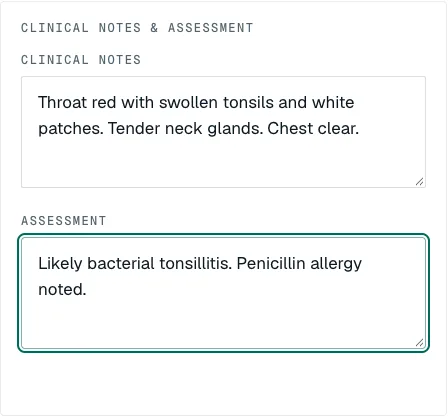
Type your examination findings under Clinical notes and your conclusion under Assessment. These save by themselves too.
Vitals#
- Fill in whichever readings you took: Height (cm), Weight (kg), Systolic BP, Diastolic BP, Pulse (bpm), Temperature (°C), SpO₂ (%), Respiratory rate.
- Click Save vitals. If you entered height and weight, the BMI appears next to the button.
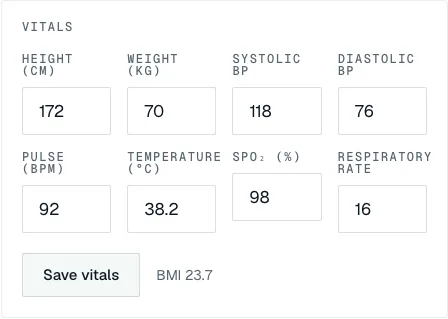
Vitals don't save by themselves — click Save vitals. If you leave and reopen the consultation, saved vitals (other than height and weight) aren't shown again, but they are kept.
Diagnoses / conditions#
- Type a diagnosis in Add diagnosis or condition.
- Click Add (or press Enter). It appears as a tag above the box. Add as many as you need.
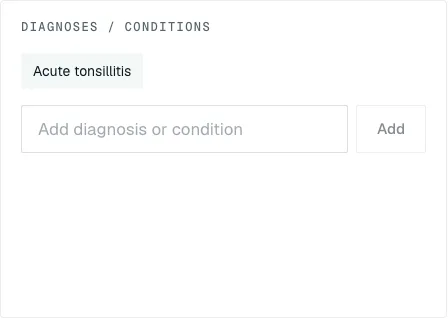
A diagnosis can't be removed once added. Check the spelling before you click Add.
Prescription#
- Click Add medicine. A "Medicine 1" card appears.
- Fill in Medicine *, Dose *, Frequency * and Duration *. These four are required. Strength, Route and Instructions are optional.
- Click Add medicine again for each further medicine. Remove deletes a card.
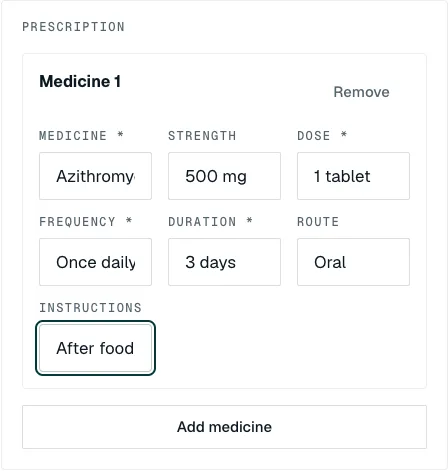
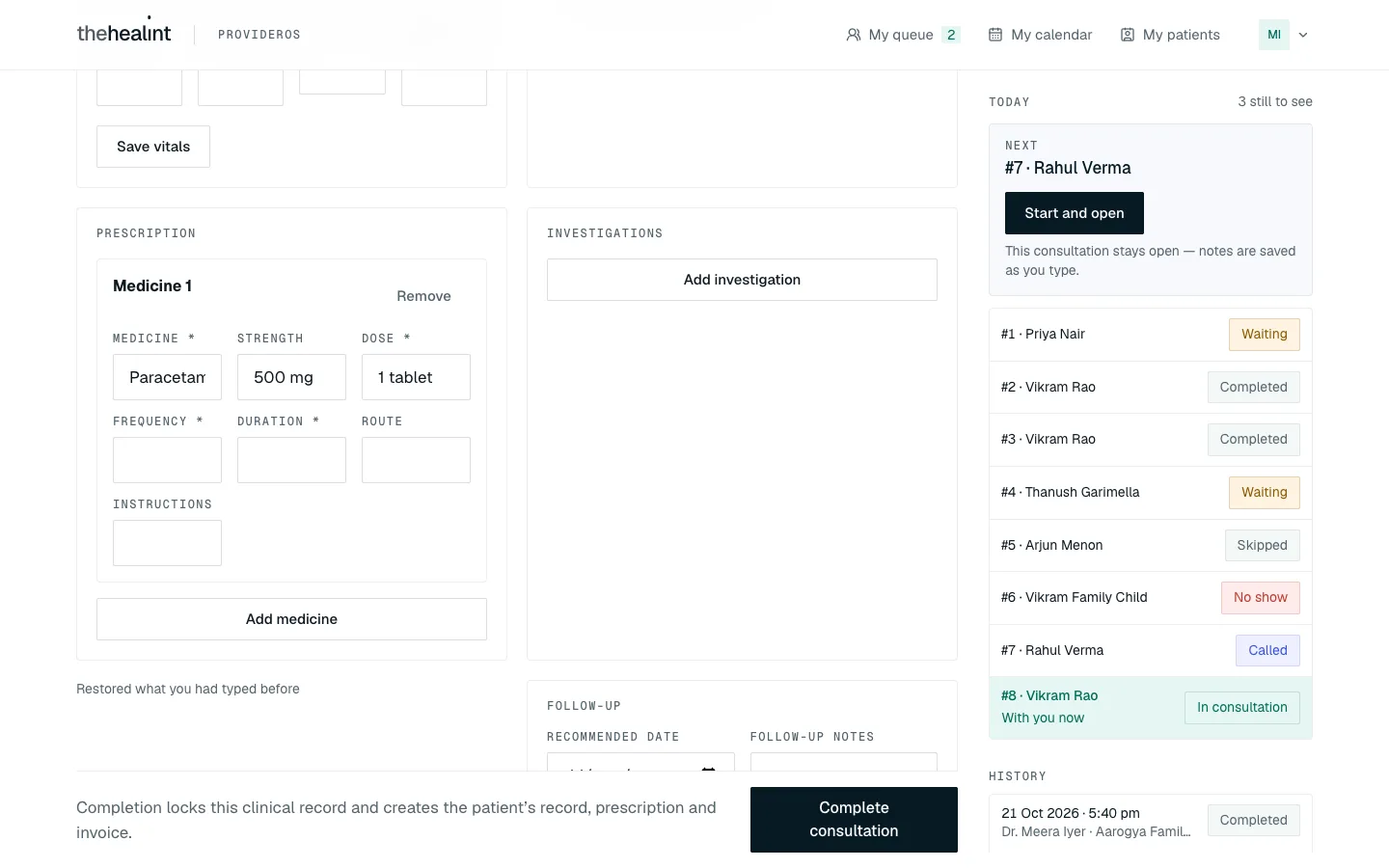
Everything saves as you type. Medicines, tests and the follow-up are kept for you while you write them — if the page refreshes, the browser closes or the tablet's battery dies, open the consultation again and they're still there, with "Restored what you had typed before" under the prescription. Nothing is sent to the patient or a pharmacy until you Complete the consultation.
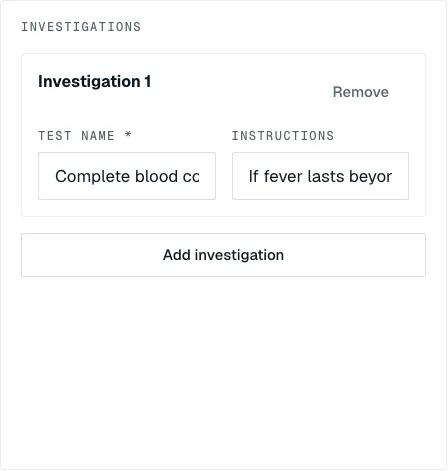
Investigations (tests)#
- Click Add investigation.
- Type the Test name * and any Instructions. Add more with Add investigation; Remove deletes one.
Follow-up#
- Pick a Recommended date (today or later).
- Type Follow-up notes if you want. The notes box only opens once a date is picked.
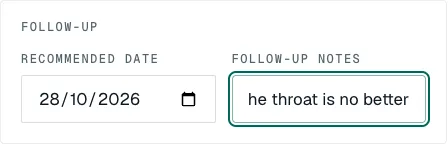
Medicines, tests and the follow-up are only kept on this screen until you complete the consultation. If you refresh or close the page before completing, you lose them (your typed notes are safe). Complete the visit before you leave the screen.
How to complete the consultation#
- Check everything, then click Complete consultation in the bar at the bottom.
- ProviderOS asks "Complete this consultation?". Click Complete consultation to finish, or Cancel to keep editing.
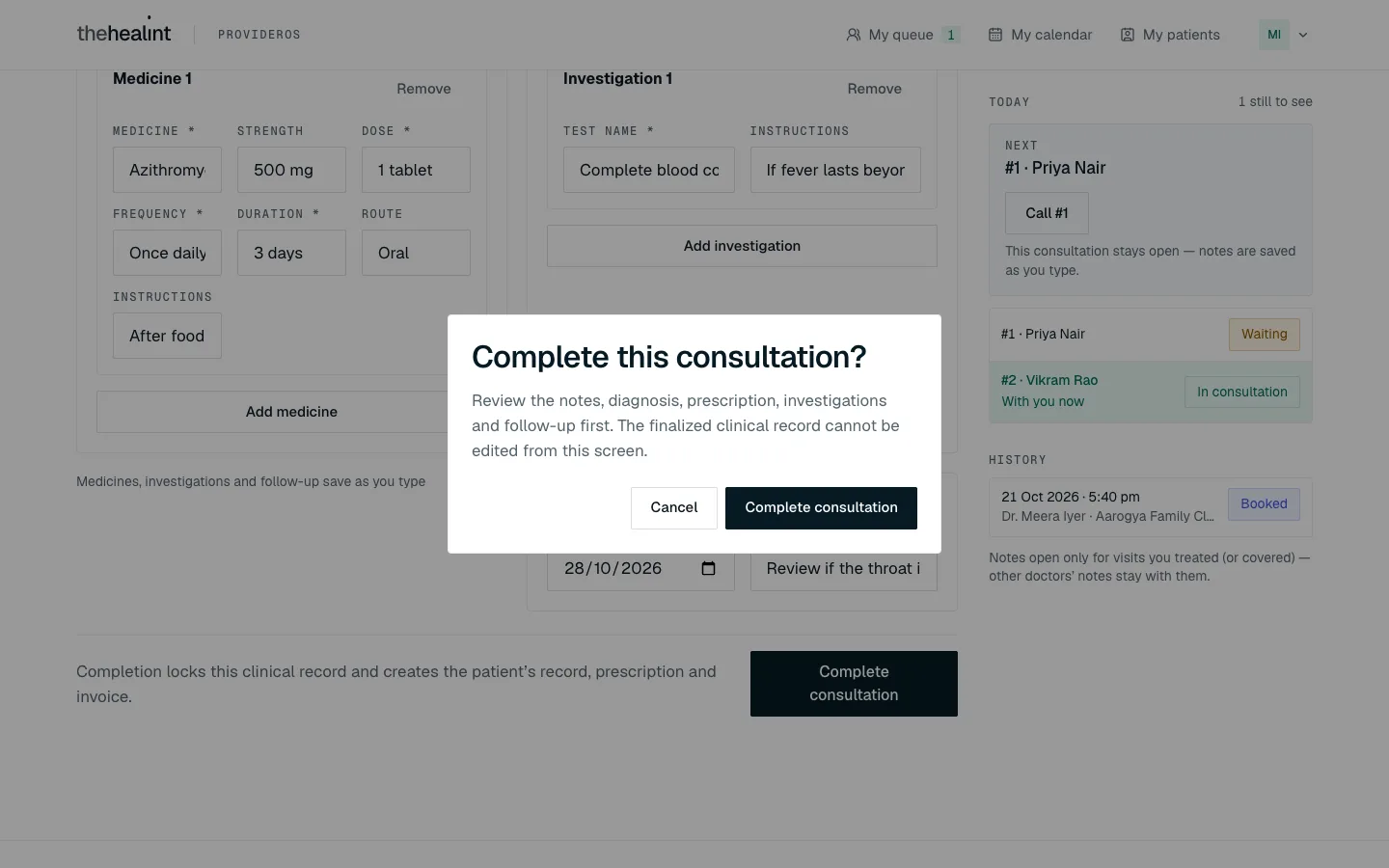
- You're taken back to My queue, where the patient now shows Completed.
When you complete a visit, thehealint:
- locks the clinical record — it can't be edited afterwards;
- creates the prescription and the invoice;
- emails the patient that their prescription is ready, and sends a follow-up reminder on the date you chose.
The patient chooses a pharmacy or lab themselves afterwards; nothing is sent to one automatically.
If it doesn't work:
- "Each medicine needs a name, dose, frequency and duration.": one medicine card is missing a required field. Fill it in or Remove the card, then complete again.
- "Each investigation needs a test name.": fill in or remove the empty test.
- "Could not complete the consultation.": nothing is lost from the screen. Try again; if it keeps failing, tell your clinic admin.
How to use the Today & history panel#
On a wide screen the panel sits to the right of your notes. On a smaller screen click Today & history to open it.
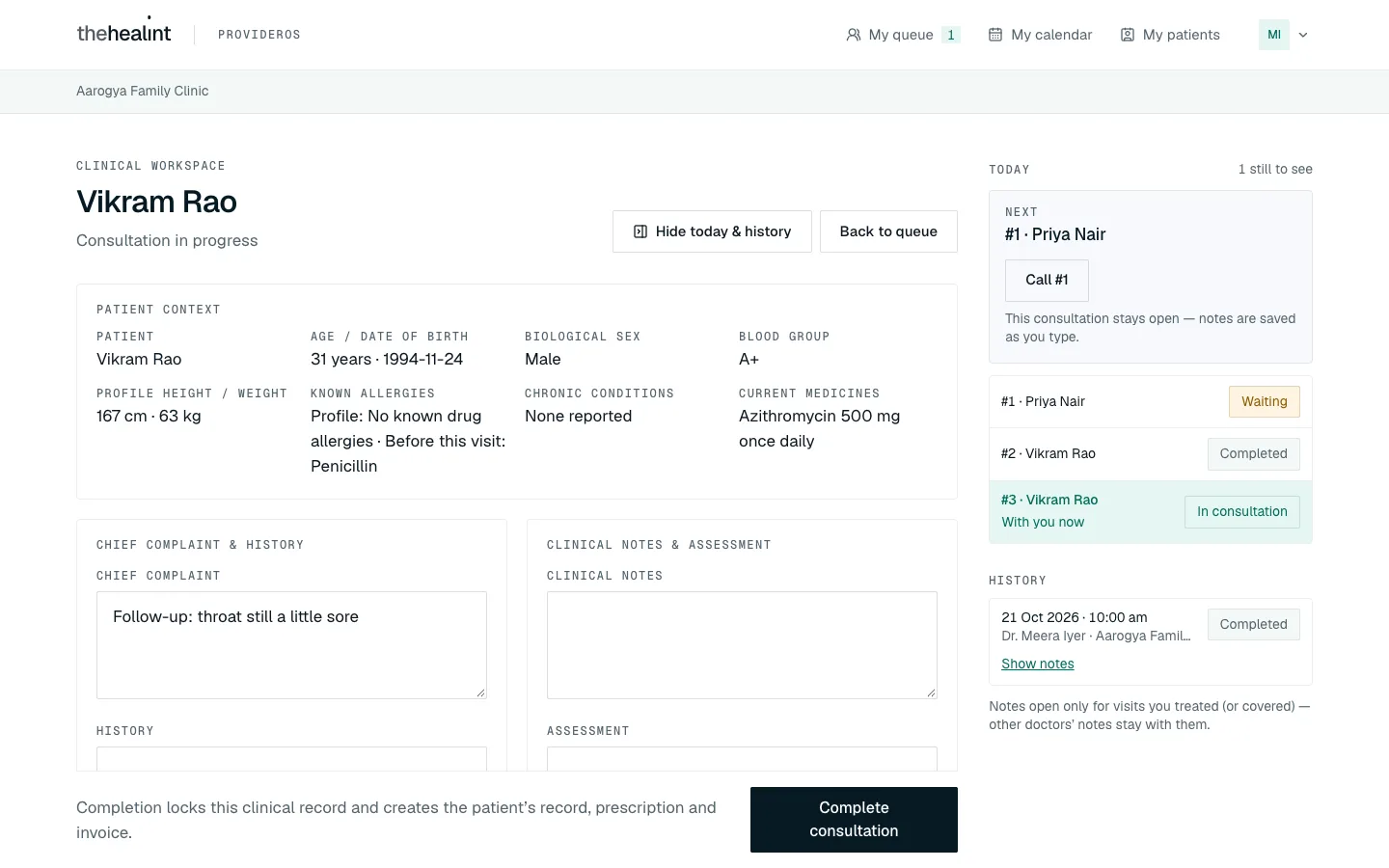
Today is your day at a glance:
- The Next card shows who's up next. Click Call #… to call them, or Start and open if they've already been called (it opens their consultation). The consultation you're in stays open and keeps saving.
- The list shows all your tokens today. The patient you're with is marked With you now.
History lists this patient's earlier visits with you. On a completed visit, click Show notes to read what was recorded — complaint, diagnosis, assessment, what was prescribed, tests and follow-up — without leaving the consultation. Click Hide notes to fold it away.
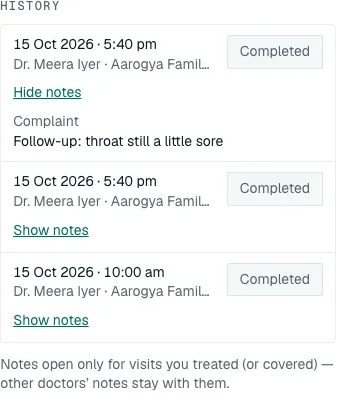
You only ever see notes from visits you treated or covered. For a visit another doctor treated, Show notes says "Another doctor treated this visit; their notes stay with them."
How to cover a colleague's patient#
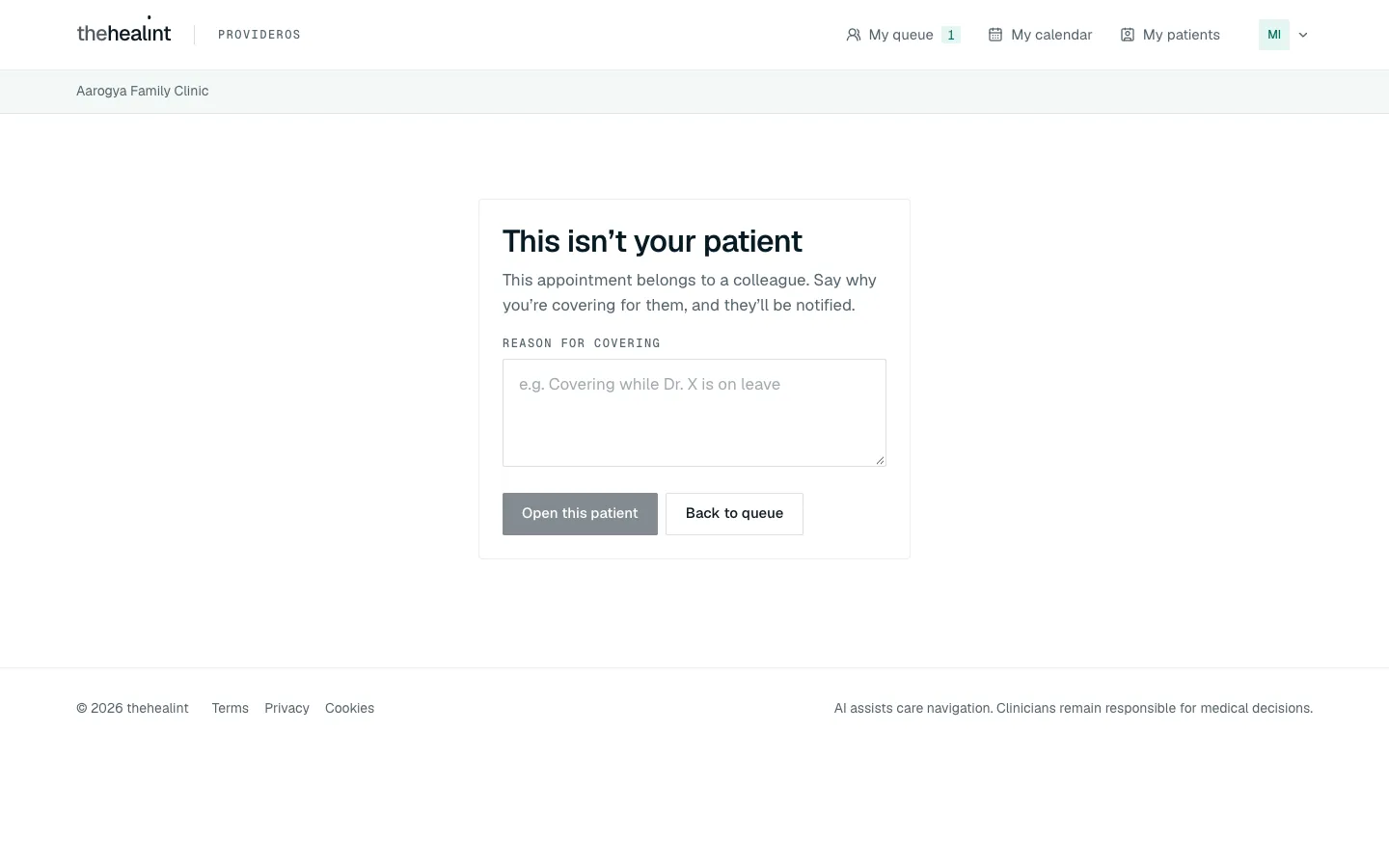
Sometimes you see a patient booked with another doctor — for example, they're in theatre or on leave. When you open that patient's consultation (for instance from a link the front desk sends you), ProviderOS asks why.
- You see "This isn't your patient".
- Type a Reason for covering (at least 10 characters), for example "Covering while Dr. Dev is in the operating theatre".
- Click Open this patient. (Click Back to queue if you opened it by mistake.)
- The consultation opens with a yellow banner: "You're covering this patient for {their doctor}. Reason: …". Carry on as normal.
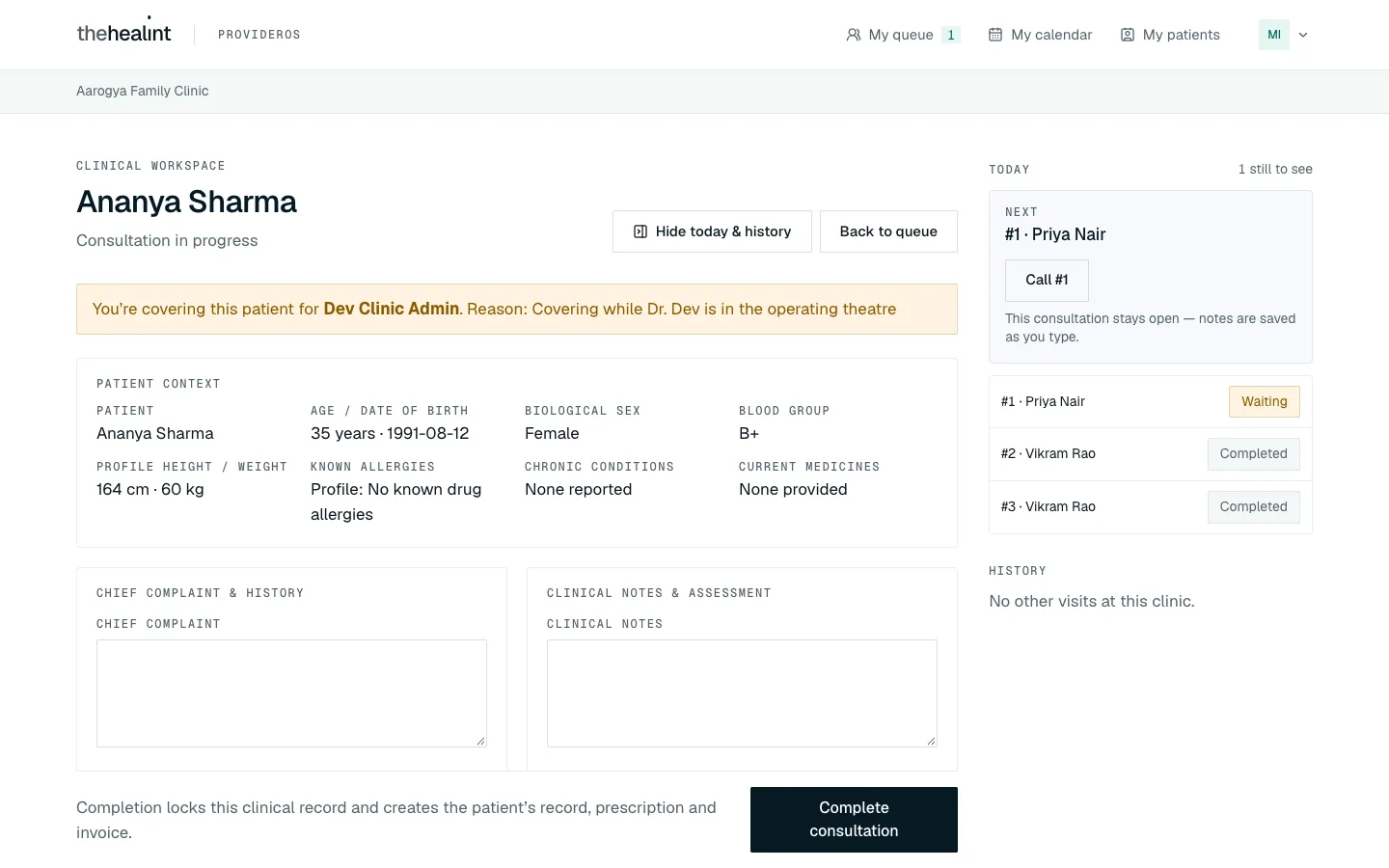
What happens: the patient's own doctor is emailed that you covered their patient, and your reason is recorded where your clinic admin can review it. The visit still counts as theirs.
How to use My calendar#
- Click My calendar. It opens as a List: one row per booking for the From date and the six days after it, grouped by day.
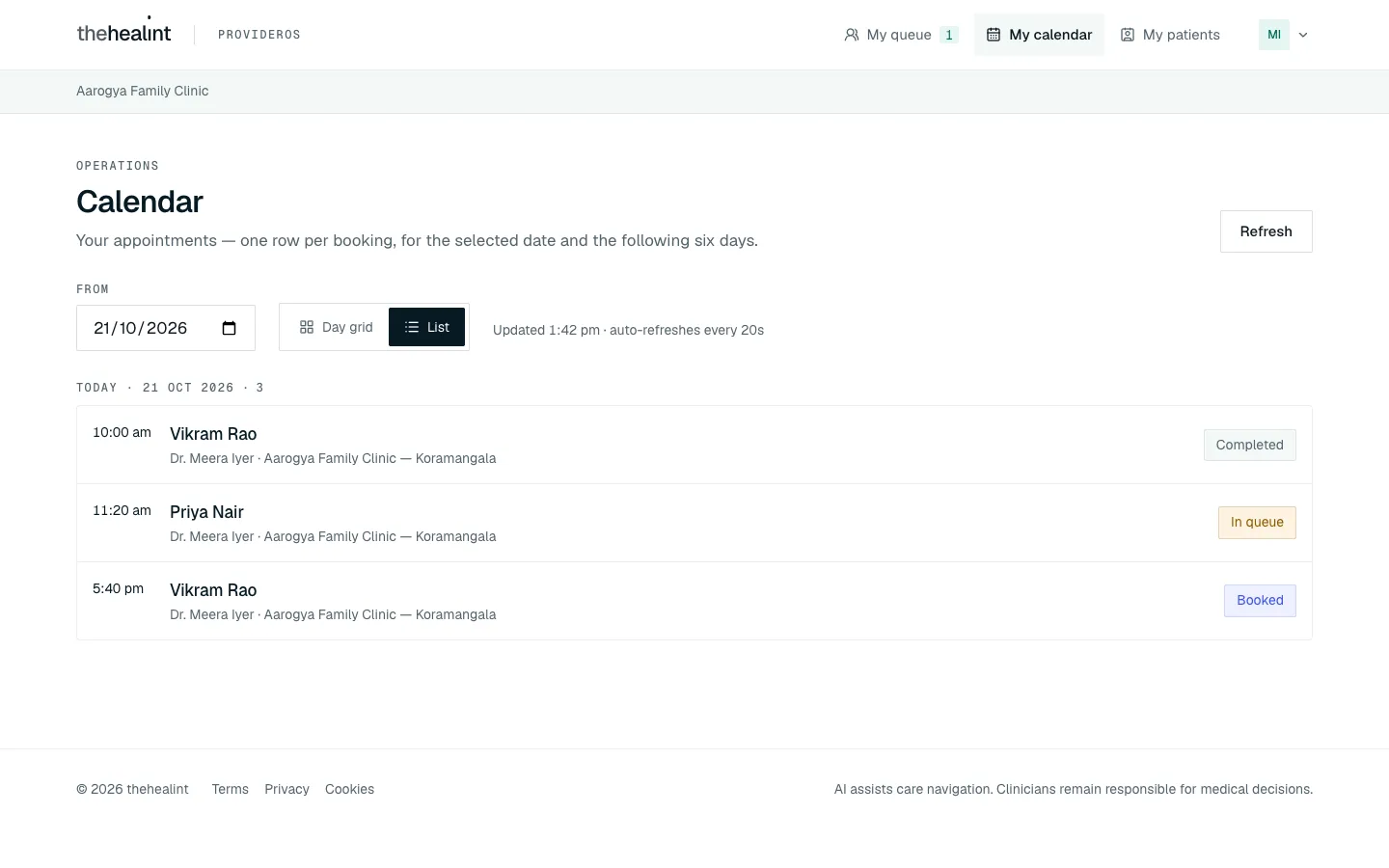
- To look at another week, change the From date.
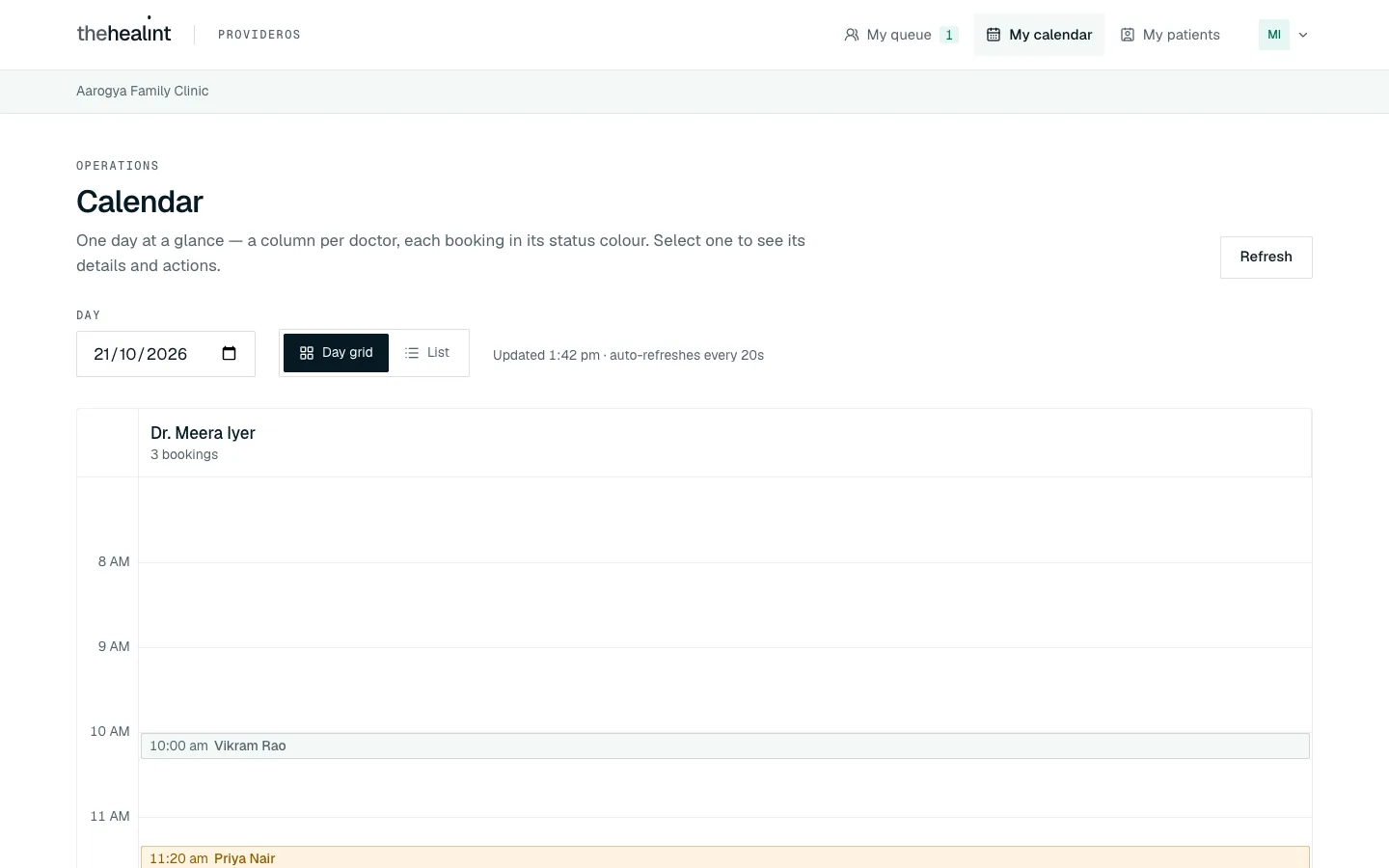
- Click Day grid to see one day as a timeline. Change the Day to move between days. Click List to go back.
- Click a patient's name (or a block on the grid) to open the booking. You see the status, how it was booked, doctor, branch and fee, and Before the visit — the symptoms, current medicines and allergies the patient shared. Only you, as their doctor, can see these. While the patient is In consultation, an Open consultation button appears here too. Close it with ×.
Your calendar is read-only. Checking in, moving and cancelling bookings are done by the front desk — see 03-front-desk.md.
If the calendar says "No appointments in this seven-day window", pick another date. New bookings appear as patients make them.
How to look up one of your patients#
- Click My patients. You see everyone who has booked with you, with how many bookings they've had and their next and last booking. (The heading says "your organization", but the list only shows your own patients.)
- Type in Search by name to narrow the list.
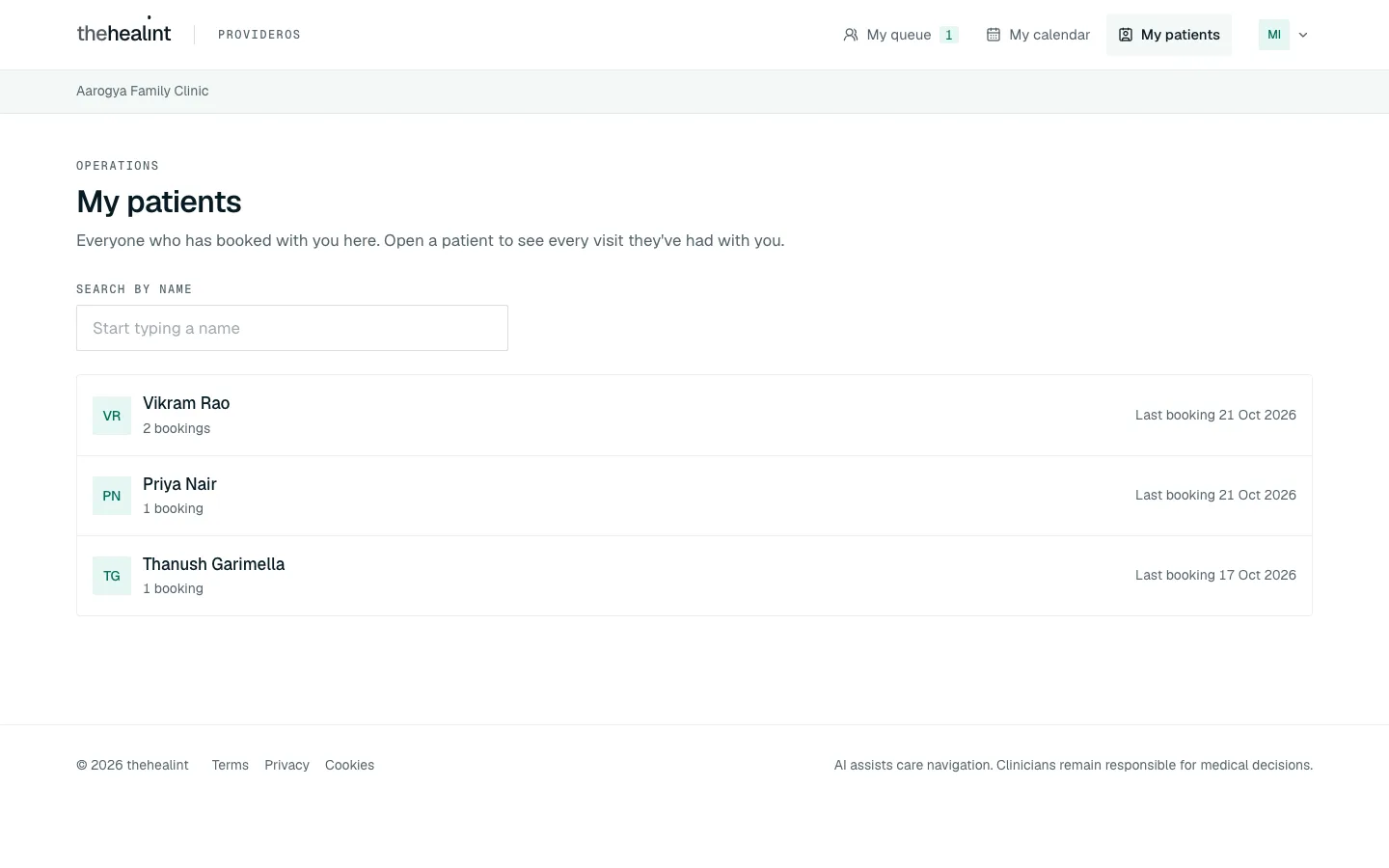
- Click a patient to open their page: Bookings, Completed visits and Last completed, then Upcoming and History. Click any visit to open it, just like in the calendar.
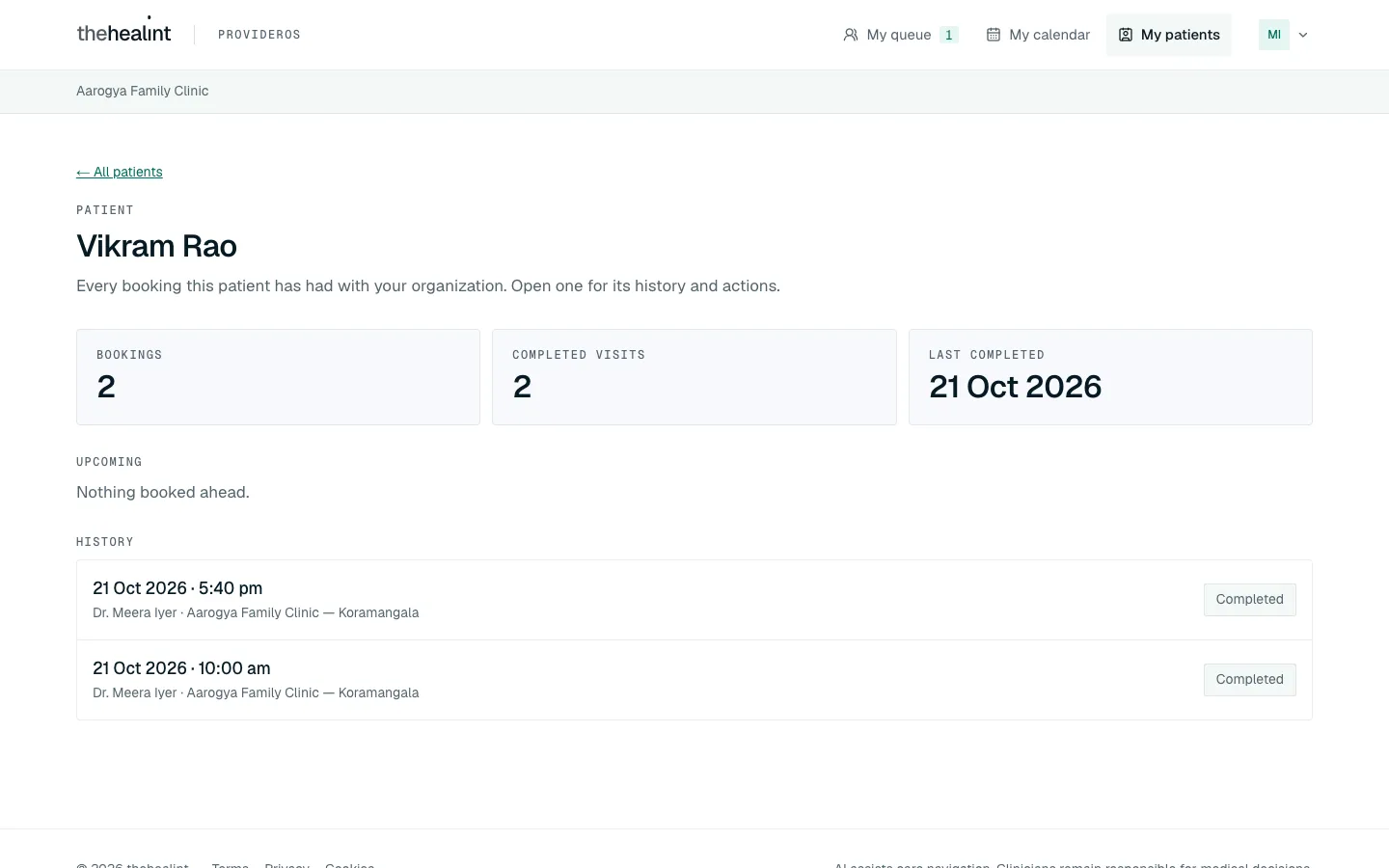
This page shows bookings, not clinical notes. Contact details aren't shown.
How to use the iPhone doctor app#
The thehealint doctor app on iPhone gives you your queue and the consultation screen on the move. Sign in with the same email and password (and authenticator code, if you've set one up).
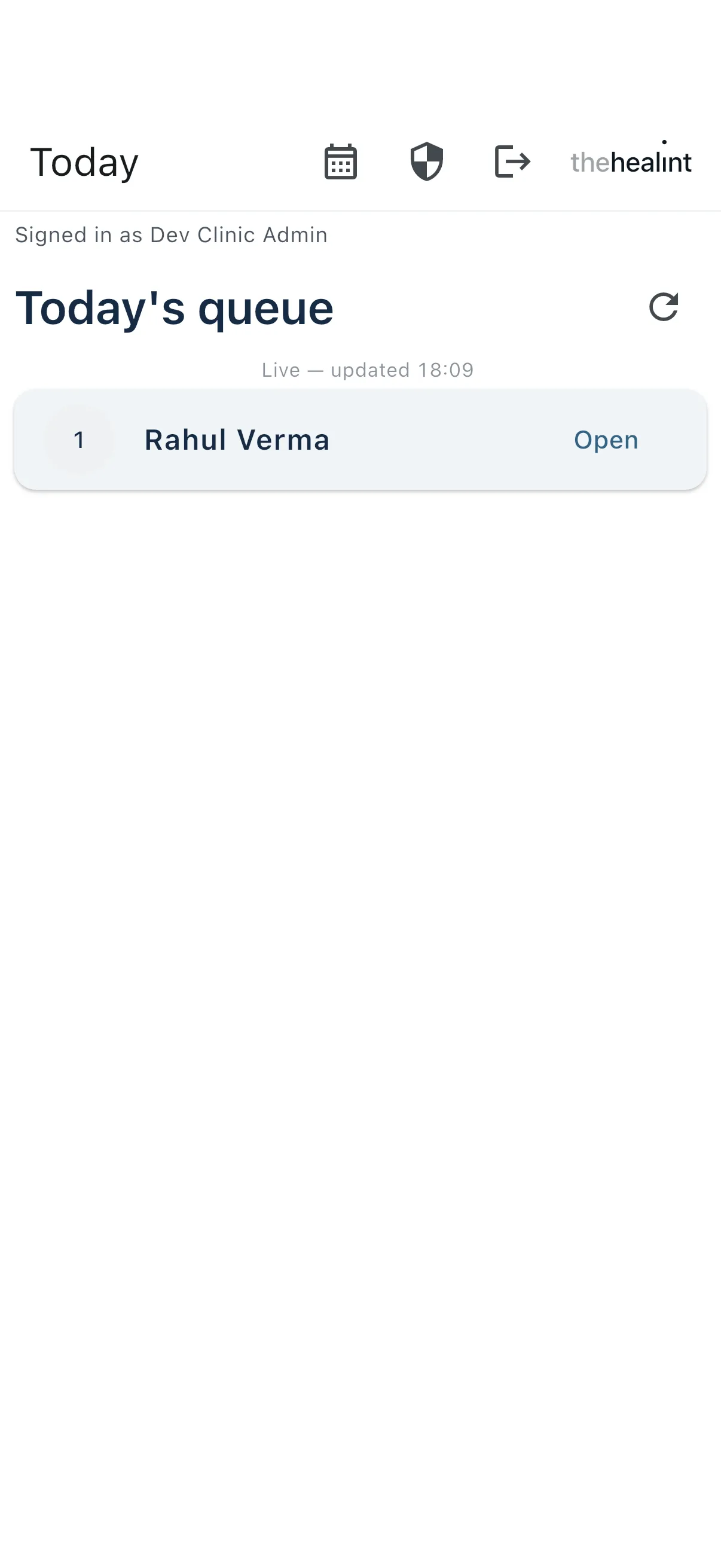
- Today shows today's queue and updates by itself. Tap Call for a waiting patient, Start consultation for a called one, or Open for one already in consultation.
- The consultation has the same sections as the web, in order, plus Before the visit (from the patient) — including any files they attached, which the web screen doesn't show. Tap Complete consultation; the app asks "Complete this consultation?" — tap Complete consultation again, or Keep editing.
- If the patient is a colleague's, the app asks for a Reason for covering in the same way. Tap Open record, or Go back.
- Schedule (calendar icon) shows your weekly hours and time off.
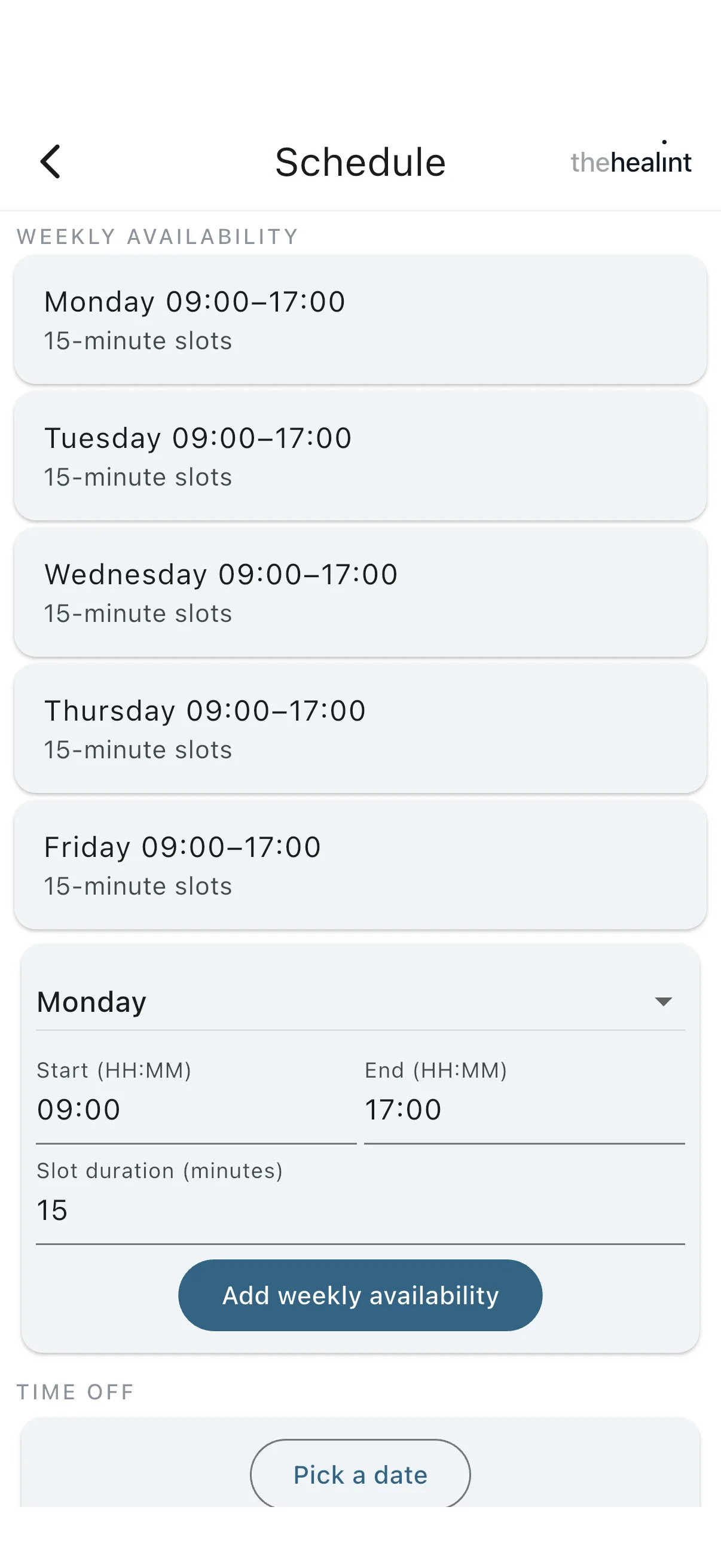
Your hours are set by your clinic admin. The add buttons on this screen don't save for a doctor account — ask your clinic admin to change your hours or add time off.
- Security (shield icon) lets you set up two-factor sign-in. The app shows the key as text to type into your authenticator app (there's no QR code).
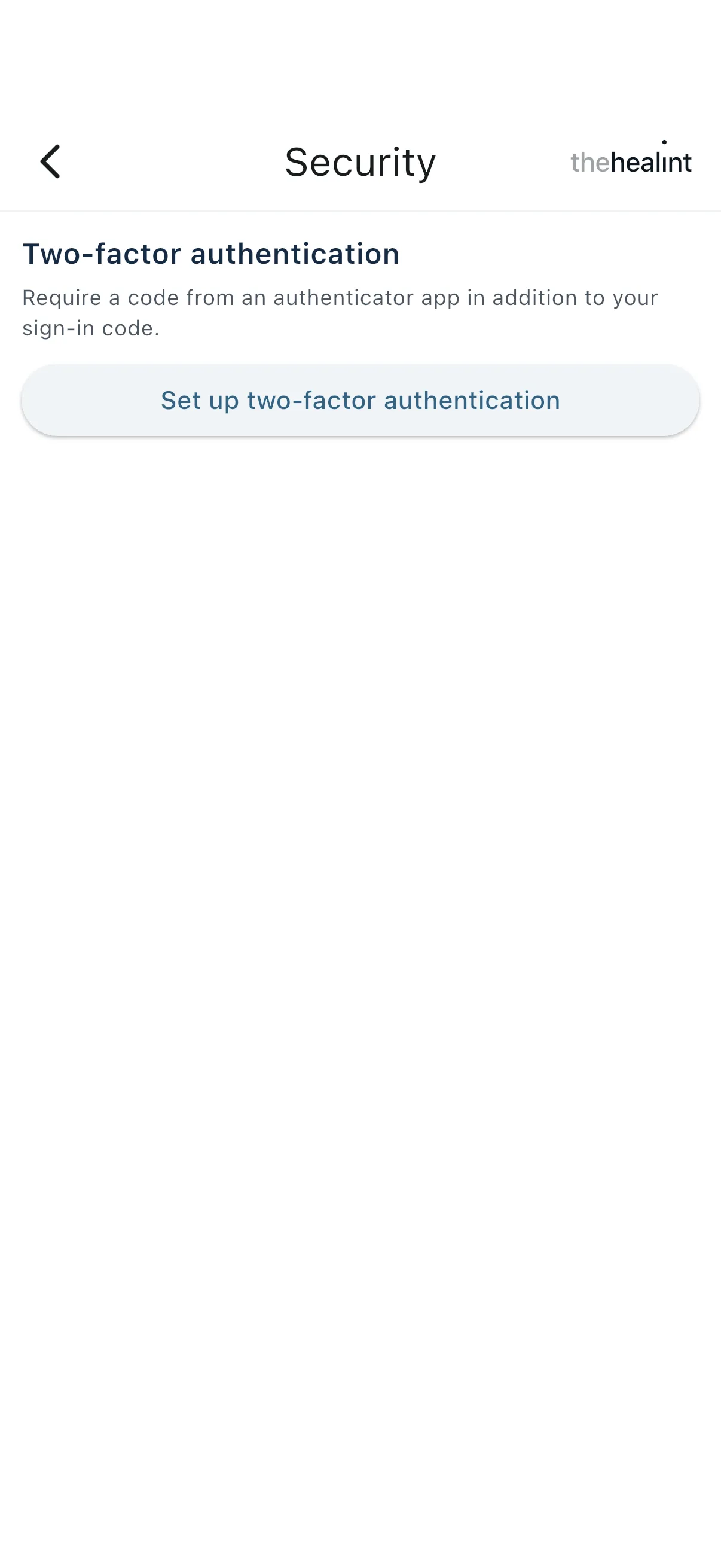
The app has no calendar or patients list — use ProviderOS in a browser for those.
Times and "today"#
Your queue, calendar and visit times use your clinic's clock, and "today" is the clinic's today. If you work at clinics in different places, each booking shows the time at the clinic it belongs to.
How to turn on two-factor sign-in#
Two-factor sign-in means you need a code from an app on your phone as well as your password. It's optional, but strongly recommended: anyone who learns your password could otherwise see your patients' records.
You need an authenticator app on your phone (Google Authenticator, 1Password, Authy or similar).
- Click your initials at the top right, then Security.
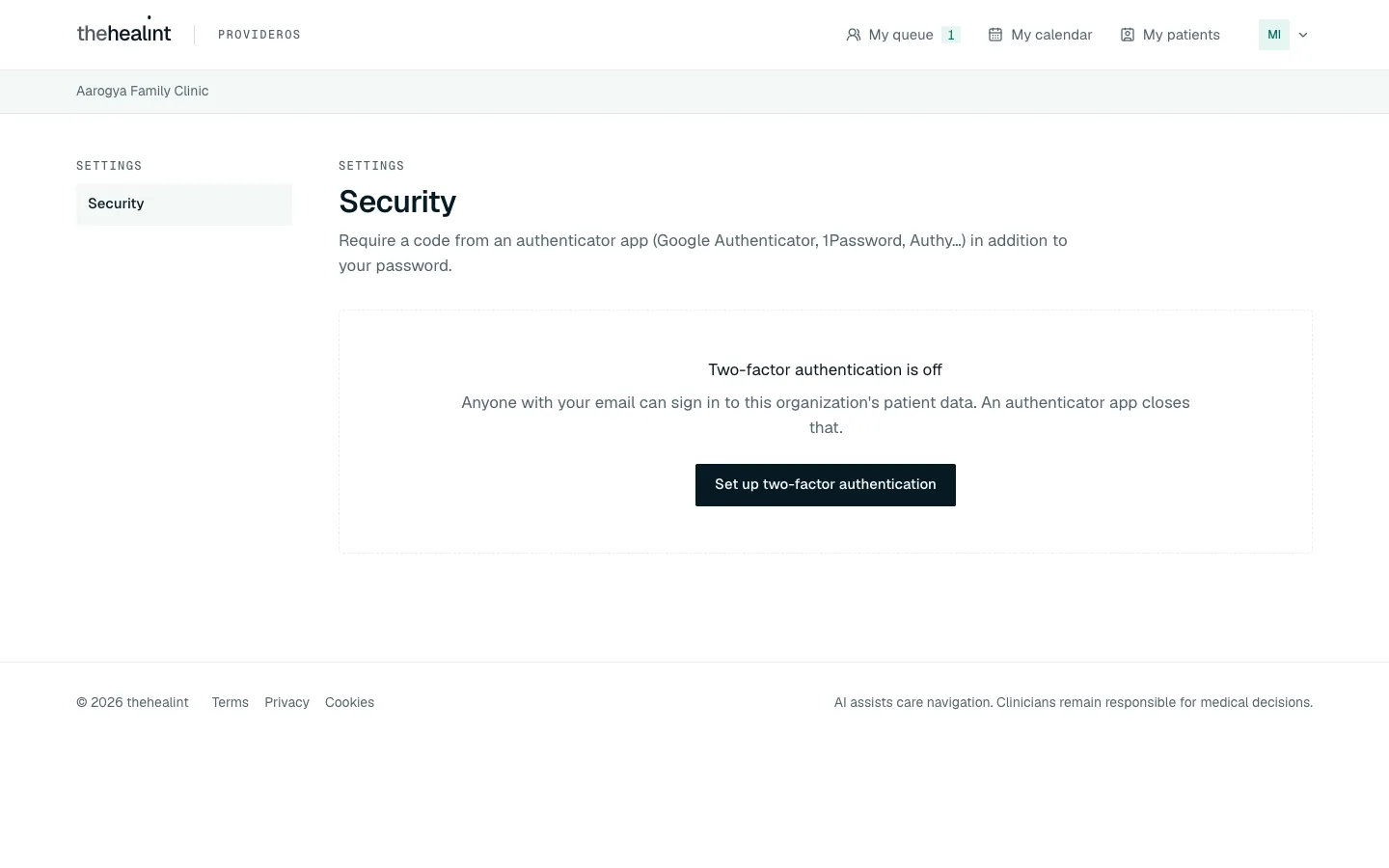
- You see "Two-factor authentication is off". Click Set up two-factor authentication.
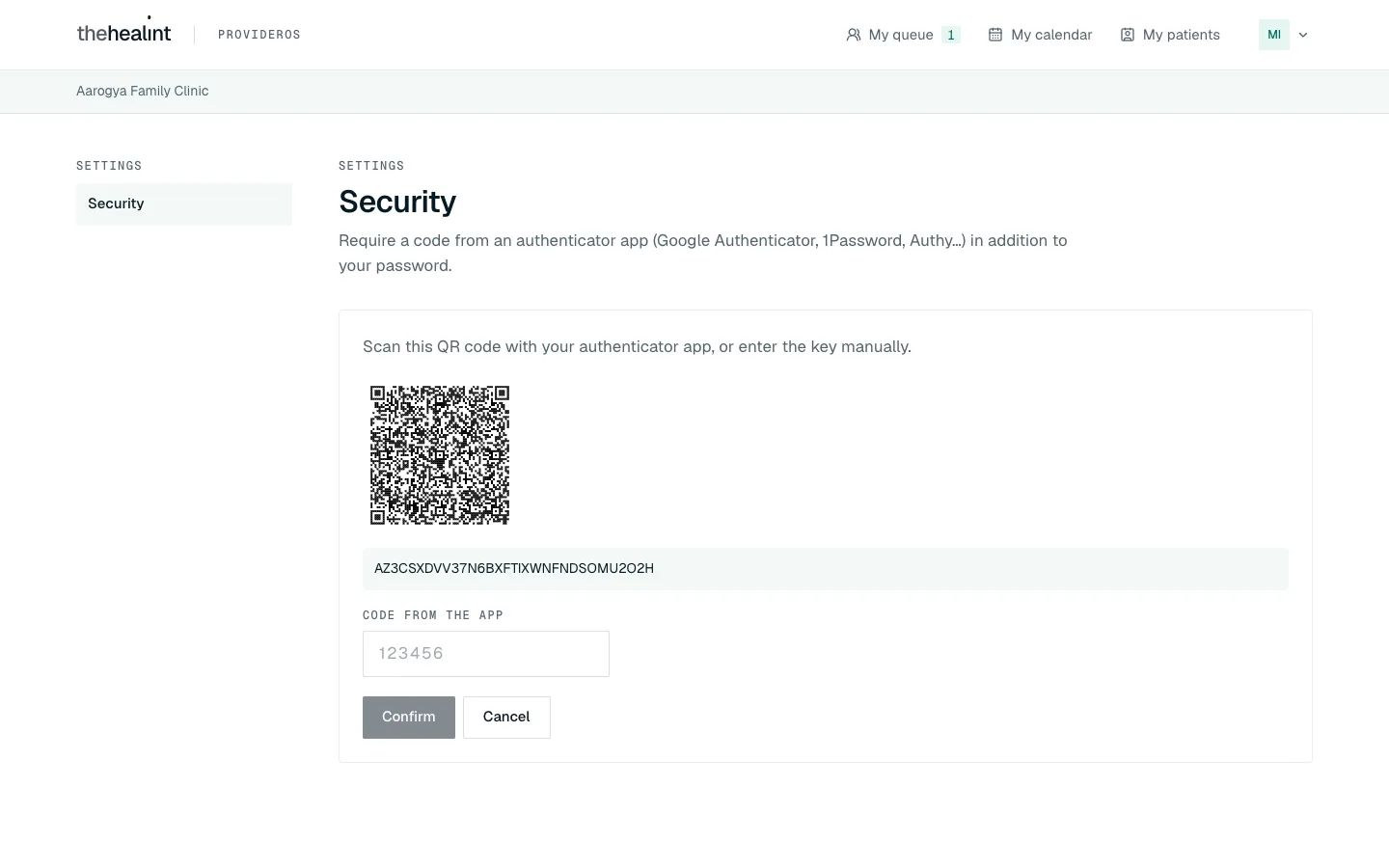
- Scan the QR code with your authenticator app (or type the key shown under it).
- Type the 6-digit code your app shows into Code from the app and click Confirm.
- You see "Two-factor authentication is now active on this account." From now on, sign-in asks for an Authenticator code after your password.
To turn it off, open Security again, click Remove next to the authenticator, then Remove authenticator.
If it doesn't work:
- "That code did not match — try again.": codes change every 30 seconds. Type the current one. Check your phone's clock is set automatically.
- Lost or replaced your phone? There's no way to get back in from the sign-in page without the code. Tell your clinic admin straight away.
Things you can't do here — and who to ask#
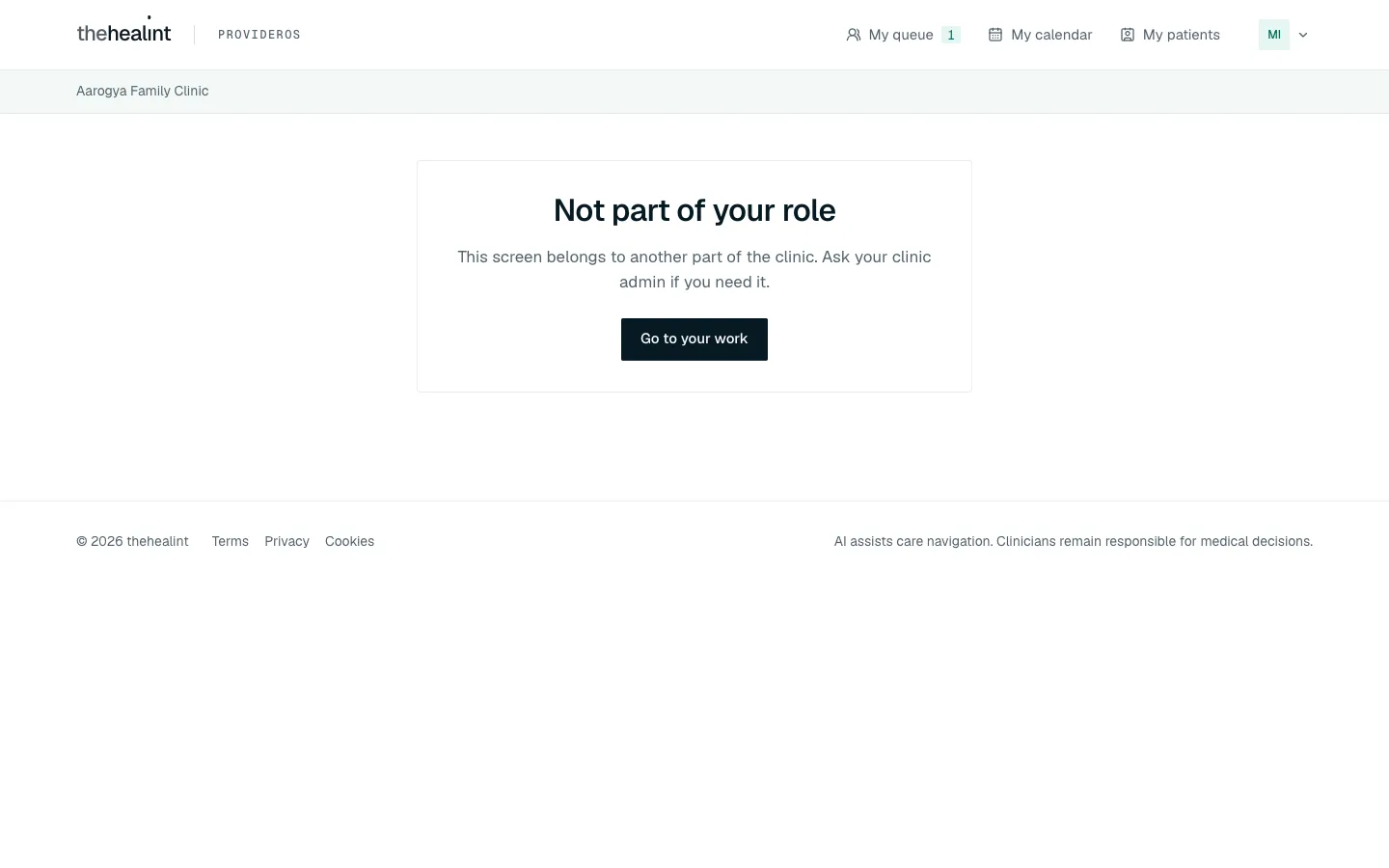
If you open a screen that isn't part of your job, ProviderOS shows "Not part of your role". Click Go to your work to go back to My queue.
| You want to… | Who does it |
|---|---|
| Check a patient in, add a walk-in, or put a skipped patient back in the queue | The front desk — 03-front-desk.md |
| Move or cancel a booking | The front desk — 03-front-desk.md |
| Take a payment or give a discount | The front desk or billing staff — 04-nurse-and-billing.md |
| Change your consulting hours or add time off | Your clinic admin — 05-clinic-admin.md |
| Correct a completed consultation, or remove a wrong diagnosis | Not possible from the screen — tell your clinic admin |
| See another doctor's patients or notes | Not possible, by design. Cover the patient with a reason instead |
| Review who covered whose patients | Your clinic admin |
Quick reference#
| Task | Where | Click |
|---|---|---|
| See who's waiting | My queue | (updates by itself) Refresh |
| Call the next patient | My queue | Call |
| Start the visit | My queue | Start consultation (or Open consultation) |
| Patient didn't come in | My queue | Skip → Skip token, or No-show → Mark no-show |
| Save vitals | Consultation → Vitals | Save vitals |
| Add a diagnosis | Consultation → Diagnoses / conditions | type, then Add |
| Prescribe | Consultation → Prescription | Add medicine |
| Order a test | Consultation → Investigations | Add investigation |
| Finish the visit | Consultation, bottom bar | Complete consultation → Complete consultation |
| Call the next patient without leaving | Consultation → Today | Call #… / Start and open |
| Cover a colleague's patient | "This isn't your patient" | type a reason → Open this patient |
| Read what the patient shared before the visit | My calendar → click the patient | Before the visit |
| Look up a patient | My patients | Search by name → click the name |
| Turn on two-factor sign-in | Your initials → Security | Set up two-factor authentication |
PDF version
The same guide with all its screenshots, to print or share. (1.0 MB)
Download the PDF Open in a new tab
Loading the PDF viewer… If it does not appear, your browser cannot show PDFs inside a page: use Download the PDF.