Clinic admin
Who this is for#
This guide is for the people who run a clinic or hospital on thehealint:
- Clinic admin and Hospital admin. The two are the same job with a different label. You can see and change everything, and you are the only people who can add or remove staff.
- Facility manager. You run the day-to-day operation but don't manage staff. See If you are a facility manager below.
It covers setting up a new organization, getting it verified and published so patients can find you, and then the jobs you'll come back to: branches, departments, staff and doctors, doctors' weekly hours and time off, and the oversight pages (notification delivery, covering access, analytics and security).
You work in ProviderOS, in a web browser.
What you'll see#
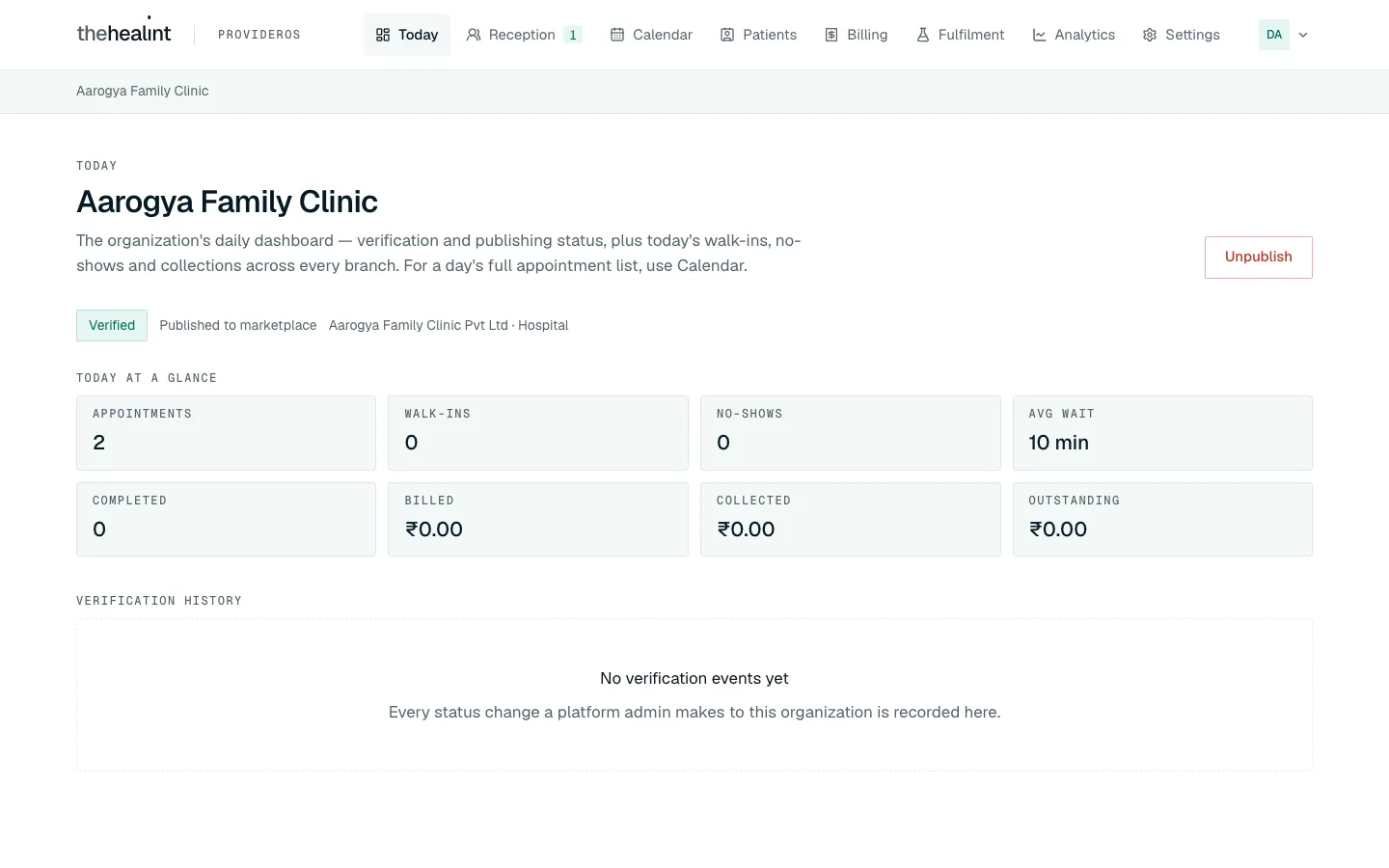
After you sign in, ProviderOS opens on Today. The menu along the top has:
| Menu item | What it's for |
|---|---|
| Today | Your organization's status (verified, published) and today's numbers across every branch |
| Reception | Today's queue and walk-ins. The number beside it is how many patients are waiting |
| Calendar | A day's bookings, one column per doctor |
| Patients | Look up a patient and their history |
| Billing | Invoices, payments and discounts |
| Fulfilment | Your in-house Pharmacy and Diagnostics |
| Analytics | How the clinic is running (on the Growth plan) |
| Settings | Staff, branches, departments, practitioners, weekly availability, documents, notifications, security, covering access |
Your organization's name is on the grey bar under the menu. Your initials are at the top right: click them for Security or Sign out.
Reception, Calendar, Patients and Billing work exactly as they do for the front desk. They're explained in 03-front-desk.md. Pharmacy and Diagnostics are explained in 06-pharmacy-and-lab.md.
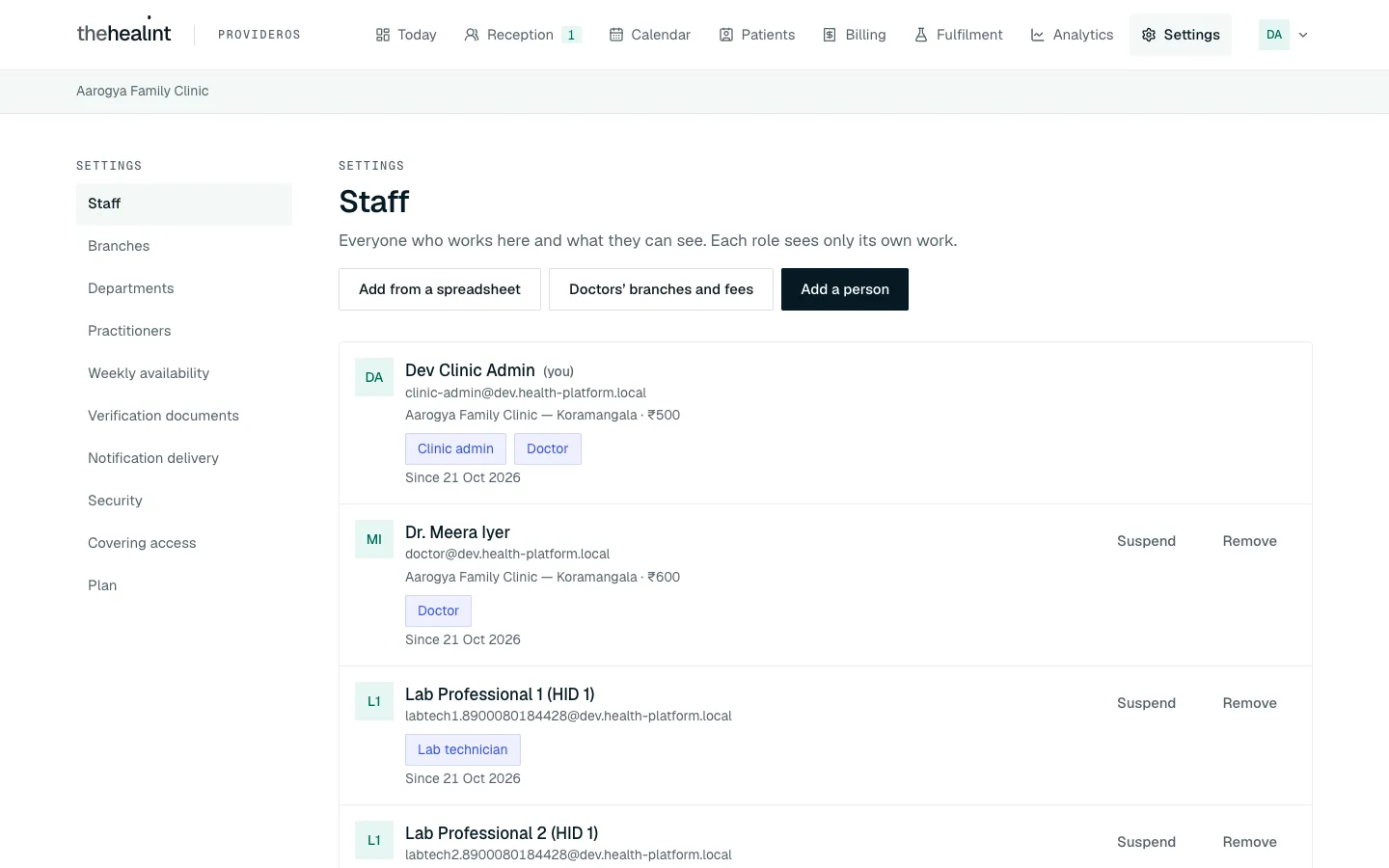
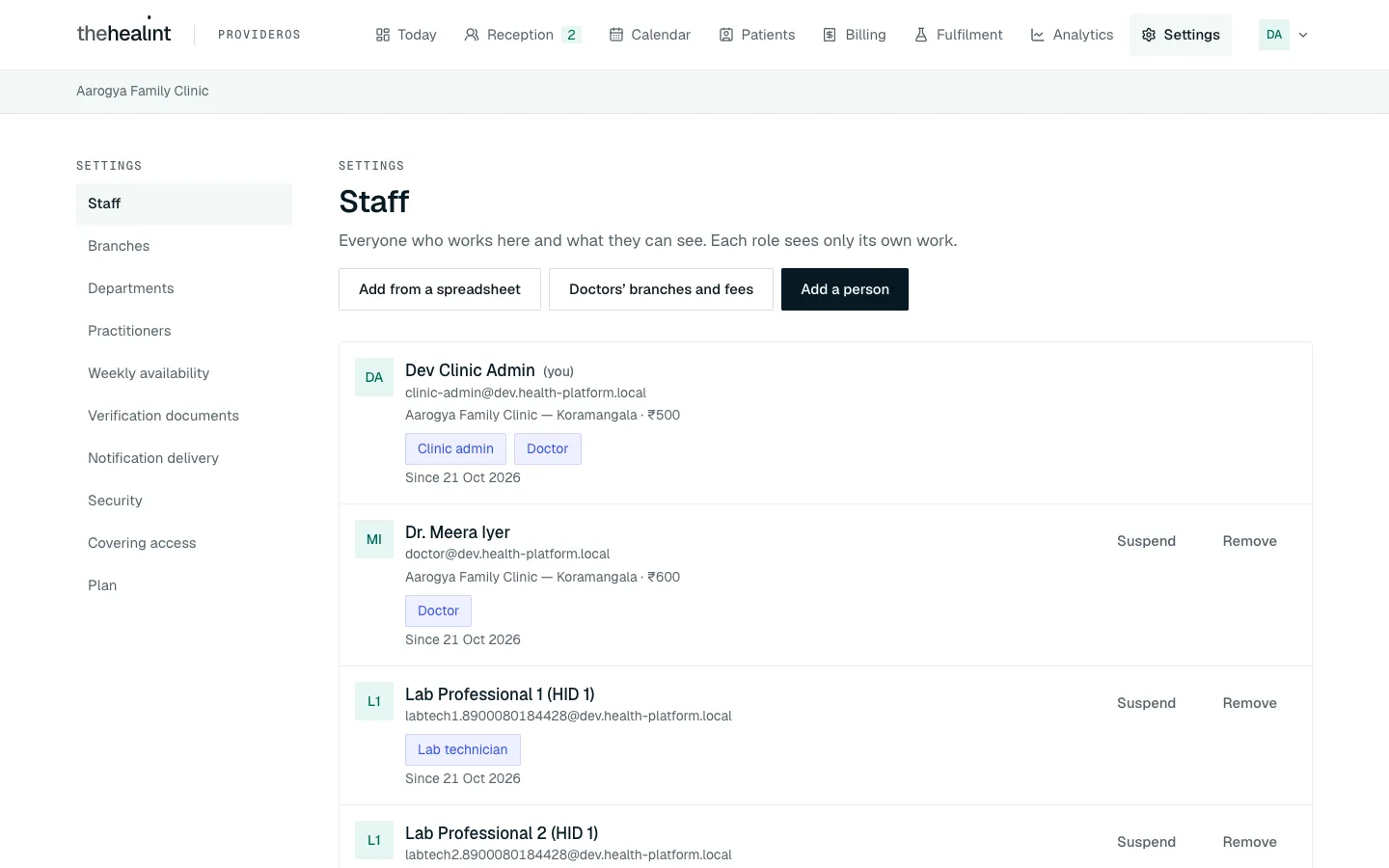
Settings has its own menu down the left-hand side. Staff comes first.
Before you start#
If someone invited you#
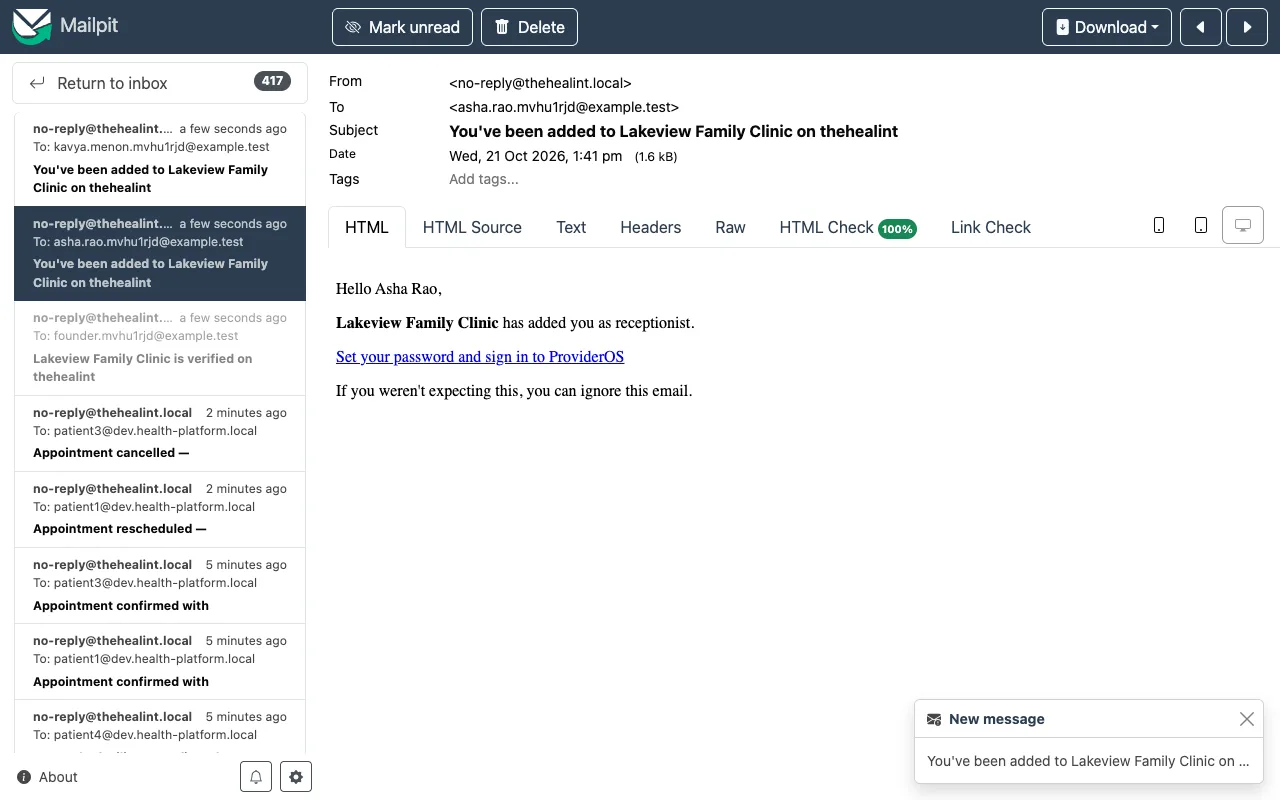
If your clinic is already on thehealint, another admin adds you under Settings → Staff and you get an email:
- Open the email "You've been added to your clinic on thehealint" and click Set your password and sign in to ProviderOS.
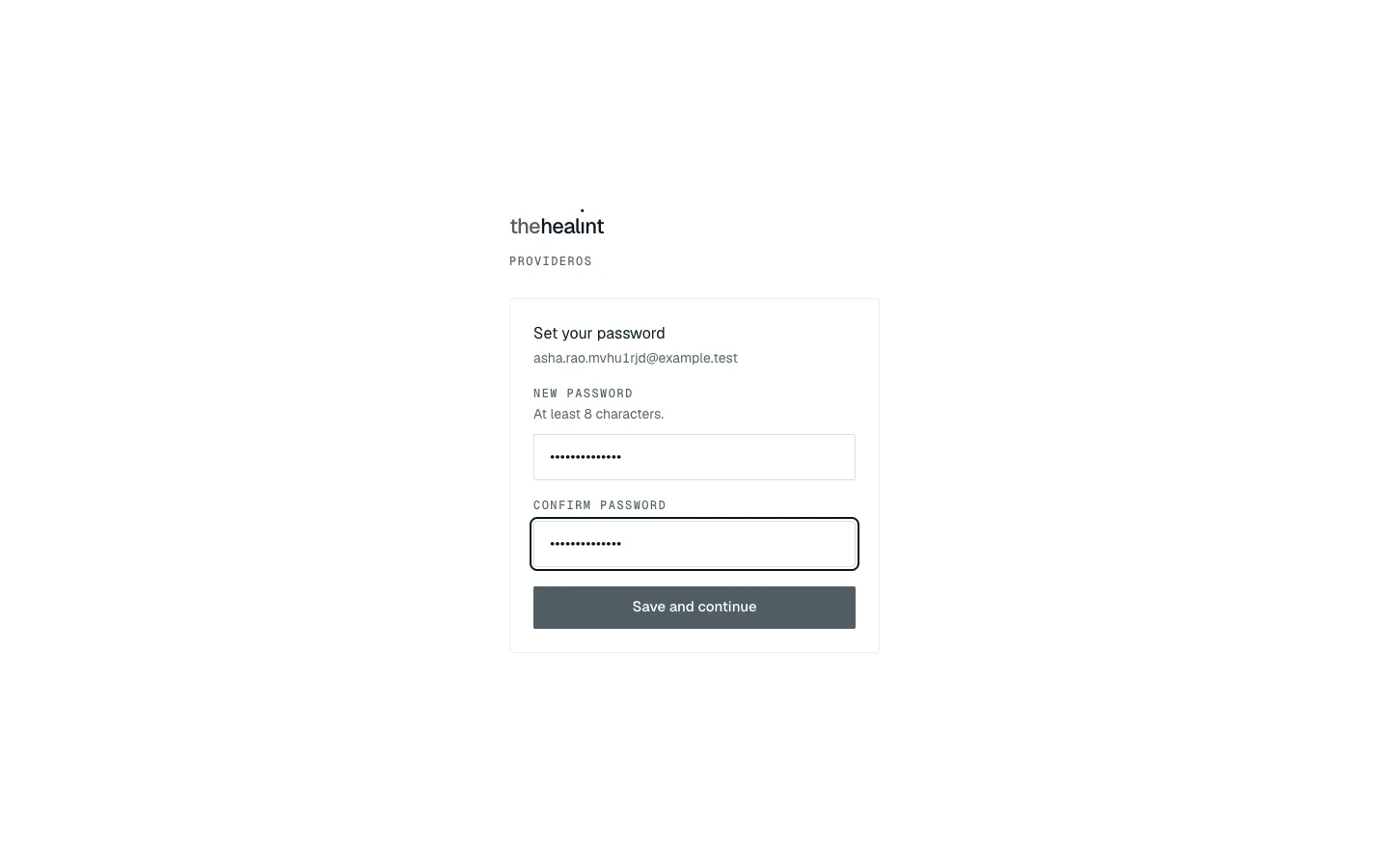
- On Set your password, type a New password (at least 8 characters) and type it again in Confirm password.
- Click Save and continue. ProviderOS opens on Today.
The email and the Set your password page are shown in How to add a receptionist below.
If it doesn't work: "This link has expired" means the link was already used or is too old. Ask the admin who added you to click Resend invitation, or click Sign in if you've already set a password.
If you're setting up a new organization#
You only do this once, when your clinic or hospital first joins thehealint. Whoever does it becomes its first admin.
Go to ProviderOS and click Setting up a new clinic? Create an account.
Enter your Email and a Password (at least 8 characters), then click Create account.
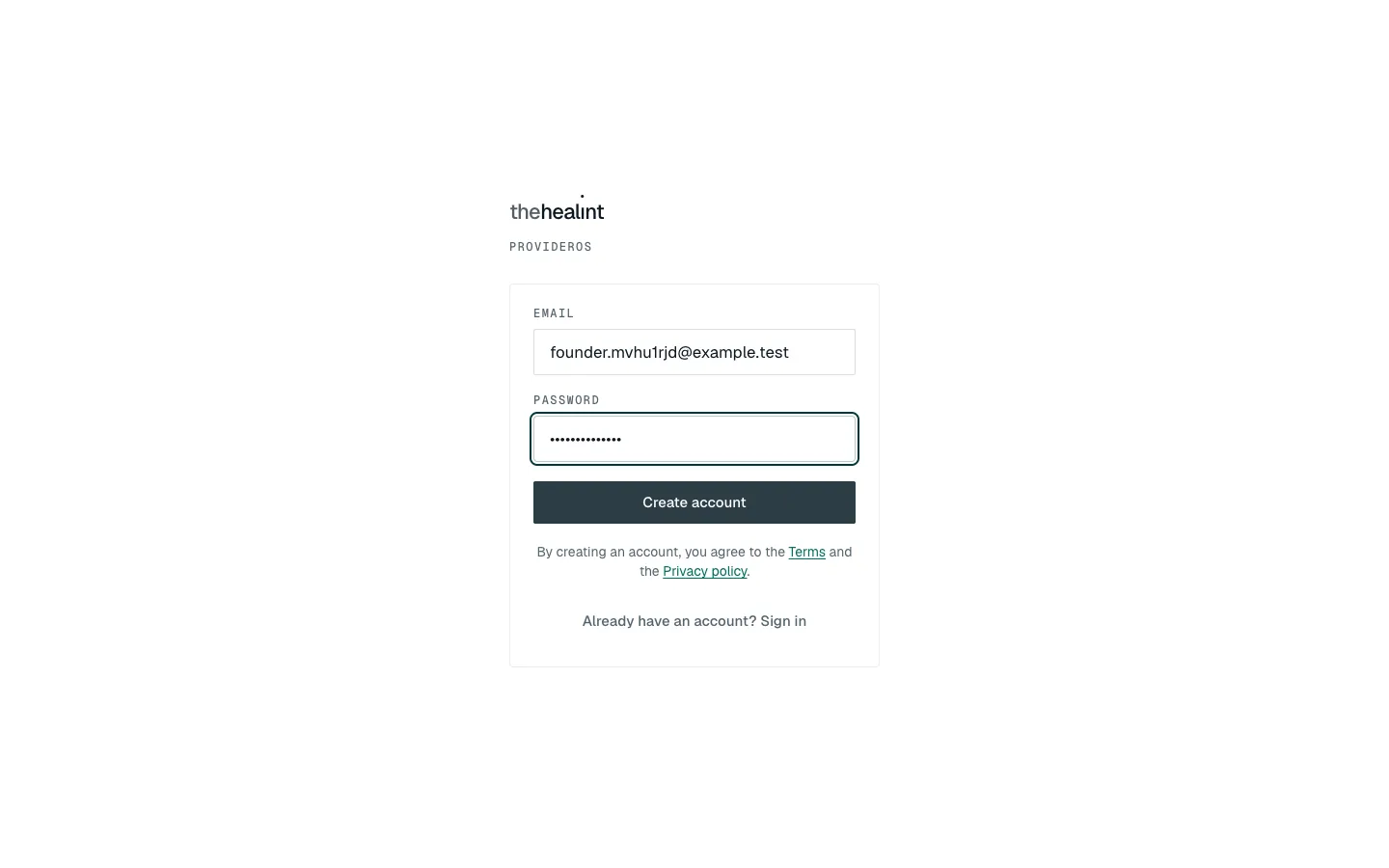
The sign-in card switched to Create account. "Already have an account? Sign in" takes you back. Under What should we call you?, type your full name and click Continue.
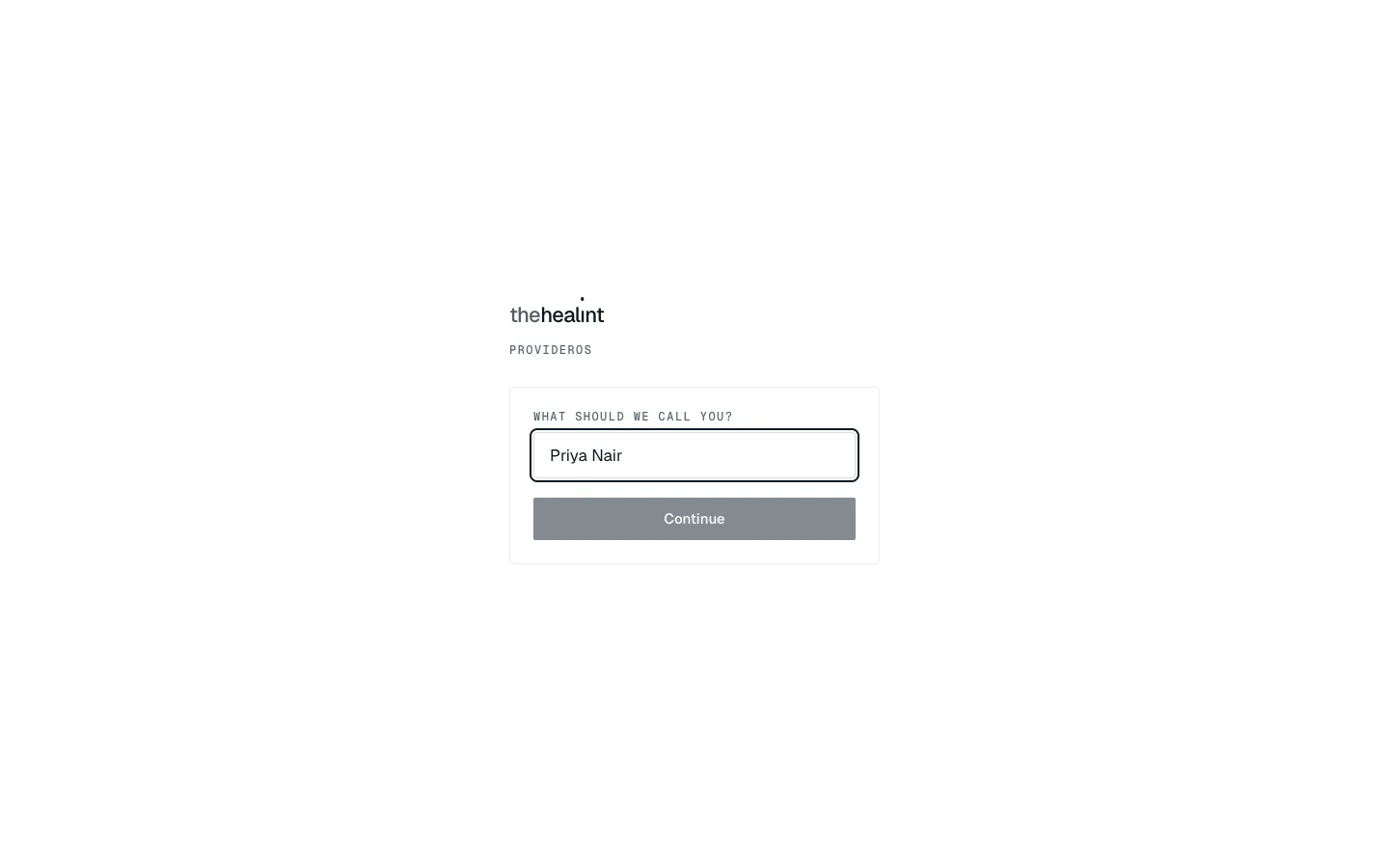
Your name is how colleagues will see you on the Staff list. On Set up your organization, fill in:
- Organization type: Individual doctor, Clinic, Hospital, Chain, Independent pharmacy or Diagnostic laboratory. Choose Clinic or Individual doctor to become a Clinic admin, or Hospital or Chain to become a Hospital admin. (A pharmacy or lab owner follows 06-pharmacy-and-lab.md instead.)
- Legal name: as registered with the medical council or ROC.
- Display name: the name patients see.
- Slug: your web address on the marketplace, for example
sunrise-clinic-hsr. Lower-case, no spaces.
Click Create organization.
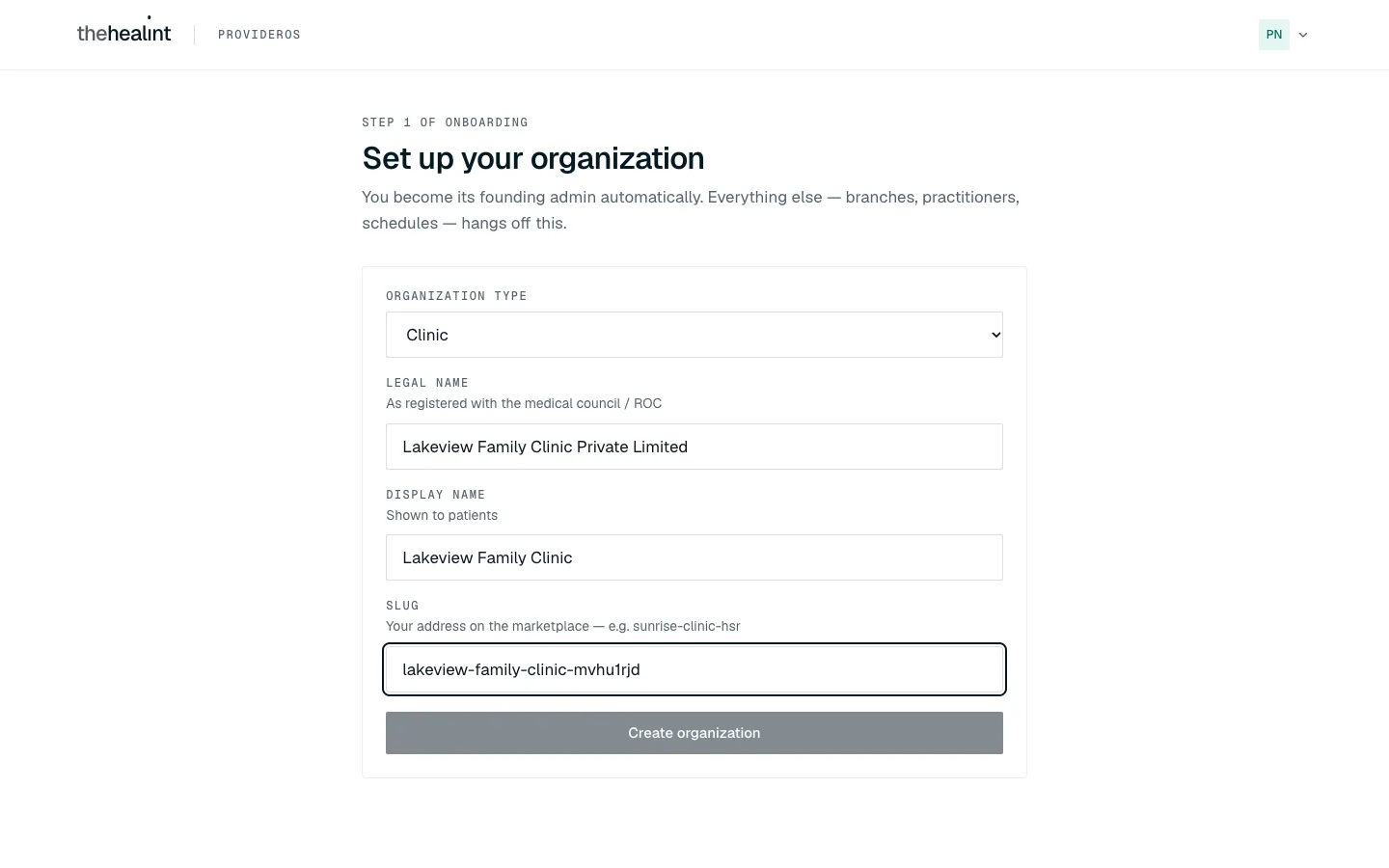
Step 1 of onboarding. There is no step 2: everything else is set up from Settings afterwards. ProviderOS opens on Today, with the full menu now at the top. This is a good moment to turn on two-factor sign-in (see How to turn on two-factor sign-in).
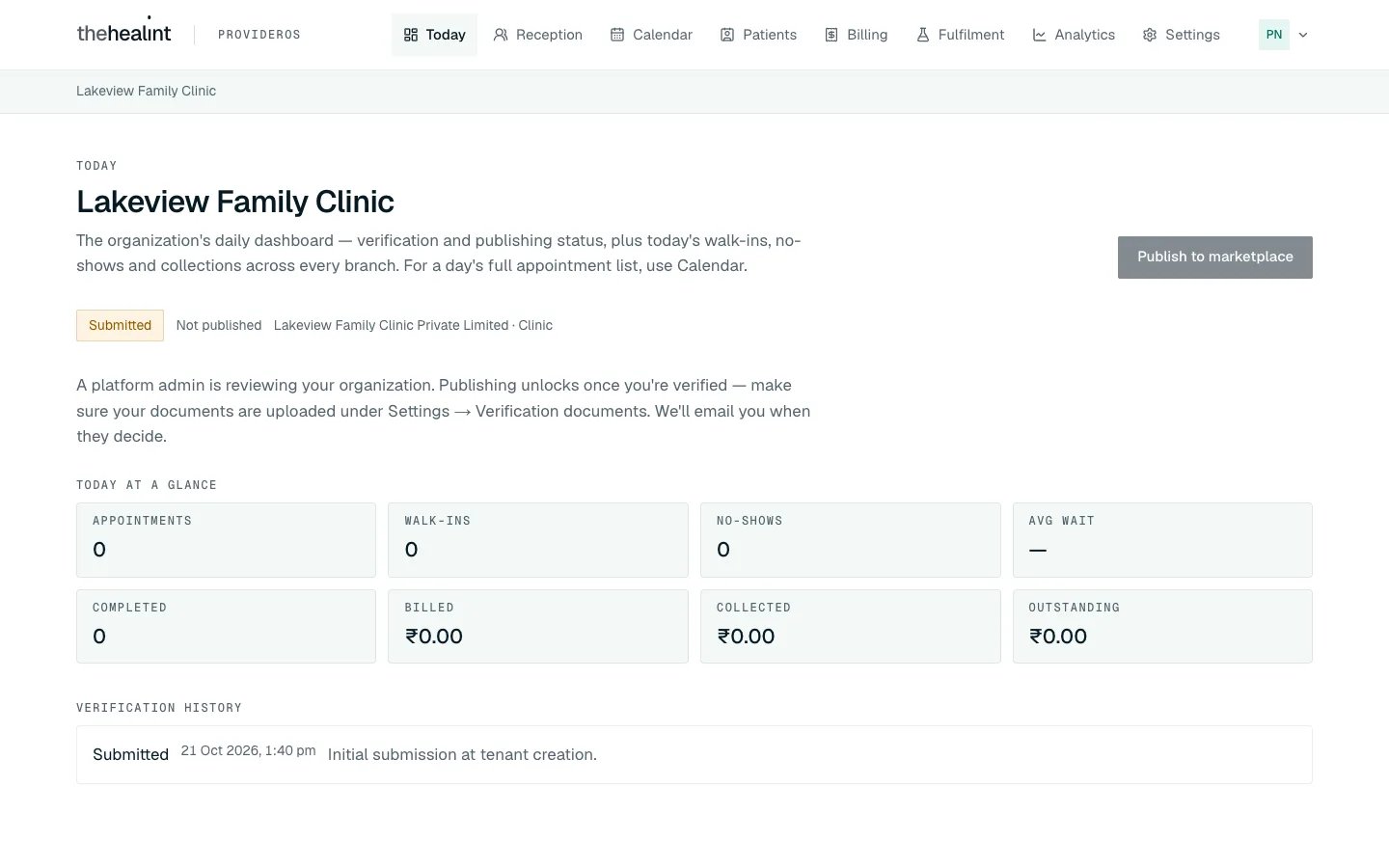
Straight after Create organization: Today, with the full menu, a "Submitted" pill and Publish to marketplace greyed out until a platform admin verifies you.
If it doesn't work:
- "Create an account with email for now. Phone signup needs SMS verification." You typed a phone number. Use an email address.
- "Choose a password with at least 8 characters." Make the password longer.
- "Could not create your organization." (or a message about the slug) usually means someone already uses that slug. Try a different one.
What to set up next, in order: verification documents → branch → departments (optional) → staff and doctors → doctors' weekly hours → publish once you're verified.
Signing in every day#
Enter your email and password and click Sign in. If you've turned on two-factor sign-in, ProviderOS then asks for an Authenticator code: type the 6-digit code from your authenticator app and click Verify.
How to get verified#
Patients can't find you until a thehealint reviewer has checked your organization and marked it Verified. Your organization is sent for review automatically when you create it. There's no separate "submit" button. What the reviewer needs from you is at least one document.
Go to Settings → Verification documents.
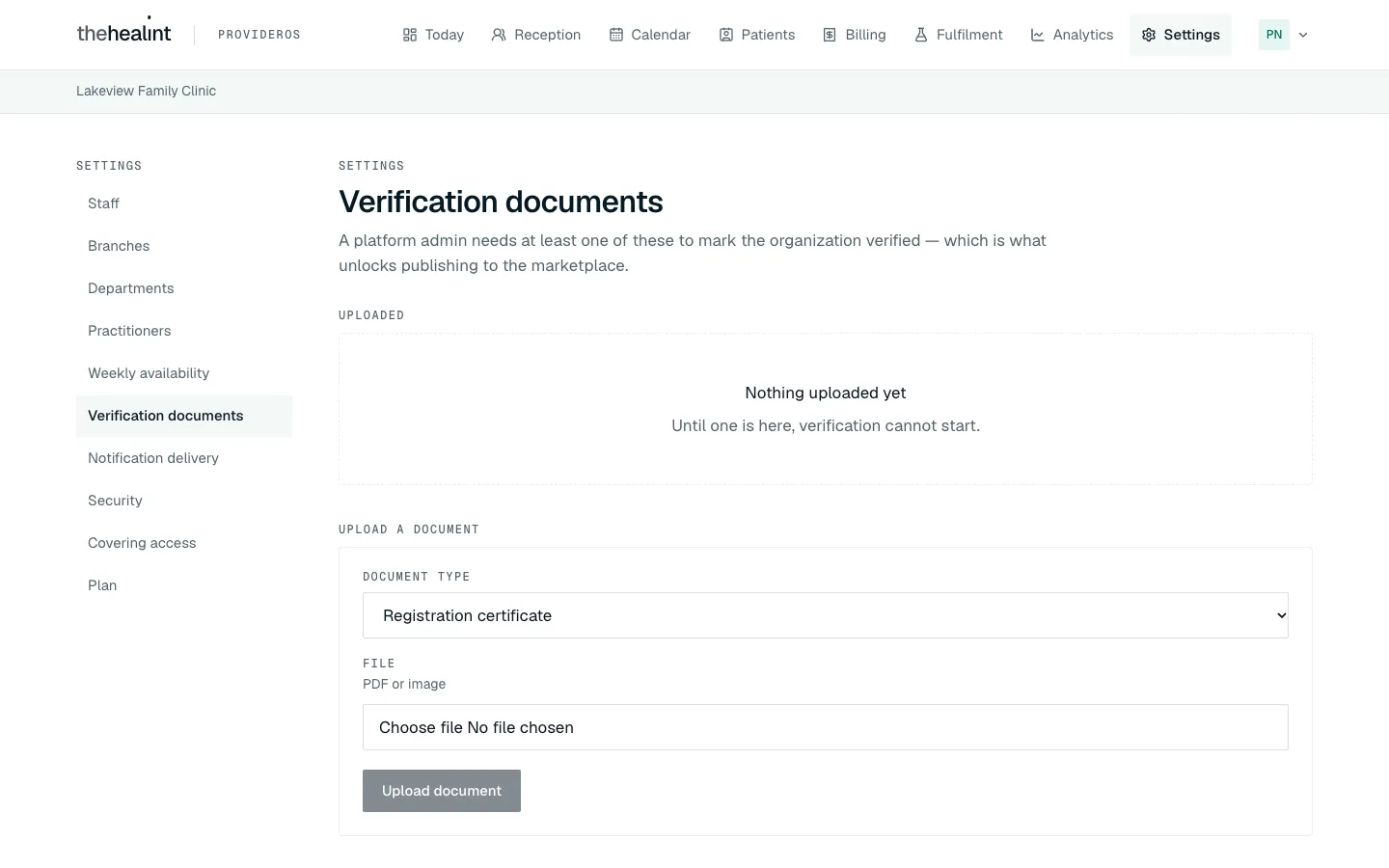
"Nothing uploaded yet — Until one is here, verification cannot start." Under Upload a document, choose the Document type: Registration certificate, Medical council ID, Address proof, Identity proof or Other.
Under File, choose a PDF or an image.
Click Upload document. It appears under Uploaded. Click View to open it.
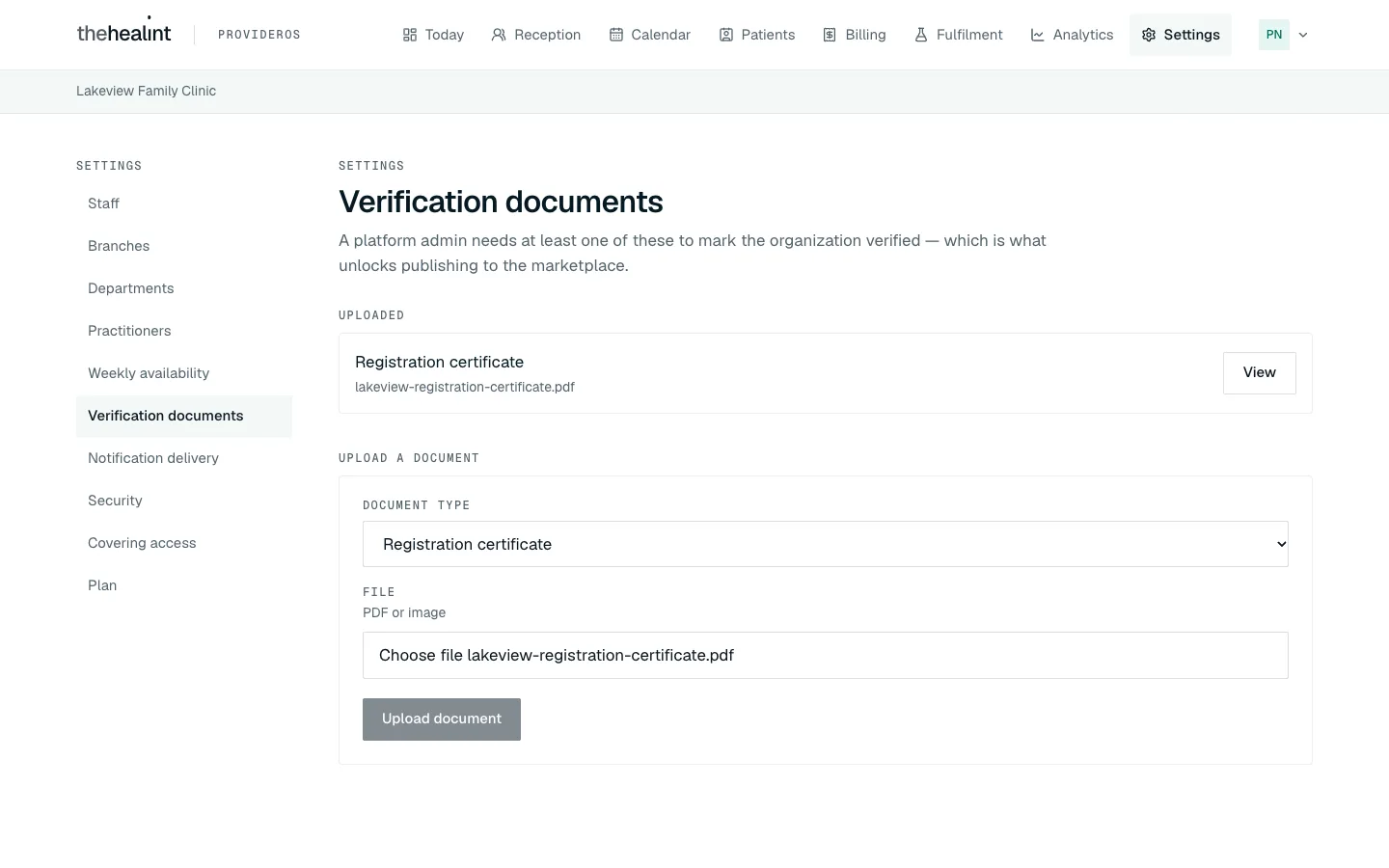
The registration certificate now listed under Uploaded, with View. Wait for the reviewer. While you wait, Today shows a Submitted pill and "Not published", and Publish to marketplace is greyed out.
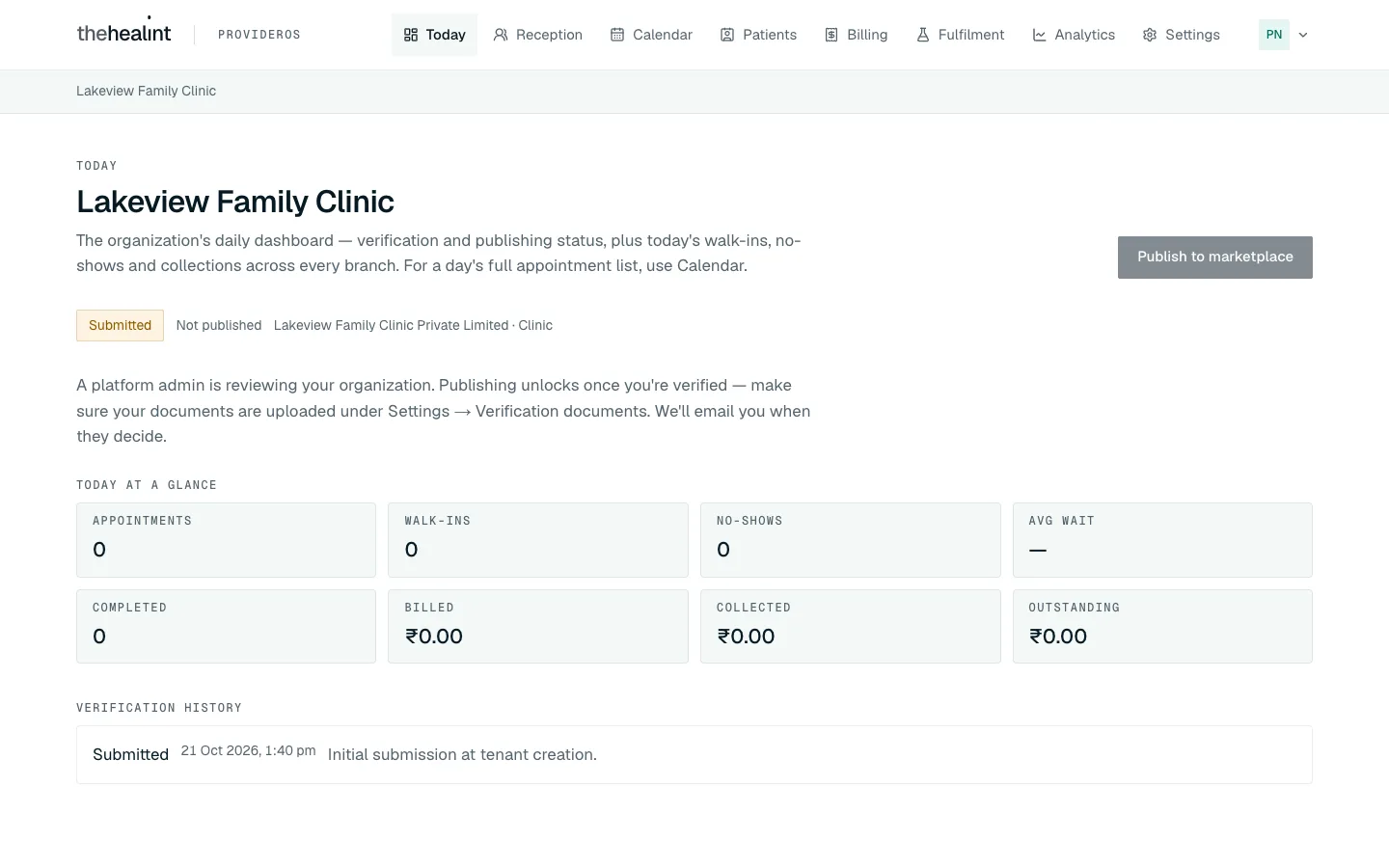
A new organization on Today: Submitted, "Not published", a greyed-out Publish to marketplace and the note "Publishing unlocks once a platform admin marks this organization verified". Verification history shows "— → SUBMITTED · Initial submission at tenant creation." When the reviewer approves you, every clinic and hospital admin gets an email: "Your clinic is verified on thehealint", with any note from the reviewer.
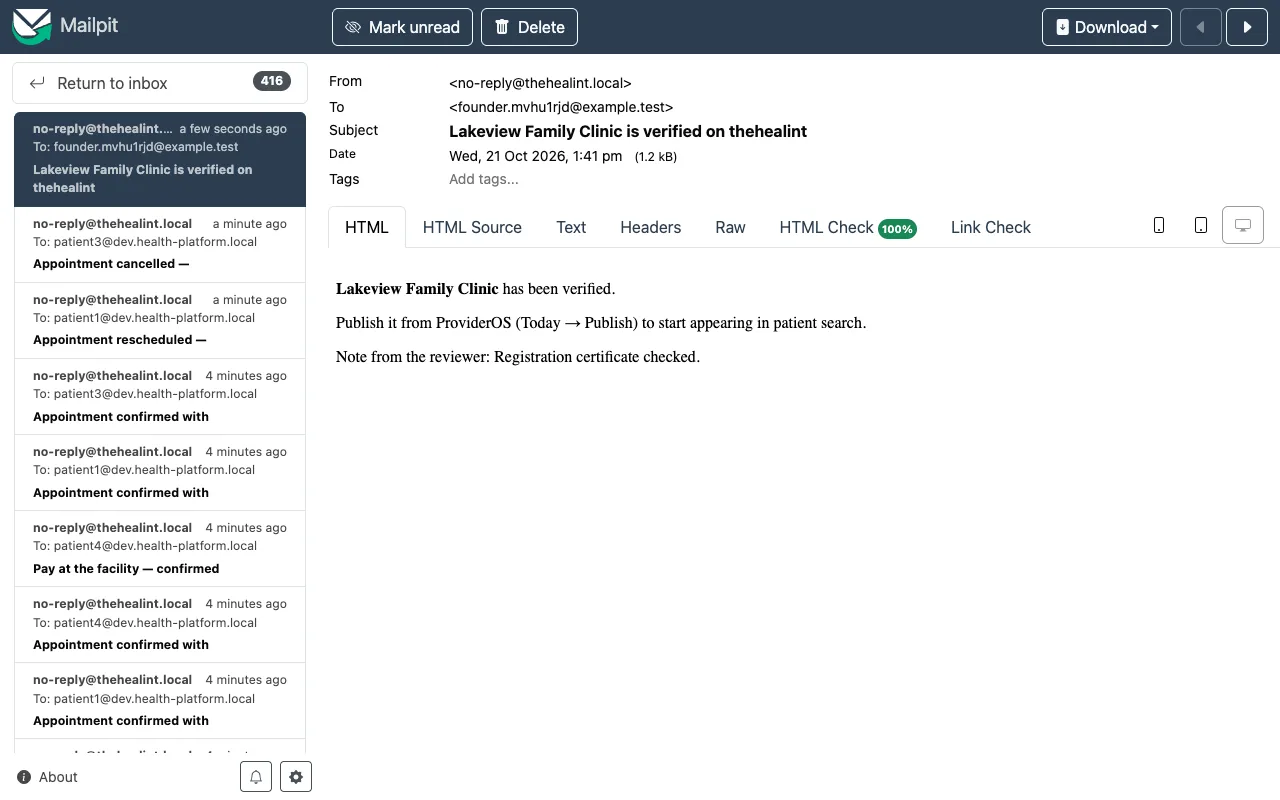
The approval email: "Publish it from ProviderOS (Today → Publish) to start appearing in patient search", and the reviewer's note.
If it doesn't work:
- Documents can't be deleted or replaced. A new upload is added next to the old ones.
- If the reviewer asked for changes, follow the next section.
How to fix a rejected application and send it back#
If the reviewer asks for changes, every clinic and hospital admin gets an email "Your clinic: verification needs changes" saying what to fix. You don't need to contact support — you send it back yourself.
Open Settings → Verification documents. A Verification needs changes card at the top repeats the reviewer's note. Submit for review again is greyed out until you upload something new.
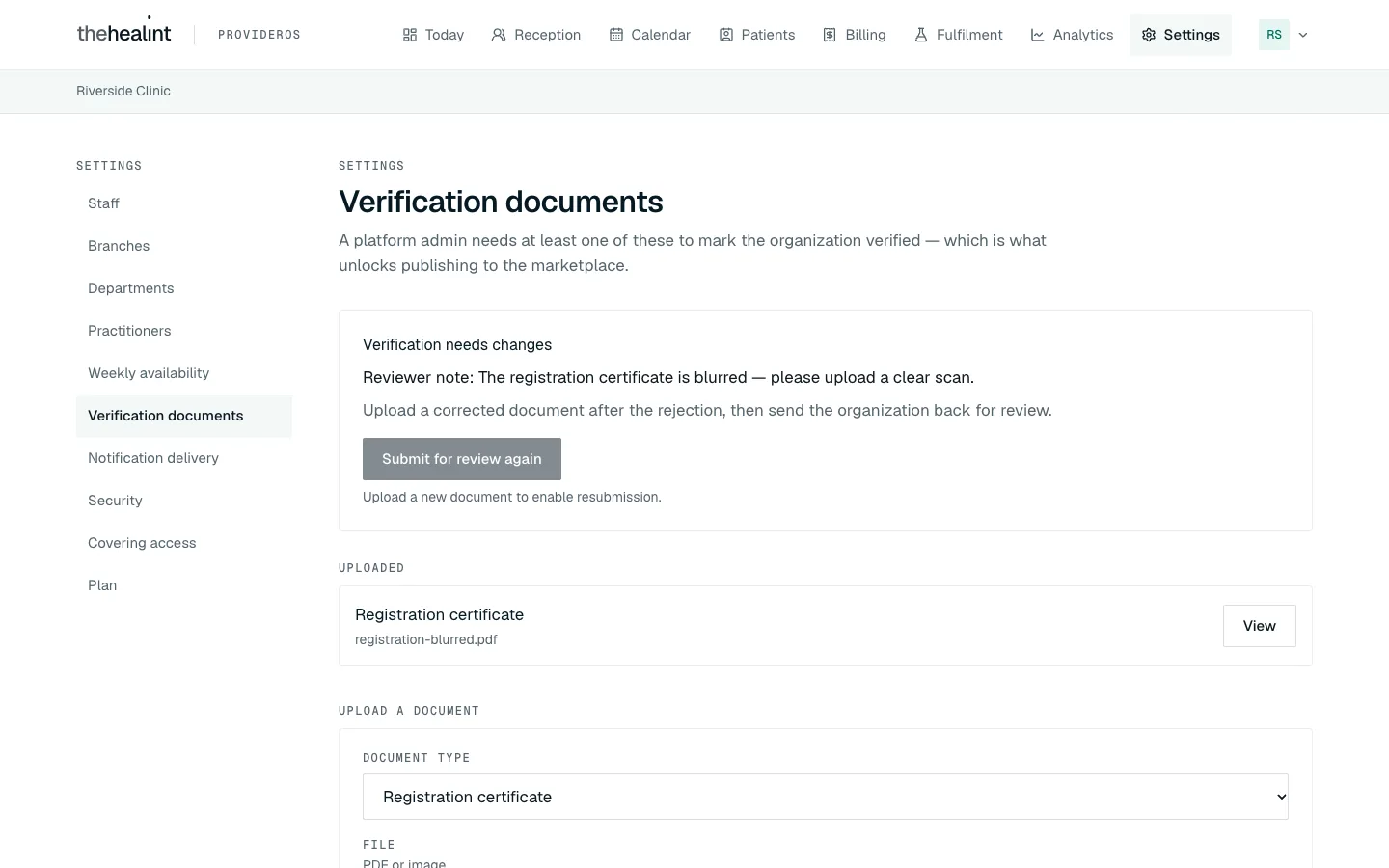
The reviewer's note ("The registration certificate is blurred — please upload a clear scan"), the greyed-out button, and the document they rejected under Uploaded. Under Upload a document, choose the type, pick the corrected file and click Upload document. Submit for review again turns dark.
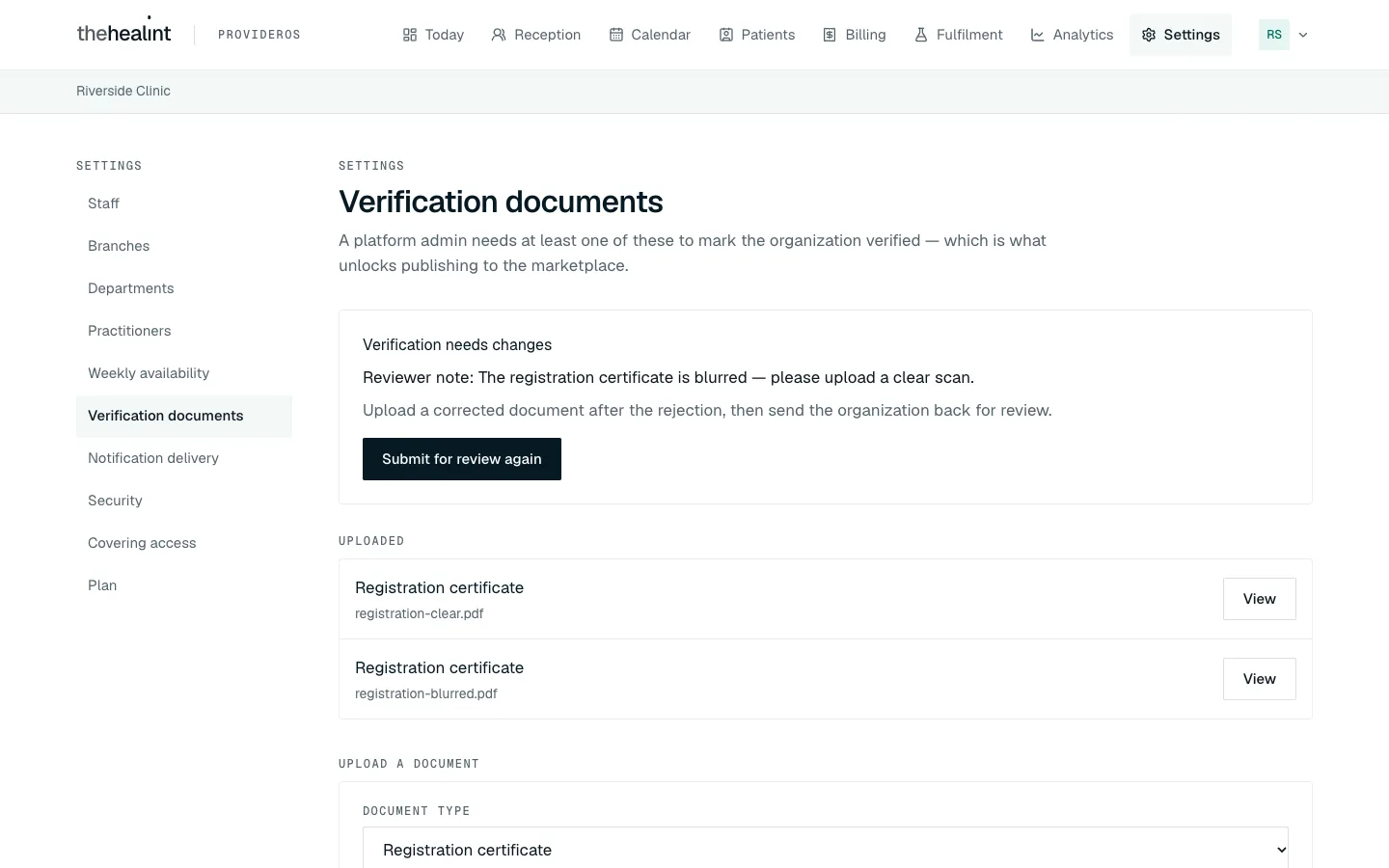
After the corrected upload: both files are listed and Submit for review again is ready. Click Submit for review again. The card closes and you see "Submitted for review again. The organization is back in the platform admin inbox." Your status is Submitted again, and you'll get an email when the reviewer decides.
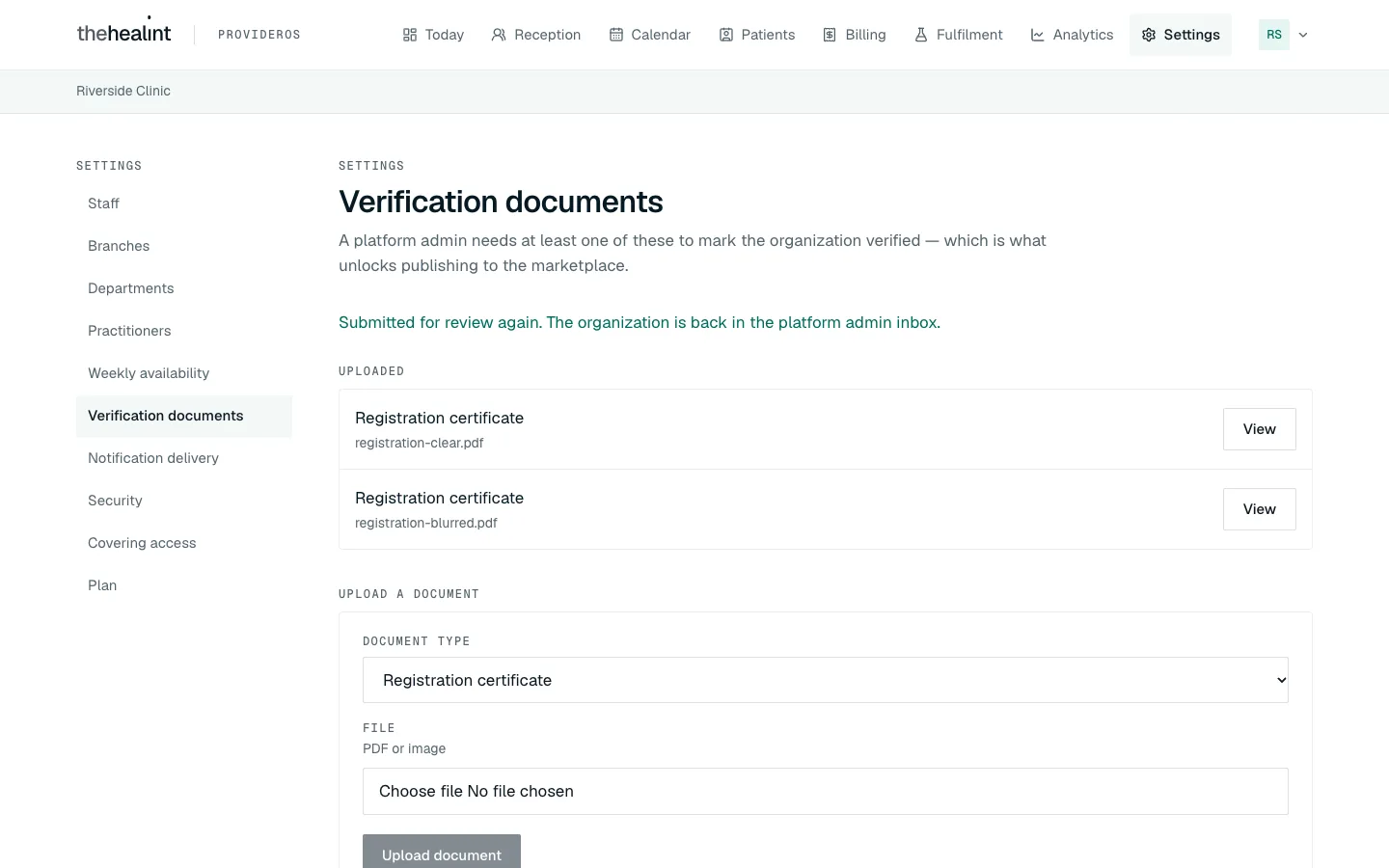
Sent back for review: the confirmation, with the corrected and the original documents both on file.
If it doesn't work:
- The button stays grey. Only a document uploaded after the rejection counts. Upload the corrected file first.
- "Only a rejected organization can be submitted for review again." You (or another admin) already resubmitted. Nothing more to do — wait for the reviewer.
How to publish (and unpublish)#
Publishing puts your clinic into patient search. You can do it once you're Verified.
Go to Today. The pill now reads Verified, and a green card says "You're verified — publish to start taking bookings".
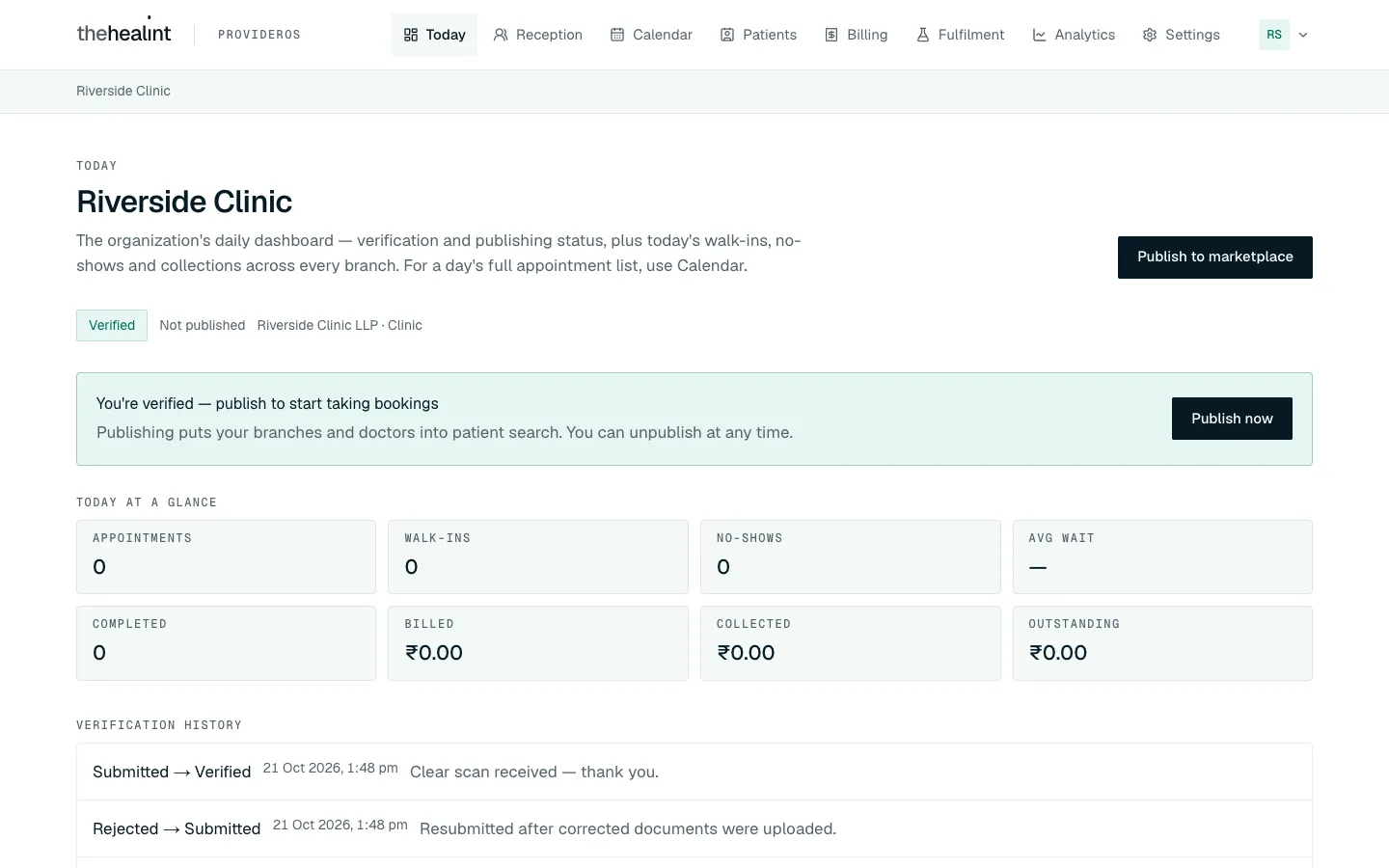
Verified but not published yet: the green card with Publish now, and the verification history ("Submitted → Verified") with the reviewer's note. Click Publish now on the card (or Publish to marketplace at the top — they do the same thing). The line under the name changes to "Published to marketplace" and the button becomes Unpublish.
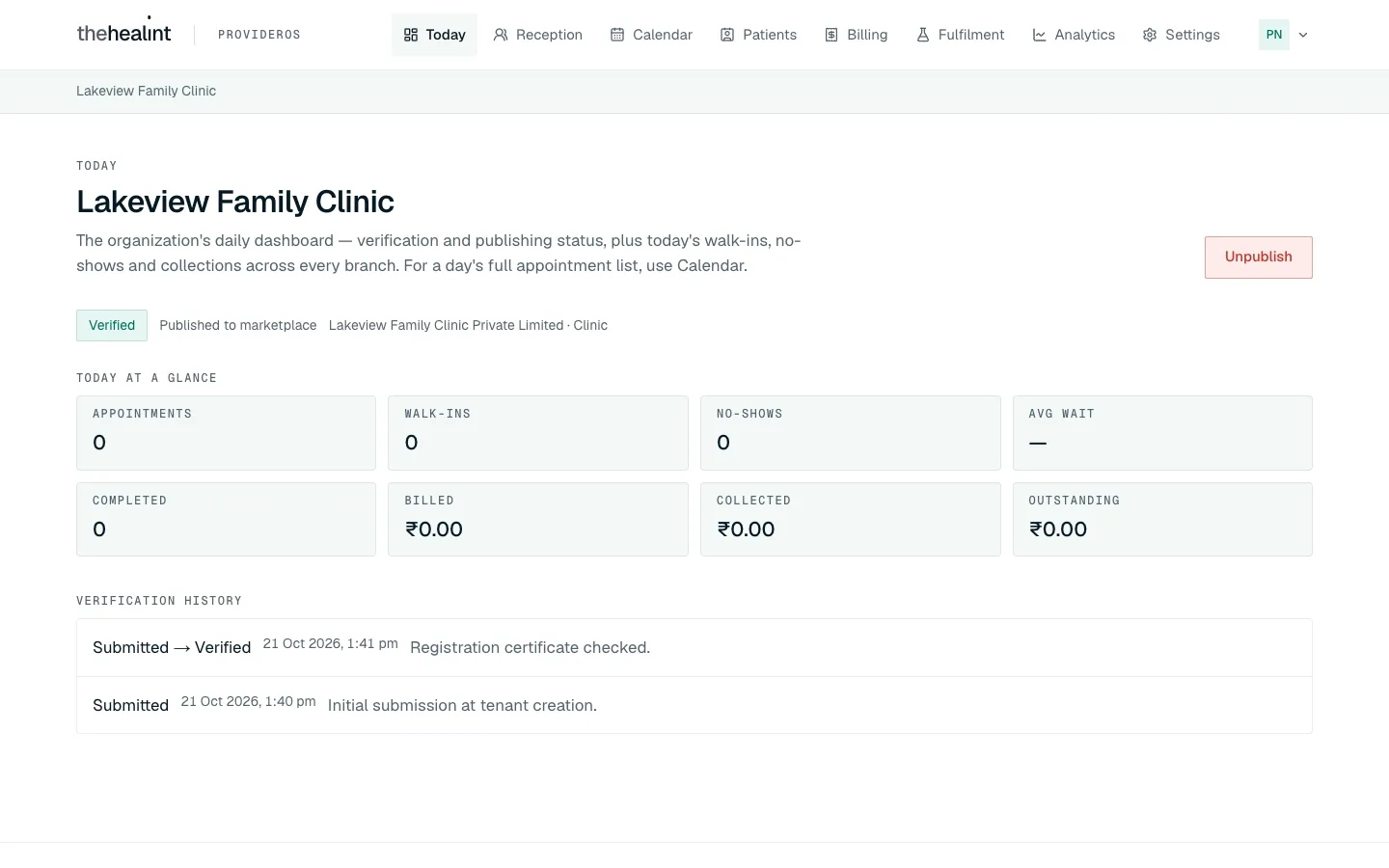
Published to marketplace. Patients can now find and book you.
To take your clinic out of search:
Click Unpublish on Today.
Read the box and click Unpublish again.
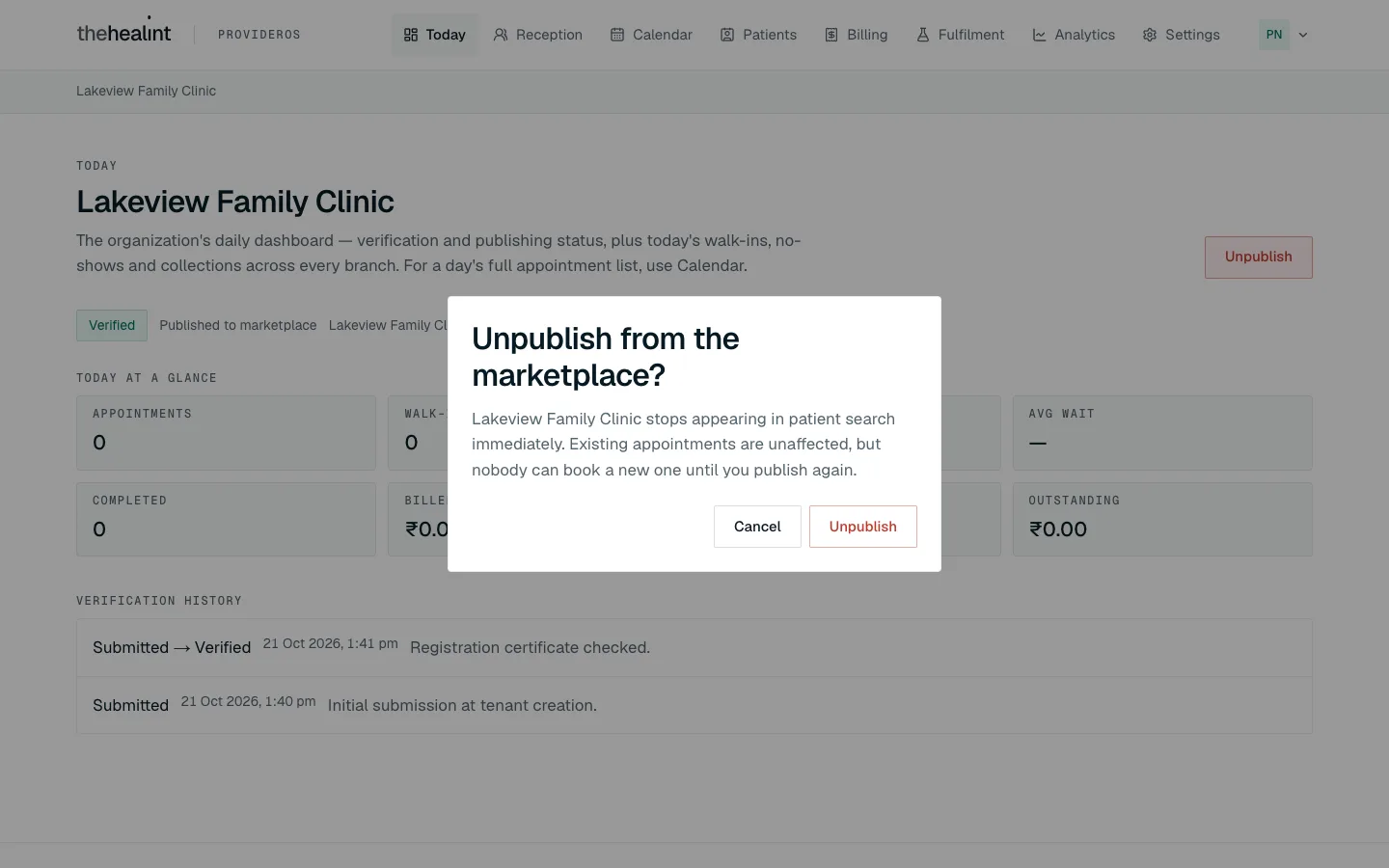
"Unpublish from the marketplace?" Existing appointments are unaffected, but nobody can book a new one until you publish again.
If it doesn't work: if Publish to marketplace stays greyed out, you aren't verified yet. Check that a document is uploaded and wait for the reviewer's email.
How to read Today#
Today is your daily dashboard. It counts across every branch, whatever the branch selector says.
- The pill shows where verification stands: Submitted, Under review, Verified or Rejected. Next to it: "Published to marketplace" or "Not published", and your legal name and type.
- Today at a glance: Appointments, Walk-ins, No-shows, Avg wait, Completed, Billed, Collected and Outstanding for today.
- Verification history: every change the reviewer has made, with the date and their note. It shows the raw status words, for example "SUBMITTED → VERIFIED".
For the full list of today's bookings, use Calendar (03-front-desk.md).
How to add a branch#
A branch is a place where you see patients. You need at least one before you can add doctors or take bookings. Patients search by distance, so the map pin matters as much as the address.
Go to Settings → Branches.
Under Add a branch, fill in Branch name, Address line 1, Locality, City, State and Pincode.
Put the pin on the map. Either:
- type the address in Search an address to jump the map there… and click Find, or
- click the map where the branch is.
Drag the pin to fine-tune it. Under the map you'll see "Pin confirmed at …".
Click Add branch.
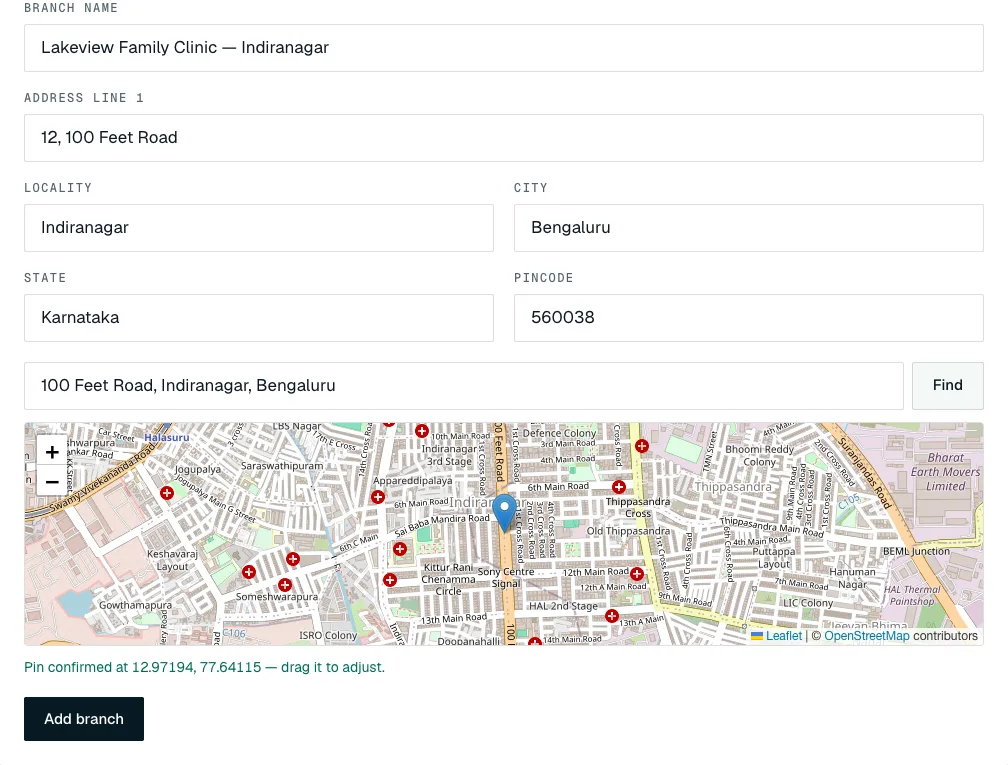
The address filled in, the pin on 100 Feet Road, and "Pin confirmed at 12.97194, 77.64115 — drag it to adjust." Add branch only works once a pin is placed.
The branch appears under Existing branches.
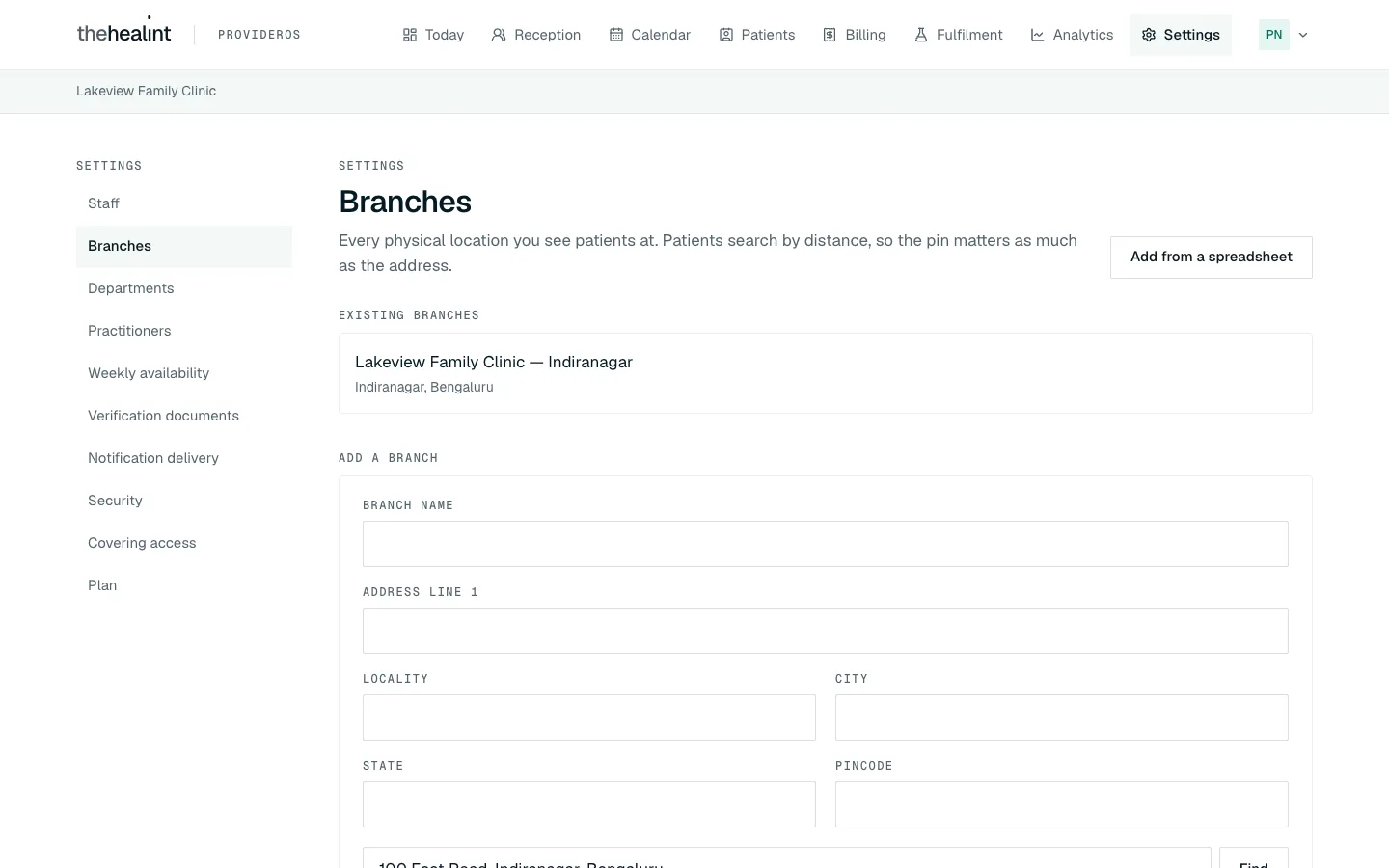
If it doesn't work:
"Confirm your location on the map before adding this branch." Place the pin first.
"No match found — place the pin manually instead." The address search didn't find it. Click the map instead.
"Your plan allows up to 1 branch(es) — upgrade to add more." The Free plan has one branch. Click See plans under the message to ask for a bigger plan (see How to change your plan).

Trying to add a second branch on the Free plan: the message, and See plans. A branch can't be edited or removed from this page. Ask thehealint support if an address or pin is wrong.
How to add a department#
Departments are optional. Add them only if you want doctors, and the Analytics split, grouped by unit (Cardiology, Paediatrics, Emergency…).
- Go to Settings → Departments. If you have more than one branch, pick the Branch first.
- Under Add a department, type the Department name.
- Leave Marketplace specialty on "No specialty link" unless the department really is one specialty.
- Click Add department.
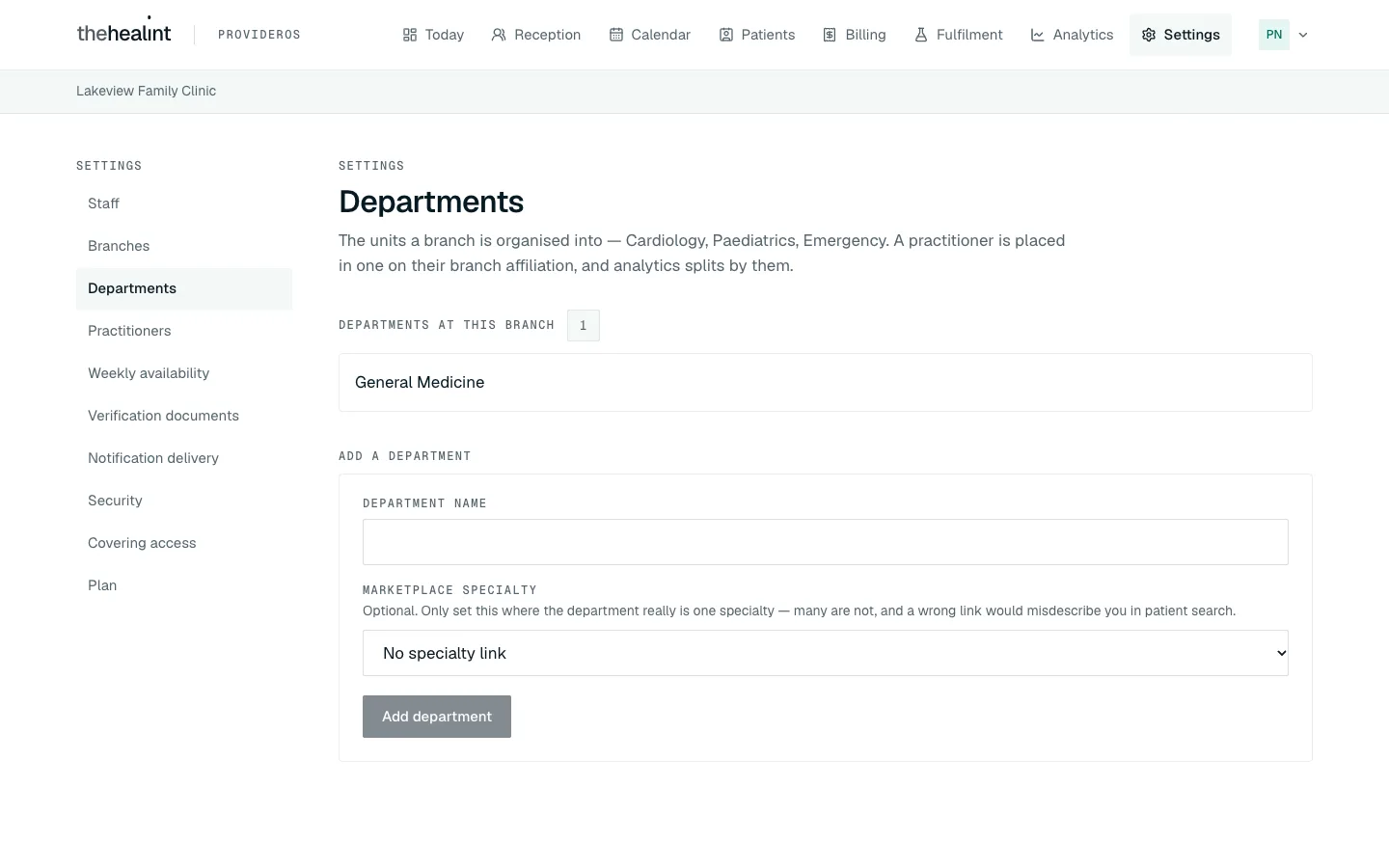
If it doesn't work: "No branches yet" means you need a branch first. Departments can't be renamed or removed once added.
How to add staff#
Only clinic and hospital admins can do this. Each person gets an email with a link to set their password, and sees only the screens for their role.
Go to Settings → Staff. A new organization has just you on the list.
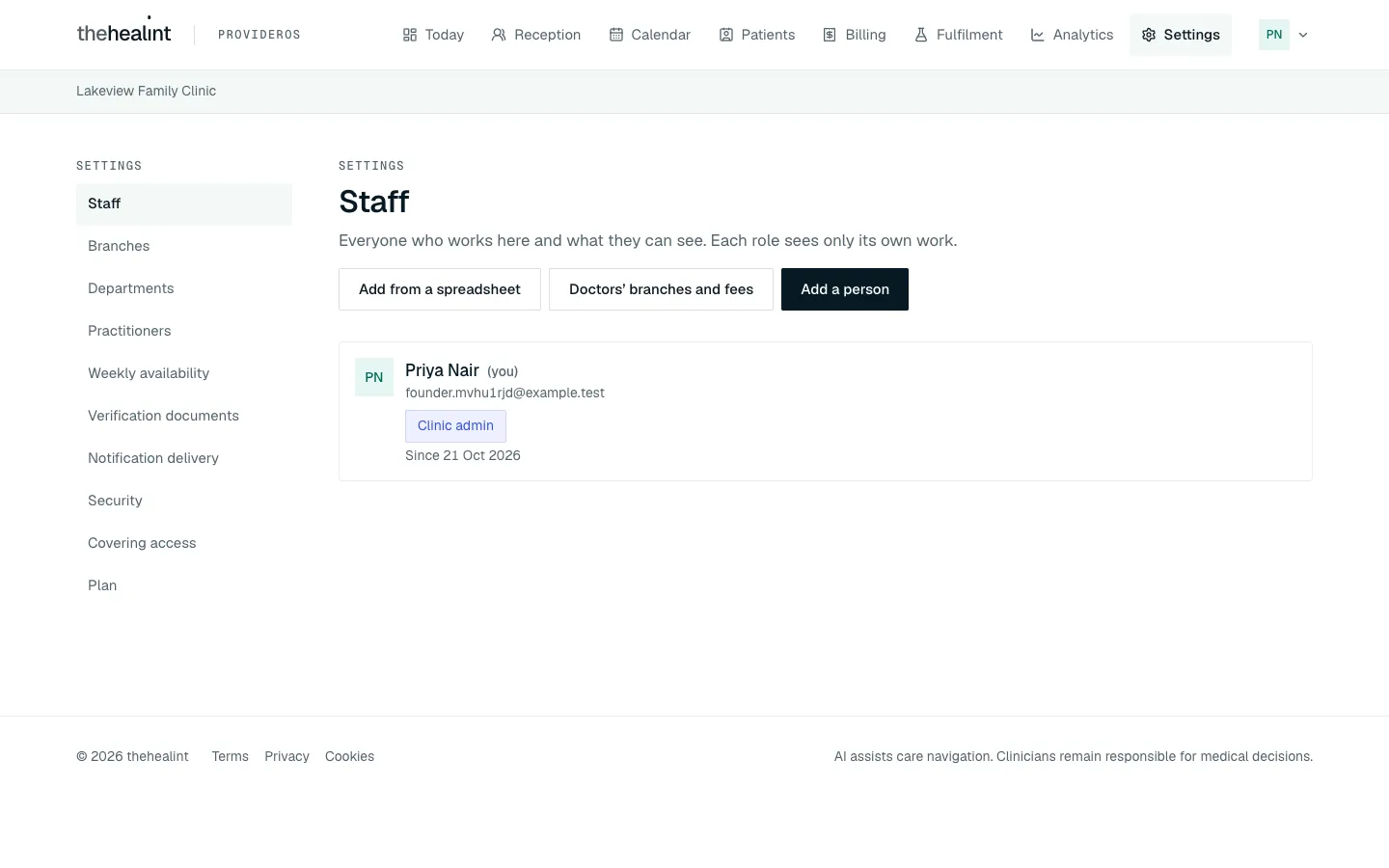
The Role you choose decides what the person sees. The form shows the same line under the Role box:
| Role | What they see |
|---|---|
| Doctor | Their own queue, calendar, patients and consultations. |
| Receptionist | Reception, calendar, patients and billing. |
| Appointment manager | Reception, calendar, patients and billing. |
| Nurse | Today's queue. |
| Billing | Billing only. |
| Pharmacist | Pharmacy orders and their own credential. |
| Lab technician | Diagnostic orders and their own credential. |
| Pharmacy admin | The pharmacy: facility, licence and orders. |
| Lab admin | The lab: facility, licence and orders. |
| Facility manager | Every operational screen, but not staff. |
| Clinic admin | Everything, including staff. |
| Hospital admin | Everything, including staff. |
How to add a receptionist (or any non-doctor)#
Click Add a person.
Fill in Full name and Email.
Choose the Role, here Receptionist.
Click Add and send invitation.
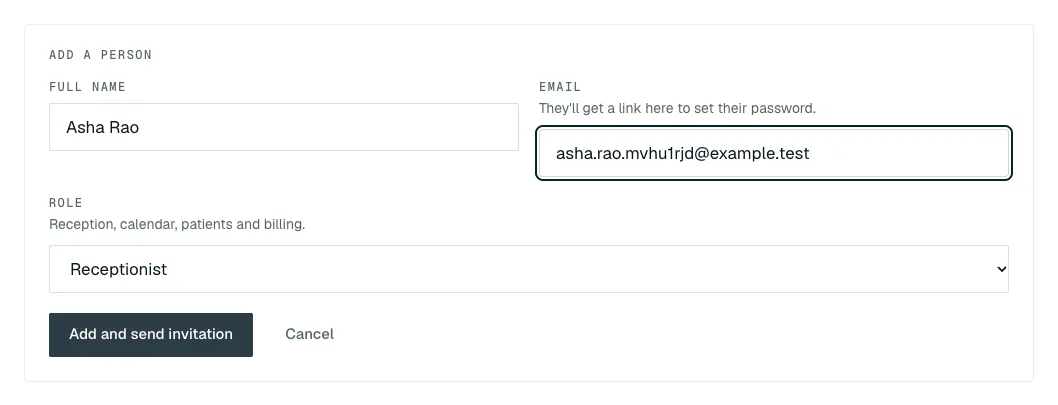
The Add a person form: Full name, Email ("They'll get a link here to set their password."), Role with its hint, Add and send invitation and Cancel. A message confirms "Name added — we've emailed them a link to set their password". Their row shows Invited — hasn't signed in yet until they set a password.
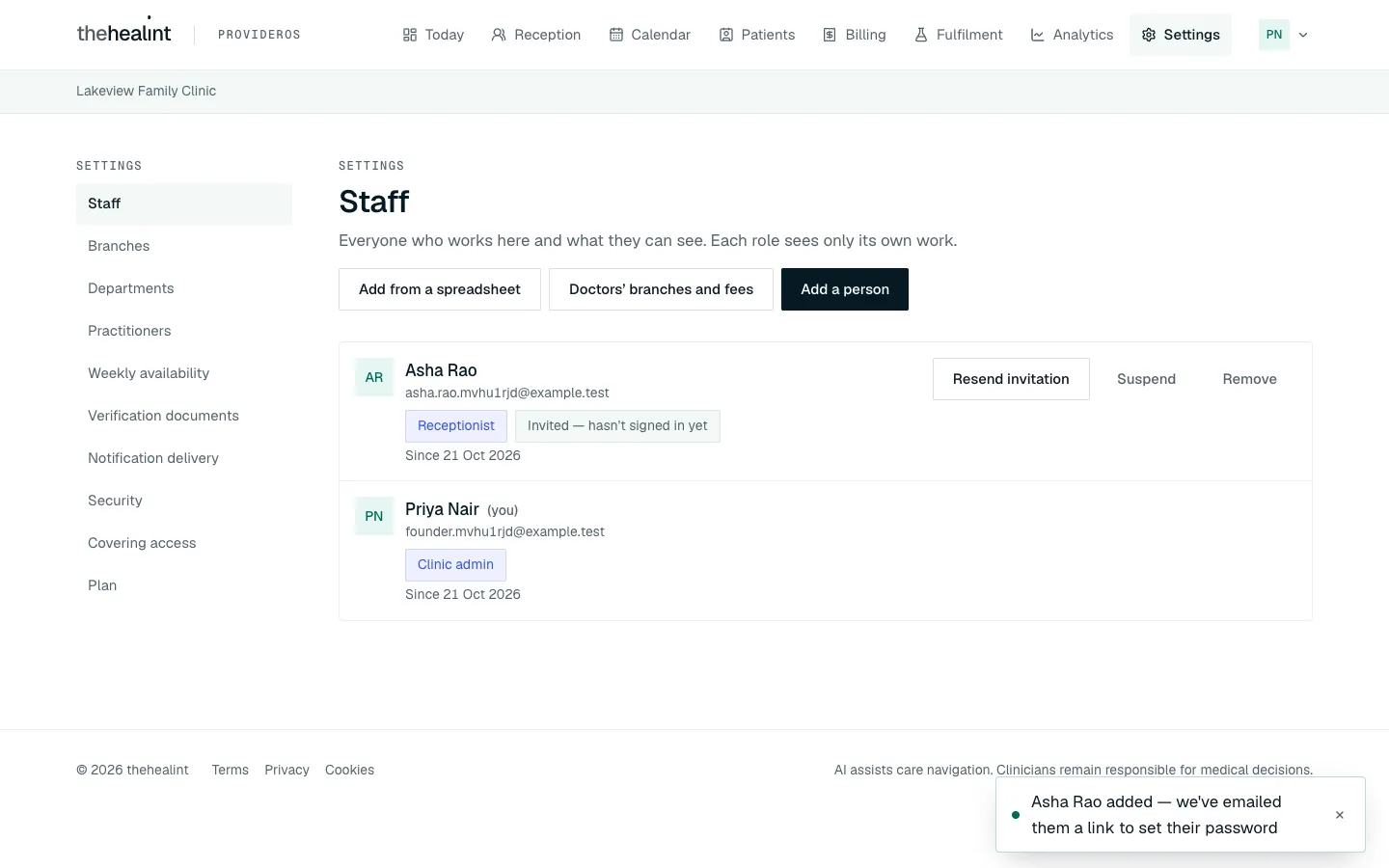
Asha Rao added as Receptionist, with the Invited pill and Resend invitation, Suspend and Remove.
What the new person gets. An email "You've been added to your clinic on thehealint" with a Set your password and sign in to ProviderOS link:
The link opens Set your password. They type a new password twice and click Save and continue:
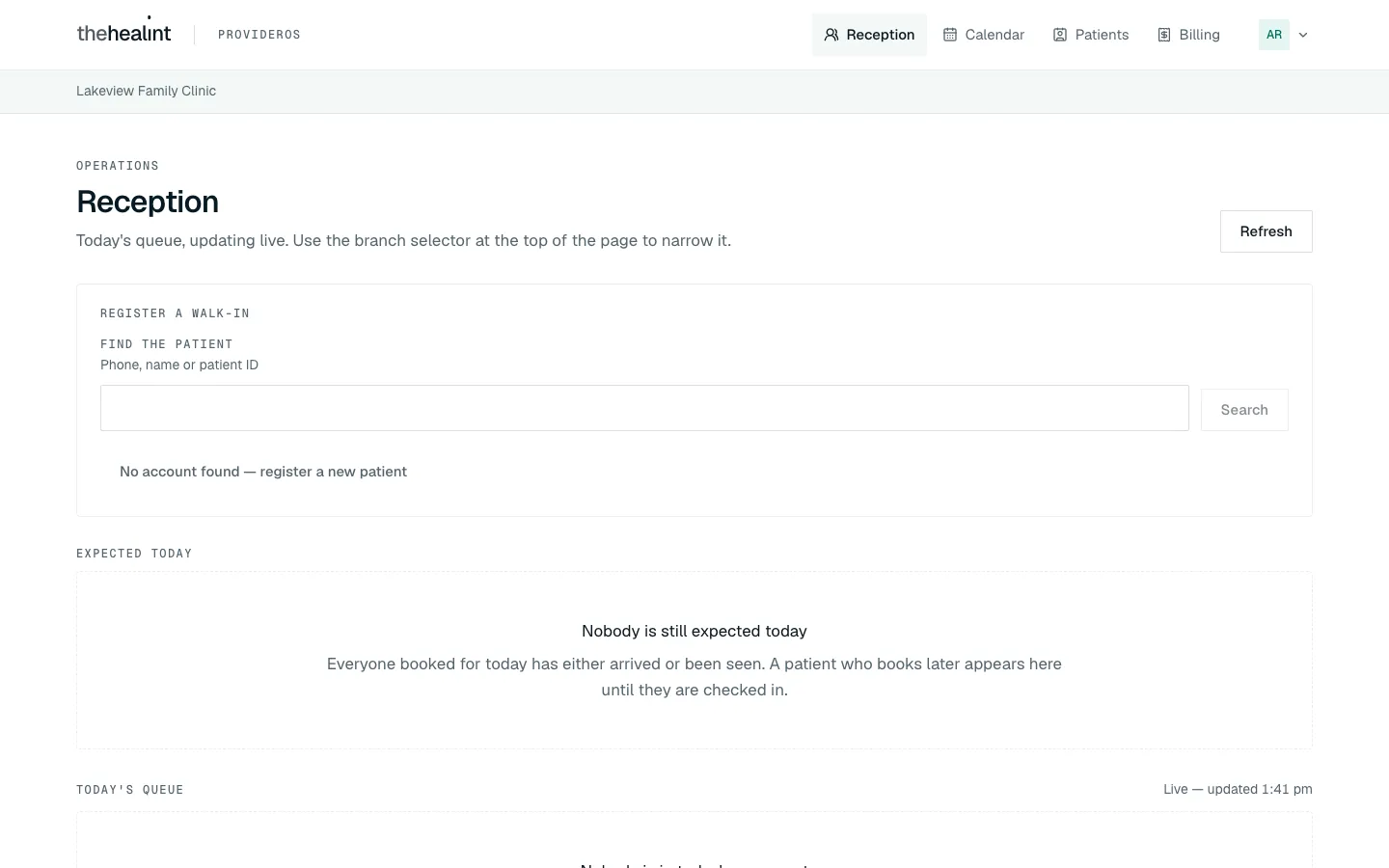
ProviderOS then opens on their first screen, with only the menu their role allows:
How to add a doctor#
A doctor needs a few more details, because adding them also makes them bookable at a branch.
Click Add a person and choose Doctor as the Role.
Fill in Full name, Email, Registration number (their medical council registration) and Council (for example Karnataka Medical Council).
Choose a Specialty (optional), the Branch they work at, and their Consultation fee (₹).
Click Add and send invitation.
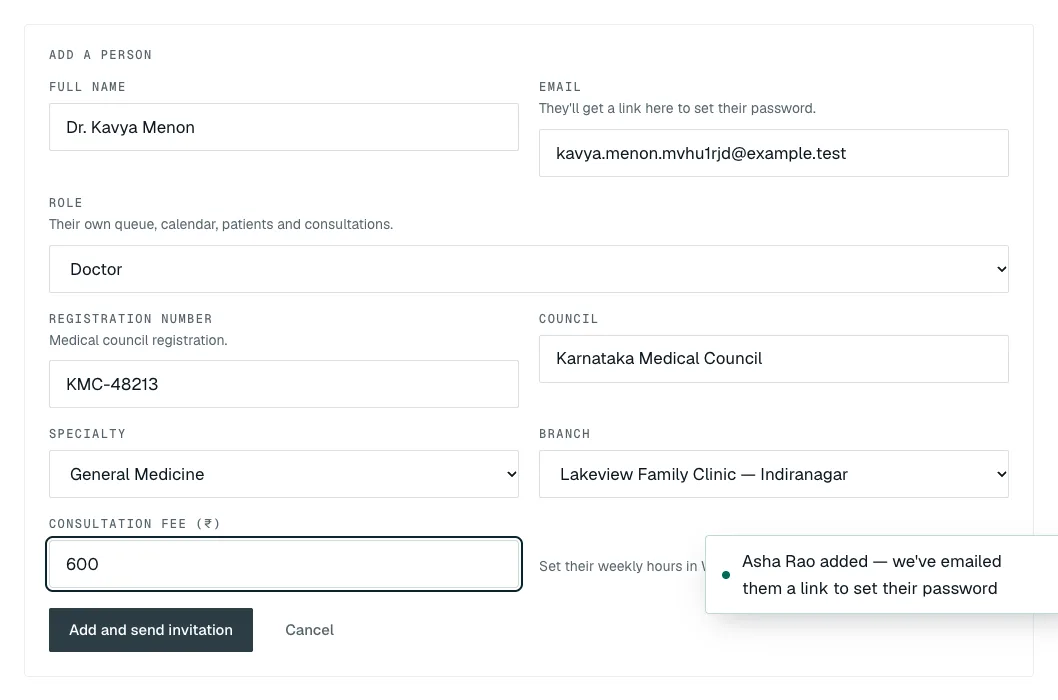
The Doctor fields: Registration number, Council, Specialty, Branch and Consultation fee, with the note "Set their weekly hours in Weekly availability once they are added." The doctor's row shows their branch and fee.
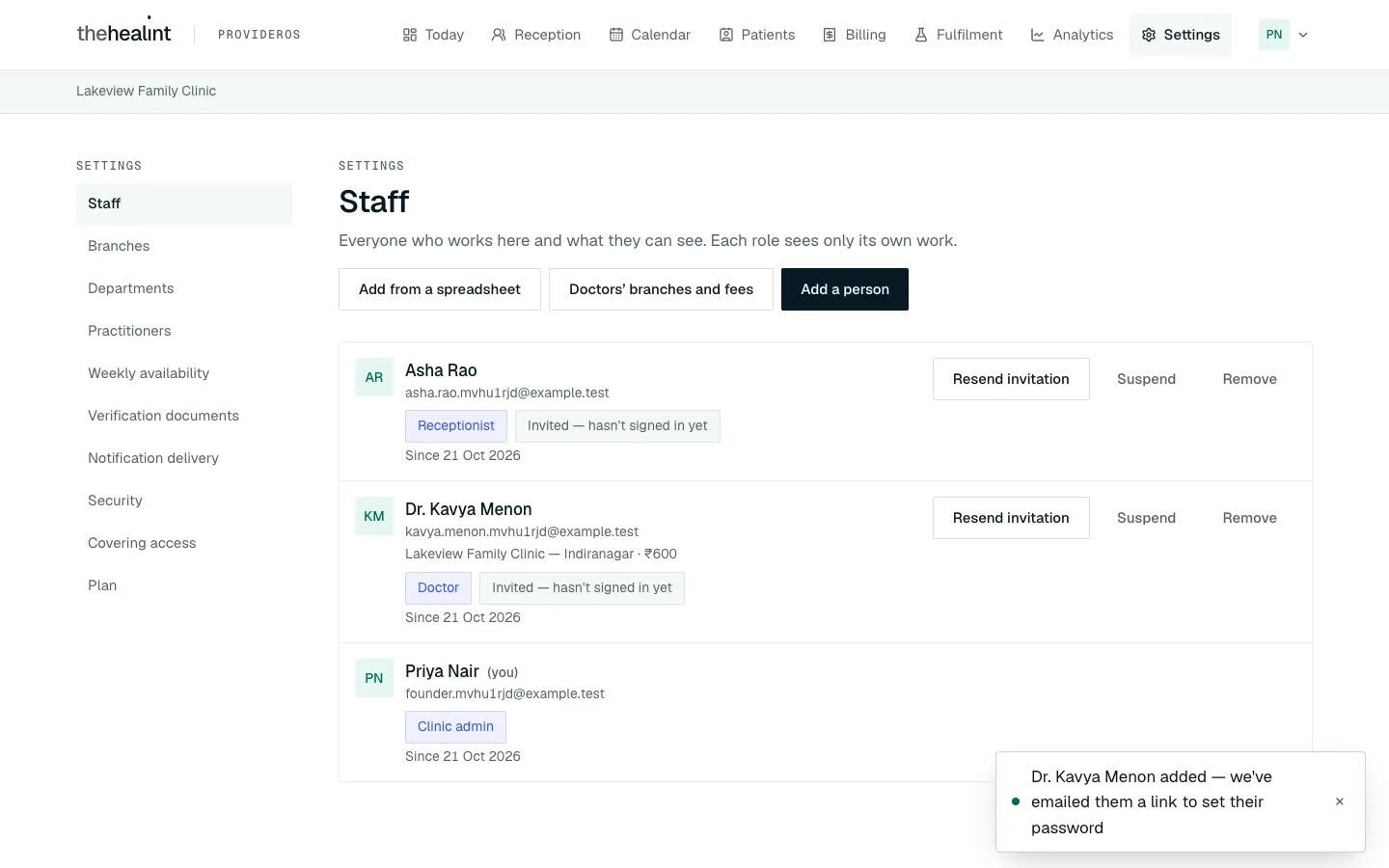
Dr. Kavya Menon listed with "Lakeview Family Clinic — Indiranagar · ₹600", the Doctor pill and Invited. Patients can't book the doctor yet. Set their hours next: How to set a doctor's weekly hours.
If it doesn't work:
- Add and send invitation stays greyed out until every field it needs is filled in: a name, a real email, and for a doctor the registration number, council, branch and fee.
- "This person already has that role here." They're already on your staff with that role.
- If the email already has a thehealint account (for example as a patient), they keep their existing name and password. They can sign in to ProviderOS straight away.
How to add many people at once from a spreadsheet#
If you are setting up a whole team, add everyone in one go instead of one by one.
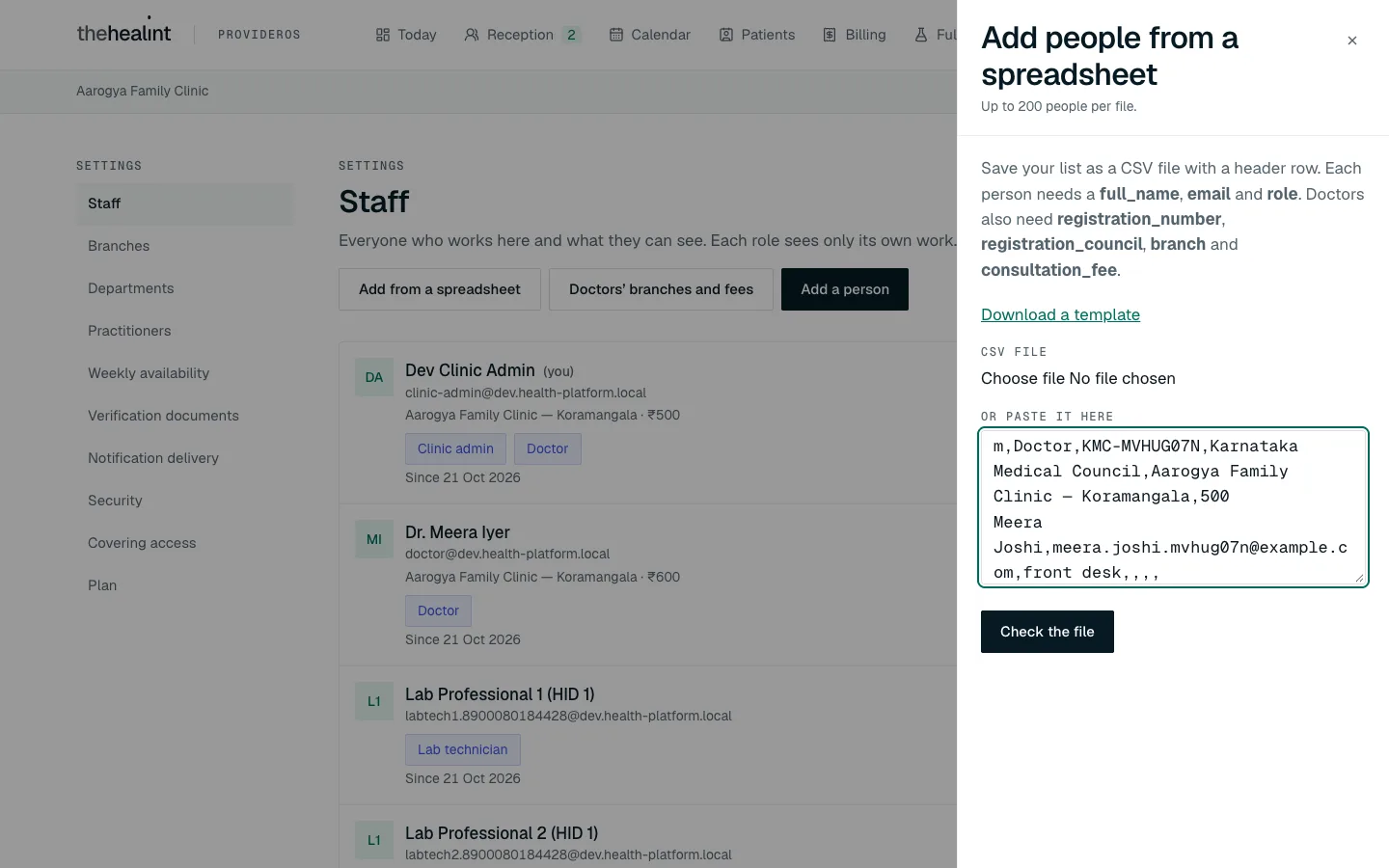
- Open Settings → Staff and click Add from a spreadsheet.
- Save your list as a CSV file with a header row. Each person needs
full_name,emailandrole. A doctor also needsregistration_number,registration_council,branch(the branch's name) andconsultation_fee. Click Download a template if you want a starting point. Choose the file, or paste its text into the box, then click Check the file. A file can have up to 200 people.
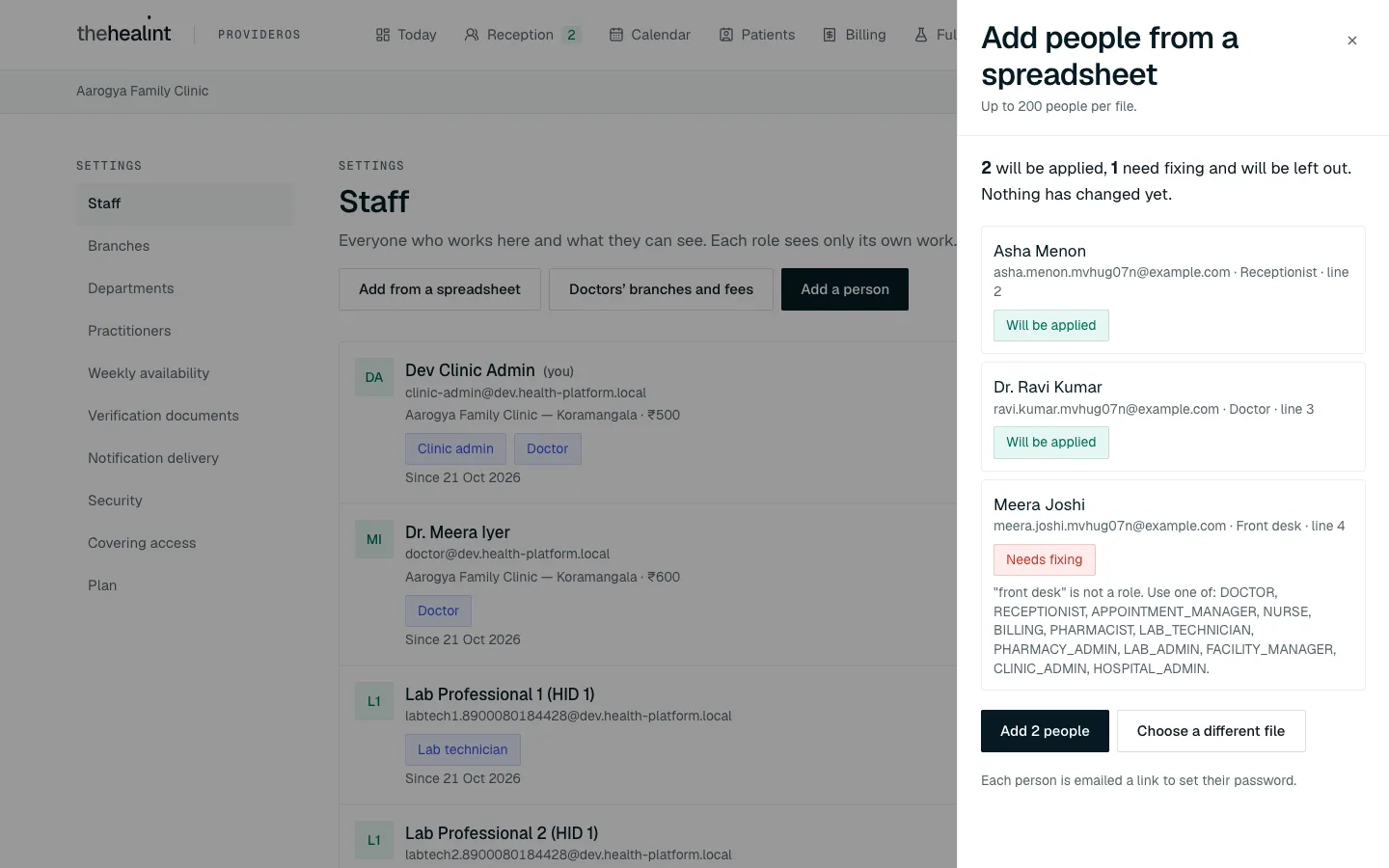
- Read the check. Nothing has been added yet. Each person is marked Will be applied, Nothing to do (they already have that role, so it is skipped) or Needs fixing, with the reason in plain words, for example that a role is not one of the roles above. Lines that need fixing are left out; you can fix the file and check again, or add the others now and import the fixed lines afterwards.
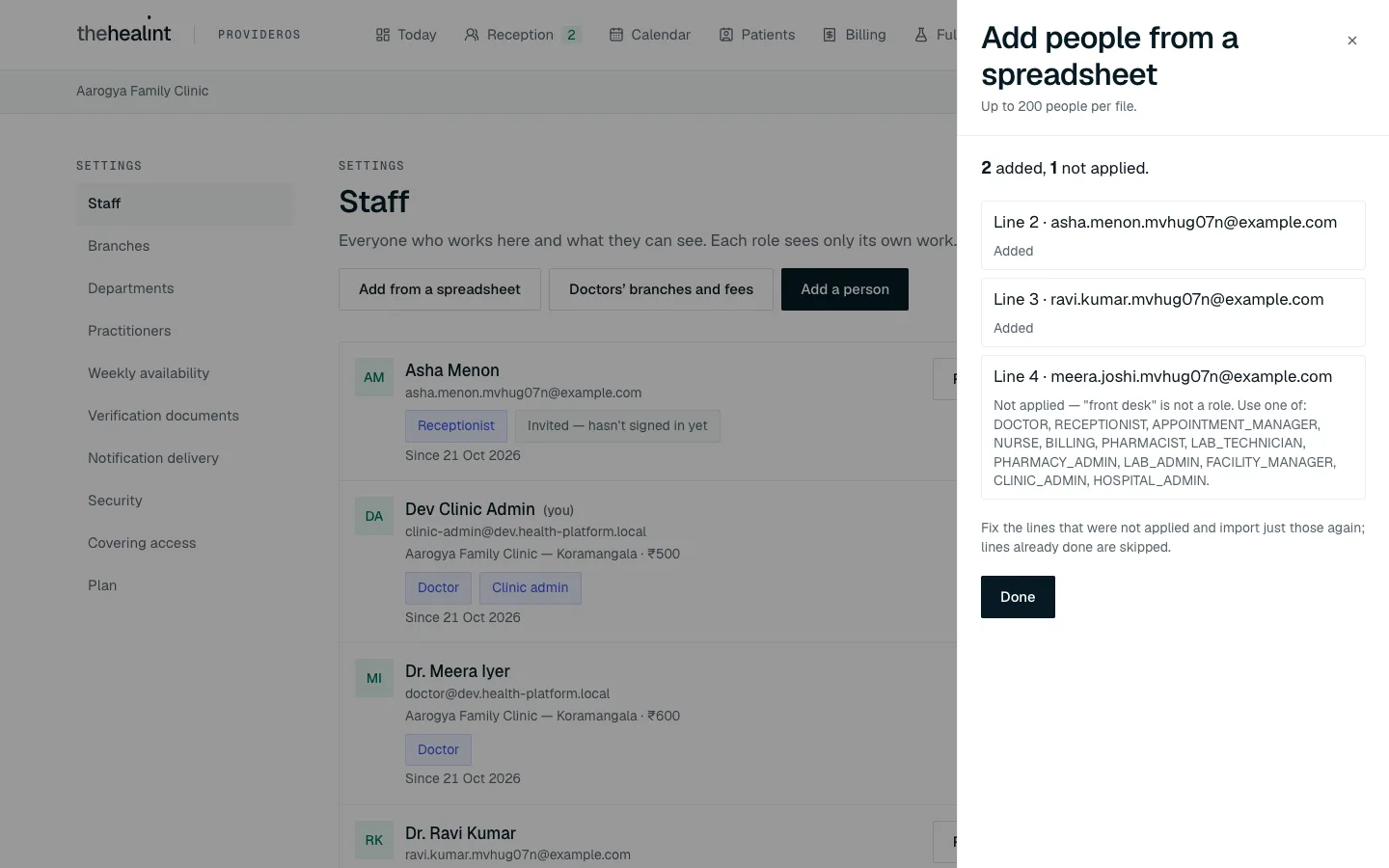
- Click Add N people. Each person is emailed a link to set their password, exactly as when you add them one at a time. If you click twice or your connection drops and you try again, nobody is added twice.
- The report lists every line: Added, Skipped or Not added with the reason. Correct any that were not added and import just those lines.
A pharmacy admin or lab admin can import only pharmacists or lab technicians, for their own facility. Roles you are not allowed to add show Needs fixing.
How to set doctors' branches and fees from a spreadsheet#
To put several doctors at branches, or change what they charge, in one go:
- Open Settings → Staff and click Doctors' branches and fees.
- Use one line per doctor per branch, with the columns
email,branch(the branch's name exactly as it appears under Branches) andconsultation_fee. Click Download a template for a starting point. Doctors must already be on your staff: add them first, one at a time or from a spreadsheet. - Paste or choose the file and click Check the file. Nothing changes yet. Each line is Will be applied, with a note on what it does ("Fee changes from 600 to 650", or "New: Dr. … will practise at …"), Nothing to do (already at that fee) or Needs fixing with the reason.
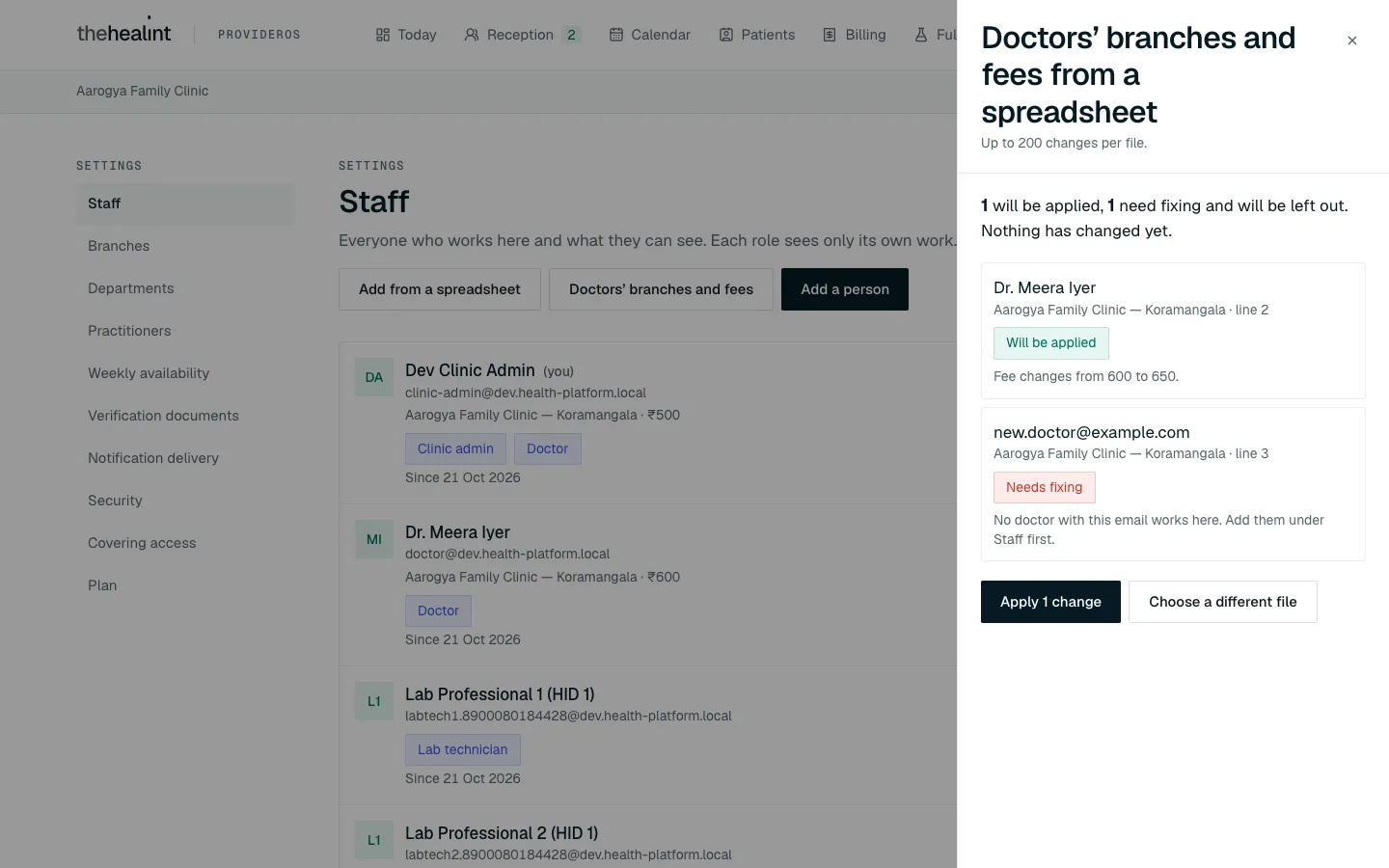
- Click Apply N changes. The report lists every line as Added, Updated, Skipped or Not applied.
How to add many branches from a spreadsheet#
- Open Settings → Branches and click Add from a spreadsheet.
- Each branch needs
name,address_line1,locality,city,state,pincode, and its map position,latitudeandlongitude. In Google Maps, right-click the spot and copy the two numbers.phone,address_line2,landmarkandis_primary(yes or no) are optional.
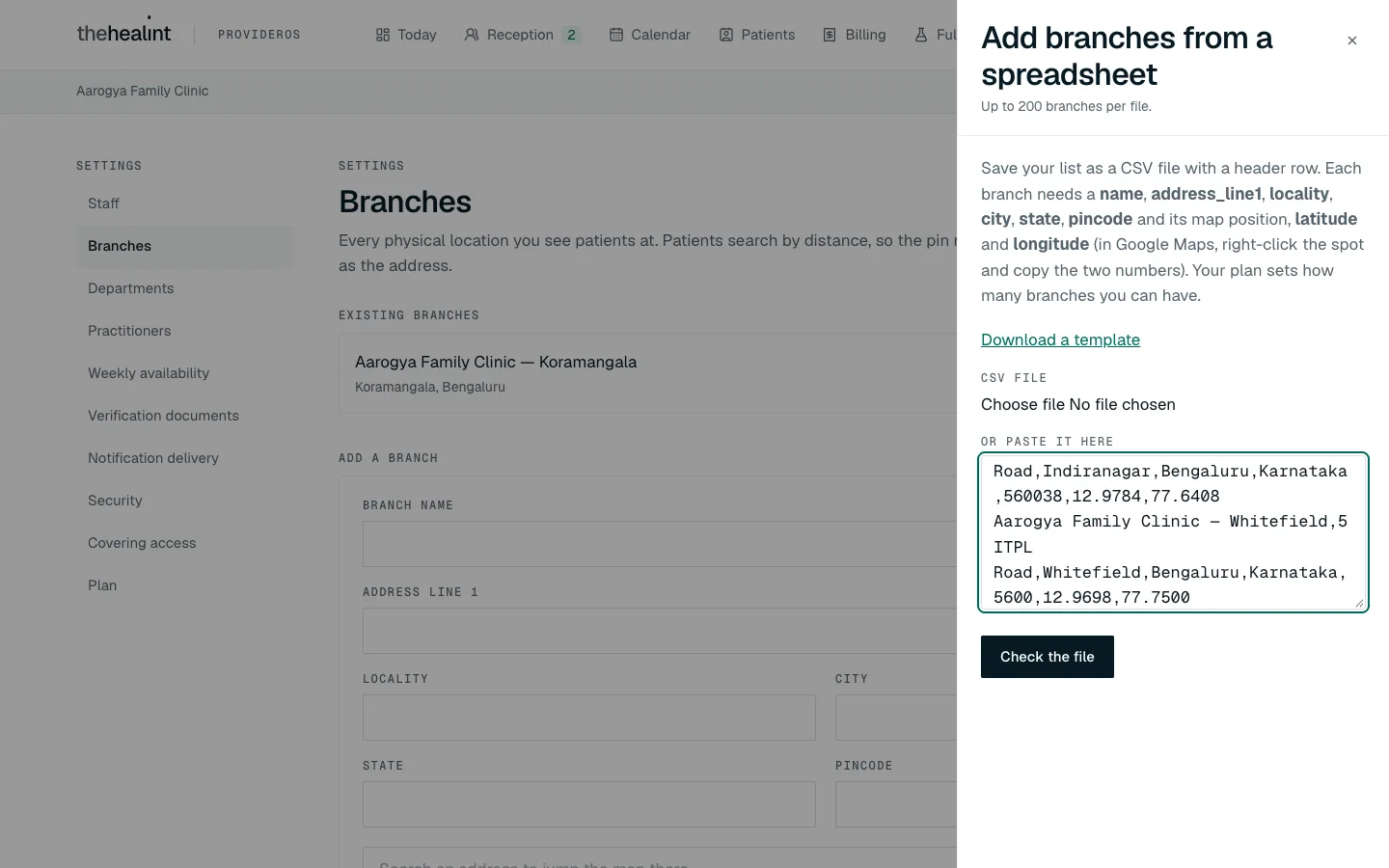
- Click Check the file. Each branch is Will be applied, Nothing to do (you already have a branch with that name) or Needs fixing with the reason, such as a pincode that is not six digits.
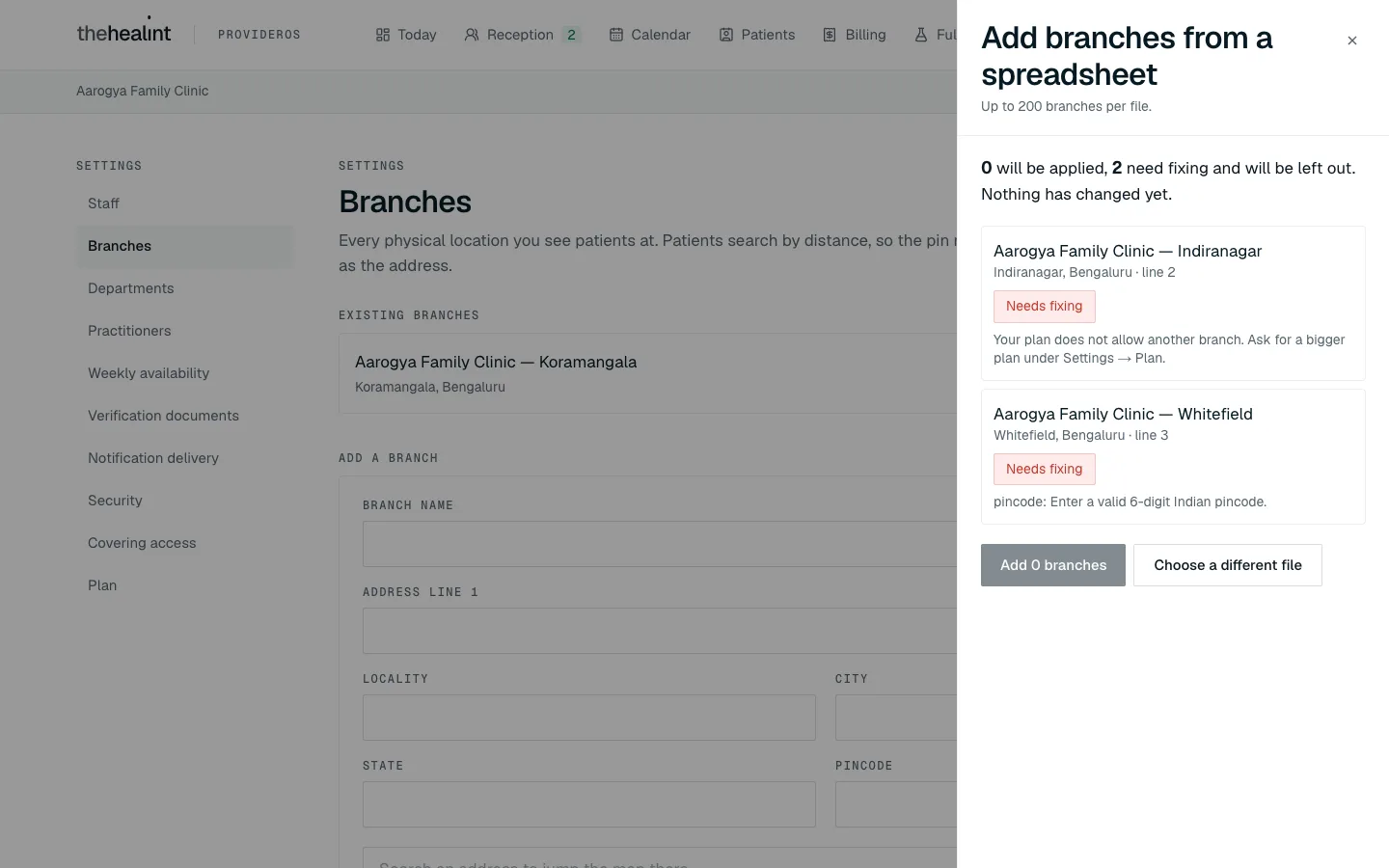
Your plan sets how many branches you can have. A line beyond the limit is marked Needs fixing with "Your plan does not allow another branch". Ask for a bigger plan under Settings → Plan, then import it again.
- Click Add N branches. Branches added this way are listed under Existing branches straight away.
How your times, fees and currency are shown#
Dates, times and fees in ProviderOS follow your organization's region: its language, currency and time zone. New organizations are set for India (rupees, India time), and a platform administrator changes the region if you work elsewhere. "Today" on every screen (Reception, Calendar, Billing, the queue) is today where your clinic is, whatever time your computer says, and a booking's day is decided the same way. Patients see your fees in your currency and your times on your clock. If something looks an hour or a day off, tell support the clinic's region from this list rather than changing your computer.
The links at the bottom of every screen#
The footer carries Terms, Privacy and Cookies. They open the company's published policies. When someone creates an account they are told that doing so means they agree to the Terms and Privacy policy.
When a page will not open#
- "We could not find that page." The link is old or mistyped. Choose Go to the start.
- "This page could not be shown." Choose Try again. If it happens again, tell support and quote the Reference shown under the message, which lets them find exactly what went wrong.
- A banner saying you are offline. Your connection dropped. Changes will not save until it returns; the banner disappears by itself.
How to resend an invitation#
Use this when someone says the email never arrived or the link has expired. The button is only there until they've set a password.
- On Settings → Staff, find the person (they have the Invited — hasn't signed in yet pill).
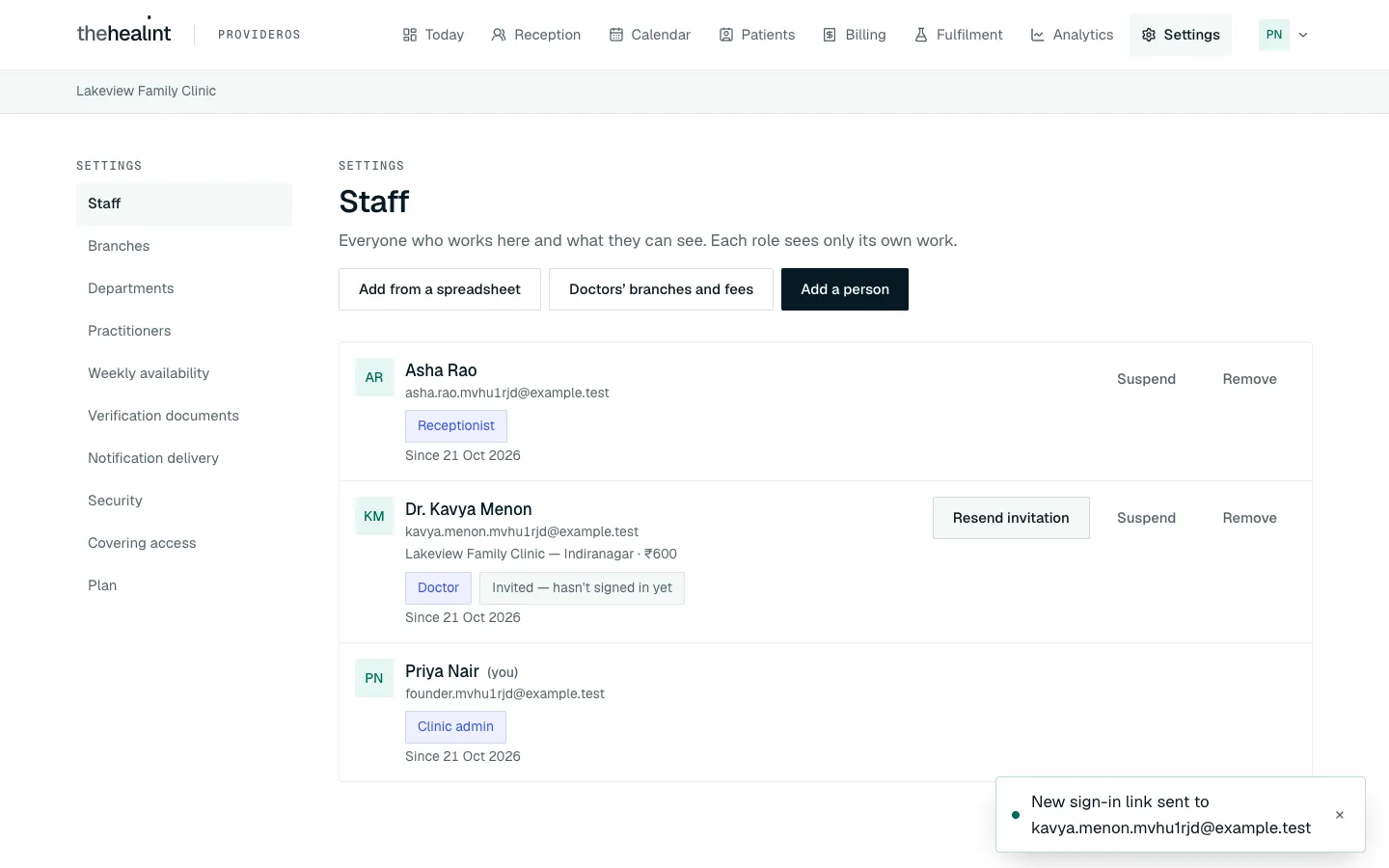
- Click Resend invitation. A message confirms "New sign-in link sent to email".
How to suspend, reactivate or remove someone#
Suspend is temporary: the person can't use ProviderOS for your organization until you reactivate them. Remove is for someone who has left: they lose access, but their past work stays on record.
Suspend#
On Settings → Staff, click Suspend on the person's row. (If they hold several roles, there is one button per role, for example "Suspend receptionist".)
Read the box and click Suspend.
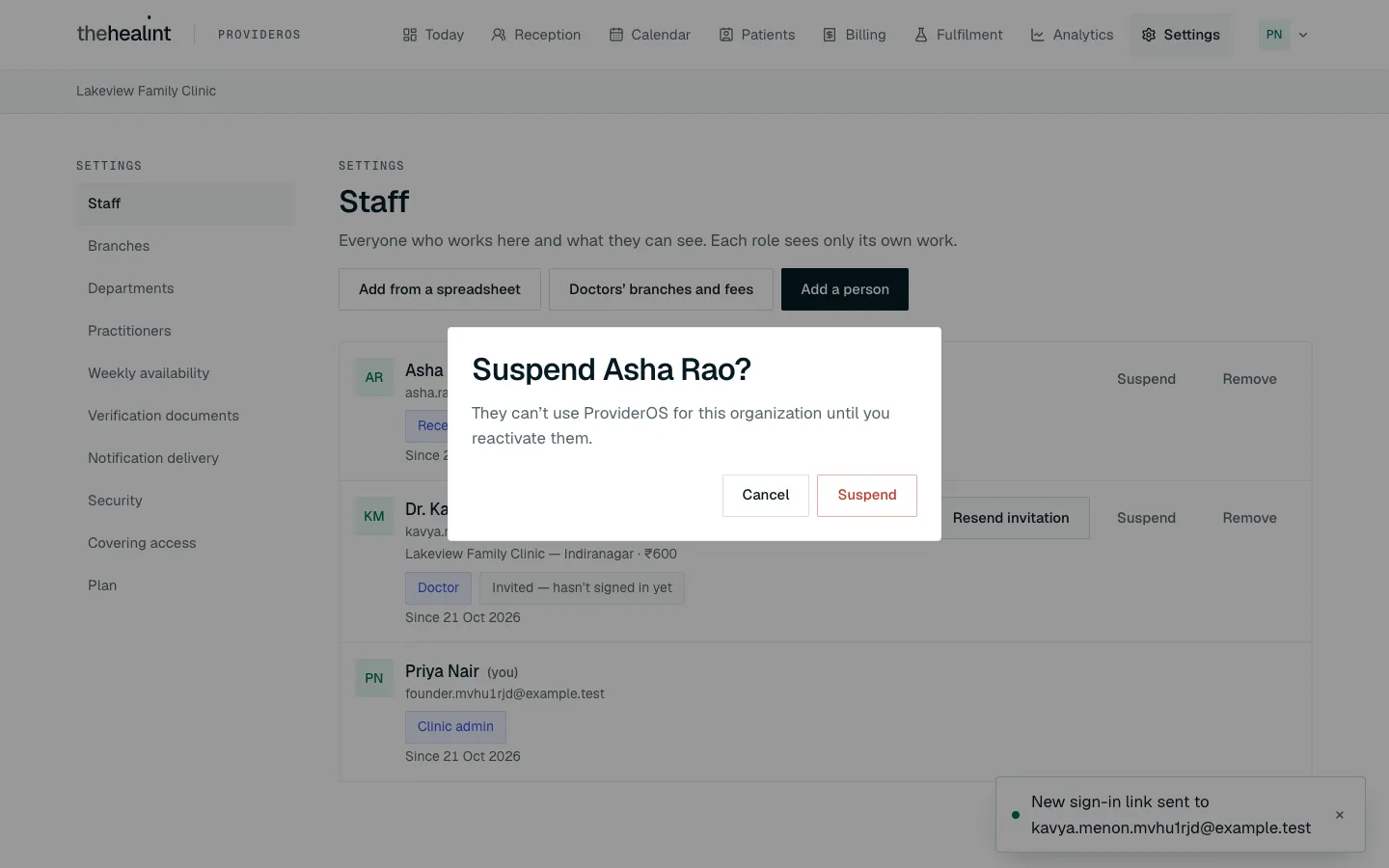
"Suspend Asha Rao? They can't use ProviderOS for this organization until you reactivate them." Their pill now reads "Role · suspended" and the button changes to Reactivate role.

"Receptionist · suspended" and Reactivate receptionist.
Reactivate#
Click Reactivate role and confirm with Reactivate. They can sign in and work in that role again.
Remove#
Click Remove on the person's row.
Read the box and click Remove. This takes away every role they hold at your organization.
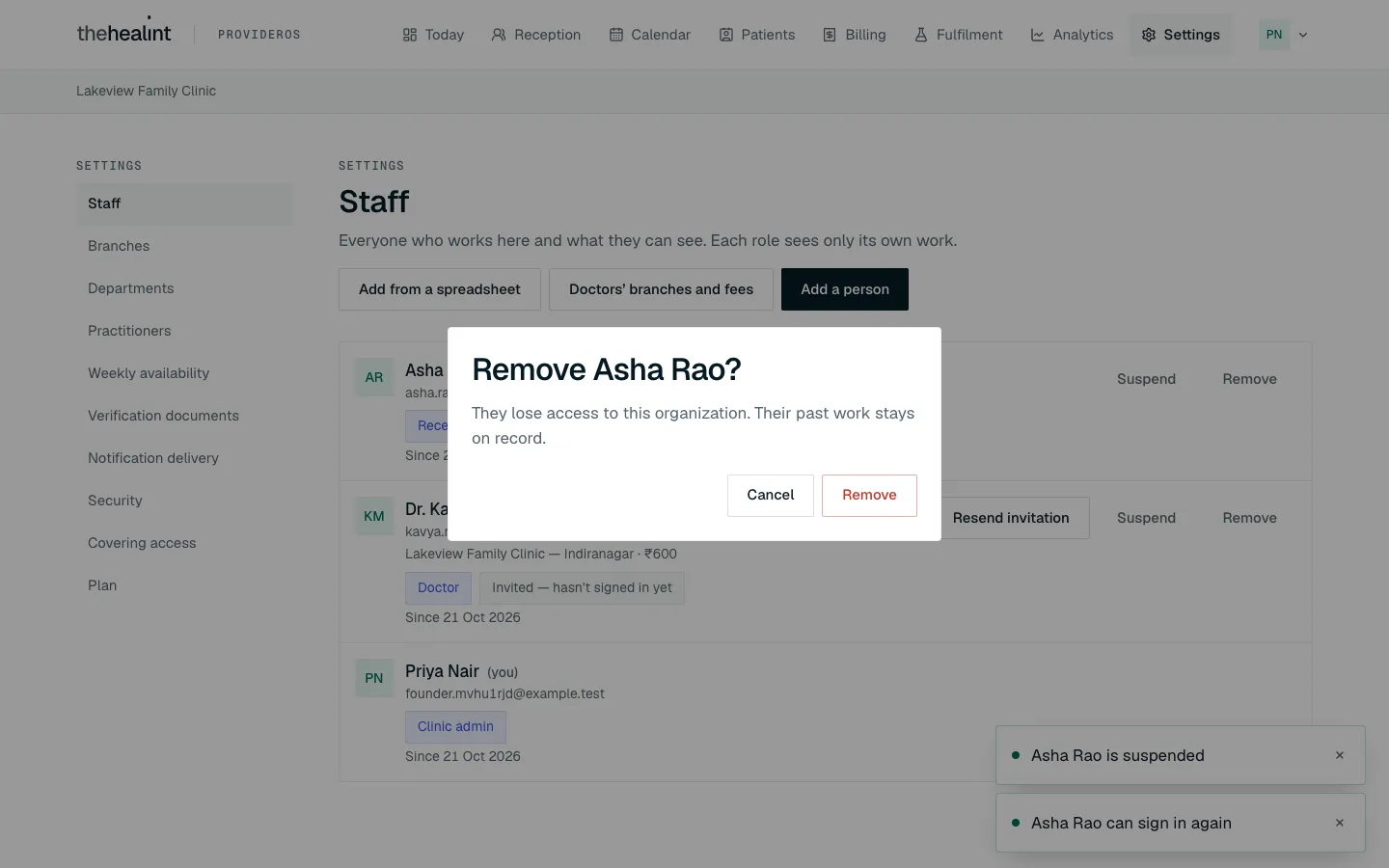
"Remove Asha Rao? They lose access to this organization. Their past work stays on record." They disappear from the Staff list and a message confirms "Name no longer works here".
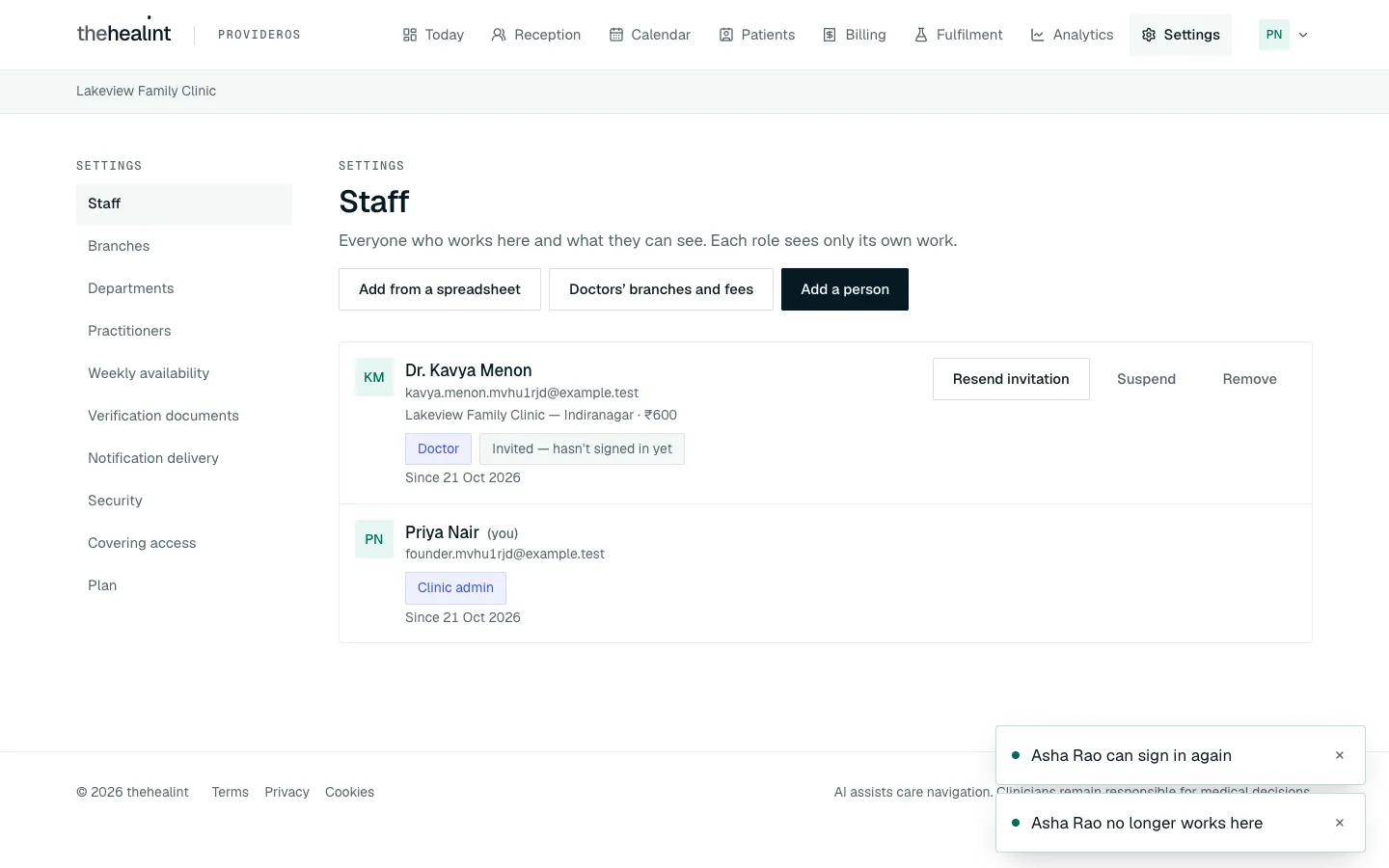
Asha Rao is gone from the list. The messages at the bottom right confirm each step: suspended, can sign in again, no longer works here.
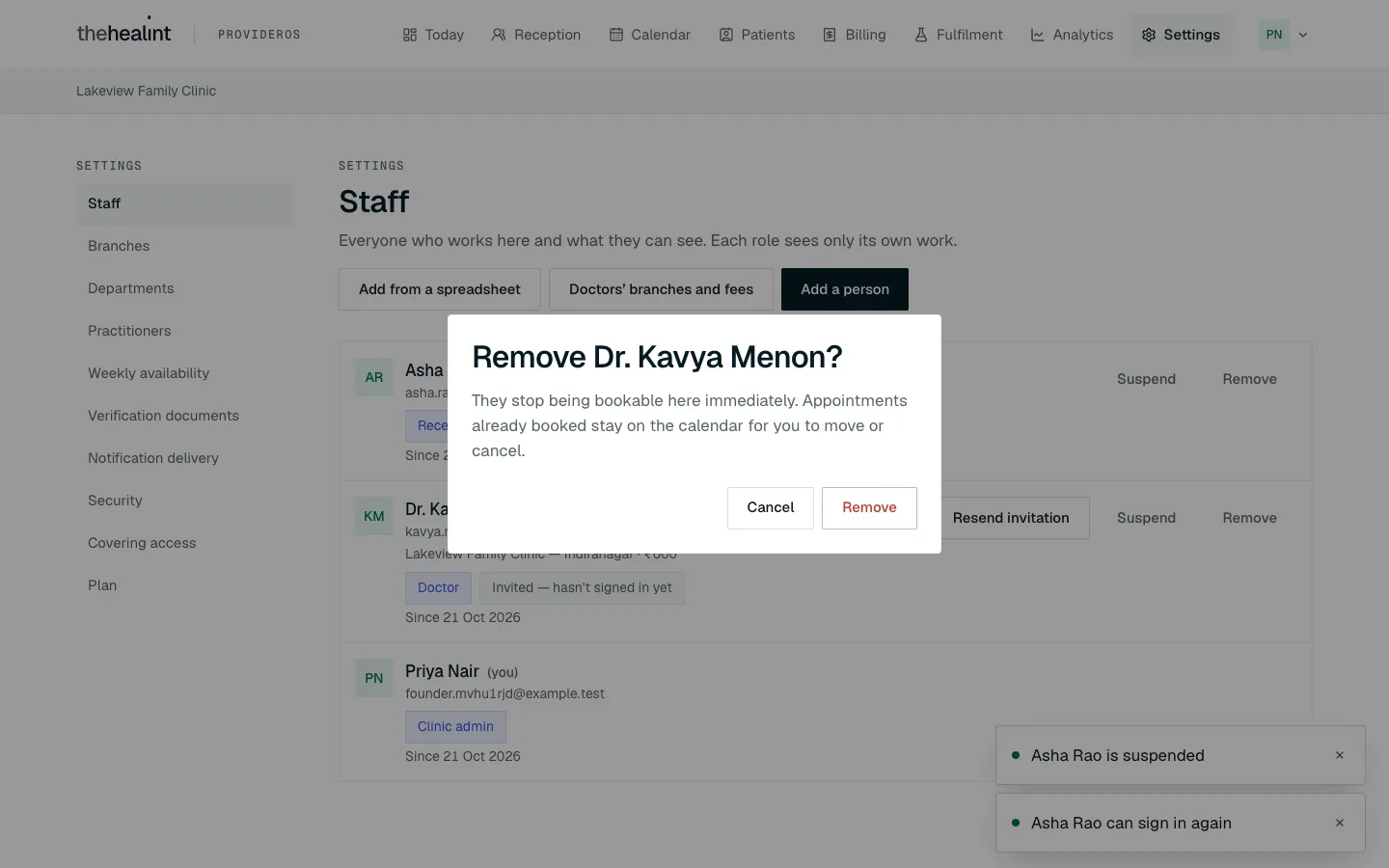
For a doctor, suspending or removing them also stops them being bookable, straight away. Appointments they already have stay on the calendar for you to move or cancel.
If it doesn't work: "This is the only admin. Add another clinic admin before removing this one." Your organization must always have at least one active clinic or hospital admin. Add a second admin first.
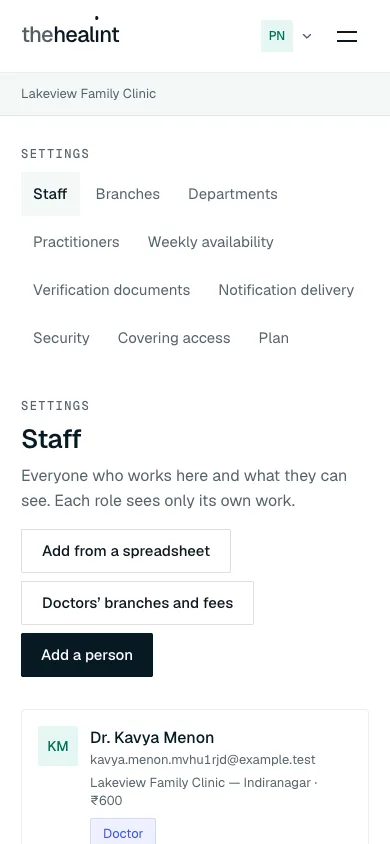
The Staff page works on a phone too. The Settings menu becomes a row of links above the page.
How to set a doctor's weekly hours#
Hours are set per doctor and per branch, so a doctor can keep different hours at two branches. Patients can only book times inside these hours.
Go to Settings → Weekly availability.
If you have more than one branch, pick the Branch. Then pick the Doctor.
You'll see their week, Monday to Sunday. A doctor with no hours shows "No hours set yet — patients can't book doctor here until at least one day has hours."
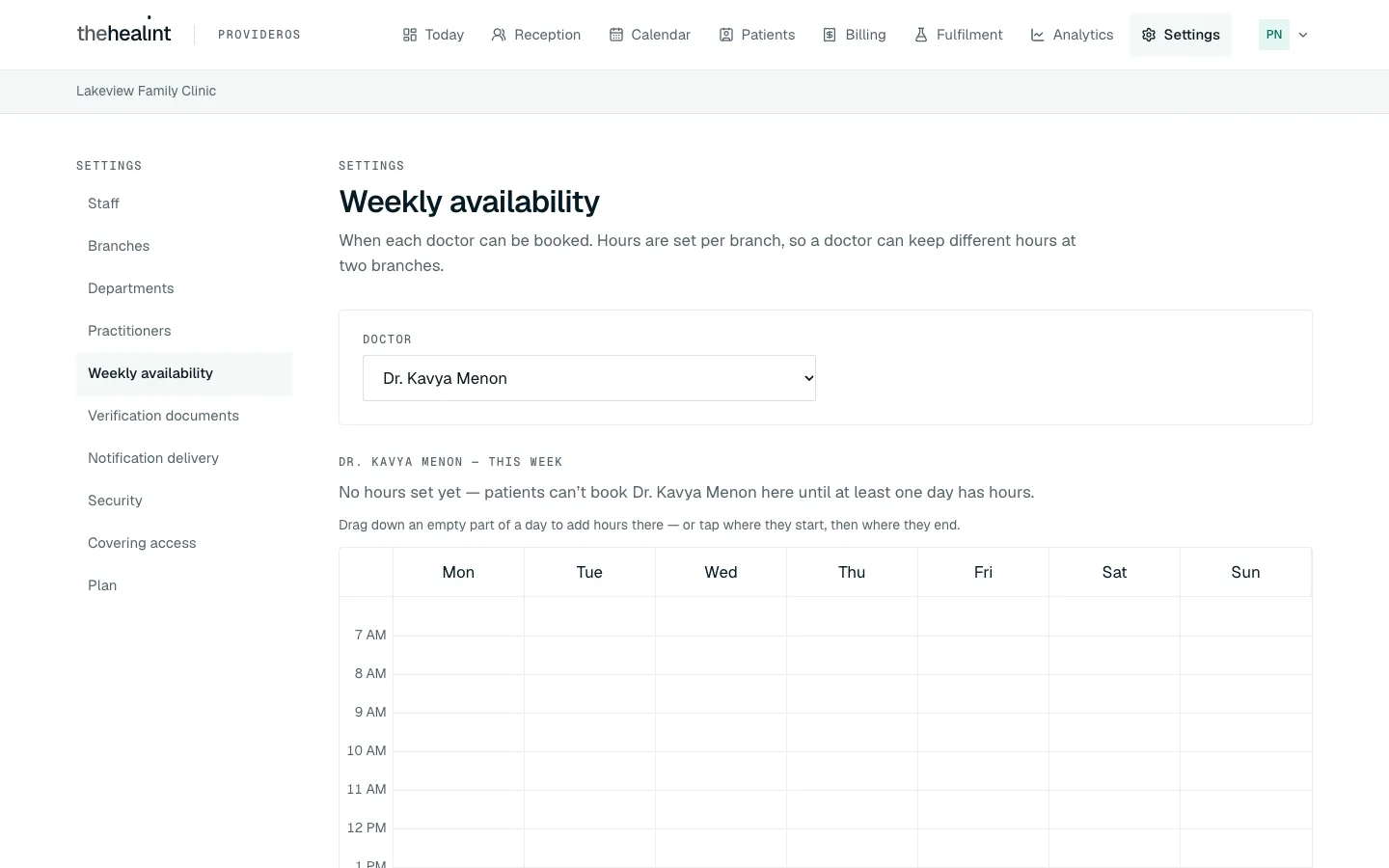
Dr. Kavya Menon's week with no hours yet.
Draw hours on the week#
Press on an empty part of a day where the hours start, and drag down to where they end. (Or click once where they start, then once where they end.)
A box asks Add hours on day? Adjust From, Until and Appointment length if you need to.
Click Add these hours. A message confirms "Hours added for doctor on day".
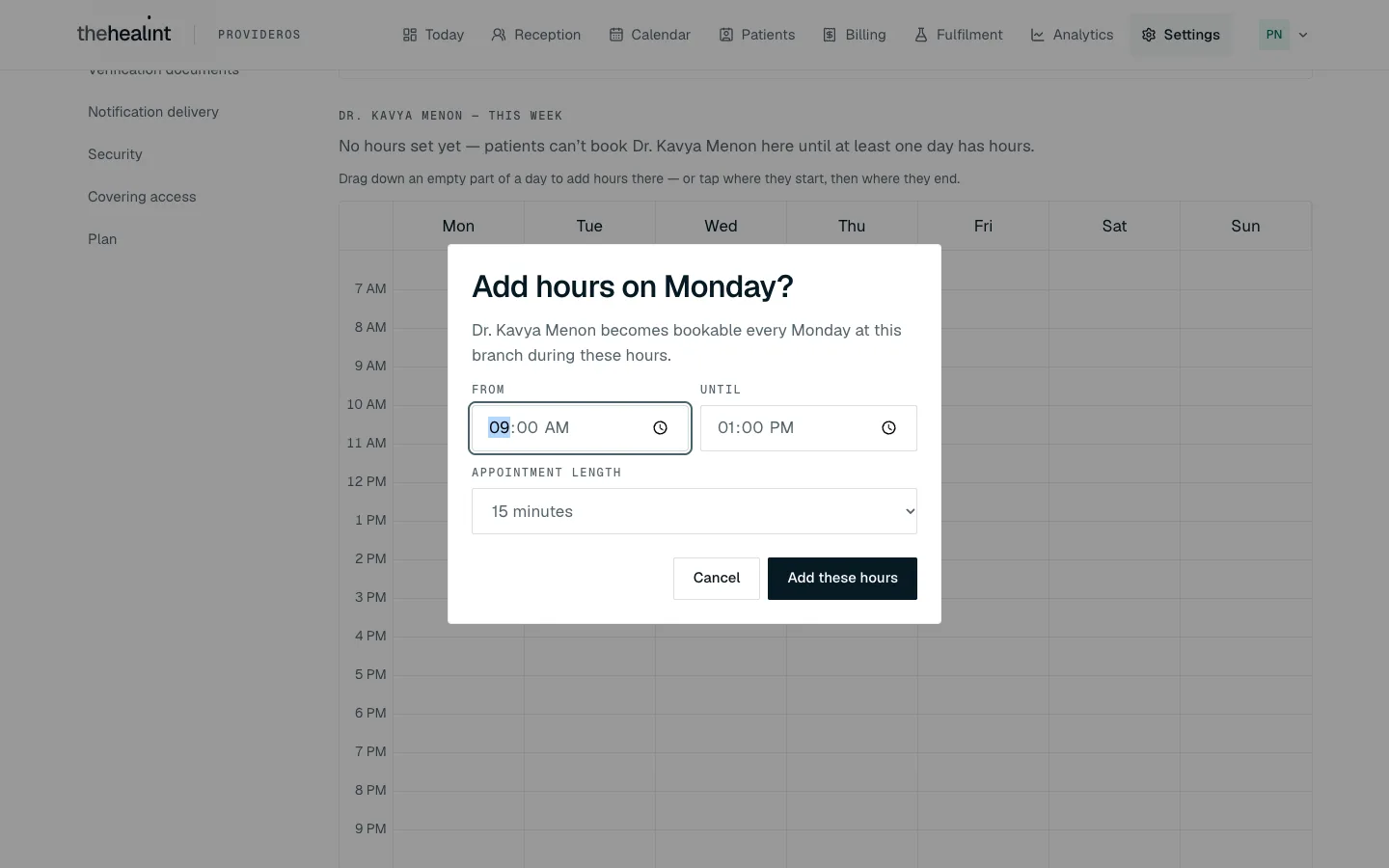
"Add hours on Monday? Dr. Kavya Menon becomes bookable every Monday at this branch during these hours." From 9:00 AM, Until 1:00 PM, 15-minute appointments.
Or add hours by typing the times#
Scroll to Add hours by time.
Choose the Day and Appointment length (10, 15, 20, 30, 45 or 60 minutes), and type From and Until.
Click Add hours for doctor.
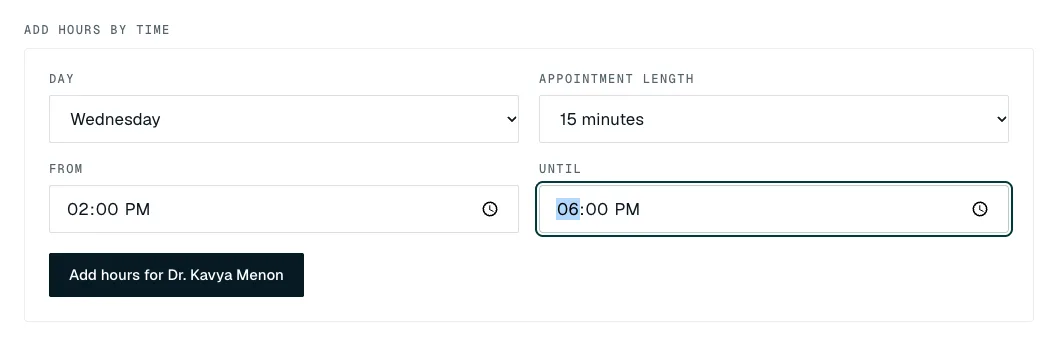
Wednesday, 2:00 PM to 6:00 PM, 15-minute appointments.
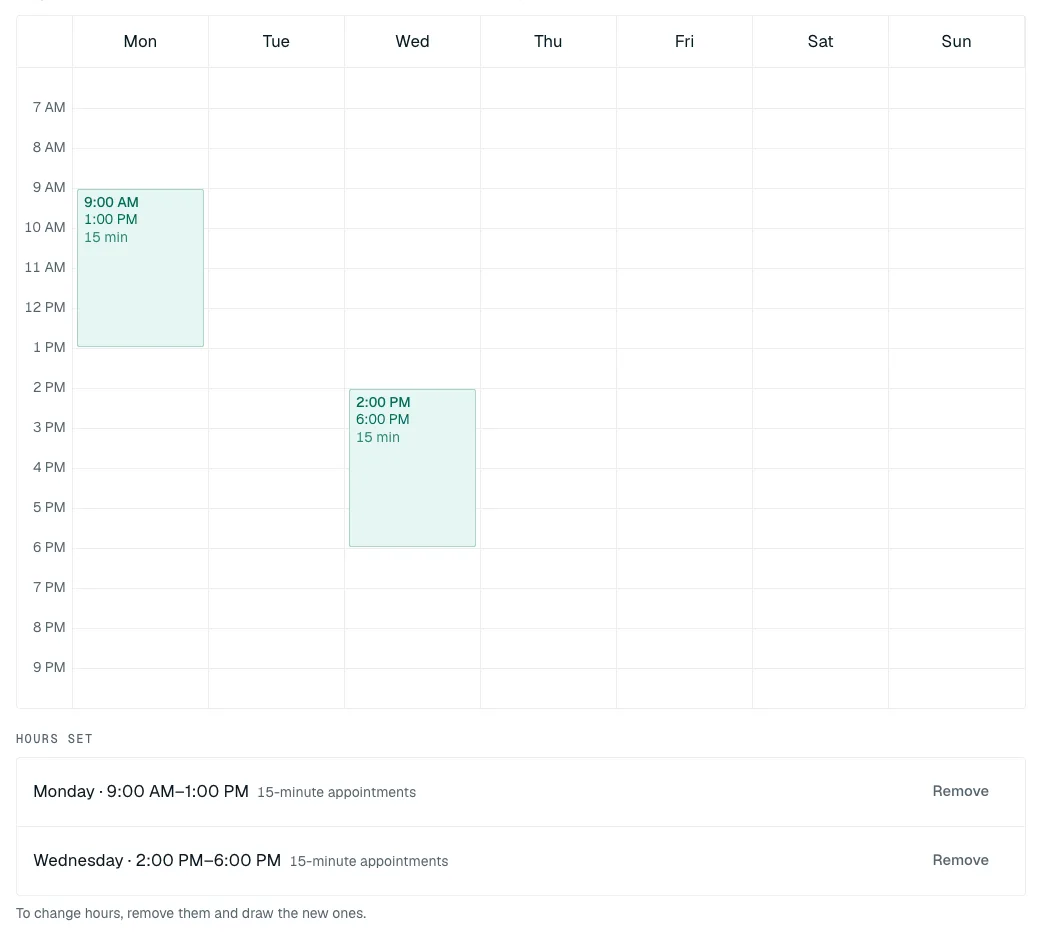
The hours appear as shaded blocks on the week, and as a list under Hours set.
Remove hours#
- Under Hours set, click Remove on the line.
- Click Remove hours to confirm. New bookings in those hours stop at once. Appointments already booked stay on the calendar.
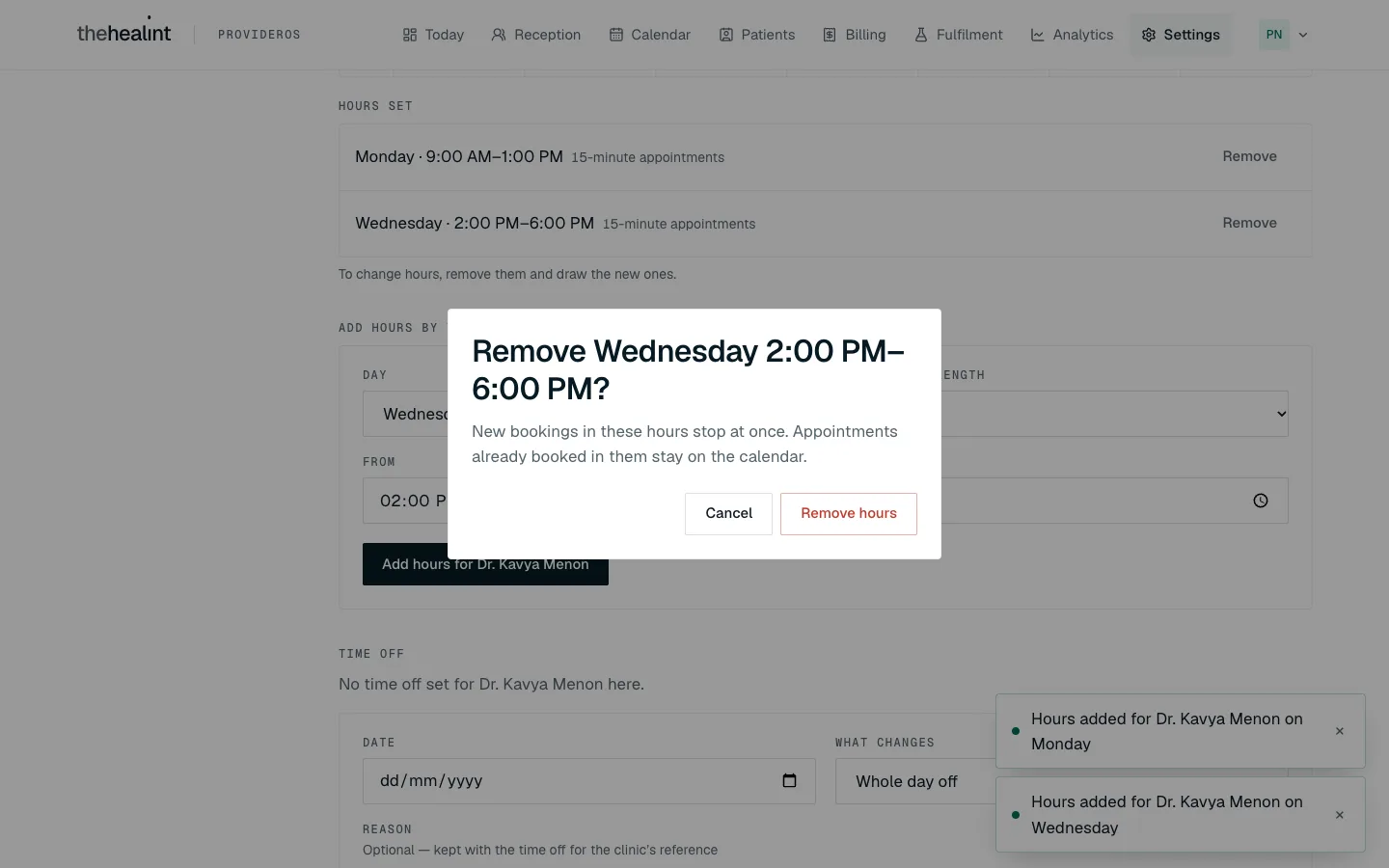
To change hours, remove them and draw the new ones. There's no way to edit a block in place.
Add time off#
Use Time off for a day the doctor is away, or a day with different hours.
- Scroll to Time off.
- Choose the Date and, under What changes, Whole day off or Different hours (then type From and Until).
- Add a Reason if you like. It's only for the clinic's reference.
- Click Add time off for doctor.
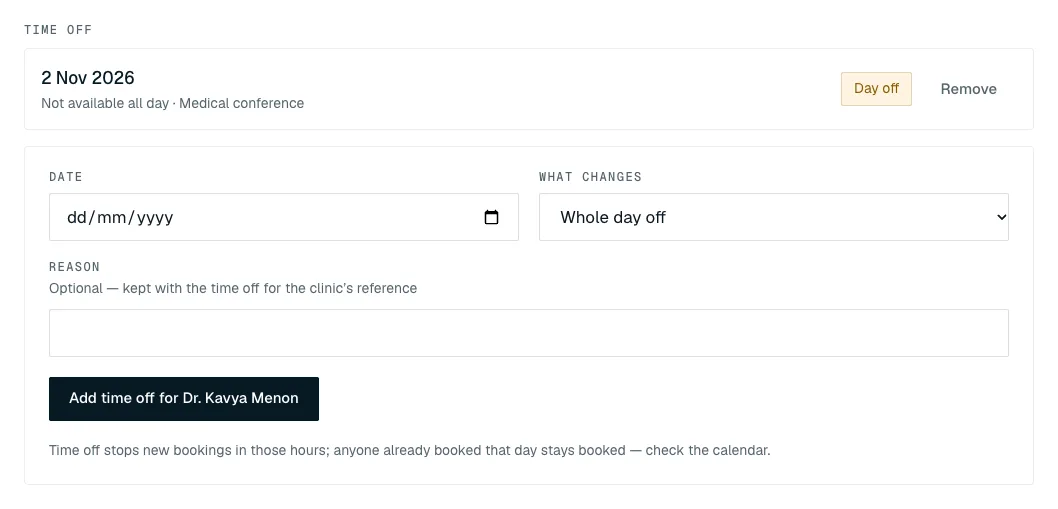
Time off stops new bookings in those hours. Anyone already booked that day stays booked, so check the Calendar and move them (03-front-desk.md). Remove on a time-off line puts that date back to the weekly hours. It happens straight away, without asking.
If it doesn't work:
- "No doctors at this branch yet" means nobody has been added as a doctor at that branch. Add them under Settings → Staff.
- "The hours on that date must end after they start." Check From and Until.
How to set up your own doctor profile (if you also see patients)#
Settings → Practitioners is about your own doctor profile only. Other doctors are added from Settings → Staff.
- Go to Settings → Practitioners and click Create my practitioner profile.
- Under Affiliate with a branch, choose the Branch, your Consultation fee (in rupees) and, optionally, your Department. Click Affiliate with branch.
- Under Departments by practitioner, pick a Branch to see every doctor there. Change a doctor's department in the drop-down beside their name. It saves straight away.
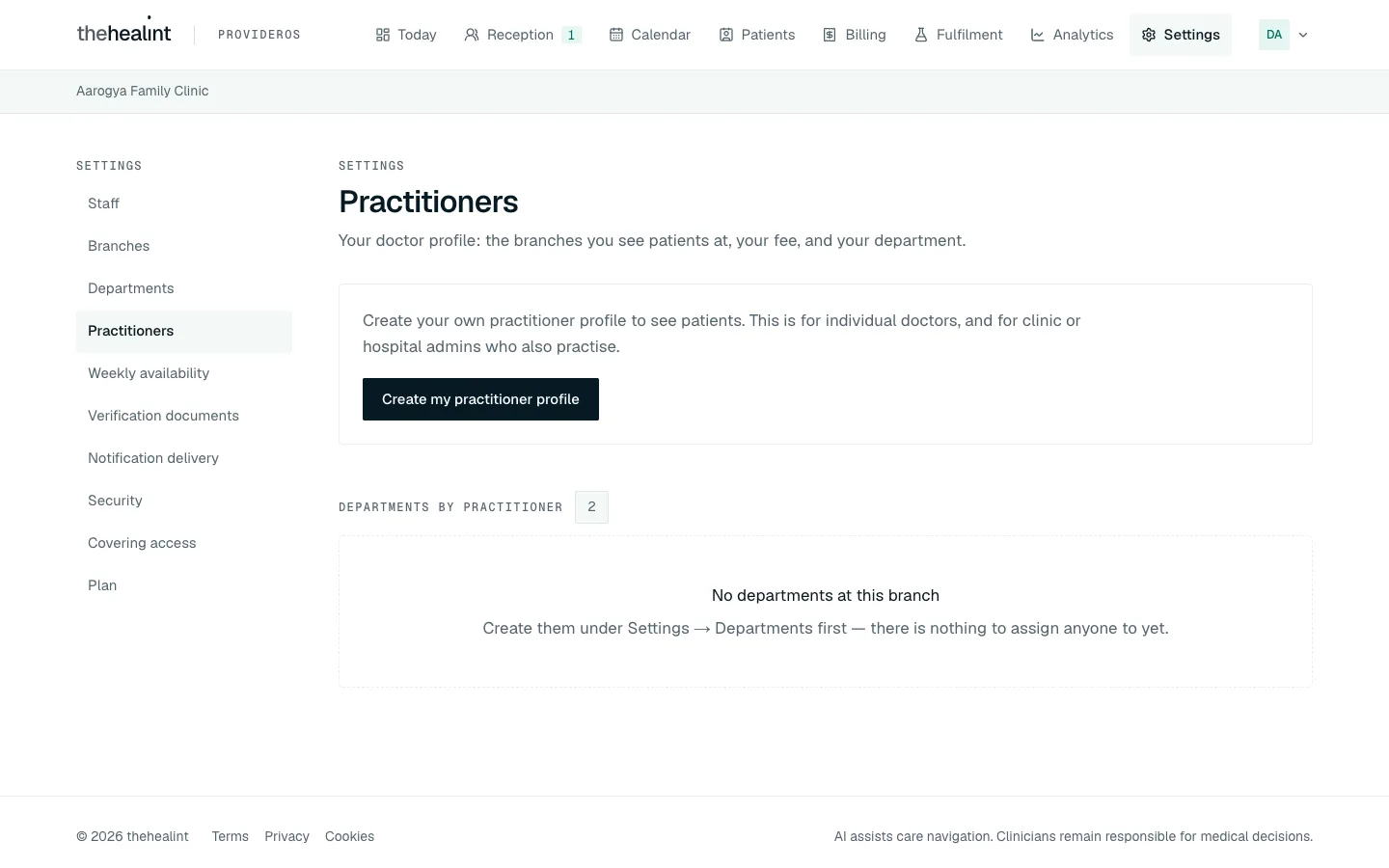
If it doesn't work: after you reload the page, Create my practitioner profile shows again even if you already have a profile. Don't create a second one. Your affiliation is still saved and appears on the Staff list and under Departments by practitioner.
How to review covering access#
When a doctor opens another doctor's patient (to cover for them), they must give a reason. This page is your log of every time that happened.
- Go to Settings → Covering access.
- Set From and To. Both start on today.
- Read the table: Date, Patient, Assigned to, Covered by and Reason.
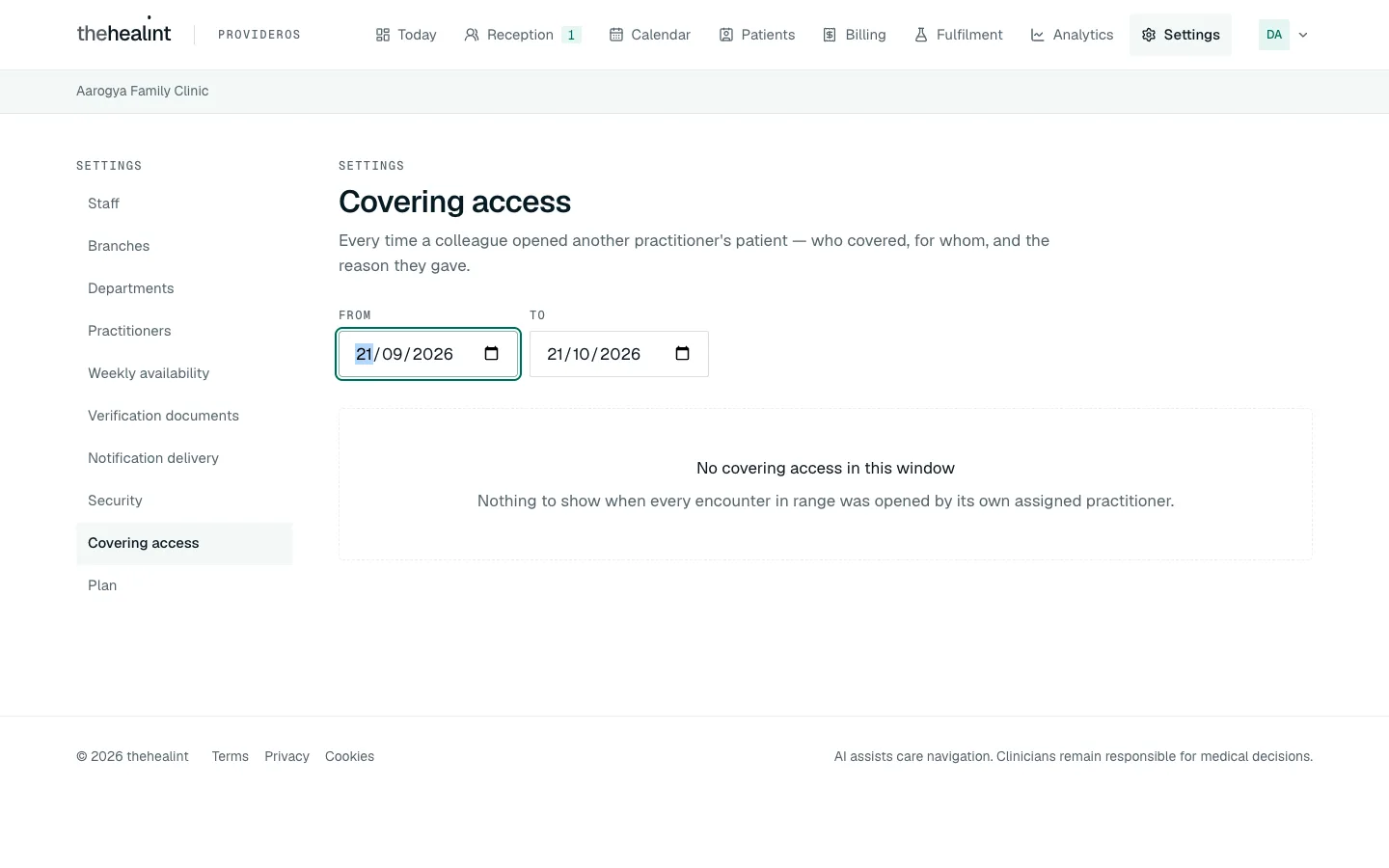
The doctor who was covered for gets an email each time. You don't. Check this page regularly.
How to check notification delivery#
Every confirmation and reminder your organization sends to patients is listed here, with what happened to it.
- Go to Settings → Notification delivery.
- The tiles show how many are Pending, Sent, Failed and Dead-lettered (given up on, and won't be retried).
- Anything that failed is listed under Failed and dead-lettered deliveries, with the Channel, Template, Status, Attempts, Last error and Updated time.
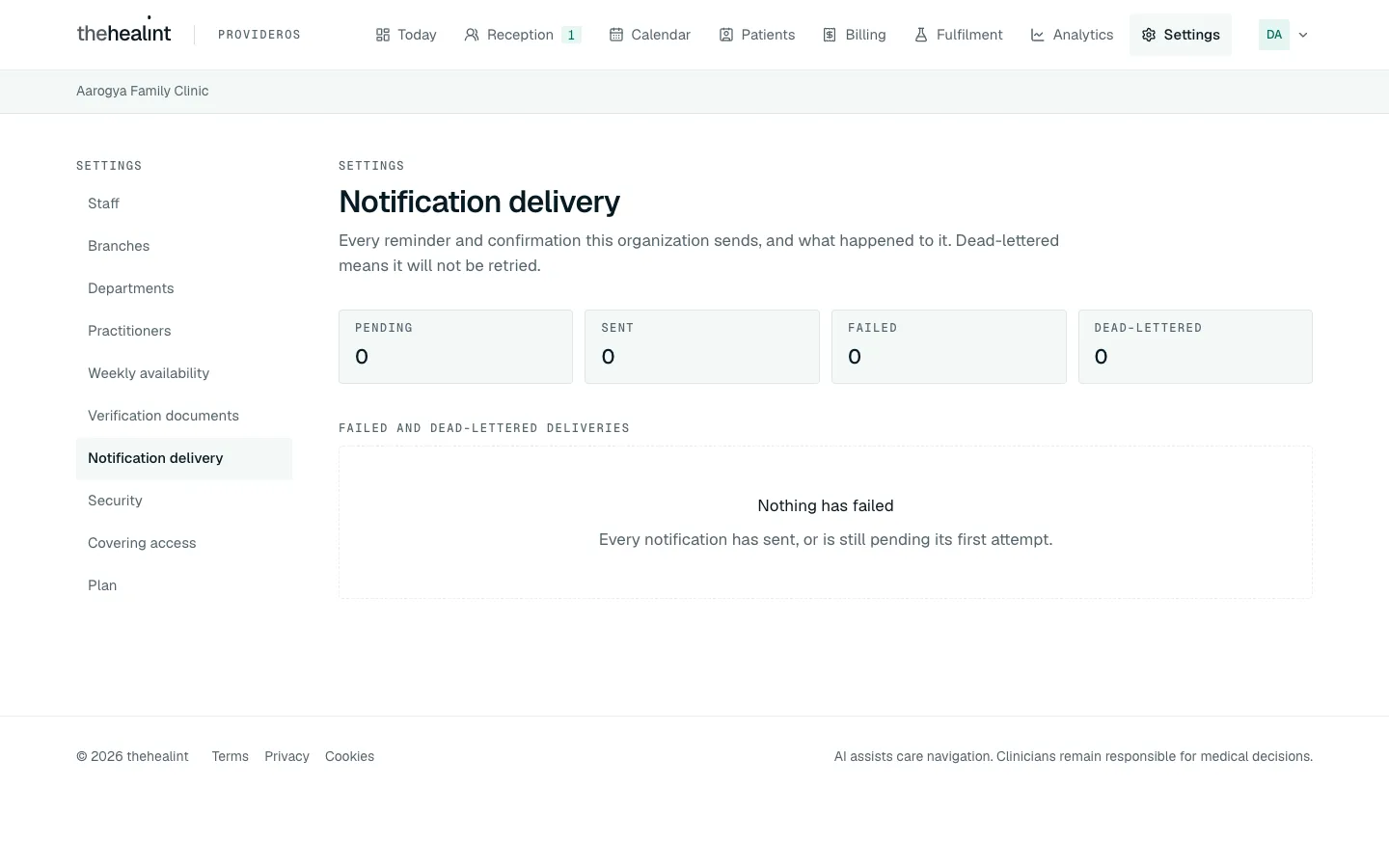
This page is for checking only. You can't resend, switch messages off or change their wording. If something keeps failing, tell thehealint support.
How to read Analytics#
- Click Analytics in the top menu.
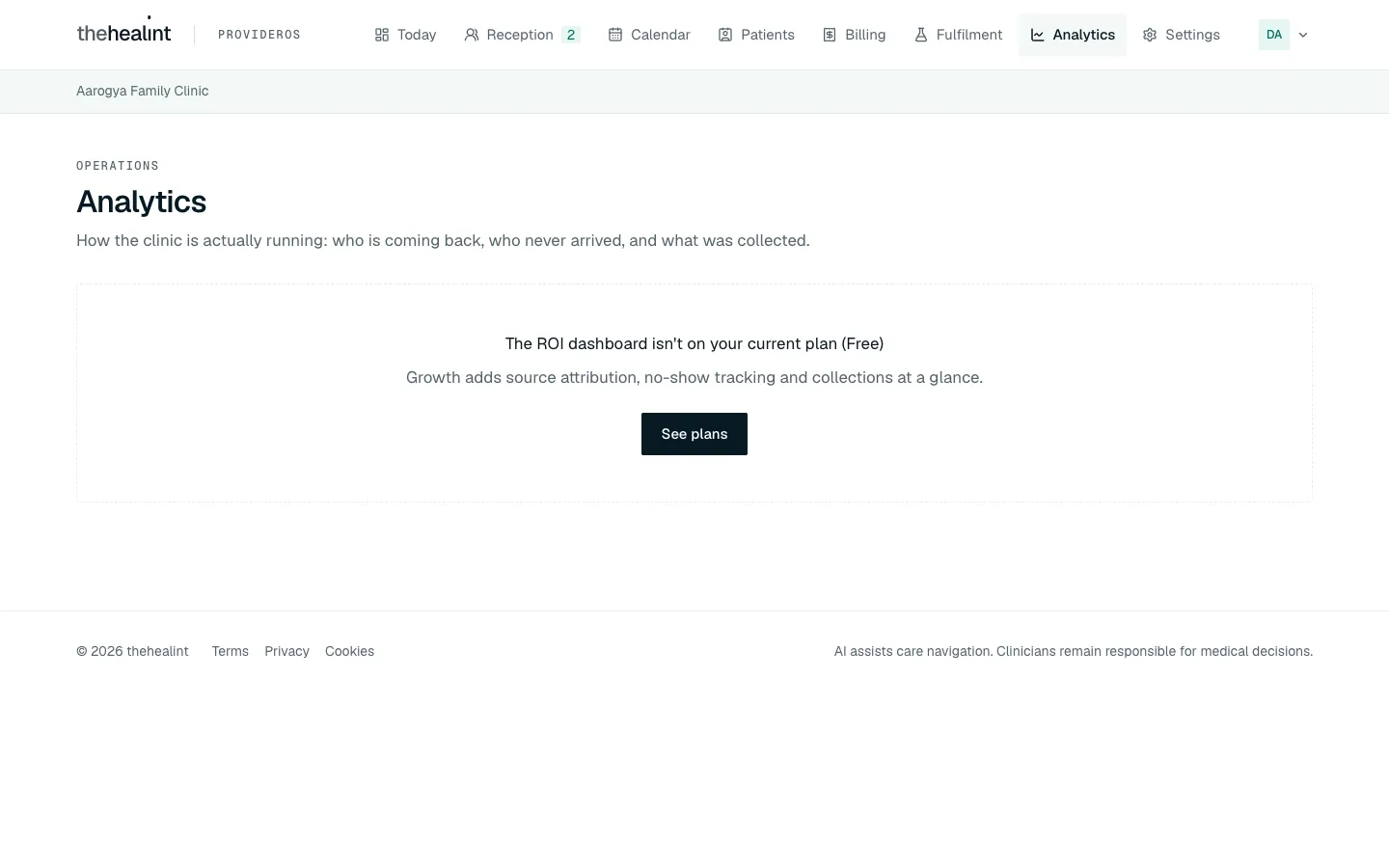
- On the Growth plan you'll see, for the dates you pick under From and To (the last 30 days to start with): Appointments, New vs returning, No-show rate, Avg. wait and Collected, then tables By doctor, By branch and By department. Click Refresh to reload.
- On the Free plan you'll see a message instead.
How to change your plan#
Your plan sets your limits — how many branches and doctors, and whether you get Analytics. To move plan, you ask; a thehealint admin approves it and the new limits apply straight away.
Go to Settings → Plan (or click See plans wherever a limit stops you). Your current plan is highlighted with Your plan; each plan lists what it includes.
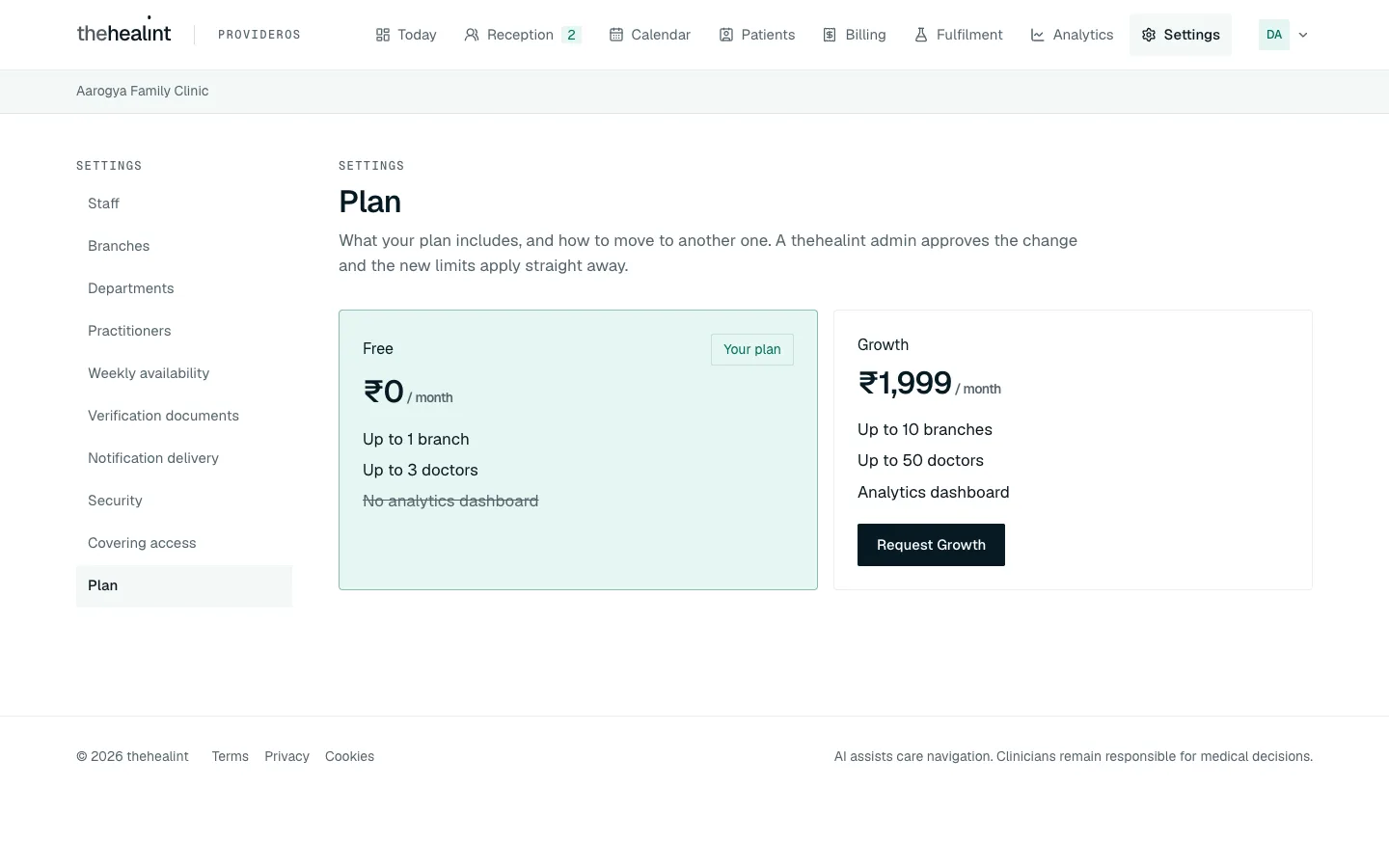
Free (your plan) and Growth side by side, with what each includes and Request Growth. Click Request on the plan you want. Add a note if it helps (for example why, or when you need it), then click Send request.
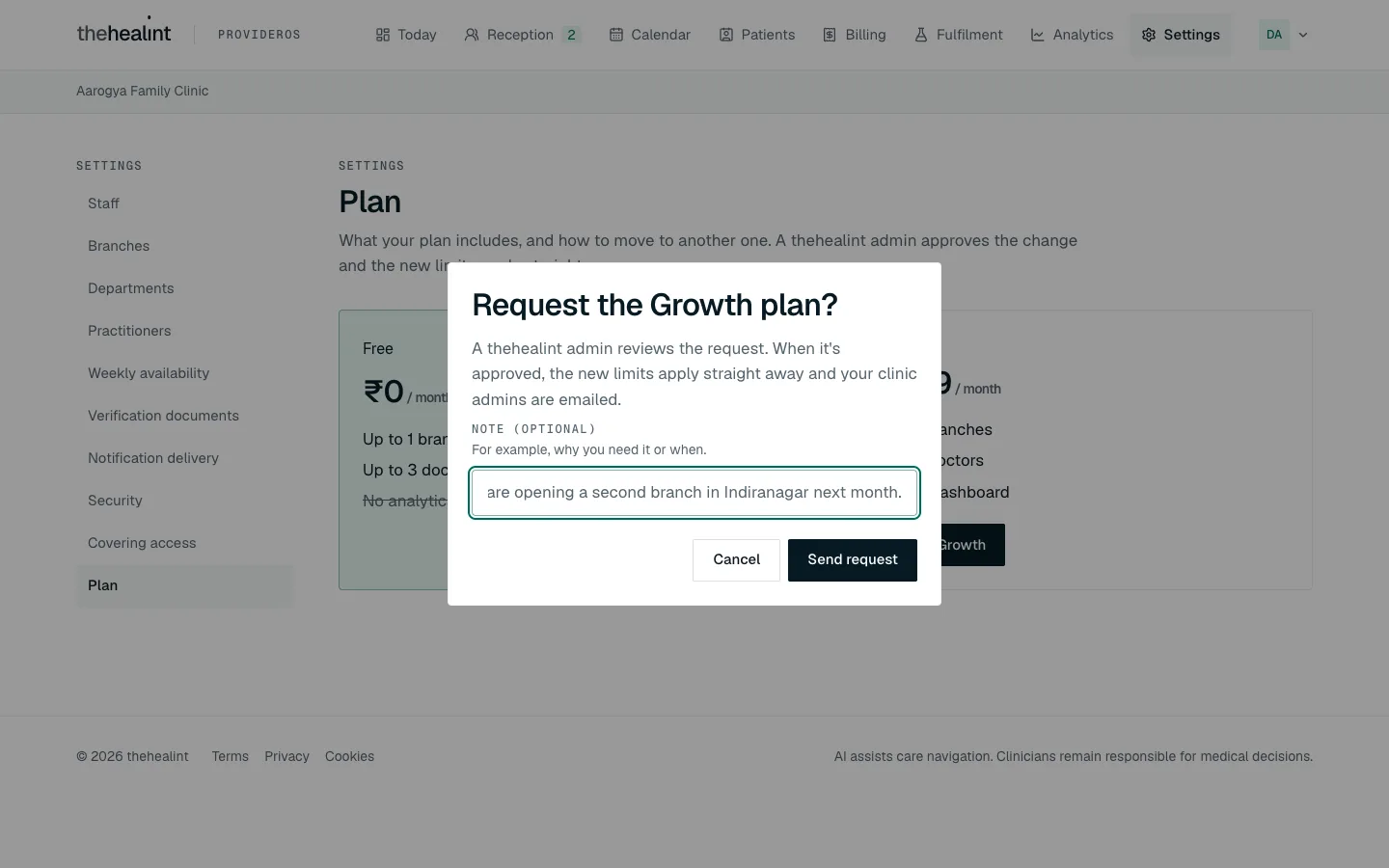
The request box, with a note about the second branch. The page shows Waiting for a decision. You can't send another request until this one is decided.
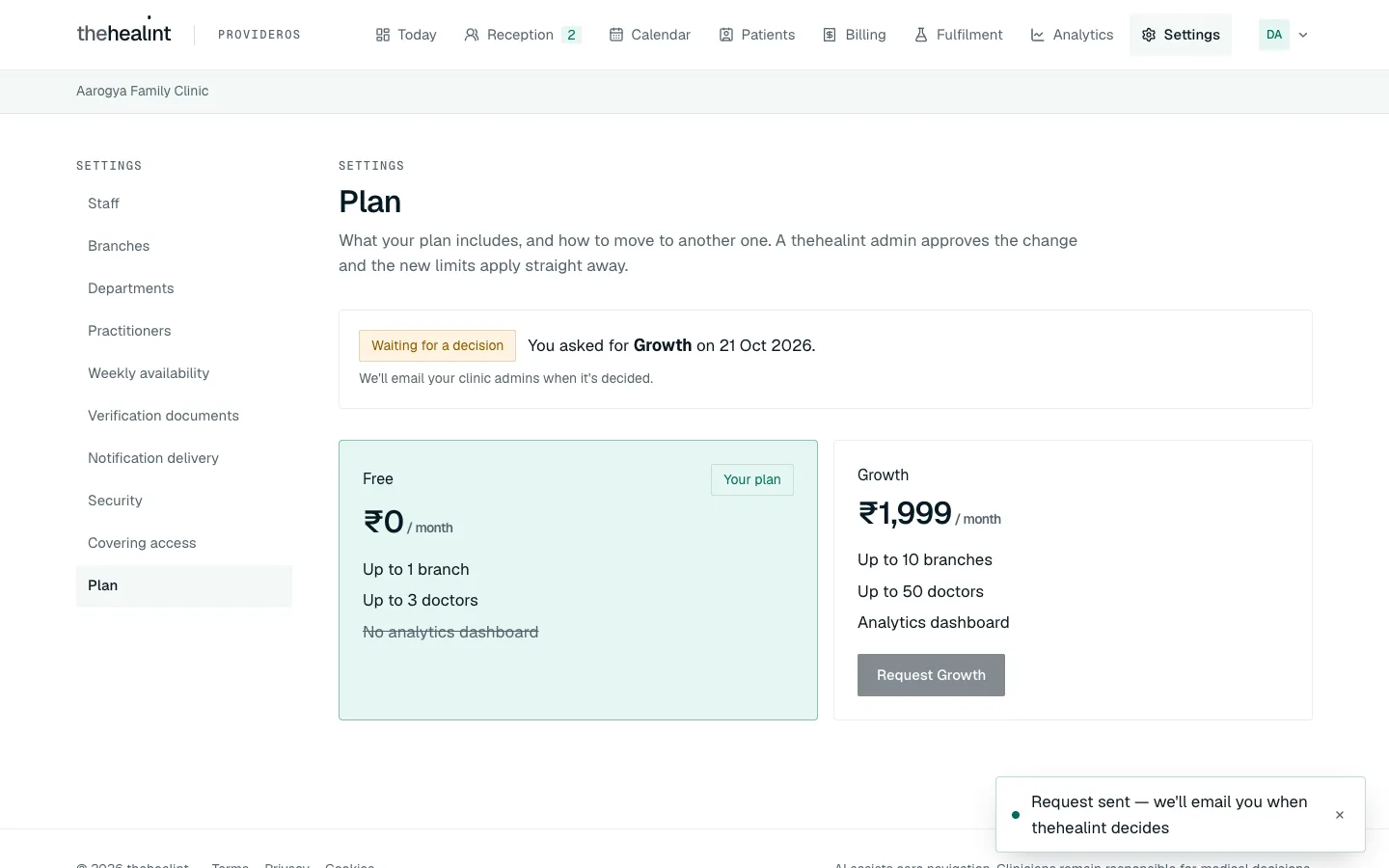
The request is with thehealint; both plans stay as they are until it's decided. Every clinic and hospital admin gets an email when it's decided. If approved, the new limits apply at once — add the branch or open Analytics. If declined, the reason is on the email and on this page.
If it doesn't work:
- "There is already a plan request waiting for a decision." Someone at your clinic already asked. Wait for the email.
- The Request button is greyed out. A request is already waiting.
How to turn on two-factor sign-in#
Two-factor sign-in means a password alone isn't enough to get into your patients' data. We strongly recommend it for every admin.
Click your initials at the top right, then Security (or go to Settings → Security).
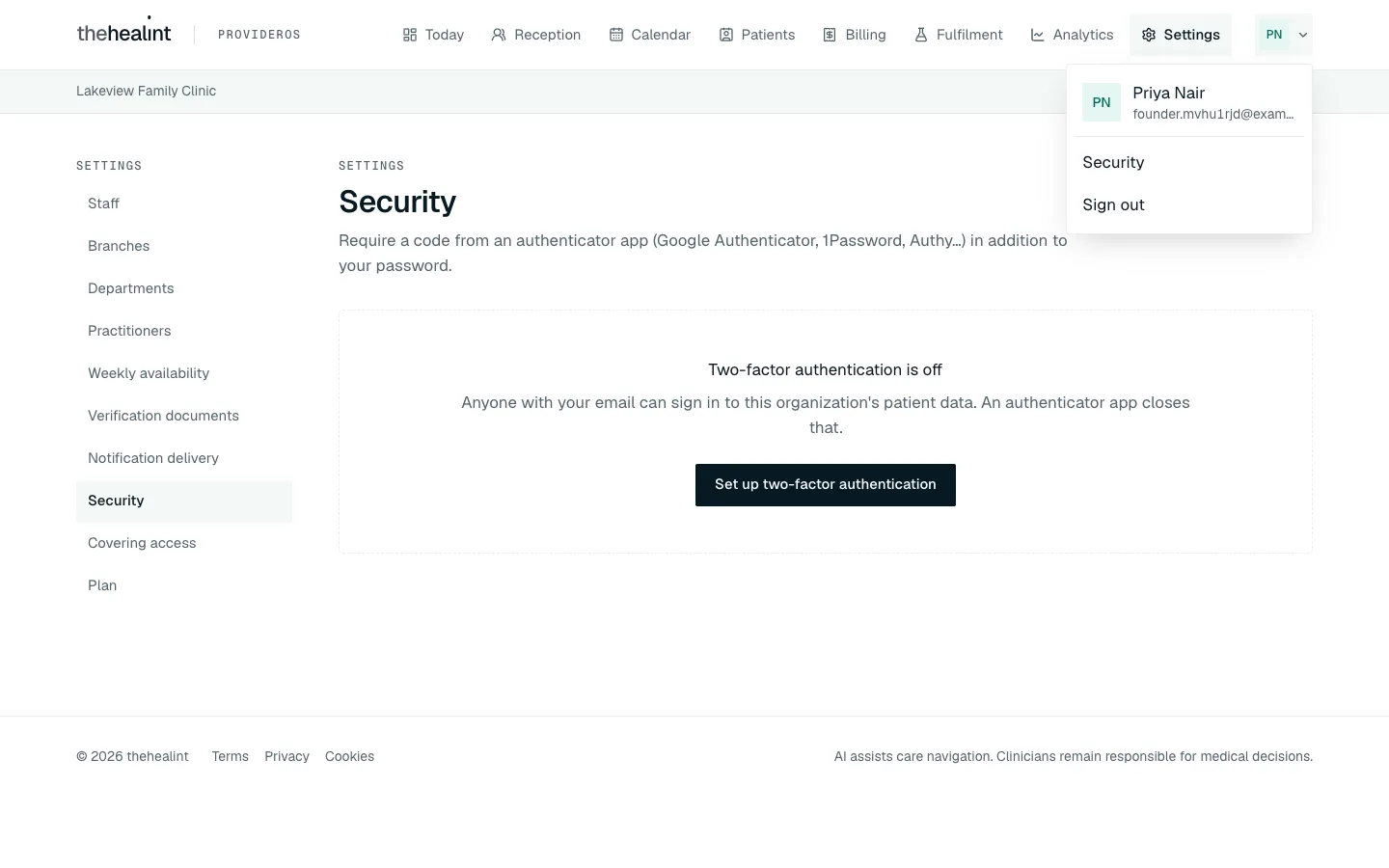
Your name and email, Security and Sign out. Behind it, "Two-factor authentication is off". Click Set up two-factor authentication.
Scan the QR code with an authenticator app (Google Authenticator, 1Password, Authy…), or type the key shown under it.
Type the 6-digit Code from the app and click Confirm. You'll see "Two-factor authentication is now active on this account."
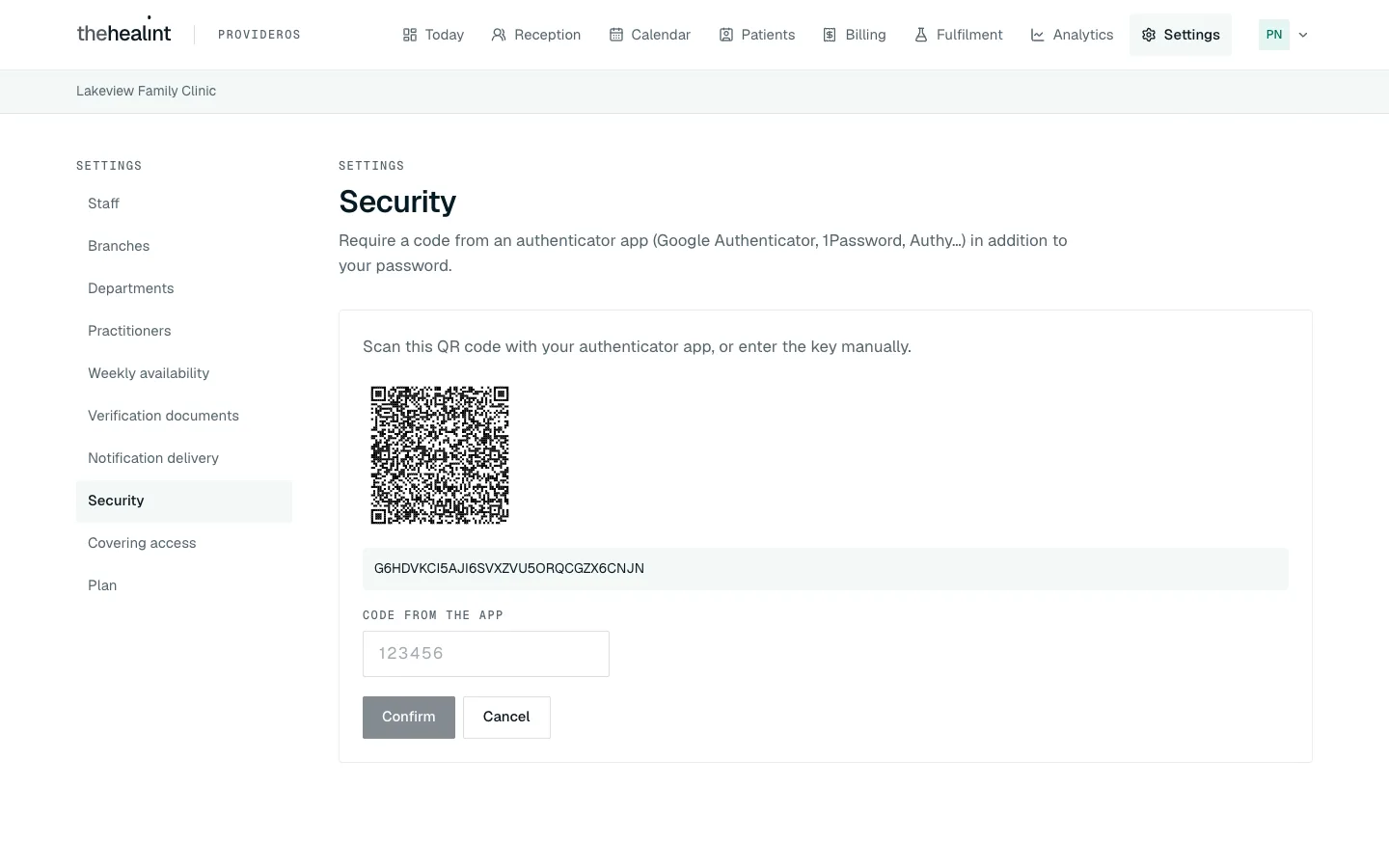
From now on, every ProviderOS sign-in on the web asks for the code after your password.
To remove an authenticator, click Remove beside it on the same page and confirm with Remove authenticator. Removing the last one turns two-factor sign-in off.
If it doesn't work: "That code did not match — try again." Codes change every 30 seconds; type the current one. Check the time on your phone is set automatically.
How to switch branch#
If your organization has more than one branch, a Branch selector appears on the grey bar under the menu, on every page.
- Choose a branch, or All branches.
- Reception, the walk-in form, Calendar, the waiting count beside Reception, and the starting branch on Weekly availability follow your choice.
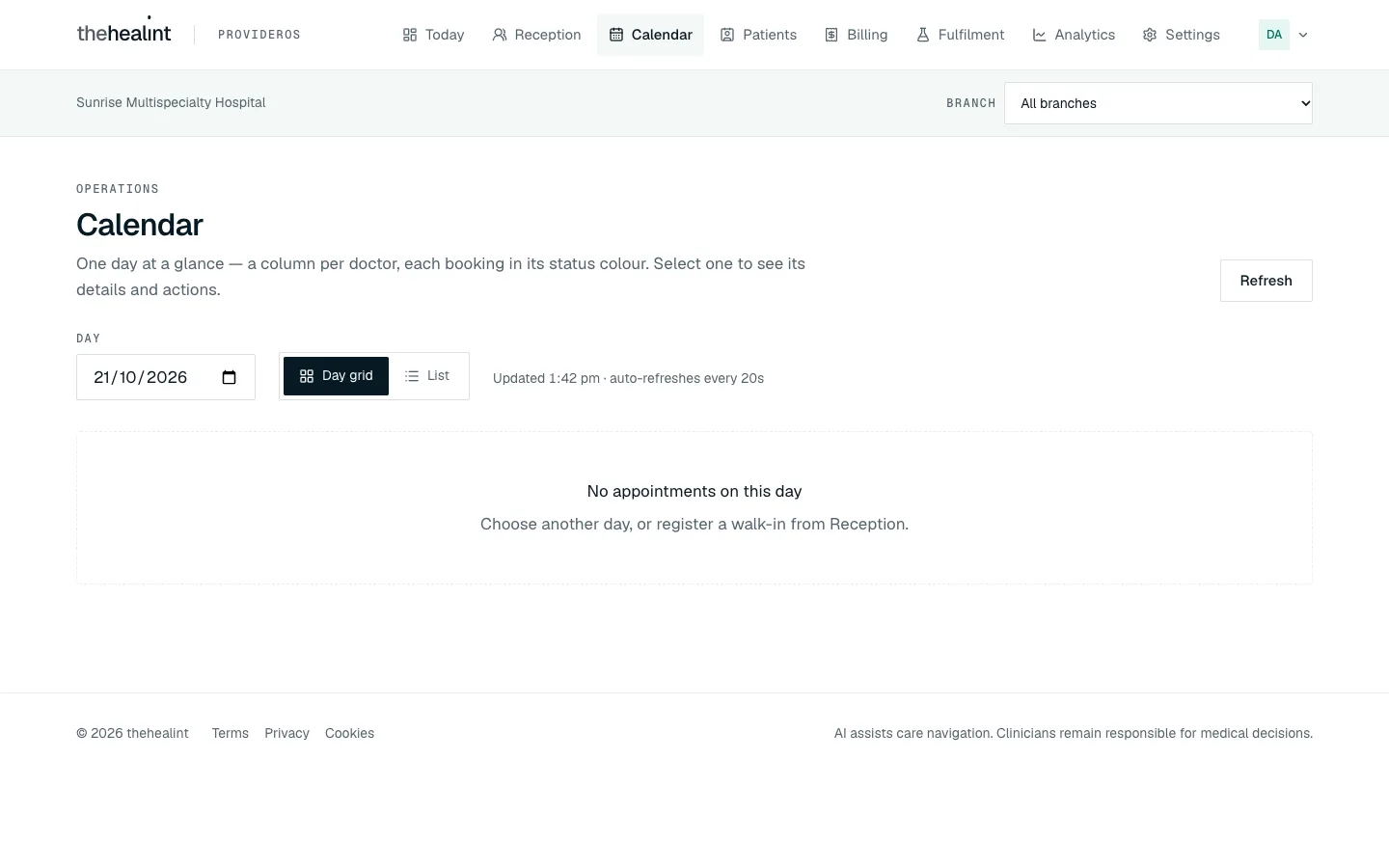
Good to know:
- Today, Billing and Analytics always count every branch.
- Departments and Practitioners have their own branch drop-downs.
- Your choice resets to All branches when you reload the page.
- With only one branch there's nothing to choose, so the selector isn't shown.
If you are a facility manager#
A facility manager runs the day-to-day operation. You see the same menu as an admin, with two differences:
- Settings → Staff and Settings → Covering access aren't in your Settings menu. Opening them shows "Not part of your role".
- On Branches, Departments, Practitioners and Verification documents you can look, but saving fails with a permission error. Ask a clinic admin to make those changes.
Everything else in this guide works for you, including Weekly availability and time off, Reception, Calendar, Patients, Billing, Fulfilment, Analytics, Notification delivery and Security.
Things you can't do here — and who to ask#
| You want to… | What to do |
|---|---|
| Edit or remove a branch, or move its pin | Ask thehealint support |
| Add a second branch on the Free plan | Settings → Plan → Request Growth; a thehealint admin approves it |
| Rename or remove a department | Not possible yet. Ask thehealint support |
| Delete or replace a verification document | Not possible. Upload the new one alongside |
| Send the organization back for review after changes are requested | Upload the corrected document in Settings → Verification documents, then Submit for review again |
| Change your subscription plan (for example to Growth, for Analytics) | Settings → Plan → Request …; a thehealint admin decides it |
| Refund a payment or void an invoice | There's no button for this in ProviderOS. Ask thehealint support |
| Resend a failed patient notification | Not possible from Notification delivery. Ask thehealint support |
| Read a patient's clinical notes or run a consultation | Only the patient's doctor can, in their own login (02-doctor.md) |
| Switch between two organizations you run | Not possible. ProviderOS opens the first one. Use a separate login for the second |
| Let a pharmacy or lab admin add their own staff | Independent facility admins now use their own Settings → Staff: pharmacy admins can add pharmacists; lab admins can add lab technicians |
| Verify your pharmacy or lab, or a pharmacist's credential | thehealint's reviewers do this (06-pharmacy-and-lab.md) |
Quick reference#
| Task | Where | Button |
|---|---|---|
| Create a new organization | ProviderOS sign-in | Setting up a new clinic? Create an account → Create organization |
| Upload a verification document | Settings → Verification documents | Upload document |
| Send a rejected application back | Settings → Verification documents | upload the fix → Submit for review again |
| Change your plan | Settings → Plan | Request … → Send request |
| Publish / unpublish | Today | Publish to marketplace / Unpublish |
| Add a branch | Settings → Branches | Find or click the map → Add branch |
| Add a department | Settings → Departments | Add department |
| Add a staff member or doctor | Settings → Staff | Add a person → Add and send invitation |
| Resend an invitation | Settings → Staff | Resend invitation |
| Suspend / reactivate | Settings → Staff | Suspend / Reactivate role |
| Remove someone | Settings → Staff | Remove |
| Set a doctor's hours | Settings → Weekly availability | Drag on the week → Add these hours, or Add hours for doctor |
| Remove hours | Settings → Weekly availability → Hours set | Remove → Remove hours |
| Add time off | Settings → Weekly availability → Time off | Add time off for doctor |
| Your own doctor profile | Settings → Practitioners | Create my practitioner profile → Affiliate with branch |
| Review covering access | Settings → Covering access | Set From / To |
| Check failed notifications | Settings → Notification delivery | — |
| See analytics | Analytics | Refresh (Growth plan) |
| Turn on two-factor sign-in | Your initials → Security | Set up two-factor authentication → Confirm |
| Switch branch | Grey bar under the menu | Branch selector |
PDF version
The same guide with all its screenshots, to print or share. (2.1 MB)
Download the PDF Open in a new tab
Loading the PDF viewer… If it does not appear, your browser cannot show PDFs inside a page: use Download the PDF.