Walkthrough: a visit, start to finish
thehealint connects four groups of people: patients who need care, the clinics, hospitals, pharmacies and labs who give it, the teams who run those places, and a small platform team who keep it trustworthy. This page follows one visit through all of them, so you can see where your part fits. Each step links to the full guide for the people doing it.
1. The three places you will use#
| You are… | You use | Address |
|---|---|---|
| A patient | The patient website and the phone app | app.thehealint.com |
| Staff at a clinic, hospital, pharmacy or lab | ProviderOS, which shows each person only their own work | provider.thehealint.com |
| On the platform team | Admin web | admin.thehealint.com |
Everyone starts at thehealint.com. Its Sign up page sends patients and organizations to the right place and, for organizations, starts them on the right type (doctor, clinic, hospital, pharmacy or lab).
One rule runs through everything: you see only what your role needs. A receptionist sees bookings and billing, a doctor sees their own patients, a pharmacist sees the orders sent to them, and a patient sees their own health records.
2. A clinic gets set up#
Before anyone can book, an organization signs up, proves who it is and opens its doors.
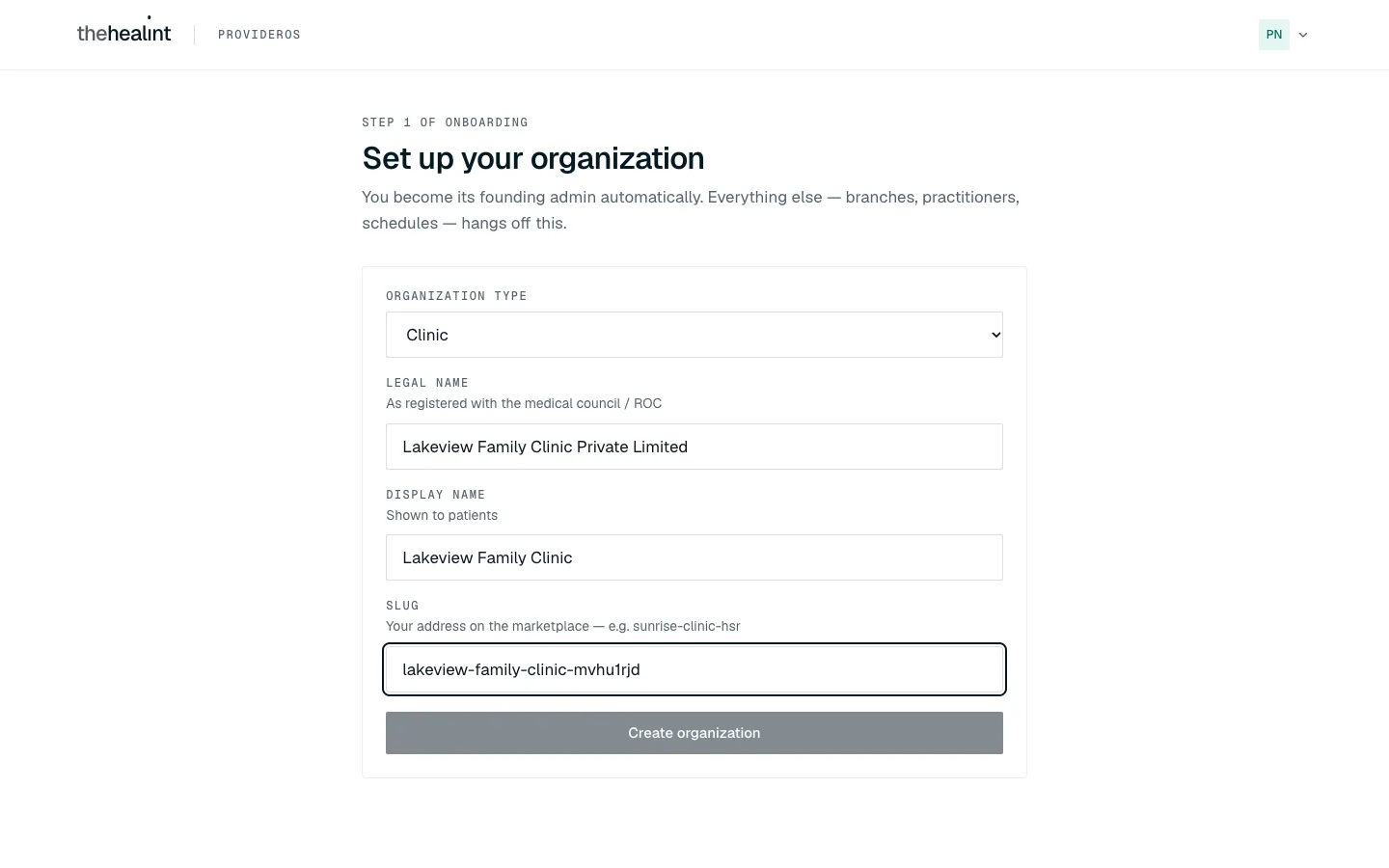
- Sign up and set up. The administrator creates an account and describes the organization.
- Upload registration documents. The platform team checks them. The administrator is emailed the decision; a rejection says what to fix, and one click sends it back.
- Add branches, departments and staff. Each branch is placed on a map so patients can search by distance. Staff get an emailed link to set a password, and a doctor needs a registration number, council and a branch. Many people, branches or fees can be added from a spreadsheet.
- Set doctors' weekly hours. This is what patients can book.
- Publish. Once verified, one button makes the organization visible in search.
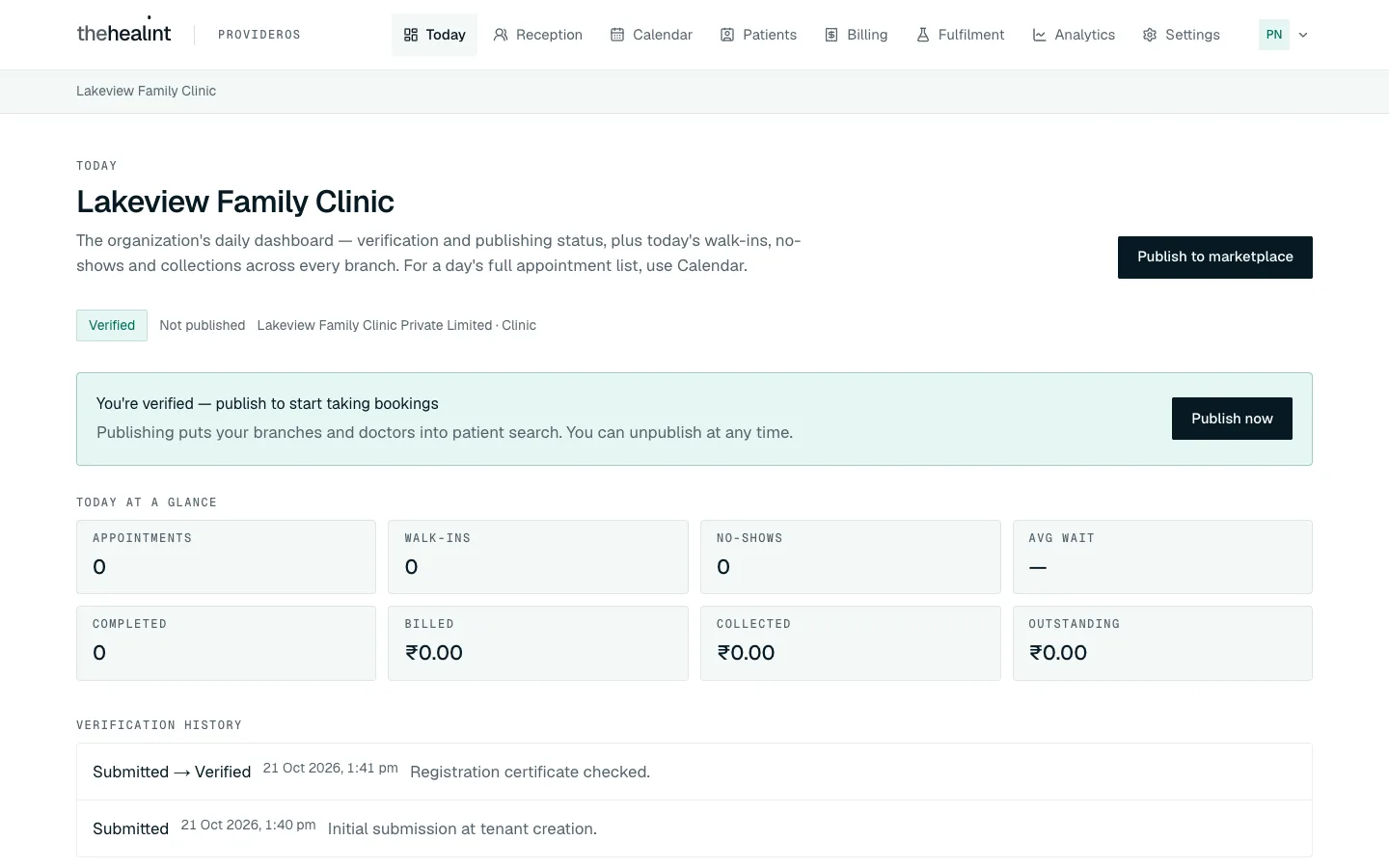
Full guide: Clinic and hospital admins · How to get verified · How to add staff
3. A patient finds care and books#
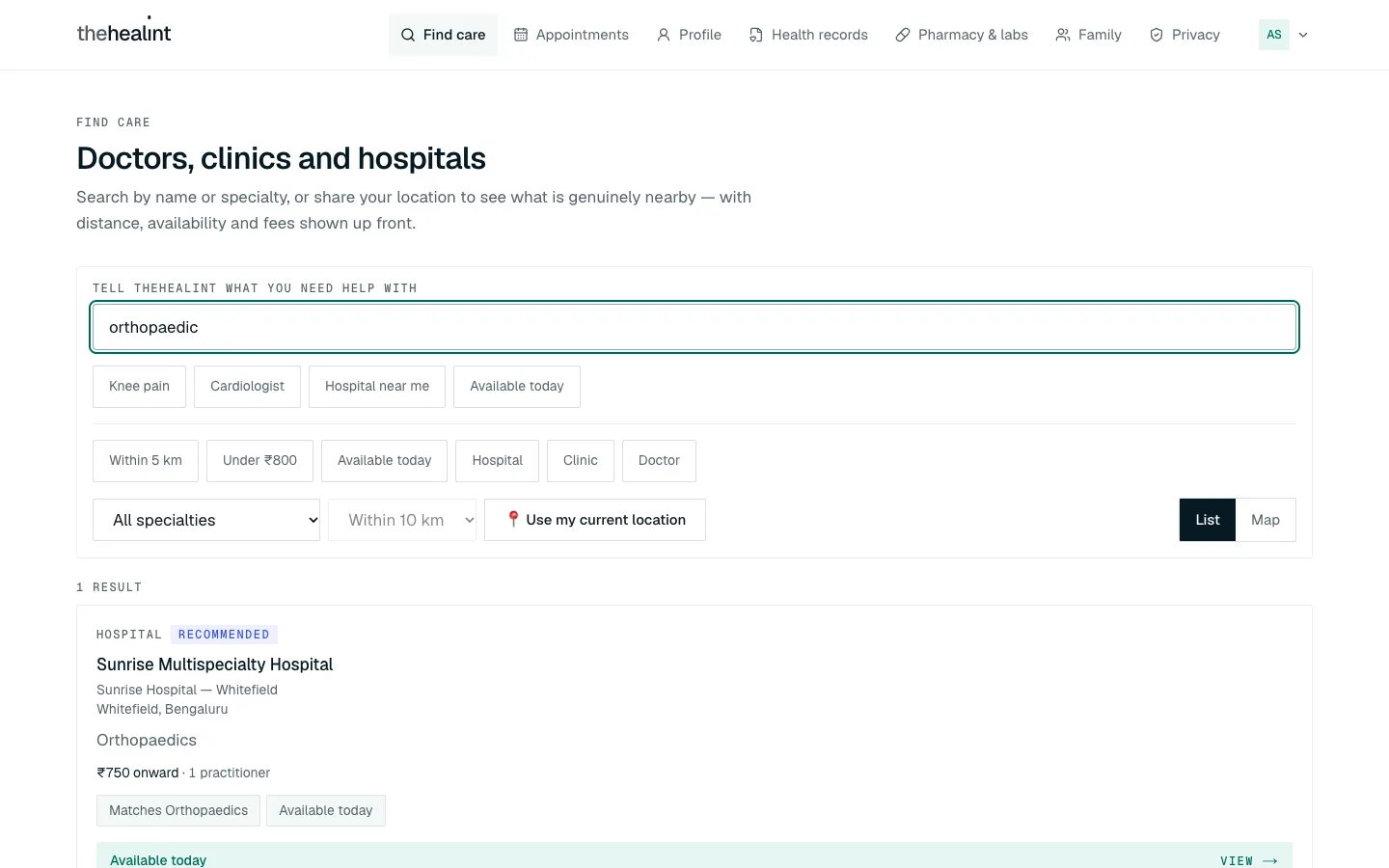
- Search. Describe how you feel or name a specialty. Results show distance, fee and whether there is a slot today, and can be viewed as a list or a map.
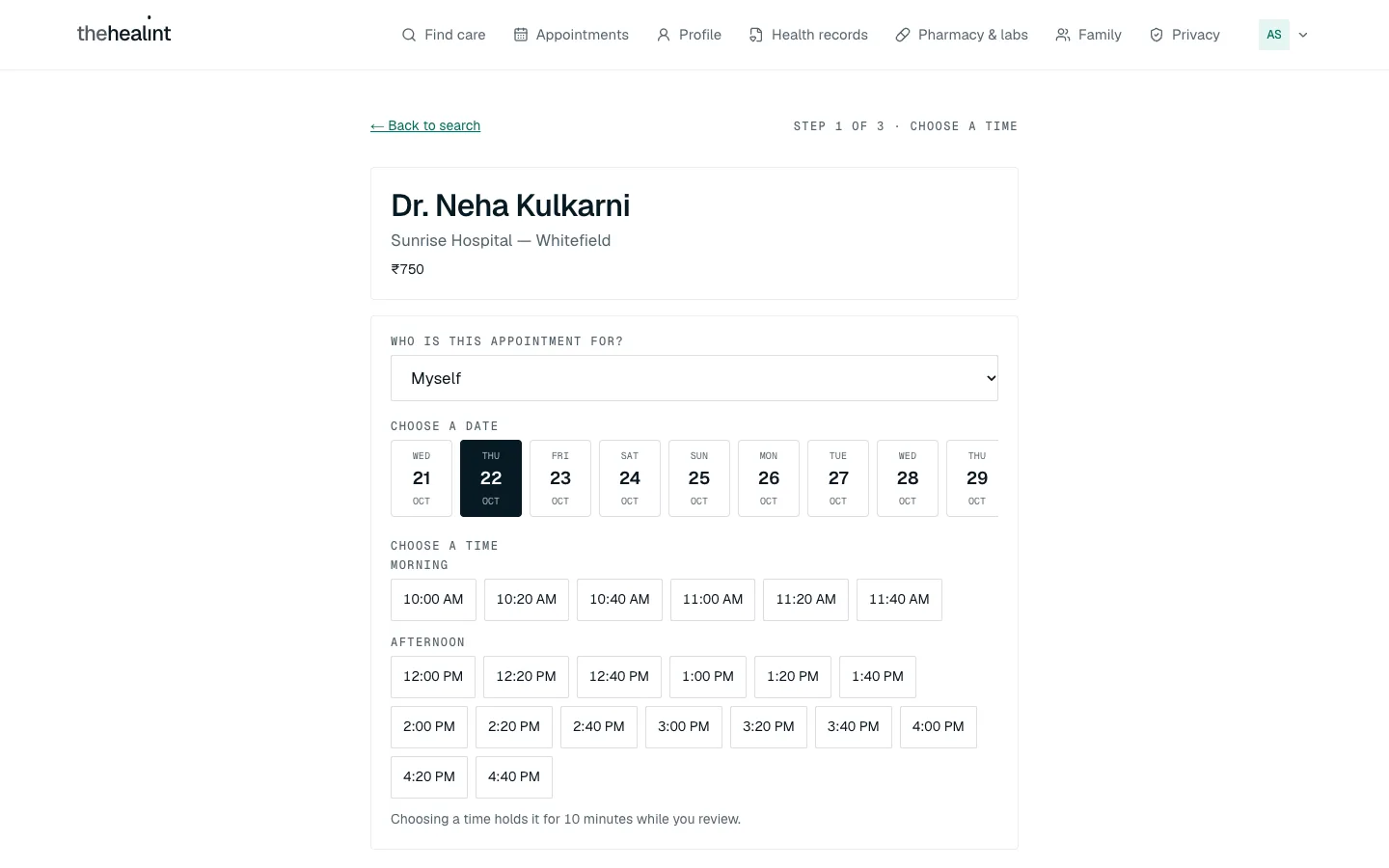
- Choose a doctor and a time. The times are the doctor's real schedule, shown on the clinic's own clock.
- Confirm. A booking can be for yourself or for someone in your family. Add what the visit is about so the doctor can prepare.
Full guide: Patients · Find a doctor · Book an appointment · Book for family
4. The day of the visit#
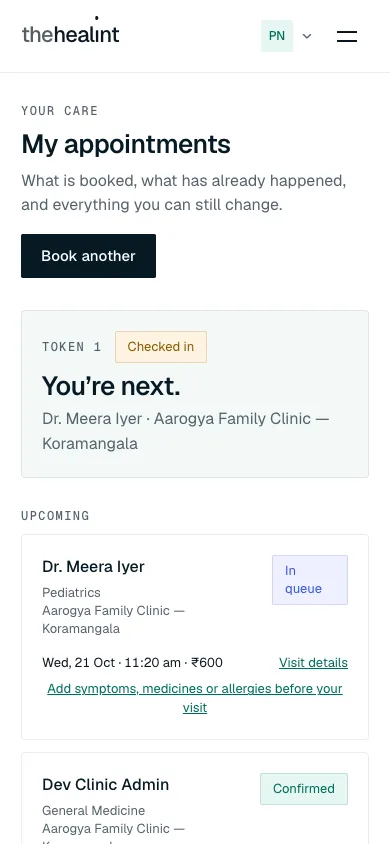
- The patient checks in. The button appears only on the day of the visit.
- Reception sees who is expected, checks people in, registers walk-ins and runs the queue: call, skip, no-show.
- Nurses see the queue and help call patients.

Full guide: Patients: visit day · Front desk · Nurses and billing
5. The consultation#
The doctor opens the next patient from their queue. Everything the patient told the clinic beforehand is already there.
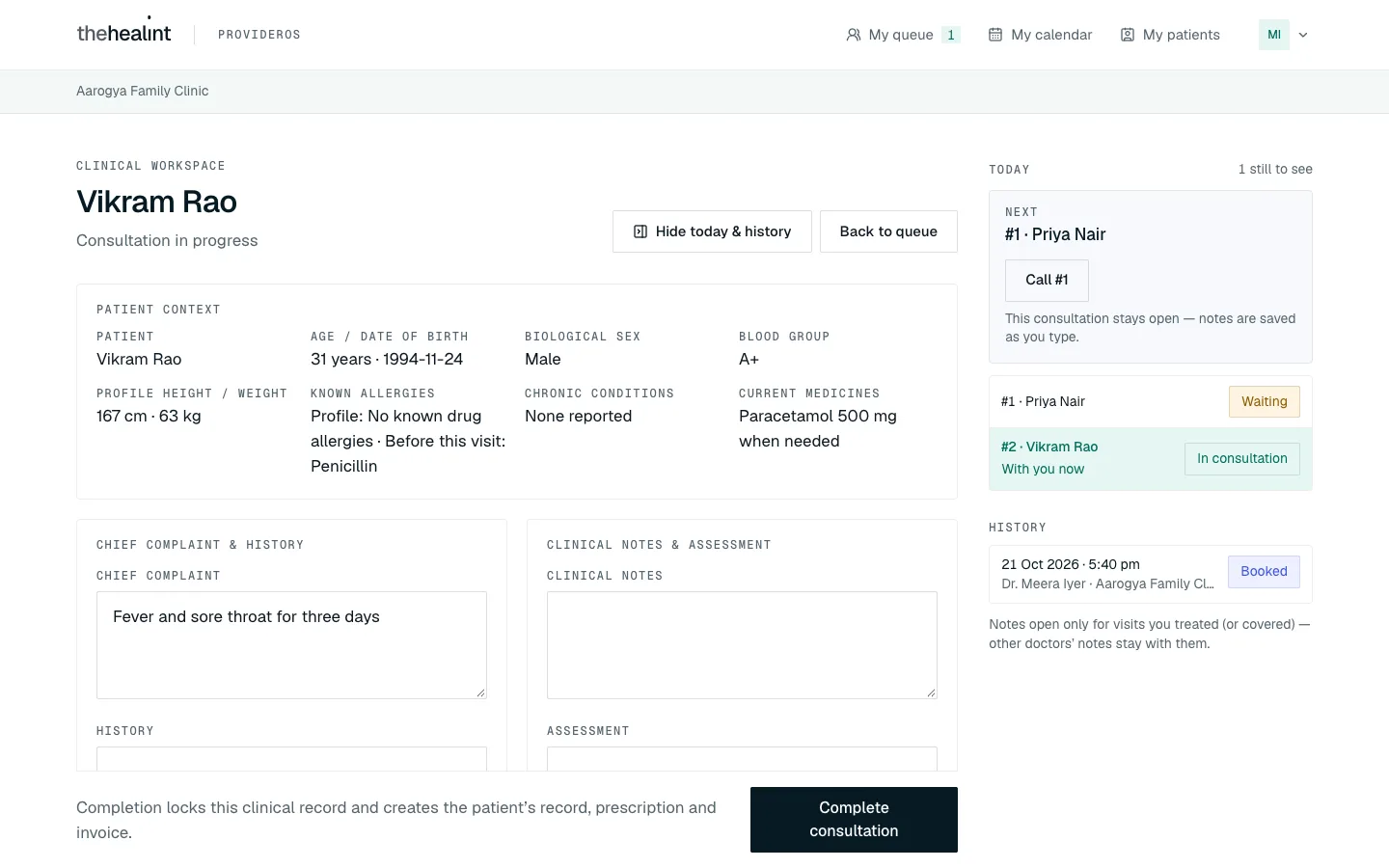
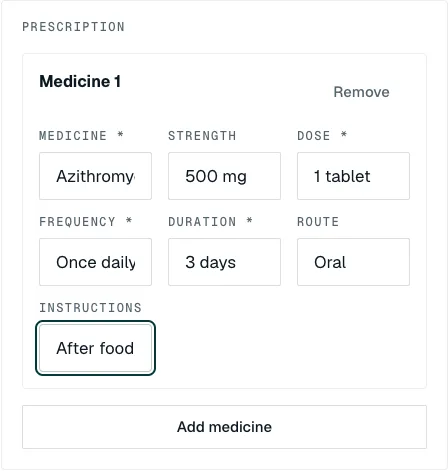
- The doctor writes notes, records vitals and diagnoses, adds medicines and tests, and can recommend a follow-up.
- What the doctor types is saved as they go, so a refresh or a dropped connection loses nothing.
- Completing the visit issues the prescription and the bill, once. If a colleague covers, they give a reason, the assigned doctor is told, and it is recorded.
Full guide: Doctors · Write up the consultation · Cover a colleague
6. After the visit: records, pharmacy and labs#
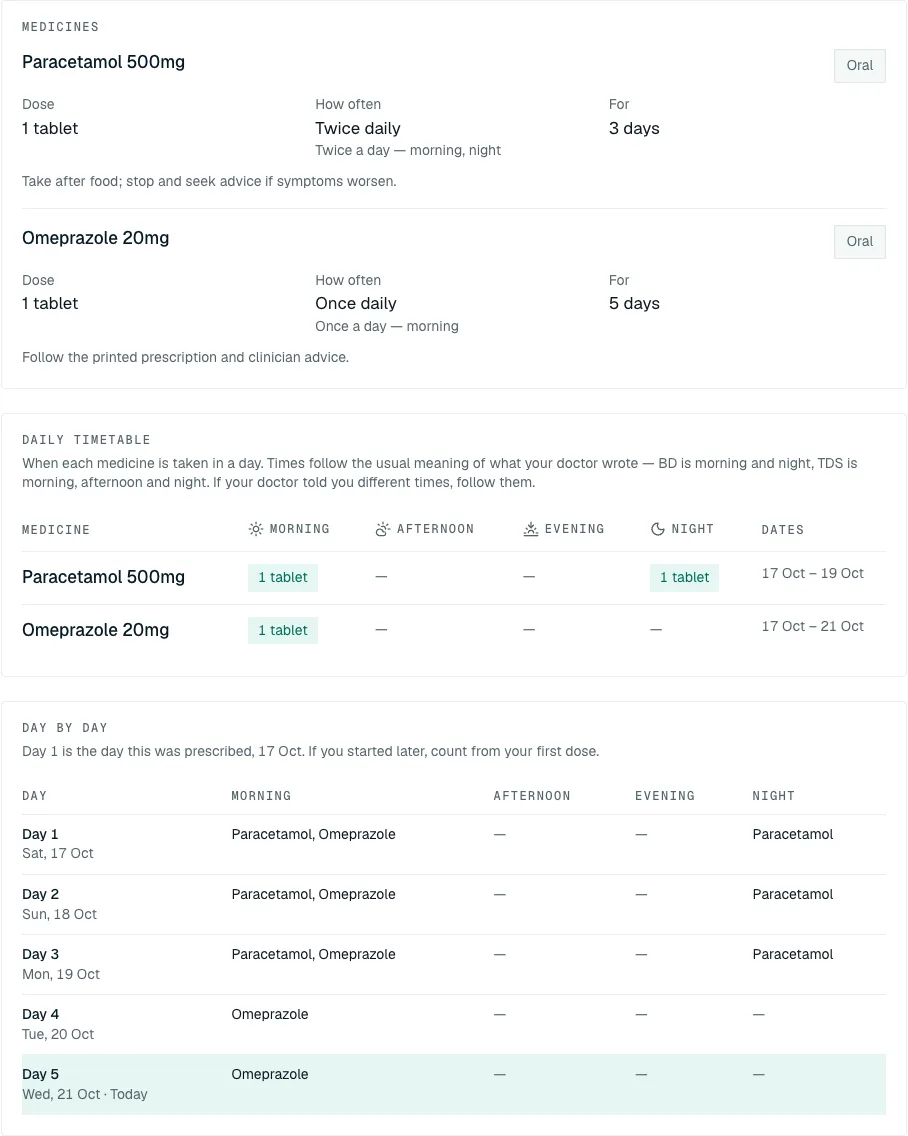
- The prescription and visit notes appear in the patient's health records.
- The patient can send the prescription to a pharmacy or a test request to a lab. The facility accepts it, works it through its statuses, and the patient follows along. A lab releases the report to the patient's records.
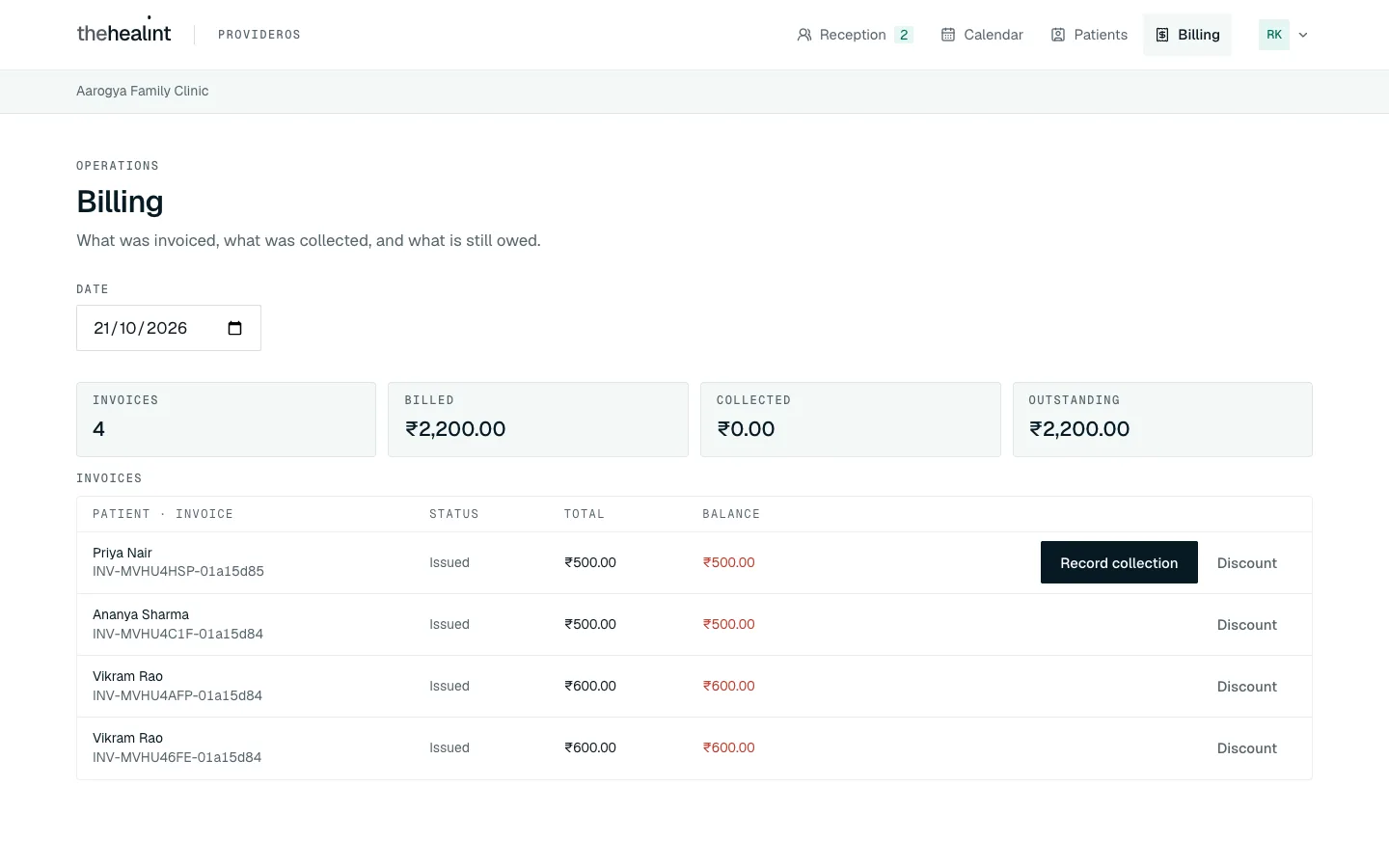
- The bill appears on the visit. The clinic takes payment at the counter, and can give a discount with a reason.
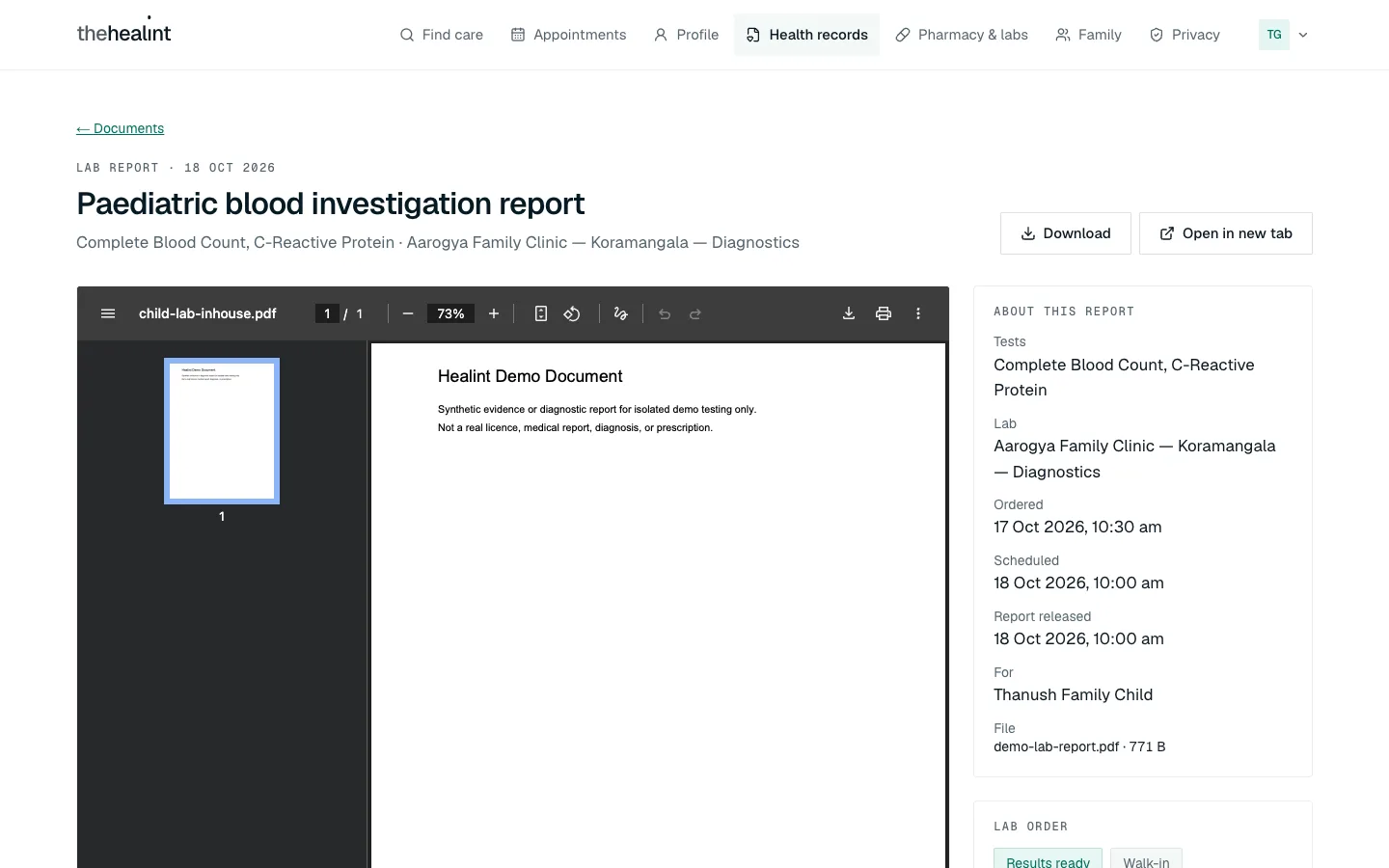
Full guide: Pharmacies and labs · Patients: after the visit · Billing
6b. Taking payment#
7. Keeping control of your information#
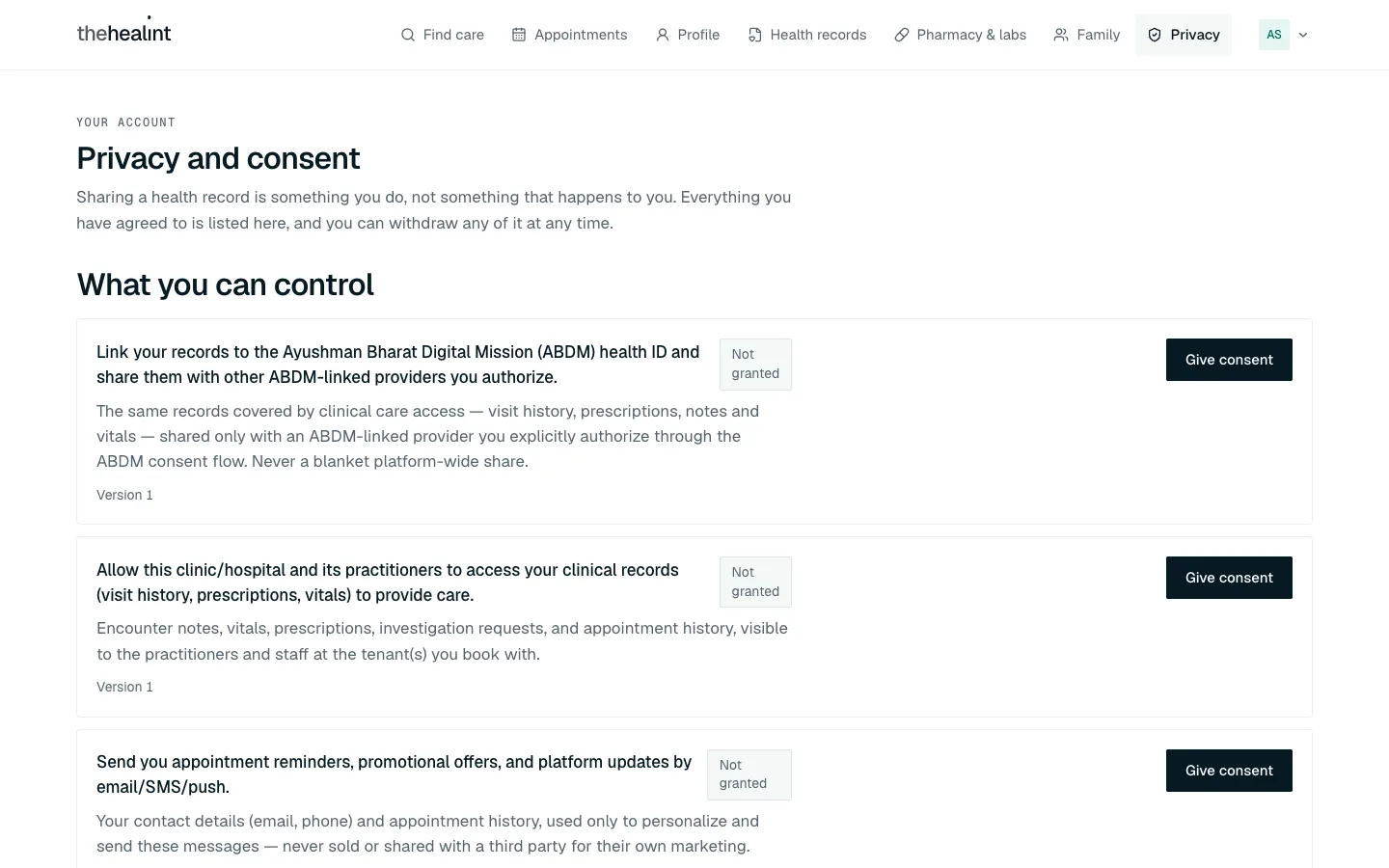
- A provider sees your record because you allowed it. You can see who has access and withdraw it.
- Inside a clinic, access is by role. Opening a record that is not yours needs a reason, and every access is logged.
- Staff accounts support two-factor sign-in.
- The Terms, Privacy policy and Cookies pages are linked from every screen.
Full guide: Patients: privacy and consent
8. The platform team keeps it trustworthy#
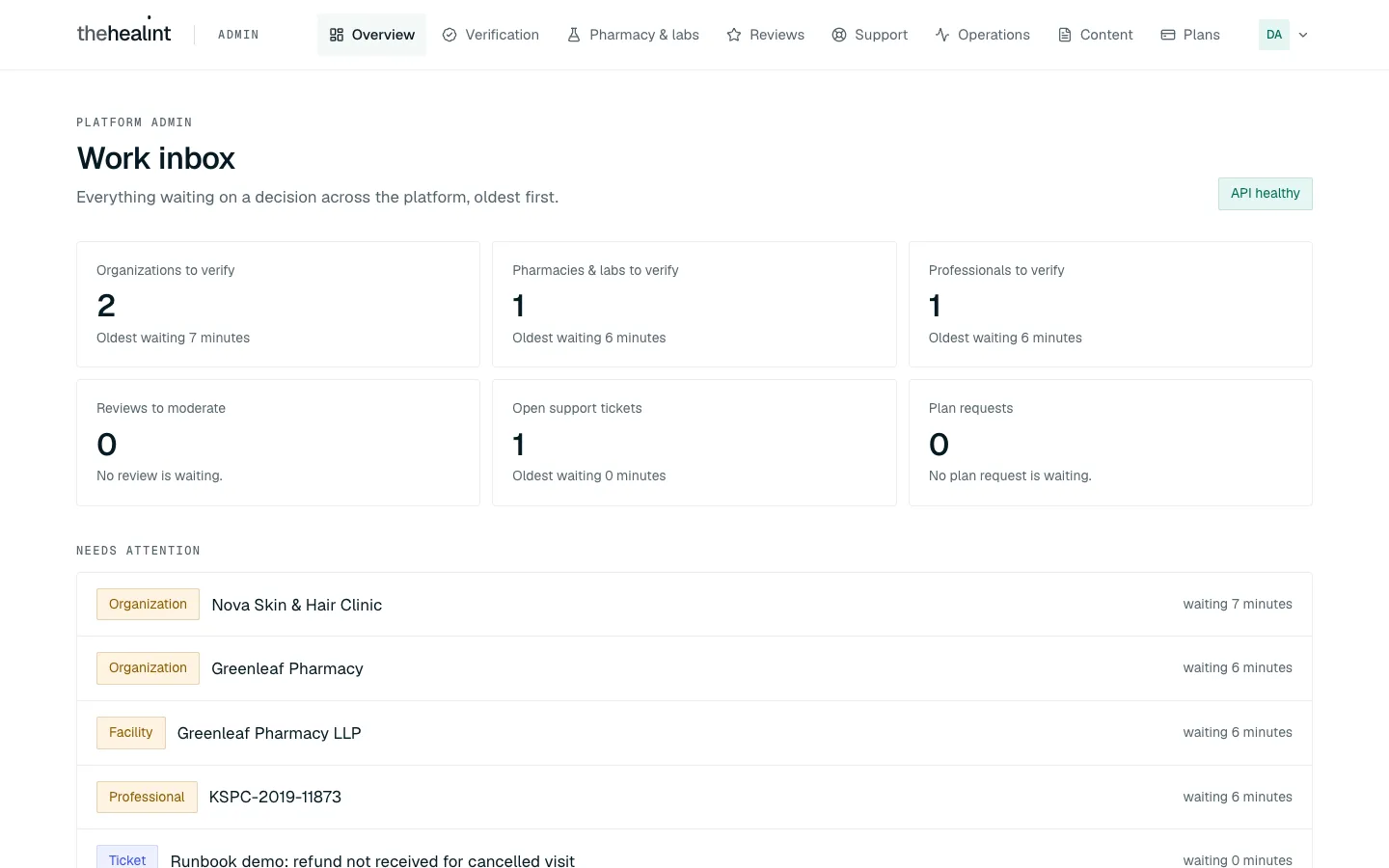
- Verification. Organizations, pharmacies, labs and professionals are checked before they can take bookings.
- Support. Tickets from patients and staff, with replies and a record.
- Plans. Clinics ask for a bigger plan when they hit a limit; the team approves or declines.
- Health of the platform. Dashboards, reliability, and a Delivery failures console to replay emails that did not go out.
- Rollouts. New features reach a few organizations first and can be switched off at once.
- Region. An organization's language, currency and time zone are set once and every screen follows.
Full guide: Platform team
9. On a phone#
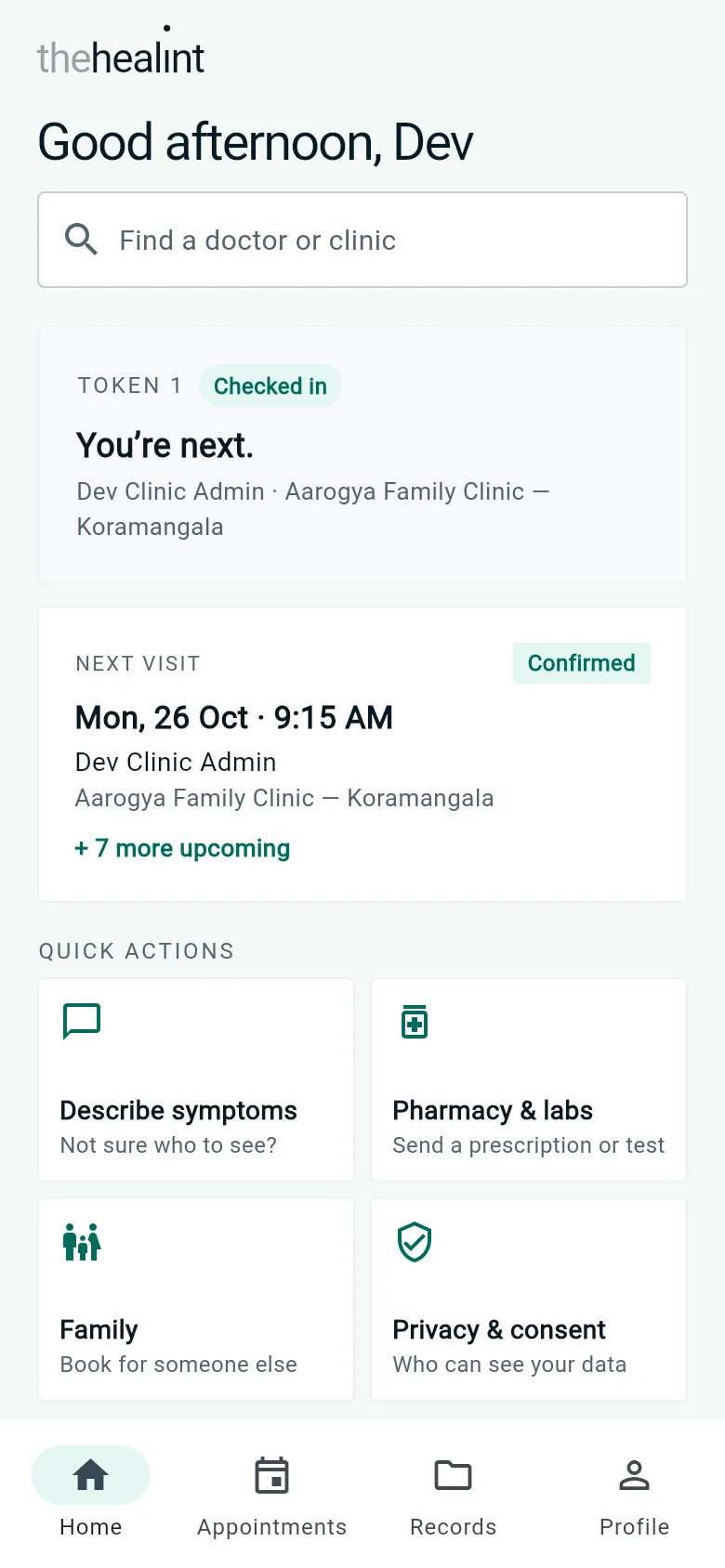
The patient app has Home, Appointments, Records and Profile tabs. Doctors have a phone app for their queue and consultations. The guides say where the phone app differs from the website.
Where to go next#
- Your job: open the guide for your role under Guides.
- A printed copy: every guide has a PDF, all in the PDF library.
- How it is built: the technical reference explains the rules behind each screen: permissions, statuses and known gaps.
- A quick answer: try the questions people ask or press
/to search everything.