Nurse and Billing staff
Who this is for#
This guide is for two roles at a clinic or hospital on thehealint:
- Nurses, who call patients from the queue when the doctor is ready, and mark patients who don't turn up.
- Billing staff, who look after the day's invoices: recording payments taken at the counter, giving discounts and checking the day's totals.
Both work in ProviderOS, in a web browser, and each sees only their own screen. Part 1 is for nurses, Part 2 for billing staff. "Before you start" applies to both.
What you'll see#
| Role | Menu | Opens on |
|---|---|---|
| Nurse | Reception only (today's queue) | Reception |
| Billing | Billing only | Billing |
Your initials sit at the top right. Click them to open Security (two-factor sign-in) or Sign out. The clinic's name is in the grey bar under the menu.
Before you start#
Your first sign-in#
Your clinic admin adds you and you get an invitation email.
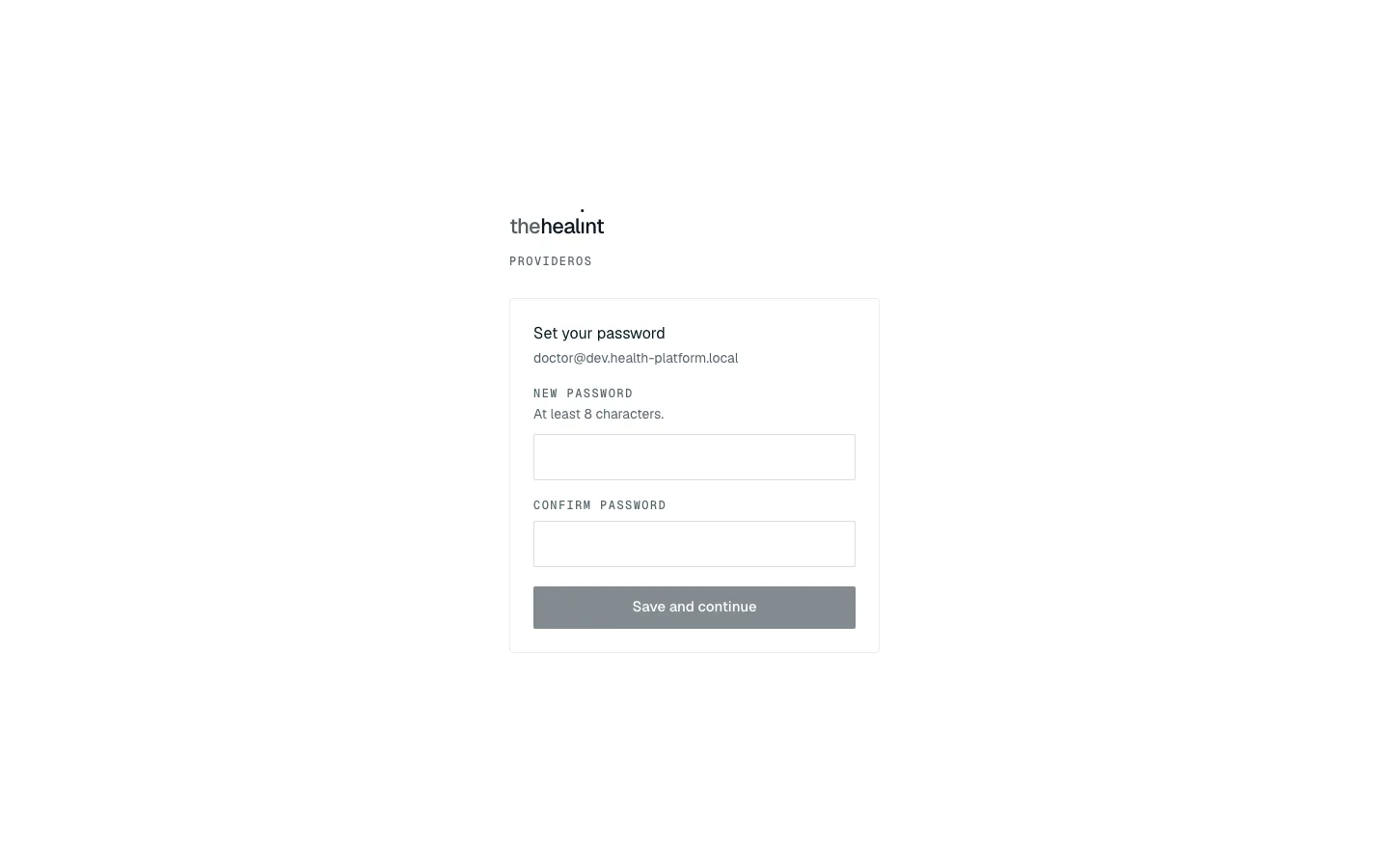
- Click the link in the email. ProviderOS opens on Set your password.
- Type a New password (at least 8 characters) and the same again under Confirm password.
- Click Save and continue. You're signed in and taken to your screen.
If it doesn't work:
- "This link has expired": the link works only once. Ask your clinic admin to resend it, or click Sign in if you've already set a password.
- If ProviderOS asks "What should we call you?", type your name and click Continue. This happens only once.
Signing in every day#
- Open ProviderOS. Type your Email and Password and click Sign in.
- If you've turned on two-factor sign-in, type the 6-digit Authenticator code from your phone and click Verify. To turn it on: click your initials → Security → Set up two-factor authentication, then scan the QR code with an authenticator app (step-by-step pictures are under "How to turn on two-factor sign-in" in 02-doctor.md).
If it doesn't work:
- "That email and password did not match an account…": check for typos, or ask your clinic admin to resend your invitation.
- "Too many attempts. Please wait a minute and try again.": wait a minute.
Part 1 — Nurse#
How to see who's waiting#
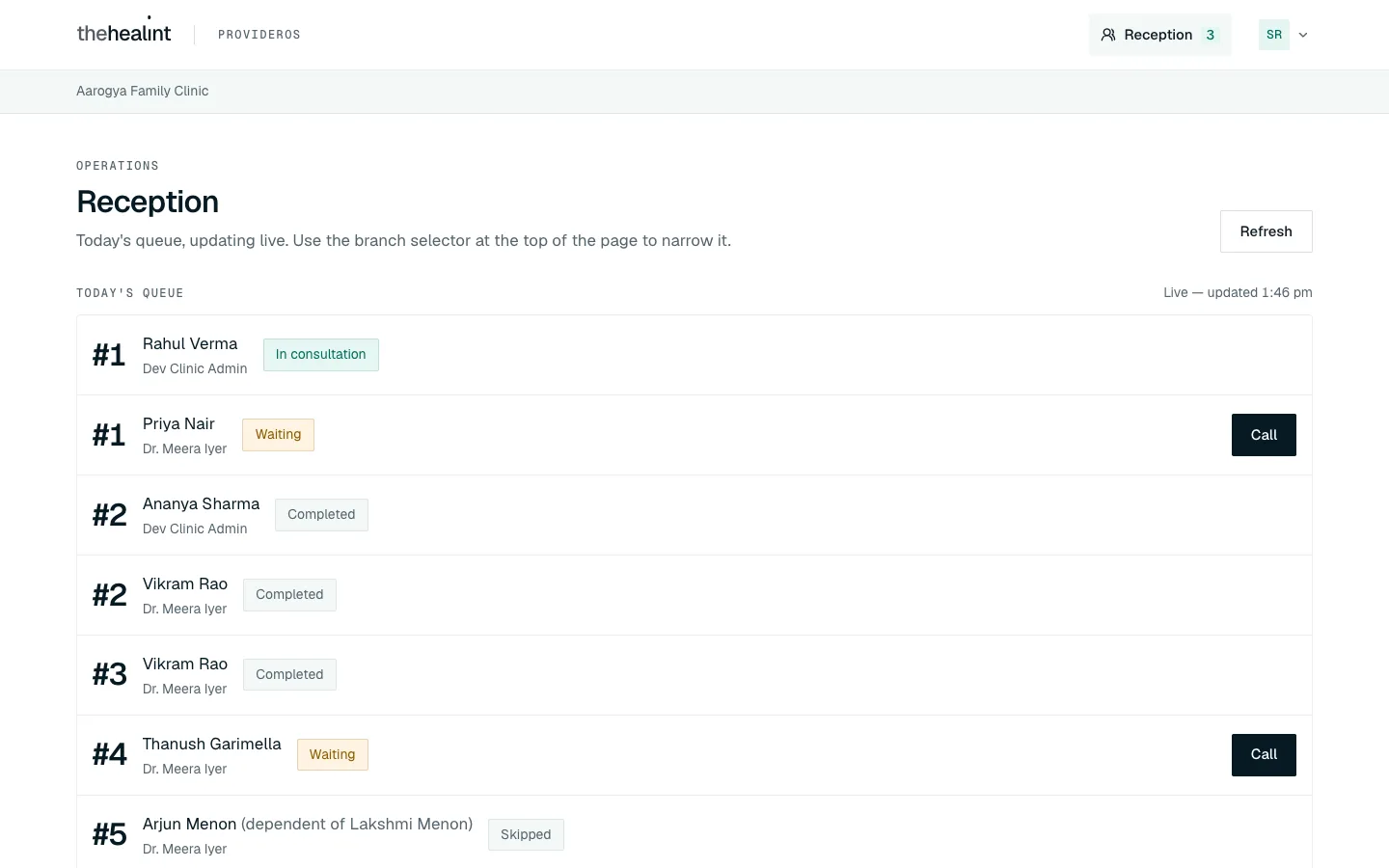
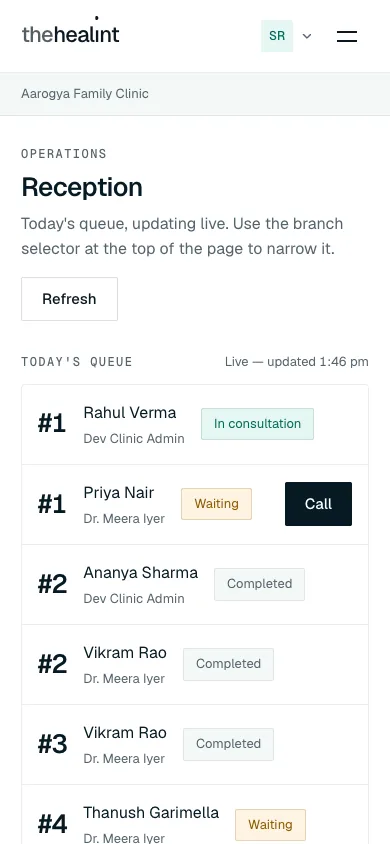
- Click Reception. Today's queue lists every patient checked in today, for every doctor: token number, patient, doctor and status.
- It updates by itself ("Live — updated …"). Click Refresh if you want to be sure.
- The number beside Reception in the menu is how many patients are Waiting.
| Status | Meaning |
|---|---|
| Waiting | Checked in, waiting to be called. |
| Called | Called to go in. |
| In consultation | With the doctor now. |
| Completed | Visit finished. |
| Skipped / No show | Their turn ended without a visit. |
Token numbers count separately for each doctor, so two patients can both be #1 — check the doctor's name under the patient.
If it says "Nobody is in today's queue yet", nobody has been checked in yet. Patients appear as soon as the front desk checks them in, or they check in on their phone.
How to call the next patient#
- When the doctor is ready, click Call on the next Waiting patient for that doctor. The status changes to Called.
- thehealint doesn't message the patient — call out their name or token number.

- The doctor starts the consultation from their own screen. The status then changes to In consultation, and to Completed when the doctor finishes. You don't need to do anything.
How to skip a patient or mark a no-show#
If a called patient doesn't come in:
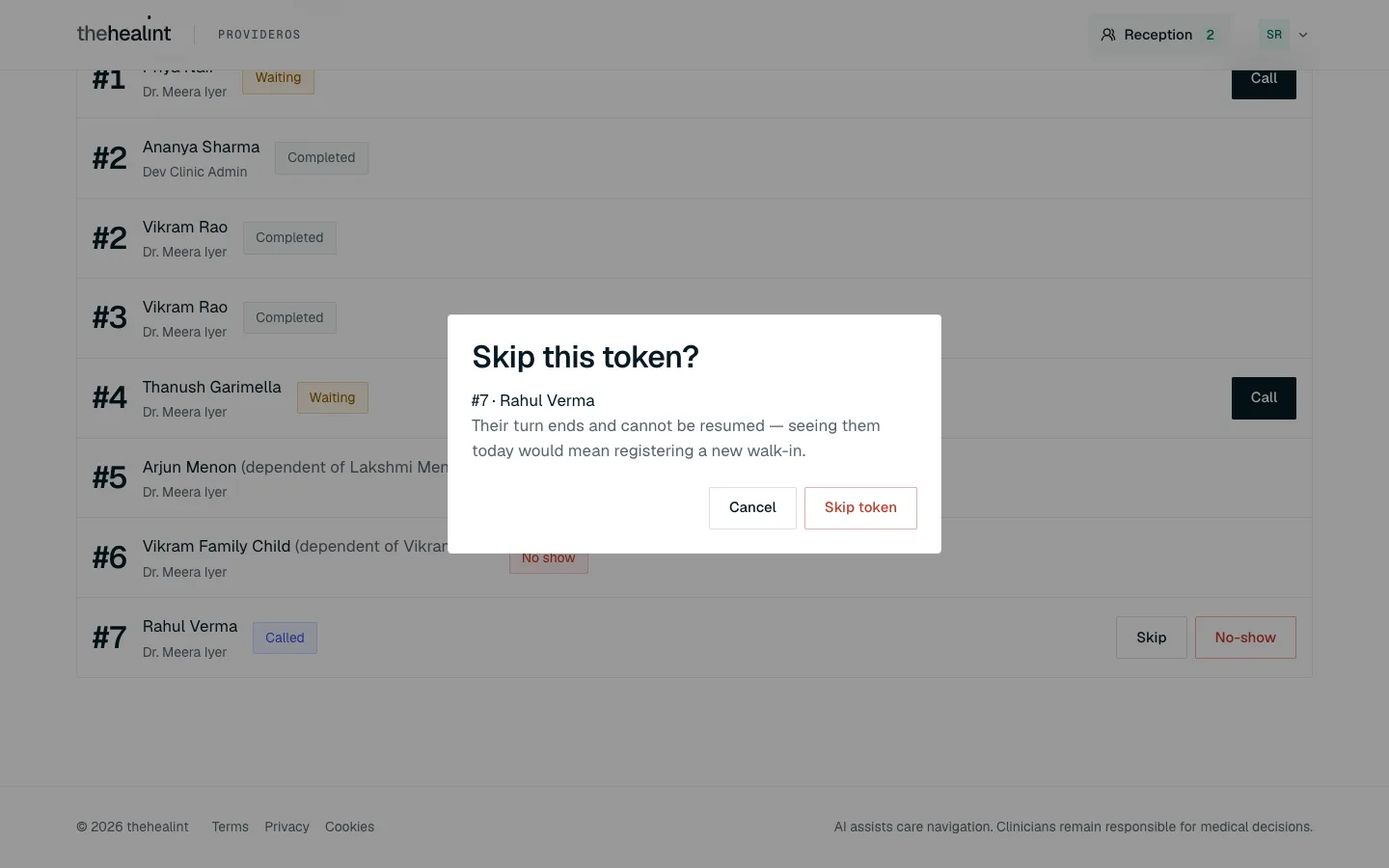
- Skip — for example they've stepped out. ProviderOS asks "Skip this token?". Click Skip token, or Cancel to go back.
- No-show — they've left. ProviderOS asks "Mark this token a no-show?". Click Mark no-show, or Cancel.
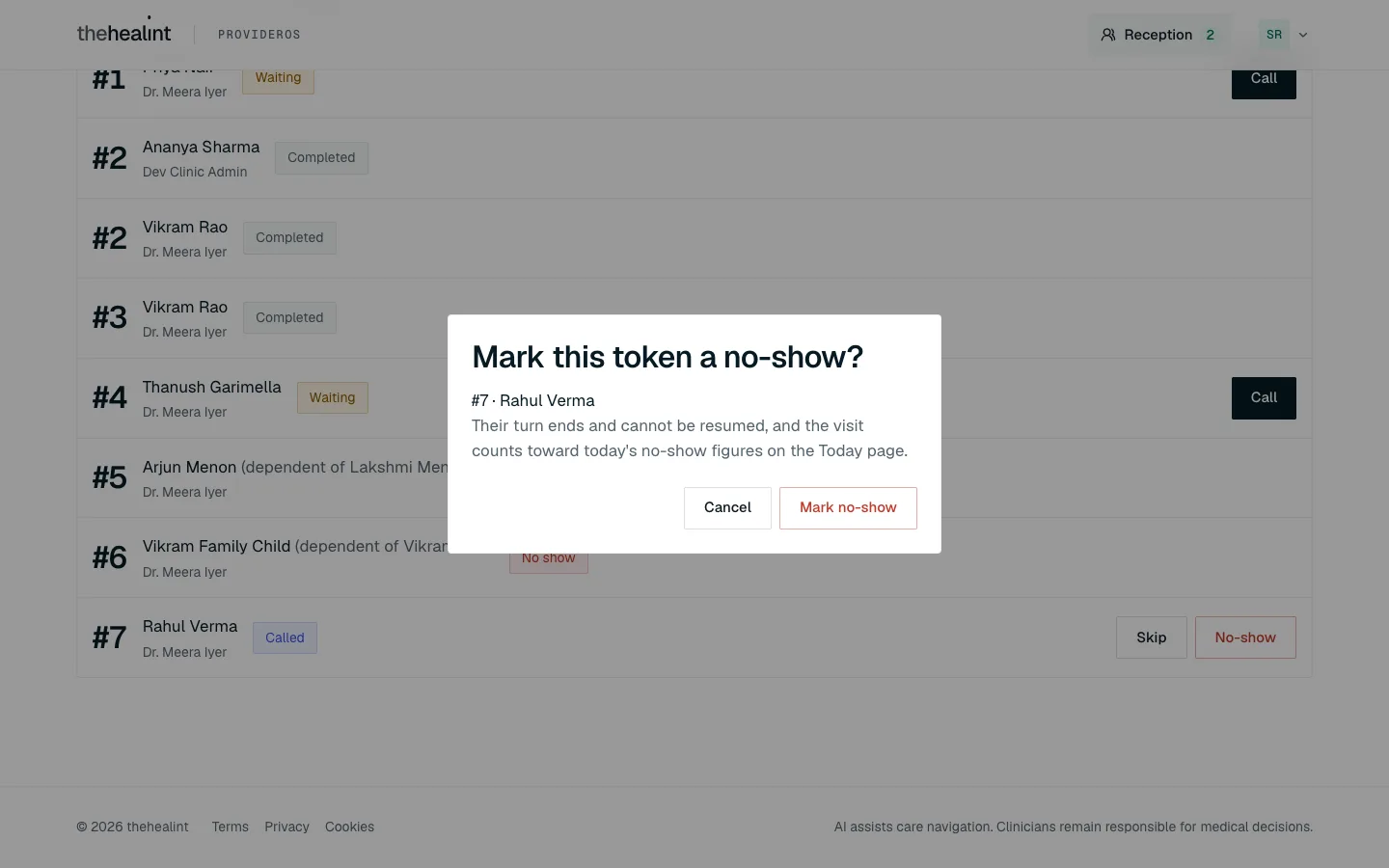
Skip and No-show can't be undone. If the patient comes back, ask the front desk to register them again as a walk-in.
If the dialog stays open with an error, someone else has probably already moved that token (for example the doctor has started the consultation). Click Cancel and look at the queue again.
What a nurse doesn't see#
You see the queue only. You can't:
- check in booked patients, register walk-ins, or see who is still expected today — the front desk does that (03-front-desk.md);
- open the calendar or the patients list;
- start or open a consultation, or read clinical notes — that's the doctor (02-doctor.md);
- see billing.
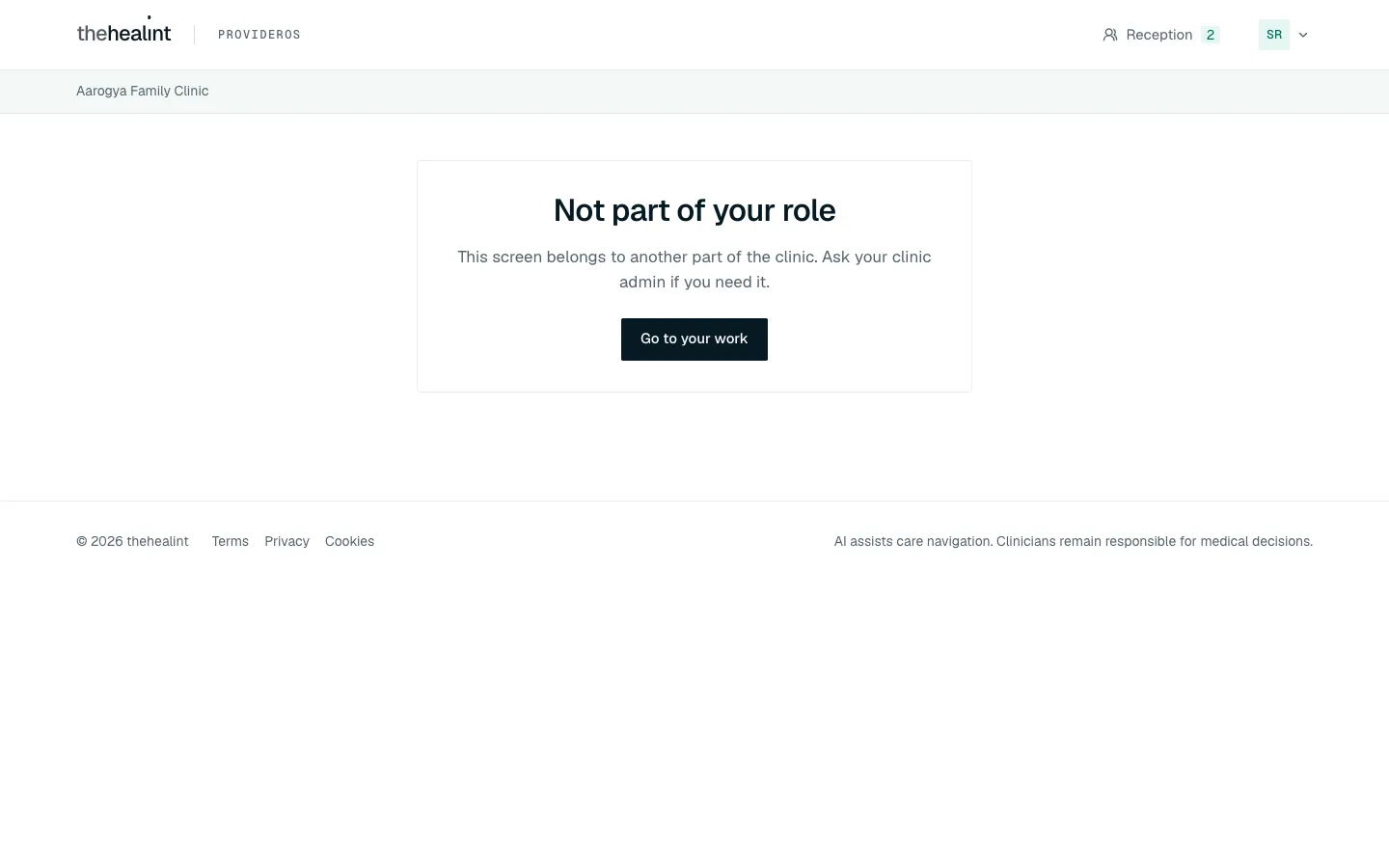
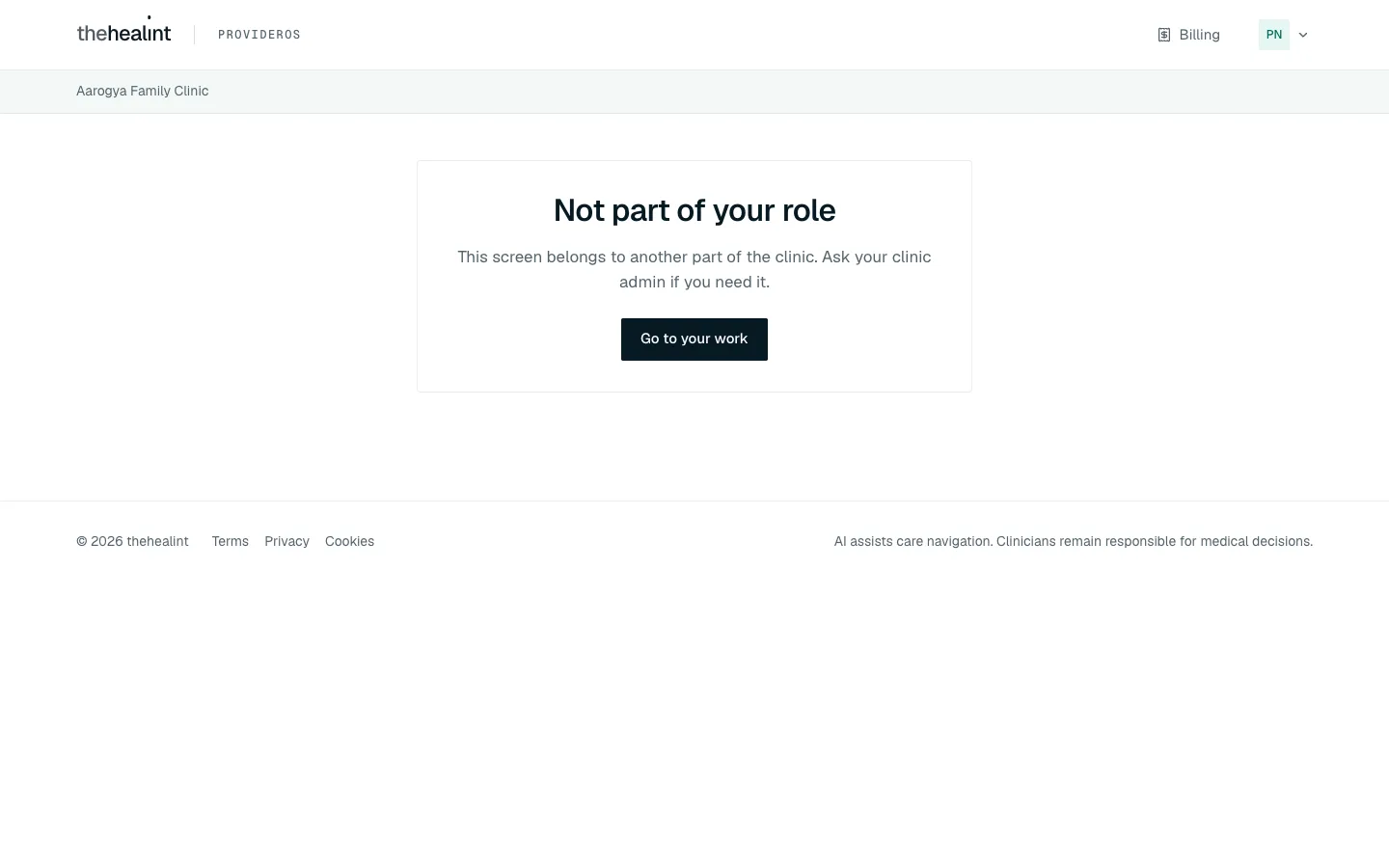
If you open one of those screens (for example from a bookmark), ProviderOS shows "Not part of your role". Click Go to your work to go back to the queue.
Part 2 — Billing staff#
How to read the day's billing#
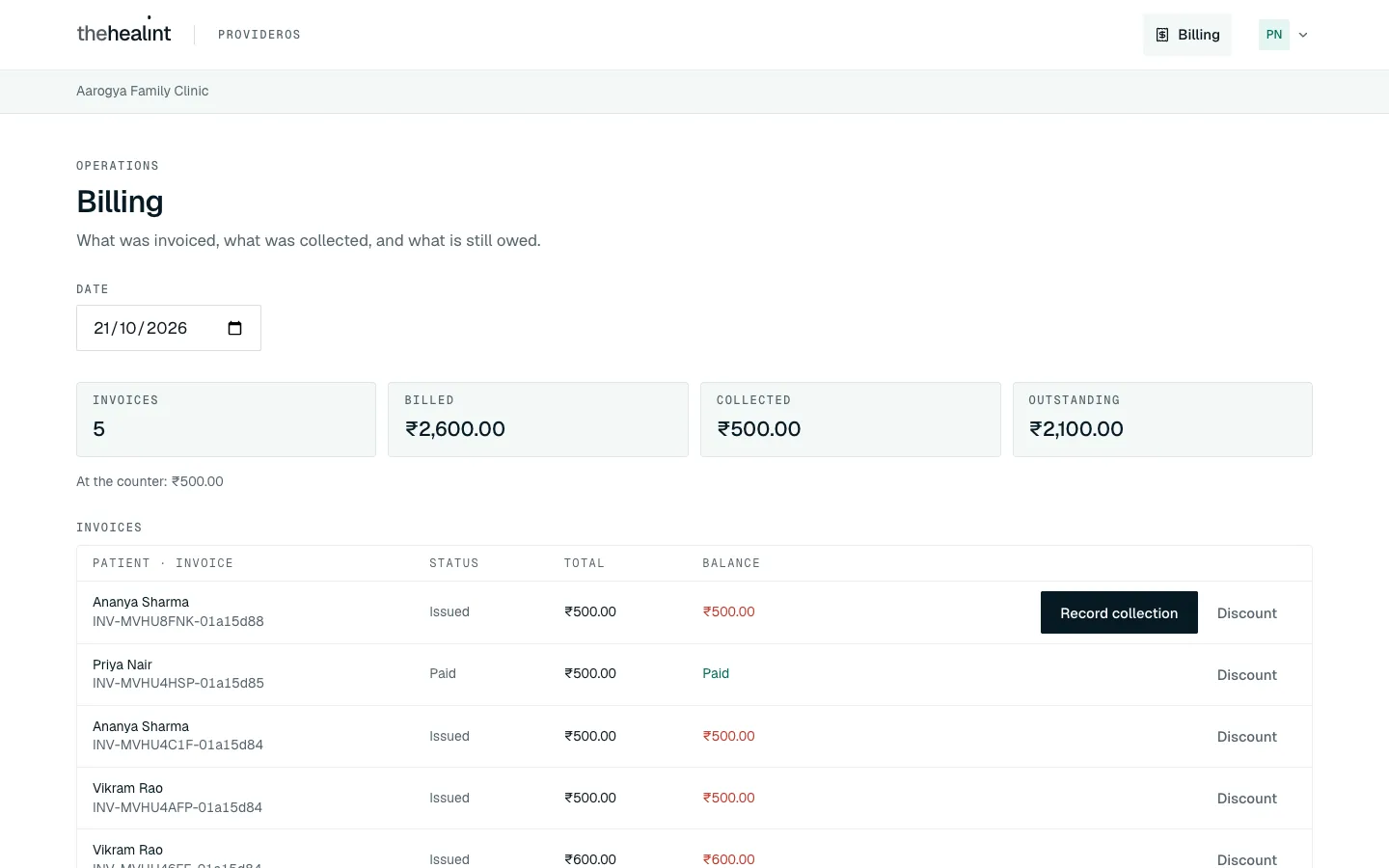
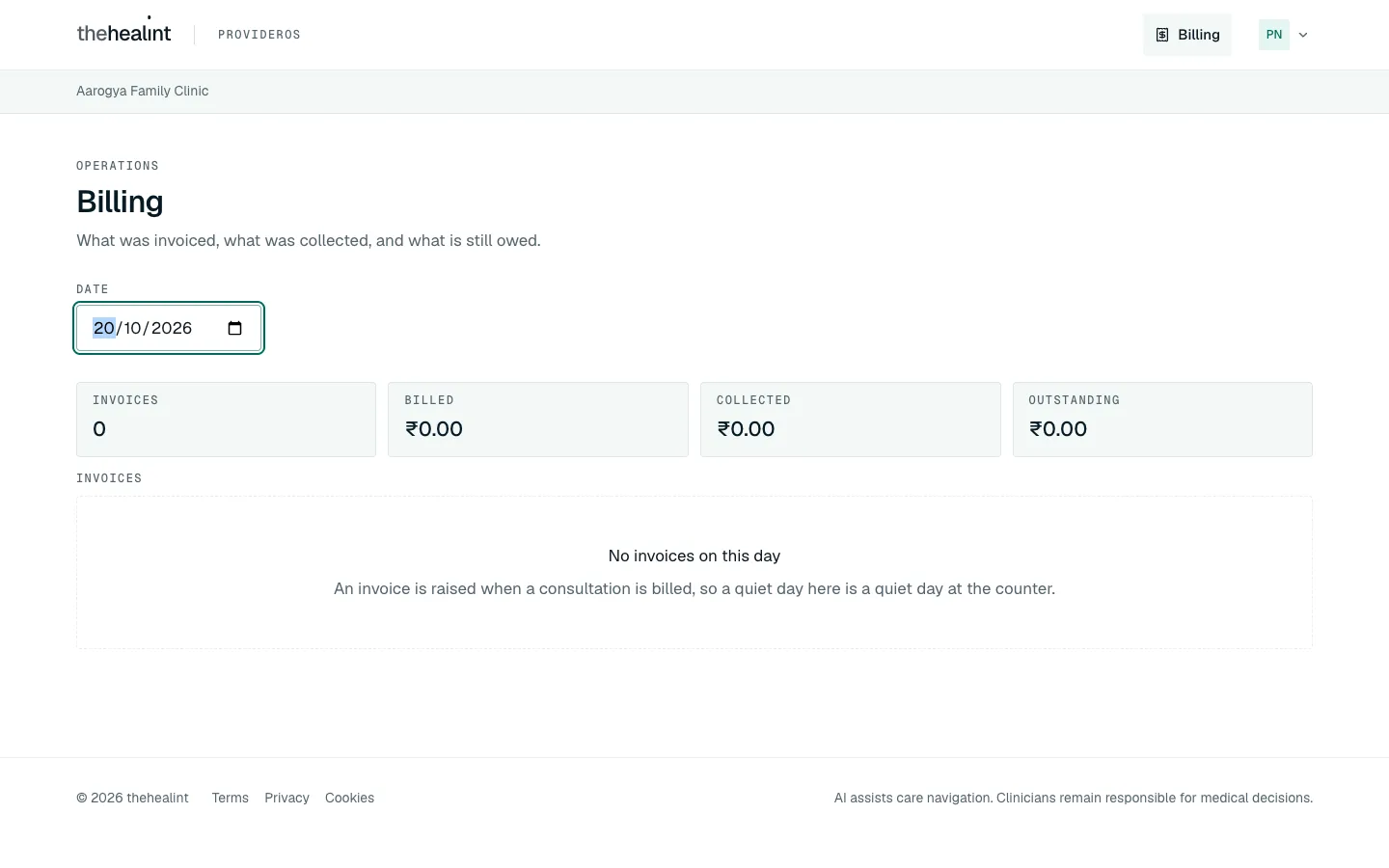
- Click Billing (you start there after signing in). It shows today unless you change the Date.
- At the top are the day's totals:
| Total | Meaning |
|---|---|
| Invoices | How many invoices were raised that day |
| Billed | What they add up to (after discounts) |
| Collected | Money received |
| Outstanding | Money still owed |
- Under the totals, a line shows how the money came in, for example "At the counter: ₹1000.00" or "Online: ₹…".
- The Invoices list shows each invoice's number, status (Draft, Issued, Paid or Void), Total and Balance (in red when money is owed, or Paid).
Each row shows who the bill is for — the patient, or the family member and the account holder in brackets — with the invoice number underneath.
The totals cover the whole clinic, every branch.
How to look at another day#
- Change the Date at the top.
- The totals and the list change to that day. A day with nothing shows "No invoices on this day".
How to record a payment taken at the counter#
Record collection appears on invoices where the patient chose to pay at the clinic and hasn't paid yet.
- Take the money first.
- Click Record collection on the invoice.
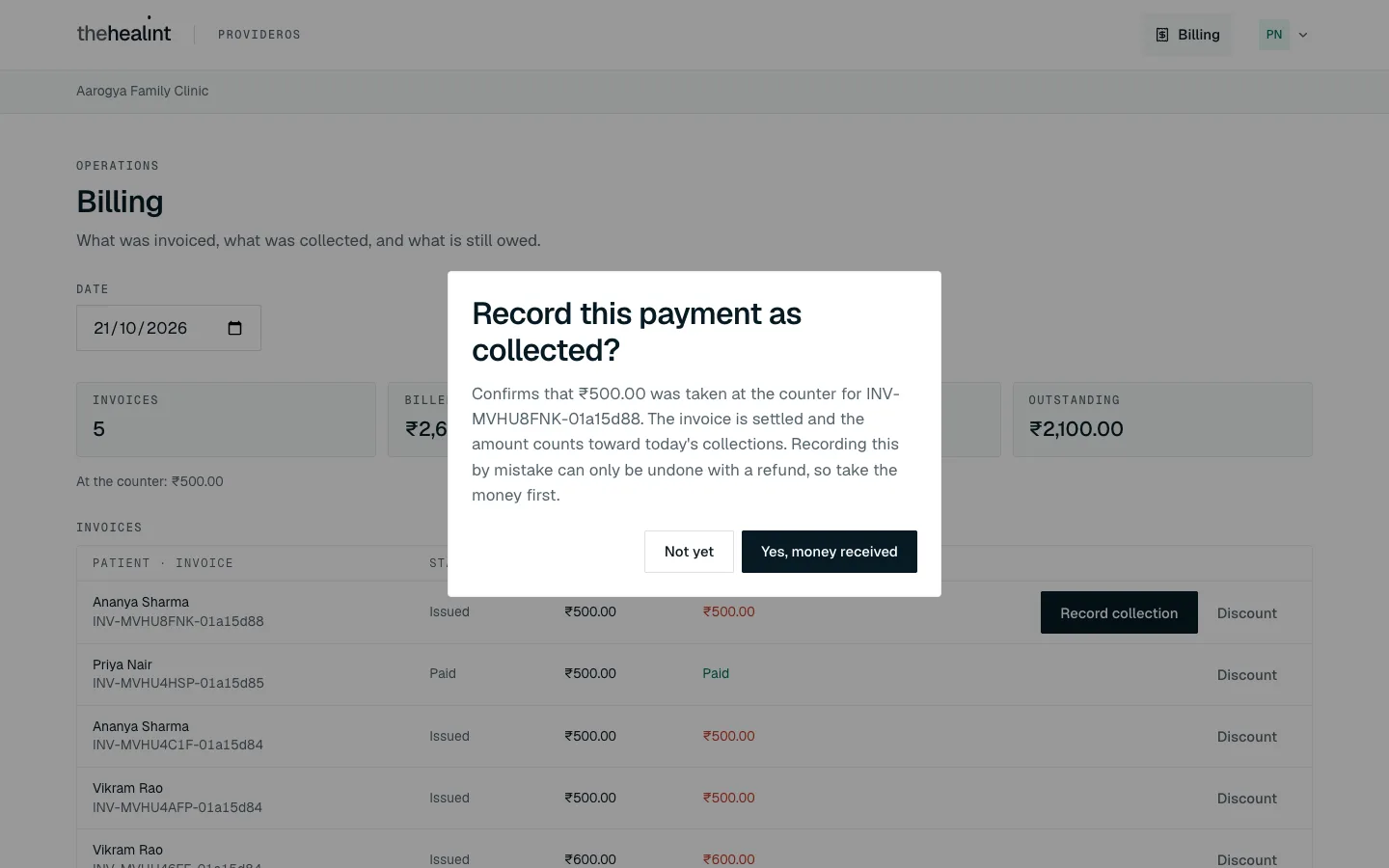
- ProviderOS asks "Record this payment as collected?" with the amount and invoice number. Click Yes, money received (or Not yet).
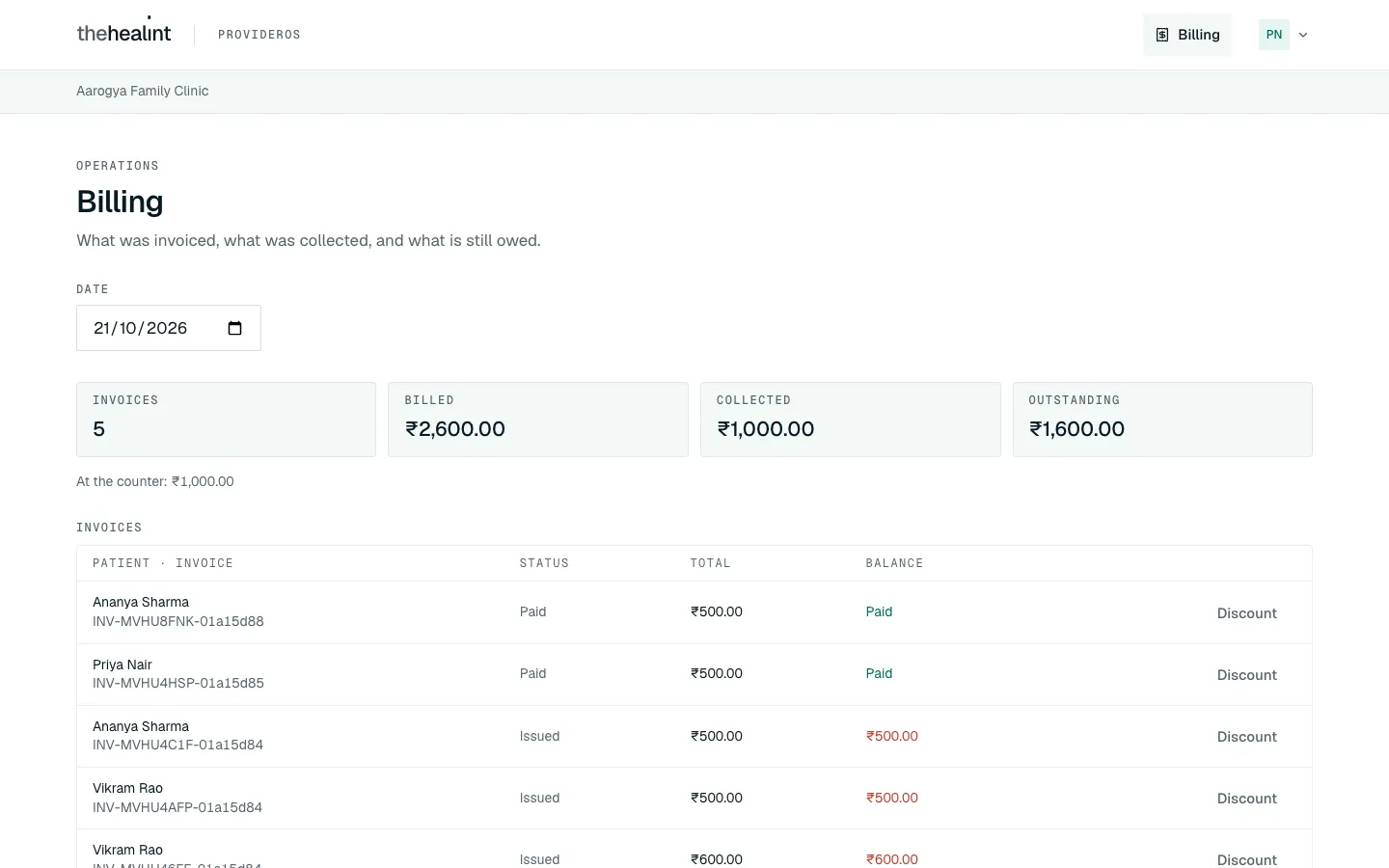
- The invoice shows Paid, and Collected goes up. The patient is emailed to say the payment was received.
A payment recorded by mistake can only be undone with a refund, and refunds can't be made from this screen. Ask your clinic admin.
If an invoice has money owing but no Record collection button, the patient didn't choose pay-at-the-clinic (for example a consultation invoice, or an online payment that hasn't cleared). You can't record cash against it here — tell your clinic admin.
How to give a discount#
- Click Discount on the invoice.
- A box opens under the list. Type the Amount in rupees and a Reason — it's kept with the invoice.
- Click Apply discount.

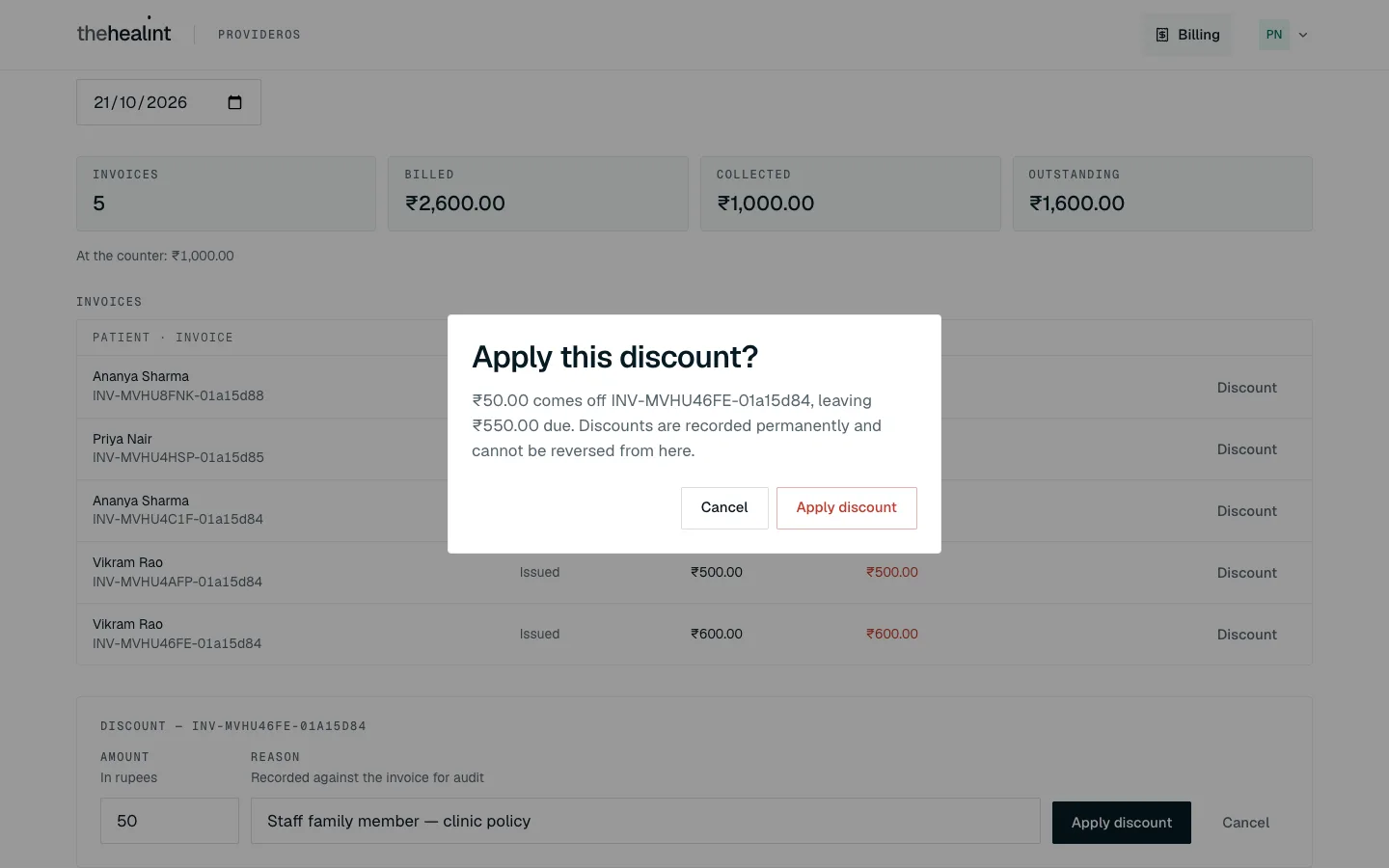
- ProviderOS asks "Apply this discount?", showing what will be left to pay. Click Apply discount (or Cancel).
- The invoice total and balance go down, and so does Billed for the day.
Discounts are permanent and can't be reversed from here. Double-check the amount before you confirm.
If it doesn't work:
- "Enter a valid discount amount.": type a number, without the ₹ sign.
- "Give a reason for the discount.": the reason can't be blank.
- Click Cancel in the box to close it without saving.
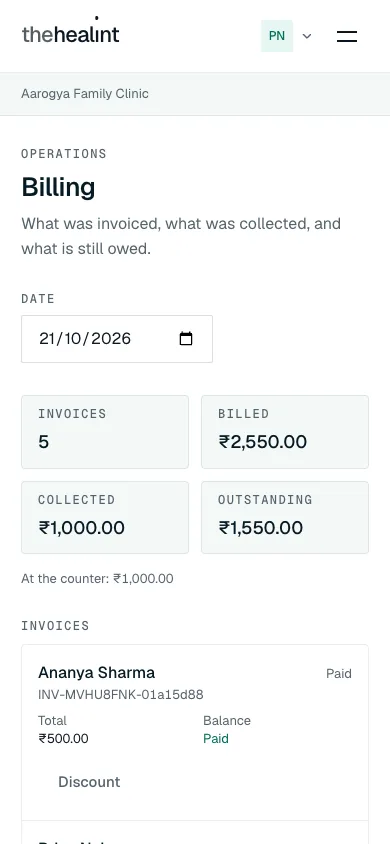
On a phone-sized screen, each invoice becomes a card with the same buttons.
What billing staff don't see#
You see Billing only. You can't see the queue, the calendar, patients or any clinical information. Opening one of those screens shows "Not part of your role" with Go to your work.
Billing days and currency#
Billing groups invoices into days on your clinic's calendar, and shows amounts in the clinic's currency. "Today" is the clinic's today, so an invoice raised just after midnight there belongs to the new day. The same applies to the daily totals on Today.
Things you can't do here — and who to ask#
| You want to… | Who does it |
|---|---|
| Check in a patient or register a walk-in | The front desk — 03-front-desk.md |
| Put a skipped or no-show patient back in the queue | The front desk, as a new walk-in |
| Move or cancel a booking | The front desk — 03-front-desk.md |
| Start a consultation or read notes | The doctor — 02-doctor.md |
| Refund a payment or void an invoice | Your clinic admin — 05-clinic-admin.md |
| Record cash for an invoice with no Record collection button | Your clinic admin |
| Change your access | Your clinic admin |
Quick reference#
| Role | Task | Where | Click |
|---|---|---|---|
| Nurse | See who's waiting | Reception | (updates by itself) Refresh |
| Nurse | Call the next patient | Reception → Today's queue | Call |
| Nurse | Patient stepped out | Called row | Skip → Skip token |
| Nurse | Patient left | Called row | No-show → Mark no-show |
| Billing | See today's money | Billing | the four totals |
| Billing | See another day | Billing | Date |
| Billing | Record a counter payment | Billing → invoice | Record collection → Yes, money received |
| Billing | Give a discount | Billing → invoice | Discount → Apply discount → Apply discount |
| Both | Turn on two-factor sign-in | Your initials → Security | Set up two-factor authentication |
PDF version
The same guide with all its screenshots, to print or share. (0.5 MB)
Download the PDF Open in a new tab
Loading the PDF viewer… If it does not appear, your browser cannot show PDFs inside a page: use Download the PDF.