Front desk (Receptionist and Appointment manager)
Who this is for#
This guide is for receptionists and appointment managers at a clinic or hospital on thehealint. Both roles see the same screens and do the same work: checking patients in as they arrive, registering walk-ins, running the queue, moving or cancelling bookings for patients who phone in, and taking payments at the counter.
You work in ProviderOS, in a web browser — usually on the clinic's front-desk computer or a tablet.
What you'll see#
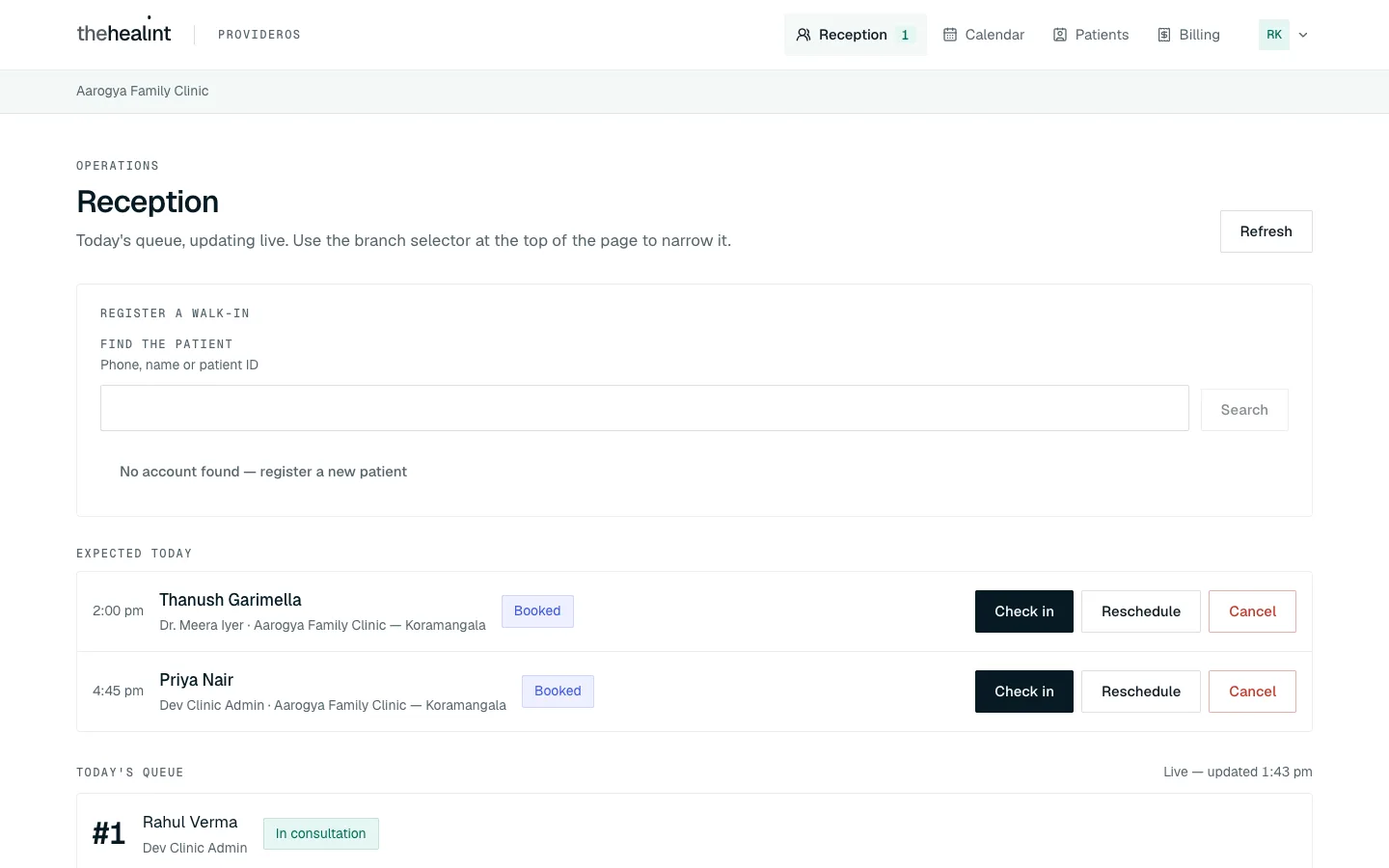
After you sign in, ProviderOS opens on Reception. The menu along the top has four items:
| Menu item | What it's for |
|---|---|
| Reception | Today at the desk: register walk-ins, check in booked patients, run the queue. The number beside it is how many patients are waiting. |
| Calendar | Every doctor's bookings, as a day grid or a list. Move or cancel bookings here. |
| Patients | Everyone who has booked with your clinic, and their visits. |
| Billing | The day's invoices, payments at the counter and discounts. |
Your initials sit at the top right. Click them to open Security (two-factor sign-in) or Sign out. The clinic's name is in the grey bar under the menu. If your clinic has more than one branch, a Branch selector also appears there; Reception and Calendar follow it.
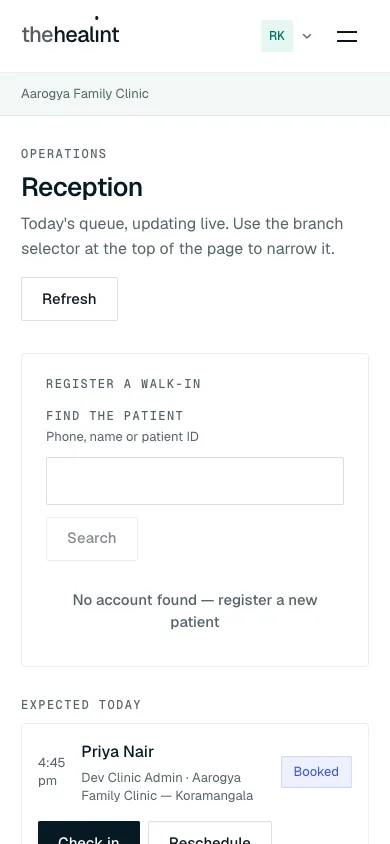
On a phone-sized screen the menu folds into the ☰ button and the page stacks into one column.
Before you start#
Your first sign-in#
Your clinic admin adds you and you get an invitation email.
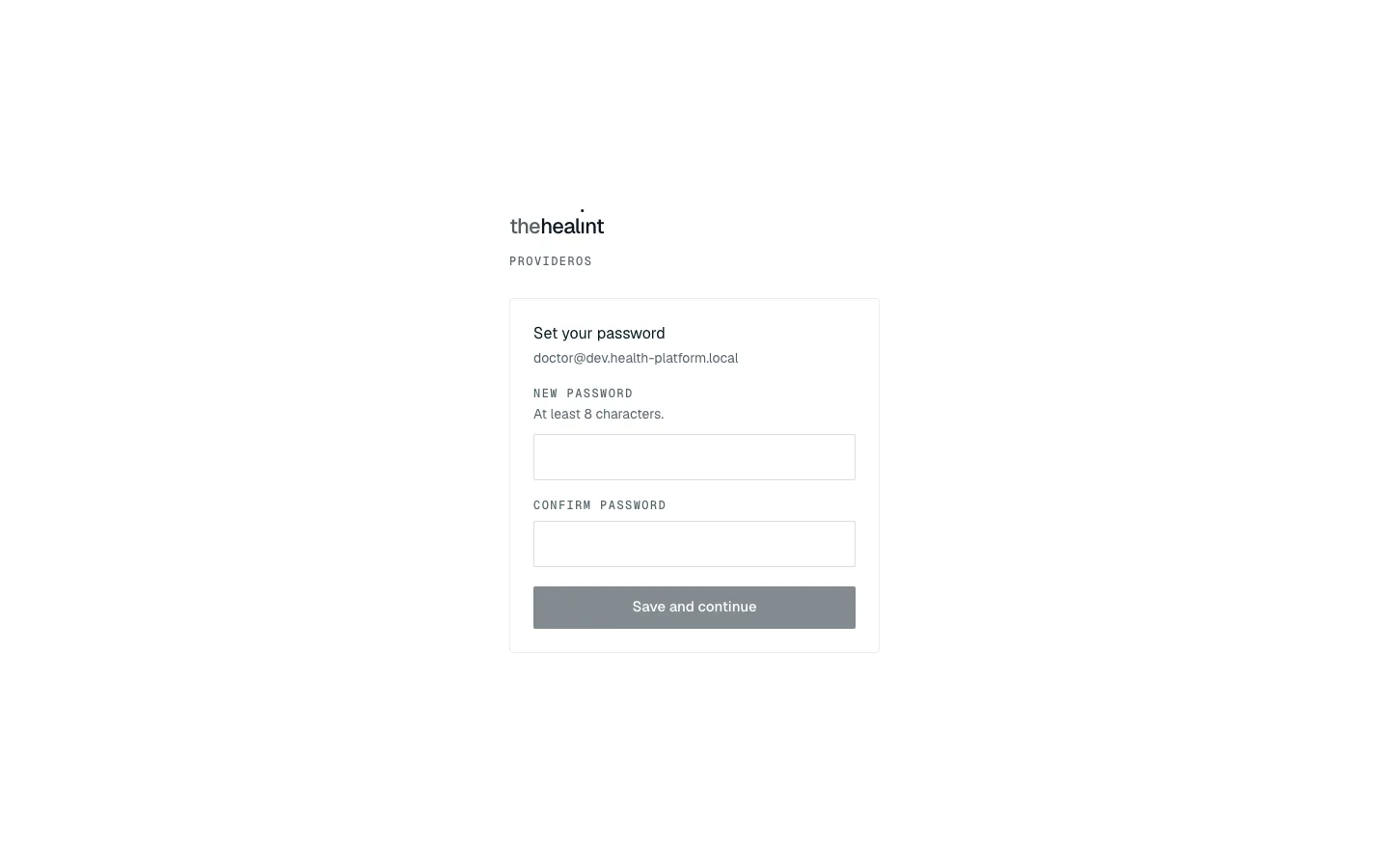
- Click the link in the email. ProviderOS opens on Set your password.
- Type a New password (at least 8 characters) and the same again under Confirm password.
- Click Save and continue. You're signed in and taken to Reception.
If it doesn't work:
- "This link has expired": the link works only once. Ask your clinic admin to resend your invitation, or click Sign in if you've already set a password.
- If ProviderOS asks "What should we call you?", type your name and click Continue. This happens only once.
Signing in every day#
- Open ProviderOS. Type your Email and Password and click Sign in.
- If you've turned on two-factor sign-in, type the 6-digit Authenticator code from your phone and click Verify. (To turn it on: click your initials → Security → Set up two-factor authentication, then scan the QR code with an authenticator app. The steps, with pictures, are under "How to turn on two-factor sign-in" in 02-doctor.md.)
If it doesn't work:
- "That email and password did not match an account…": check for typos. If you've forgotten your password, ask your clinic admin to resend your invitation.
- "Too many attempts. Please wait a minute and try again.": wait a minute.
- A red API unreachable label in the grey bar means ProviderOS can't reach the server. Tell your clinic admin.
How to check in a patient who has booked#
When a patient with a booking arrives:
- On Reception, look under Expected today. It lists everyone booked for today who hasn't arrived yet, with the time, the doctor and Booked (or Confirmed).

- Click Check in on their row. There's no "are you sure?" — it happens straight away.
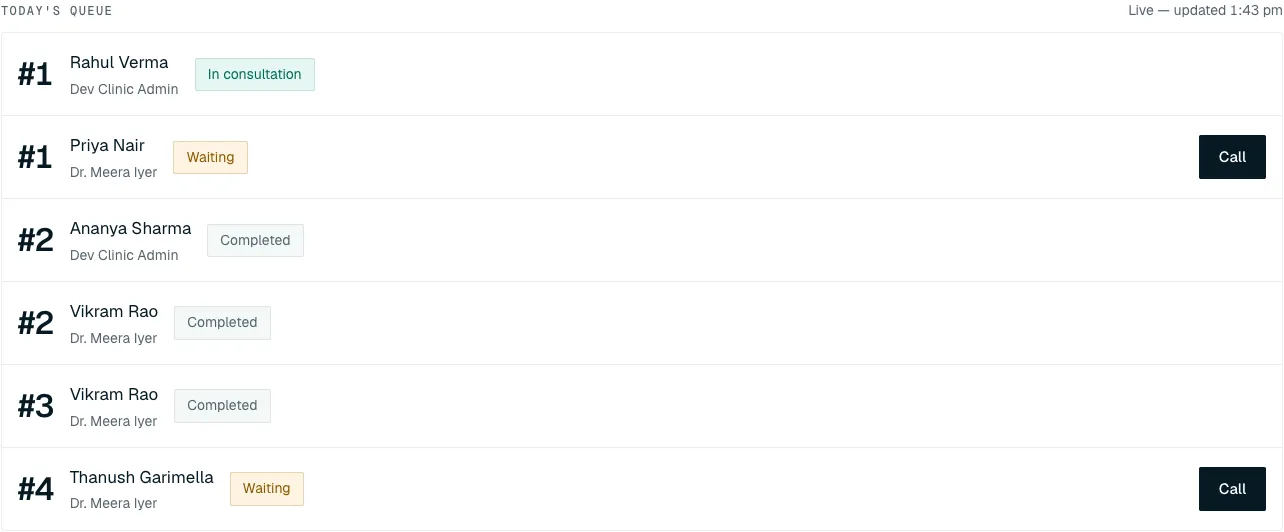
- The patient leaves Expected today and appears in Today's queue as Waiting, with a token number. Tell the patient their token number.
Patients can also check themselves in on their phone when they arrive. They then appear in the queue on their own — no need to do anything.
If it doesn't work:
- "Could not check {name} in." or a message such as "Cannot check in — this appointment is CANCELLED": the booking has changed (for example the patient cancelled it). Open Calendar to see its status.
- The patient isn't listed under Expected today: they may already be checked in (look in Today's queue), be booked for another day, or not be booked at all — register them as a walk-in instead.
- "Nobody is still expected today": everyone booked for today has arrived or been seen.
How to register a walk-in#
A walk-in is someone without a booking who wants to see a doctor today. Everything happens in the Register a walk-in box at the top of Reception.
A patient who already has an account#
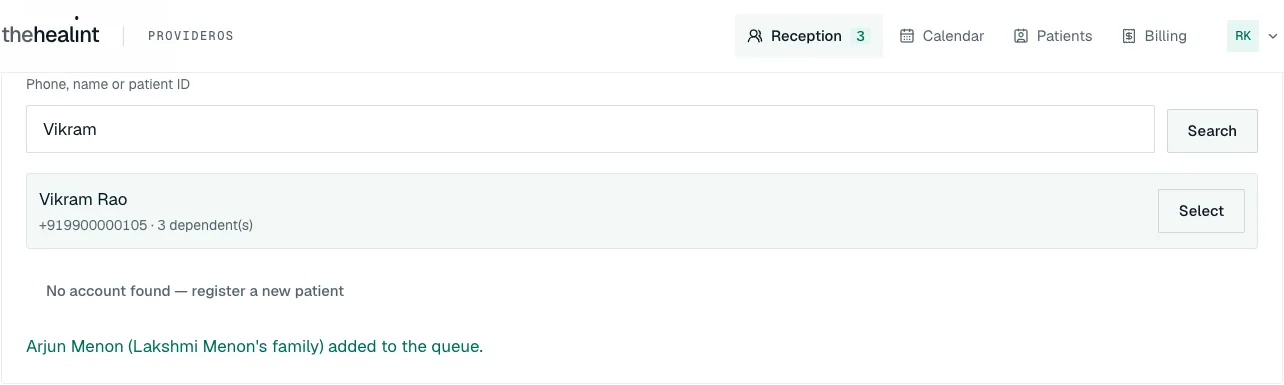
- Under Find the patient, type their phone number, name or patient ID (at least 2 characters), then click Search (or press Enter).
- Find them in the results (name, phone and how many family members they have) and click Select.
A new patient#
- Search for them first by phone number. If nobody matches, you see "No patient matches that".
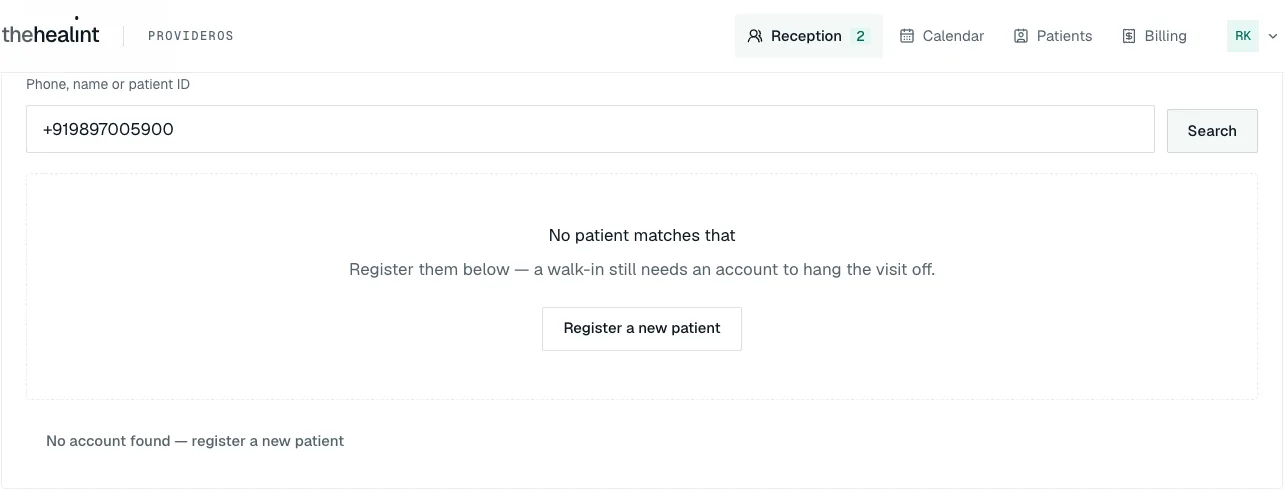
- Click Register a new patient (or No account found — register a new patient).
- Type their Full name and Phone. Email is optional.
- Click Register patient. They are now the selected patient.
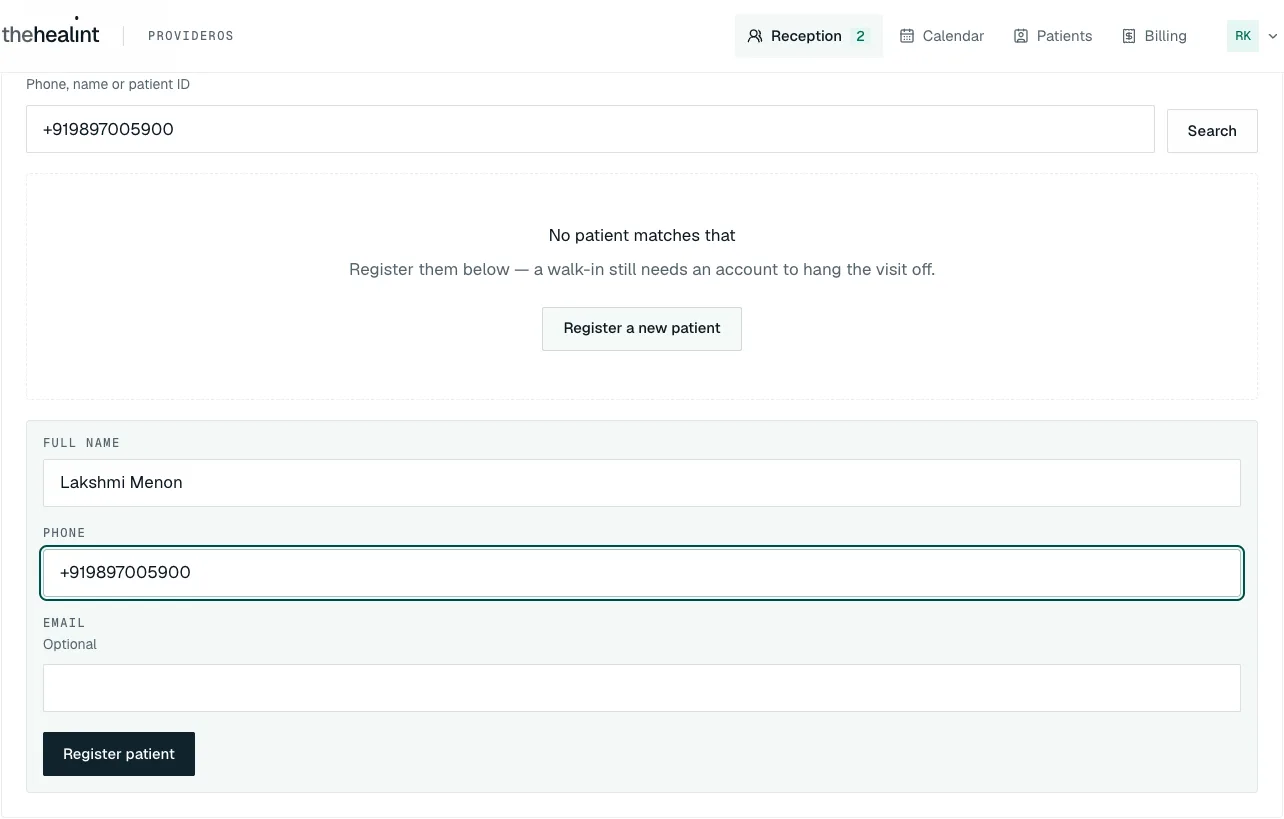
If you see "Could not register this patient — they may already have an account (search for them instead).", search again by their phone number or name and select them.
Choose who the visit is for and the doctor#
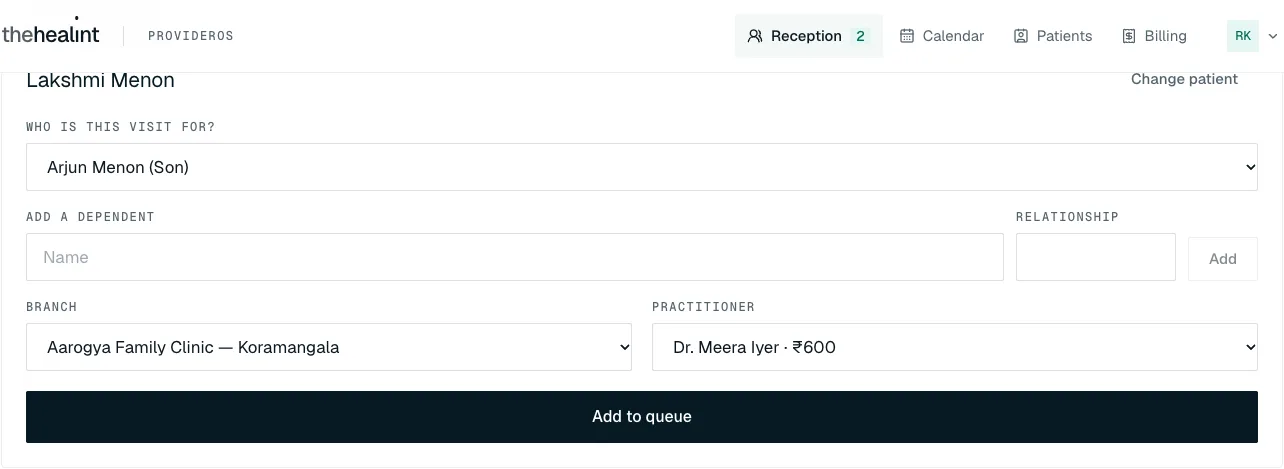
Under Who is this visit for?, choose the account holder ("… (the account holder)") or one of their family members ("Name (Son)", "Name (Mother)" …).
The patient is a family member who isn't listed yet? Type their name under Add a dependent, their Relationship (for example "Son"), and click Add. They're added and picked for you.
If you see a Branch box, choose the branch where they'll be seen.
Under Practitioner, choose the doctor.
Click Add to queue.
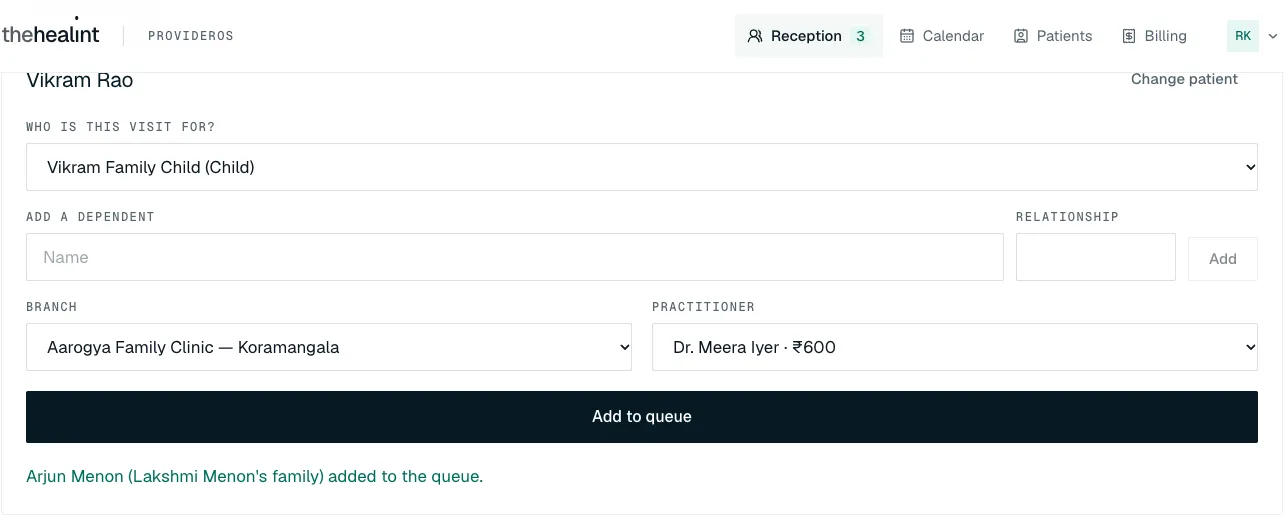
- You see "{name} added to the queue." — for a family member, "{child} ({parent}'s family) added to the queue." — and the box clears for the next person. The patient appears in Today's queue as Waiting.
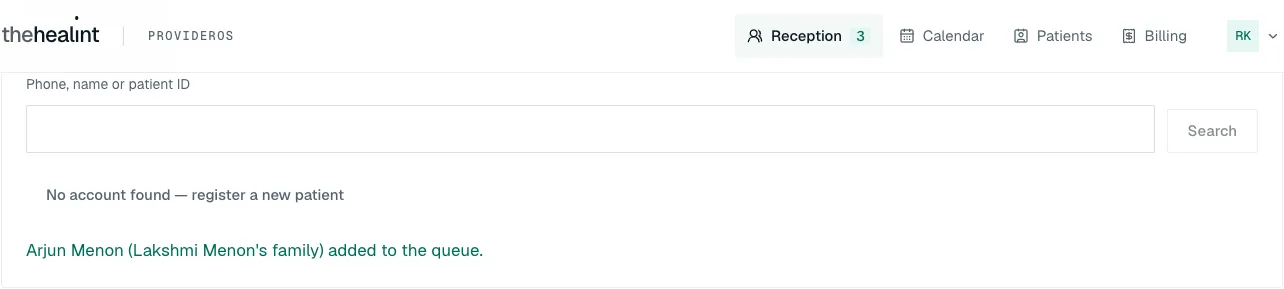
To start again with someone else, click Change patient.
If it doesn't work:
- "Could not register this walk-in — the practitioner may just have become busy, try again.": click Add to queue again, or choose another doctor.
- "Nobody practises at this branch yet": choose another branch.
- In Calendar, a family member's walk-in is listed under the account holder's name (for example "Lakshmi Menon" for her son's visit). The queue shows the family member's own name.
How to run the queue#
Today's queue at the bottom of Reception shows every token for today, for every doctor. It updates by itself ("Live — updated …"); click Refresh if you want to be sure.
- When a doctor is ready, click Call on the next Waiting patient. Their status changes to Called. thehealint doesn't message the patient — call out their name or token number.
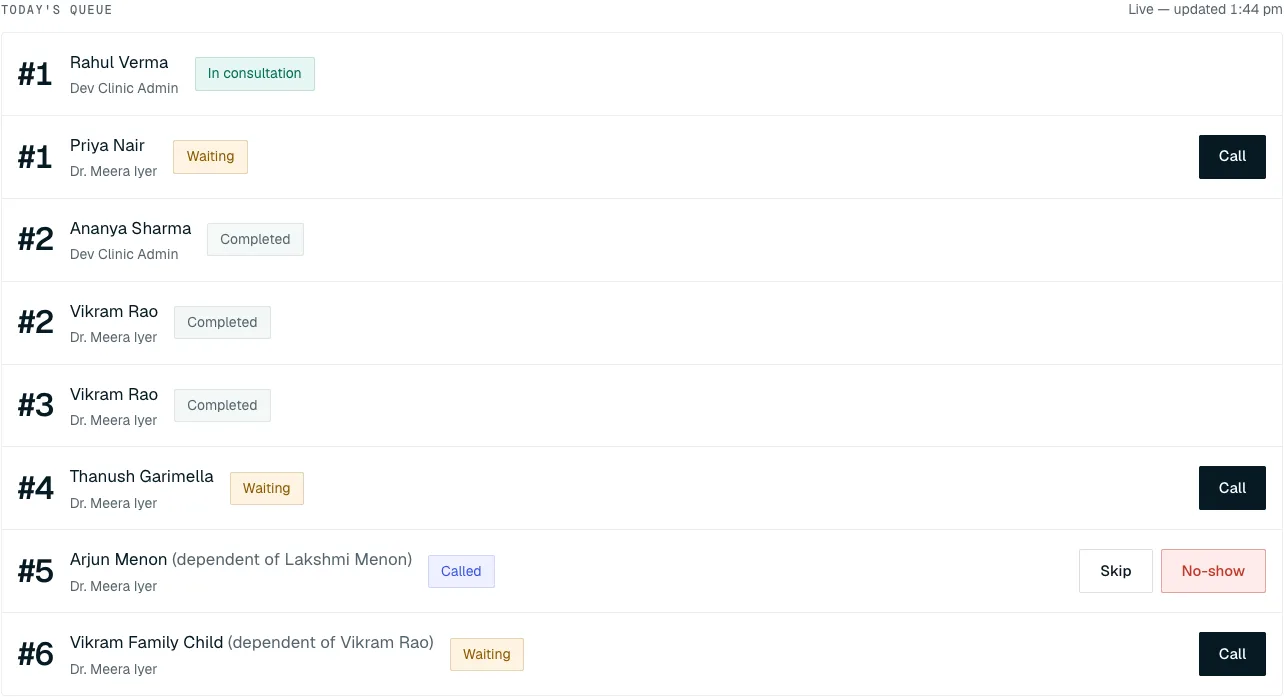
- When the doctor starts the consultation, the status changes to In consultation by itself. When the doctor finishes, it changes to Completed.
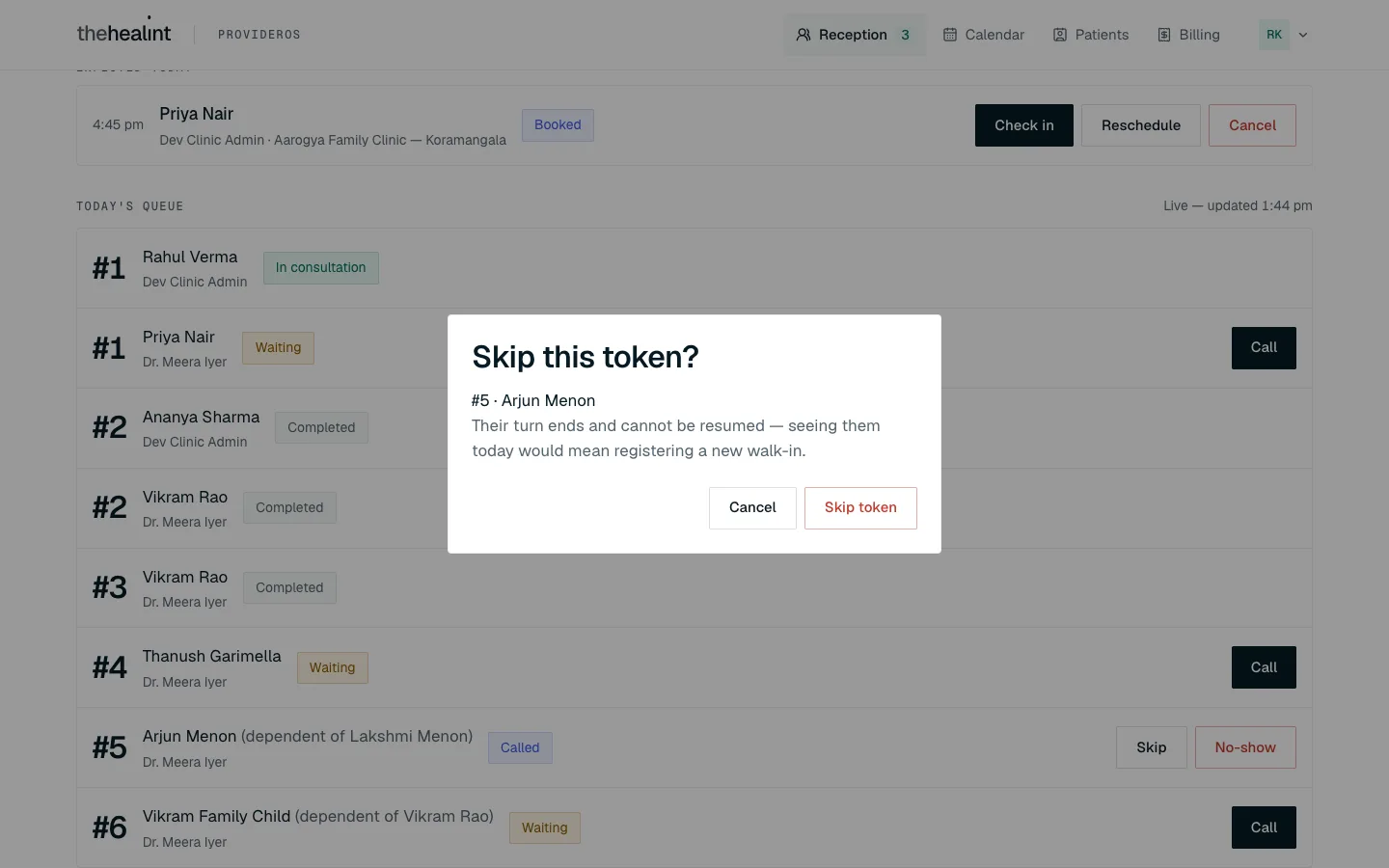
If a called patient doesn't come:
- Skip — for example they've stepped out. ProviderOS asks "Skip this token?". Click Skip token.
- No-show — they've left. ProviderOS asks "Mark this token a no-show?". Click Mark no-show. It counts in the day's no-show figures.
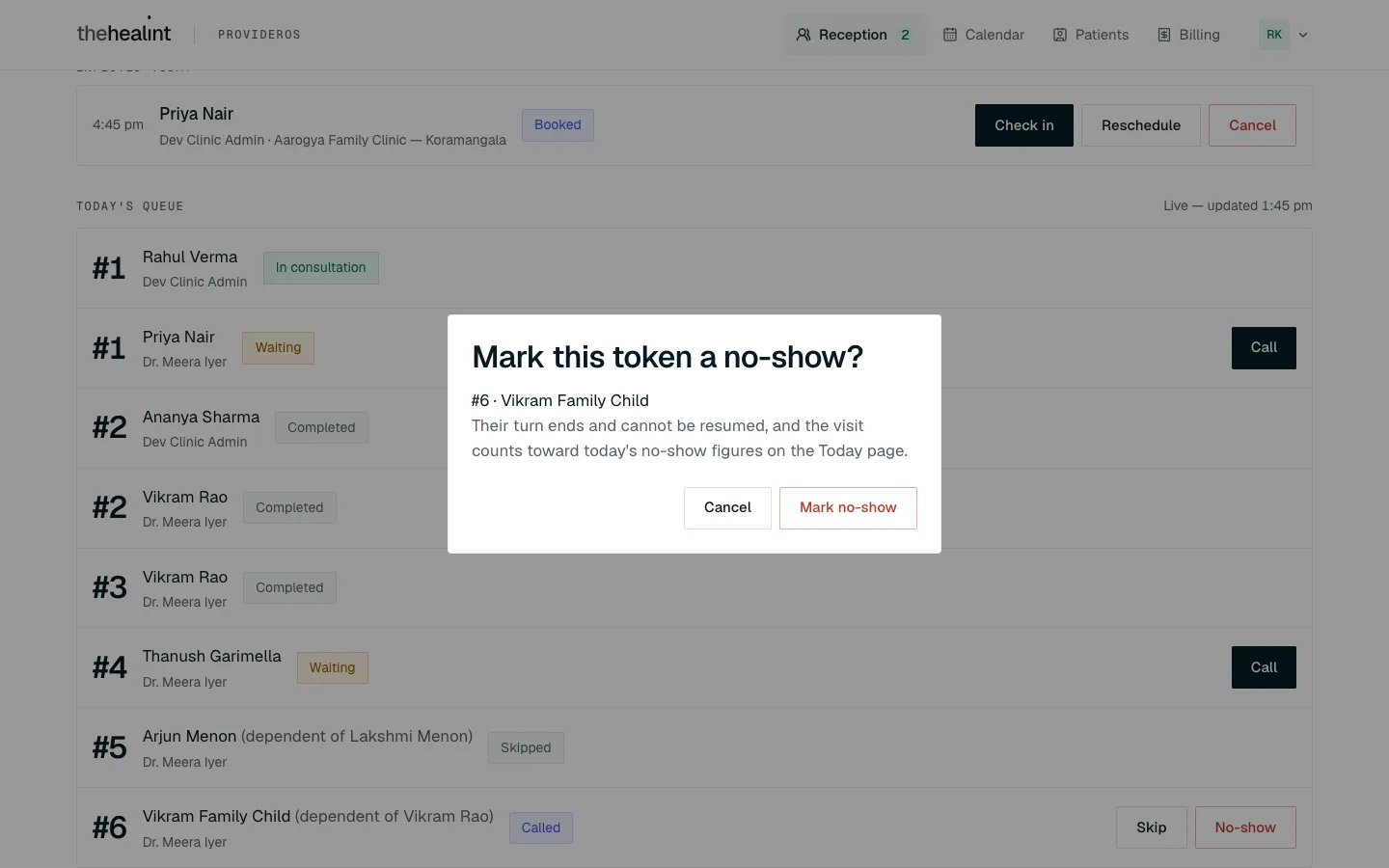
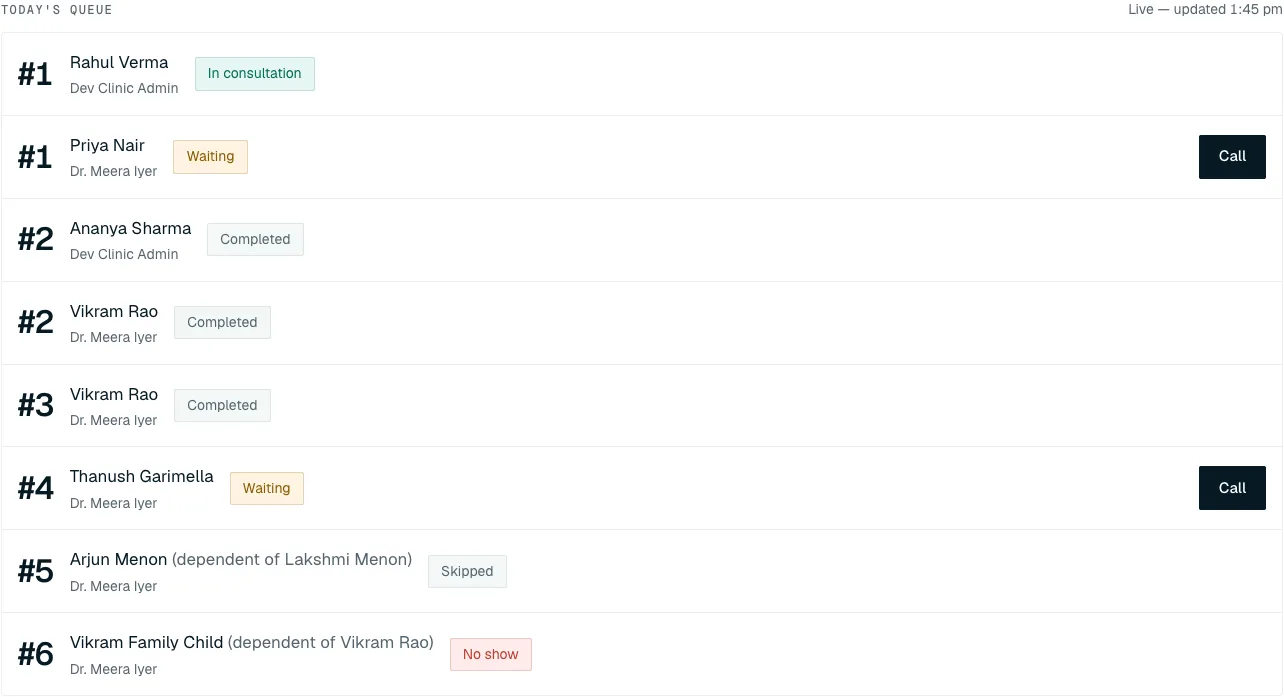
Skip and No-show can't be undone. If the patient comes back later, register them again as a walk-in.
If it doesn't work: if the dialog stays open with an error, someone else has probably already moved that token (for example the doctor started the consultation). Click Cancel and look at the queue again.
How to use the calendar#
- Click Calendar. It opens on the Day grid: one column per doctor, each booking at its time, coloured by status. Choose another Day to move between days.
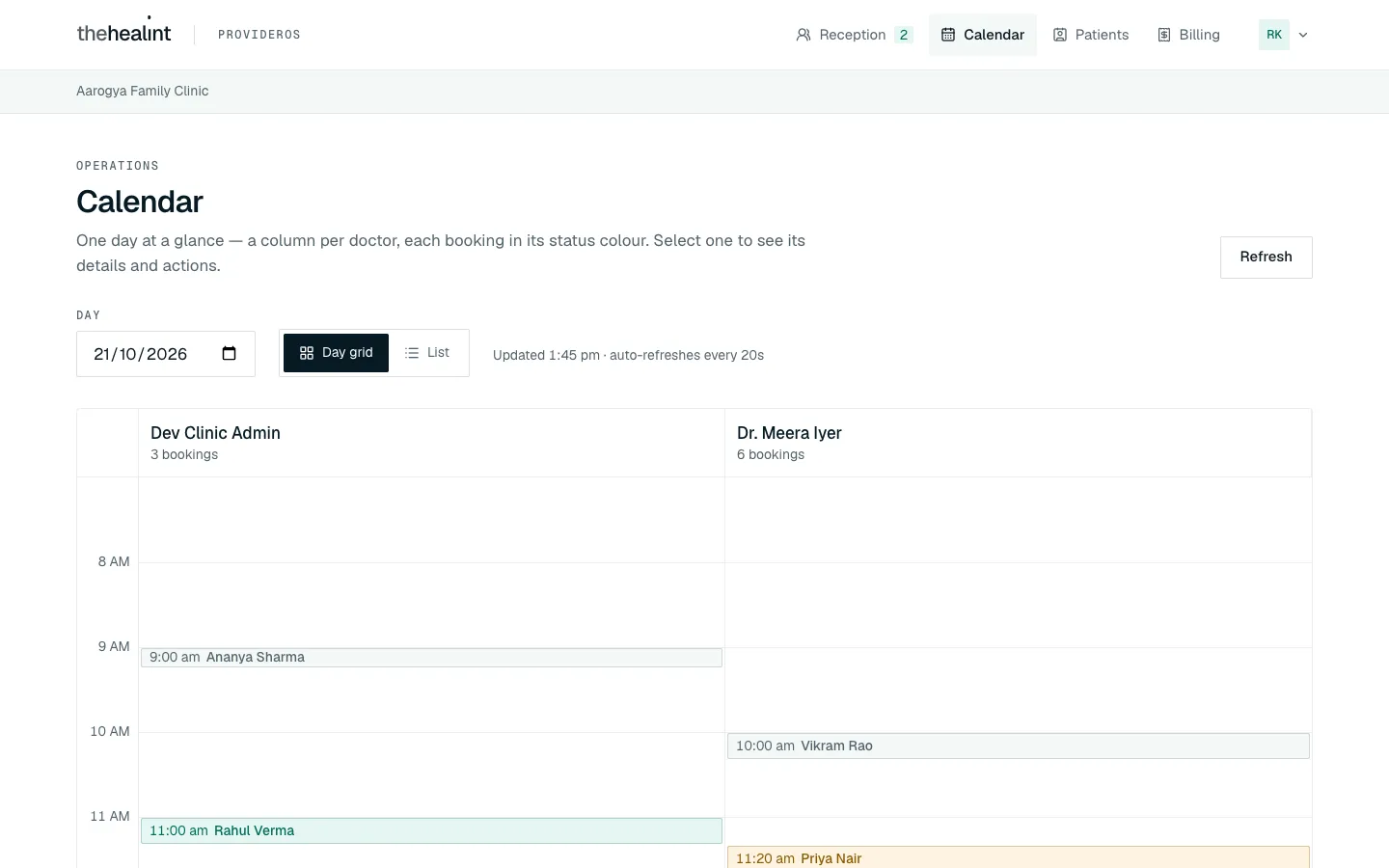
- Click List to see one row per booking for the From date and the next six days, grouped by day. Booked and Confirmed rows have Reschedule and Cancel; today's also have Check in.
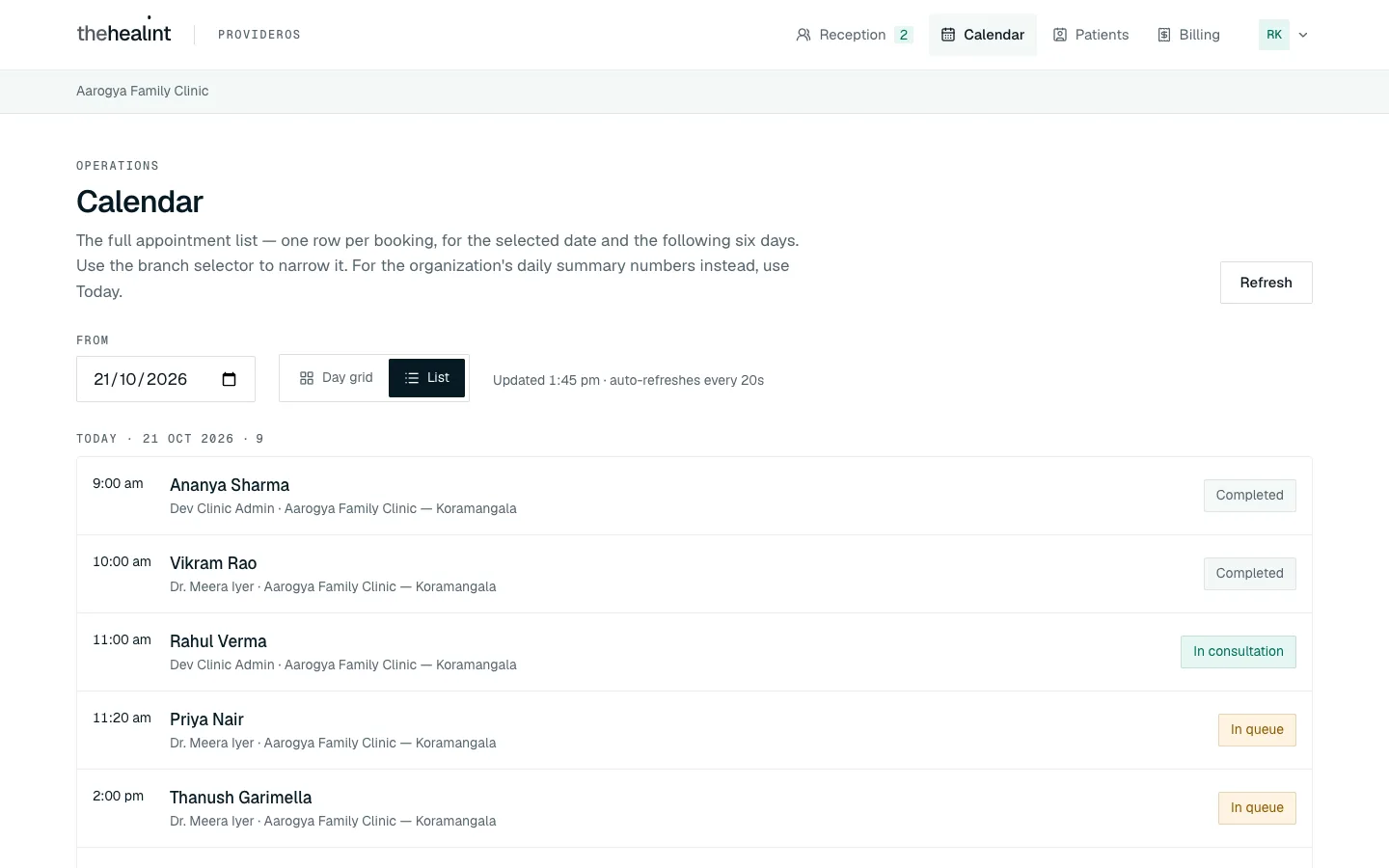
The calendar refreshes itself every 20 seconds ("Updated … · auto-refreshes every 20s").
- Click a patient's name (or a block on the grid) to open the booking. You see its status, how it was booked, the doctor, branch and fee, and its History. The buttons at the bottom are Check in (today only), Reschedule and Cancel. Close it with ×.
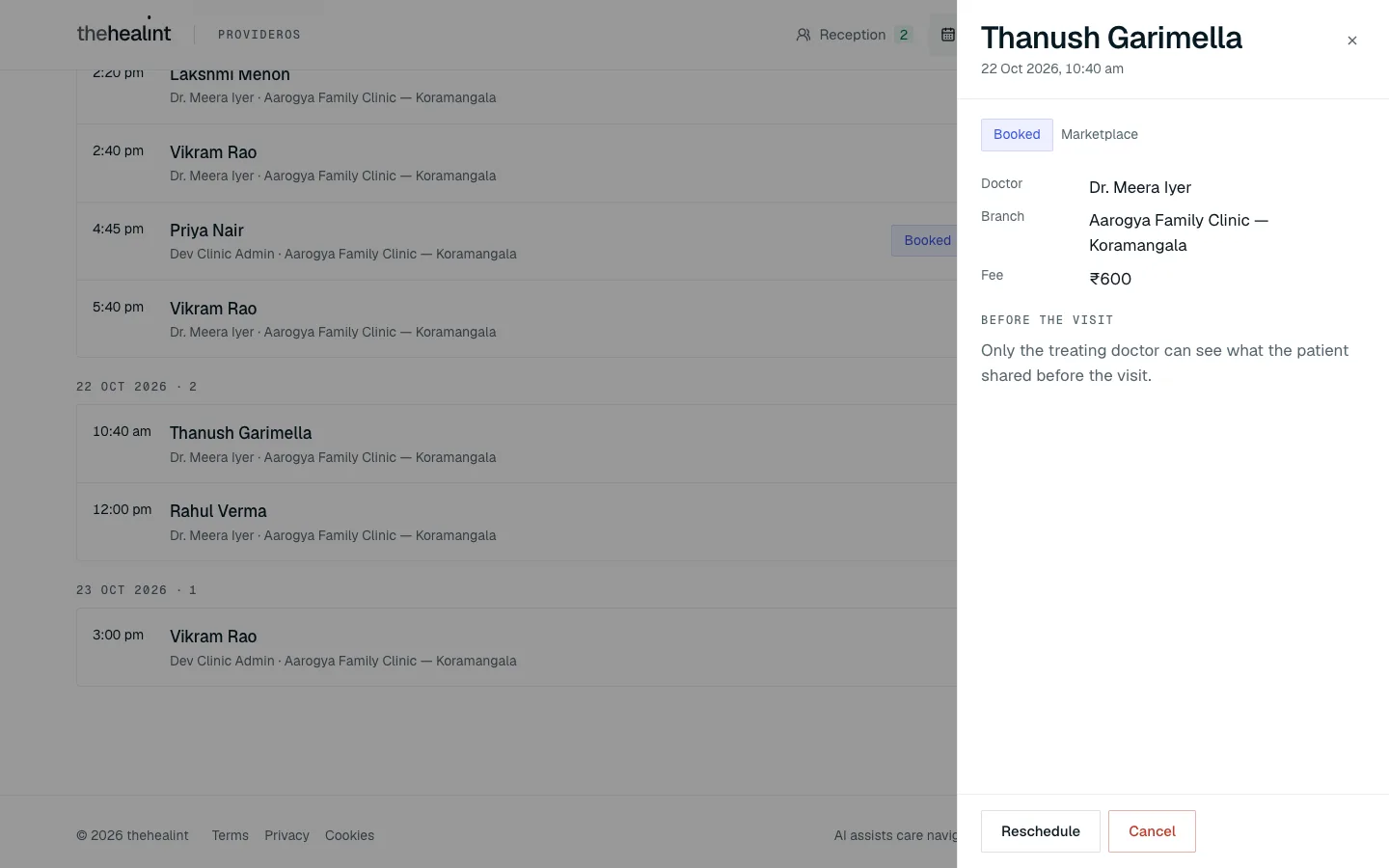
Statuses you'll see: Held, Booked, Confirmed, Checked in, In queue, In consultation, Completed, Cancelled, Expired, Rescheduled, No show.
How to move a booking for a patient on the phone#
- Find the booking in Calendar (or the patient's page under Patients) and click Reschedule — on the row, or in the booking's details.
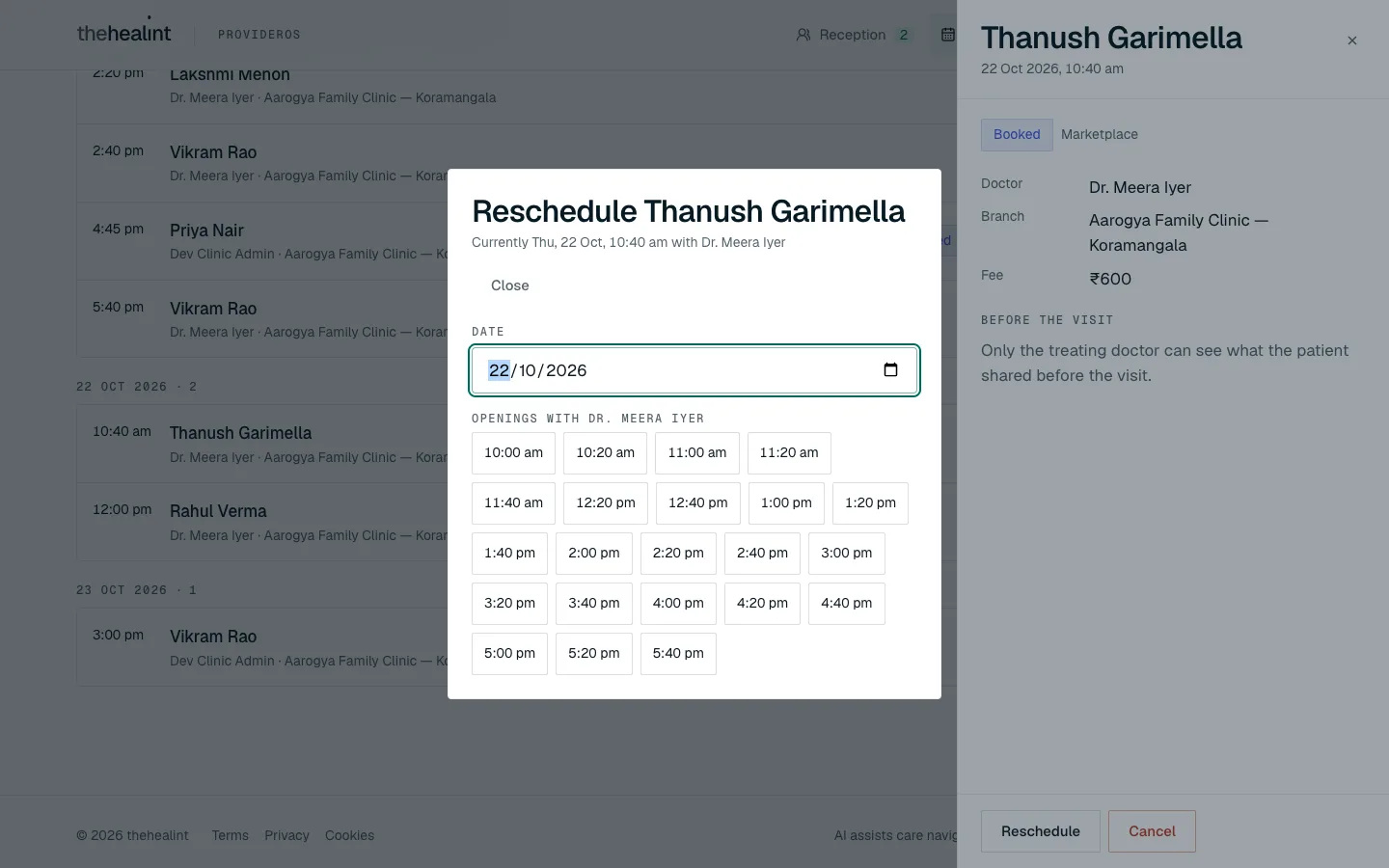
- The Reschedule {patient} box opens, showing the current time and doctor. Pick a Date.
- Free times with the same doctor appear under Openings with {doctor}. Click the time the patient wants.
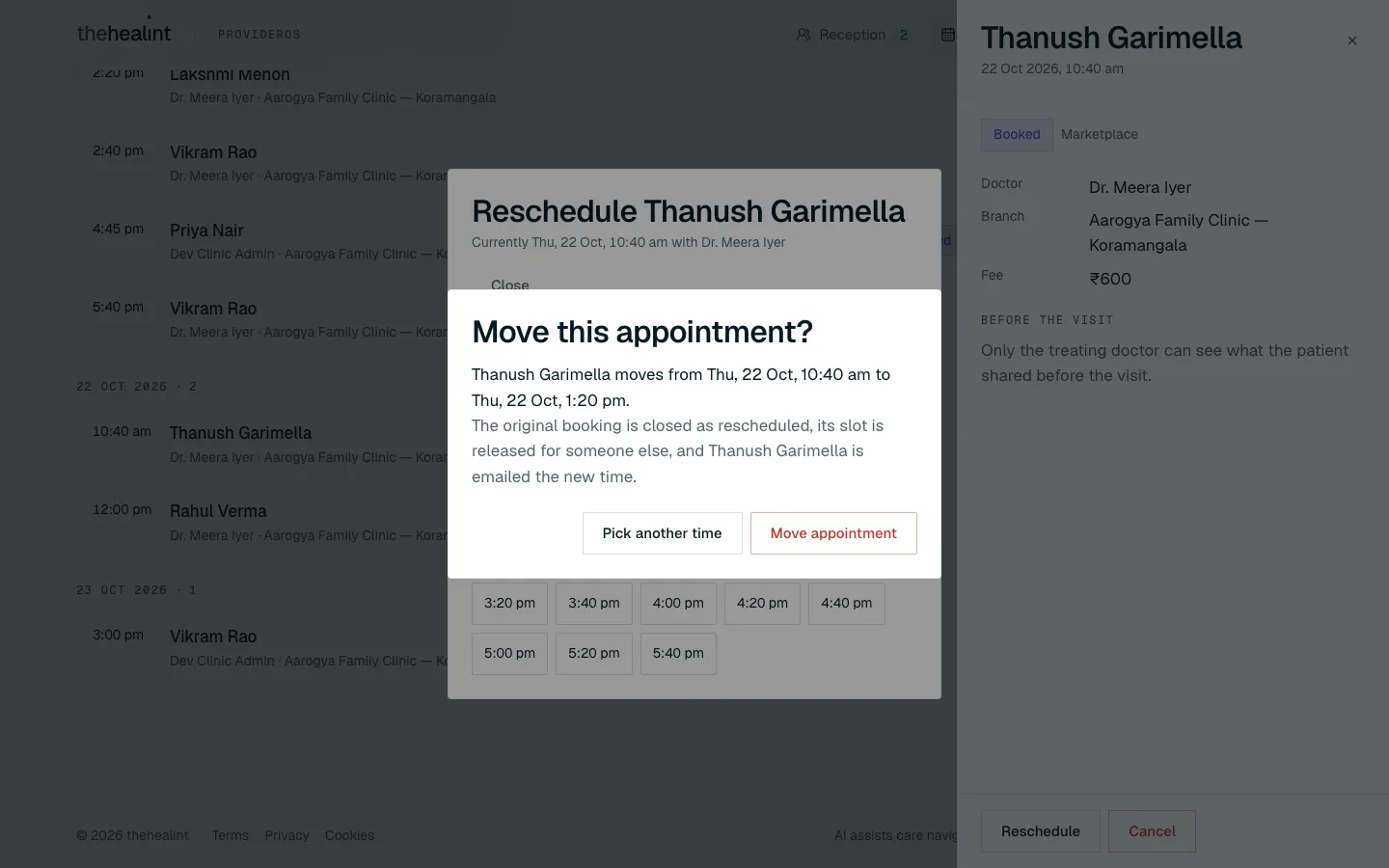
- ProviderOS asks "Move this appointment?", showing the old and new times. Click Move appointment (or Pick another time).
- The old booking shows Rescheduled and a new Booked one appears at the new time. The patient gets an email with the new time.
If it doesn't work:
- "No openings on this date": the doctor doesn't work that day or is fully booked. Try another date.
- Someone took the time first: ProviderOS shows the error and a few other times under Still free right now. Pick one of those.
- You can only move a booking to the same doctor at the same branch. To change doctor, cancel the booking and ask the patient to book again (or register them as a walk-in if they're coming today).
How to cancel a booking#
- Click Cancel on the booking (in Calendar, on the patient's page, or in Expected today).
- ProviderOS asks "Cancel this appointment?". Type a Reason if you have one — it's saved and included in the email to the patient.
- Click Cancel appointment (or Keep it to leave the booking alone).
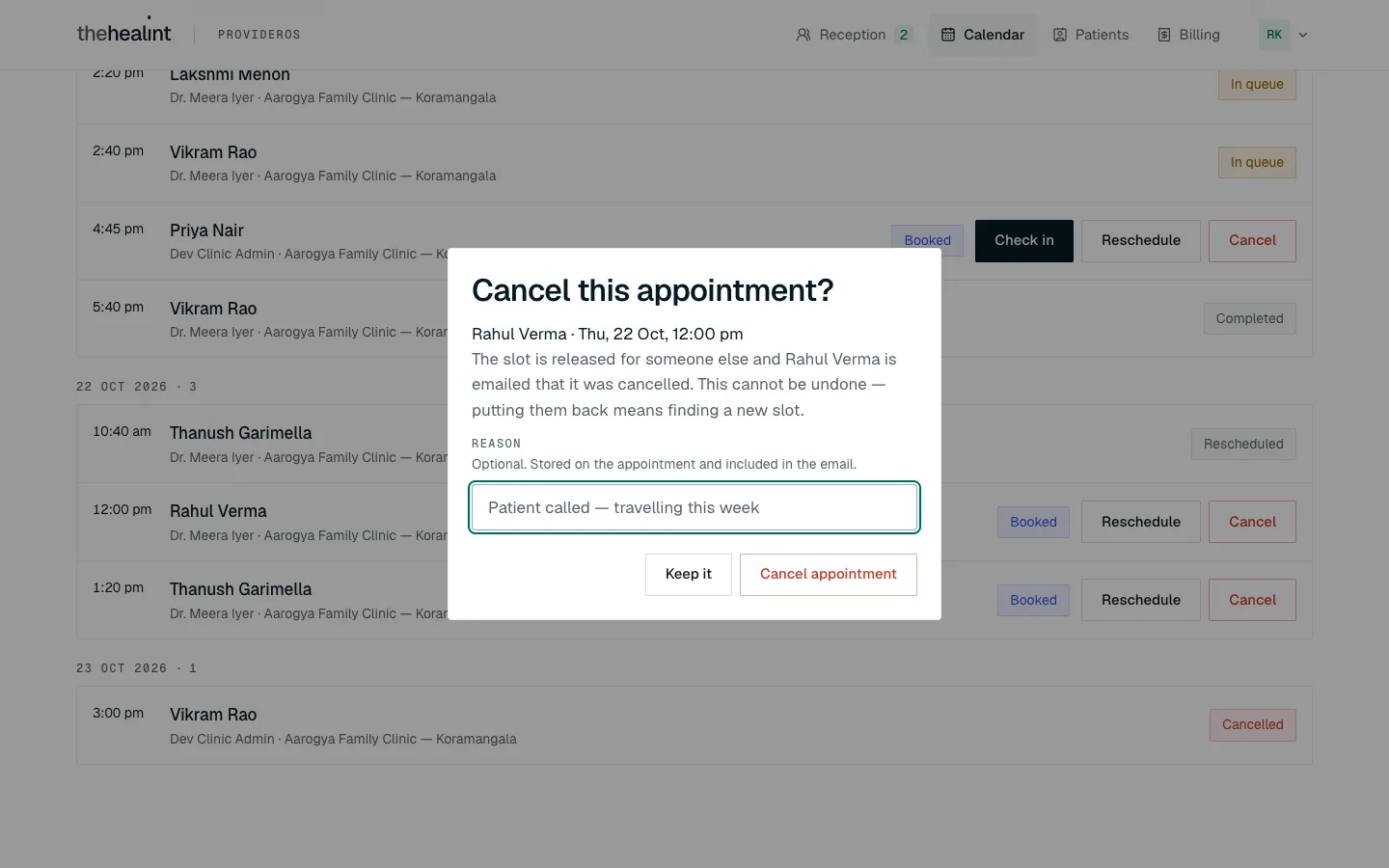
- The booking shows Cancelled and the patient is emailed.
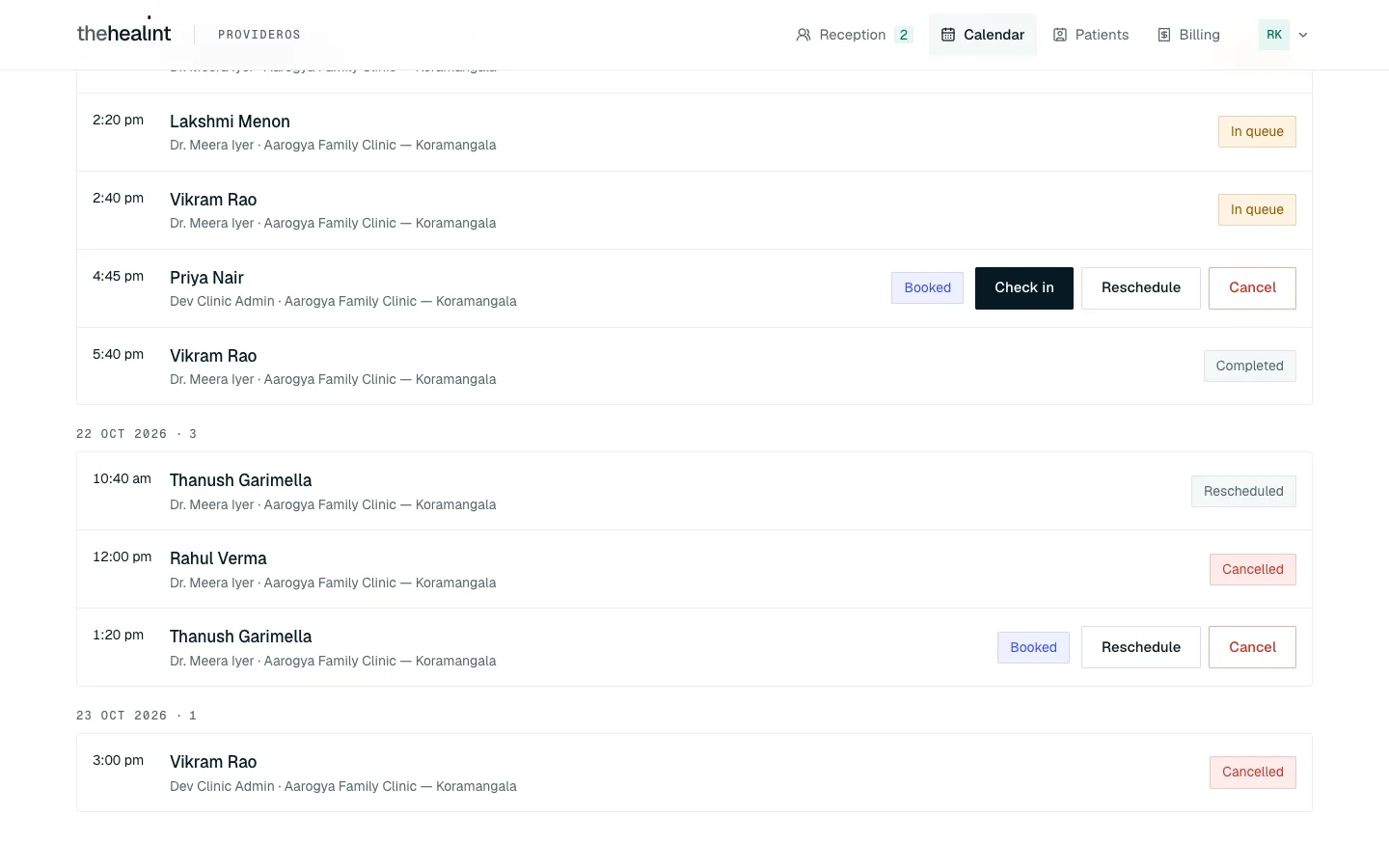
Cancelling can't be undone. To put the patient back, they need a new booking.
Only Booked and Confirmed bookings can be moved or cancelled.
How to look up a patient#
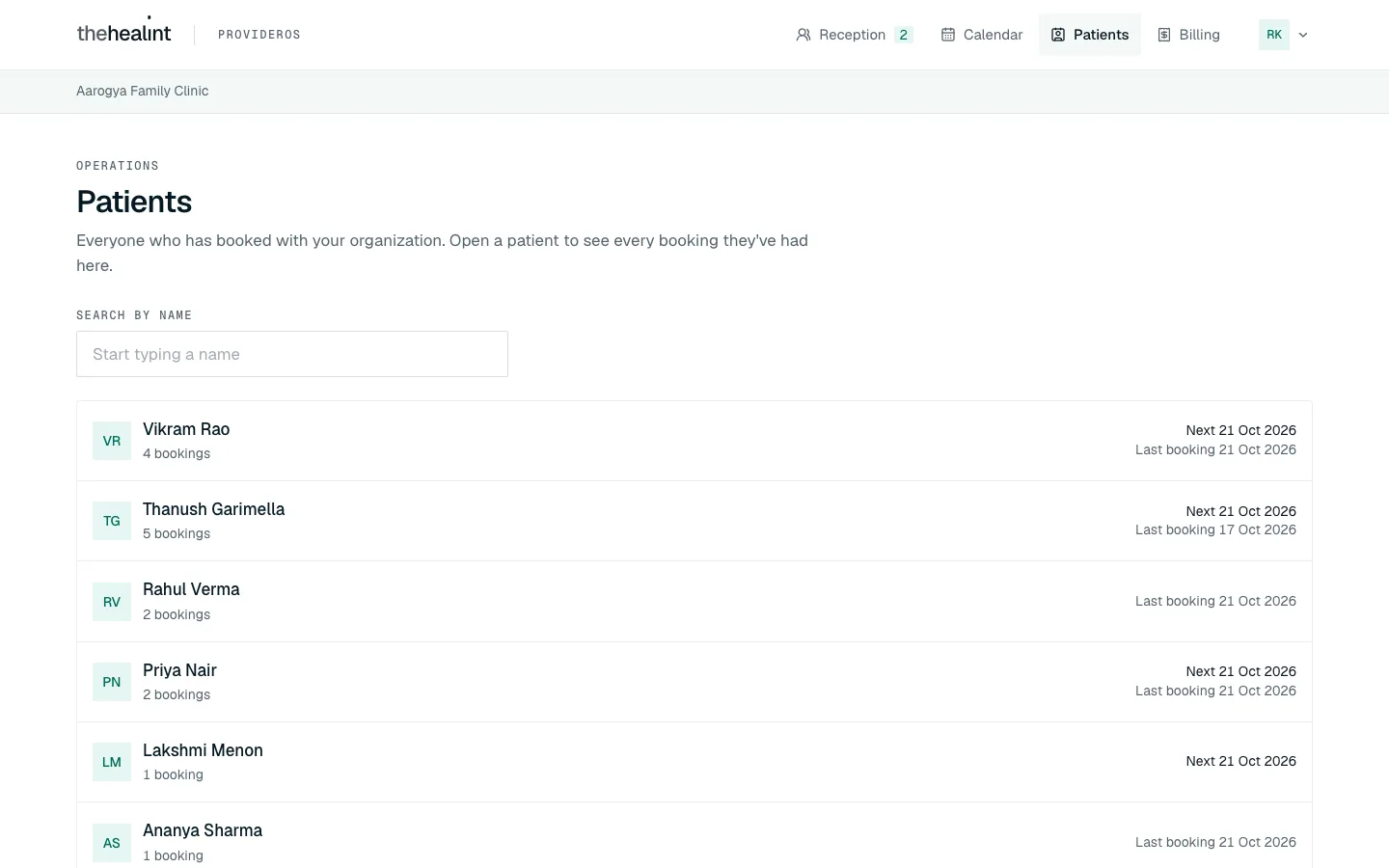
- Click Patients. You see everyone who has booked with your clinic, with their number of bookings and their next and last booking.
- Type in Search by name to narrow the list. (The list shows up to 200 people; search to find anyone else.)
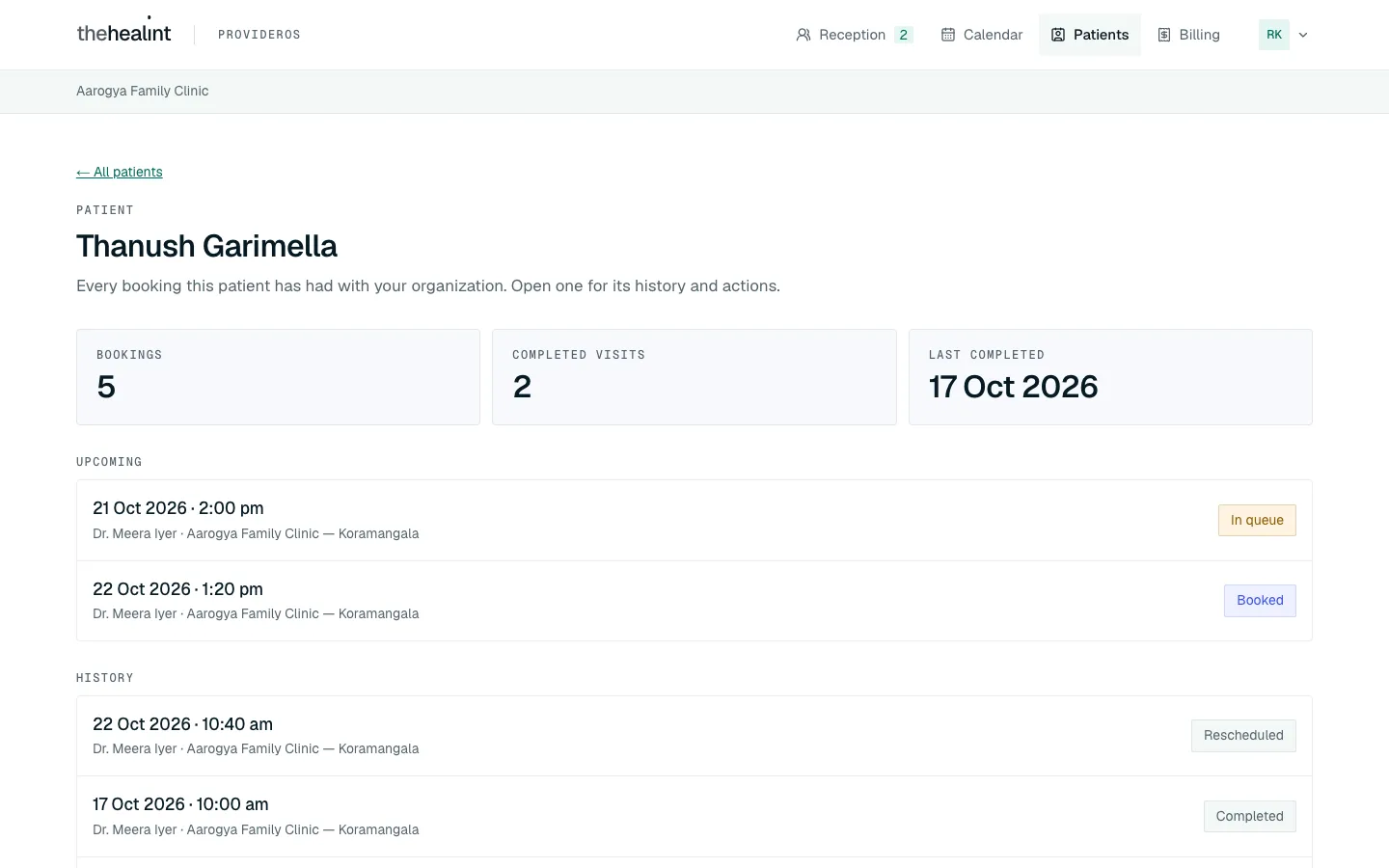
- Click a patient to see Bookings, Completed visits and Last completed, then their Upcoming and History visits. Click any visit to open it, with Check in, Reschedule and Cancel where allowed.
Need a phone number? Use Find the patient in Register a walk-in on Reception — the search results show it.
How to take payment and give discounts#
Click Billing. It shows one day at a time — today, unless you change the Date.
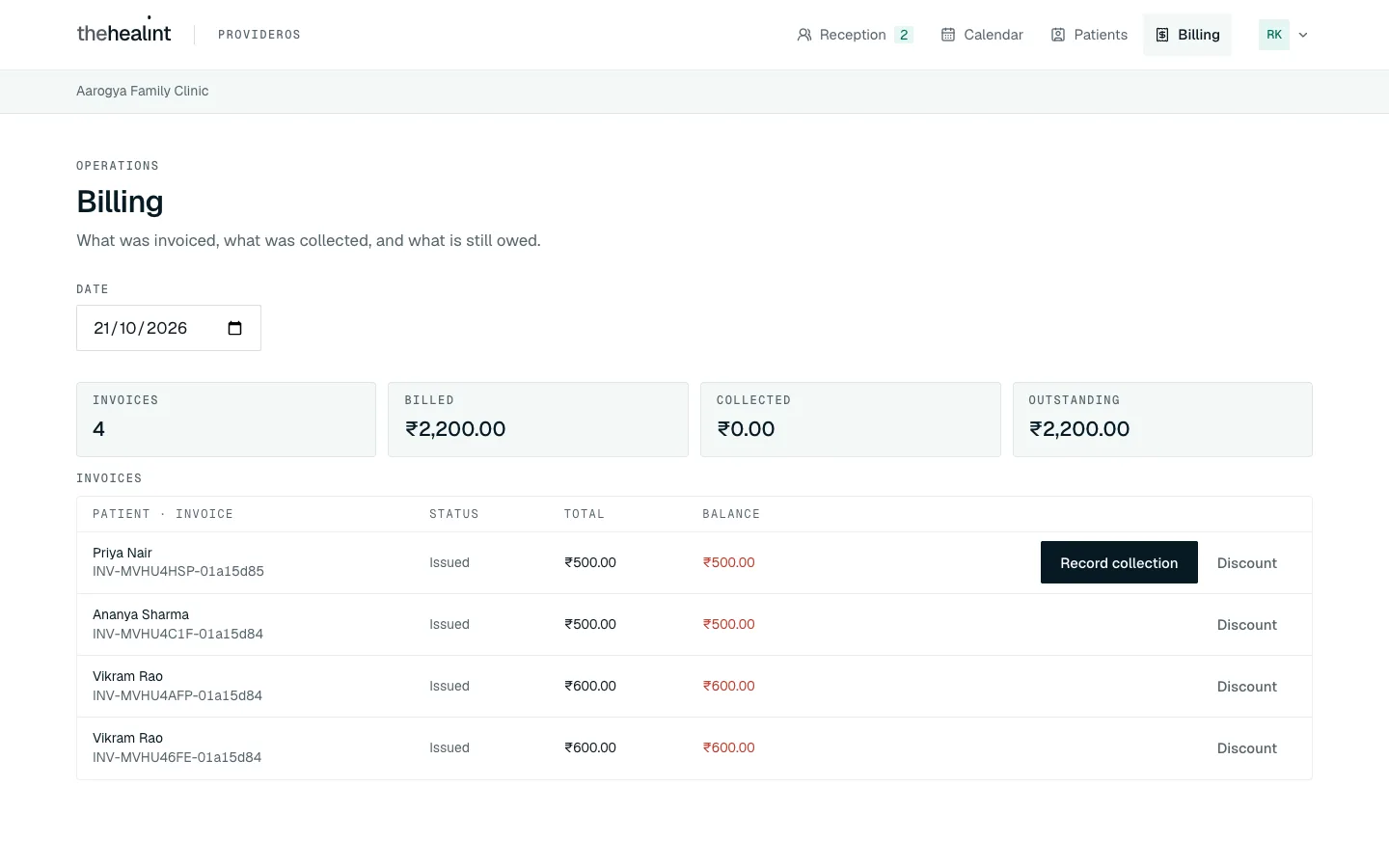
At the top are the day's totals: Invoices, Billed, Collected and Outstanding. Under them, a line shows how the money came in (for example "At the counter: ₹500.00").
Each invoice shows its number, status (Draft, Issued, Paid or Void), Total and Balance (in red when money is owed, or Paid).
Each row shows who the bill is for — the patient, or the family member and the account holder in brackets — with the invoice number underneath.
Record a payment at the counter#
Record collection appears on invoices where the patient chose to pay at the clinic and hasn't paid yet.
- Take the money first.
- Click Record collection on the invoice.
- ProviderOS asks "Record this payment as collected?" with the amount. Click Yes, money received (or Not yet).
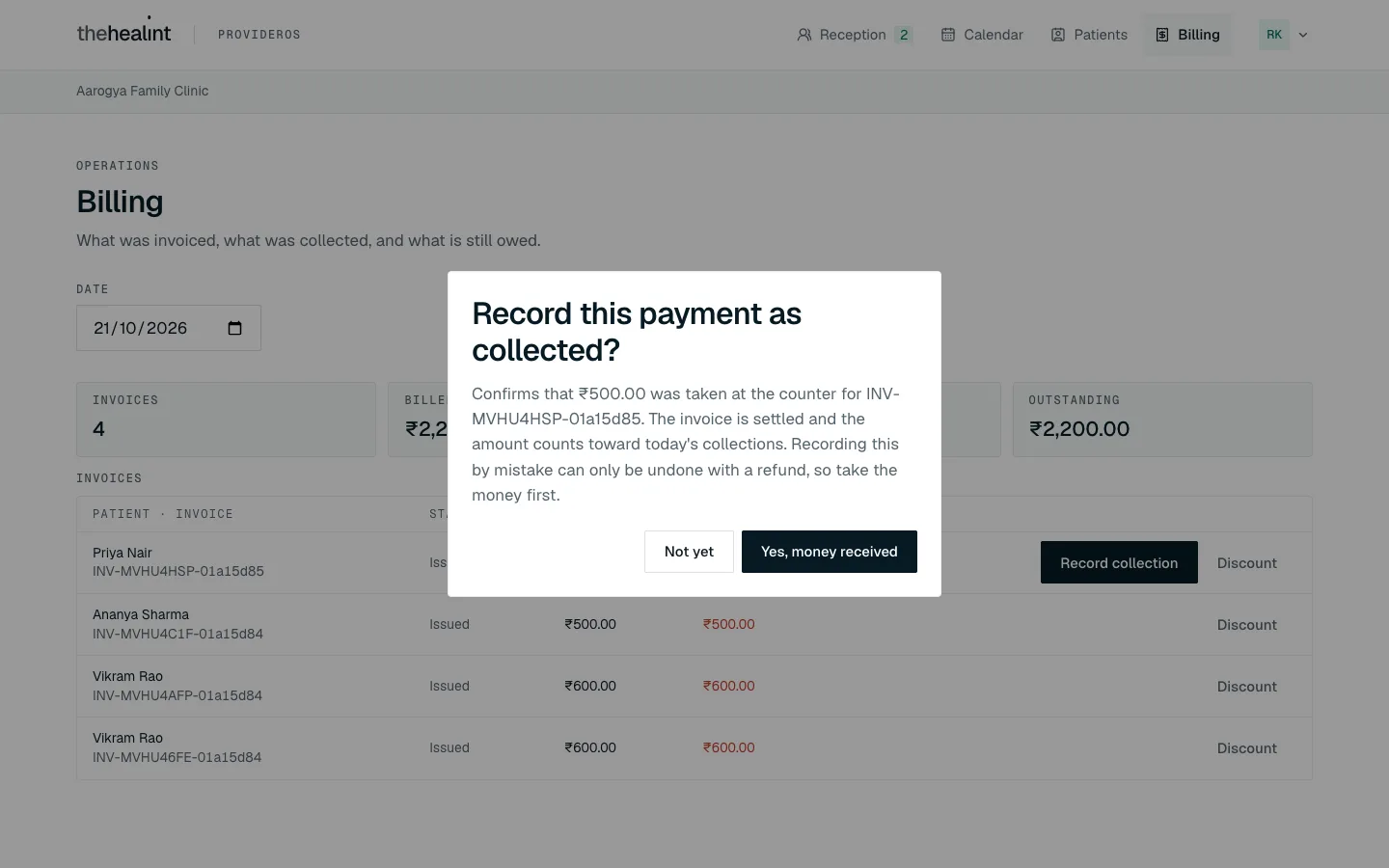
- The invoice shows Paid and the amount is added to Collected. The patient is emailed to say the payment was received.
A payment recorded by mistake can only be undone with a refund, and refunds can't be made from this screen — ask your clinic admin. Always take the money before you click.
If an invoice has money owing but no Record collection button, the patient didn't choose pay-at-the-clinic (for example a consultation invoice, or an online payment not yet cleared). This screen can't record cash against it — tell your clinic admin.
Give a discount#
- Click Discount on the invoice.
- A box opens under the list. Type the Amount in rupees and a Reason (it's kept with the invoice).
- Click Apply discount.

- ProviderOS asks "Apply this discount?", showing what will be left to pay. Click Apply discount.
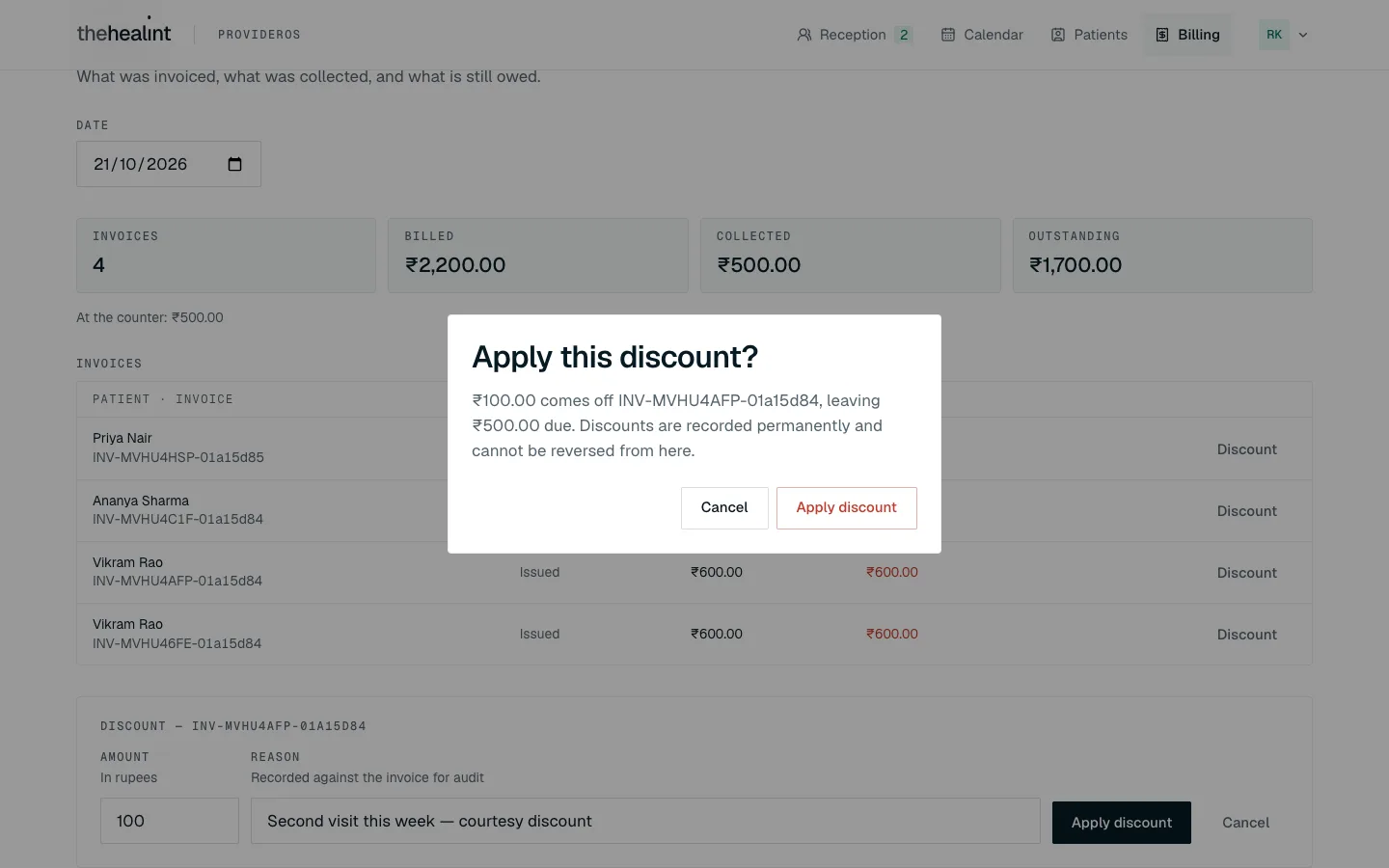
- The invoice total and balance go down, and so does Billed for the day.
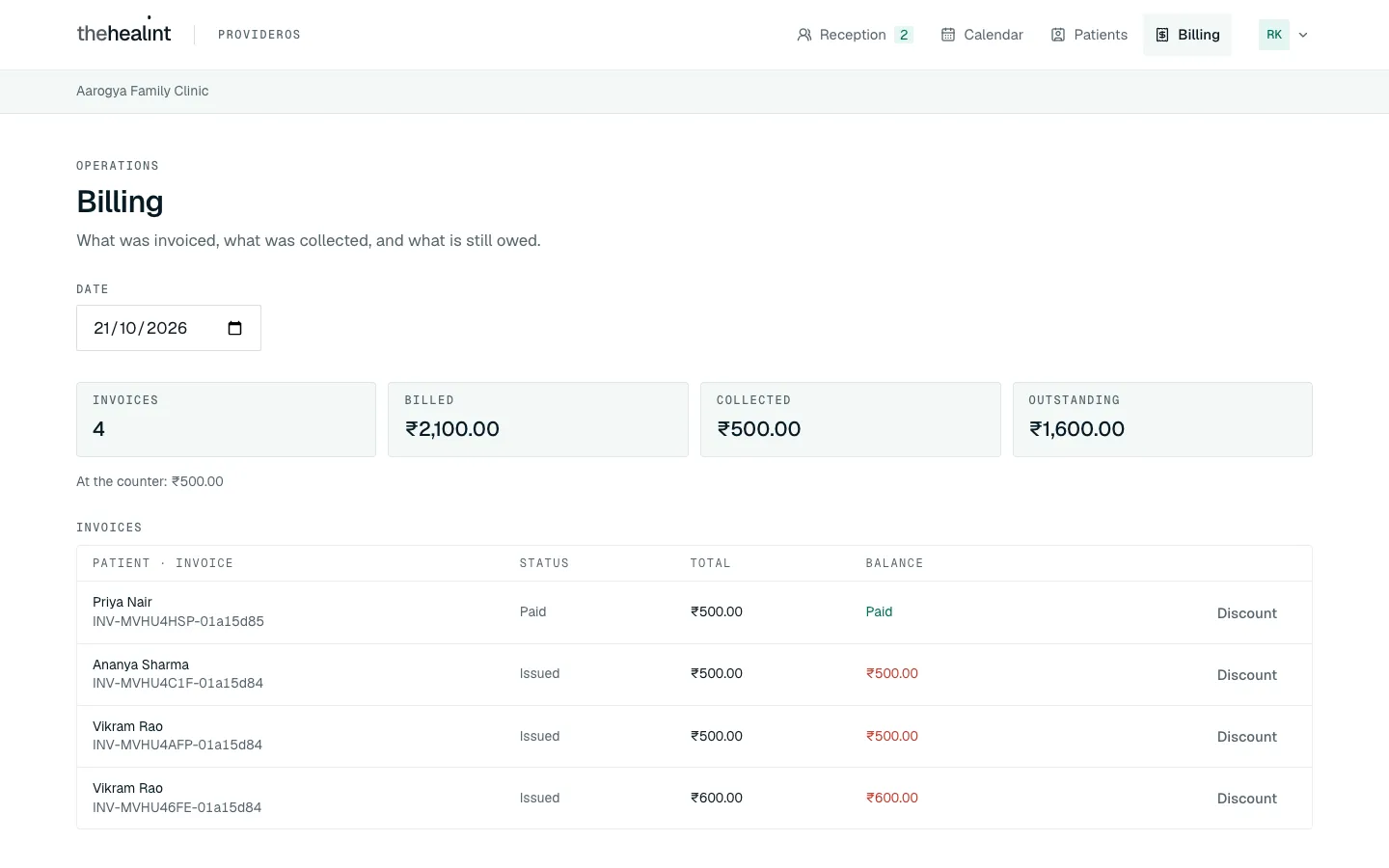
Discounts are permanent and can't be reversed from here. Double-check the amount.
If it doesn't work:
- "Enter a valid discount amount.": type a number, without the ₹ sign.
- "Give a reason for the discount.": the reason can't be blank.
- Click Cancel to close the discount box without saving.
Billing covers the whole clinic, every branch, whatever branch is selected at the top.
On iPhone#
If you sign in to the thehealint app on an iPhone with your work account, you get a read-only Calendar tab (pick a date and branch). Checking in, walk-ins, the queue and billing are only in ProviderOS in a browser.
Today, times and fees follow your clinic#
"Today" in Reception, Calendar and the queue is today where your clinic is, and a patient can check in only on their booking's day on the clinic's calendar. Times are shown on the clinic's clock and fees in the clinic's currency, whatever your computer's own settings are. If a clinic works in another country, a platform administrator sets its region once; the screens then follow it.
Things you can't do here — and who to ask#
If you open a screen that isn't part of your job, ProviderOS shows "Not part of your role" with a Go to your work button.
| You want to… | Who does it |
|---|---|
| Start a consultation, or read a patient's symptoms and clinical notes | The doctor — 02-doctor.md |
| Book a patient for a future day | The patient books in the thehealint app or website. ProviderOS can add walk-ins for today only |
| Move a booking to a different doctor or branch | Cancel it and have the patient book again |
| Put a skipped or no-show patient back in the queue | Register them again as a walk-in |
| Refund a payment, or void an invoice | Your clinic admin — 05-clinic-admin.md |
| Record cash for an invoice without a Record collection button | Your clinic admin |
| Change doctors' hours, add staff, see the day's summary on Today | Your clinic admin — 05-clinic-admin.md |
Quick reference#
| Task | Where | Click |
|---|---|---|
| Check in a booked patient | Reception → Expected today | Check in |
| Find a patient for a walk-in | Reception → Register a walk-in | type → Search → Select |
| Register a new patient | Reception → Register a walk-in | Register a new patient → Register patient |
| Add a family member | Register a walk-in, after selecting | Add a dependent → Add |
| Put a walk-in in the queue | Register a walk-in | choose doctor → Add to queue |
| Call the next patient | Reception → Today's queue | Call |
| Patient didn't come | Today's queue, Called row | Skip → Skip token, or No-show → Mark no-show |
| See every doctor's day | Calendar | Day grid |
| See the next seven days | Calendar | List |
| Move a booking | Calendar (or the booking) | Reschedule → time → Move appointment |
| Cancel a booking | Calendar (or the booking) | Cancel → Cancel appointment |
| Look up a patient | Patients | Search by name |
| Record a counter payment | Billing | Record collection → Yes, money received |
| Give a discount | Billing | Discount → Apply discount → Apply discount |
| Check the day's money | Billing | the four totals at the top |
PDF version
The same guide with all its screenshots, to print or share. (1.0 MB)
Download the PDF Open in a new tab
Loading the PDF viewer… If it does not appear, your browser cannot show PDFs inside a page: use Download the PDF.