Clinic admin: running the organization in ProviderOS
Who this is for#
This document covers the people who own and configure a provider organization: the Clinic admin, the Hospital admin and the Facility manager. It follows the real code from creating an account and an organization through verification, publishing to the marketplace, adding staff and doctors, setting up branches, departments and weekly hours, and on to the oversight pages: notification delivery, security, covering-access review, analytics and pharmacy/diagnostics fulfilment. Anything missing or half-built is called out as such. It is not described as working.
Where they work#
All of this happens in ProviderOS web (apps/provider-web). ProviderOS admits every staff role but shows each one only its own screens (apps/provider-web/src/lib/access.ts; the front-desk, doctor and pharmacy/lab menus are in 03-front-desk.md, 02-doctor.md and 05-pharmacy-lab.md). The roles in this document get the full top navigation: Today, Reception, Calendar, Patients, Billing, Fulfilment, Analytics, Settings, and land on Today.
The Settings section has its own sub-navigation: Staff, Branches, Departments, Practitioners, Weekly availability, Verification documents, Notification delivery, Security, Covering access. Staff and Covering access are listed only for Clinic and Hospital admins; a Facility manager has every other screen, and opening either of those two shows "Not part of your role". /settings redirects to Branches and /fulfillment redirects to Pharmacy.
ProviderOS mobile (apps/provider-mobile) is a narrow companion. Its tabs depend on the role: Overview and Branches for admins and facility managers, Calendar for them and the front desk, Pharmacy & labs for them and pharmacy/lab roles. Everything else is web-only.
Which role a founder gets depends on the organization type chosen at sign-up. Clinic and Individual doctor create a Clinic admin. Hospital and Chain create a Hospital admin. Pharmacy and Diagnostic laboratory create a Pharmacy admin or Lab admin (see 05-pharmacy-lab.md). Clinic admin and Hospital admin carry identical permissions. Only the label differs. Every other role, including Facility manager, is given to a person by an admin under Settings → Staff (section 8).
At a glance#
| Journey | Where | Outcome |
|---|---|---|
| Create an account and organization | ProviderOS sign-in → Create an account → onboarding | Organization created with status Submitted; creator becomes its admin |
| Upload verification documents | Settings → Verification documents | Documents stored for the platform reviewer |
| Publish / unpublish | Today → Publish to marketplace / Unpublish | Organization appears in (or leaves) patient search; only once Verified |
| Add branches with a map pin | Settings → Branches | Bookable locations with coordinates |
| Add departments | Settings → Departments | Units per branch, optionally tied to a marketplace specialty |
| Add a doctor | Settings → Staff → Add a person (role Doctor) | Practitioner record and branch affiliation with a fee; the doctor is invited |
| Doctor profile and branch affiliation | Settings → Practitioners | Admin's own practitioner profile, fee and department per branch |
| Weekly hours and time off | Settings → Weekly availability | Hours drawn on a week grid or added by time, removable; one-off time off per date |
| Add and manage staff | Settings → Staff (Clinic / Hospital admin only) | Person added with a role and emailed a set-password link; roles suspended, reactivated or removed |
| Add many staff from a CSV | Settings → Staff → Add from a spreadsheet | Preview (no changes) → confirm → per-line report. POST /api/v1/staff/import/preview and /import (Idempotency-Key, ≤ 200 lines, expectedReady guard); roles limited to what the importer may add (facility admins: their one role); audited |
| Notification delivery | Settings → Notification delivery | Counts of pending/sent/failed/dead-lettered, list of failures |
| Security / two-factor | Settings → Security (also the account menu) | Authenticator app enrolled; challenge enforced on every ProviderOS sign-in |
| Covering-access review | Settings → Covering access (Clinic / Hospital admin only) | Log of colleagues opening another doctor's patient, with reasons |
| Analytics | Analytics | ROI metrics and breakdowns, on the Growth plan only |
| Subscription / plan | Analytics (read-only gate) | Plan name shown; changing plan is platform-admin only |
| Pharmacy and diagnostics fulfilment | Fulfilment → Pharmacy / Diagnostics | Facilities registered and submitted; consented orders fulfilled |
| Multi-branch switching | Branch selector in the top bar | Reception, Calendar, walk-ins and the waiting badge scoped to one branch |
1. Create an account and the organization#
- ProviderOS sign-in card → Setting up a new clinic? Create an account → Email + Password → Create account.
- Email only. Entering a phone number gives "Create an account with email for now. Phone signup needs SMS verification."
- Password under 8 characters gives "Choose a password with at least 8 characters."
- Email confirmation is off, so the session starts immediately.
- "What should we call you?" → full name → Continue. This creates the profile (
POST /api/v1/me) and refreshes the session token. - With no organization yet, every URL shows the onboarding wizard and the navigation is empty. The heading reads Step 1 of onboarding, "Set up your organization" ("You become its founding admin automatically…").
- Fill in:
- Organization type: Individual doctor, Clinic, Hospital, Chain, Independent pharmacy, or Diagnostic laboratory.
- Legal name ("As registered with the medical council / ROC").
- Display name ("Shown to patients").
- Slug ("Your address on the marketplace — e.g. sunrise-clinic-hsr"), lower-cased as you type.
- Create organization ("Creating…") →
POST /api/v1/tenants. In one transaction the system:- creates the organization with verification status Submitted and not published;
- adds the creator as Clinic admin or Hospital admin (by type);
- writes the first verification event, "Initial submission at tenant creation."
- The session token is refreshed so the new organization's permissions apply. The app then opens Today.
- Error: the server's message, or "Could not create your organization." (for example, a slug that is already taken).
- There is no step 2. The wizard is a single form. Branches, documents and doctors are set up afterwards from Settings.
2. Verification documents#
- Settings → Verification documents → "A platform admin needs at least one of these to mark the organization verified — which is what unlocks publishing to the marketplace."
- Uploaded →
GET /api/v1/tenants/:id/verification-documents. Each row shows the type and file name, with a View button. View fetches a 5-minute signed link and opens it in a new tab.- Empty: "Nothing uploaded yet. Until one is here, verification cannot start."
- Upload a document → Document type: Registration certificate, Medical council ID, Address proof, Identity proof, or Other. Then File ("PDF or image") → Upload document ("Uploading…") →
POST /api/v1/tenants/:id/verification-documents. - A platform admin reviews the organization in Platform Admin (see 06-platform-admin.md) and moves it to Under review, Verified or Rejected.
- Rejected: the documents page shows Verification needs changes, including the latest reviewer's note. Submit for review again is disabled until at least one document has an
uploadedAtlater than the rejection event. - Upload corrected evidence, then click Submit for review again →
PATCH /api/v1/tenants/:id/verification/resubmit(needstenant.verification.submit). The server locks the tenant row, accepts only REJECTED, re-checks the newer-document condition, changes it to SUBMITTED and appends a REJECTED → SUBMITTED verification event in one transaction. The existing platform-admin pending-review query immediately puts it back in the Work inbox. A repeated click is refused because the tenant is no longer Rejected. - Back on Today, the Verification history list shows each change with time and the reviewer's notes. Statuses read in plain words ("Submitted → Verified").
- Notifications: when a platform admin approves or rejects the organization, every active Clinic admin and Hospital admin is emailed.
- Approved (
tenant.verified): "Organization is verified on thehealint" — "Publish it from ProviderOS (Today → Publish) to start appearing in patient search.", plus the reviewer's note if there is one. - Rejected (
tenant.rejected): "Organization: verification needs changes" — "What to fix: note", then "Update your documents in ProviderOS (Settings → Verification documents) and submit again."
- Approved (
- Documents cannot be deleted or replaced. A new upload is added alongside the old ones.
3. Publish and unpublish (Today)#
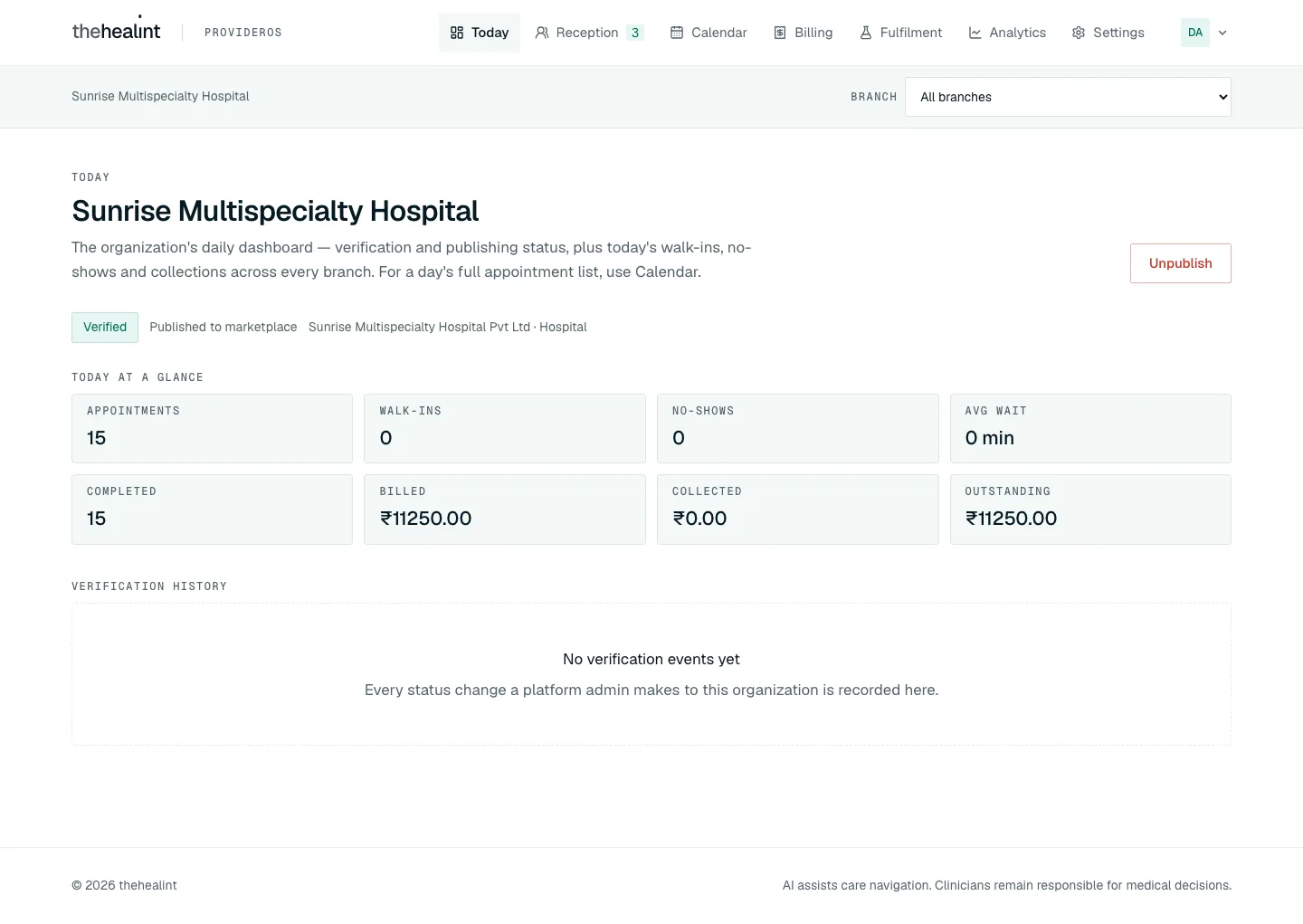
Today → the header shows the display name. Under it are a verification pill (Submitted, Under review, Verified or Rejected), "Published to marketplace" or "Not published", and "legal name · type". Below that, one next step in words: Verified and not published → a green card "You're verified — publish to start taking bookings" with Publish now; Rejected → "Verification needs changes" with Open verification documents; Submitted / Under review → "A platform admin is reviewing your organization…".
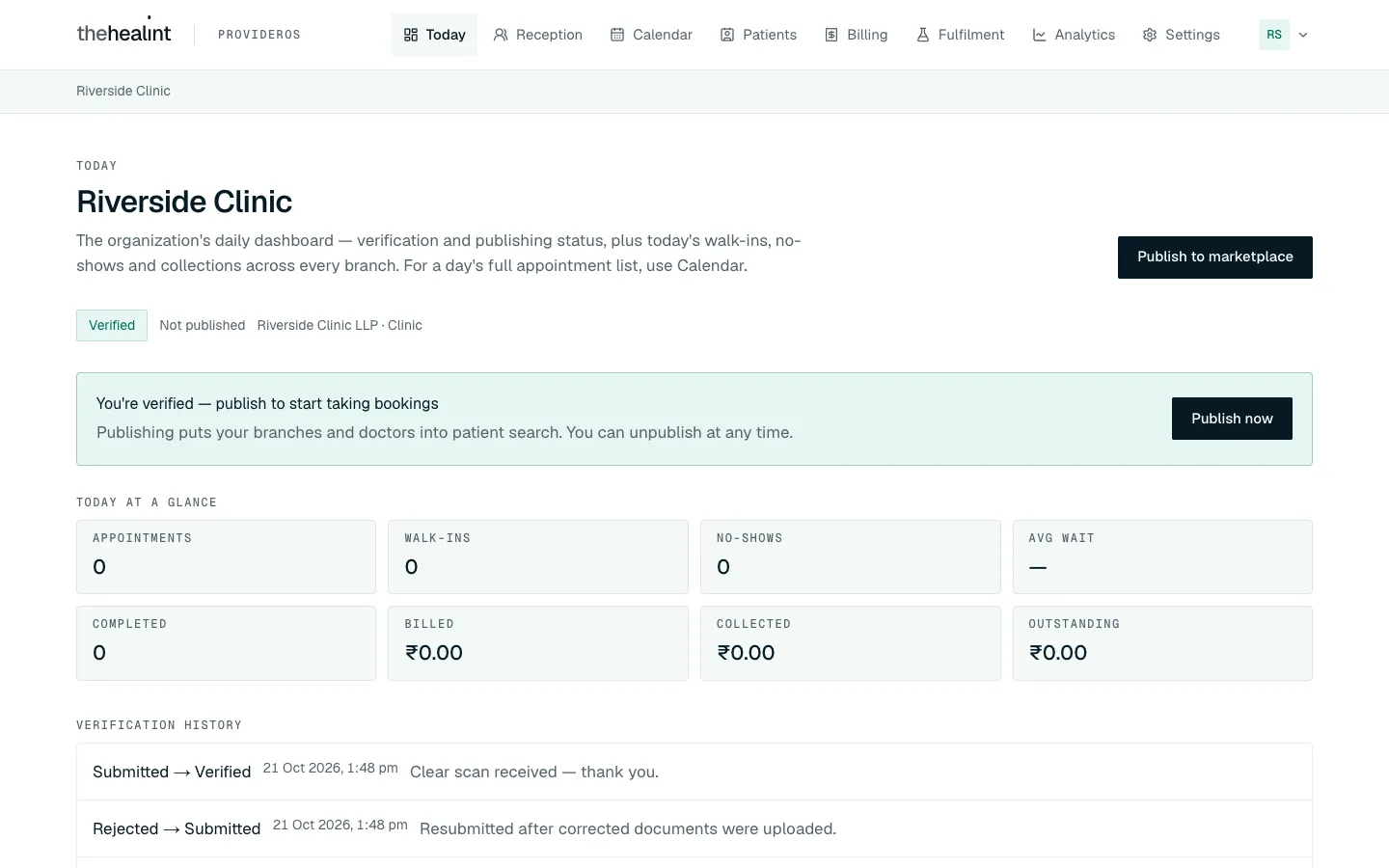
ProviderOS (desktop) — Today for a just-verified clinic: the green "You're verified" card with Publish now, and the history in plain words. If not Verified and not published, Publish to marketplace is disabled. The page explains: "Publishing unlocks once a platform admin marks this organization verified — upload your verification documents under Settings."
Verified → Publish to marketplace ("Saving…") →
PATCH /api/v1/tenants/:id/publish. The status line changes to "Published to marketplace" and the button becomes Unpublish.- The database also enforces this. A publish attempt before verification returns "This tenant cannot be published until its verification_status is VERIFIED."
Unpublish → dialog "Unpublish from the marketplace?" ("Name stops appearing in patient search immediately. Existing appointments are unaffected, but nobody can book a new one until you publish again.") → Unpublish →
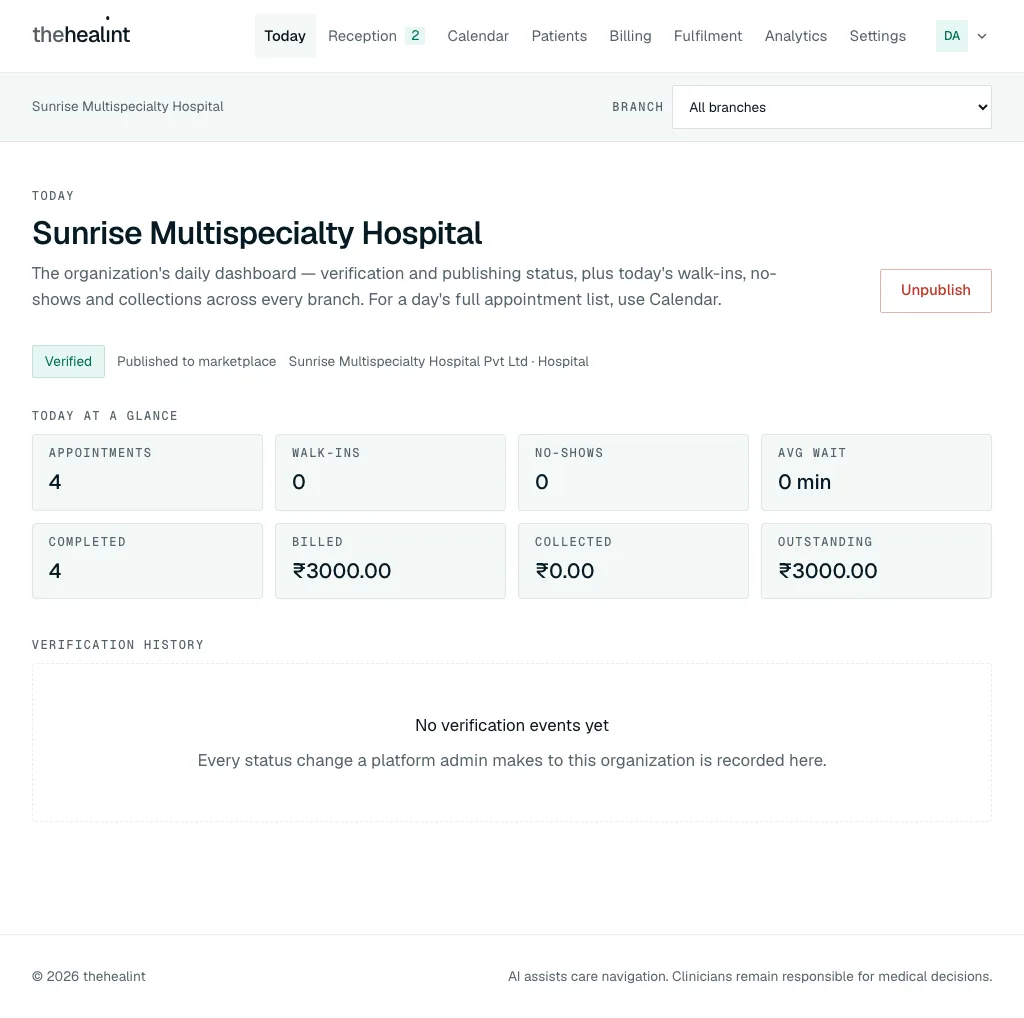
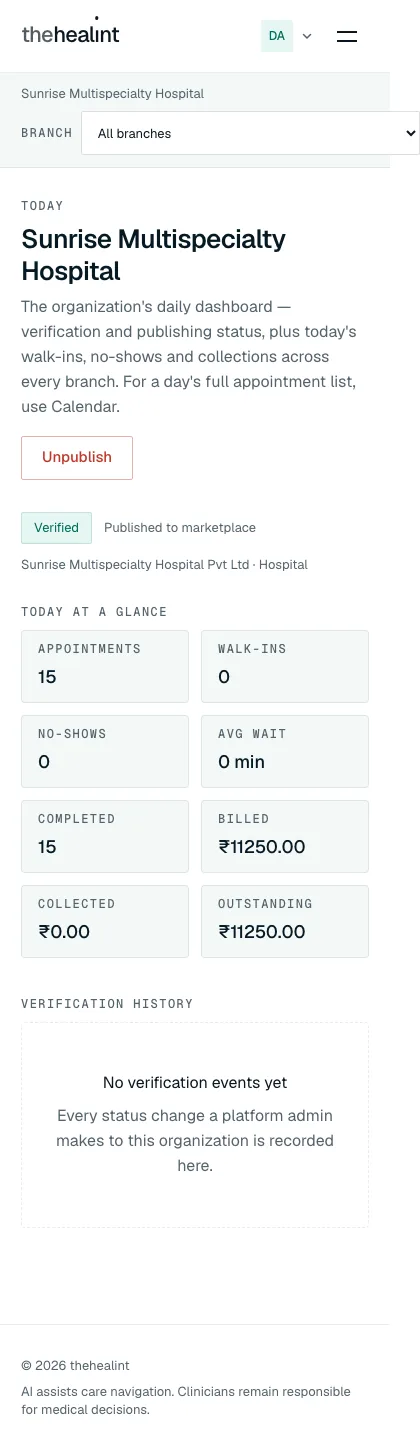
PATCH /api/v1/tenants/:id/unpublish.Today also shows the day's tiles (appointments, walk-ins, no-shows, avg wait, completed, billed, collected, outstanding) across all branches. See 03-front-desk.md.
4. Branches, with the location picker#
- Settings → Branches → "Every physical location you see patients at. Patients search by distance, so the pin matters as much as the address."
- Existing branches → name and "locality, city". The primary branch is marked Primary.
- Empty: "No branches yet. Add your first one below — you cannot take bookings without one."
- Add a branch → Branch name, Address line 1, Locality, City, State, Pincode.
- Location picker:
- Type into "Search an address to jump the map there…" → Find ("Finding…"). The address is looked up on OpenStreetMap (Nominatim, India only), and the map centres and drops the pin there.
- No match: "No match found — place the pin manually instead." Lookup failure: "Could not look up that address — place the pin manually instead."
- Or tap the map to place the pin, then drag to adjust. The map starts centred on India.
- With no pin: "Tap the map (or search an address) to place and confirm your pin." With a pin: "Pin confirmed at lat, lng — drag it to adjust."
- Add branch is disabled until a pin exists ("Confirm your location on the map before adding this branch.") →
POST /api/v1/branches. The list and the global branch selector reload. - Branches cannot be edited or removed from the UI, although the API has
PATCH /api/v1/branches/:id.
5. Departments#
- Settings → Departments → "The units a branch is organised into — Cardiology, Paediatrics, Emergency…"
- With no branches: "No branches yet. A department belongs to one branch. Add a branch under Settings → Branches first."
- Branch selector (only shown when there is more than one branch; this one is independent of the top-bar branch scope) → Departments at this branch, with a count pill.
- Empty: "No departments at this branch. Most clinics never need one…"
- Add a department → Department name (at least 2 characters) → Marketplace specialty (optional; "No specialty link" is the default) → Add department →
POST /api/v1/departments. - Departments cannot be renamed or removed from the UI.
6. Practitioners (doctors)#
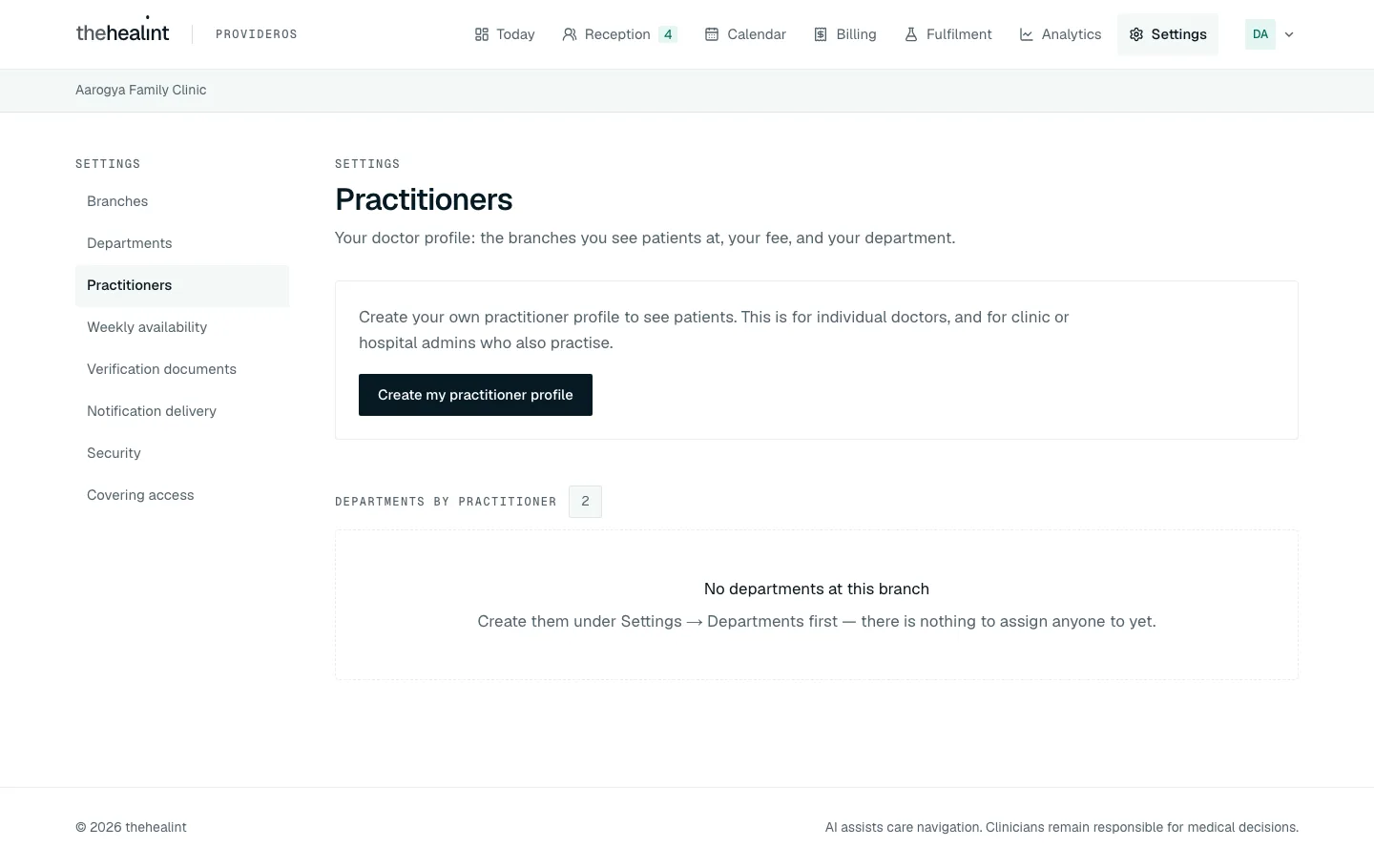
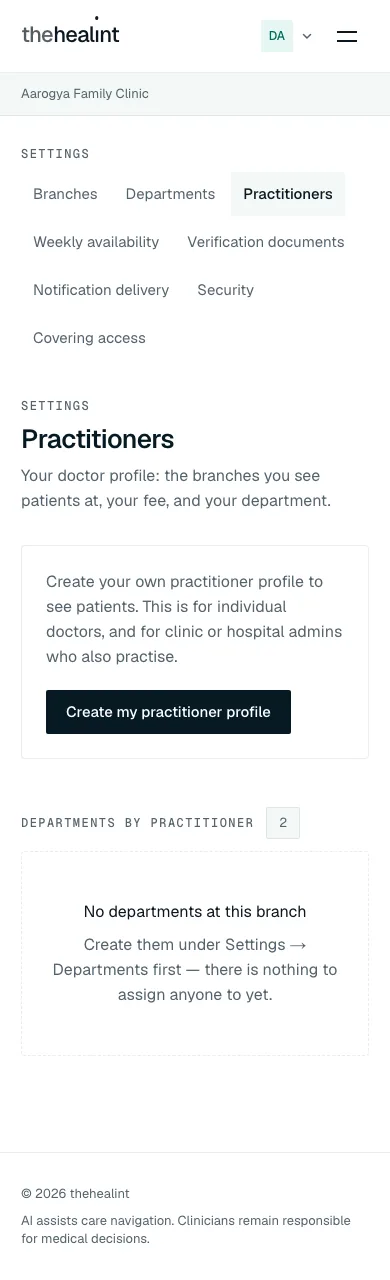
The page lead is "Your doctor profile: the branches you see patients at, your fee, and your department." It manages the signed-in admin's own doctor profile only.
- Create my practitioner profile ("Create your own practitioner profile to see patients. This is for individual doctors, and for clinic or hospital admins who also practise.") →
POST /api/v1/practitionerswith the admin's own profile. - The page then shows Practitioner id (a raw id) and Branch affiliations.
- Empty: "Not affiliated with any branch yet. An affiliation is what carries the consultation fee, the weekly schedule and the department."
- Affiliate with a branch → Branch, Consultation fee (₹), Department (optional, only that branch's departments) → Affiliate with branch →
POST /api/v1/practitioner-branches. Each new affiliation is listed as "₹fee", "Affiliation id · branch id". - Departments by practitioner (survives reloads, covers every doctor at a branch) → pick a Branch → each doctor appears with name, fee and "not currently accepting bookings" if inactive, plus a department dropdown. Changing the dropdown saves immediately (
PATCH /api/v1/practitioner-branches/:id/department).- "No departments at this branch. Create them under Settings → Departments first…" / "No practitioners at this branch. Affiliate one above before assigning departments."
- Other doctors are added from Settings → Staff (section 8), which creates their practitioner record and first branch affiliation. This page still manages only the signed-in admin's own profile. The profile and affiliation cards are not reloaded from the server, so after a page refresh the page shows Create my practitioner profile again, even for an admin who already has one (see Gaps).
7. Weekly availability (/settings/schedule)#
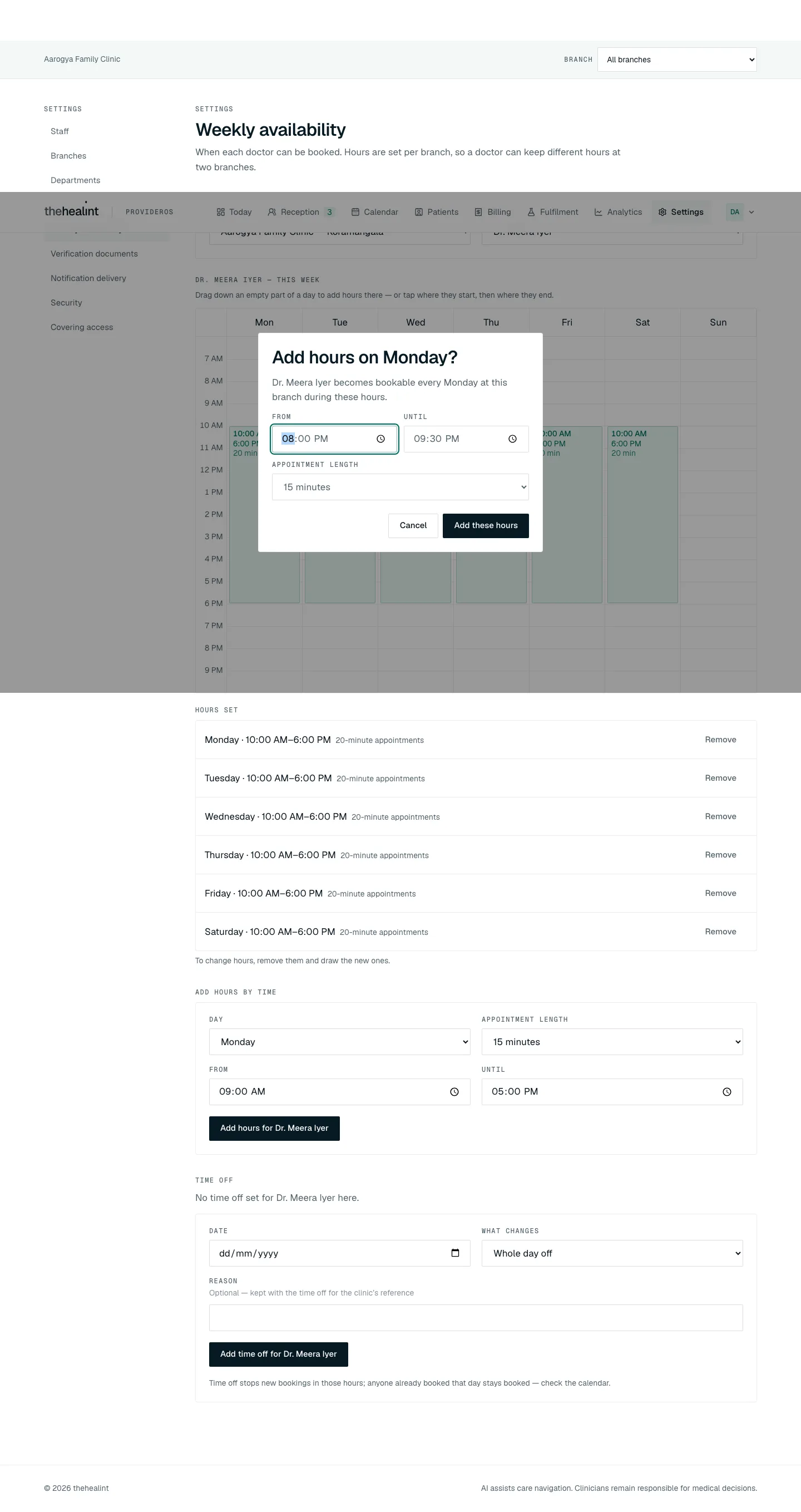
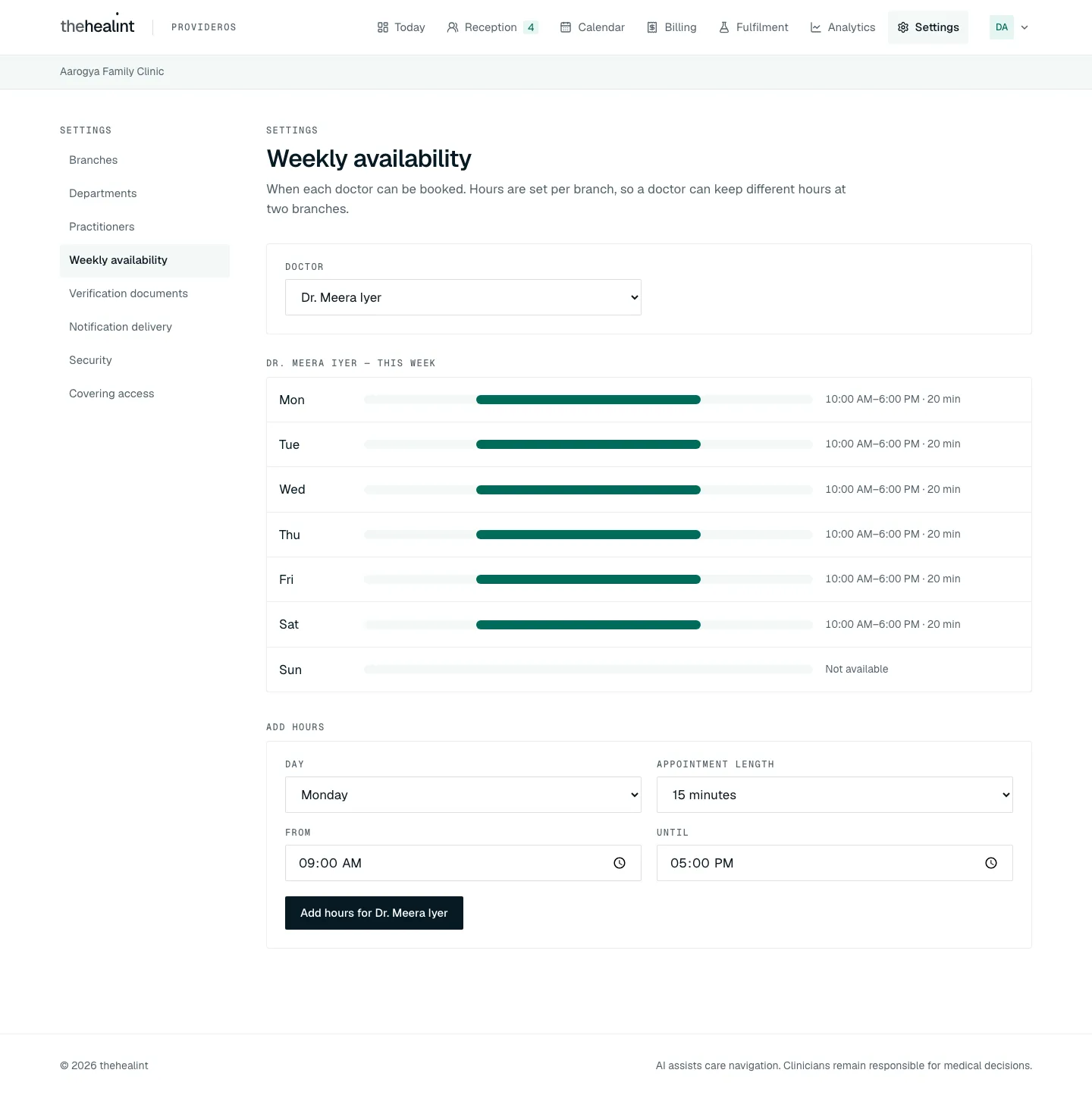
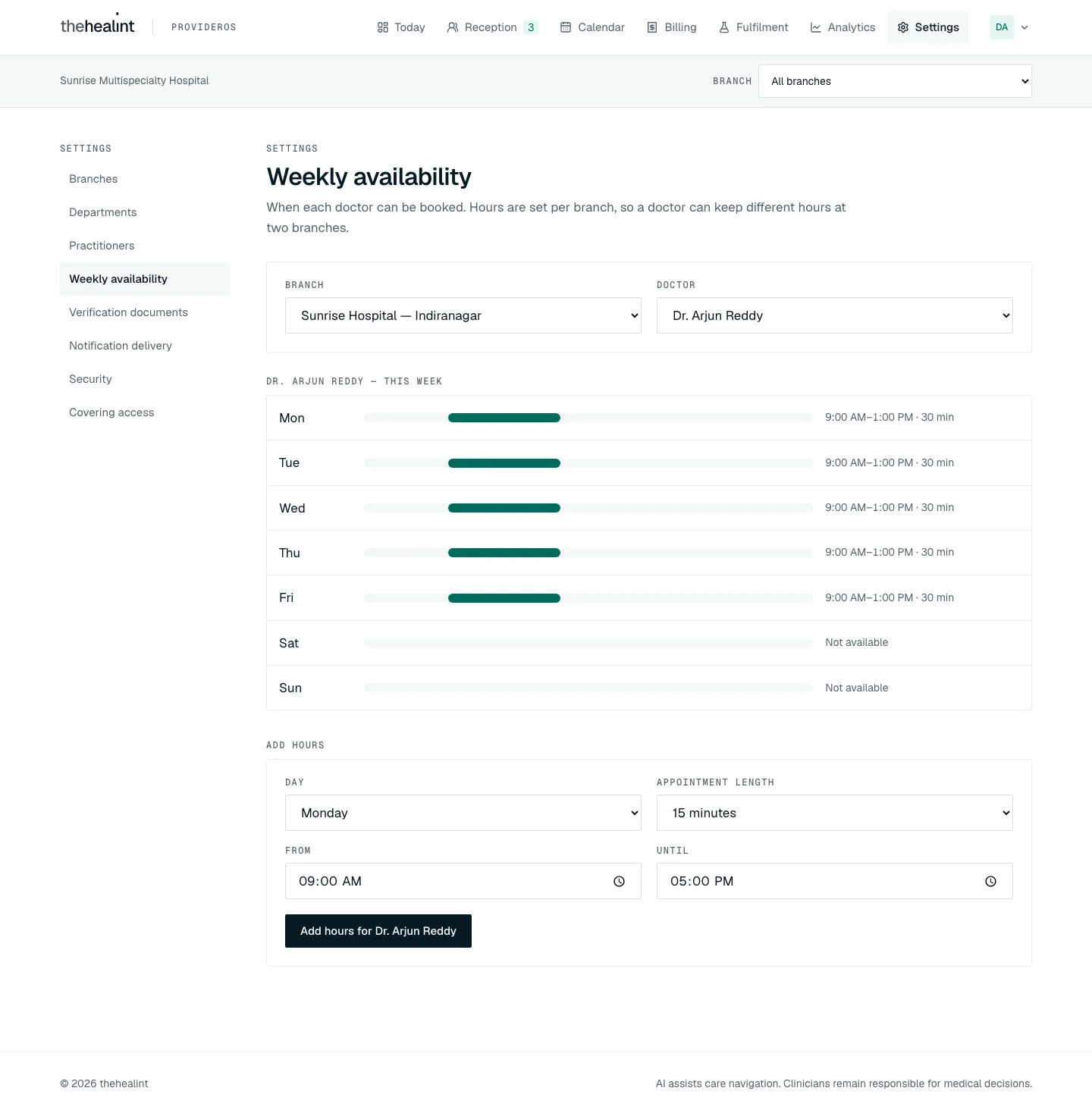
- Settings → Weekly availability → "When each doctor can be booked. Hours are set per branch, so a doctor can keep different hours at two branches."
- Pick a Branch (shown when there is more than one; defaults to the top-bar branch scope or the first branch) → Doctor (names, with "(inactive)" where relevant) →
GET /api/v1/branches/:id/practitioners.- "No doctors at this branch yet. Add a doctor to this branch under Settings → Practitioners, then set their hours here."
- Week grid ("Doctor — this week") →
GET /api/v1/practitioner-branches/:id/schedule-rules. One column per day, Monday to Sunday, on an hourly scale; existing hours are shaded blocks reading "start end n min".- With no hours at all: "No hours set yet — patients can't book doctor here until at least one day has hours."
- Draw hours. "Drag down an empty part of a day to add hours there — or tap where they start, then where they end." After the first tap the line reads "Starting day at time — now tap where these hours end." with Cancel.
- A dialog asks "Add hours on day?" ("Doctor becomes bookable every day at this branch during these hours."), with From, Until and Appointment length to adjust → Add these hours →
POST /api/v1/schedule-rules. A toast reads "Hours added for doctor on day".
- A dialog asks "Add hours on day?" ("Doctor becomes bookable every day at this branch during these hours."), with From, Until and Appointment length to adjust → Add these hours →
- Hours set lists every rule as "Day · start–end · n-minute appointments" with Remove.
- Remove → dialog "Remove day start–end?" ("New bookings in these hours stop at once. Appointments already booked in them stay on the calendar.") → Remove hours →
DELETE /api/v1/schedule-rules/:id. Toast: "Day start–end removed". - Under the list: "To change hours, remove them and draw the new ones." There is no in-place edit.
- Remove → dialog "Remove day start–end?" ("New bookings in these hours stop at once. Appointments already booked in them stay on the calendar.") → Remove hours →
- Add hours by time is the same as drawing, as a form: Day, Appointment length (10, 15, 20, 30, 45 or 60 minutes), From, Until → Add hours for doctor.
- Time off →
GET /api/v1/practitioner-branches/:id/schedule-exceptions.- Each upcoming entry shows the date and either "Not available all day" (Day off) or "Only start–end" (Different hours), with Remove →
DELETE /api/v1/schedule-exceptions/:id. Toast: "date follows the weekly hours again". This remove has no confirmation dialog. Past dates are hidden behind "Show n past dates". - Empty: "No time off set for doctor here." (or "No upcoming time off.").
- Add: Date, What changes (Whole day off or Different hours, which adds From and Until), Reason ("Optional — kept with the time off for the clinic's reference") → Add time off for doctor →
POST /api/v1/schedule-exceptions. Toast: "Time off added for doctor on date". - Footnote: "Time off stops new bookings in those hours; anyone already booked that day stays booked — check the calendar."
- Each upcoming entry shows the date and either "Not available all day" (Day off) or "Only start–end" (Different hours), with Remove →
- Adding and removing need
schedule.manage(Clinic admin, Hospital admin, Facility manager). A doctor without an admin role cannot open this page.
8. Staff (/settings/staff)#
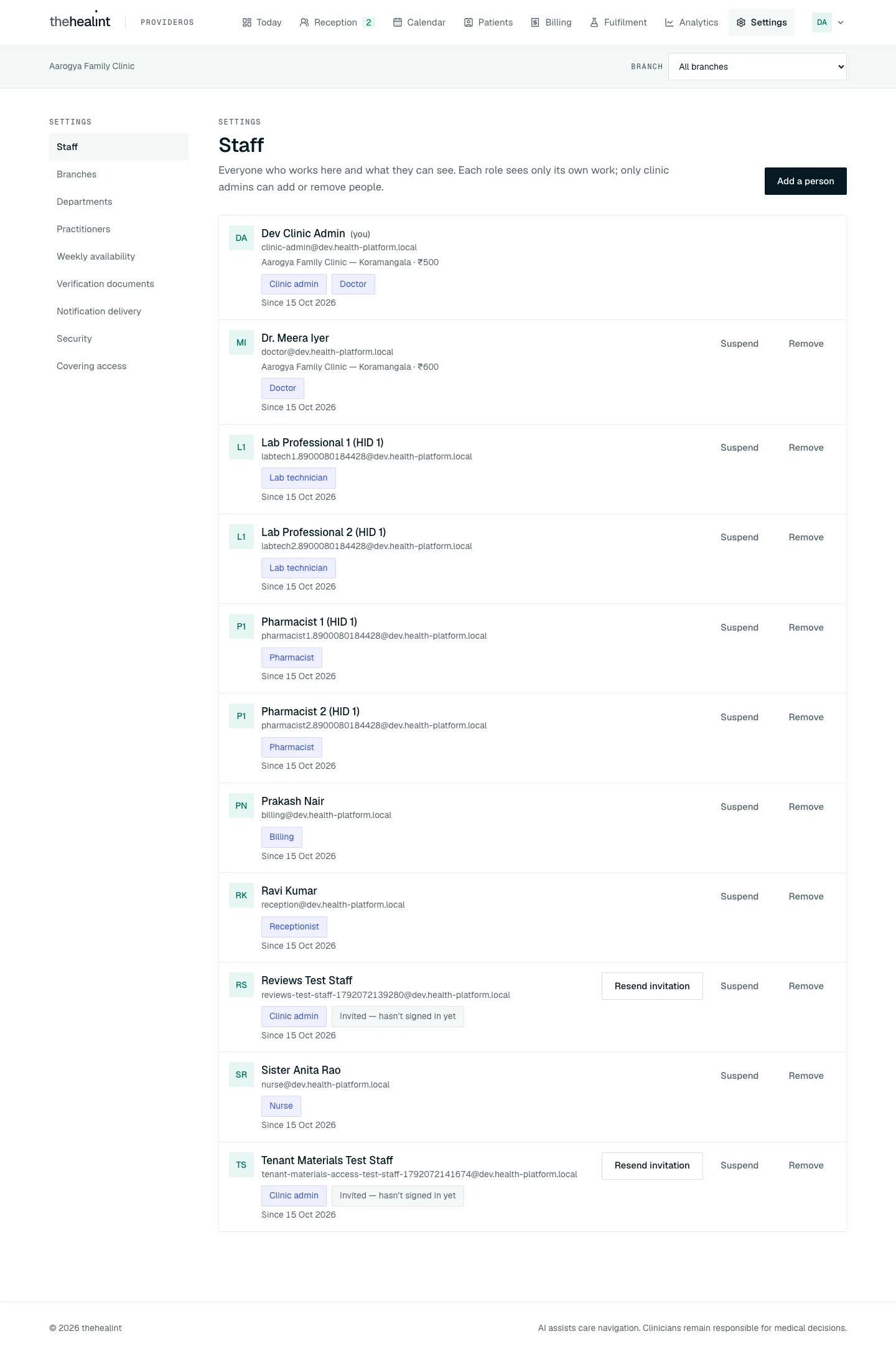
Only Clinic admins and Hospital admins manage staff. The staff.manage permission was taken away from Facility manager, Pharmacy admin and Lab admin (supabase/migrations/20261104000002_staff_management.sql), so the API (apps/api/src/modules/staff) refuses them, and ProviderOS hides the page from them.
- Settings → Staff →
GET /api/v1/staff. Each row shows:- name ("(you)" on the admin's own row), email (or "No email"), and for doctors each branch as "branch · ₹fee", with "(off schedule)" when that affiliation is inactive;
- a pill per role held here, with " · suspended" on a suspended role;
- "Invited — hasn't signed in yet" until the person has set a password;
- "Since date".
- Empty: "No staff yet — Add your doctors and front desk to get started." Loading: "Loading your staff…".
- Add a person opens a form: Full name, Email ("They'll get a link here to set their password.") and Role. The hint under Role says what that role sees:
| Role | Hint shown |
|---|---|
| Doctor | Their own queue, calendar, patients and consultations. |
| Receptionist | Reception, calendar, patients and billing. |
| Appointment manager | Reception, calendar, patients and billing. |
| Nurse | Today's queue. |
| Billing | Billing only. |
| Pharmacist | Pharmacy orders and their own credential. |
| Lab technician | Diagnostic orders and their own credential. |
| Pharmacy admin | The pharmacy: facility, licence and orders. |
| Lab admin | The lab: facility, licence and orders. |
| Facility manager | Every operational screen, but not staff. |
| Clinic admin | Everything, including staff. |
Hospital admin is accepted by the API but not offered in this list.
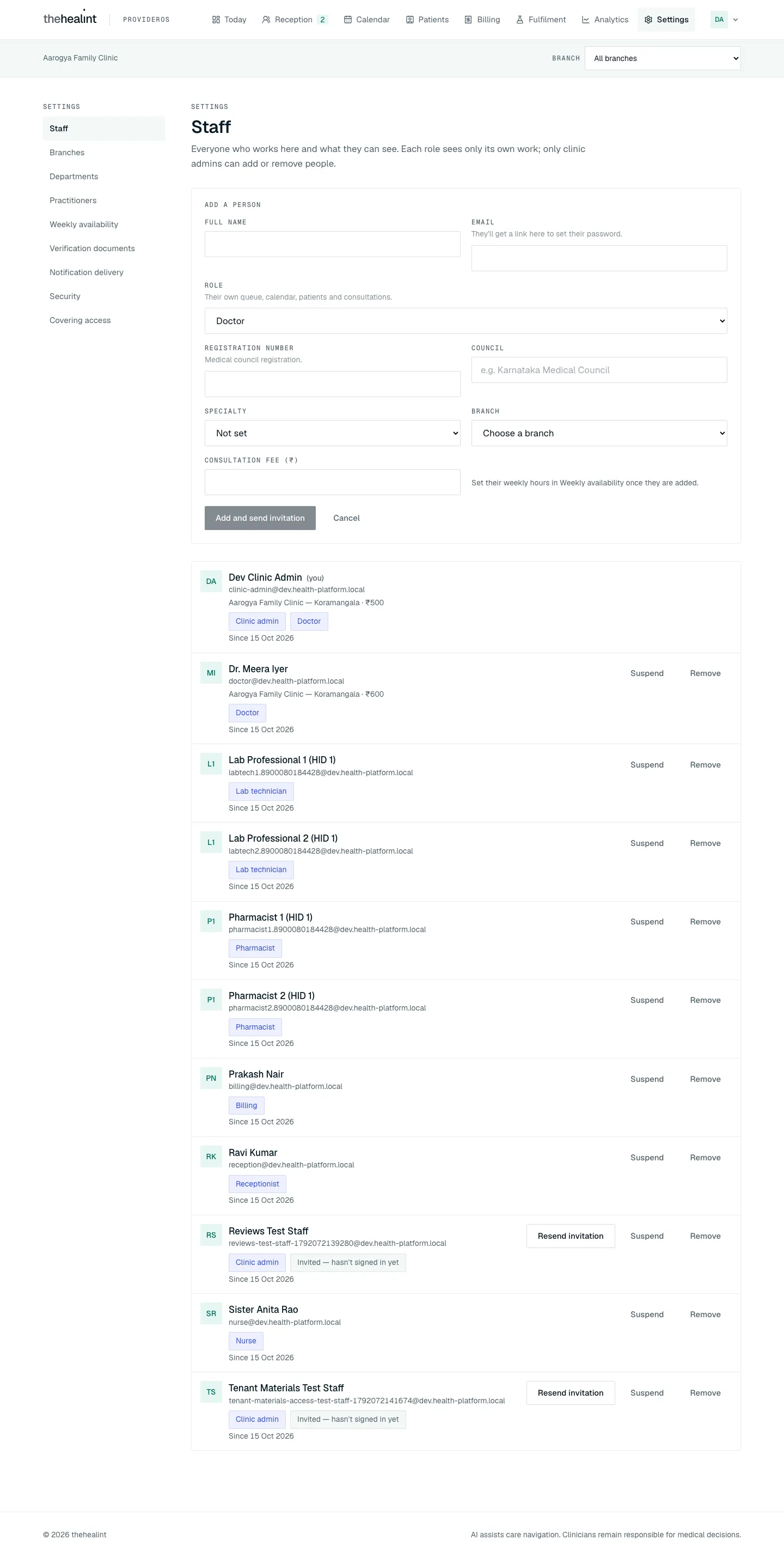
- A doctor needs more. With Role = Doctor the form adds Registration number, Council, Specialty (optional), Branch and Consultation fee (₹). The API refuses a doctor without them ("A doctor needs a registration number, council, branch and fee.").
- Add and send invitation ("Adding…") →
POST /api/v1/staff. In one transaction the system:- creates the sign-in account if the email is new, or reuses an existing one (for example a patient account), plus a profile if there is none. The set-password link is an invite link for a new account and a password-reset link for an existing one;
- gives the person the role at this organization (an existing suspended or removed role is reactivated; "This person already has that role here." if it is already active);
- for a doctor, creates the practitioner record and affiliates it with the chosen branch at that fee (the branch must belong to this organization);
- queues the
staff.invitedemail: "You've been added to Organization on thehealint" — "Organization has added you as role. Set your password to sign in to ProviderOS: link". - Toast: "Name added — we've emailed them a link to set their password". The new doctor still has no hours until they are set under Weekly availability.
- The invited person opens the link, which lands on ProviderOS
/set-password("Opening your invitation…") → Set your password (their email under the heading) → New password ("At least 8 characters.") and Confirm password ("The two passwords don't match.") → Save and continue. This saves the password, marks the account as activated (the "Invited" pill disappears) and opens their first screen. An expired or used link shows "This link has expired — Invitation links work once and expire. Ask your clinic admin to resend it from Settings → Staff, or sign in if you have already set a password." with Sign in. - Resend invitation (only while "Invited") →
POST /api/v1/staff/:profileId/resend-inviteemails a fresh link. Toast: "New sign-in link sent to email". - Suspend / Reactivate →
PATCH /api/v1/staff/:profileId/membership. One button per role ("Suspend role" when the person holds several). Each asks first:- "Suspend name?" — "They can't use ProviderOS for this organization until you reactivate them." → Suspend.
- "Reactivate name?" — "They can sign in and work as role again." → Reactivate.
- Remove (removes the person's first-listed role here) → "Remove name?" — "They lose access to this organization. Their past work stays on record." → Remove.
- For a doctor (suspend or remove), the dialog instead says "They stop being bookable here immediately. Appointments already booked stay on the calendar for you to move or cancel." The system deactivates every branch affiliation they have here.
- The last active Clinic or Hospital admin cannot be suspended or removed: "This is the only admin. Add another clinic admin before removing this one."
- Every add, resend and status change is audited (
RECORD_EDITED,tenant_member).
9. Notification delivery#
- Settings → Notification delivery → "Every reminder and confirmation this organization sends, and what happened to it. Dead-lettered means it will not be retried." →
GET /api/v1/notifications/tenant/summaryand…/tenant/failed. - Tiles: Pending, Sent, Failed, Dead-lettered.
- Failures table: Channel, Template, Status (pill: Failed or Dead letter), Attempts, Last error, Updated.
- Empty: "Nothing has failed. Every notification has sent, or is still pending its first attempt."
- This page is read-only monitoring. There is no retry button, no per-event on/off switch, and no template or channel setting.
- Templates that exist (all email): appointment confirmed, cancelled and rescheduled; payment captured, pay-at-facility confirmed, collected at facility and refunded; prescription ready; follow-up reminder; encounter covered.
10. Security and two-factor (MFA)#
- Settings → Security (also linked from the account menu) → "Require a code from an authenticator app…" → the system lists the account's authenticator factors.
- With none: "Two-factor authentication is off. Anyone with your email can sign in to this organization's patient data…" → Set up two-factor authentication.
- A QR code and a manual key appear → enter Code from the app → Confirm ("Verifying…") → "Two-factor authentication is now active on this account." Cancel discards the half-made factor.
- Each enrolled authenticator shows "Added date" and a Remove button. Remove opens a confirm dialog that warns when it is the last one ("…removing it turns two-factor authentication off entirely…") → Remove authenticator.
- Enforcement. On every later ProviderOS web sign-in, an enrolled account must enter the 6-digit code before anything loads. MFA is optional to enrol, but once enrolled it is always enforced on ProviderOS web. It is not enforced by ProviderOS mobile (see Gaps).
11. Covering-access review (/settings/covering-access)#
- Settings → Covering access → "Every time a colleague opened another practitioner's patient — who covered, for whom, and the reason they gave."
- From / To dates (both default to today) →
GET /api/v1/encounters/covering-access?fromDate=…&toDate=…. - Table: Date, Patient, Assigned to, Covered by, Reason.
- Empty: "No covering access in this window…"
- Only Clinic and Hospital admins see this page in the menu. A Facility manager (or anyone else) who opens the address gets "Not part of your role".
- Notification: when the cover happens, the doctor who was originally assigned gets an email ("Covering doctor covered your patient patient", with the reason). The admin gets nothing. The review is pull-only.
12. Analytics and the subscription plan#
- Analytics → "Checking your plan…" →
GET /api/v1/tenants/:id/subscription. - Not on Growth (the Free plan has
provider_roi_dashboard = false): "The ROI dashboard isn't on your current plan (plan). Upgrade to Growth to unlock source attribution, no-show tracking, and collections at a glance." A See plans button opens Settings → Plan (below). The branch limit message ("Your plan allows up to 1 branch(es) — upgrade to add more.") offers the same See plans.
Settings → Plan (Release 1.3)#
- Settings → Plan (clinic/hospital admins) → the catalogue with what each plan includes (
GET /api/v1/plans/compare), the current plan marked Your plan, and Request plan on the others. - Request → optional note → Send request →
POST /api/v1/tenants/:id/plan-requests(tenant.manage). One open request per organization (409 otherwise); asking for the current plan is 400. Every ACTIVE platform admin is emailed (plan.change_requested). - The page shows Waiting for a decision; after a decision, every clinic/hospital admin is emailed (
plan.change_decided). Approval assigns the plan in the same transaction, so new limits apply at once; a decline shows its note on this page.
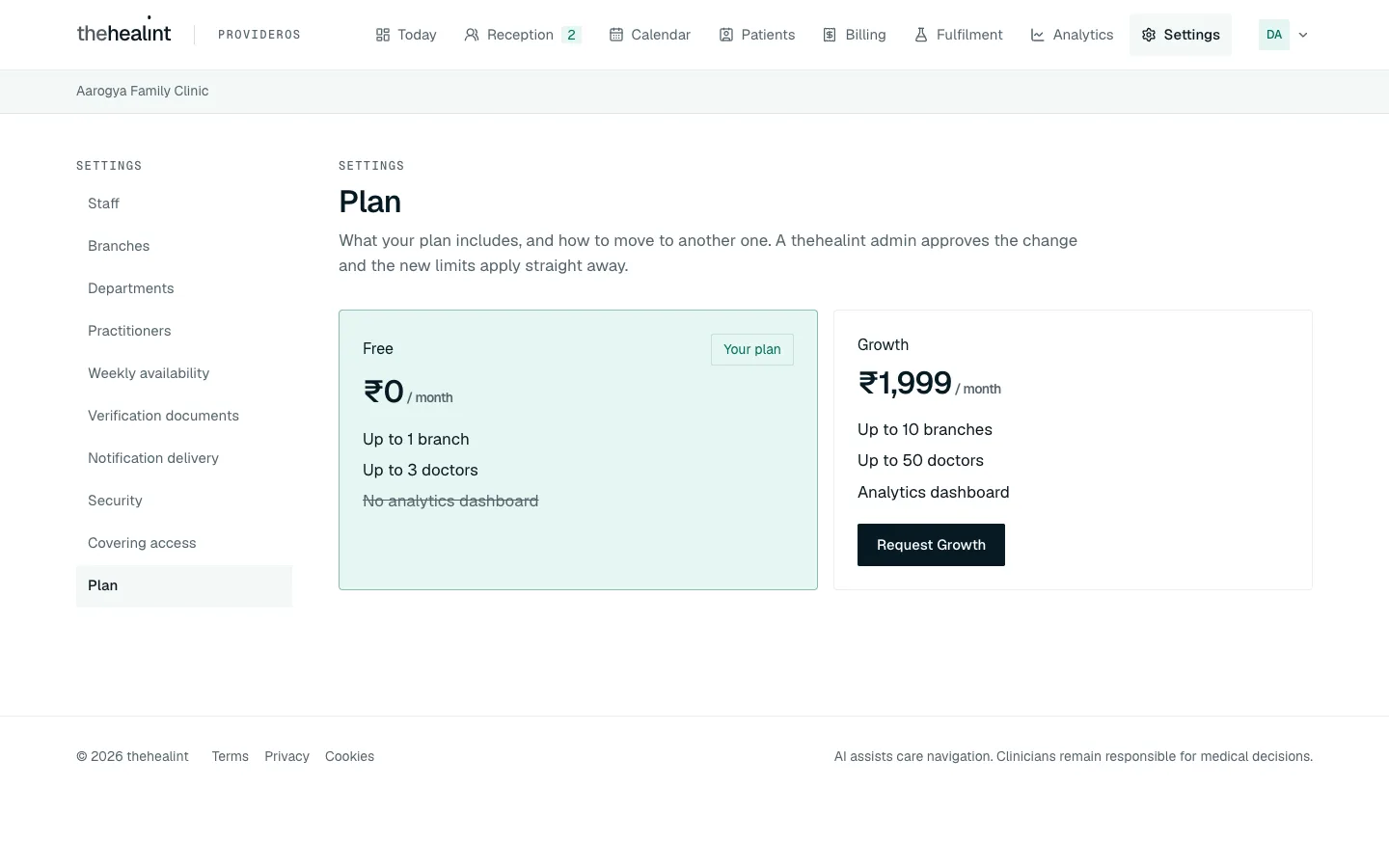
ProviderOS (desktop) — Settings → Plan: Free (your plan) and Growth with their limits, and Request Growth.
3. On Growth → From / To (defaults to the last 30 days) → GET /api/v1/analytics/provider?... → tiles Appointments, New vs returning, No-show rate, Avg. wait, Collected, followed by By doctor, By branch and By department tables. Refresh reloads.
- The department table explains when no doctors are placed in departments.
- A plan lookup failure shows an error with retry, never the upgrade pitch.
- Apart from this gate there is no subscription or billing-plan page in ProviderOS.
13. Fulfilment: pharmacy and diagnostics (owner view)#
A screenshot of the Pharmacy page is in 05-pharmacy-lab.md, Journey 2.
Fulfilment has two pages, Pharmacy (/fulfillment/pharmacy) and Diagnostics (/fulfillment/diagnostics). At owner level:
- Register pharmacy / Register lab (owners only; a pharmacist or lab technician doesn't see this card) → facility details, optional Branch, Licence expiry, and "Offers home delivery" / "Offers home collection" →
POST /api/v1/fulfillment/facilities. The facility starts as Draft. - Licence document → choose the facility and Document type (pharmacy: Drug licence, HFR proof, Pharmacist registration, Other; lab: Clinical establishment registration, NABL certificate, HFR proof, Lab professional registration, Other), number, issuing authority, dates and file → Upload securely.
- Registered facilities → status pill (Draft, Awaiting review, Verified, Rejected, Suspended) → Documents lists the uploads → Submit for review (on Draft or Rejected). A platform admin verifies it.
- Registered pharmacist / Laboratory signatory / technician → credential details plus Registration evidence chosen from the uploaded documents.
- Assigned orders (patient-consented orders sent to your verified facilities): Accept / Decline on Requested. Pharmacy: Mark ready (becomes Ready for pickup, or Out for delivery for home delivery), then Complete. Lab: Sample collected, then upload a Signed report → Release report.
- Orders sent to external partners (shown to admins, facility managers and pharmacy/lab admins, not to pharmacists or lab technicians) lists this organization's orders that went outside it, with Open delivered report.
- The full fulfilment workflow is documented in 05-pharmacy-lab.md. Pharmacists and lab technicians now work these orders in ProviderOS themselves. ProviderOS mobile's Pharmacy & labs tab offers the same order buttons.
14. Multi-branch switching#
- When the organization has more than one branch, a Branch selector ("All branches" plus each branch) appears in the top bar of every page, next to the organization name. With one branch it is hidden.
- The choice persists across page navigation (it lives in the app shell) but is not saved across a page reload.
- Follows the selector: Reception (expected list, queue), the walk-in form, Calendar, the Reception waiting badge, and the default branch on Weekly availability.
- Ignores the selector: Today, Billing and Analytics are always organization-wide. Departments and Practitioners have their own branch dropdowns.
- If the selected branch disappears (deleted, membership changed), the selector falls back to "All branches".
- Switching organizations is not supported. ProviderOS uses the first admin membership it finds. An account that administers two organizations cannot pick between them.
- ProviderOS mobile's Calendar tab has its own "All branches" dropdown. Its Overview uses the account's first membership, whichever it is.
15. ProviderOS mobile (admin companion)#
- Sign in with email and password. The sign-in gate admits admin roles only (Clinic admin, Hospital admin, Facility manager, Pharmacy admin, Lab admin); other accounts are told to use the User app.
- With no organization: "No organization yet. Set up your organization on ProviderOS web…"
- Tabs, by role (
apps/provider-mobile/lib/screens/home_screen.dart):- Overview (name, legal name, type, slug, verification status in capitals) and Branches (read-only list; "No branches yet — add one on ProviderOS web.") for Clinic admin, Hospital admin and Facility manager.
- Calendar (date and branch filter; "No appointments on this date.") for those roles and for Receptionist and Appointment manager.
- Pharmacy & labs (assigned orders with Accept, Decline, Mark ready, Complete, Sample collected, Release report) for those roles and for Pharmacist, Lab technician, Pharmacy admin and Lab admin.
- A role with no tab (Nurse, Billing) sees "Your work is on ProviderOS web — open it on the clinic computer or in your browser."
- Every staff role can sign in to this standalone app as well as reach the same home screen through the User app's staff workspace (see 03-front-desk.md, section 1c). Nurse and Billing see a pointer to ProviderOS web.
- No publishing, staff, settings, reception, billing or analytics on mobile.
Role × capability#
From role_permissions in supabase/migrations. "UI" says whether a ProviderOS screen exposes it.
| Capability | Permission | Clinic admin | Hospital admin | Facility manager | UI |
|---|---|---|---|---|---|
| Open ProviderOS web (every screen) | lib/access.ts | Yes | Yes | Yes, except Staff and Covering access | Yes |
| Open ProviderOS mobile | admin role | Yes | Yes | Yes | Yes |
| Create an organization (becomes founder) | any signed-in user | Yes | Yes | Yes | Yes |
| Upload verification documents, publish/unpublish, add/edit branches, add departments | tenant.manage | Yes | Yes | No | Yes (edit branch: API only) |
| Create practitioner profile, affiliate, set department, toggle active | practitioner.manage | Yes | Yes | No | Partly (self only; no active toggle) |
| Add / remove weekly hours and time off | schedule.manage | Yes | Yes | Yes | Yes |
| Add people, resend invitations, suspend / reactivate / remove roles | staff.manage | Yes | Yes | No (revoked in 20261104000002) | Yes (Settings → Staff) |
| Reception queue, walk-ins, Today tiles | queue.manage | Yes | Yes | Yes | Yes |
| Register patients and dependents | patient.register | Yes | Yes | Yes | Yes |
| Billing: invoices, collect, discount, refund | billing.manage | Yes | Yes | Yes | Yes (no refund button) |
| Notification delivery | notification.read | Yes | Yes | Yes | Yes |
| Analytics (also needs Growth plan) | analytics.read | Yes | Yes | Yes | Yes |
| Covering-access review | encounter.audit | Yes | Yes | No | Yes |
| Audit log | audit.read | Granted | Granted | No | No screen |
| Pharmacy / diagnostics fulfilment | fulfillment.manage | Yes | Yes | Yes | Yes |
| Read pre-visit notes, run consultations | encounter.manage, treating doctor only | No (Doctor only) | No | No | Only if also the appointment's Doctor |
| Change subscription plan | subscription.manage | No (platform admin) | No | No | No |
| Security / own MFA | any account | Yes | Yes | Yes | Yes |
A Facility manager can open Settings → Branches, Departments, Practitioners and Verification documents, but the save buttons fail with a permission error (tenant.manage / practitioner.manage missing). The screens don't hide them.
Permissions & privacy#
- Owner, not clinician. Admin roles do not hold
encounter.manage. They cannot read pre-visit clinical notes in the appointment drawer or open a consultation. Even an admin who is also a doctor reads pre-visit notes and past visit notes only for appointments they treat (or covered with a reason). - Staff management is admin-only. Only Clinic and Hospital admins hold
staff.manage. The last active admin can't be removed or suspended. A suspended or removed doctor stops being bookable at once. - Covering-access review is the compliance loop ("reason, alert and review"): a colleague gives a reason, the assigned doctor is emailed, and admins can review the log. A Facility manager is excluded.
- Verification documents are only reachable through 5-minute signed links, by the organization's own staff or a platform reviewer.
- Organization isolation is enforced in the API and by row-level security. Every list is limited to the caller's organization.
- Publishing is blocked by a database constraint until the organization is Verified. The disabled button is not the only guard.
- MFA is enforced on ProviderOS web for enrolled accounts. Admins hold
patient.demographics.read, so turning MFA on is recommended. It is not mandatory.
Gaps & known limitations#
No staff or role management— fixed: Settings → Staff adds, invites, suspends, reactivates and removes people (Clinic and Hospital admins only).Can't add other doctors— fixed through Settings → Staff (role Doctor), which also creates the practitioner record and first branch affiliation. Settings → Practitioners itself still only handles the signed-in admin's own profile, and a doctor's further branches, department and active toggle for other doctors are partly API-only.- Practitioners page forgets on reload. The profile and affiliation cards are not loaded from the server, so after a refresh Create my practitioner profile shows again. Raw ids ("Practitioner id", "Affiliation id · branch id") are shown instead of names.
- Individual-doctor founders don't get the Doctor role. Onboarding grants only Clinic admin. Creating a practitioner profile does not add the Doctor role. Settings → Staff accepts an email that already has an account, so a founder could in principle add their own email with role Doctor, but nothing suggests it and it has not been checked end to end.
- Status Submitted before any document exists. A new organization's verification status starts as Submitted at creation.
- Verification history shows raw codes ("SUBMITTED → VERIFIED") instead of sentence case. The mobile Overview shows status and type in capitals.
No email when a verification decision is made— fixed: active Clinic and Hospital admins are emailed on approval and rejection. There is still no email when an organization is published.- No edit or delete UI for branches, departments or verification documents. Branch edit exists in the API (
PATCH /branches/:id), as does a practitioner active/inactive toggle. Weekly hours can now be removed (not edited in place) and time off added and removed. No schedule exceptions UI— fixed: the Time off section on Weekly availability.- Notification settings are monitoring only. There is no retry of failed or dead-lettered messages, no preferences, no SMS/WhatsApp (all templates are email).
No subscription page— fixed: Settings → Plan, with requests decided by a platform admin. Plans still can't be paid for in the app.- No audit-log screen in ProviderOS, although admins hold
audit.read. (Platform admins now have one; see 06-platform-admin.md, Journey 13.) - Facility manager is half-supported. It can now be given through Settings → Staff, but it still sees Settings pages whose saves fail (no
tenant.manage/practitioner.manage). - Staff page details. Remove takes away every role the person holds here; Suspend works per role. Adding an email that already has an account keeps that account's existing name; the Full name typed is only used in the invitation email.
- No organization switcher. An account administering several organizations always gets the first one. Mobile uses the first membership of any kind.
- Branch scope is partial. Today, Billing and Analytics ignore it, and the selection resets on reload.
- MFA gaps. ProviderOS mobile never runs the authenticator challenge (its own code says so), so an enrolled admin signs in on mobile with password only.
- Two iPhone entry points for one home screen. The role-based home screen is reached by admins through ProviderOS mobile and by front-desk, pharmacist and lab-technician accounts through the User app; ProviderOS mobile still turns the latter away with "use the thehealint User app".
- Onboarding is one step. "Step 1 of onboarding" has no step 2. No checklist guides the admin through documents, branch, staff, hours and publish.
- No screenshots exist for onboarding, branches, departments, documents, notifications, security, covering access, analytics or the set-password page in
screenshots/ux-audit/after/(see the "Screenshot coverage" list in README.md).
Related#
- 01-patient.md: what patients see once the organization is published
- 02-doctor.md: consultations, covering a colleague, and the doctor's schedule
- 03-front-desk.md: Reception, Calendar, Patients and Billing in detail
- 05-pharmacy-lab.md: the full fulfilment workflow
- 06-platform-admin.md: verification review, facility verification and plan assignment
Bulk imports (added Oct 2026)#
Four imports share one shape (CSV → preview with per-line reasons, no change → confirm with an Idempotency-Key and an expectedReady guard → per-line report), all up to 200 lines, all audited:
| Import | Where | Endpoints | Notes |
|---|---|---|---|
| Staff | Settings → Staff → Add from a spreadsheet | /staff/import/preview, /staff/import | Roles limited to what the importer may add |
| Doctors' branches and fees | Settings → Staff → Doctors' branches and fees | /practitioner-branches/import/preview, /import | Places existing staff doctors at branches or changes a fee; practitioner.manage |
| Branches | Settings → Branches → Add from a spreadsheet | /branches/import/preview, /import | Needs latitude/longitude; stops at the plan's max_branches; tenant.manage |
| Pharmacies and labs | Fulfilment → Add from a spreadsheet | /fulfillment/facilities/import/preview, /import | Registers drafts; skips a licence already registered; fulfillment.manage |
Region (added Oct 2026)#
An organization's locale, currency and timeZone are read-only here; a platform administrator changes them (Admin web → organization → Region). ProviderOS follows them through LocaleProvider.
Policies and error pages (added Oct 2026)#
The footer carries Terms, Privacy and Cookies. Unknown addresses show a "We could not find that page" screen, a failed page shows "This page could not be shown" with a reference, and an offline banner appears when the connection drops.
PDF version
The same guide with all its screenshots, to print or share. (0.9 MB)
Download the PDF Open in a new tab
Loading the PDF viewer… If it does not appear, your browser cannot show PDFs inside a page: use Download the PDF.