Patient flows
Who this is for#
This document is for product, QA and new team members. It describes what a patient can do on thehealint, step by step, as the code behaves today. It covers both the patient website and the patient mobile app. Every screen, button, endpoint and status here was traced from the source. Anything missing, half-built or inconsistent is listed under Gaps & known limitations rather than described as working.
A patient is any signed-in person whose account holds no workforce or admin role. The role list lives in packages/config/src/constants.ts: userWorkspaceForRoles() returns PATIENT when no other role applies. One patient account can also manage family members (dependents) who have no login of their own.
Where they work#
| Surface | App | How the patient gets around |
|---|---|---|
| Web | apps/patient-web (Next.js), the "User" web app | Top navigation: Find care /search, Appointments /appointments, Profile /profile, Health records /records, Pharmacy & labs /fulfillment, Family /family, Privacy /consent. Other routes: / (public landing when signed out, home when signed in), /providers/[branchId], /practitioners/[practitionerId], /book/[practitionerBranchId], /appointments/[appointmentId], /records/prescriptions/[prescriptionId] (prescription and dose timetable), /records/reports/[documentId] (lab report viewer). |
| Mobile | apps/patient-mobile (Flutter), the unified "thehealint User" app | A bottom tab bar: Home, Appointments, Records, Profile. Home links to Find care (search), Describe your symptoms (care navigation), Pharmacy & labs, Family and Privacy & consent. From search: Branch profile → Practitioner profile → Book. Profile holds Sign out. |
The mobile app routes by role. patient-mobile is the single "User" app. After sign-in,
AppRootsends each account to the workspace for its role:
Role Where the account lands Patient The patient screens in this document Doctor The doctor workspace from apps/doctor-mobile(see 02-doctor.md)Staff The provider-mobile home screen Provider admin A "Use ProviderOS" screen Platform admin A "Use Platform Admin web" screen patient-web does the same in a simpler way: doctors, front-desk staff, pharmacy and lab staff and provider admins see "Your work is in ProviderOS" with an Open ProviderOS button, and platform staff see "Continue in Platform Admin". The old staff page at
/workspaceis gone (it redirects to/).

Signed-out visitors can open the landing page /, /search, /providers/*, /practitioners/* and /book/* on web, and Find care on mobile. Every other page shows the sign-in card.
At a glance#
| Journey | Where | Outcome |
|---|---|---|
| Landing page (web, signed out) | / | Search started, a specialty opened, or sign-in / sign-up from beside the hero |
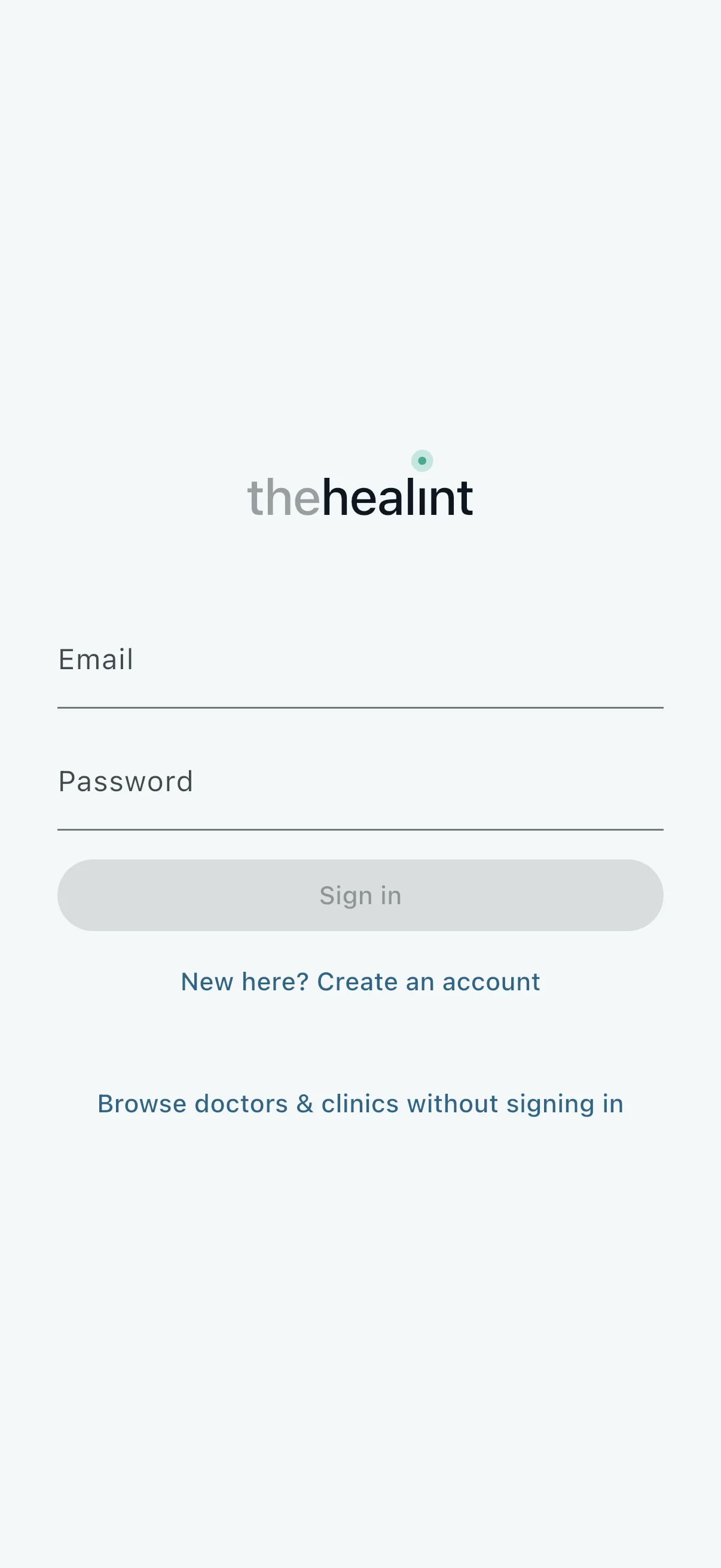
| Sign up / sign in | Web: the landing page, or the sign-in card on any protected route. Mobile: Sign in | A signed-in account with a name on file |
| Search & discovery | Web: /search, /providers/[id], /practitioners/[id]. Mobile: Find care and the profile screens | The patient picks a doctor at a branch |
| Booking | Web: /book/[practitionerBranchId]. Mobile: Book | An appointment in status "Confirmed" and a confirmation email |
| Pre-visit form | Web: the appointment card and visit page. Mobile: the appointment card | Symptoms, medicines and allergies shared with the doctor |
| Family members | Web: /family. Mobile: Family profiles | Dependents the patient can book for |
| Manage appointments | Web: /appointments. Mobile: My appointments | Rescheduled or cancelled bookings, with emails |
| Visit day | Web: /appointments, /appointments/[id]. Mobile: My appointments | Checked in, with a live token and queue position |
| After the visit | Web: /appointments/[id], /records, /fulfillment. Mobile: Health records, Pharmacy & labs | Prescription, orders, reports, bill and review |
| Health records | Web: /records, /records/prescriptions/[id], /records/reports/[id]. Mobile: Health records | Timeline, documents (including uploads), prescriptions with a dose timetable, lab reports and invoices |
| Care navigation (AI) | Mobile only: Describe your symptoms | Suggested specialties and nearby providers, or an emergency warning |
| Privacy & consent | Web: /consent. Mobile: Privacy and consent | Consents granted or withdrawn, with history |
| Profile & account | Web: /profile. Mobile: Profile | Contact and health details updated |
| Notifications | Email only | Booking, payment, prescription and follow-up emails |
1. Sign up and sign in#
Landing page (web, signed out)#
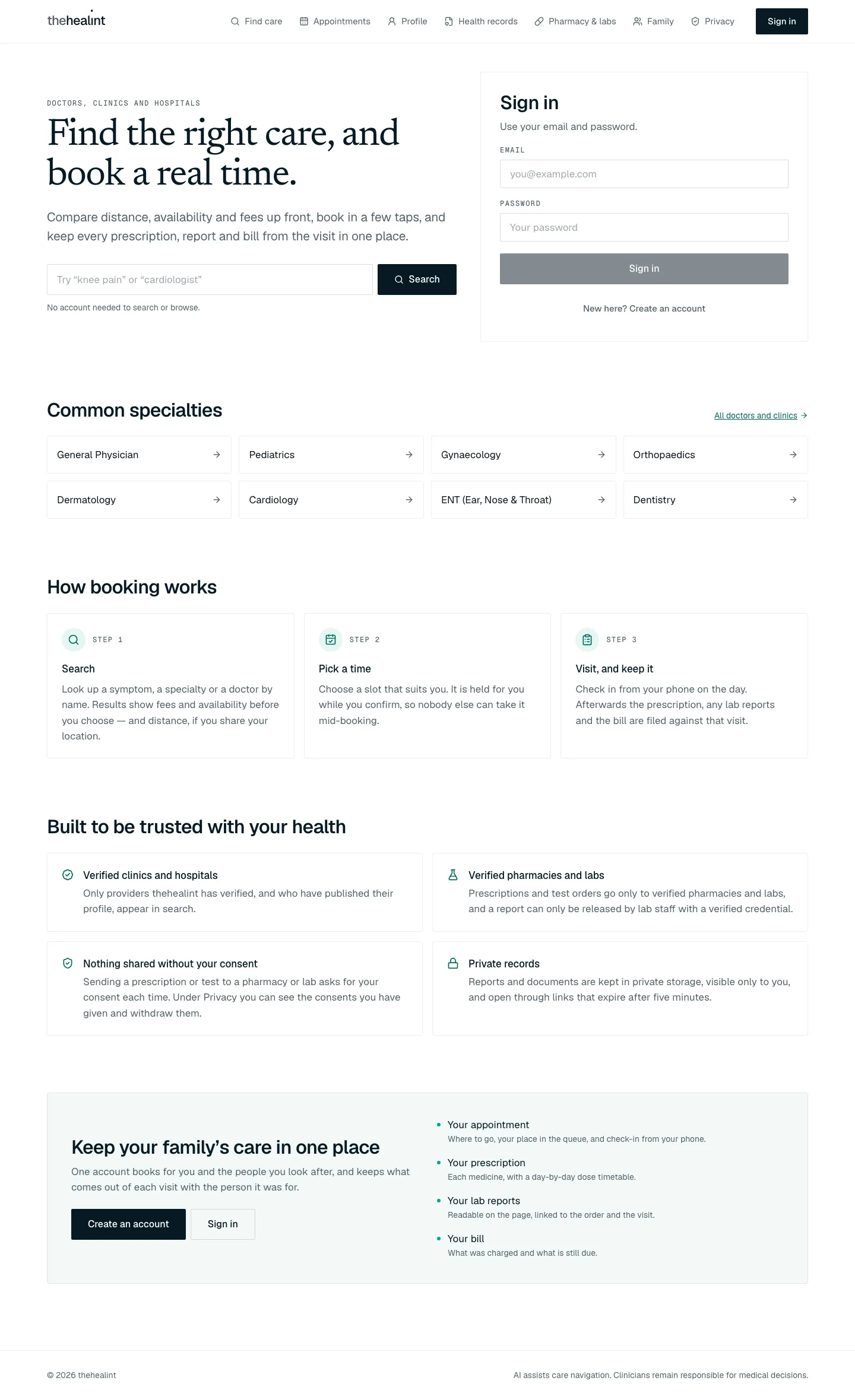
/: "Find the right care, and book a real time." with a search box ("Try "knee pain" or "cardiologist"", Search, "No account needed to search or browse.") and the Sign in card beside it; then Common specialties, How booking works (Search, Pick a time, Visit and keep it), "Built to be trusted with your health" (verified clinics, verified pharmacies and labs, consent, private records), and "Keep your family's care in one place" with Create an account and Sign in.- A signed-out visitor at
/sees the public landing page instead of the bare sign-in card. - Search submits the typed text to
/search?q=…. Common specialties shows up to eight specialties fromGET /api/v1/specialties(General Physician, Pediatrics, Gynaecology and so on first), each opening/search?specialtyKey=…; All doctors and clinics opens/search. - Sign in sits beside the hero (email and password, "New here? Create an account"). Create an account further down opens
/?mode=signup. - Below the fold: How booking works (three steps), Built to be trusted with your health (four points on verification, consent and private records) and Keep your family's care in one place (what comes out of a visit: appointment, prescription with a day-by-day dose timetable, lab reports, bill).
- A
/link with?next=or?mode=shows the sign-in or sign-up card directly, as before.
Signing in#
Both apps use email and password through Supabase Auth. Neither app offers one-time-code sign-in or phone sign-up. Phone sign-up is turned off until SMS (TRAI DLT registration) is available.
- Sign-in card → enter email and password → "Sign in".
- Web shows the card on any protected route. Mobile shows the Sign in screen.
- The system calls Supabase
signInWithPassword. While it works the button reads "Signing in…", and it stays disabled until both fields are filled. - The patient lands where they were going. On web, a
?next=parameter is carried through sign-in, so a patient who was mid-booking returns to the booking page. - Errors:
- Wrong password: "That email and password did not match an account. If you normally sign in with a code, use that instead."
- Rate limit: "Too many attempts. Please wait a minute and try again."
- "New here? Create an account" → email and password → "Create account".
- The system checks for an "@" ("Create an account with email for now. Phone signup needs SMS verification.") and a password of at least 8 characters ("Choose a password with at least 8 characters.").
- It then calls Supabase
signUp. Email confirmation is off, so the session is live straight away.
- Profile completion.
- The first
GET /api/v1/mereturns 404, so the app shows the name step:- Web: "One last thing — What should we call you? This is the name your doctor will see."
- Mobile: "Almost there — What should we call you?"
- Enter full name → "Continue". This calls
POST /api/v1/meand then refreshes the session so the new token carries the profile id. The patient lands on Home, or on thenextpage on web.
- The first
- Two-factor check (mobile only, and only if already set up).
- If the account already has a verified authenticator, mobile shows the shared challenge screen: "Enter the 6-digit code from your authenticator app".
- Patients have no screen to set up two-factor sign-in.
- Consent is not part of sign-up. Consents are managed later on the Privacy screen (section 11).
- "Browse doctors and clinics without signing in" (web) or "Browse doctors & clinics without signing in" (mobile) opens search without an account.
Home after sign-in
- Web greets the patient ("Hello, {first name}.") and shows four cards: Find a doctor or clinic, My appointments, Health records, Family profiles.
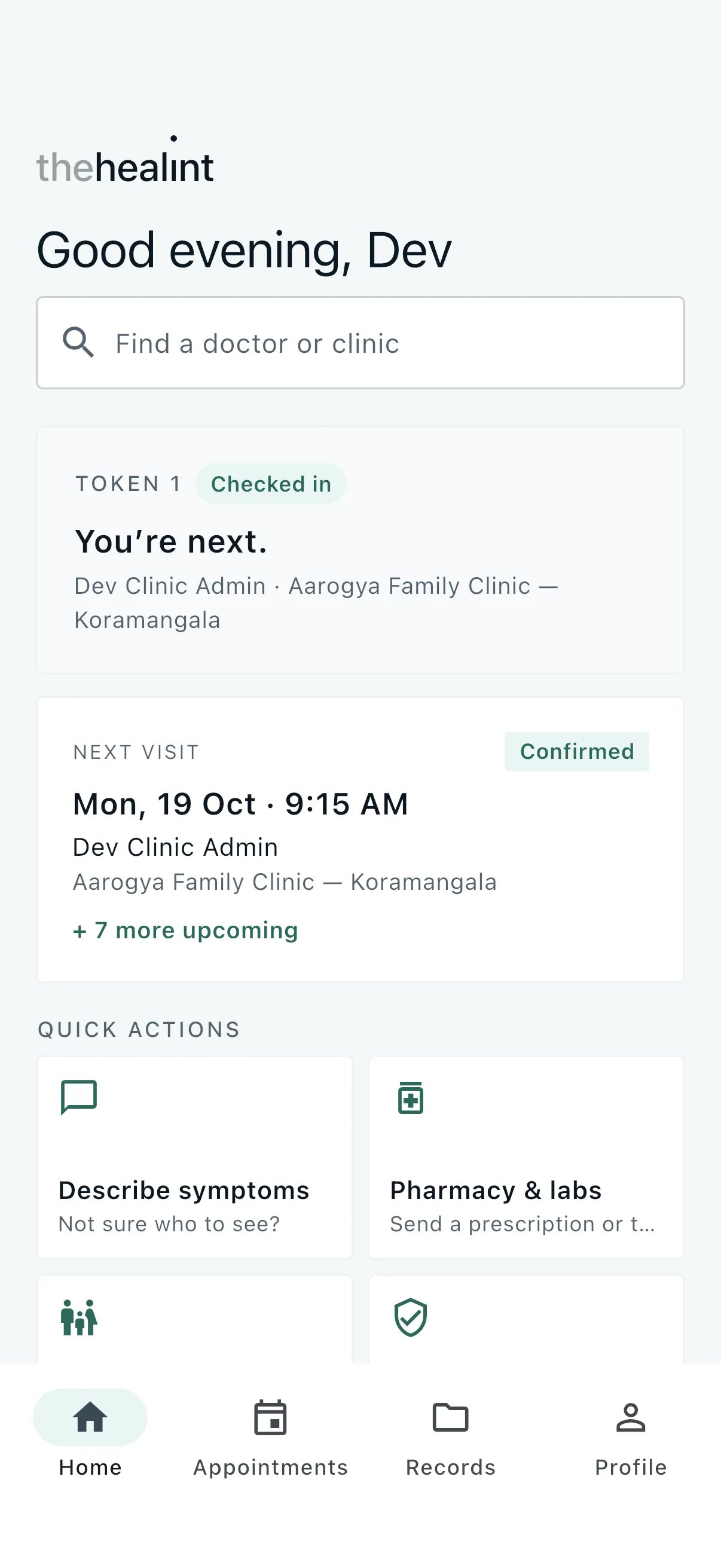
- Mobile greets the patient by time of day ("Good evening, {first name}") and shows, top to bottom:
- a Find a doctor or clinic search bar;
- the queue card when they are checked in somewhere (token, "You're next" or how many are ahead);
- a Next visit card: date and time, doctor, place, who it is for, a status badge and "+ n more upcoming". Tapping it opens the Appointments tab;
- Quick actions: Describe symptoms, Pharmacy & labs, Family, Privacy & consent.
- The bottom tab bar switches between Home, Appointments, Records and Profile. Sign out is at the bottom of Profile.
2. Search and discovery#
2.1 Search#
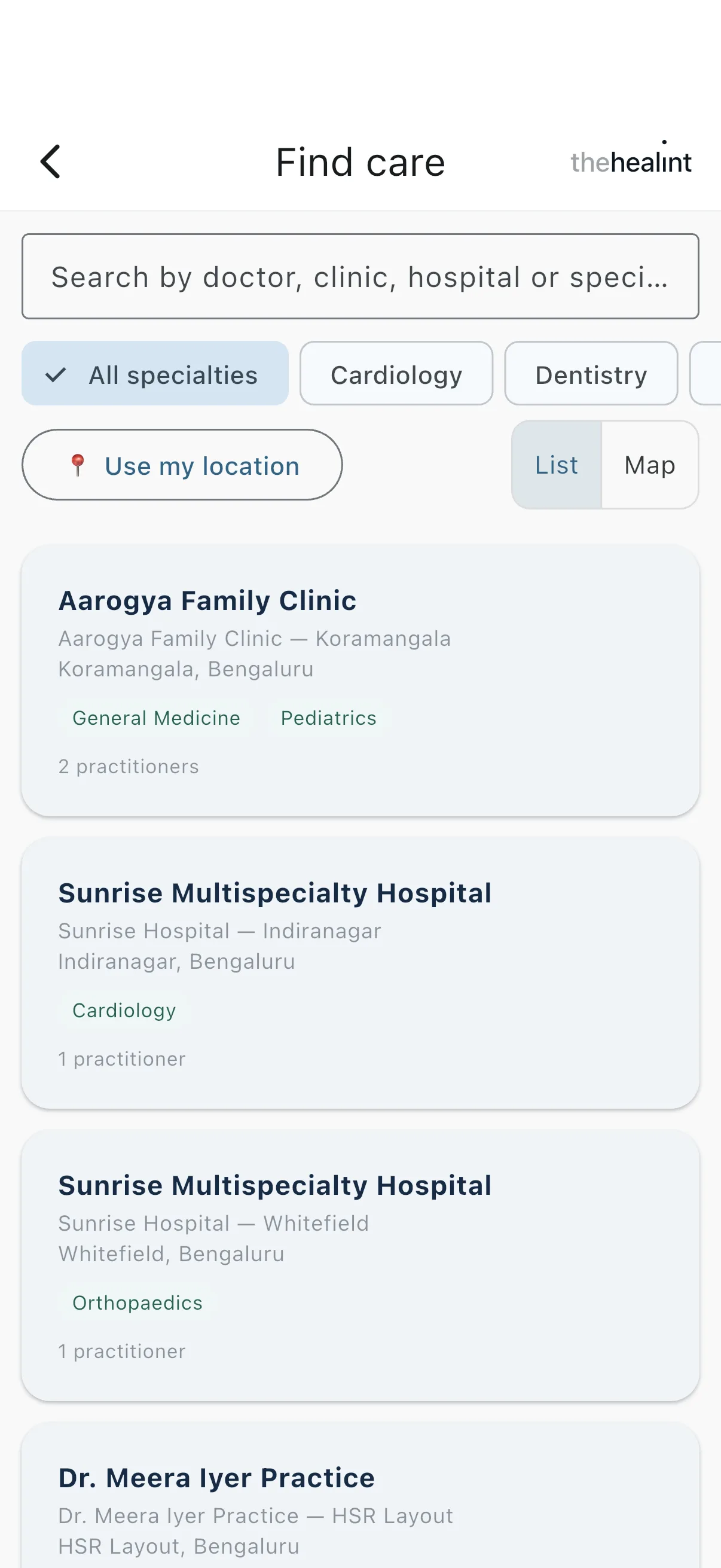
- Find care → type a need, or tap a suggestion.
- Search runs automatically 350 ms after the patient stops typing and calls
GET /api/v1/search/providerswithq,lat/lng/radiusKm,specialtyKey,maxFee,availableToday,tenantTypeandcursor. - Specialties come from
GET /api/v1/specialties. - Web extras:
- Suggestion chips: "Knee pain", "Cardiologist", "Hospital near me", "Available today".
- Filter chips: "Within 5 km", "Under ₹800", "Available today", "Hospital", "Clinic", "Doctor".
- Specialty and radius dropdowns.
- Mobile has specialty chips and radius chips (5/10/20/50 km, shown only once a location is set). It has no fee, availability or provider-type filters.
- Search runs automatically 350 ms after the patient stops typing and calls
- "📍 Use my current location" (web) or "📍 Use my location" (mobile).
- The browser or OS asks for location permission.
- Results then show distances, and the radius control turns on.
- If nothing is found inside the radius, a banner says "No results within X km — showing results within Y km instead."
- List / Map toggle.
- The map uses OpenStreetMap tiles with one pin per branch. Tapping a pin shows that branch's result card.
- Result cards.
- Each card shows type, clinic name, branch, locality, specialties and distance.
- Web also shows the fee ("₹500 onward" or "Fee on enquiry"), the practitioner count, and an "Available today" band.
- On web, the top result can carry a "Recommended" badge with its reasons.
- Tapping a card opens the branch profile.
States
| State | Web | Mobile |
|---|---|---|
| Loading | "Searching…" | Spinner |
| Empty, no filters | "No results yet." | "No results yet. Try a different search, specialty or location." |
| Empty, with filters (web) | "Nothing matches all of those filters. Try removing one." with Clear filters | — |
| Error | The server message or "Could not reach the search service.", with Retry | The same message |
"Load more" (web) and infinite scroll (mobile, list view only) page through results with cursor.
2.2 Branch profile (/providers/[branchId])#
- Open a result → the branch profile loads from
GET /api/v1/public/branches/{branchId}. On web it is server-rendered and cached for one hour. - What the patient sees:
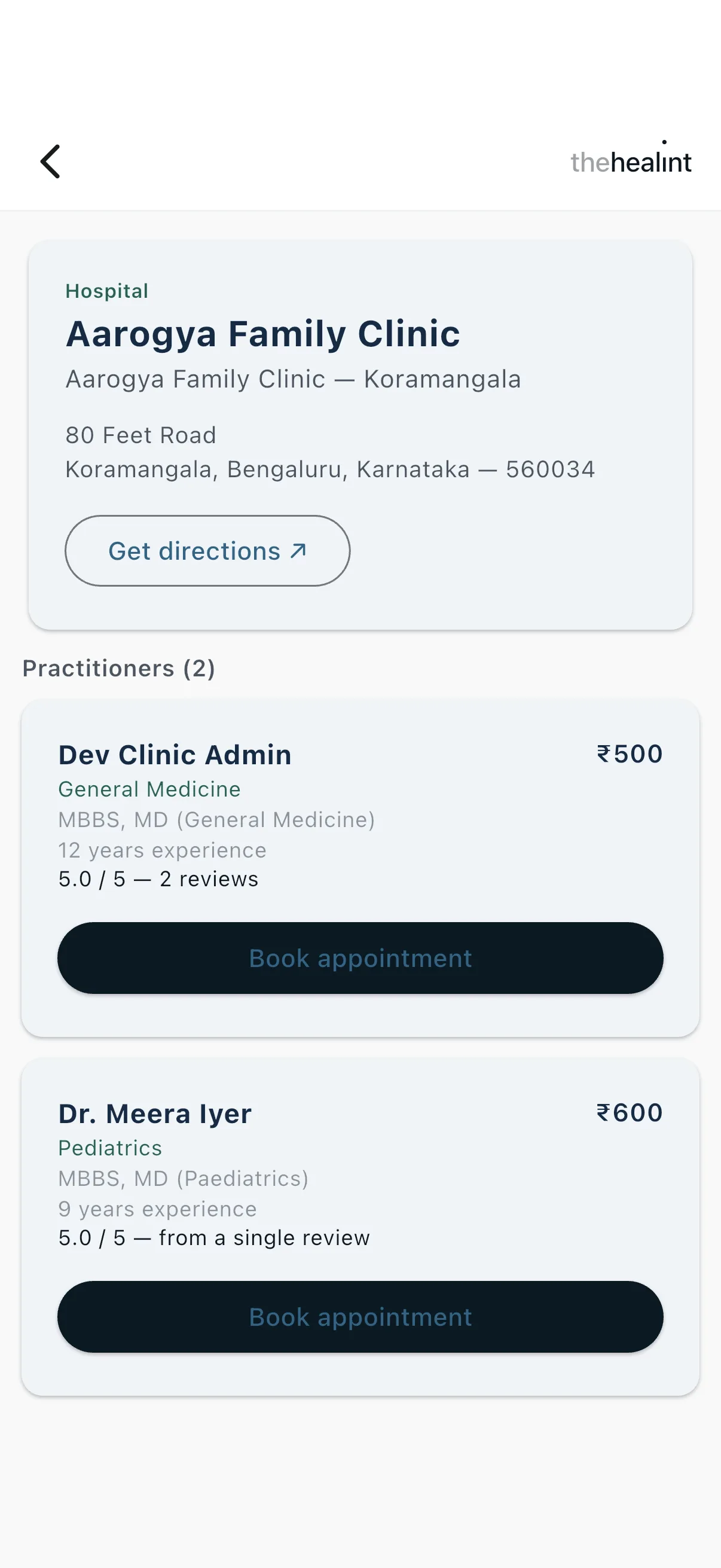
- Address, landmark, phone, and "Get directions ↗" (opens Google Maps).
- Practitioners (n). Each practitioner shows name, specialty, qualification, years of experience, a rating line ("No reviews yet", "4.5 / 5 — 12 reviews", or "from a single review") and the fee.
- "Book appointment" opens booking for that doctor at this branch. Tapping the practitioner's name opens their profile.
- Empty state: "No practitioners listed at this location yet." An unknown branch shows 404 on web, or "This clinic/hospital could not be found — it may have been unpublished." on mobile.
2.3 Practitioner profile and reviews (/practitioners/[practitionerId])#
- The profile loads from
GET /api/v1/public/practitioners/{id}. It shows specialty, name, qualification, "N years experience", "Speaks …" and the About text. - Practises at (n) lists each branch with its fee and a Book appointment button.
- Patient reviews load from
GET /api/v1/practitioners/{id}/reviews, which needs no sign-in and returns published reviews only, newest first.- The summary shows "{avg} / 5" and the count.
- With only one review the page says "One patient's experience, not a track record…".
- The practice's reply appears under "Response from the practice".
- Empty state: "No reviews yet for {name}. Only a patient whose visit is complete can leave one…"
- Reviews never affect search ranking.
3. Booking#
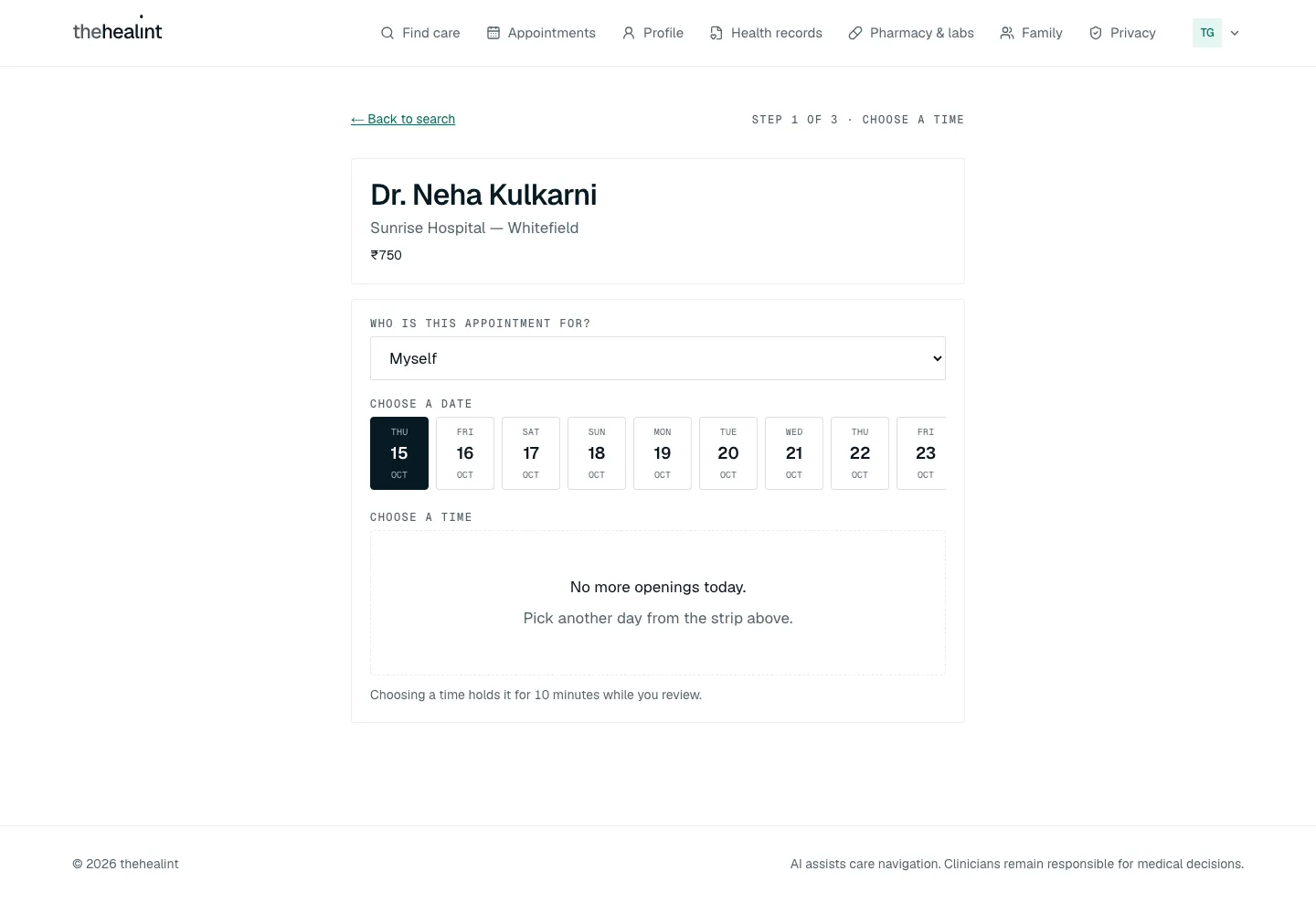
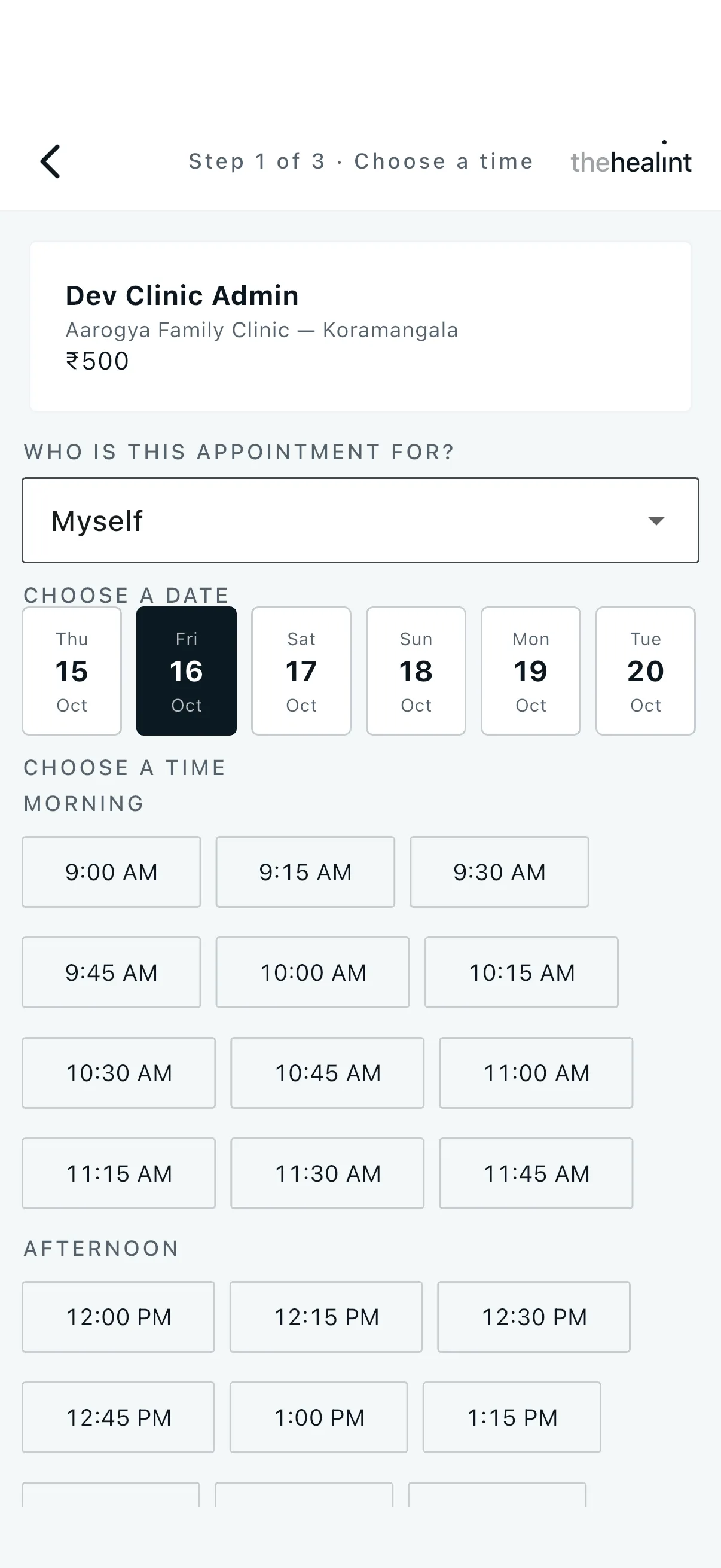
There are three steps: Choose a time → Review and confirm → Booked. Both apps show "Step n of 3 · …" (for example "Step 1 of 3 · Choose a time").
- Signed-out guard.
- Web: "Sign in to finish booking with {doctor}. We'll bring you straight back here." with a Sign in button carrying
?next=. - Mobile: "Sign in to book an appointment."
- Web: "Sign in to finish booking with {doctor}. We'll bring you straight back here." with a Sign in button carrying
- Who is it for? This appears only if the patient has family members, loaded from
GET /api/v1/patients/me/dependents. Choices are "Myself" or "{name} ({relationship})". - Main issue (where it sits differs by app).
- Both apps ask for it on step 2, after a time is held (see step 6). Step 1 has no main-issue field and the time slots can be tapped straight away.
- Choose a date → choose a time.
- The date strip covers 14 days from today (IST).
- Slots come from
GET /api/v1/booking/slots?practitionerBranchId=…&fromDate=…&days=1, grouped into Morning, Afternoon and Evening. Times already passed are hidden. - Loading: "Loading available times…"
- Empty: "No openings on this date." (web adds "Try another day — the strip above runs two weeks ahead."). Web shows "No more openings today." when every remaining slot has passed.
- Tap a time → slot hold.
- The system calls
POST /api/v1/booking/holdswith an idempotency key. This creates an appointment in status Reserved (HELD) that expires in 10 minutes. - If the slot was just taken (HTTP 409), the server's message appears with Nearby alternatives to tap instead.
- The web helper text reads "Choosing a time holds it for 10 minutes while you review."
- The system calls
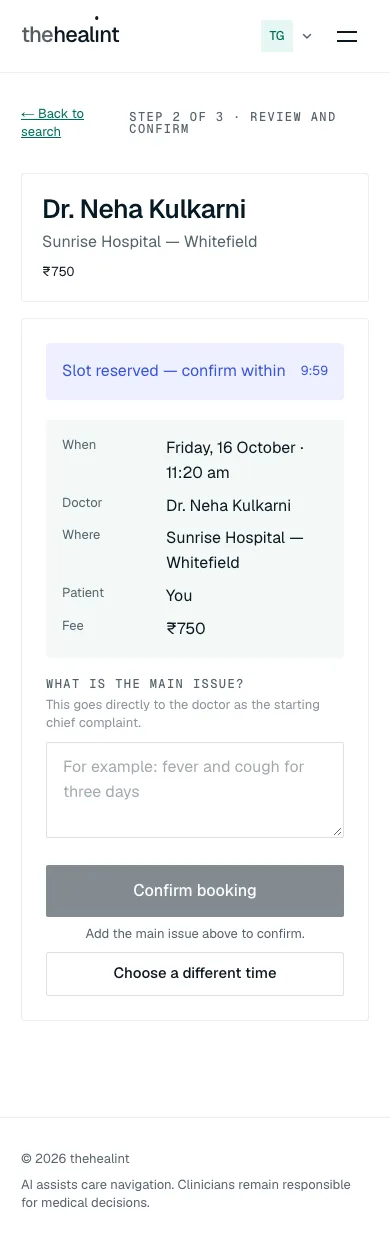
- Review and confirm.
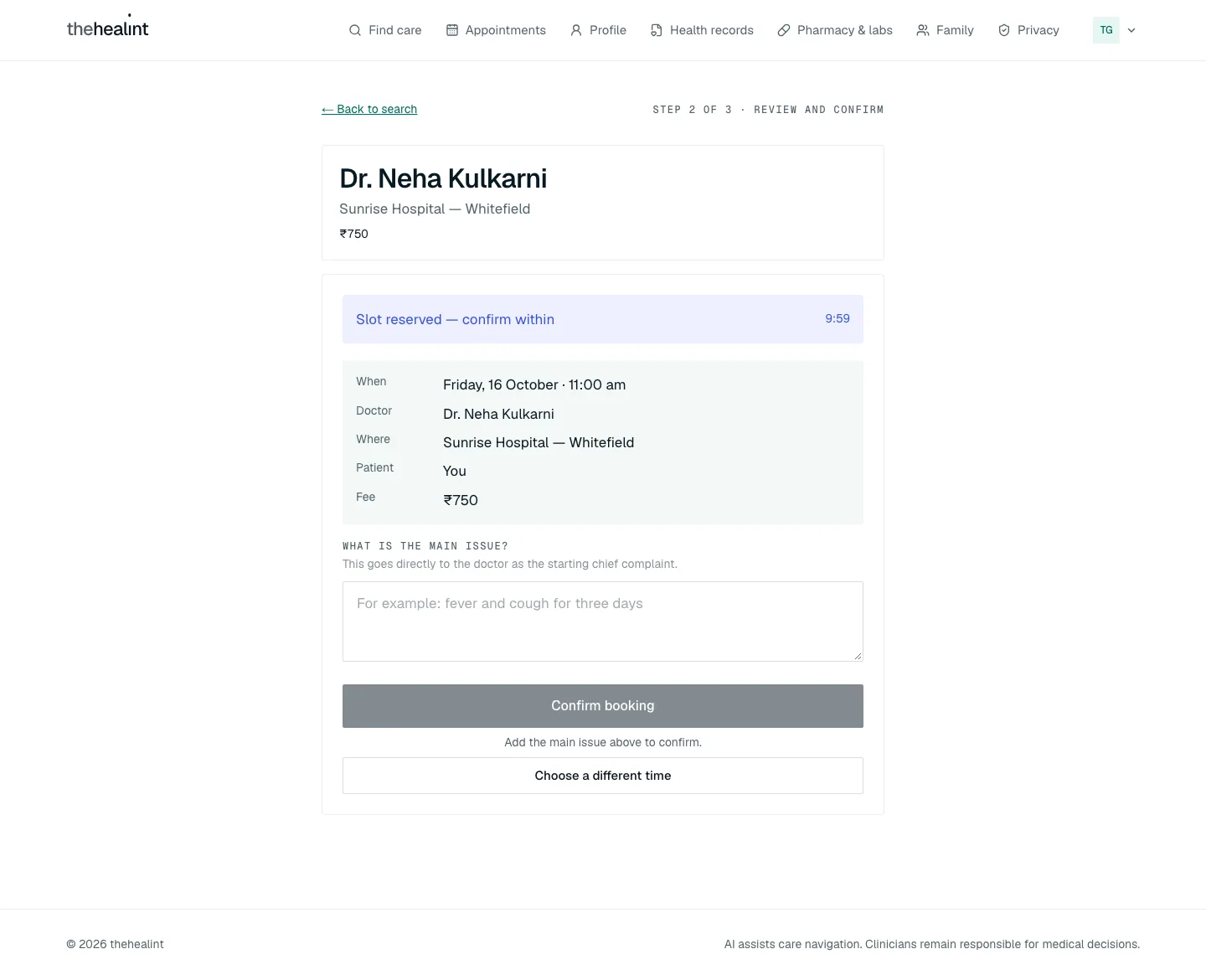
- A banner reads "Slot reserved — confirm within" with an M:SS countdown that turns red in the last minute.
- A summary shows When, Doctor, Where, Patient and Fee.
- "What is the main issue?" (web: "This goes directly to the doctor as the starting chief complaint."; mobile: "The doctor sees this as the initial chief complaint."). Confirm booking stays disabled until 3 characters are entered, with the hint "Add the main issue above to confirm."
- "Choose a different time" returns to step 1. The hold is not released; it simply expires.
- If the countdown reaches zero, the patient returns to step 1 with "Your hold expired after 10 minutes — please choose a time again." The server also expires holds on its own.
- Confirm booking.
- The system calls
PATCH /api/v1/booking/appointments/{id}/confirm, which moves the appointment fromHELDtoBOOKED. The UI shows this as "Confirmed". - The
appointment.confirmedemail is queued. - The main issue is then saved as pre-visit symptoms with
PUT /api/v1/appointments/{id}/pre-visit. If that save fails, the booking still stands and the patient sees "…confirmed, but the reason for visit could not be saved. Add it from My appointments." - If the hold has run out: "Could not confirm this booking — the hold may have expired."
- The system calls
- Booked.
- The screen shows "Appointment confirmed", the summary, and View my appointments. On mobile this replaces the navigation stack.
- Web only: Add to calendar downloads
thehealint-appointment.ics. Mobile has no calendar export.
4. Pre-visit form#
- Where to find it:
- On each Upcoming appointment card (web and mobile; hidden once the visit is "In consultation").
- On the web visit page, under "Before your visit", while the visit has not started.
- The link reads "Add symptoms, medicines or allergies before your visit".
- Open it. Existing answers load from
GET /api/v1/appointments/{id}/pre-visit. - Fill in Symptoms, Current medicines and Allergies → "Save".
- The system calls
PUT /api/v1/appointments/{id}/pre-visit. The patient sees "Saved." - The patient can save as many times as they like before the visit.
- The system calls
- Attach a file (web only).
- "Attach a file" uploads an image or PDF with
POST …/pre-visit/uploads. - Attachments are listed and open through a signed link. Mobile can view attachments but cannot upload them.
- "Attach a file" uploads an image or PDF with
- Who sees it. Only the patient and the treating doctor (the doctor it is booked with, or a colleague covering with a reason) can read it; other doctors and all other staff get a 403. See Permissions & privacy.
5. Family members (dependents)#
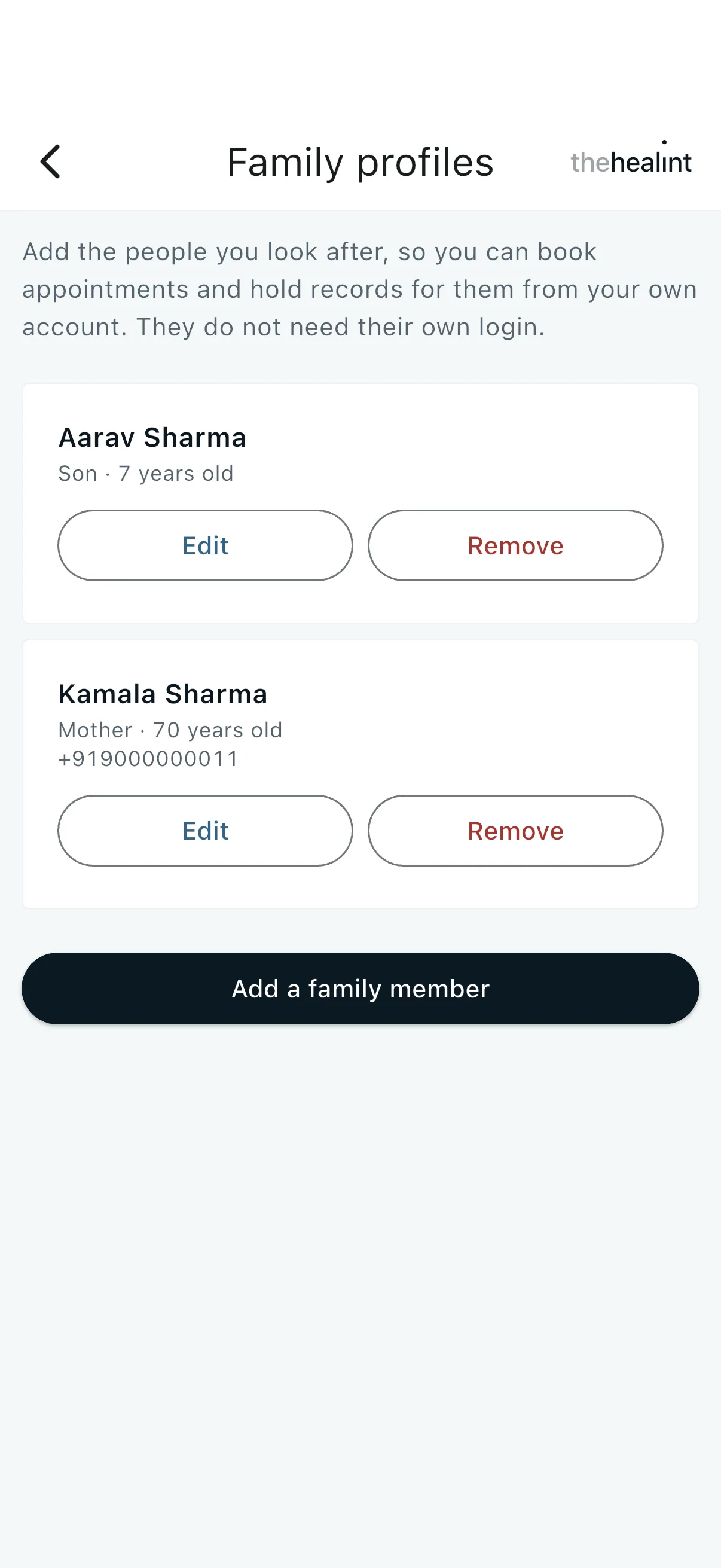
- Family (
/family) → "Add a family member".- Required: Full name, Relationship to you (free text), Date of birth, Biological sex.
- Optional: Blood group, Height, Weight, Known allergies, Chronic conditions, Phone.
- The system calls
POST /api/v1/patients/me/dependents. The list reloads.
- Edit calls
PATCH …/dependents/{id}. - Remove asks first: "They will no longer appear when you book… If they have appointments on record… they cannot be removed." It then calls
DELETE …/dependents/{id}. The server refuses to remove a dependent who has appointments. - States:
- Empty: "No family members yet." with an add button.
- Error: "We could not load your family profiles." with Retry.
- Booking for a dependent works through the "Who is this appointment for?" choice (section 3). On web, appointment cards show "For {name}" and the visit page shows "For". Mobile cards do not show who the visit is for.
- Profile (web and mobile) also lists family members, with links to manage them.
6. Managing appointments#
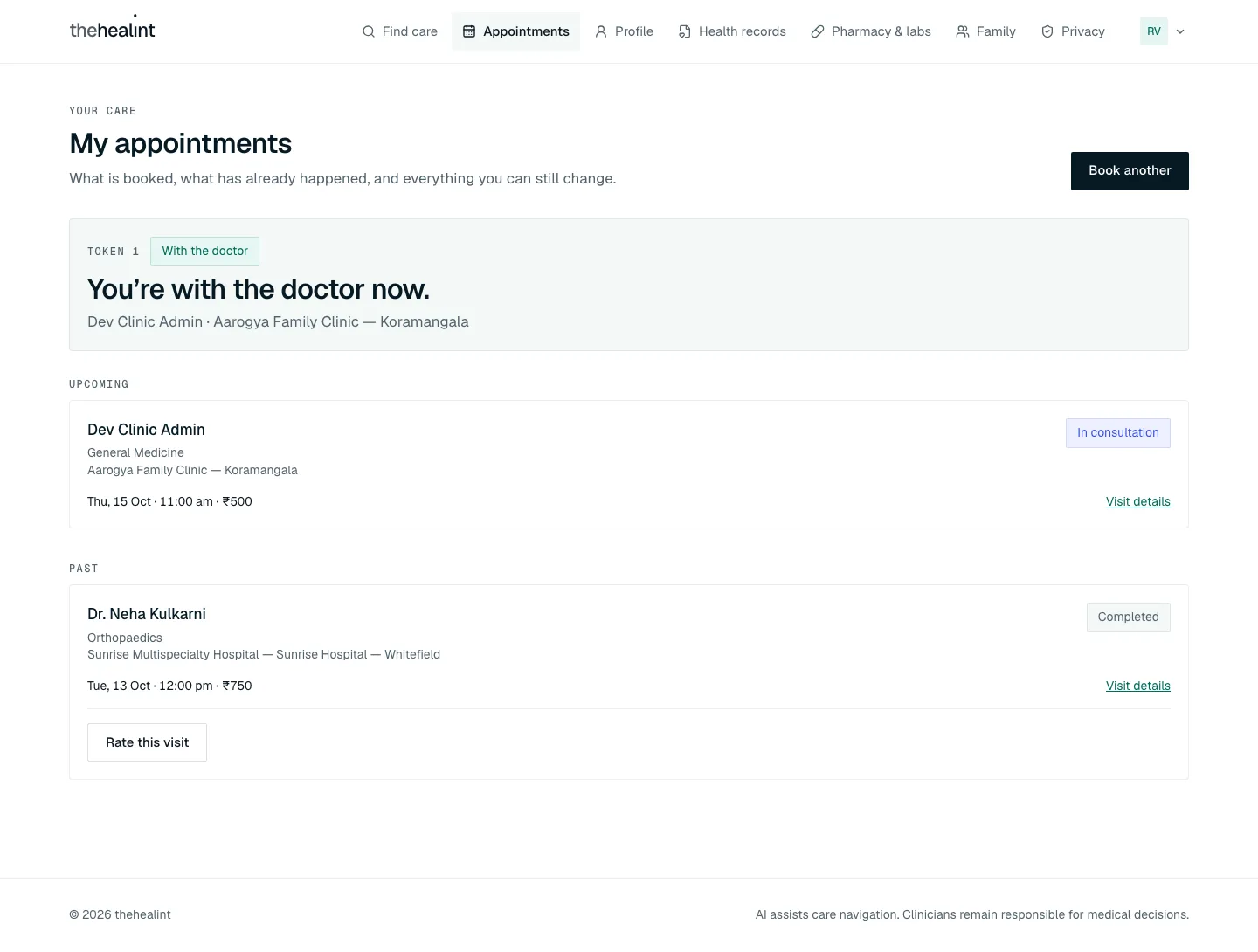
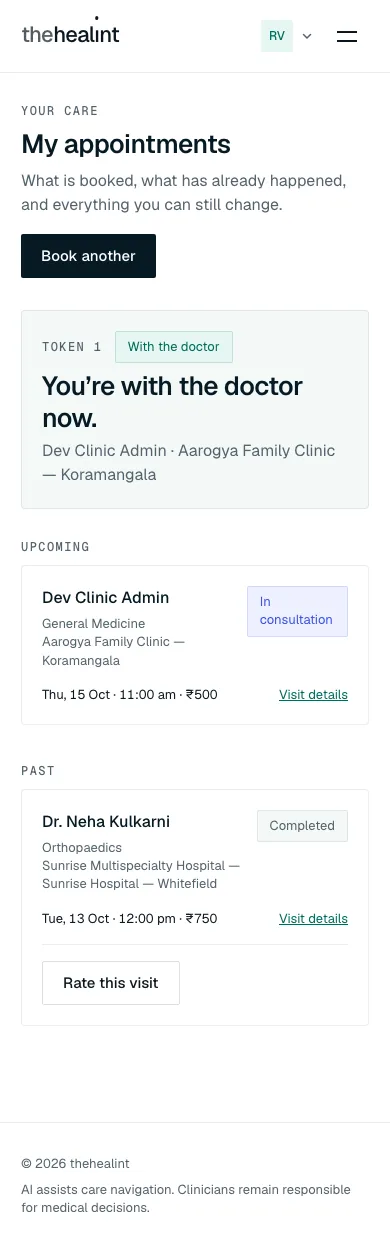
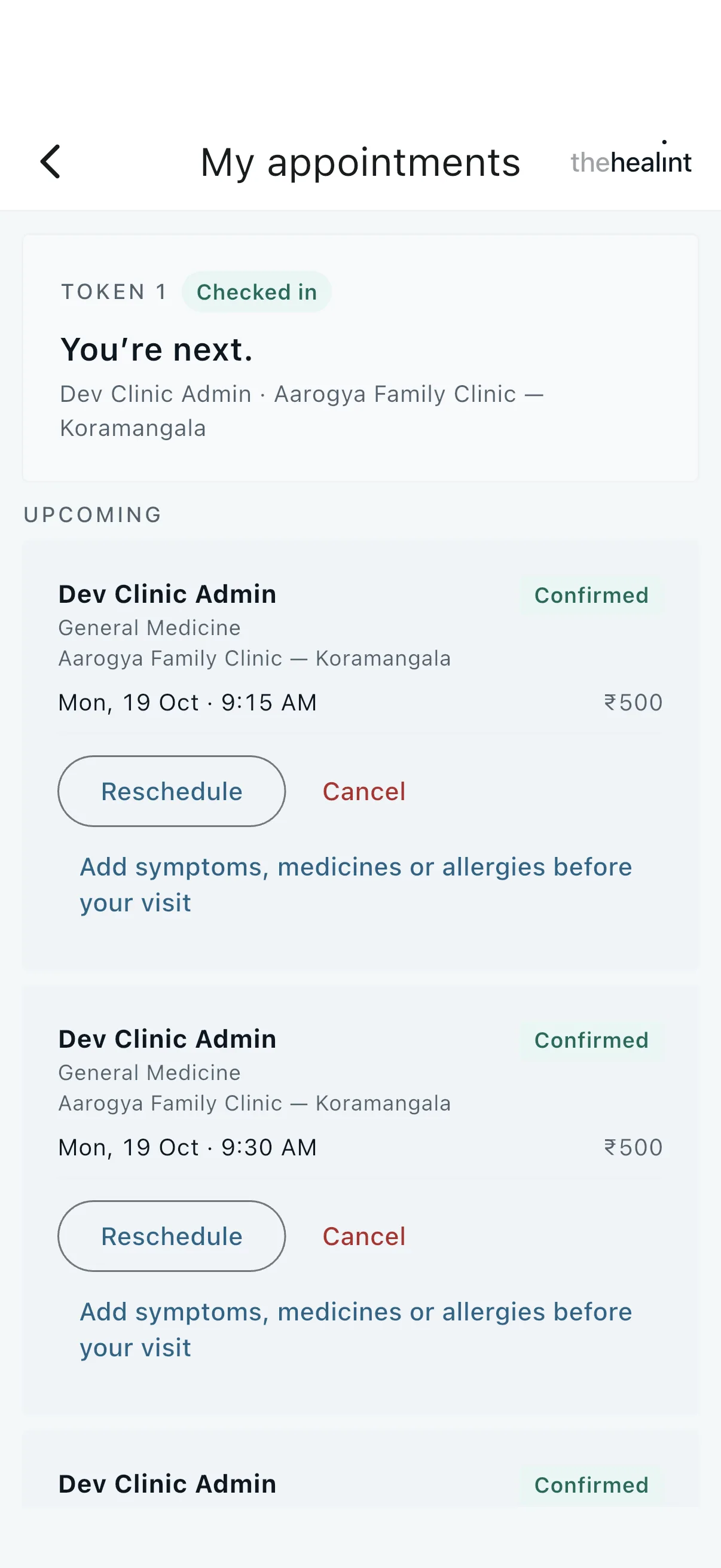
My appointments (/appointments) loads GET /api/v1/booking/appointments/mine and GET /api/v1/reviews/mine. It has two sections:
- Upcoming: open statuses, sorted soonest first.
- On web, the appointment must also start today or later (IST).
- Mobile applies the same rule.
- Past: everything else, newest first.
Each card shows doctor, specialty, place, date · time · fee, and a status badge. Web adds Visit details.
Status labels the patient sees
| System status | Patient label |
|---|---|
HELD | Reserved |
BOOKED, CONFIRMED | Confirmed |
CHECKED_IN | Checked in |
IN_QUEUE | In queue |
IN_CONSULTATION | In consultation |
COMPLETED | Completed |
CANCELLED | Cancelled |
EXPIRED | Expired |
RESCHEDULED | Rescheduled |
NO_SHOW | No-show |
6.1 Reschedule#
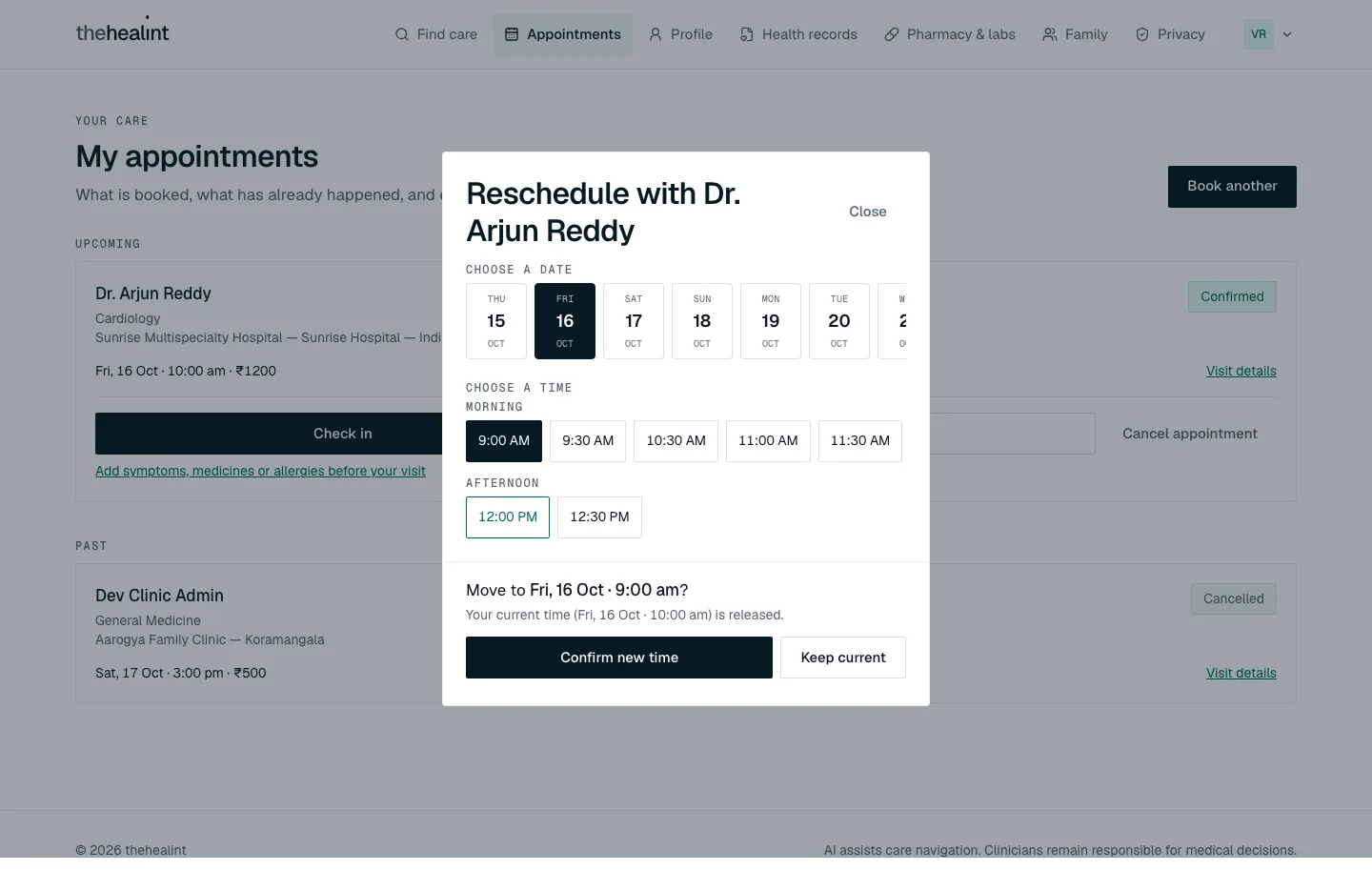
- Upcoming card → "Reschedule".
- Both apps show it only before the visit has started (Confirmed).
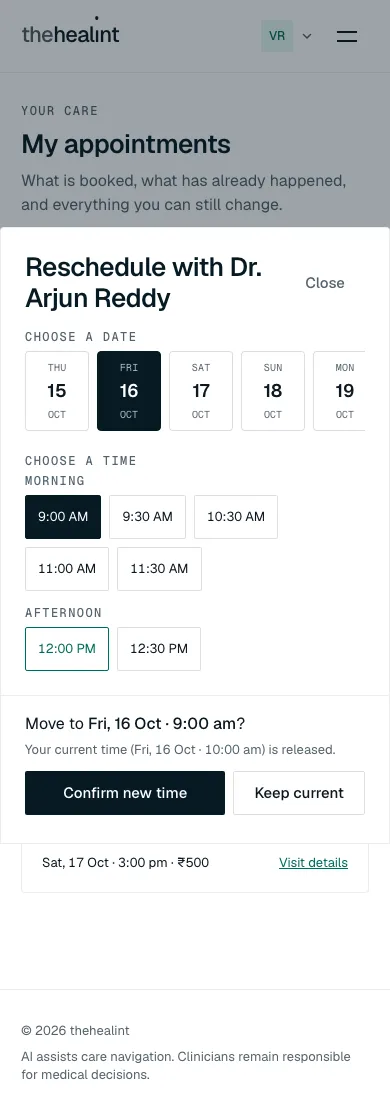
- A sheet opens: "Reschedule with {doctor}", with the date strip and time slots.
- Web: tap a time, then see "Move to {date · time}? Your current time (…) is released." and choose Confirm new time or Keep current. Mobile does the same: tapping a time shows "Move to {date, time}?" with the current time underneath, and nothing moves until Confirm new time.
- The system calls
PATCH /api/v1/booking/appointments/{id}/reschedule.- The old booking becomes "Rescheduled" and a new one is created.
- The
appointment.rescheduledemail is queued. - Web shows the toast "Moved to …".
- Errors: web shows the server message, or "That time is no longer available — please pick another."; mobile always shows that fallback text.
6.2 Cancel#
- Upcoming card → "Cancel appointment" (web) or "Cancel" (mobile).
- Dialog: "Cancel this appointment?", showing doctor, date and time, with an optional reason ("Shared with the clinic so they know why.").
- "Cancel appointment" calls
PATCH …/{id}/cancel.- The status becomes "Cancelled", the slot is freed, and the
appointment.cancelledemail is queued. - Web shows the toast "Appointment with {doctor} cancelled".
- "Never mind" closes the dialog.
- The status becomes "Cancelled", the slot is freed, and the
The server applies no time cutoff to cancel or reschedule: any BOOKED or CONFIRMED appointment can be changed.
7. Visit day#
7.1 Check in from the phone#
- Upcoming card → "Check in". Web offers it on every Confirmed upcoming appointment, even one on a later day. Mobile offers "I've arrived — check in" only on the appointment's day.
- The system calls
PATCH /api/v1/booking/appointments/{id}/check-in. This is the same endpoint reception uses. The appointment joins today's queue with a token number and becomes "In queue".- Web toast: "Checked in — you're in the queue".
- Error: "Could not check in — please try again or ask reception."
- Reception can also check the patient in (see 03-front-desk.md).
7.2 Live queue status#
- A card at the top of My appointments (and on the web visit page while the visit is in progress) polls
GET /api/v1/queue/mineevery 20 seconds. Nothing shows if there is no live token. - It shows "Token {n}" and a pill:
| Queue state | Pill | Headline |
|---|---|---|
| Waiting | Checked in | "You're next." / "One person ahead of you." / "{n} people ahead of you." |
| Called | Called | "You're being called — please go in." |
| In consultation | With the doctor | "You're with the doctor now." |
- While waiting, it adds "Estimated wait about {n} min" when the server provides an estimate.
7.3 Visit page (/appointments/[appointmentId], web only)#
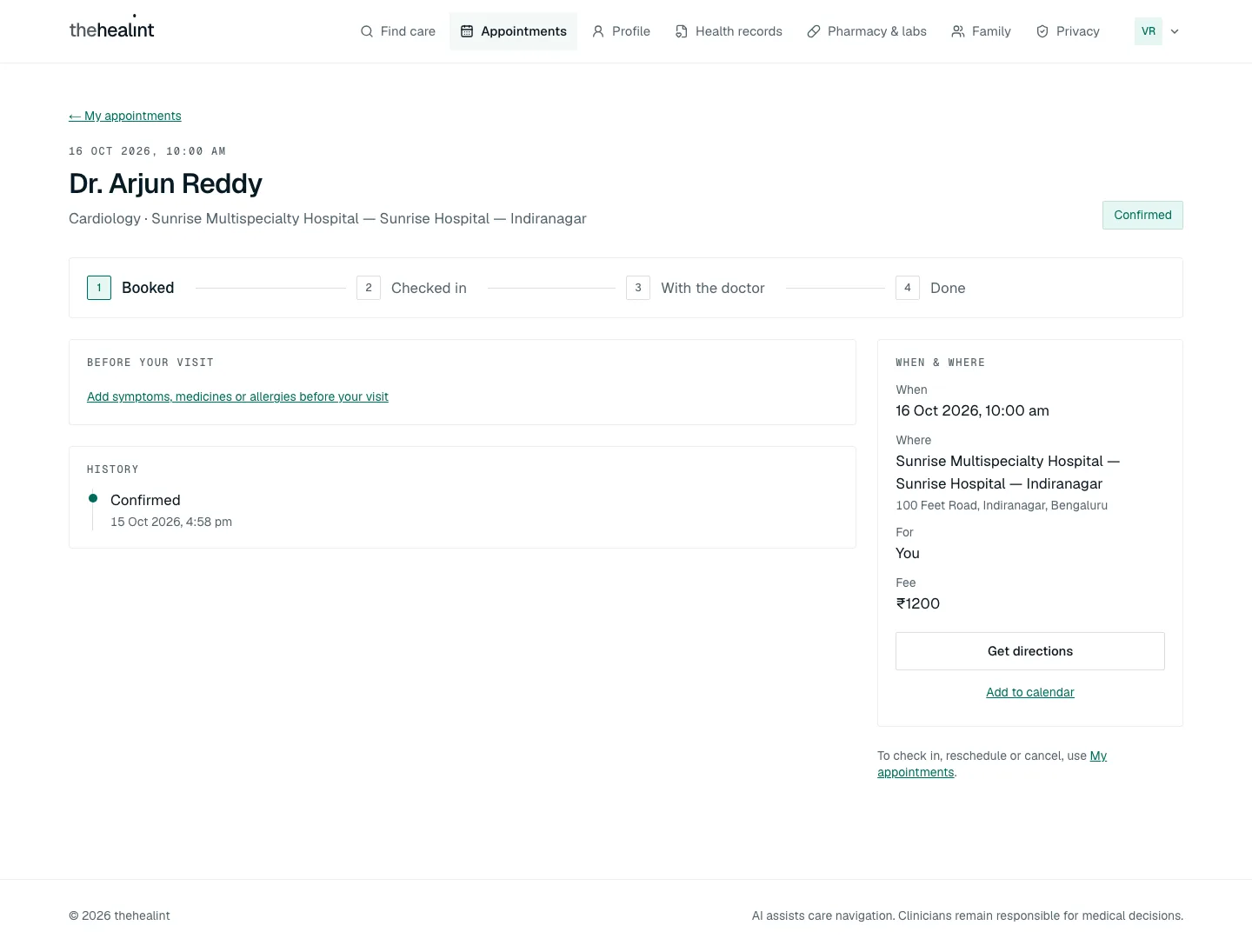
- Open "Visit details" or the doctor's name.
- The page loads the appointment from
…/appointments/mine, plus its history (…/{id}/history), the branch, invoices, the patient's reviews, prescriptions and fulfilment orders. - If the appointment is not the patient's: "We couldn't find this visit — It may belong to another account."
- The page loads the appointment from
- What the patient sees:
- Header: date, doctor, specialty · place, and a status badge.
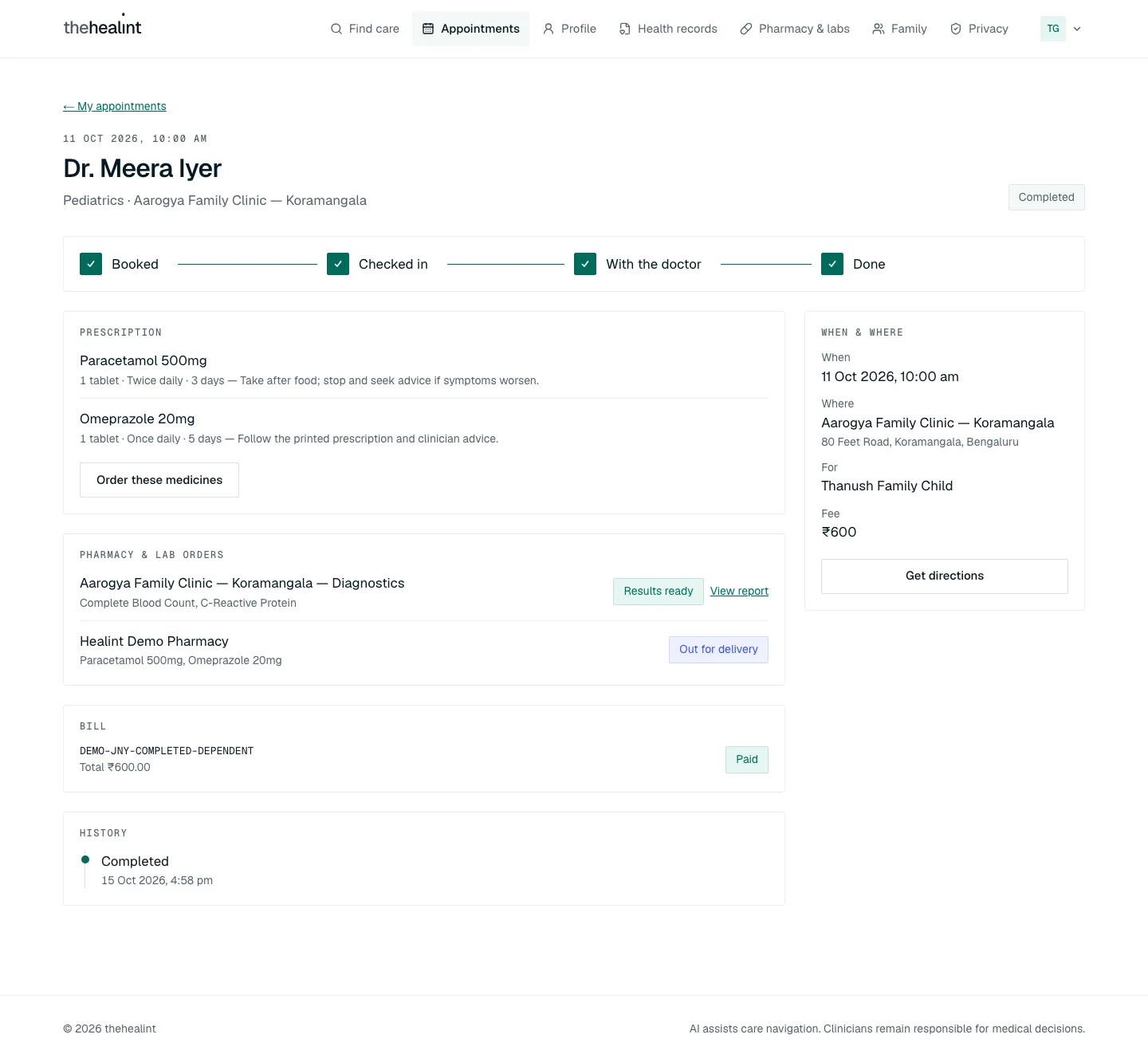
- Progress stepper (for open or completed visits): Booked → Checked in → With the doctor → Done. Closed visits show a sentence instead, for example "This appointment was cancelled.", "This visit was marked as missed.", or "This reservation expired before it was confirmed."
- When & where: When, Where (with address), For, Fee. Buttons: Get directions, Call the clinic (only when the branch has a phone number; the demo branches have none, so it is missing from the screenshots), and Add to calendar (open visits only).
- Before your visit: the pre-visit form (not-yet-started visits only).
- History: a timeline of status changes with reasons.
- Once the doctor has started the consultation: Prescription, Pharmacy & lab orders, Bill, and a review prompt for completed visits the patient has not reviewed yet (section 8).
- The page has no change buttons. It says "To check in, reschedule or cancel, use My appointments."
Mobile has no visit page. Appointment cards cannot be tapped.
8. After the visit#
When the doctor completes the consultation, the appointment becomes "Completed". The system then creates the prescription (if medicines were added), investigation requests, an optional follow-up and an invoice, and queues the prescription.ready and encounter.follow_up_reminder emails. See 02-doctor.md.

8.1 Prescription#
- Web visit page → Prescription.
- Each medicine shows name, strength, dose · frequency · duration, and instructions. Order these medicines links to
/fulfillment. - Empty: "Your prescription appears here once the doctor issues it." or, once completed, "No medicines were prescribed at this visit."
- Each medicine shows name, strength, dose · frequency · duration, and instructions. Order these medicines links to
- The web visit page also has Dose timetable, which opens the prescription page.
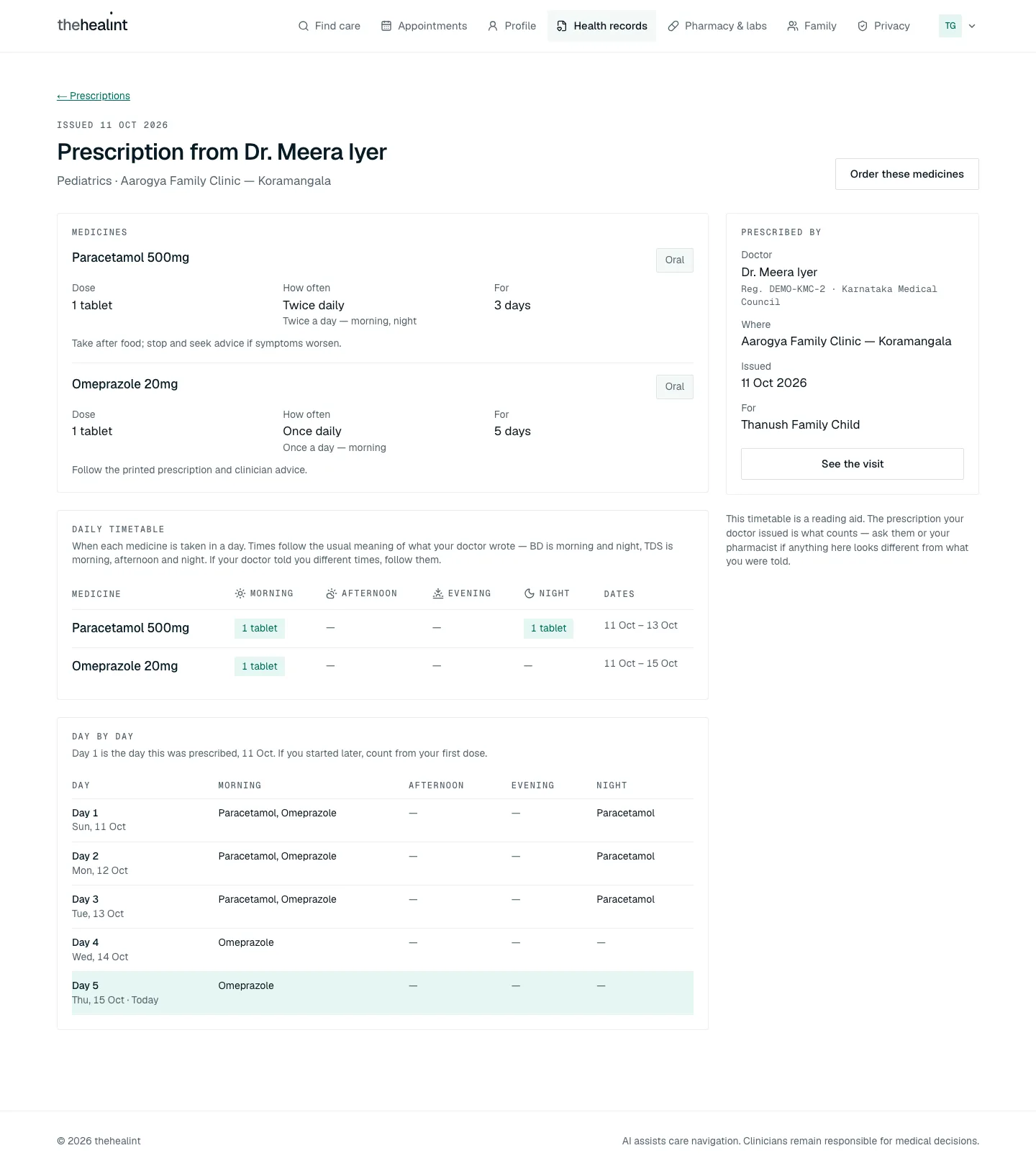
- Records → Prescriptions lists every prescription. On web each has View & dose timetable, and timeline entries for a prescription have "View prescription & dose timetable". Mobile keeps View, which loads
GET /api/v1/patients/me/prescriptions/{id}. - Prescription page (web,
/records/prescriptions/[prescriptionId]):- Header "Prescription from doctor" with "Issued date", the specialty and place, and Order these medicines.
- Medicines: each with Dose, How often (with a plain-words line such as "Twice a day — morning, night"), For (duration), route and instructions.
- Daily timetable: a grid of Morning, Afternoon, Evening and Night per medicine with its dates. Lead: "When each medicine is taken in a day. Times follow the usual meaning of what your doctor wrote — BD is morning and night, TDS is morning, afternoon and night. If your doctor told you different times, follow them." Frequencies it can't read are listed under "Take exactly as written".
- Day by day: Day 1 (the day it was prescribed) onward, with today highlighted.
- Prescribed by: doctor, registration number and council, where, issued, and for whom, with See the visit. A side note says the timetable is a reading aid and the issued prescription is what counts.
- Not found: "We couldn't find this prescription — It may belong to another account."
- There is still no PDF or download on either app.
8.2 Pharmacy and lab orders (/fulfillment, mobile: Pharmacy & labs)#
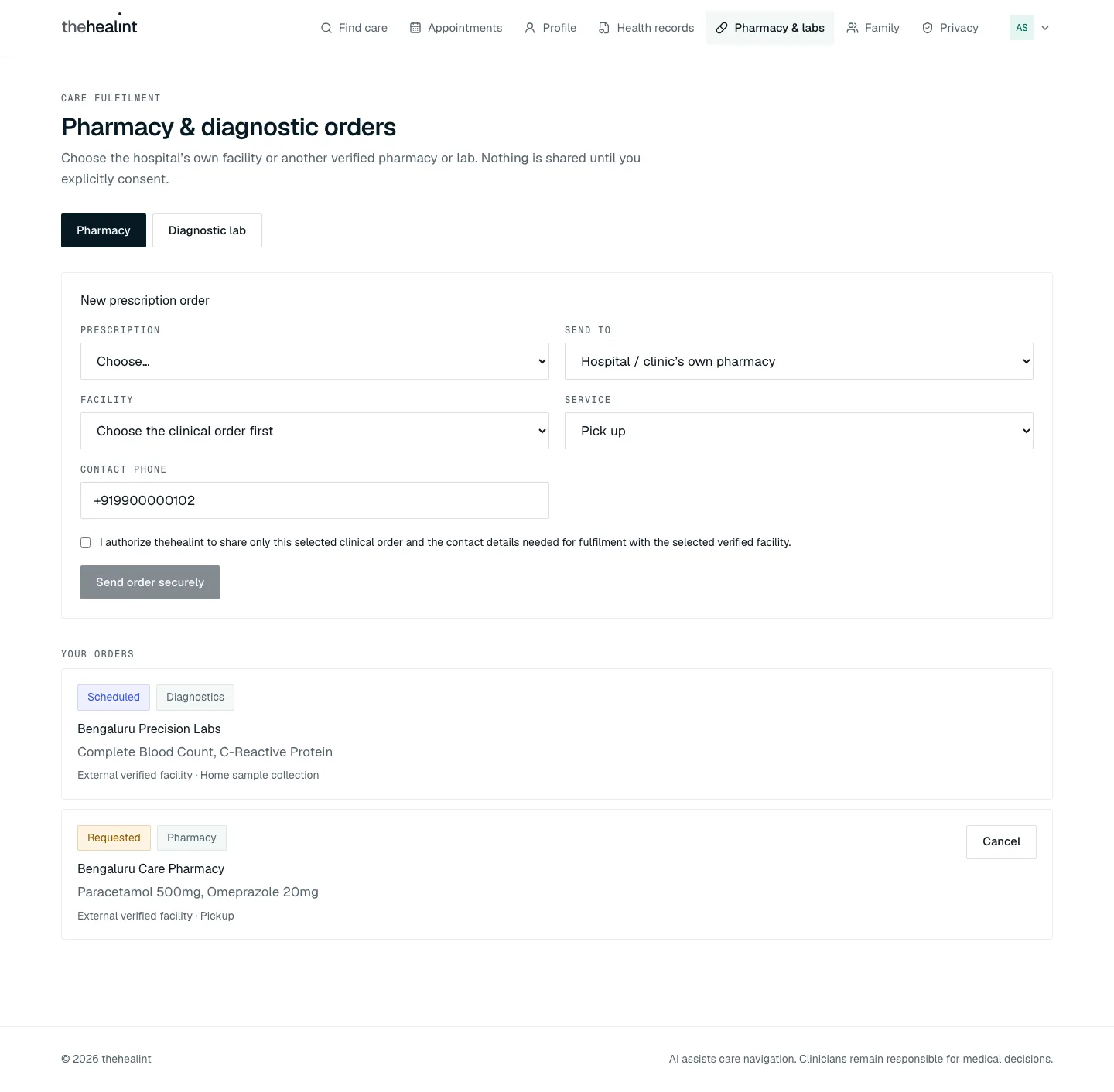
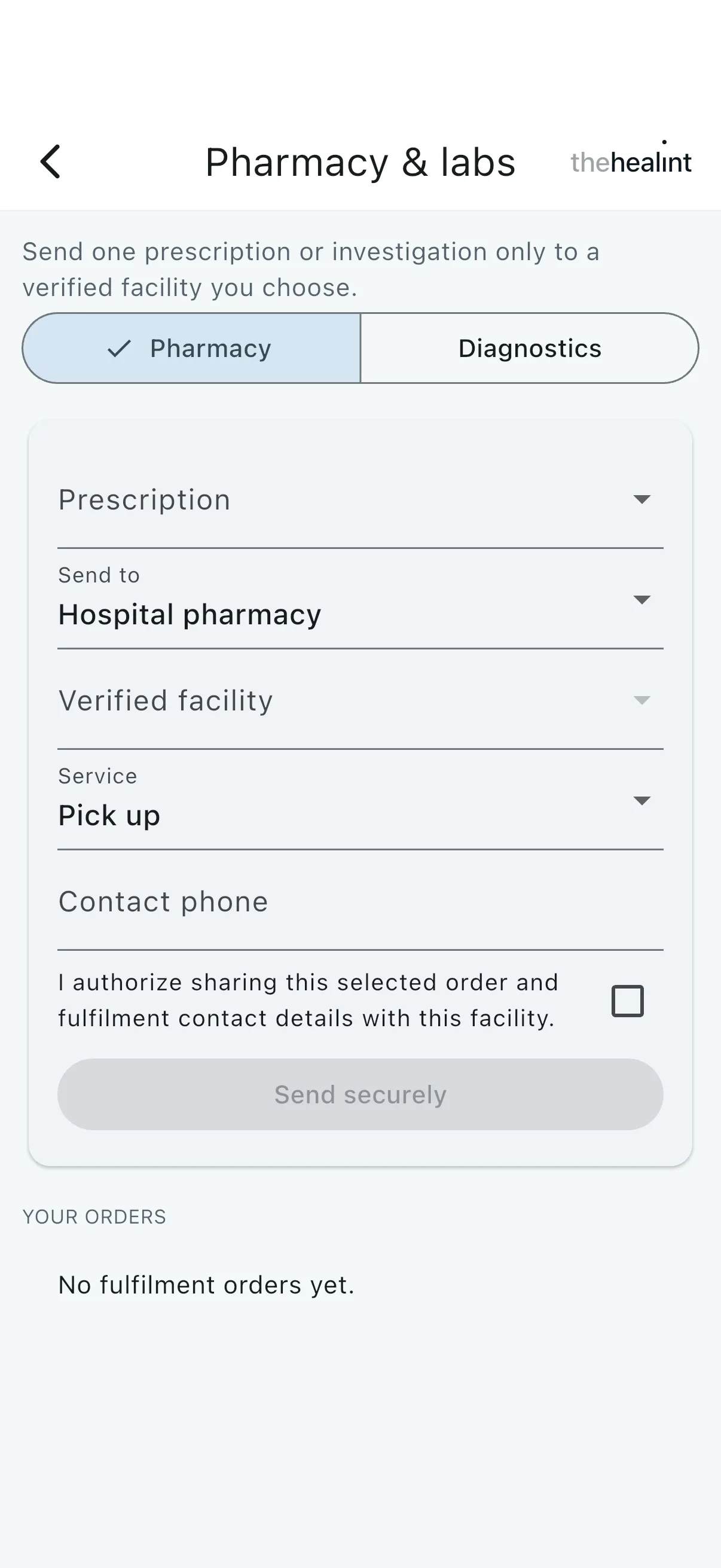
- Choose Pharmacy or Diagnostic lab (mobile: Pharmacy / Diagnostics).
- Pick the clinical source. This is a prescription or an investigation from
GET /api/v1/patients/me/fulfillment-sources.- Empty (web): "No prescriptions available — A clinician must issue one during a completed consultation first."
- Send to:
- The hospital or clinic's own pharmacy or lab, or another verified one.
- Then choose the Facility, loaded from
GET /api/v1/fulfillment/facilities.
- Service: Pick up / Home delivery (pharmacy) or Visit lab / Home sample collection (lab). Then a Contact phone (prefilled from the profile) and a Home address for home services.
- Tick the consent box. On web it reads "I authorize thehealint to share only this selected clinical order and the contact details needed for fulfilment with the selected verified facility."
- "Send order securely" (web) or "Send securely" (mobile) calls
POST /api/v1/patients/me/fulfillment-orders. The order appears in the list. - Orders list.
- Each order shows a status pill, Pharmacy or Diagnostics, its items, Hospital-owned or External, and the service mode.
- Cancel is offered while the order is Requested or Accepted, via
PATCH …/fulfillment-orders/{id}/cancel. - Both apps use friendly, sentence-case status labels.
- Lab reports. When a lab attaches a result, the web visit page and the web Pharmacy & labs list show View report, which opens the lab report page (section 9). The file itself comes from a signed link through
GET /api/v1/patients/me/documents/{id}/url.
The pharmacy and lab side is covered in 05-pharmacy-lab.md.
8.3 Bill, invoice and payment#
- Web visit page → Bill shows the invoice number, the total, and either "₹X due" or the settled status.
- Records → Invoices (web and mobile) lists all invoices from
GET /api/v1/invoices, each marked "₹X due" or "Paid". - Patients cannot pay in the app. The API has payment endpoints (
POST /api/v1/payments/orders,pay-at-facility, and a Razorpay webhook), but neither app calls them. Payment is collected at the facility by billing staff (see 03-front-desk.md). The patient receives the payment emails listed in section 12.
8.4 Review#
- Past card (Completed and not yet reviewed) or web visit page → "Rate this visit".
- Pick 1 / 5 to 5 / 5, add an optional comment → "Submit review".
- The system calls
POST /api/v1/reviews. The server accepts onlyCOMPLETEDvisits ("You can only review a completed visit."). - Reviews publish immediately. Platform admins can hide them afterwards (see 06-platform-admin.md).
- The system calls
- Outcomes:
- Success: "Thank you — your review is now on {doctor}'s profile."
- Duplicate (409): "You have already reviewed this visit."
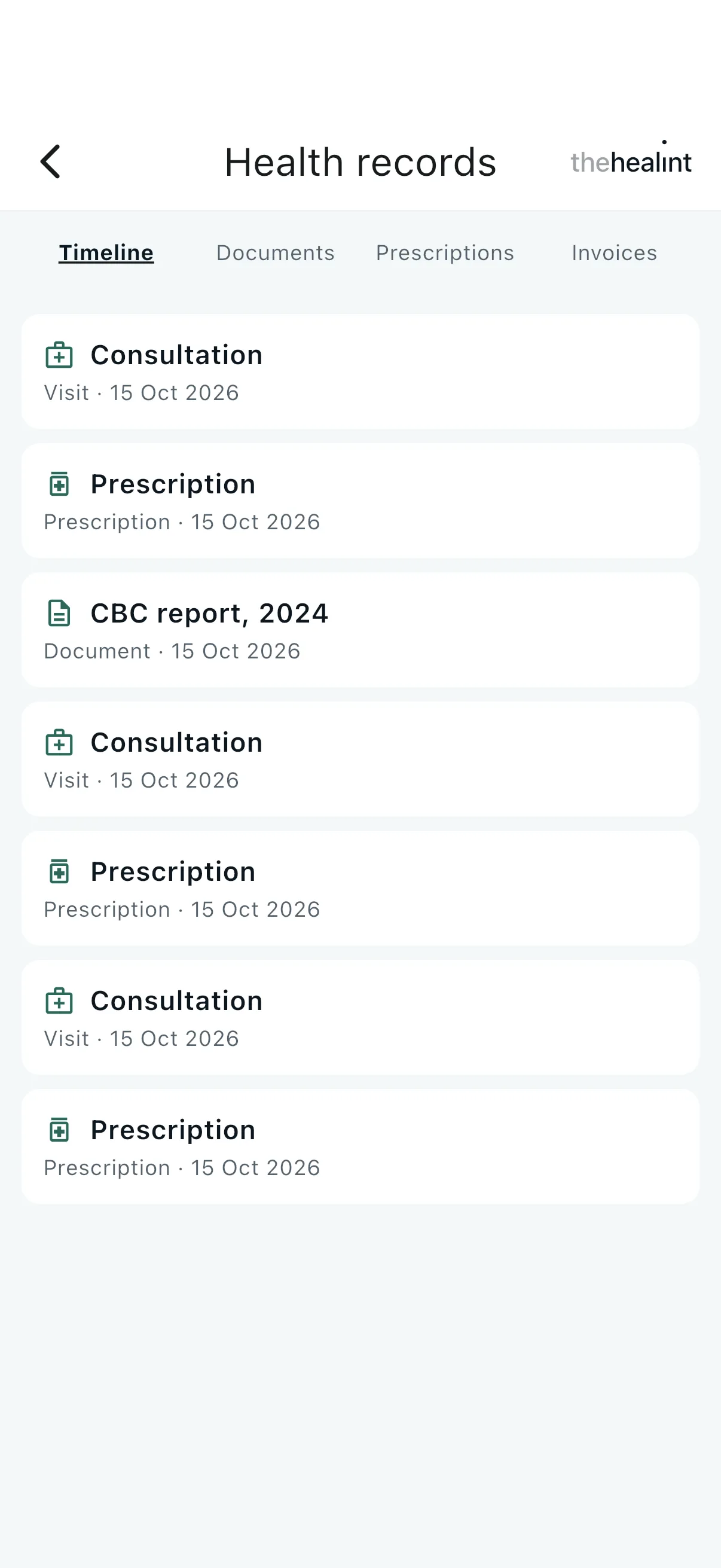
9. Health records (/records, mobile: Health records)#
There are four tabs: Timeline · Documents · Prescriptions · Invoices. Each loads when first opened.
- Timeline comes from
GET /api/v1/patients/me/timeline. It lists encounters, prescriptions and documents in date order.- Empty: "Nothing on your timeline yet."
- Documents come from
GET /api/v1/patients/me/documents.- To add one: choose a category (Lab report, Imaging, Prescription, Discharge summary, Insurance, Vaccination, Other), enter a title, then Choose file (image or PDF).
- This calls
POST /api/v1/patients/me/documents?category=…&title=…. With no title: "Give the document a title before uploading." - View opens a signed link. Lab reports instead have View report, which opens the report page.
- Empty: "No documents uploaded yet."
- Prescriptions lists each prescription with View & dose timetable (web; see section 8.1) or View (mobile).
- Invoices lists invoice number, total, and either the amount due or "Paid".
Neither app lets the patient delete or share a document.
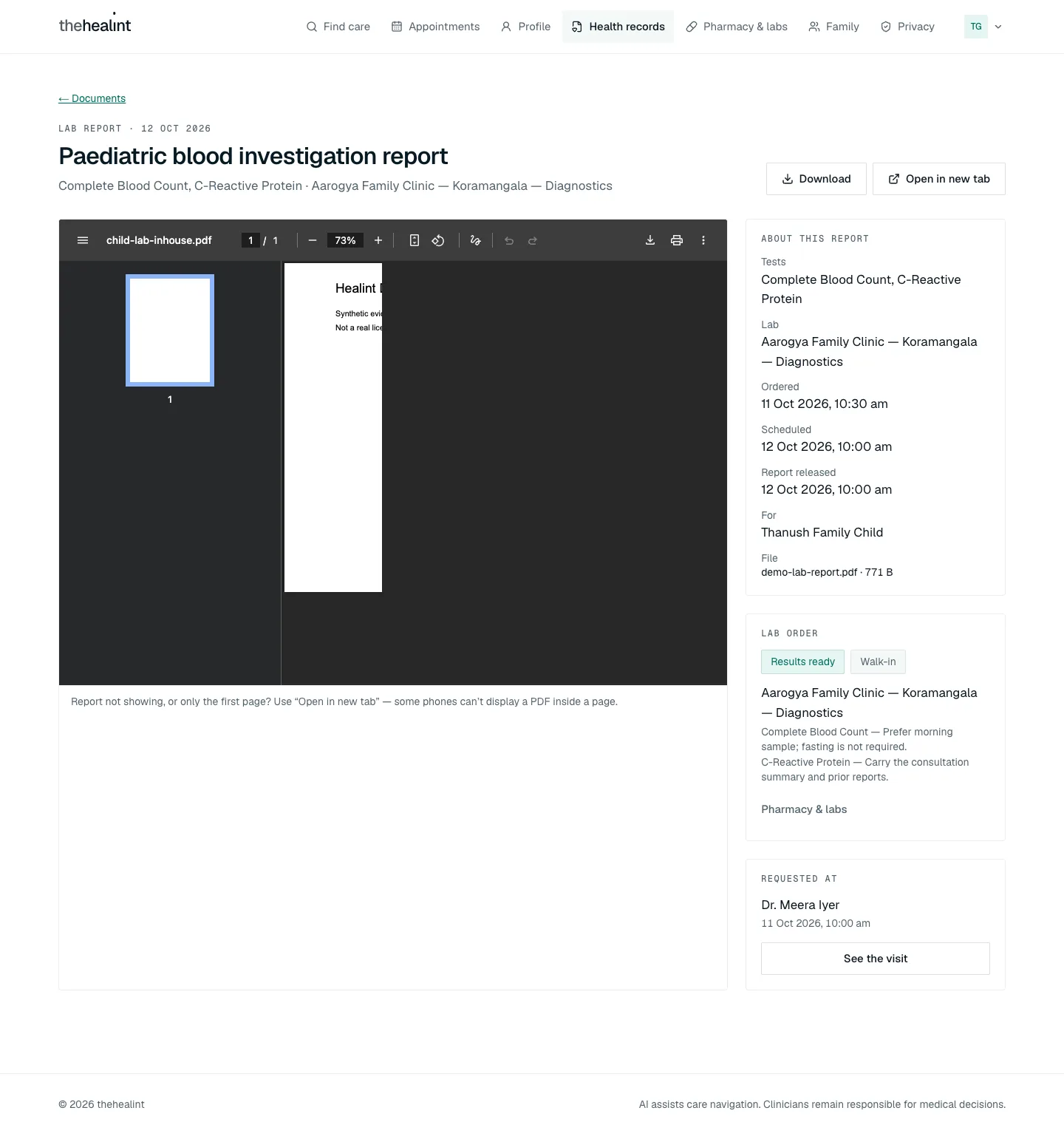
Lab report page (web, /records/reports/[documentId]). Reached from View report on Documents, on the visit page's orders, or on Pharmacy & labs.
- Header: "Lab report · date", the report title, the tests and the lab, with Download and Open in new tab.
- The report shown inside the page, with the note "Report not showing, or only the first page? Use "Open in new tab" — some phones can't display a PDF inside a page."
- About this report: Tests, Lab, Ordered, Scheduled, Report released, For, File.
- Lab order: status and service pills, the lab, each test with its instructions, and a link to Pharmacy & labs.
- Requested at: the doctor and visit time, with See the visit.
- Not found: "We couldn't find this report", with Your documents.
10. Care navigation (AI), mobile only#
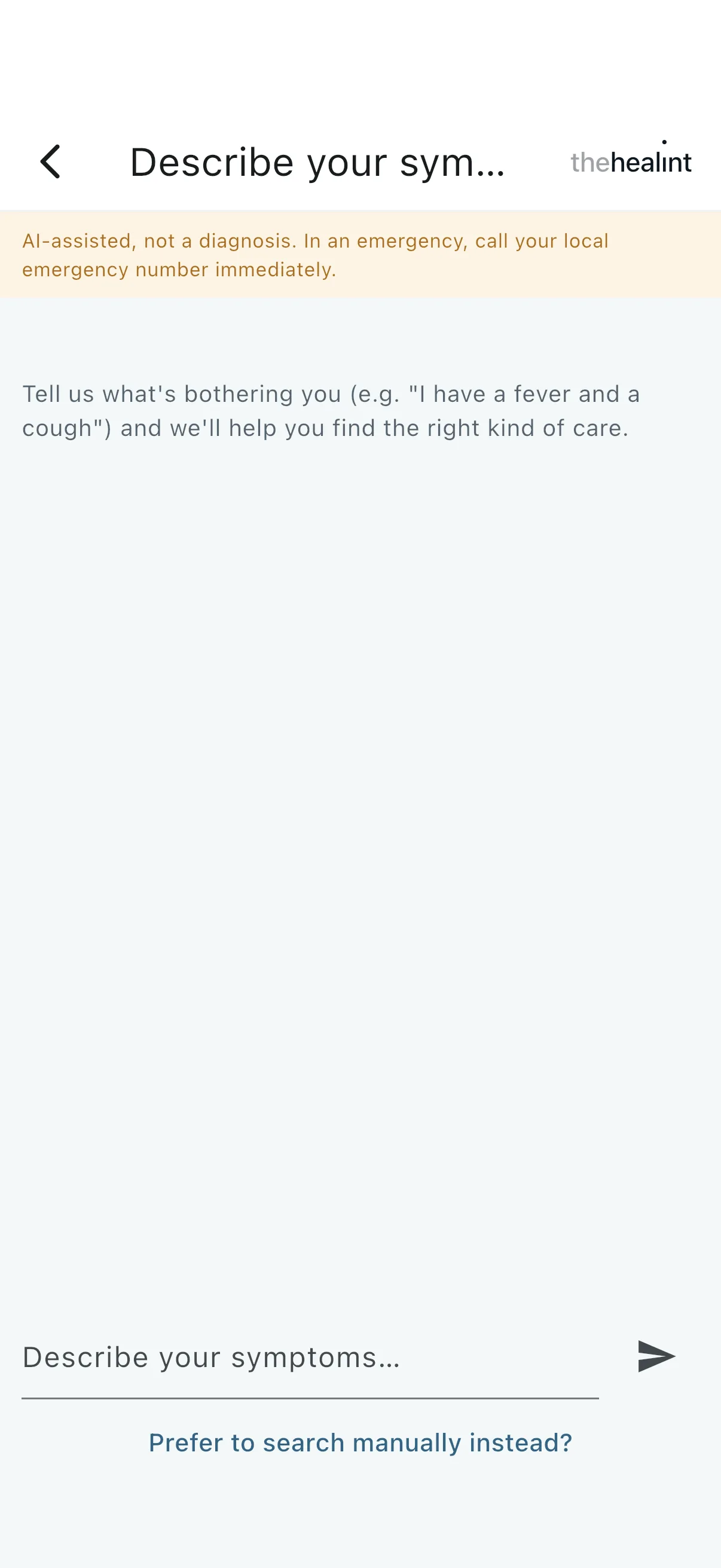
- Home → "Not sure? Describe your symptoms".
- The screen is titled "Describe your symptoms".
- A banner reads "AI-assisted, not a diagnosis. In an emergency, call your local emergency number immediately."
- Type symptoms → send.
- The system calls
POST /api/v1/care-navigation/querywith the message, a session id, and the patient's location if available. - A conversation is limited to 3 turns.
- The system calls
- Possible outcomes:
- Clarifying: the assistant asks a follow-up question.
- Red-flagged: a red emergency card with guidance appears and the conversation ends.
- Completed: a symptom summary, suggested specialties and nearby providers. Tapping a provider opens the branch profile. If none are found: "No nearby providers found for this yet — try manual search."
- AI unavailable: "The AI assistant isn't available right now — please use manual search below to find care."
- "Start over" or "Search manually" when the conversation ends.
The red-flag and knowledge-base content is marked as a synthetic placeholder pending clinician review. Web has no care-navigation page.
11. Privacy and consent (/consent, mobile: Privacy and consent)#
The screen loads
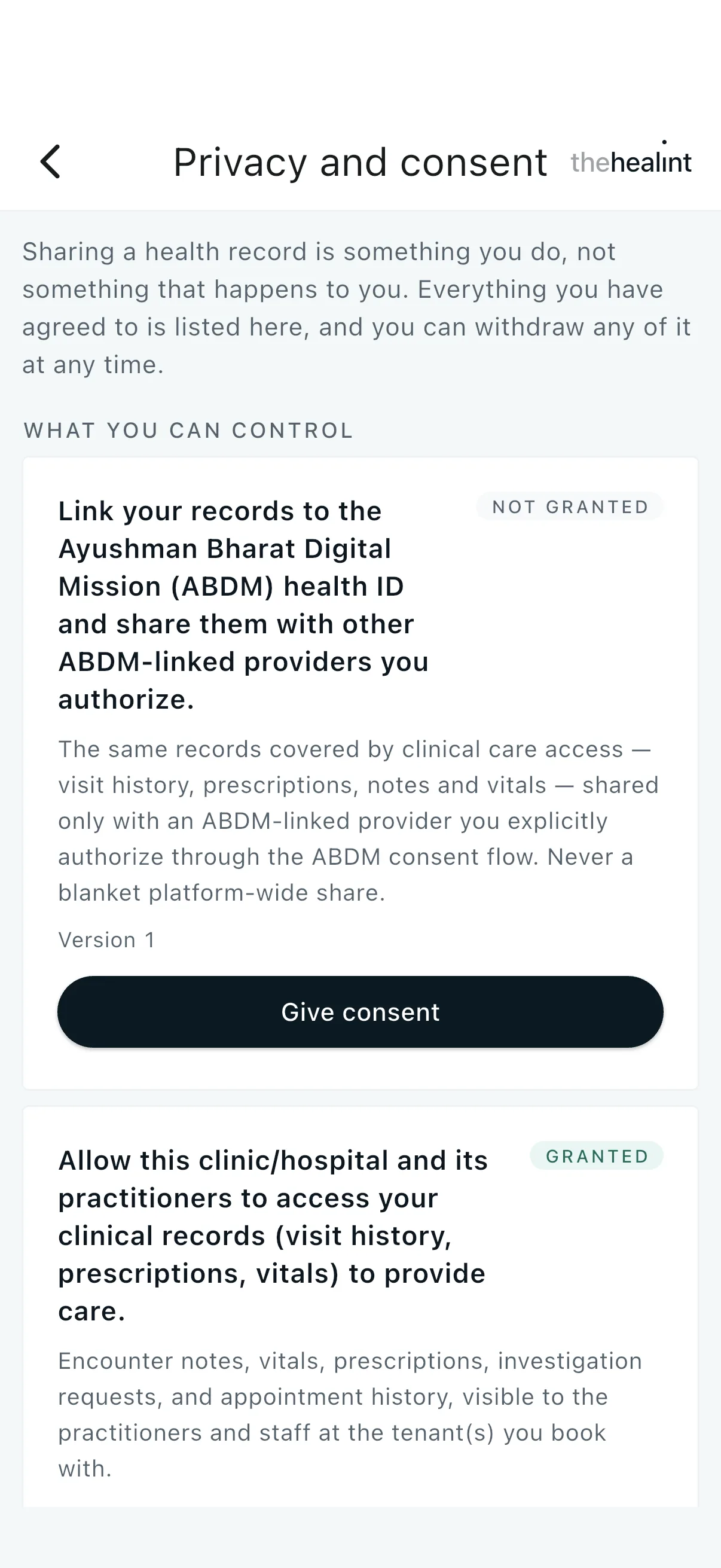
GET /api/v1/consents(what can be consented to) andGET /api/v1/consents/mine(the patient's grants)."What you can control" shows one card per consent. The seeded consents (version 1, placeholder legal text) are:
- clinical data processing
- marketing communications
- ABDM data sharing
Each card shows the purpose, a Granted or Not granted pill, the scope, and "Version N · granted {date}". If a newer version exists it says so.
"Give consent" calls
POST /api/v1/consents/{key}/grant."Withdraw" opens a dialog: "Providers will stop being able to rely on it from now on. This does not delete anything already recorded…", with an optional reason.
- "Withdraw consent" calls
POST /api/v1/consent-grants/{id}/revoke.
- "Withdraw consent" calls
"Previously" lists withdrawn and expired grants: "v1 · granted {date} · withdrawn".
12. Profile, account security and notifications#
Profile (/profile, mobile: Profile)#
- The profile loads from
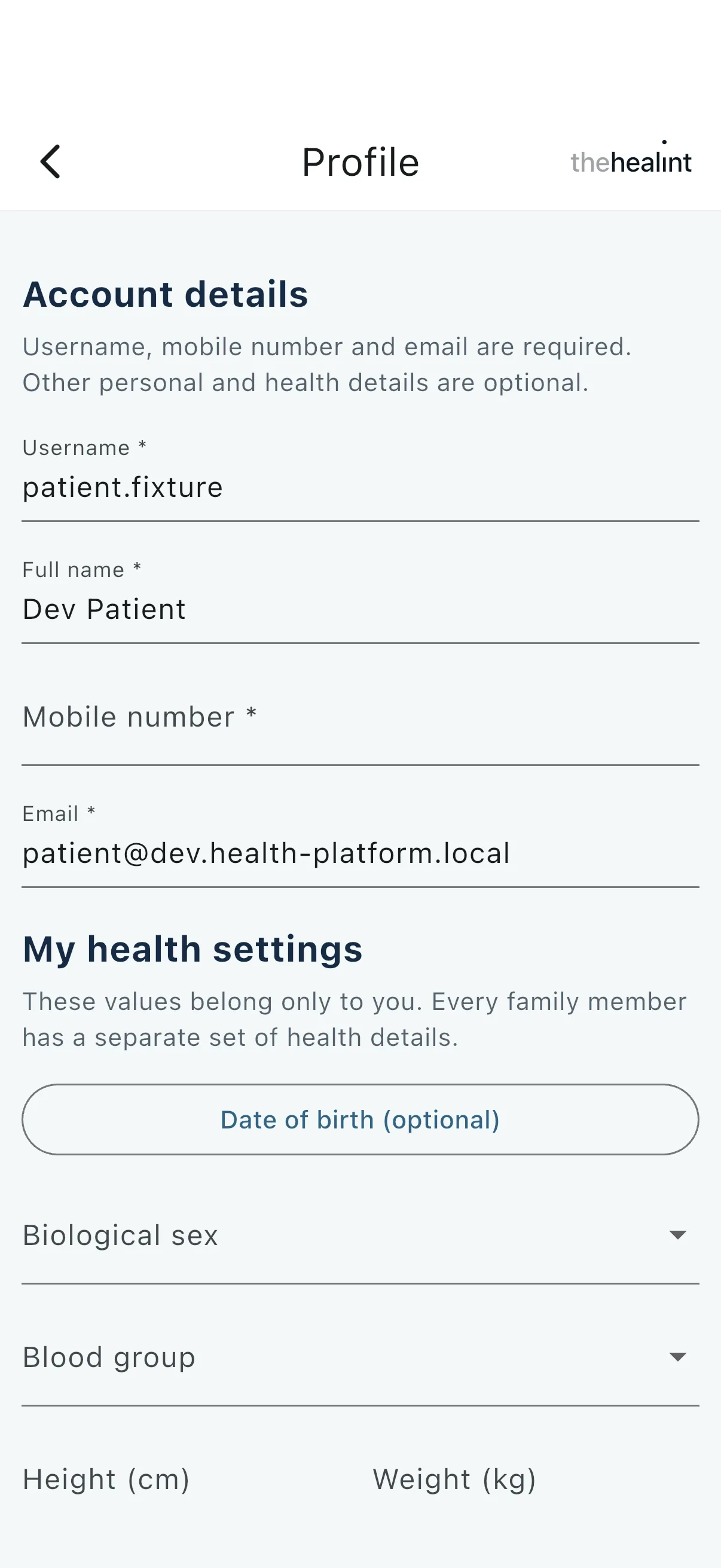
GET /api/v1/me. - Account details: Username, Full name, Mobile number and Email are all required.
- My health settings: Date of birth, Biological sex, Blood group, Height, Weight, Known allergies, Chronic conditions.
- "Save profile" calls
PATCH /api/v1/meand shows "Saved".- On web the button stays disabled until the required fields are valid.
- On mobile an invalid form does nothing, with no message.
- Family profiles shows a summary of each family member and links to Family.
Account security#
- Sign out: the web account menu, or the Sign out button at the bottom of Profile on mobile.
- There is no password change, password reset, two-factor setup, session list, account deletion or data export for patients on either app.
Notifications#
Notifications are email only. The API's notification outbox sends email over SMTP. SMS (MSG91) is blocked on TRAI DLT registration, and push (Firebase) has no project configured; both fail closed. Neither app has an in-app inbox, notification bell or notification preferences.
| Trigger | Email template |
|---|---|
| Booking confirmed | appointment.confirmed — "Appointment confirmed with {doctor}" |
| Appointment cancelled (by patient or clinic) | appointment.cancelled |
| Appointment rescheduled | appointment.rescheduled |
| Consultation completed with medicines | prescription.ready — "Your prescription from {doctor} is ready" |
| Follow-up recommended | encounter.follow_up_reminder (held until the recommended date) |
| Payment received / collected at facility / pay-at-facility confirmed / refunded | payment.captured, payment.collected_at_facility, payment.pay_at_facility_confirmed, payment.refunded |
Permissions & privacy#
- Own records only. Patient endpoints (
/patients/me/*,/booking/appointments/mine,/queue/mine,/reviews/mine,/invoices) are limited to the signed-in profile and their dependents by row-level security. Opening another account's visit shows "We couldn't find this visit". - Pre-visit information (symptoms, medicines, allergies, attachments) can be read by the patient and by the treating doctor only: the doctor the appointment is booked with, or a colleague who opened it as cover with a reason. Other doctors, reception, nurses, billing and clinic admins get a 403 and see "Only the treating doctor can see what the patient shared before the visit."
- Clinical notes written by the doctor are not shown to the patient. The patient sees outcomes only: prescription, orders, reports and invoice.
- Fulfilment sharing needs an explicit consent tick for each order. Only the selected order and contact details go to the chosen verified facility.
- Consent grants and withdrawals are versioned and kept as history.
- Reviews are public with no patient name shown, can be left only after a completed visit, and do not affect search ranking.
- Dependents have no login. All of their data sits under the guardian's account.
Gaps & known limitations#
Sign-in and account
- No one-time-code sign-in, yet the error copy says "If you normally sign in with a code, use that instead" and "That code has expired…". Mobile still contains an unreachable Verify (code) screen.
- No password reset, password change, two-factor setup, account deletion or data export for patients.
- No consent step at sign-up or booking. Consent exists only on the Privacy screen.
- Some raw system values still reach users: care-navigation severity and specialty keys, and the branch type on web. (Fixed on mobile: the debug "API: ok" line is gone, and branch type, timeline record type, invoice status and order status now read in plain words.)
- Mobile profile save fails silently when a required field is invalid. The "Signed in as" name on Home does not update after saving.
Booking and appointments
- No check-in date check on the server or on web. Mobile offers "I've arrived — check in" only on the appointment's day, but web shows Check in on any Confirmed upcoming visit, and the API would place an early check-in in today's queue.
- No cancel or reschedule cutoff on the server, and no policy text in either app.
Mobile offered Reschedule and Cancel too broadly— fixed: only before the visit starts.Mobile Upcoming was decided by status only— fixed: past days move to Past.- "Choose a different time" does not release the hold. The slot stays reserved for up to 10 minutes.
- Booking page details rely on the link (web). Doctor name, clinic and fee come from URL parameters, so opening
/book/[id]directly shows "Doctor" and no fee. - Two status names share one label.
BOOKEDandCONFIRMEDboth show as "Confirmed", and a confirmed booking is stored asBOOKED. - Mobile reschedule hides the server's error message.
Visit and after-visit
- Mobile has no visit page. There is no per-visit prescription, orders, bill, status history, directions, call or Add to calendar.
- No Add to calendar on mobile.
- No in-app payment on either app, even though payment endpoints exist. Invoices are view-only, with no line items (mobile) and no download.
- No prescription PDF or download.
- Pre-visit attachments cannot be uploaded on mobile. Doctors on web cannot see attachments in the consultation screen either; doctor-mobile can.
- Mobile fulfilment:
- No success message after sending.
- No empty-state text when there are no sources or facilities.
- Prescription choices show only "{n} medicines".
- Mobile records:
- An error never clears.
- A failed tab spins forever.
Dates used device time— fixed: India time.
- No delete or share for uploaded documents.
Other
- Care navigation is mobile-only, and its clinical content is a synthetic placeholder.
- It needs
ANTHROPIC_API_KEY; without it every query returns "AI unavailable".
- It needs
- Consent grants are recorded but never enforced. No other module checks them, so withdrawing "clinical data processing" changes nothing about access. ABDM appears only as a consent type; there is no ABDM integration.
- Pre-visit has no edit window. The server accepts edits even after the visit.
- Pre-visit uploads skip checks. They do not go through the malware scan or the file type/size limits that health-record uploads have.
- Some emails send blank doctor and clinic names. Several email payloads leave both fields empty.
- No reminder emails. Nothing goes out before an appointment, when a hold expires, or when the queue calls the patient.
- Email is the only notification channel. SMS and push are built but not configured, and there is no in-app notification centre or preference screen.
- No pull-to-refresh on mobile. Appointment lists reload only after the patient's own actions (the queue card polls every 20 seconds).
Related#
- 02-doctor.md — doctor flows
- 03-front-desk.md — reception, check-in, walk-ins, billing
- 04-clinic-admin.md — clinic administration in ProviderOS
- 05-pharmacy-lab.md — pharmacy and lab fulfilment
- 06-platform-admin.md — platform administration
Region: time zone and currency (added Oct 2026)#
Every time and fee a patient sees belongs to the clinic: the API sends each appointment, search result, branch profile and practitioner affiliation with the clinic's currency and timeZone (the phone apps also receive utcOffsetMinutes, the clinic's offset from UTC at that moment, so they need no time-zone database). Web: clinicSettings(clinic) from @health-platform/ui formats money, dates and times; the booking page receives currency and tz in its link. Mobile: ClinicFormat in mobile_core. "Today", the date strip, the slot grid's morning/afternoon/evening and the check-in rule all use the clinic's calendar. Invoice amounts in Records and the consent and review dates still use the platform default (India) because those payloads do not carry the clinic yet.
Sign-up consent line#
Creating an account (web and app) says it means agreeing to the Terms and Privacy policy, linking to thehealint.com/terms and /privacy. The agreement is stated, not yet recorded per account.
PDF version
The same guide with all its screenshots, to print or share. (2.0 MB)
Download the PDF Open in a new tab
Loading the PDF viewer… If it does not appear, your browser cannot show PDFs inside a page: use Download the PDF.