Pharmacy and diagnostic lab flows
Who this is for#
This document covers the people who fill prescriptions and run lab tests on thehealint. There are four roles:
- Pharmacy admin (
PHARMACY_ADMIN). Runs an independent pharmacy organization. - Lab admin (
LAB_ADMIN). Runs an independent diagnostic laboratory. - Pharmacist (
PHARMACIST). A registered professional who accepts and dispenses prescription orders. - Lab technician (
LAB_TECHNICIAN). A lab professional who collects samples and releases reports.
Clinic and hospital admins (CLINIC_ADMIN, HOSPITAL_ADMIN, FACILITY_MANAGER) can also run an in-house pharmacy or lab through the same screens. This document follows an order from end to end: a doctor issues a prescription or investigation, the patient sends it to a verified facility, the facility fulfils it, and the patient sees the result. It is written for product, QA and new team members.
Where they work#
| Surface | Who uses it | What it is for |
|---|---|---|
ProviderOS web, Pharmacy (/fulfillment/pharmacy) | Pharmacist; Pharmacy admin also has Settings; clinic and hospital admins and facility managers use Fulfilment | Working orders and submitting one's own credential; owners also register facilities and upload licences |
ProviderOS web, Diagnostics (/fulfillment/diagnostics) | Lab technician; Lab admin also has Settings; clinic and hospital admins and facility managers use Fulfilment | The same, for labs |
| User mobile app, staff workspace, Pharmacy & labs tab | Pharmacists and lab technicians | Working assigned orders only |
| ProviderOS mobile, Pharmacy & labs tab | Pharmacy and lab admins (and clinic admins) | Working assigned orders only |
User web, Pharmacy & labs (/fulfillment), and the patient mobile app | Patients | Sending a prescription or investigation to a facility, and tracking the order |
Admin web, Pharmacy & labs (/fulfillment) | Platform admin | Verifying facilities and professional credentials |
ProviderOS now admits every staff role and shows each only its own work (
apps/provider-web/src/lib/access.ts). A Pharmacist gets Pharmacy and a Lab technician gets Diagnostics. Their facility admin gets the same work item plus Settings; within Settings they see only Staff and Security. Anything outside those areas shows "Not part of your role". Pharmacists and lab technicians see the orders and their own credential, but not Register pharmacy / Register lab, Orders sent to external partners, or Staff management. On User web these accounts see "Your work is in ProviderOS" with Open ProviderOS.
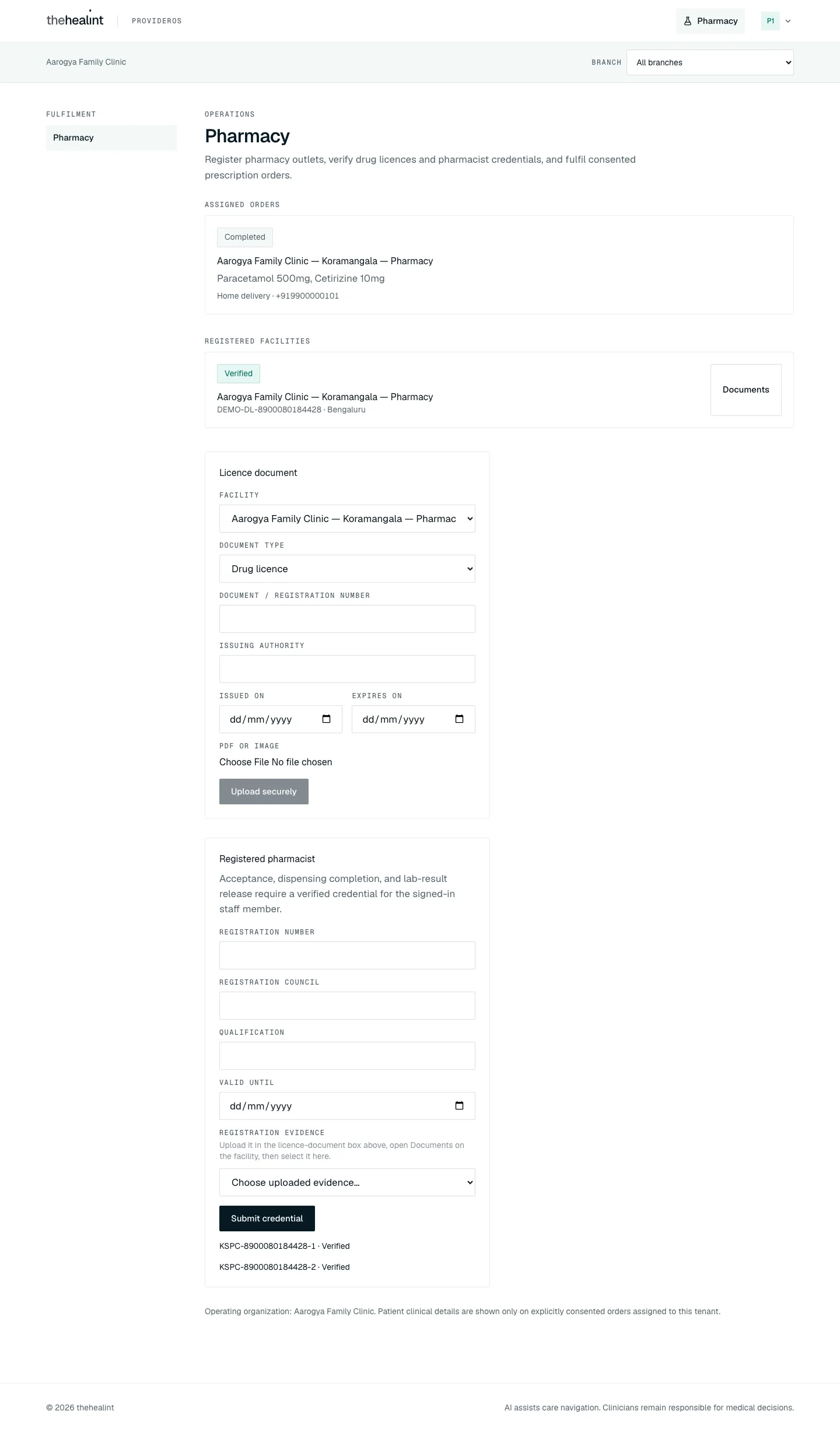
At a glance#
| Journey | Where | Outcome |
|---|---|---|
| 1. Set up a pharmacy or lab organization | ProviderOS → onboarding | A tenant of type "Independent pharmacy" or "Diagnostic laboratory" exists, and the creator is its PHARMACY_ADMIN or LAB_ADMIN |
| 1A. Add facility staff | ProviderOS → Settings → Staff | A pharmacy admin invites a PHARMACIST, or a lab admin invites a LAB_TECHNICIAN, for that tenant only |
| 2. Register a facility | ProviderOS → Fulfilment → Pharmacy or Diagnostics → Register pharmacy / Register lab | The facility is saved with status Draft |
| 3. Upload a licence and submit for review | Same page → Licence document, then Submit for review | The facility moves to Awaiting review |
| 4. Submit a professional credential | Same page → Registered pharmacist / Laboratory signatory / technician | The credential has status Awaiting review |
| 5. Platform verifies the facility and credential | Admin web → Pharmacy & labs | Status becomes Verified, Rejected or Suspended, with a note in the audit trail |
| 6. Prescription or investigation becomes an order | Doctor's consultation, then the patient's Pharmacy & labs page | An order with status Requested reaches the chosen verified facility |
| 7. Work a pharmacy order | ProviderOS Assigned orders, or the mobile Pharmacy & labs tab | Requested → Accepted → Ready for pickup or Out for delivery → Completed |
| 8. Work a lab order and release the report | Same | Requested → Accepted → Sample collected → Results ready |
| 9. Patient sees the result | User web: visit detail and Health records | The report opens from a short-lived signed link |
| 10. Ordering clinic tracks external orders | ProviderOS → Orders sent to external partners | Read-only status, plus Open delivered report |
Journey 1: Set up a pharmacy or lab organization#
- ProviderOS sign-in → sign in. ProviderOS uses the same email/password sign-in and authenticator-app (TOTP) check as other ProviderOS admins (see 04-clinic-admin.md).
- "Set up your organization" (Step 1 of onboarding) → choose an Organization type. The options are Individual doctor, Clinic, Hospital, Chain, Independent pharmacy or Diagnostic laboratory. Enter the Legal name, Display name and Slug, then click Create organization.
- What the system does.
POST /api/v1/tenantscreates the tenant. The creator becomes its founding admin:PHARMACY_ADMINfor a pharmacy,LAB_ADMINfor a lab. - What the user sees next. A Pharmacy admin lands on Pharmacy (a Lab admin on Diagnostics) and also gets Settings. Settings is deliberately narrow: Staff and Security, not clinic configuration such as branches, departments, practitioners, documents, covering access or Plan.
- While saving, the button reads "Creating…". If validation fails or the server returns an error, the error appears under the form ("Could not create your organization.").
A clinic or hospital does not need a separate organization for an in-house pharmacy or lab. Its admins register the facility under their own organization (Journey 2). The facility can be linked to a branch.
Journey 1A: Add facility staff#
- Settings → Staff.
PHARMACY_ADMINandLAB_ADMINreceive the narrowstaff.manage_facilitypermission. The API then resolves the caller's current active membership and tenant type from the database; a stale or mismatched JWT role is not enough. - Role boundary. A pharmacy admin's role selector contains only Pharmacist; a lab admin's contains only Lab technician.
POST /api/v1/staffperforms this check before creating an Auth account or invitation link. Clinic and hospital admins keep the full tenant-assignable role list. - Tenant boundary. Every list, invite and membership change runs in the caller's tenant transaction under RLS. The admin cannot name another tenant or facility in the request.
- Invitation. A successful add creates/reactivates the tenant membership and queues
staff.invitedin the same database transaction. The person follows the set-password link, then the refreshed token carries only their tenant role: Pharmacy forPHARMACIST, Diagnostics forLAB_TECHNICIAN. - Later changes. Resend invitation, Suspend, Reactivate and Remove apply only to the matching role. Attempts to add or change a doctor, clinic role or the other facility type return 403 before any external Auth mutation.
Journey 2: Register a facility#
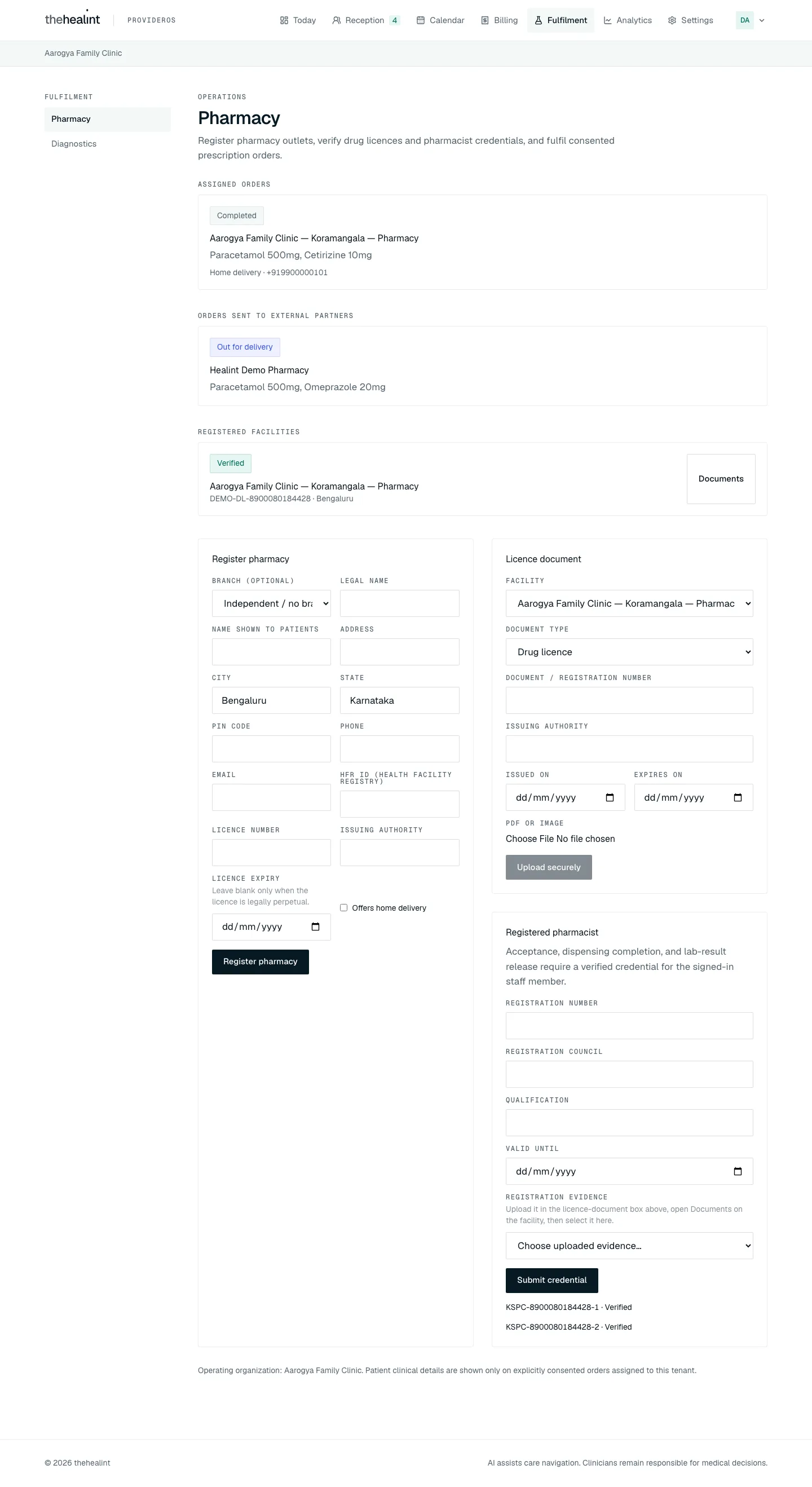
- ProviderOS → Fulfilment.
/fulfillmentredirects to Pharmacy. A side menu switches between Pharmacy and Diagnostics — for accounts that have both; a pharmacist sees only Pharmacy and a lab technician only Diagnostics. Both pages share one layout, and each shows only its own kind of facility, document and order.- While loading: "Loading pharmacy operations…" (or "Loading diagnostics operations…").
- If loading fails: an error banner reading "Could not load fulfilment operations.", and the lists show as empty.
- Register pharmacy / Register lab card → fill the form. Fields:
- Branch (optional). The default is "Independent / no branch".
- Legal name.
- Name shown to patients.
- Address.
- City (defaults to Bengaluru) and State (defaults to Karnataka).
- PIN code (6 digits).
- Phone.
- Email.
- HFR ID (Health Facility Registry).
- Licence number and Issuing authority.
- Licence expiry. Hint: "Leave blank only when the licence is legally perpetual."
- A checkbox: Offers home delivery (pharmacy) or Offers home collection (lab).
- Click Register pharmacy / Register lab.
POST /api/v1/fulfillment/facilitiessaves the facility. It always supports on-site service (pickup or walk-in); home service follows the checkbox. If a branch is chosen, the server checks that the branch belongs to this organization. - What the user sees next. The form clears. The facility appears under Registered facilities with the pill Draft, the display name, and "licence number · city".
- Validation errors appear in the page banner, for example "Enter a 6-digit Indian PIN code." or "Enter a valid phone number.". If the server error has no message: "Could not register facility."
- With no facilities, the empty state reads "No pharmacy registered" or "No diagnostic lab registered".
Journey 3: Upload a licence and submit for review#
- Licence document card → choose Facility and Document type.
- Pharmacy document types: Drug licence (default), HFR proof, Pharmacist registration, Other.
- Lab document types: Clinical establishment registration (default), NABL certificate, HFR proof, Lab professional registration, Other.
- Fill the remaining fields and choose a file. Fields: Document / registration number, Issuing authority, Issued on, Expires on, and a PDF or image file. Upload securely stays disabled until a facility and a file are chosen. For every type except Other, the number and issuing authority are also required.
- What the system does.
POST /api/v1/fulfillment/facilities/:id/documents:- Accepts only PDF, JPEG, PNG and WebP, up to 10 MiB.
- Checks that the file's contents match its declared type.
- Runs a malware scan.
- Stores the file in private object storage and records a SHA-256 checksum.
- Errors: "Only PDF, JPEG, PNG and WebP files are accepted.", "The uploaded file exceeds the 10 MiB limit.", "The file contents do not match the declared PDF or image type."
- What the user sees next. The form clears. To see uploaded files, click Documents on the facility card. It lists each file as "Document type · file name". There is no download, replace or delete action here.
- Click Submit for review on the facility card. The button appears only while the status is Draft or Rejected.
POST /api/v1/fulfillment/facilities/:id/submitrequires the core licence for that kind: a Drug licence for a pharmacy, or a Clinical establishment registration for a lab.- If it is missing, the banner reads, for example, "Upload the required drug licence before submitting."
- On success, the pill changes to Awaiting review.
Journey 4: Submit a professional credential#
The card is headed Registered pharmacist or Laboratory signatory / technician. Its explanation reads: "Acceptance, dispensing completion, and lab-result release require a verified credential for the signed-in staff member."
- Upload the registration evidence first. In the Licence document card, upload a file of type Pharmacist registration or Lab professional registration.
- Make the evidence selectable. Open Documents on that facility. The Registration evidence dropdown only lists evidence from facilities whose documents are currently open. The hint explains this.
- Fill the credential and click Submit credential. Fields: Registration number, Registration council, Qualification, Valid until, and Registration evidence.
POST /api/v1/fulfillment/credentialssaves the credential for the signed-in person with status Awaiting review.- If you resubmit the same registration number, the record is updated and goes back to Awaiting review.
- If the evidence is the wrong type: "Upload and select a pharmacist registration document." (or the lab equivalent).
- What the user sees next. Under the button, a line per credential reads "registration number · status", for example "KSPC-… · Verified".
The credential always belongs to whoever is signed in. An admin cannot submit a credential for a pharmacist on their staff; each pharmacist or lab technician now submits their own from this card in ProviderOS.
Journey 5: Platform verification of facilities and credentials#
This journey is done by the platform admin in admin web. It is listed here because it controls everything that follows. See 06-platform-admin.md for the admin's side.
Screenshots of the admin's Pharmacy & lab verification page and its Suspend dialog are in 06-platform-admin.md, Journey 5.
- Admin web → Pharmacy & labs (Trust & safety, "Pharmacy & lab verification"). The page has two lists, Facility licences and Professional credentials. Items waiting for review are sorted first.
- Click Evidence. On a facility, this lists every uploaded document with its type, number, issuer, expiry and file name, plus an Open button. If nothing is uploaded, it reads "No evidence uploaded. Do not verify." Open fetches a signed link valid for 5 minutes, and the download is recorded in the audit log.
- Click Verify or Reject (shown only for Awaiting review), or Suspend (shown only for Verified). A confirmation dialog explains what the decision does. It requires a Note for the audit trail of at least 3 characters.
- What the system does.
PATCH /api/v1/admin/fulfillment/facilities/:id/review(or.../credentials/:id/review) changes the status and records an event: from-status, to-status, reviewer and note.- Verify is refused unless the item is awaiting review and the required evidence is current: the licence document for a facility, or the matching registration document for a credential, and neither may be expired.
- The error reads: "The facility must be submitted with current required licence evidence before verification."
- Effect on the operator.
- A Verified facility appears in patient search and can receive new orders.
- Rejected keeps it hidden, and the operator can correct it and click Submit for review again.
- Suspended removes it from search immediately. Existing orders continue.
- A Verified credential lets that person accept orders, complete dispensing and release results.
- The operator sees the new pill the next time ProviderOS loads. No notification is sent, and the reviewer's note is not shown to the operator.
Journey 6: How a doctor's prescription or investigation becomes an order#
Orders are not created automatically when the doctor finishes a consultation. The patient places them, with explicit consent.
Doctor → Consultation → Prescription and Investigations sections → Complete consultation. This is the ProviderOS consultation screen (
/consultations/[appointmentId]); see 02-doctor.md. The doctor adds medicines (Add medicine) and tests (Add investigation, which needs a Test name and optional Instructions). Then they confirm "Complete this consultation?".- In one transaction, the system saves the prescription and its items, creates one investigation request per test, adds a Prescription entry to the patient's health record, and queues a
prescription.readyemail to the patient. - No notification is sent for investigations.
- In one transaction, the system saves the prescription and its items, creates one investigation request per test, adds a Prescription entry to the patient's health record, and queues a
Patient → visit detail (
/appointments/[id]). The Prescription card lists the medicines and shows Order these medicines, which links to/fulfillment.Patient → Pharmacy & labs (
/fulfillment), "Pharmacy & diagnostic orders". Lead text: "Choose the hospital's own facility or another verified pharmacy or lab. Nothing is shared until you explicitly consent."- The patient switches between Pharmacy and Diagnostic lab.
- The Prescription or Investigation list comes from
GET /api/v1/patients/me/fulfillment-sources. It includes prescriptions and investigations for the patient and their family members. - If there are none: "No prescriptions available" (or "No investigations available"), with the hint "A clinician must issue one during a completed consultation first."
Patient picks where to send it.
- Send to: "Hospital / clinic's own pharmacy (lab)" or "Another verified pharmacy (lab)".
- Facility: only Verified facilities, from
GET /api/v1/fulfillment/facilities. The prescribing organization's own facilities are listed first. - Service: Pick up or Home delivery for a pharmacy; Visit lab or Home sample collection for a lab. Choosing a home service shows a Home address field.
- Contact phone: pre-filled from the patient's profile.
- Consent: a checkbox reading "I authorize thehealint to share only this selected clinical order and the contact details needed for fulfilment with the selected verified facility."
Patient clicks Send order securely. The button reads "Sending…" while working.
POST /api/v1/patients/me/fulfillment-orders(idempotent) checks that:- The facility is verified and of the right kind, and offers the chosen service mode ("This facility does not offer home service.").
- The prescription or investigation belongs to this patient, encounter and family member.
- Home delivery is only allowed for prescriptions issued in the last 7 days.
- All investigations in one order come from the same provider.
The system then copies the medicine or test names into the order and stores the consent statement and version (
fulfillment-v1). It labels the order Hospital-owned (the facility belongs to the prescribing organization) or External verified facility, and logs the first event, "Patient consented and placed the order."What the patient sees next. The order appears under Your orders with the pill Requested, a Pharmacy or Diagnostics tag, the facility, the items, and "Hospital-owned / External verified facility · service". A Cancel button is shown while the order is Requested or Accepted.
- If there are no orders: "No fulfilment orders yet", with the hint "Orders you send will appear here with live status." The page does not update itself live; it refreshes only when it is reloaded.
Screenshots of the patient's Pharmacy & labs page (web and iPhone) are in 01-patient.md, section 8.2.
The patient web page sends one investigation per order, even though the API accepts several from the same provider.
Journey 7: Work a pharmacy order#
- ProviderOS → Fulfilment → Pharmacy → Assigned orders. This lists orders sent to any of this organization's facilities (
GET /api/v1/fulfillment/orders/assigned?kind=PHARMACY). Each card shows the status pill, facility, items, service mode and the patient's contact phone. The patient's name is not shown.- If there are none: "No orders assigned", with the hint "Patient-consented orders sent to one of your verified facilities will appear here."
- On iPhone (the User app's staff workspace for pharmacists and lab technicians, or ProviderOS mobile for admins), the Pharmacy & labs tab ("CONSENTED ORDERS") shows the same orders for both kinds together, with "No assigned pharmacy or lab orders." when empty.
- Requested → Accept or Decline.
PATCH /api/v1/fulfillment/orders/:id/status(idempotent).- Accept requires the signed-in person to hold a current, Verified pharmacist credential at this organization. Without one, the error reads "A current, platform-verified professional credential is required for this action."
- Decline needs no credential.
- Accepted → Mark ready. This moves the order to Out for delivery if the patient chose home delivery, otherwise to Ready for pickup.
- Ready for pickup / Out for delivery → Complete. Completing also needs a verified credential. The order is now Completed.
- After each action, the list reloads. Every change is logged with from-status, to-status and actor. Invalid moves are refused, for example "Cannot move an order from REQUESTED to COMPLETED.". In the web UI, all errors show as "Could not update order." or the server's message.
- Patient side. The patient sees the new pill the next time Pharmacy & labs or the visit page loads. No message is sent to the patient.
Journey 8: Work a lab order and release the report#
ProviderOS → Fulfilment → Diagnostics → Assigned orders. This page has the same card layout as the pharmacy page.
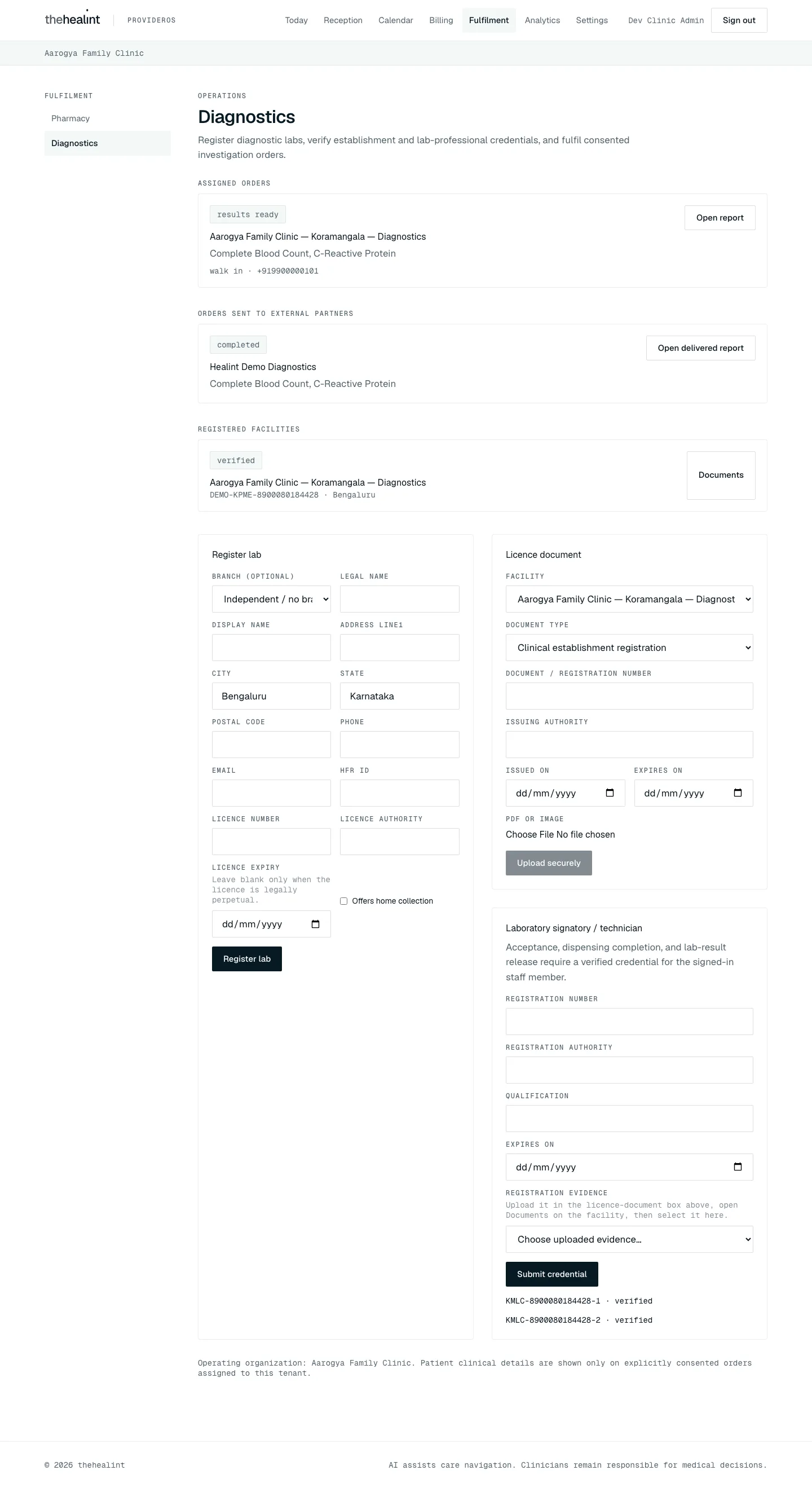
ProviderOS (desktop, older capture from before/, as there is noafter/shot of Diagnostics) — Fulfilment → Diagnostics: an assigned order at "results ready" with Open report, an external order with Open delivered report, the Register lab, Licence document and Laboratory signatory / technician cards. Pills here are the old lowercase raw words; the current build uses the sentence-case pills shown on the Pharmacy page.Requested → Accept or Decline. Accepting needs a verified lab-professional credential.
Accepted (or Scheduled) → Sample collected.
Accepted, Scheduled or Sample collected → release the report. The card shows a Signed report (PDF/image) file picker and a Release report button.
POST /api/v1/fulfillment/orders/:id/resultruns the same file checks as licence uploads, including the malware scan. It requires a verified lab credential: "A current, platform-verified laboratory credential is required to release a report."- In one transaction, it files the report in the patient's health locker as a Lab report document titled "Diagnostic report", adds a Document entry to the patient's timeline, sets the order to Results ready, and logs "Diagnostic report released to the patient health locker."
- On mobile, Release report opens the device file picker.
Results ready → Open report. The lab can reopen the file through a 5-minute signed link (
GET /api/v1/fulfillment/orders/:id/result-url). Every open is audited.
The API also allows Scheduled (with a scheduled time), a quoted amount, a note, and Results ready → Completed. No screen offers these, so lab orders end at Results ready in practice. Facilities also cannot cancel from the UI.
Journey 9: How the patient sees the result#
- Patient → Appointments → visit detail. The Pharmacy & lab orders card lists orders for that visit, with the status pill. When a report exists, it shows a View report link to the report page (
/records/reports/[documentId]). - Patient → Health records (
/records).- The Timeline tab shows a new entry headed "DOCUMENT", titled "Diagnostic report", with the date.
- The Documents tab lists the file as "Lab report · date" with View report.
- Patient → Pharmacy & labs. The order pill reads Results ready, with a View report button.
- The report page shows the file inside the page, with Download and Open in new tab, an "About this report" card (tests, lab, ordered, scheduled, released, for whom, file), the lab order and the visit it was requested at. A screenshot is in 01-patient.md, section 9.
- Notifications. None. The patient finds out by opening the app.
Journey 10: The ordering clinic tracks external orders#
- ProviderOS → Fulfilment → Pharmacy or Diagnostics → Orders sent to external partners. This lists orders whose clinical source (the prescription or investigation) came from this organization but which went to another organization's facility (
GET /api/v1/fulfillment/orders/source). Orders to the clinic's own facilities are left out.- If there are none: "No external orders", with the hint "Patient-consented prescriptions and lab requests sent outside this organization appear here."
- Read-only cards. Each shows the status, facility and items. When an external lab has released a report, Open delivered report opens it through the same audited, 5-minute signed link.
Status reference (as shown in the UI)#
| Order status | Pill | Who moves it there |
|---|---|---|
| Requested | Requested (amber) | Patient, when placing the order |
| Accepted | Accepted | Facility (needs a verified credential) |
| Declined | Declined (red) | Facility |
| Ready for pickup | Ready for pickup (green) | Pharmacy, Mark ready |
| Out for delivery | Out for delivery | Pharmacy, Mark ready on a home-delivery order |
| Scheduled | Scheduled | Facility, through the API only (seed data uses it) |
| Sample collected | Sample collected | Lab |
| Results ready | Results ready (green) | Lab, Release report (needs a verified credential) |
| Completed | Completed (grey) | Pharmacy, Complete (needs a verified credential) |
| Cancelled | Cancelled (grey) | Patient (while Requested or Accepted); the facility through the API only |
| Facility or credential status | Pill |
|---|---|
| Draft | Draft |
| Submitted | Awaiting review |
| Verified | Verified |
| Rejected | Rejected |
| Suspended | Suspended |
The mobile staff tab shows raw status words, for example "SAMPLE COLLECTED", instead of these pills.
Role × capability#
| Capability | Pharmacy admin / Lab admin | Clinic admin / Hospital admin / Facility manager | Pharmacist / Lab technician | Patient | Platform admin | Platform support |
|---|---|---|---|---|---|---|
| Create a pharmacy or lab organization | Yes (becomes the founding admin) | Yes, as any organization type | No | No | No | No |
| Open ProviderOS web | Yes: Pharmacy or Diagnostics, plus Settings → Staff/Security | Yes: everything under Fulfilment | Yes: Pharmacy or Diagnostics only | No | No | No |
| Register a facility | Yes (ProviderOS) | Yes (ProviderOS) | Allowed by the API; card hidden | No | Allowed by the API | No |
| Upload licence documents, submit for review | Yes (ProviderOS) | Yes (ProviderOS) | Yes: the Licence document card and Submit for review are shown | No | Allowed by the API | No |
| Submit own professional credential | Yes (ProviderOS) | Yes (ProviderOS) | Yes (ProviderOS) | No | — | No |
| See assigned orders | Yes | Yes | Yes (ProviderOS and the User app) | Own orders only | — | No |
| See orders sent to external partners | Yes | Yes | No (hidden) | No | — | No |
| Add pharmacists or lab technicians to the organization | Yes, matching role in own tenant only (staff.manage_facility) | Clinic / Hospital admin can add either (Settings → Staff) | No | No | No | No |
| Accept, complete, release report | Only with own verified credential | Only with own verified credential | Only with own verified credential | No | — | No |
| Decline, mark ready, sample collected | Yes | Yes | Yes | No | — | No |
| Place or cancel an order | No | No | No | Yes | No | No |
| Verify, reject or suspend facilities and credentials | No | No | No | No | Yes (fulfillment.verify) | No |
All of the provider roles above, and PLATFORM_ADMIN, hold the fulfillment.manage permission. Only PLATFORM_ADMIN holds fulfillment.verify. Facility admins additionally hold the narrower staff.manage_facility, granted by 20261106000001_facility_staff_management.sql; the API restricts its assignable role by active membership plus tenant type.
Permissions & privacy#
- Consent before sharing. Nothing is shared with a facility until the patient ticks the consent box. The exact consent wording, its version (
fulfillment-v1) and the time are stored on the order and cannot be changed later. A database trigger blocks any edit to the order's patient, source, facility, contact details or consent. - Only verified facilities receive orders. Patients can only see and order from Verified facilities. Unverified facilities are visible only to their own organization and to platform admins.
- Database-level access control. Order data is protected by row-level security. Only three parties can read an order: the patient, the destination organization, and the source (ordering) organization. Status changes are checked twice, once in the API and once by a database trigger that enforces who may make which transition and the credential requirement.
- Credential gate. Accepting an order, completing it, and releasing a result all require a current, platform-verified credential for the person doing it. Expired credentials do not count.
- Minimal patient detail for the facility. The facility sees the item names, service mode, contact phone and, for home service, the address. ProviderOS shows no patient name.
- File handling. Uploads are type-checked by content, size-limited to 10 MiB, malware-scanned, checksummed and stored privately. Downloads always go through 5-minute signed links, and every download is recorded in the audit log (
RECORD_DOWNLOADED). - Auditing. Every create, upload, submit, status change and review is audited (
RECORD_EDITED). Verification decisions also keep the reviewer's note.
Gaps & known limitations#
Pharmacists and lab technicians had no web workspace— fixed: ProviderOS gives them Pharmacy or Diagnostics.Staff could not submit their own credentials— fixed: the Registered pharmacist / Laboratory signatory card is on their page.Independent pharmacies and labs could not add staff— fixed: their admins have Settings → Staff with only Pharmacist or Lab technician for their own tenant.- Pharmacy and lab admins have no Today or clinic settings. Their Settings menu contains Staff and Security only, so organization verification documents and marketplace publishing remain unavailable for these tenant types.
The Fulfilment side menu ignored the role— fixed: it lists only the kinds the account works with.- No notifications anywhere in fulfilment. Nobody is notified of a new order, a status change, a released report, or a facility or credential decision. (Organization verification decisions are now emailed; see 06-platform-admin.md, Journey 4.)
- Rejection and suspension notes are not shown to the operator. The operator only sees the new pill.
- Suspended facilities have no way back. ProviderOS offers Submit for review only for Draft and Rejected, and the admin UI has no un-suspend action. Facility details cannot be edited after creation, and documents cannot be deleted or replaced.
- The lab lifecycle is incomplete in the UI. There is no control for Scheduled, scheduling time, quoted amount, notes, facility cancellation, or Results ready → Completed. Lab orders stay at Results ready.
The patient's Pharmacy & labs page had no link to the report— fixed: View report opens the report page. The timeline label still reads "DOCUMENT".- No live updates. The order lists for patients and facilities only refresh on reload or after the user's own action.
- The patient web page sends one investigation per order, even though the API supports several.
- The credential evidence picker is awkward. Evidence only appears after opening Documents on the right facility.
- The mobile staff tab is not split by kind. It shows raw status words, and it offers Release report before a sample has been collected (which the API allows).
- Demo credentials doc may be out of date.
docs/DEMO_CREDENTIALS.mdsays pharmacist and lab-tech accounts use "ProviderOS web / APK". Web now works; the standalone ProviderOS mobile APK still turns them away (they use the User app on iPhone). The ProviderOS menu ignored organization type— the menu now follows the role, so pharmacy and lab roles no longer see Reception, Calendar or Patients.
Related#
- 01-patient.md: the patient's booking, visit and records journeys.
- 02-doctor.md: consultation, prescription and investigations.
- 03-front-desk.md: reception and the staff queue.
- 04-clinic-admin.md: ProviderOS onboarding, sign-in and MFA.
- 06-platform-admin.md: facility and credential verification from the admin side.
Registering many facilities from a spreadsheet (added Oct 2026)#
Fulfilment → Add from a spreadsheet (POST /api/v1/fulfillment/facilities/import/preview and /import, permission fulfillment.manage): one line per pharmacy or diagnostic lab (kind, legal and display names, address, postal_code, phone, licence_number, licence_authority, optional licence_expires_on, email, hfr_id, supports_pickup, supports_home_service, branch). The preview marks each line Will be applied, Nothing to do (same kind and licence number already registered by this organization) or Needs fixing with the reason. Applying registers drafts only (verification_status DRAFT); the licence document upload and "submit for review" still happen per facility, and a platform administrator still verifies. Idempotent by key; audited.
PDF version
The same guide with all its screenshots, to print or share. (0.5 MB)
Download the PDF Open in a new tab
Loading the PDF viewer… If it does not appear, your browser cannot show PDFs inside a page: use Download the PDF.